Getting started with AI Topics
AI Topics automatically identifies the most common reasons customers contact your team, so you can see which issues are driving your support volume without reading through conversations one by one.
Once you enable AI Topics, Hiver AI analyzes the conversations, identifies the intent behind each request, groups similar ones into topics and subtopics, and generates a detailed report. For example, billing-related conversations may be grouped under a topic like “Billing and invoice queries”, with subtopics such as refund requests, failed payments, and invoice queries.
The AI Topics report gives you visibility into the overall CSAT, sentiment, and resolution time for each topic, so you can easily identify issues that need attention.
This article explains how to set up AI Topics for a Shared Inbox.
Before you begin
You need admin access in Hiver to set up AI Topics.
Setting up AI Topics
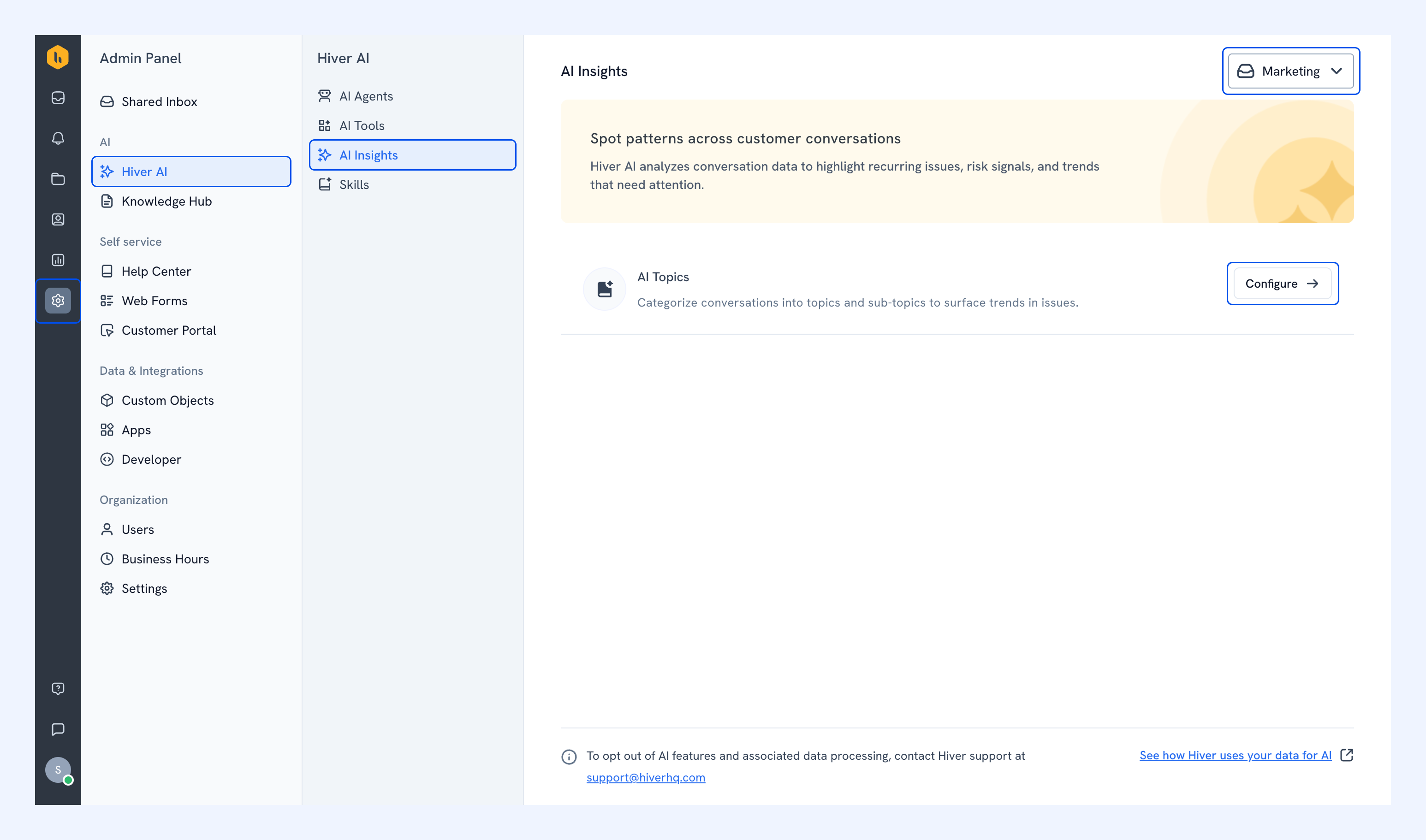
1. Go to Admin Panel → Hiver AI → AI Insights.
2. Select a Shared Inbox, then click Configure on AI Topics.
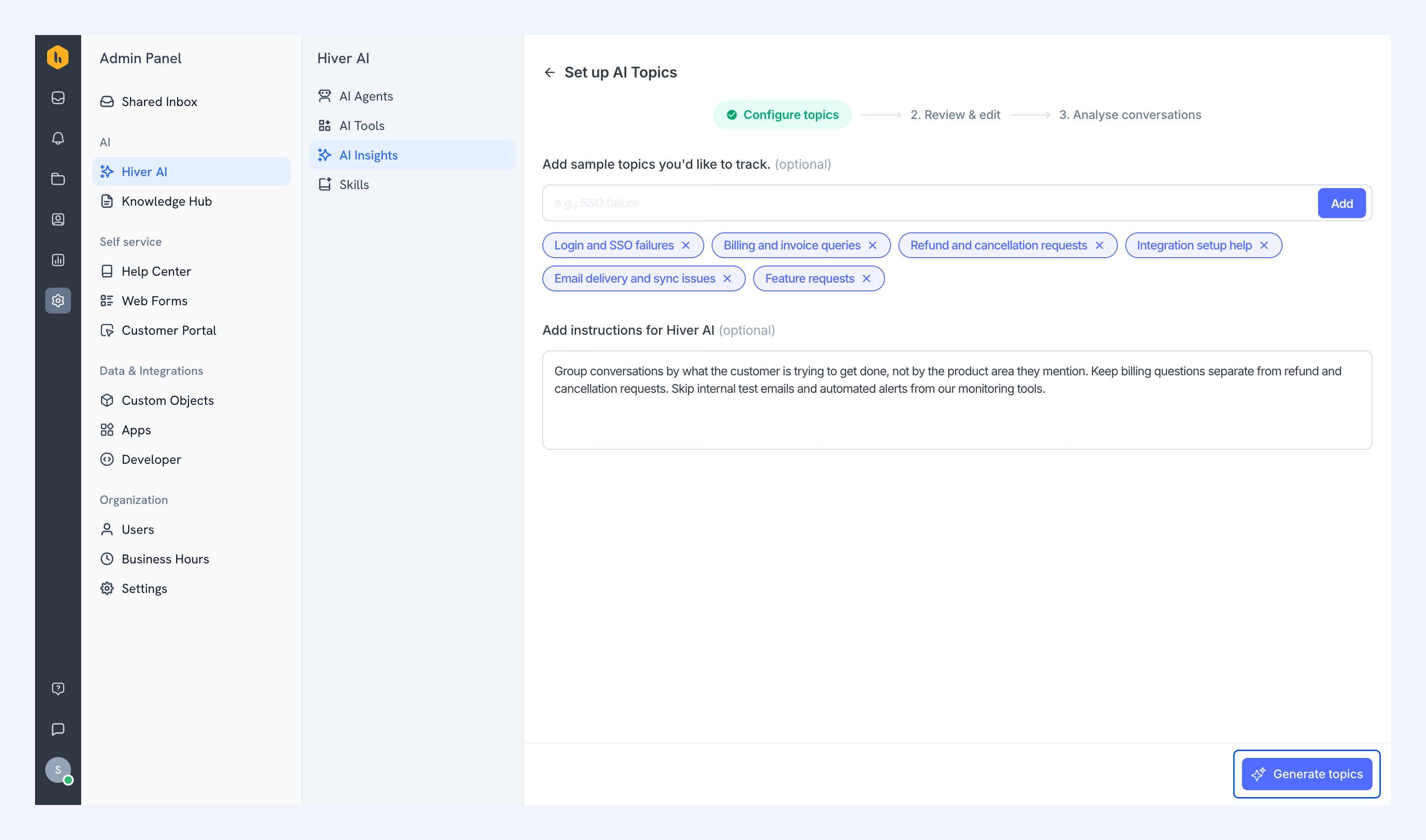
3. Tell Hiver AI what to look for.
- Add sample topics you'd like to track: Enter a few topics that matter to your team, such as Login and SSO failures or Billing and invoice queries. These examples help Hiver AI understand the kinds of topics you want to see.
- Add instructions for Hiver AI: Describe how you want Hiver AI to group conversations or what it should exclude. For example, you can ask for conversations to be grouped by the customer’s goal rather than the product area they mention, or exclude internal test emails and automated alerts.
4. Click Generate topics.
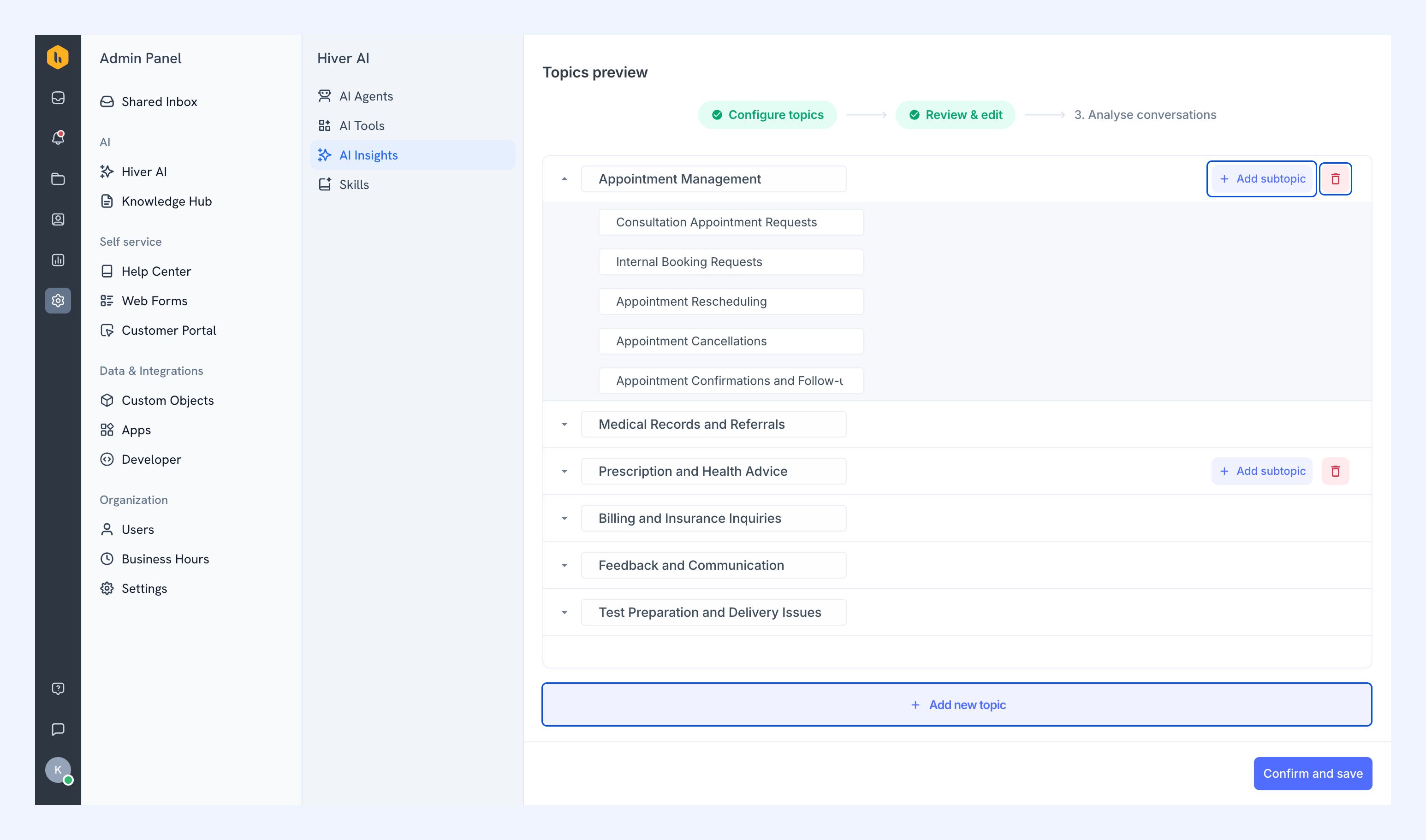
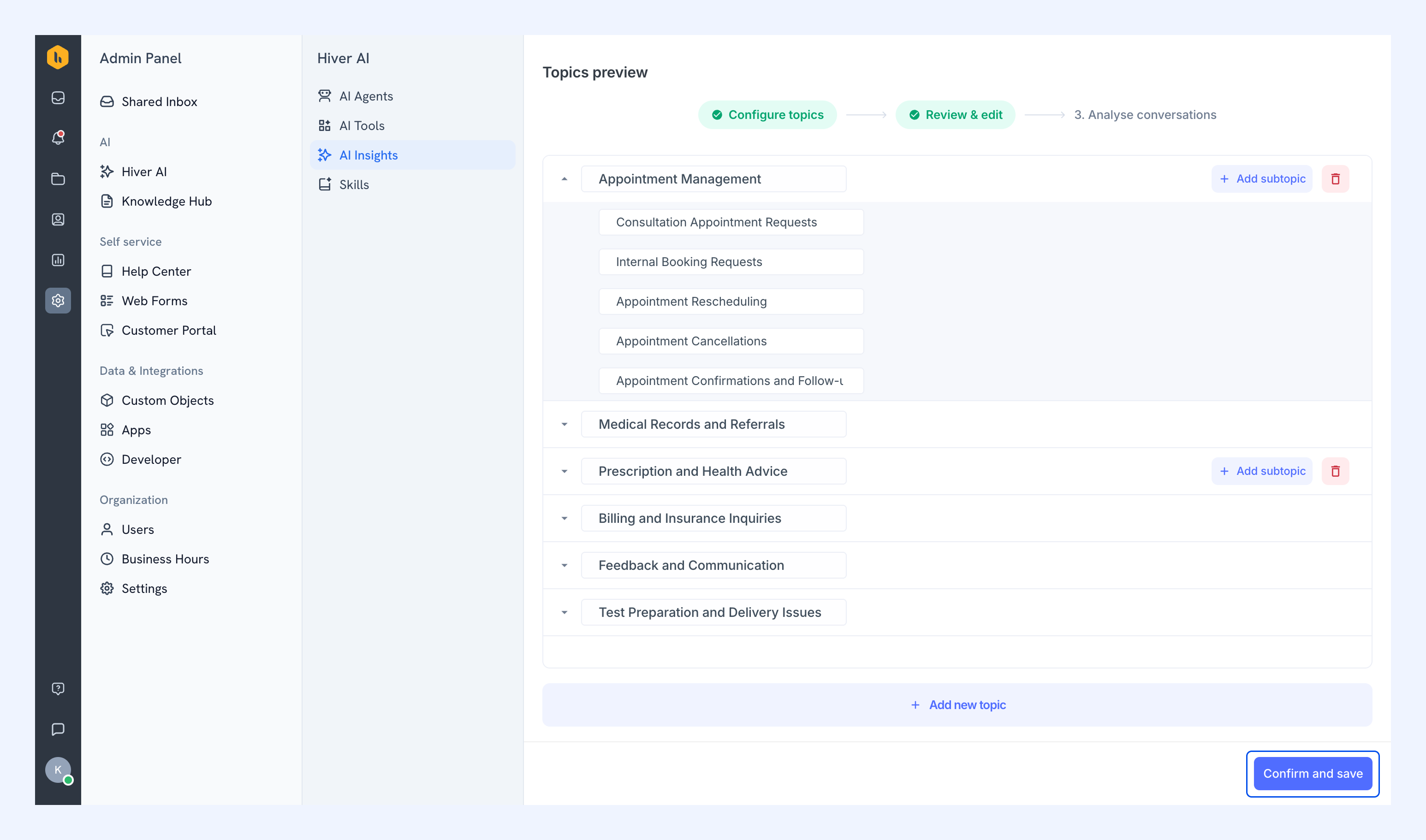
5. Review what Hiver AI suggests. Expand a topic to see its subtopics, and edit the set until it matches how your team thinks about the work:
- Click a topic or subtopic name to rename it.
- Click + Add subtopic to add one to a topic.
- Click + Add new topic for anything Hiver AI missed.
- Click the delete icon to remove a topic or subtopic you don't need.
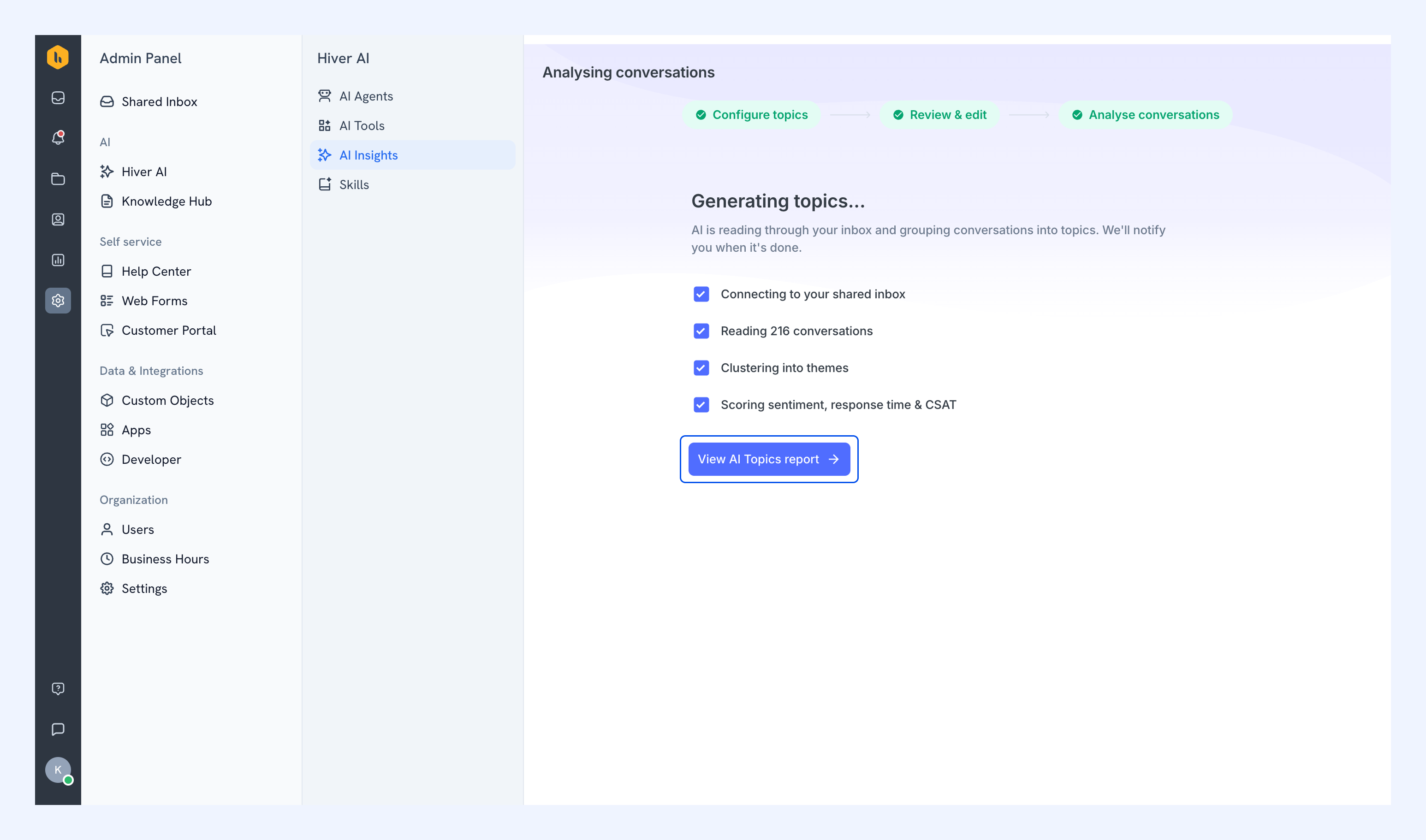
6. Click Confirm and save. Hiver AI reads through your inbox and sorts the conversations into the topics you saved.
7. Click View AI Topics report to see the results.