Getting started with Ask AI
Hiver’s Ask AI is a built-in AI assistant designed to help your team respond to customers efficiently and consistently.
It uses your connected knowledge sources (such as Hiver KB articles, uploaded files, snippets, and Notion pages) to answer questions and draft replies that your team can insert in a single click.
By managing your knowledge sources effectively, you ensure your team always sends accurate, updated, and context-aware responses.
Availability
Ask AI is available only in the Pro and Elite plans for customers who signed up after December 22, 2025.
How can Ask AI help your team
1. Pull answers from your knowledge sources, instantly: Ask questions in plain language and get accurate answers from your knowledge sources, without leaving the conversations.
2. Draft context-aware replies: Ask AI reviews the entire conversation and offers relevant angles for responding. Agents can select or mix these options to shape a reply that fits the situation perfectly.
3. Analyze support data faster: Ask questions about data in connected Google Sheets and get answers without using formulas or filters.
4. Reduce back-and-forth in support workflows: By pulling precise answers directly from approved sources, Ask AI reduces repeated lookups, confusion, and dependency on senior team members.
5. Summarize long conversations: Ask AI can generate concise summaries of lengthy or complex threads, helping agents quickly understand the full context before responding.
6. Improve suggestions over time: Agents can like or dislike responses, helping Hiver refine future drafts and improve accuracy.
How to enable Ask AI
1. Go to Admin Panel → Hiver AI → AI Copilot.
2. Select a Shared Inbox from the dropdown, and toggle on Agent assistance.
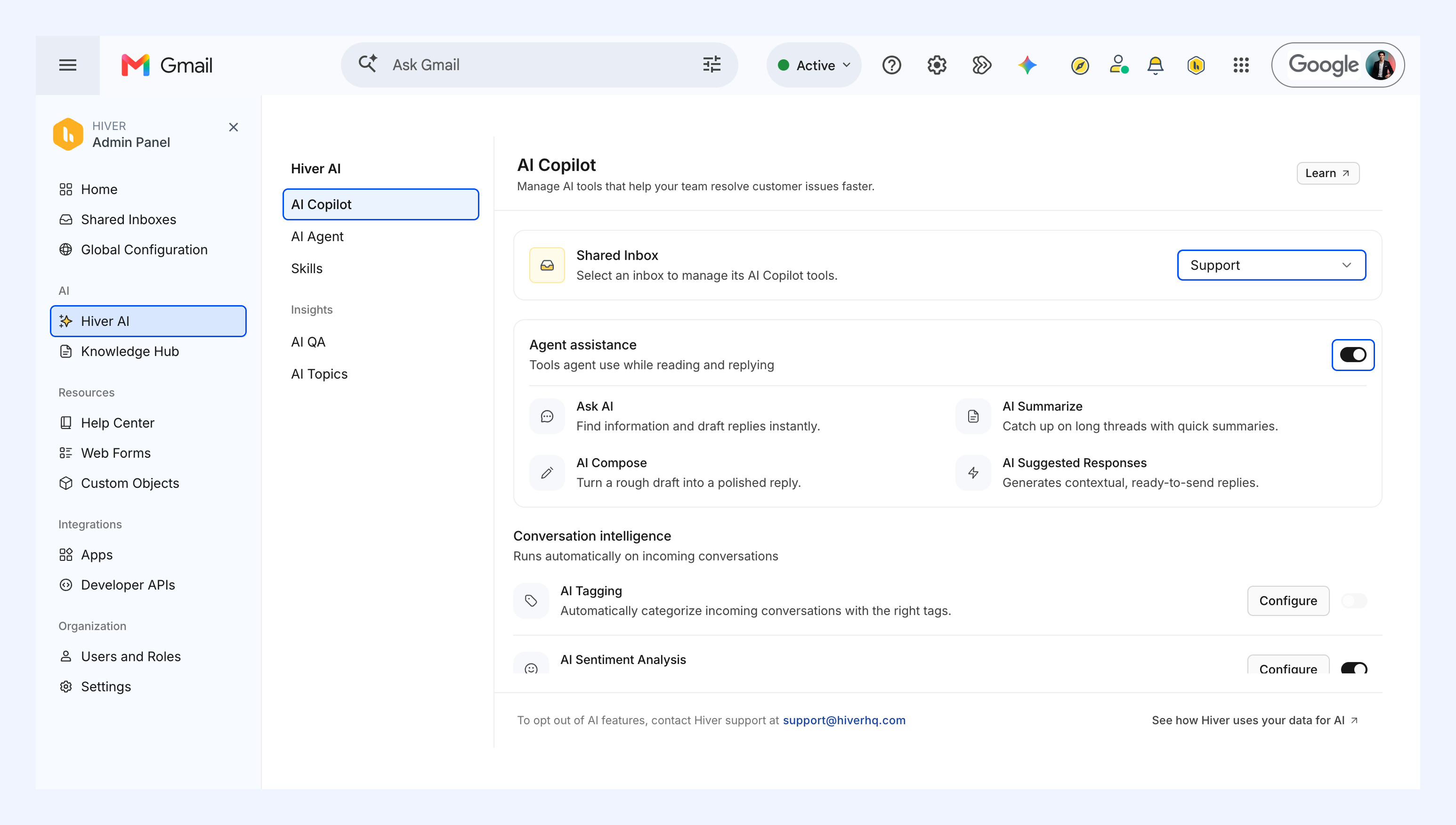
Configuring knowledge sources for Ask AI
Ask AI uses the same knowledge sources as AI Copilot. You can:
- Enable the Hiver Knowledge Base
- Upload custom documents (PDF, TXT, or DOCX, up to 30MB)
- Create short, reusable snippets
- Connect external sources like Notion
These sources help Ask AI generate accurate, citation-backed answers. Learn more about configuring knowledge sources.
Using Ask AI
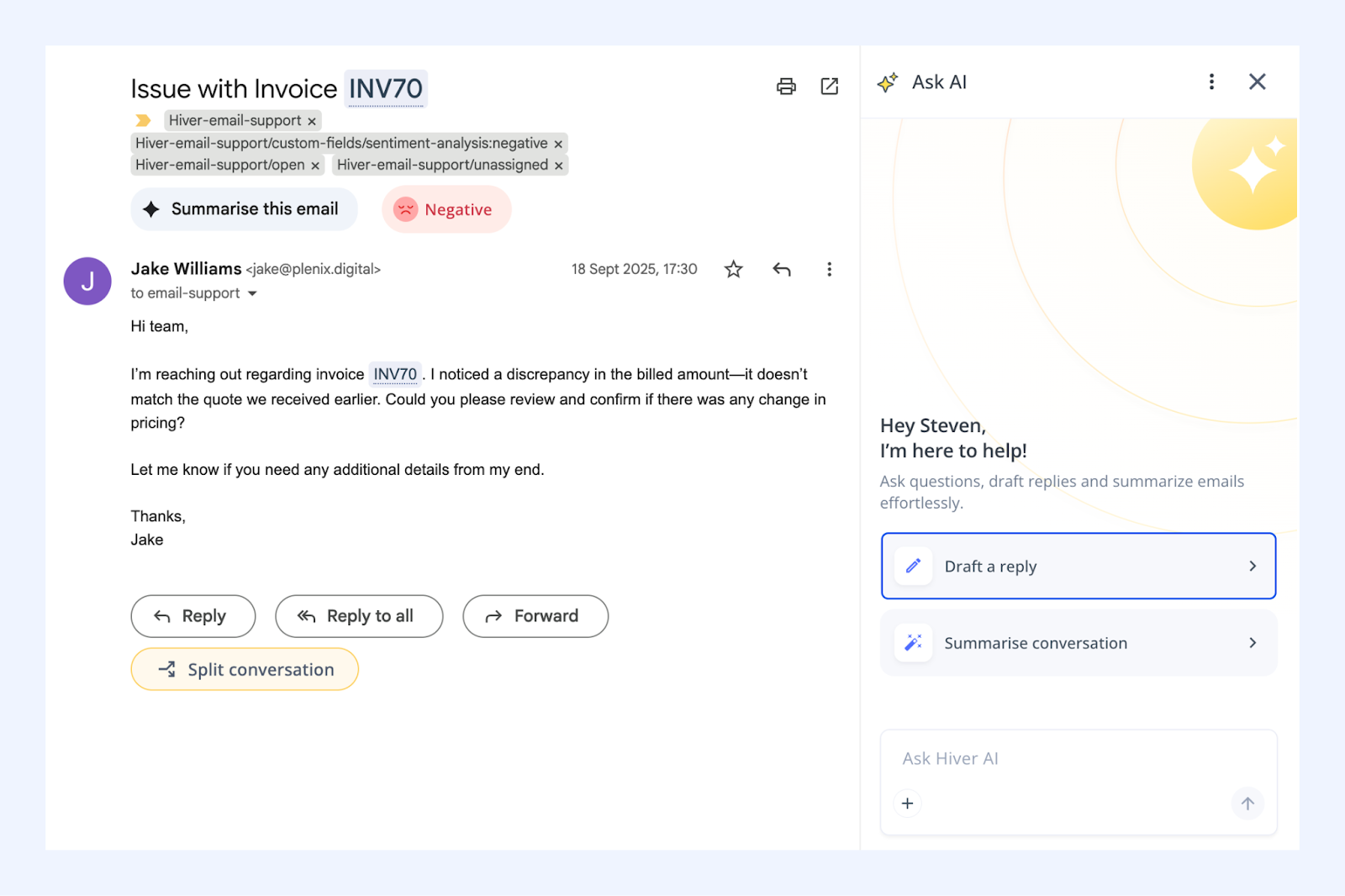
Ask AI is available through the AI Copilot icon within any conversation in a Shared Inbox.
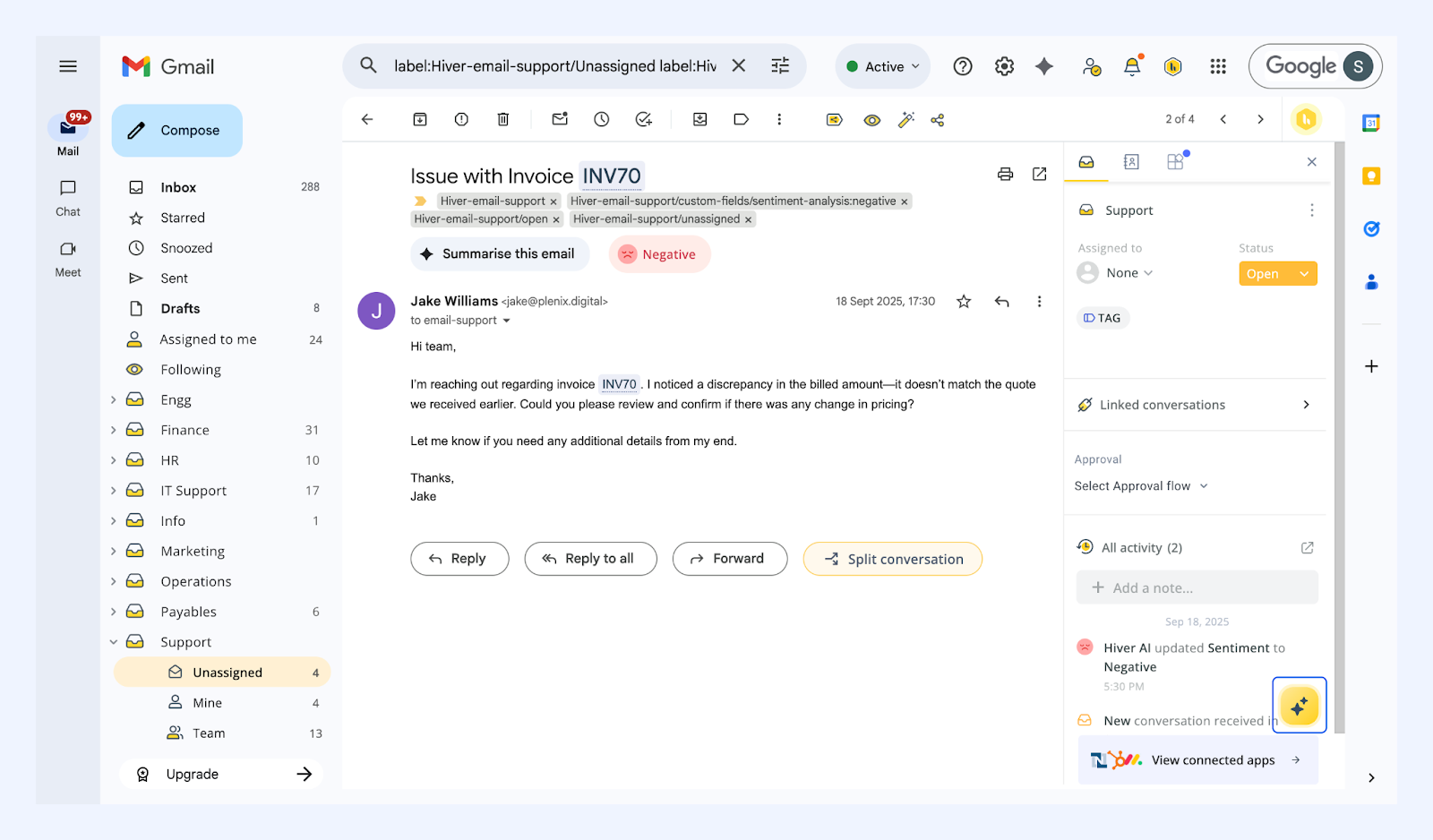
Click the AI Copilot icon to open Ask AI.
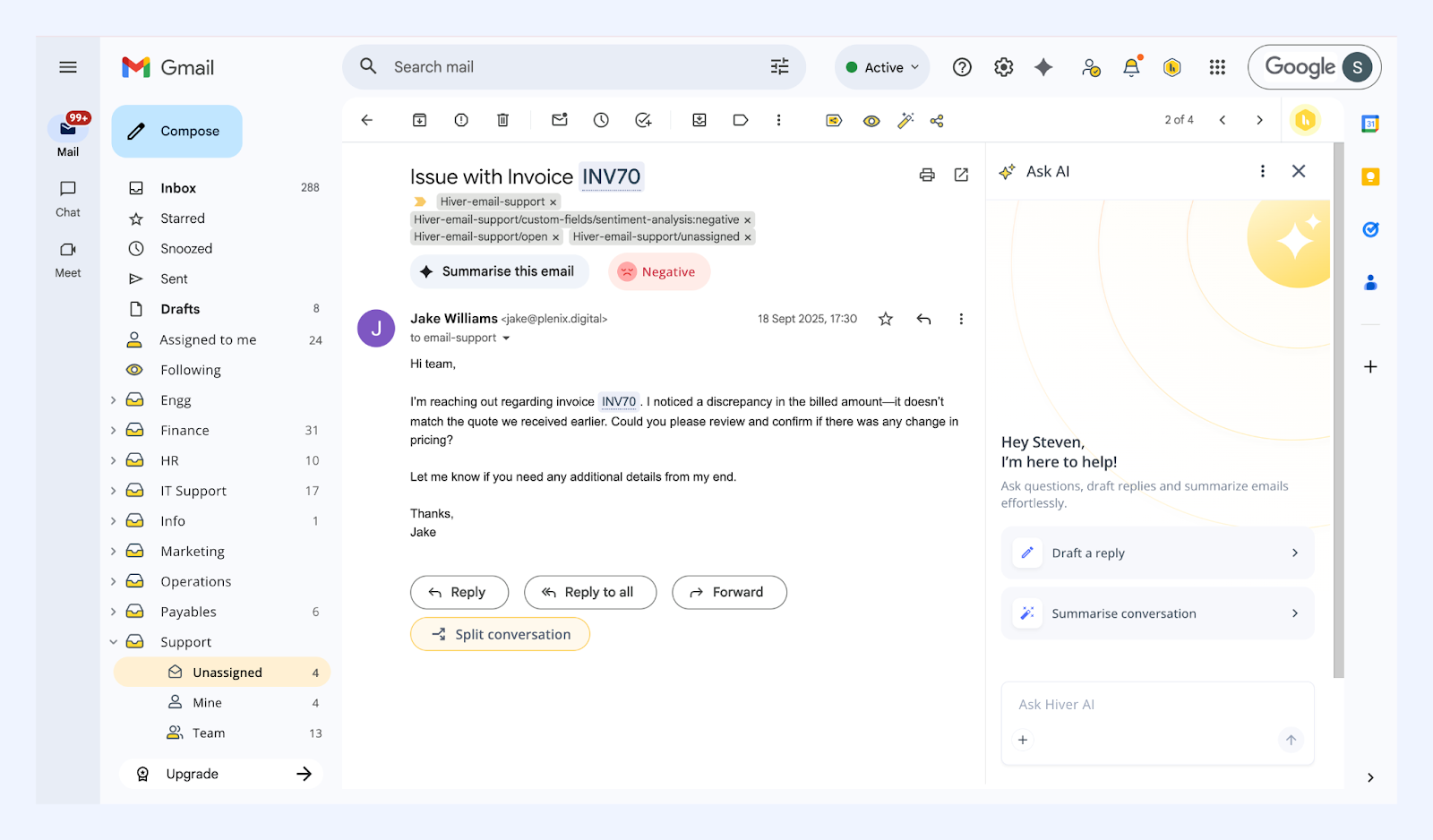
1. Find information from connected knowledge sources
Your team can quickly look up answers without leaving the email thread.
1. Open Ask AI.
2. Type your question in natural language (“What happens when I disable a user?”, “How do Automations 2.0 triggers work?”, etc.) and hit enter or click the ↑ icon.
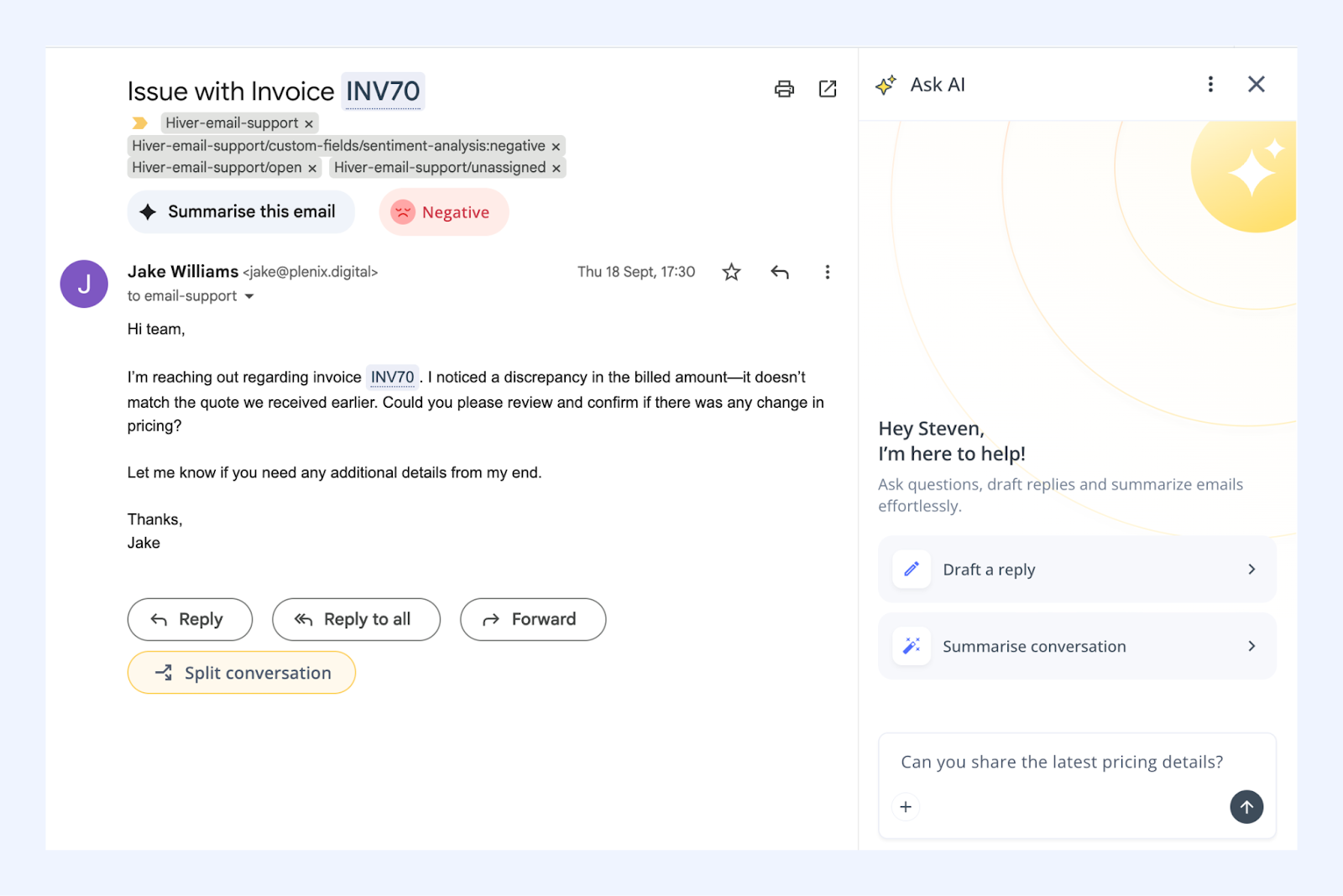
Tip: You can also use Ask AI to get answers to questions like “Top 5 customers by MRR” or “Average CSAT for US region” from data in connected Google Sheets, without any manual analysis.
.png)
3. Ask AI shares a clear, citation-backed answer based on your knowledge sources.
4. You can then:
- Copy the details shared
- Like the answer if it was accurate
- Dislike if the answer didn’t meet your expectations
- View Sources to verify the information the response was generated from
- Continue the conversation by asking a new question or a follow-up
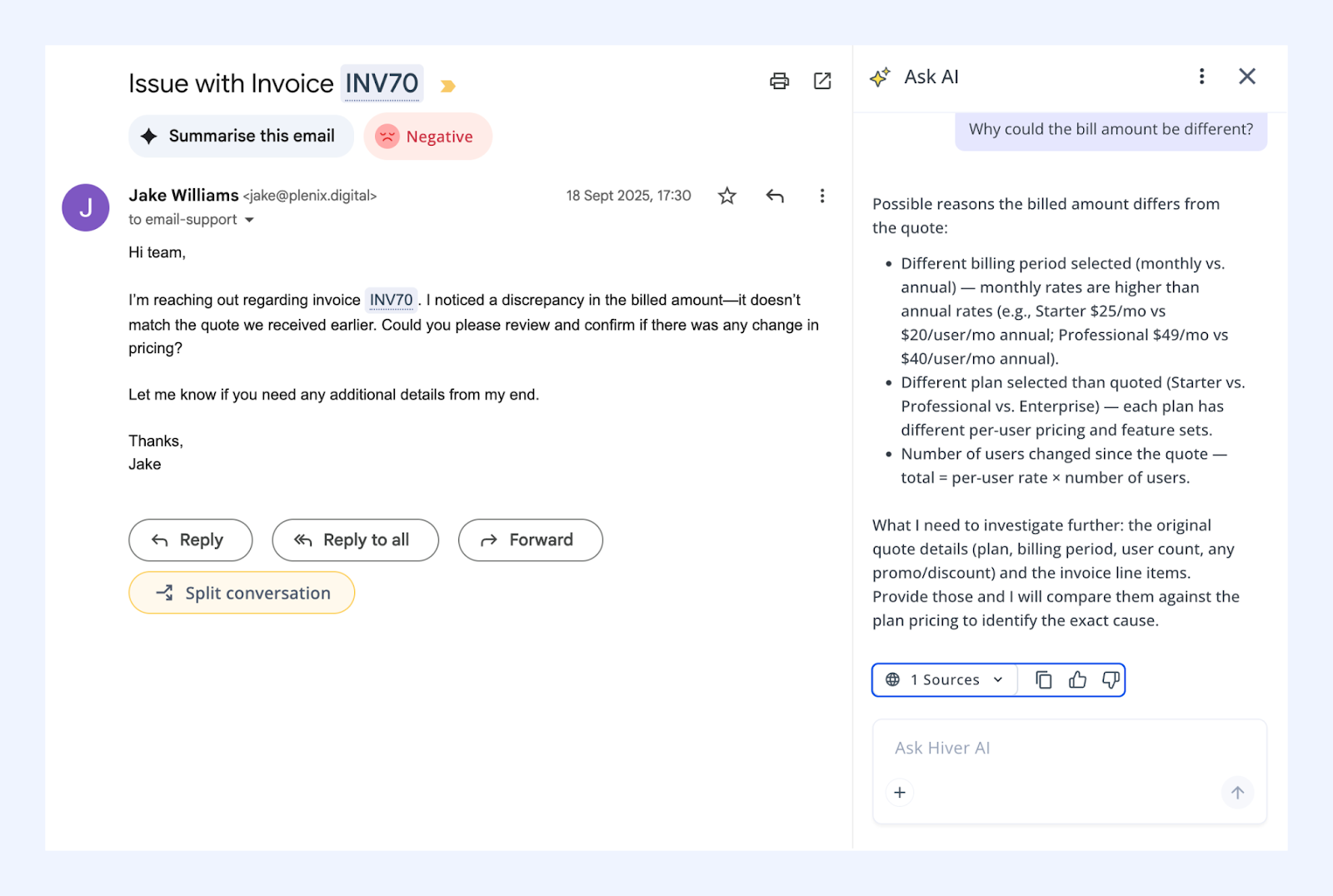
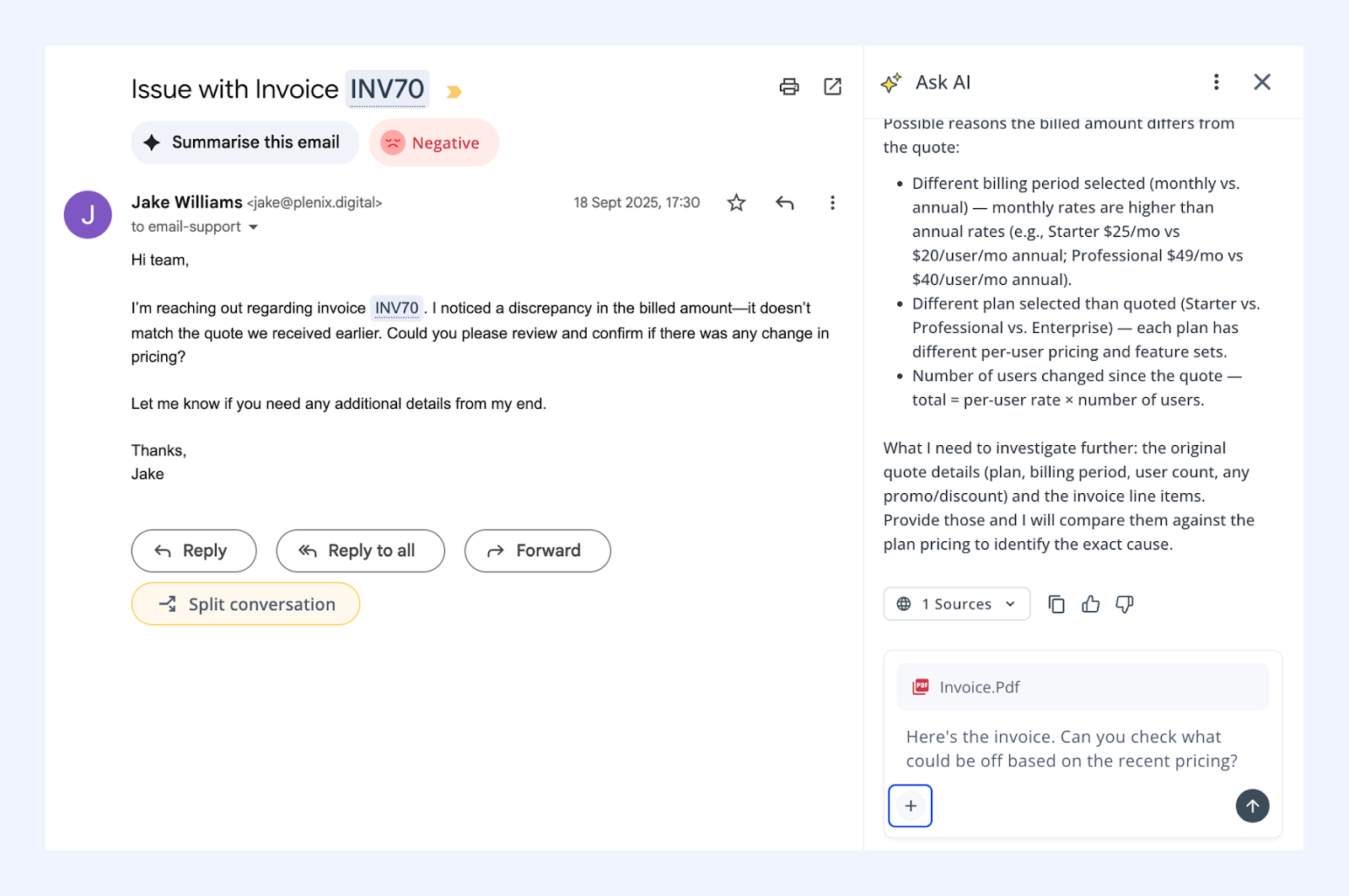
Tip: You can use the + icon to upload PDF, DOCX, or TXT files like invoices, contracts, etc. and ask questions based on them. Ask AI can read PDFs and help you with troubleshooting order issues, billing disputes, and other common scenarios.
2. Draft a reply
Ask AI can draft a contextual, well-structured reply based on the customer conversation and your connected knowledge.
1. Open Ask AI and select Draft a reply.
2. Choose one or more suggested approaches. You can also use the + icon to upload PDF, DOCX, or TXT files that Ask AI should reference while drafting the reply.
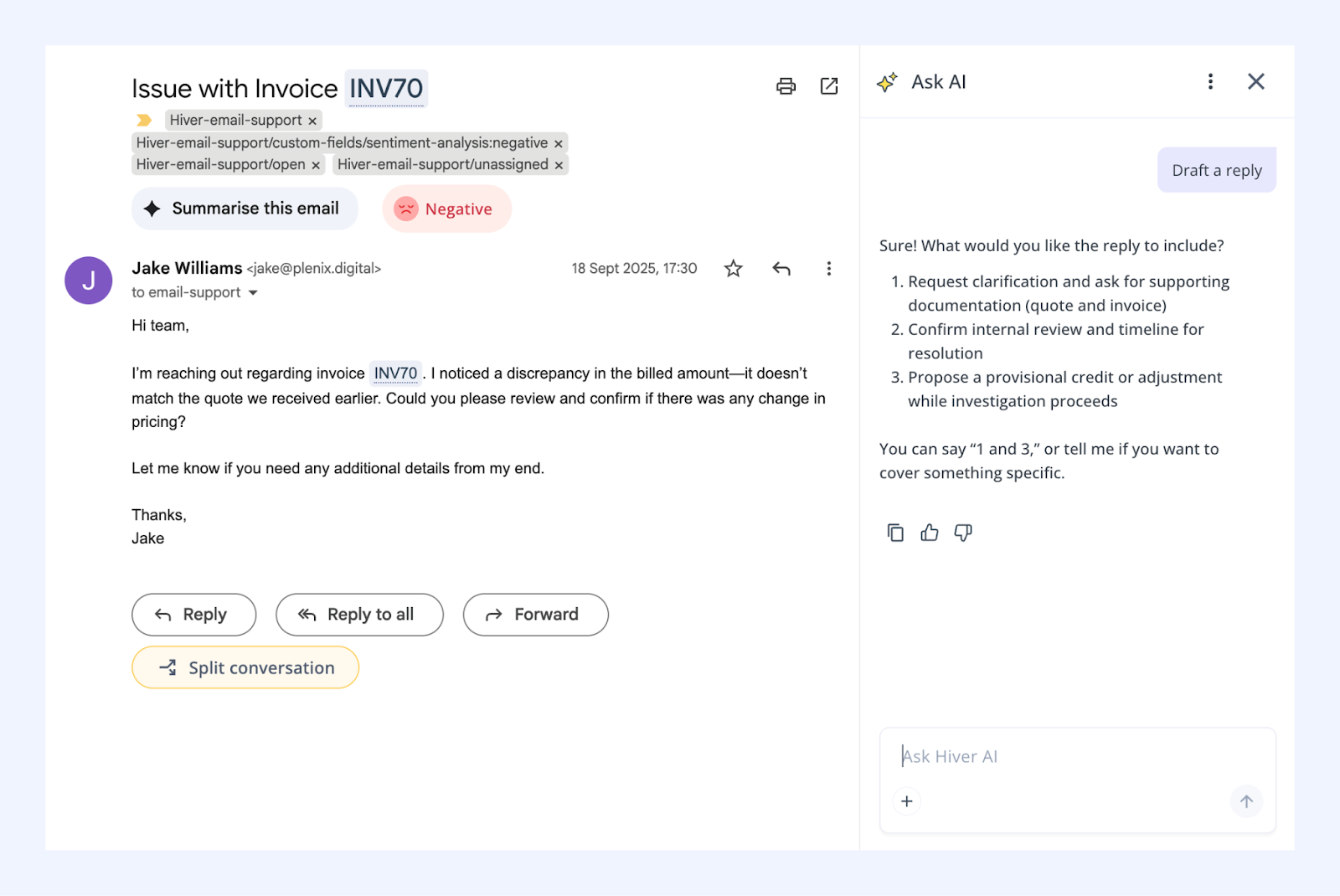
3. Ask AI will draft the reply. You can then:
- Review the content
- Ask for edits if needed
- Use Refine with KB to enrich the answer with information from your knowledge base articles
- Copy, like or dislike the drafted reply
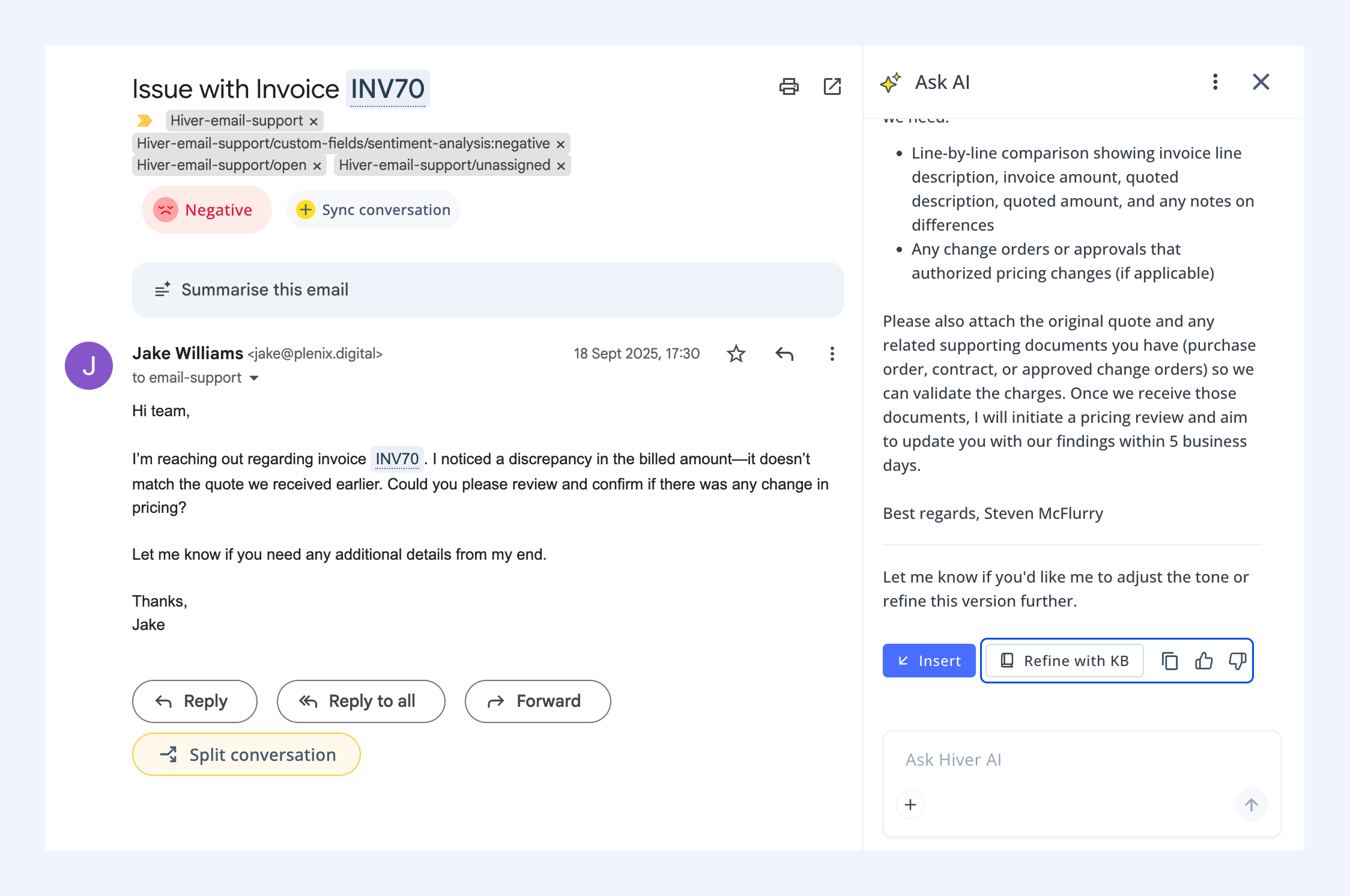
4. When you're ready, click Insert. The reply is added as a draft in the thread, and you can choose to send it.
.png)
3. Summarize a conversation
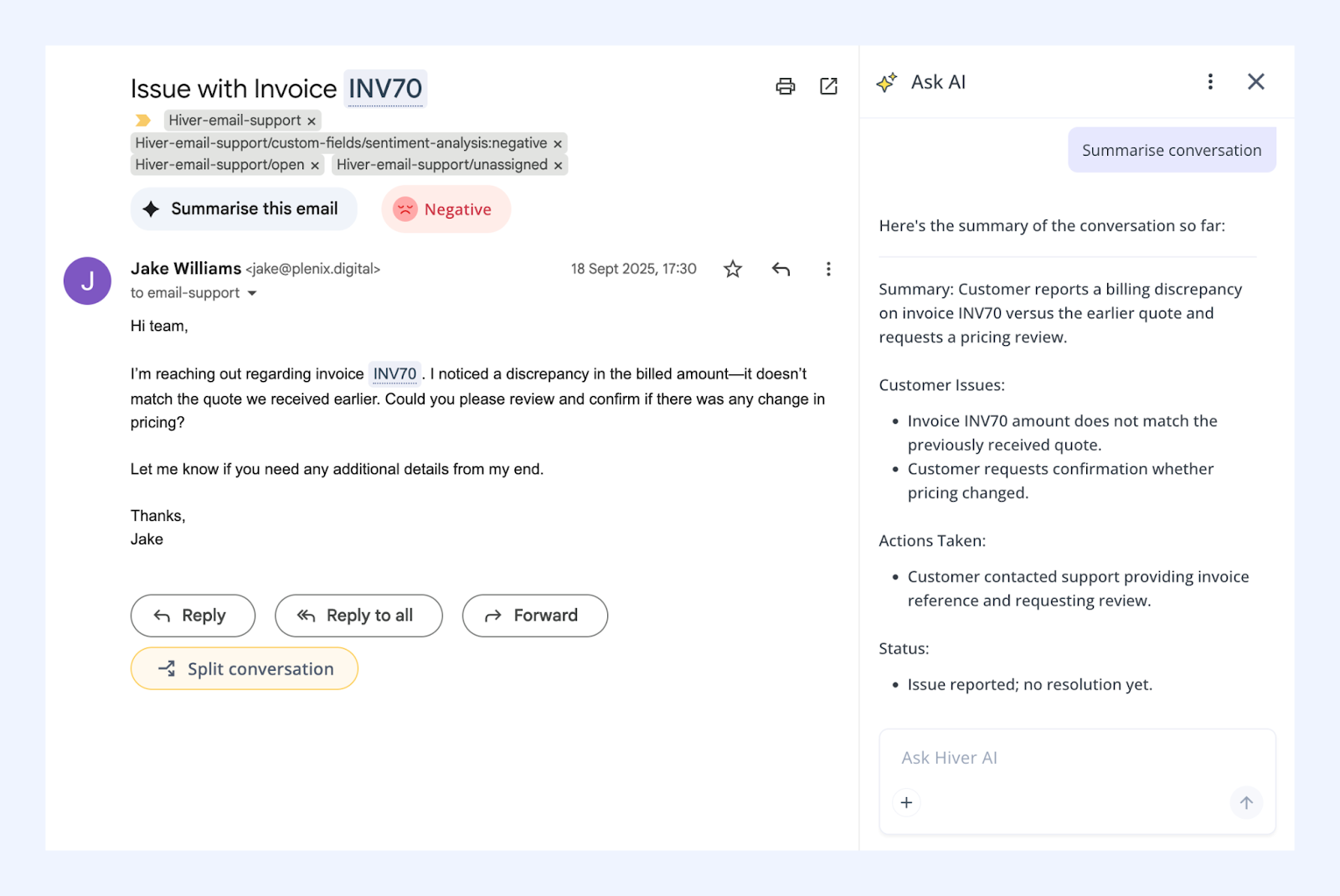
When conversations get long or complex, Ask AI can generate a summary to help you understand the full context instantly.
1. Open Ask AI and select Summarize conversation.
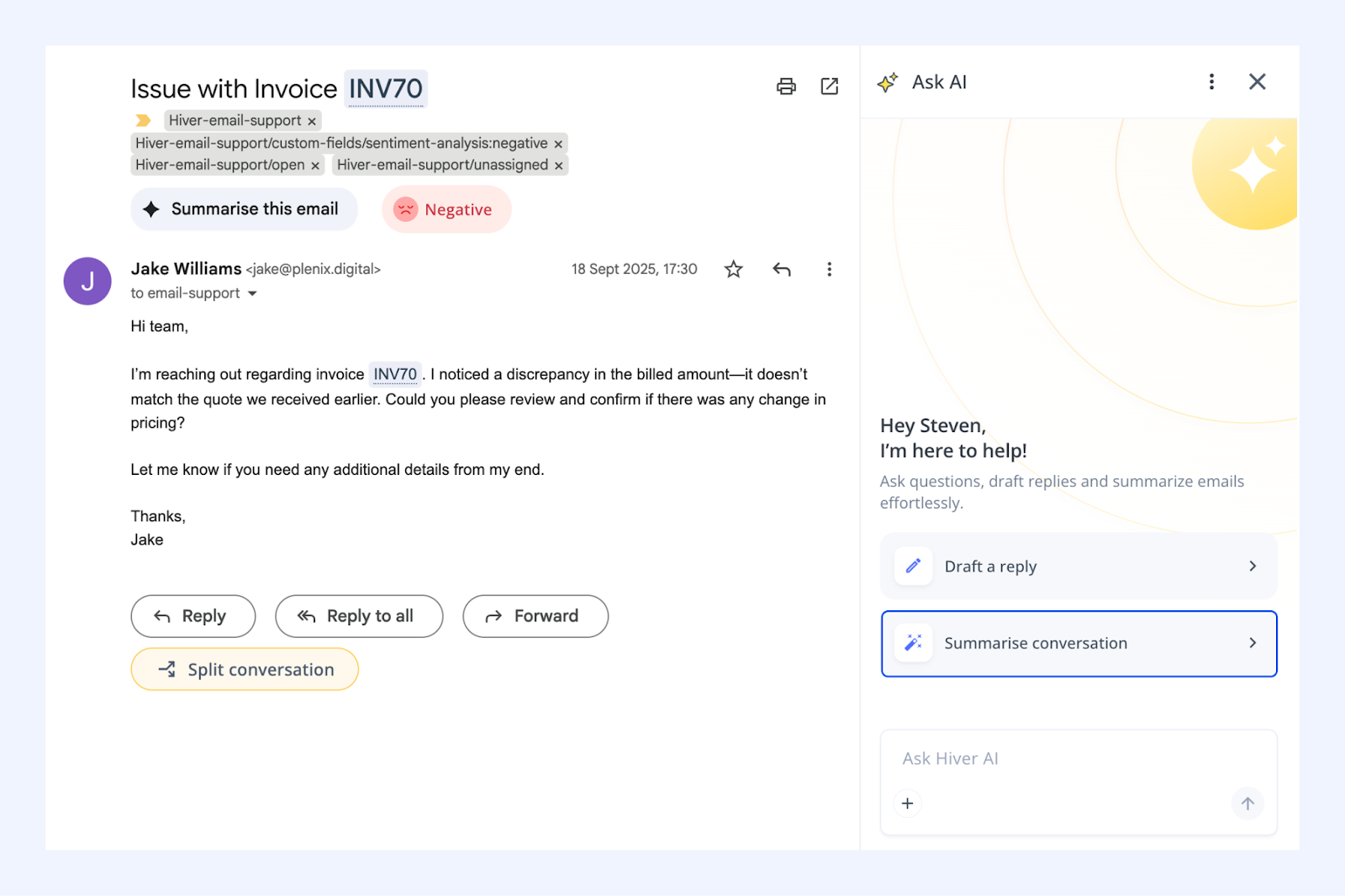
2. Ask AI will generate a concise summary that you can review before replying.
Tip: To start a new session with Ask AI, click the three-dot menu at the top and select Clear chat, then confirm.