Introducing Ask AI
Ask AI is your AI-powered assistant that helps your team respond to emails faster and more accurately. It acts like your team’s smart assistant, instantly answering questions and providing context from your knowledge sources. In Hiver, knowledge sources refer to the information Ask AI uses to generate smart, helpful, and context-aware replies. By managing these sources effectively, you can ensure agents always have access to the most accurate and updated information when assisting customers.
With Ask AI, your team can:
Save time: Quickly handle repetitive or frequently asked questions with AI-drafted responses.
Stay consistent: Ensure every reply reflects approved, shared knowledge.
Get complete answers: Ask questions and get precise, context-aware answers from your connected sources.
Build trust: Provide responses with citations so it’s clear where information comes from.
Draft replies faster: Helps agents compose accurate, well-structured responses based on connected sources.
Summarize: Quickly get context before responding by summarizing long email threads.
Give feedback: You can like or dislike responses, this helps Hiver refine future suggestions.
How to enable Ask AI
1. Go to Hiver Omni settings → Admin panel → Hiver AI → AI Tools.
2. Turn on the Ask AI toggle to start.
.png)
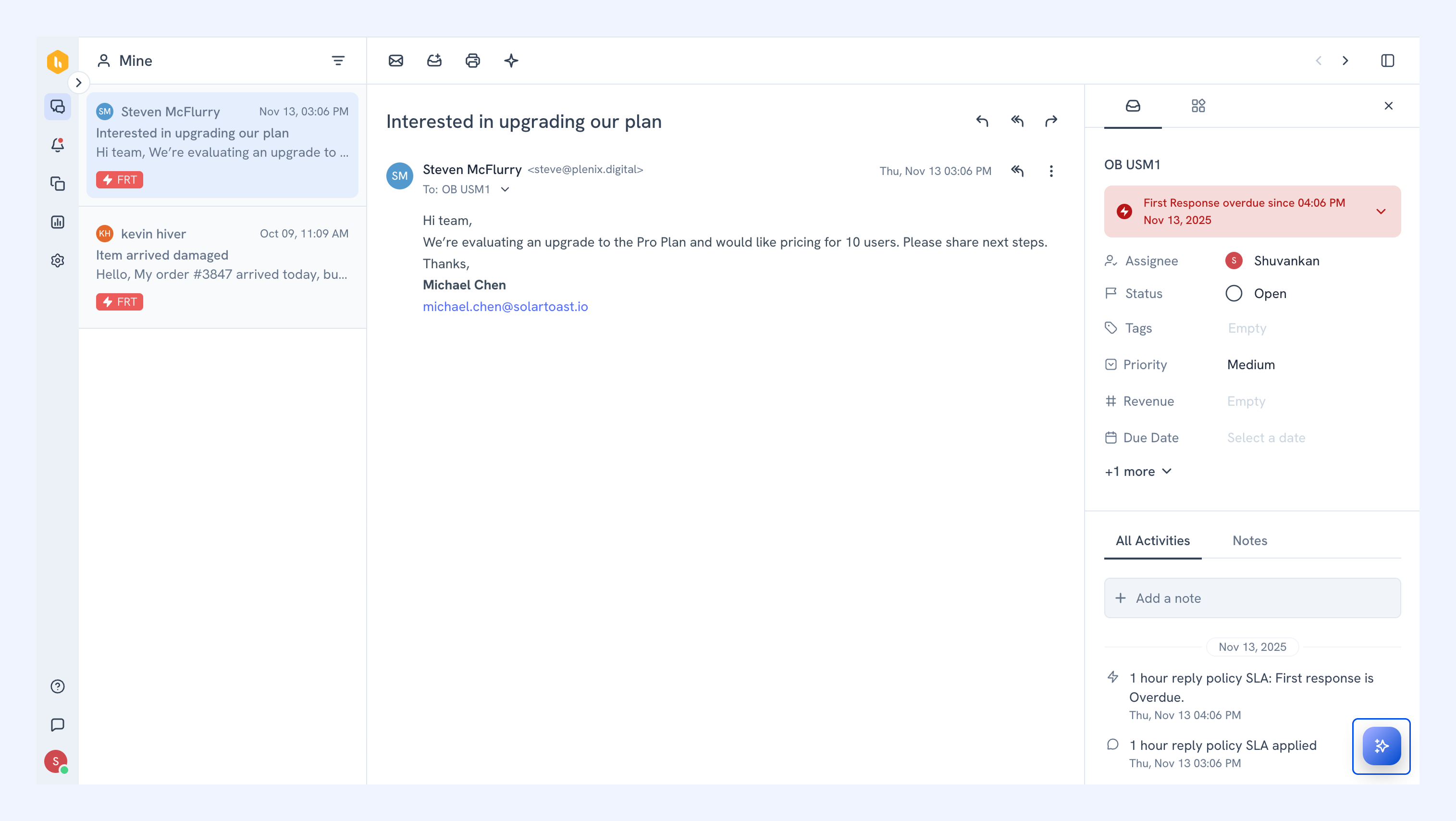
Once enabled, an Ask AI icon appears in the Hiver side panel of every email thread in that inbox.
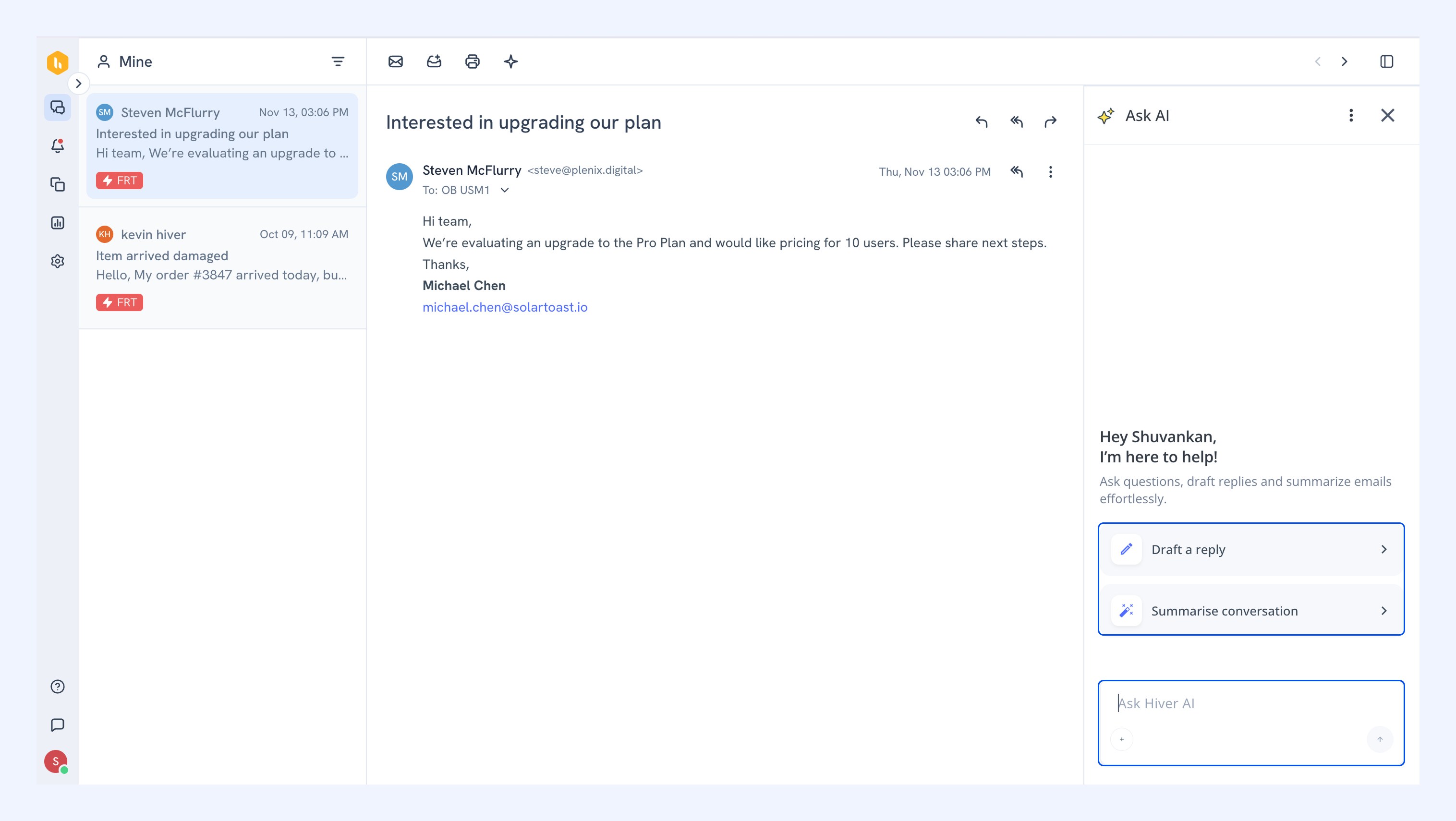
After you add information on various knowledge sources, you can interact with Ask AI by asking questions or requesting it to draft a reply.
Set up Knowledge Hub
Ask AI uses the knowledge sources in your Knowledge Hub to answer questions and draft replies. You can connect your website, use existing knowledge from tools like Notion, Confluence, and Google Drive, add snippets, or upload documents. Learn more about setting up sources in the Knowledge Hub.
Why Knowledge Source management matters
The precision of Ask AI’s responses comes from well-managed knowledge sources that supply reliable, updated, and structured content. Keeping these sources clean and comprehensive ensures that Hiver AI delivers relevant answers to your team.
By managing knowledge sources, you can:
- Provide direct answers from your help articles.
- Keep your content organized and up to date for reliable results.
- Improve response quality and reduce time spent searching for information.
Types of files you can upload as knowledge sources
- Upload PDF, DOCX, or TXT files (up to 30 MB each) for Ask AI to learn from. Ask AI processes only the text in these files and skips any images.
- Connect your Hiver Knowledge Base so Ask AI can draw from your help articles when generating responses.
- Link your Notion workspace to allow Ask AI to use your internal documents, playbooks, policies, and team guidelines.
- Create short, focused snippets (minimum 20 characters). These work well for quick definitions, glossary entries, policy notes, process steps, or product-specific information.
FAQs
1. If I update a document, will Ask AI automatically use the new version?
No, you will have to delete the old file and upload the updated version for Ask AI to use the new and updated version of the document.
2. Is there a limit to the number of knowledge sources I can add?
No, there is no fixed limit on the number of knowledge sources you can add.
3. Who can add or remove knowledge sources?
Only Hiver admins and Shared Inbox owners have the permission to manage Ask AI knowledge sources.
4. Can team members without admin rights access knowledge sources?
Team members can view Ask AI responses, but they do not have permissions to upload, edit, or delete sources.
Tips for optimizing your knowledge source for Ask AI
- Name files clearly to simplify tracking and retrieval.
- Audit and remove outdated sources to keep content relevant.
- Eliminate duplicate entries across sources to reduce clutter.
Need Help?
If you face any issues enabling or using the Advanced Search, reach out to our support team. We’re here to help you get the most out of Hiver.