Getting started with AI QA
Hiver's AI QA (artificial intelligence-powered quality assurance) helps your team maintain consistent, high-quality customer responses by automatically reviewing replies and highlighting areas for improvement.
With AI QA, you can:
- Review every reply automatically and score it on the aspects you choose, such as tone, clarity, and completeness.
- Track response quality over time and spot recurring issues in the AI QA report.
- Get a weekly summary of what changed across your team.
- Give each team member a personalized summary of their own quality scores.
- Exclude specific domains, such as internal or vendor emails, from review.
Prerequisites
- AI QA is available only in the Elite plan for customers who signed up after December 22, 2025. To enable it for your account, contact our support team at support@hiverhq.com.
- You need to have Admin access to configure AI QA.
Setting up AI QA
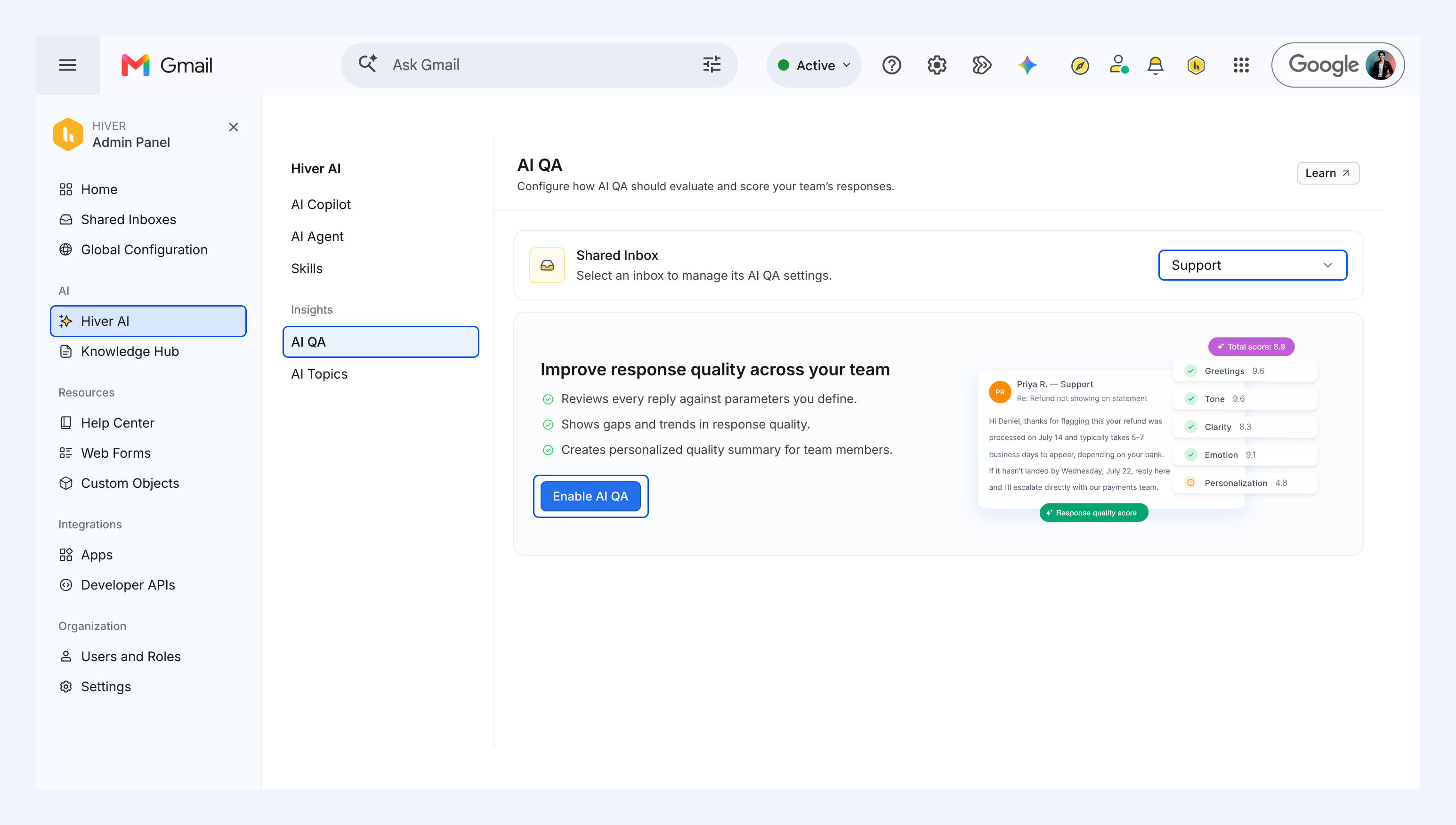
1. Go to Admin Panel → Hiver AI, and click AI QA under Insights.
2. Select a Shared Inbox from the dropdown, and click Enable AI QA.
3. In the Evaluation tab, choose the aspects you want AI QA to evaluate.
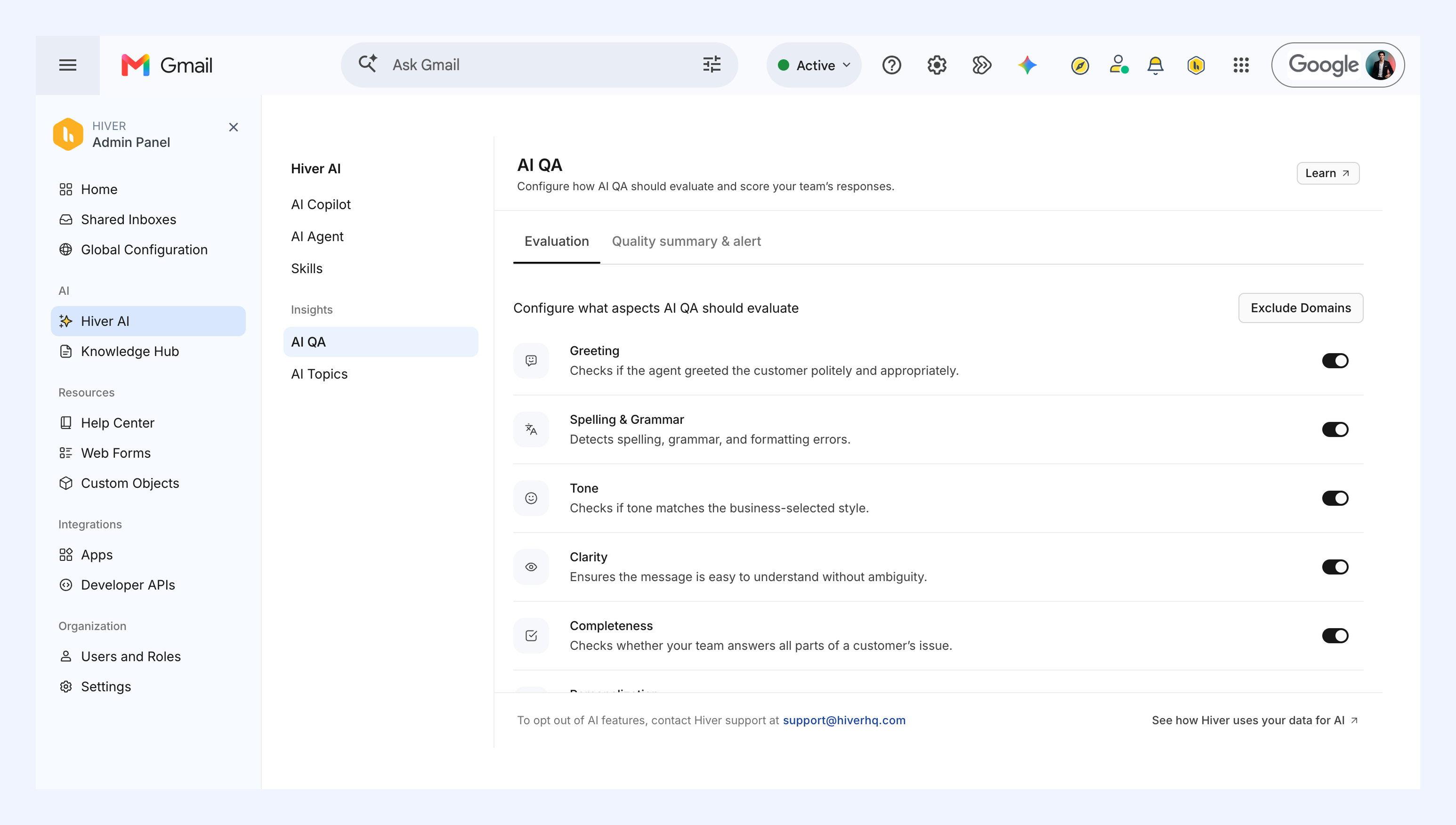
- Greeting: Checks if your team is greeting customers politely and appropriately.
- Spelling and grammar: Detects spelling, grammar, and formatting errors.
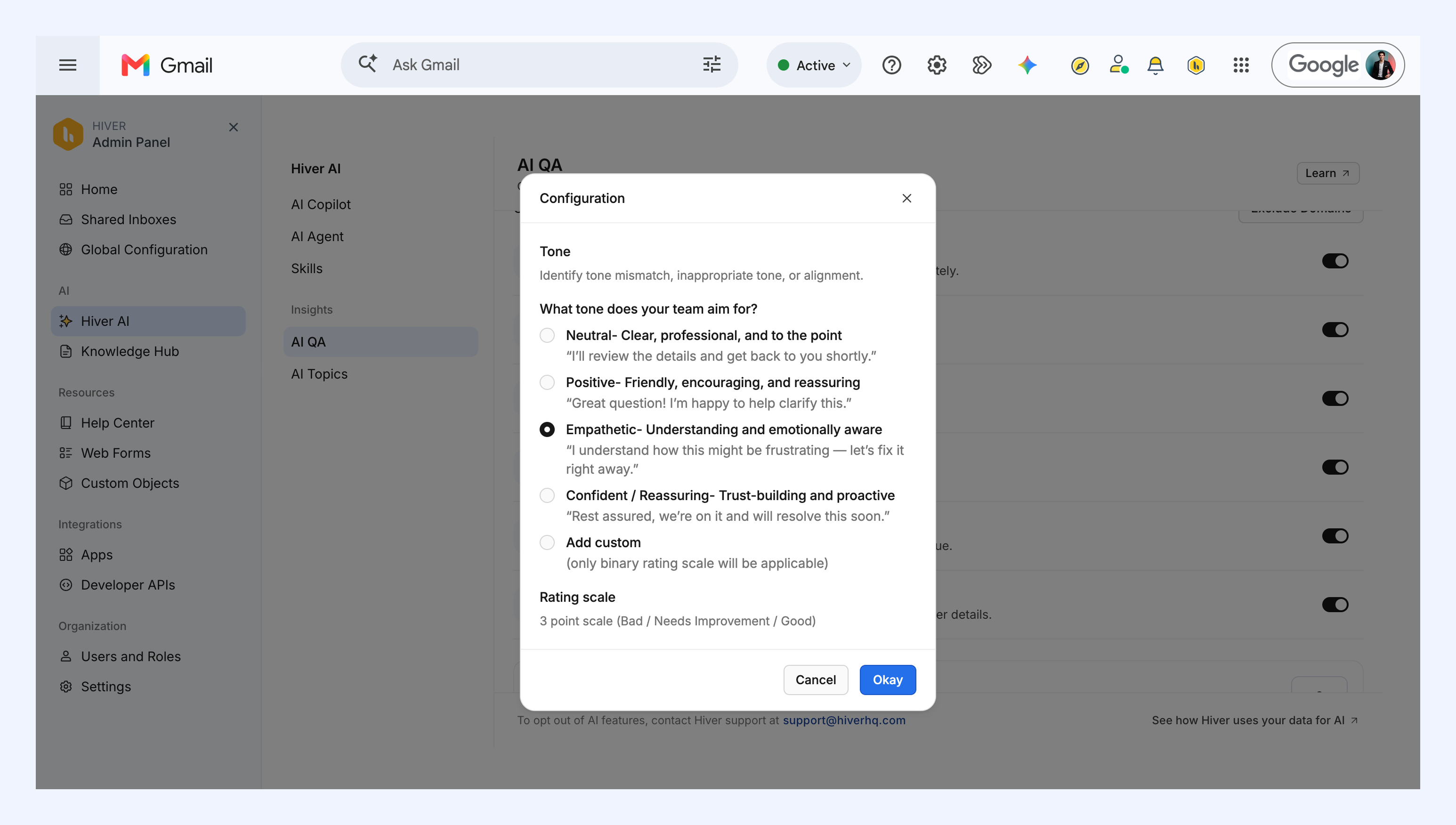
- Tone: Checks whether your team’s tone matches your preferred style. You can customize the tone to match your brand.
- Clarity: Checks if your team’s responses are easy to understand and concise.
- Completeness: Checks whether your team answers all parts of a customer’s issue.
- Personalization: Checks whether your team personalizes their responses with customer details.
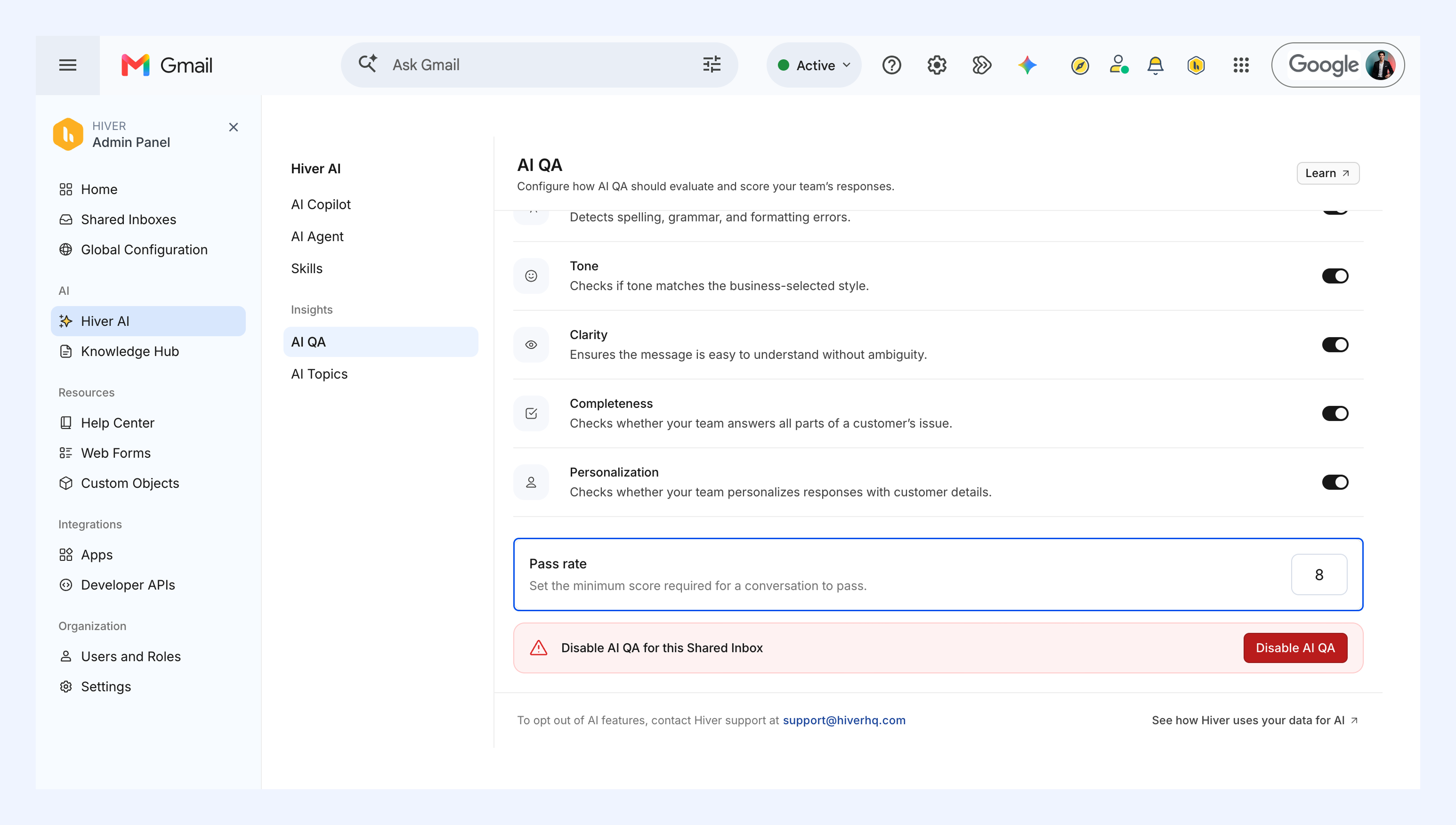
4. Set the minimum AI QA score a conversation needs to be marked as passed. Scores are out of 10, and the default pass rate is 8.
5. To configure these aspects,
- Hover over an aspect and click the Configure icon to understand how AI QA scores it.
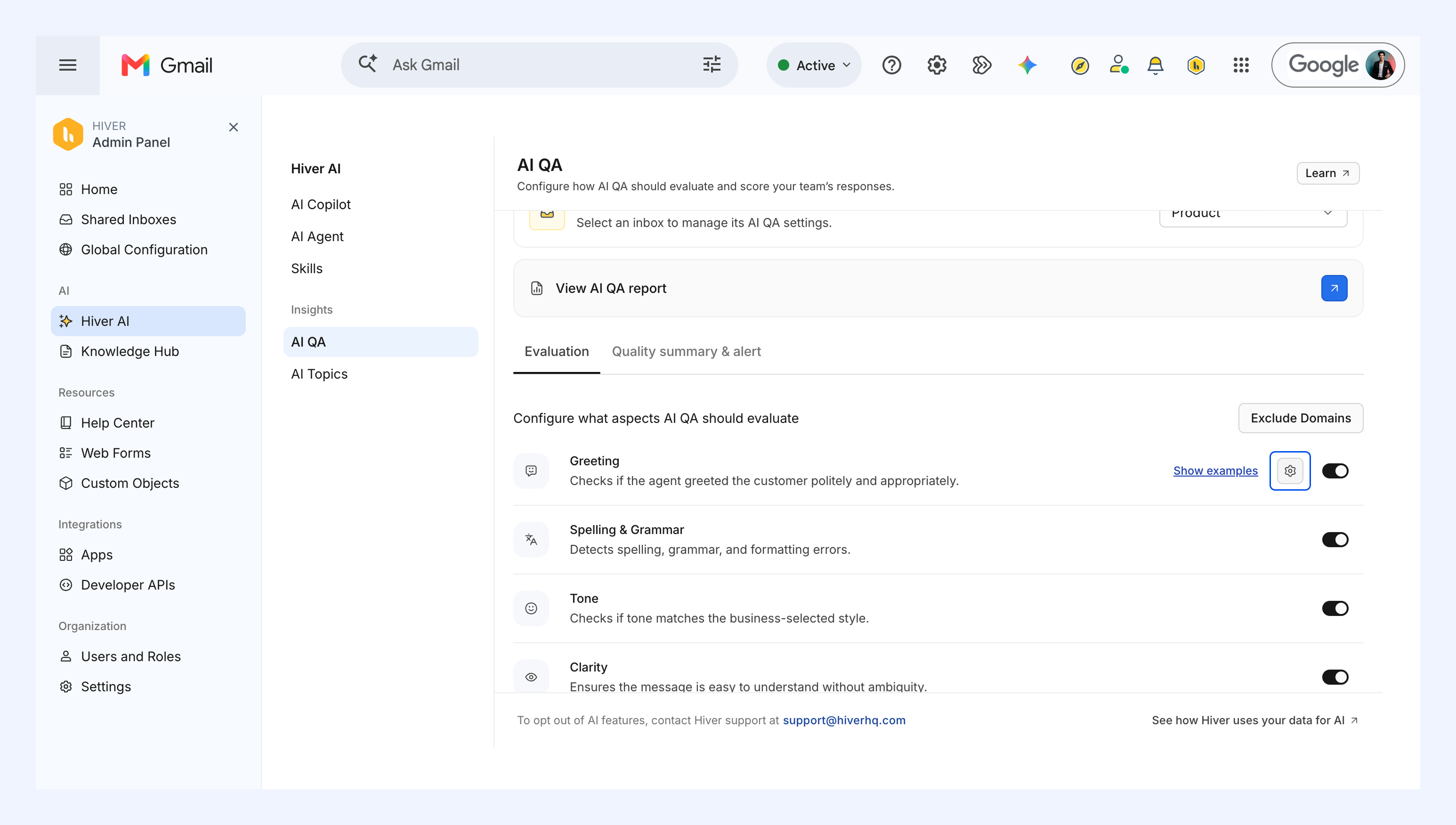
- Click Show examples to see sample responses and how AI QA interprets them.
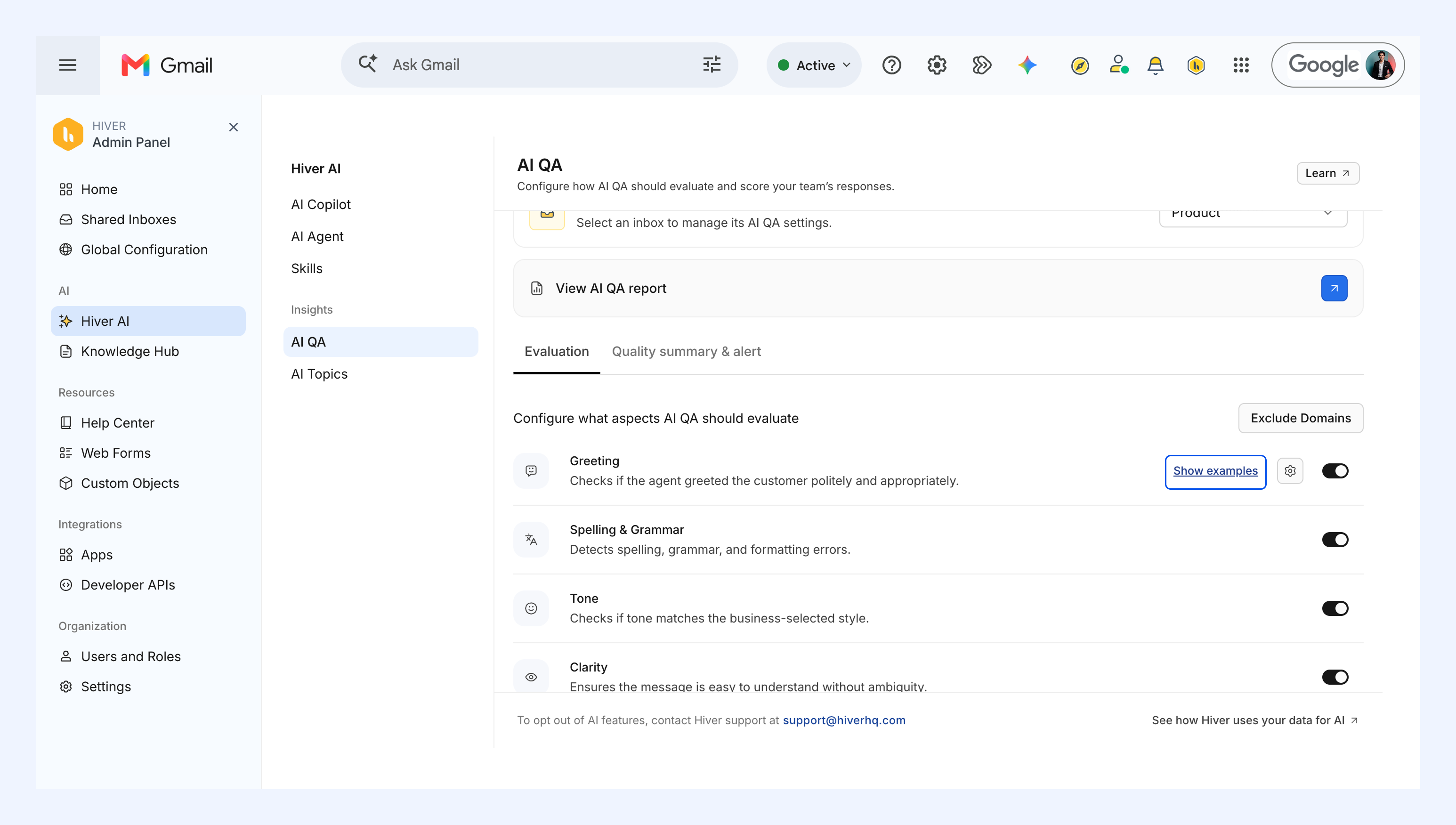
- Turn on the toggles for the aspects you want AI QA to evaluate.
- To configure tone specifically, click the Configure icon for Tone, select the tone your team prefers, such as neutral, positive, or empathetic, and click Okay.
Note: The rating scale each aspect uses is fixed and can't be changed.
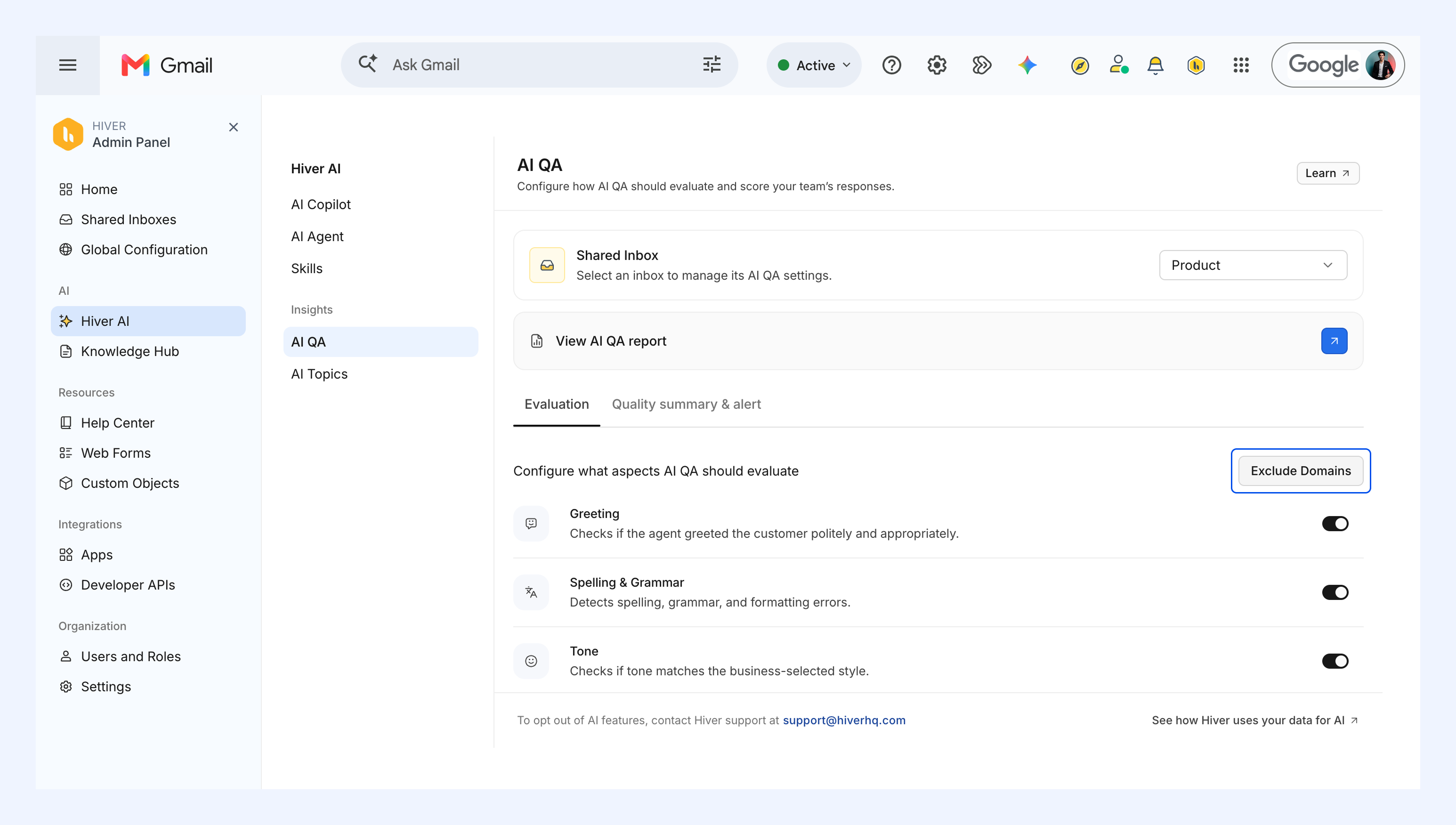
6. To exclude emails from certain domains from being reviewed by AI QA (for example, internal domains or third-party vendors),
- Click Exclude Domains.
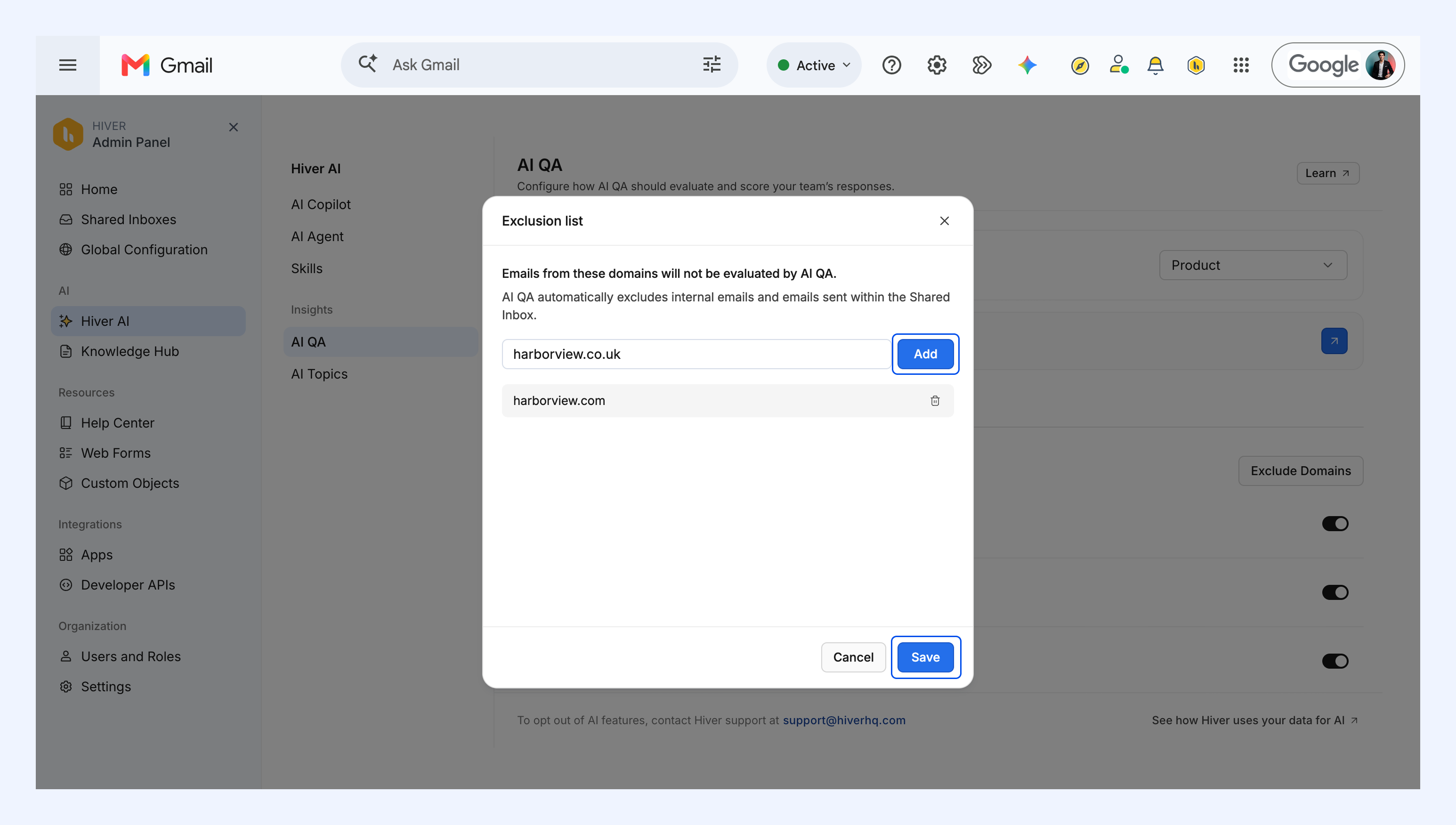
- Enter the domain you want to exclude and click Add.
- Repeat this for other domains, and once you're done, click Save.
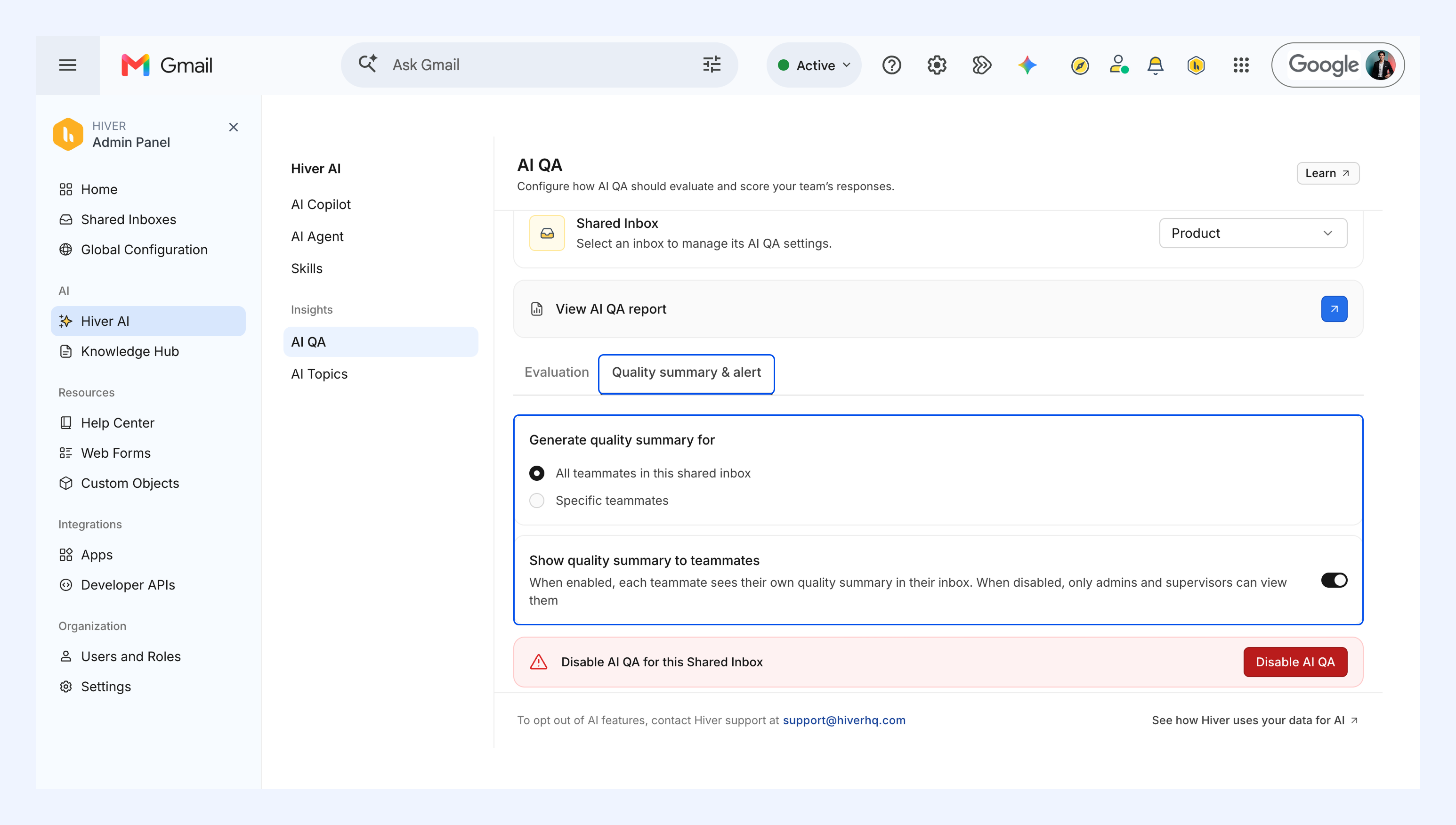
7. A quality summary shows how a team member’s conversations scored across the evaluated aspects, plus their strengths and the areas they should focus on.
Go to the Quality summary & alert tab to configure the summary:
- Under Generate quality summary for, choose whose AI QA performance is summarized:
- All teammates in this shared inbox.
- Specific teammates.
- Enable Show quality summary to teammates to share the quality summary with each teammate. When it's off, only admins and supervisors can see them.
Using AI QA
Once AI QA is enabled, suggestions appear automatically while drafting a reply.
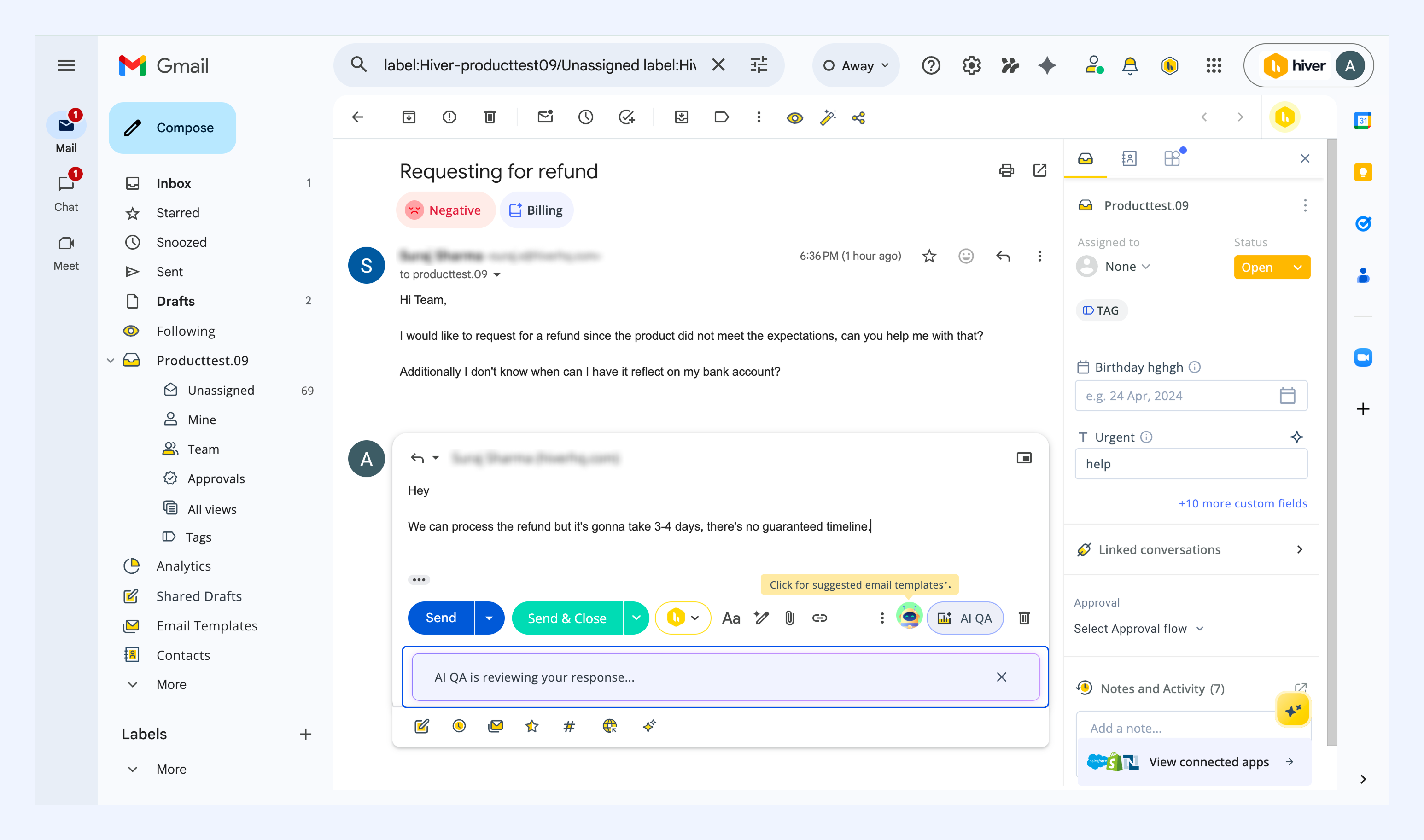
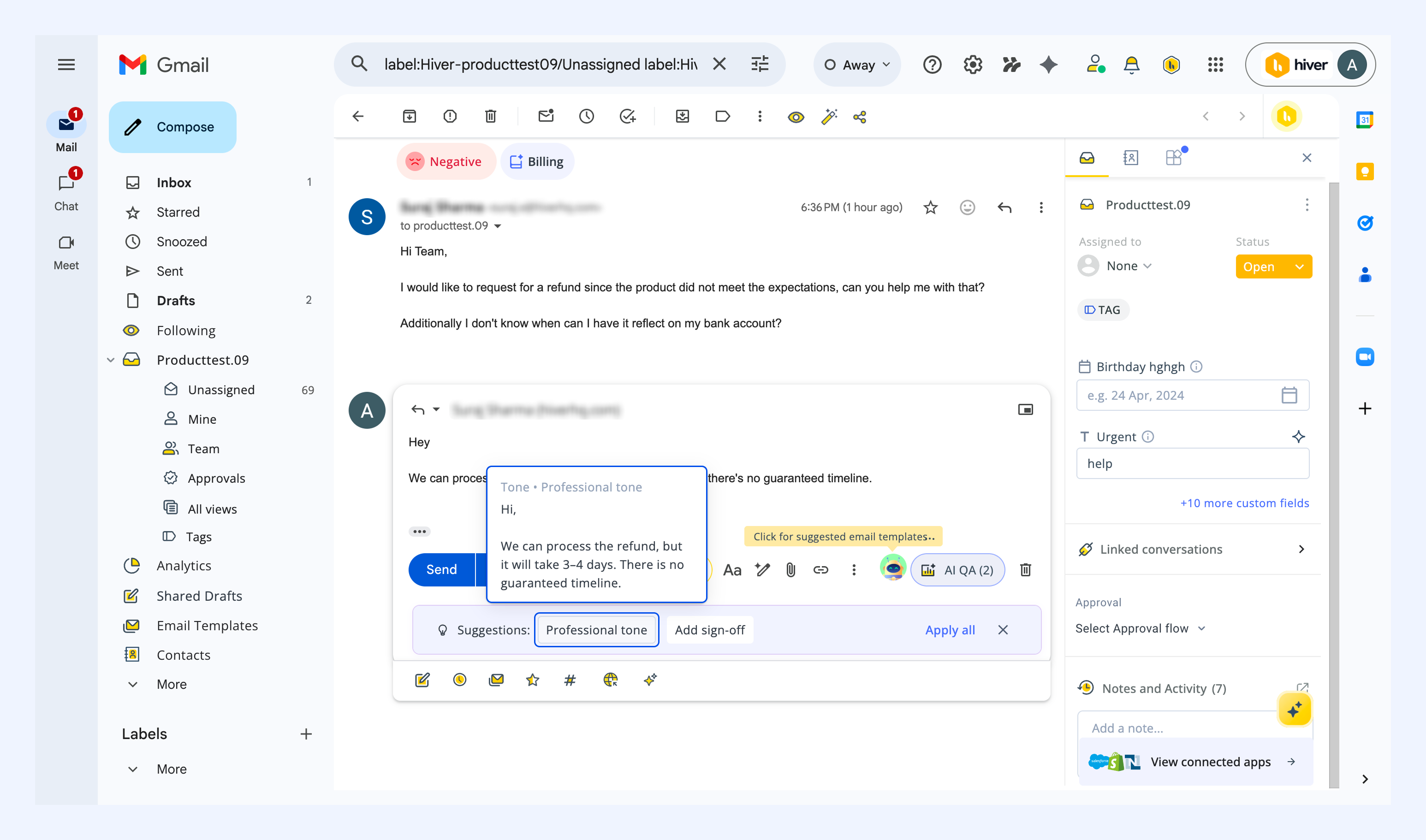
1. AI QA evaluates the draft based on the aspects you configured.
2. Click any suggestion to apply the recommended change to the reply.
Note:
- AI QA takes into consideration the entire conversation before suggesting recommendations. If a customer raised an issue earlier in the thread and it has not been fully addressed, AI QA will recommend including a complete solution in the current reply.
- AI QA does not evaluate attachments or detect factual inaccuracies.
Scoring logic
| Aspect | Evaluation criteria | Scoring criteria |
| Greeting | Marks “Yes” or “No” based on whether a greeting is present. | 1 if greeting is present |
| Spelling and grammar | Marks “Yes” or “No” based on whether any issues are detected. | 1 if no errors |
| Tone | Preset tones are rated on a 3-point scale: Good / Needs improvement / Bad
Note: Custom tone is rated “Yes” or “No” based on its alignment with your description. | Scored on a 3-point scale (Good, Bad, or Needs improvement) |
| Clarity | Marks “Yes” or “No” based on whether any clarity issues are detected. | 1 if clear |
| Completeness | Marks “Yes” when the response covers all parts of the customer’s issue, and “No” when something is missing. | 1 if complete |
| Personalization | Marks “Yes” or “No” based on whether any personalization is present. | 1 if personalized |
Response quality score = (Sum of scores for selected aspects) / (Number of aspects enabled)
Average response quality score = (Total of all response quality scores) / (Number of evaluated conversations)
Note: Scores are weighted based on the parameters you select in the Admin Panel.
AI QA report
AI QA reports give you an overview of how your team is performing over a selected date range. You can view:
- Total number of conversations evaluated by AI QA
- Number of team members whose responses were reviewed by AI QA
- Overall response quality score, including the delta compared to the previous week
- Daily trend graph showing changes in response quality
- Scores by team member, including tone, completeness, clarity, and more
Note: AI QA report data is refreshed every 12 hours.
To access the AI QA report,
1. From Gmail, open Analytics.
2. Select a Shared Inbox that has AI QA enabled.
3. You can find the AI QA report under the Reports section.
Use the date picker to adjust the time period you want to analyze.
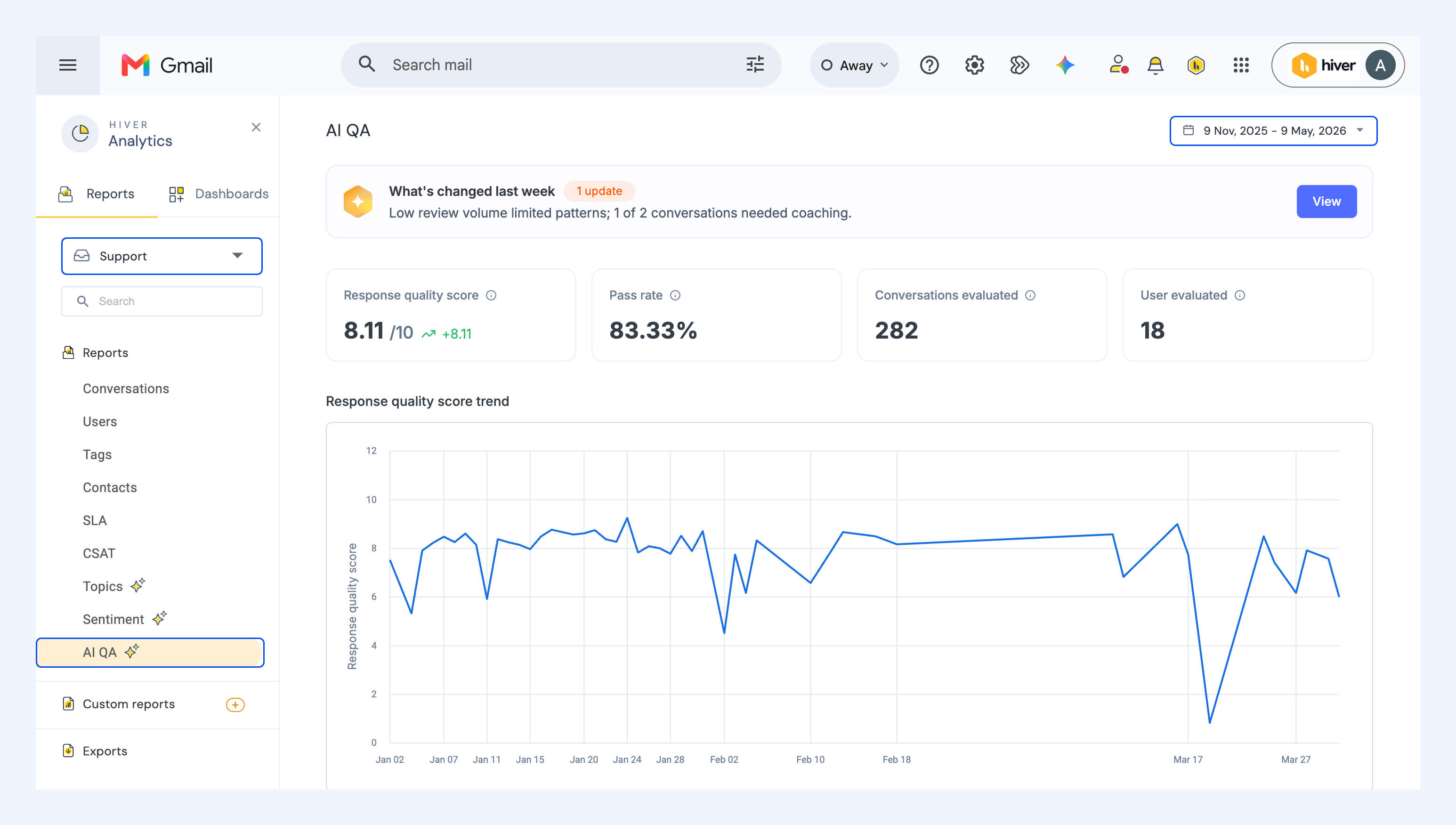
View what changed last week
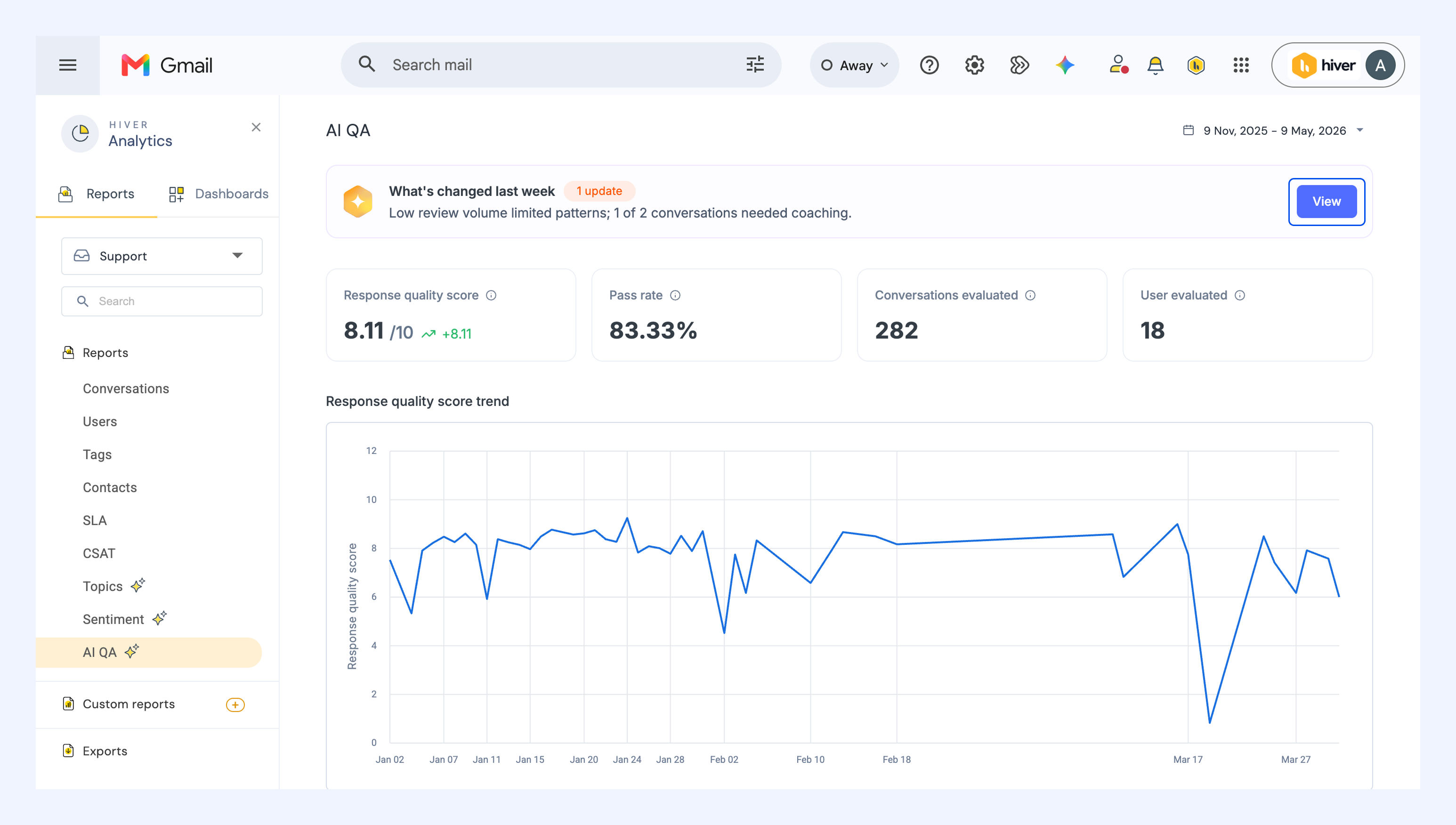
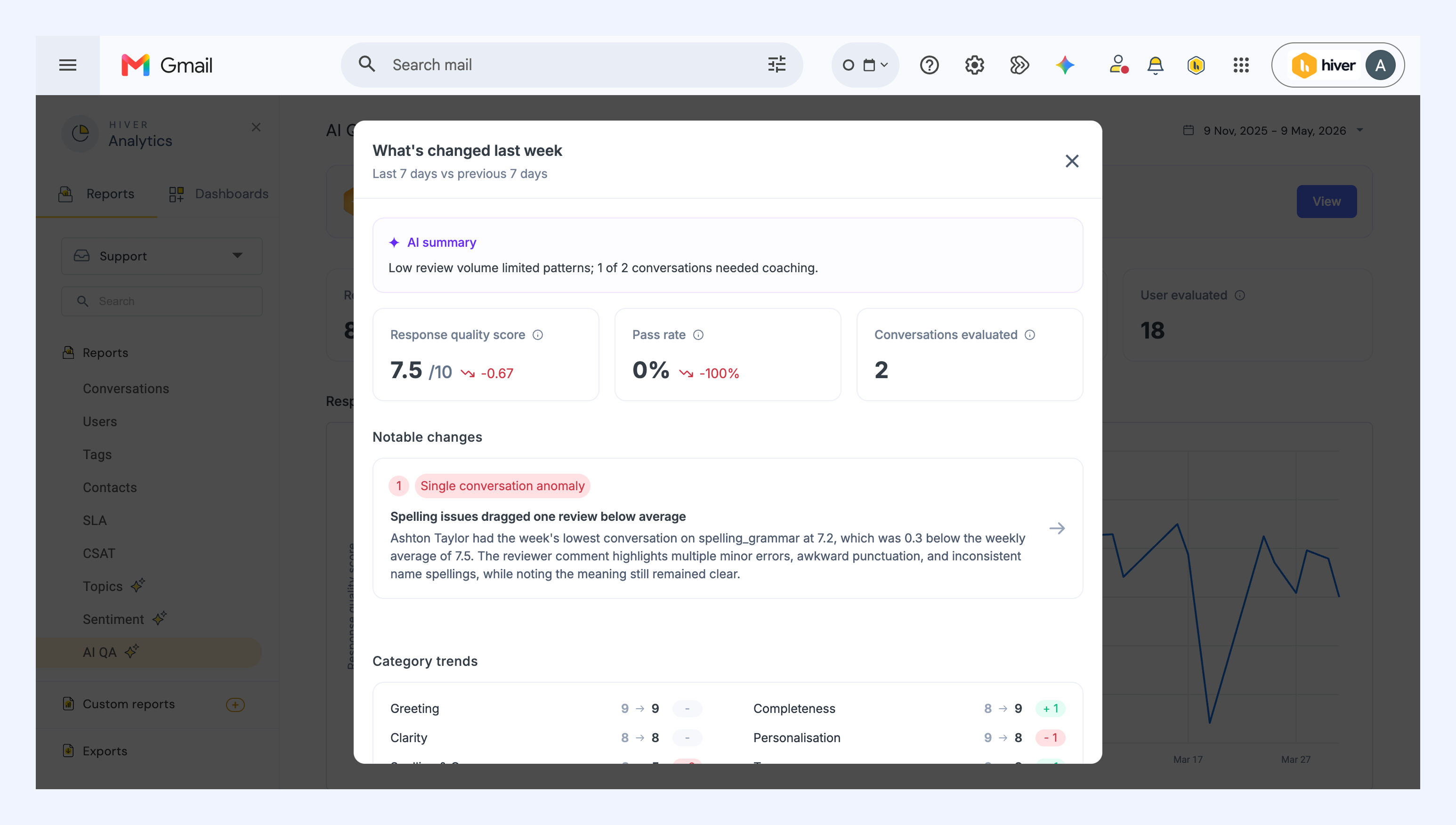
The report has an overview summarizing the key changes and trends from the last 7 days compared with the previous 7. You can click View to open the full summary, which shows:
- AI summary: A one-line overview of the week.
- Notable changes: Specific things that moved a score, such as one conversation scoring below the weekly average.
- Category trends: How each evaluation aspect moved week over week.
Reviewing scores
You can group the report in two ways:
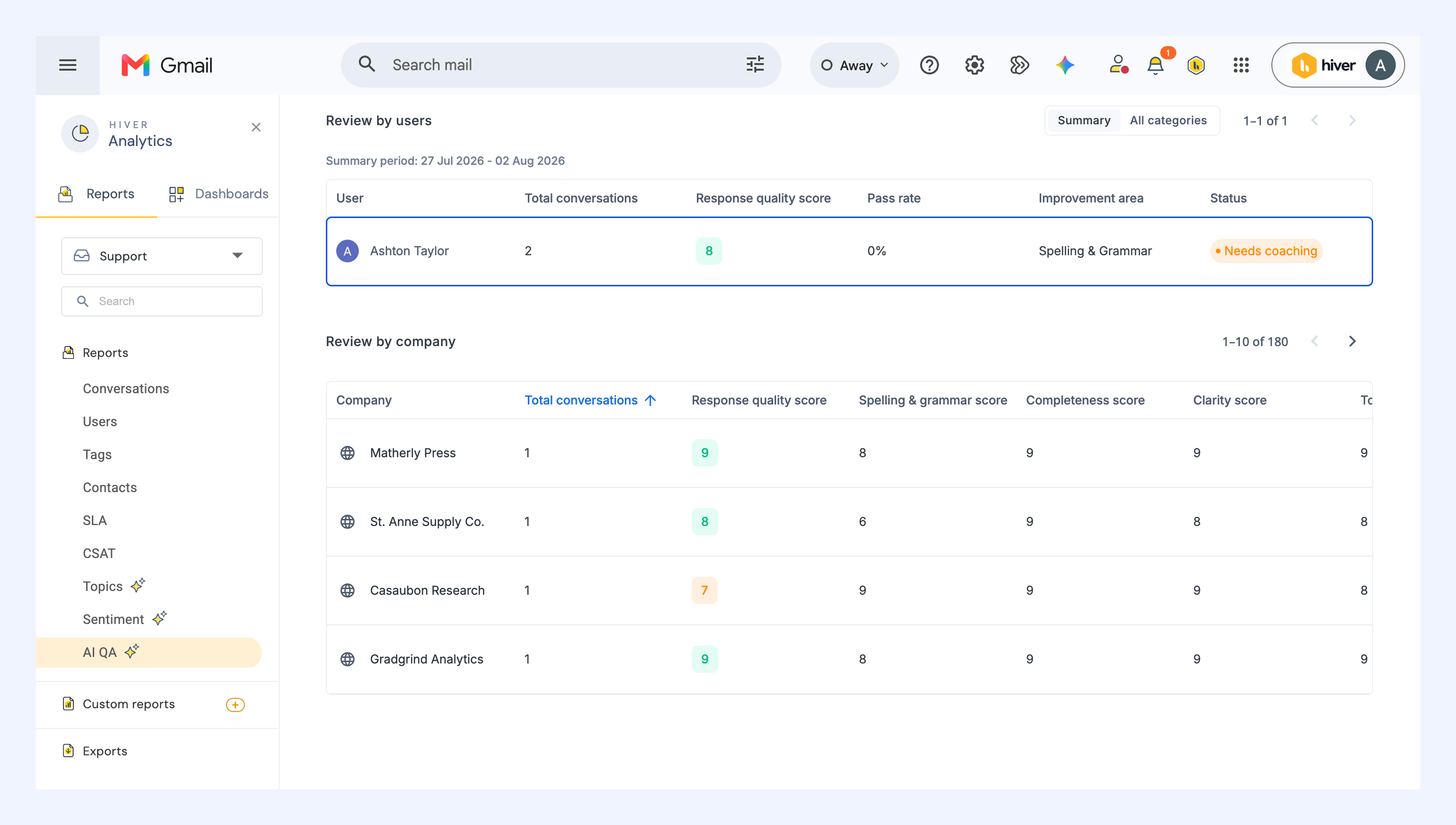
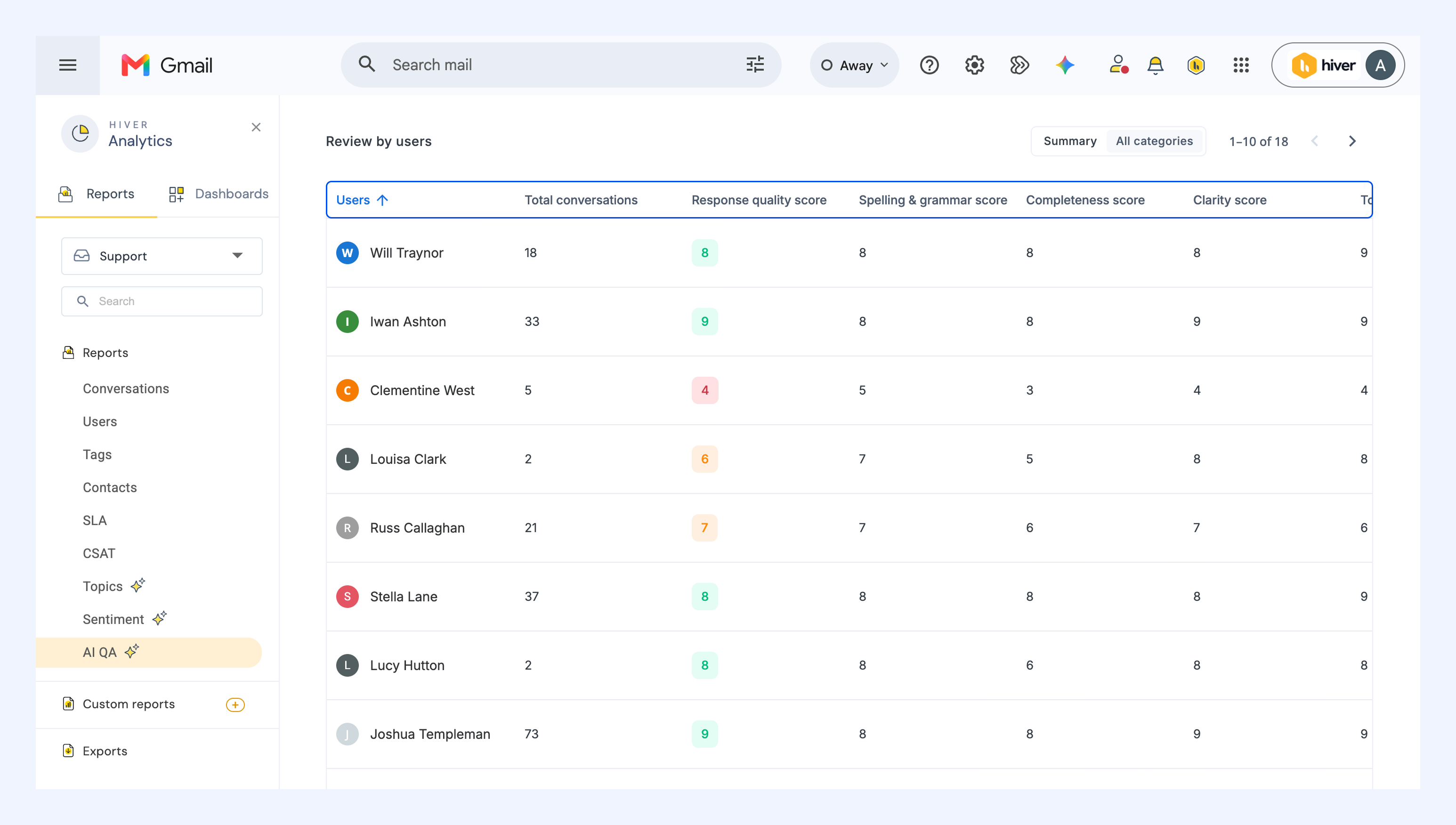
1. Review by users shows scores for individual team members.
- Use the Summary view for each user's improvement area and coaching status.
- Use the All categories view to see their score across evaluation categories.
2. Review by company shows how response quality varies across customer accounts. Select a company to dive deeper into its conversations and the associated scores.
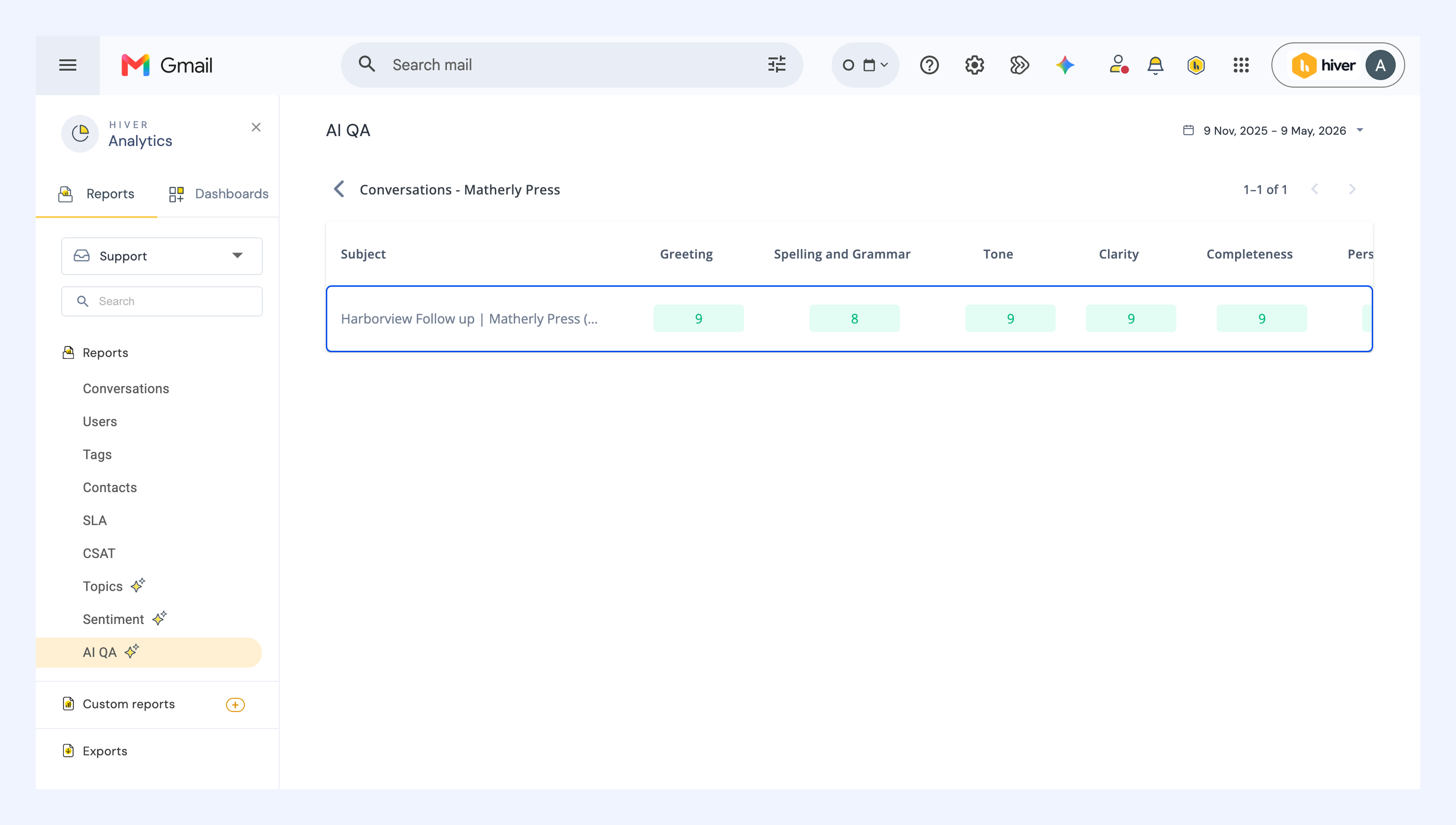
Individual user details
Selecting a user opens their detail view, which includes:
- Quality shape: The user's scores across all six aspects, between the current period and the last.
- Response quality score over time: The user's weekly average score against the team average.
- Recent conversations: The weakest aspect flagged on each conversation.
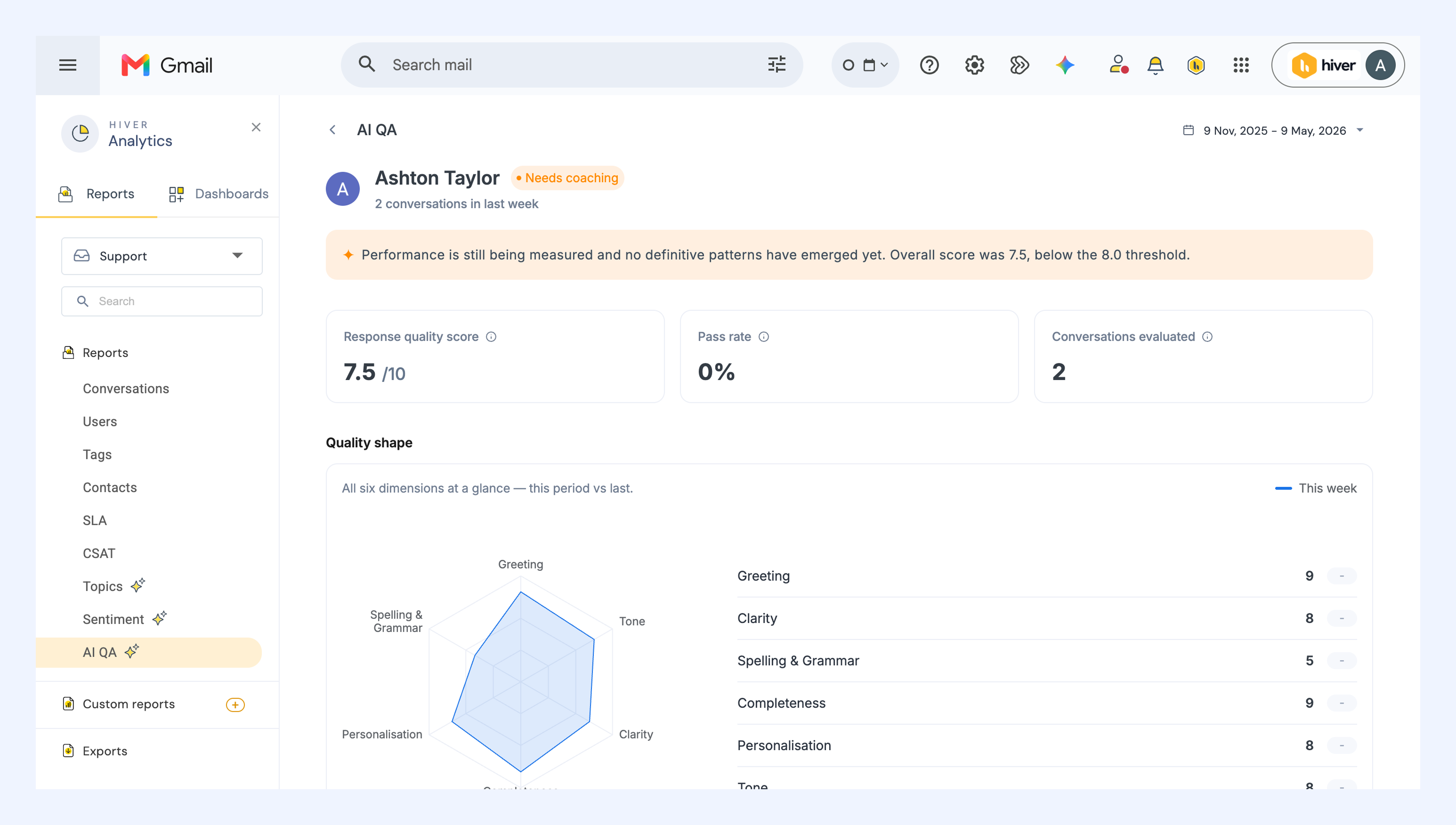
How scores map to team members
If multiple team members have replied in a conversation:
- The score is assigned to the person who closed the conversation, if they sent at least one response.
- If that person did not reply, the score is mapped to the last person who responded.
FAQs
Why isn't AI QA available in my account?
AI QA is available only in the Elite plan for customers who signed up after December 22, 2025. To enable it for your account, contact support@hiverhq.com.
Does AI QA evaluate internal emails or notes?
No. AI QA evaluates only outgoing replies. Shared notes, attachments, or internal emails (sent within the same domain) are not reviewed.
Does changing settings affect past scores?
No. New configuration applies only to future responses.
How does AI QA assign scores when multiple team members reply to the same conversation?
AI QA assigns the score to the member who closes the conversation, as long as they sent at least one reply. If that person who closed the conversation didn't reply, the score goes to the last person who responded.
What is the response quality score? How does it help?
The response quality score is a measure of how well a team member's reply meets the evaluation aspects you've selected, such as clarity, completeness, tone, or personalization.
It helps you quickly understand the quality of responses across conversations and identify where improvements may be needed.
What does 'Total users evaluated' mean? Why are some team members not evaluated?
Total users evaluated reflects the number of members whose responses were reviewed by AI QA during the selected date range.
Team members who did not send any replies, or whose replies were not eligible for evaluation, will not appear in this count.