HubSpot Integration with Hiver
Connect HubSpot with Hiver to bring your CRM data into customer conversations. Your team can check the contact, company, and deal behind a conversation before they reply, and log conversations back to HubSpot without switching between tools.
With the app, your team can:
- View HubSpot contact, company, and deal details in the right panel of a conversation.
- Open the full HubSpot record directly from the conversation.
- Sync conversations to a HubSpot contact, company, or deal, manually or automatically using Hiver Automations.
- Route conversations based on whether a HubSpot record exists for the sender.
This guide covers how admins can set up the app and how team members can view HubSpot details and sync conversations from Hiver.
Prerequisites
Before setting up the HubSpot app, make sure you have:
- Admin access in Hiver.
- A HubSpot account with Super Admin permissions.
Setting up the HubSpot app
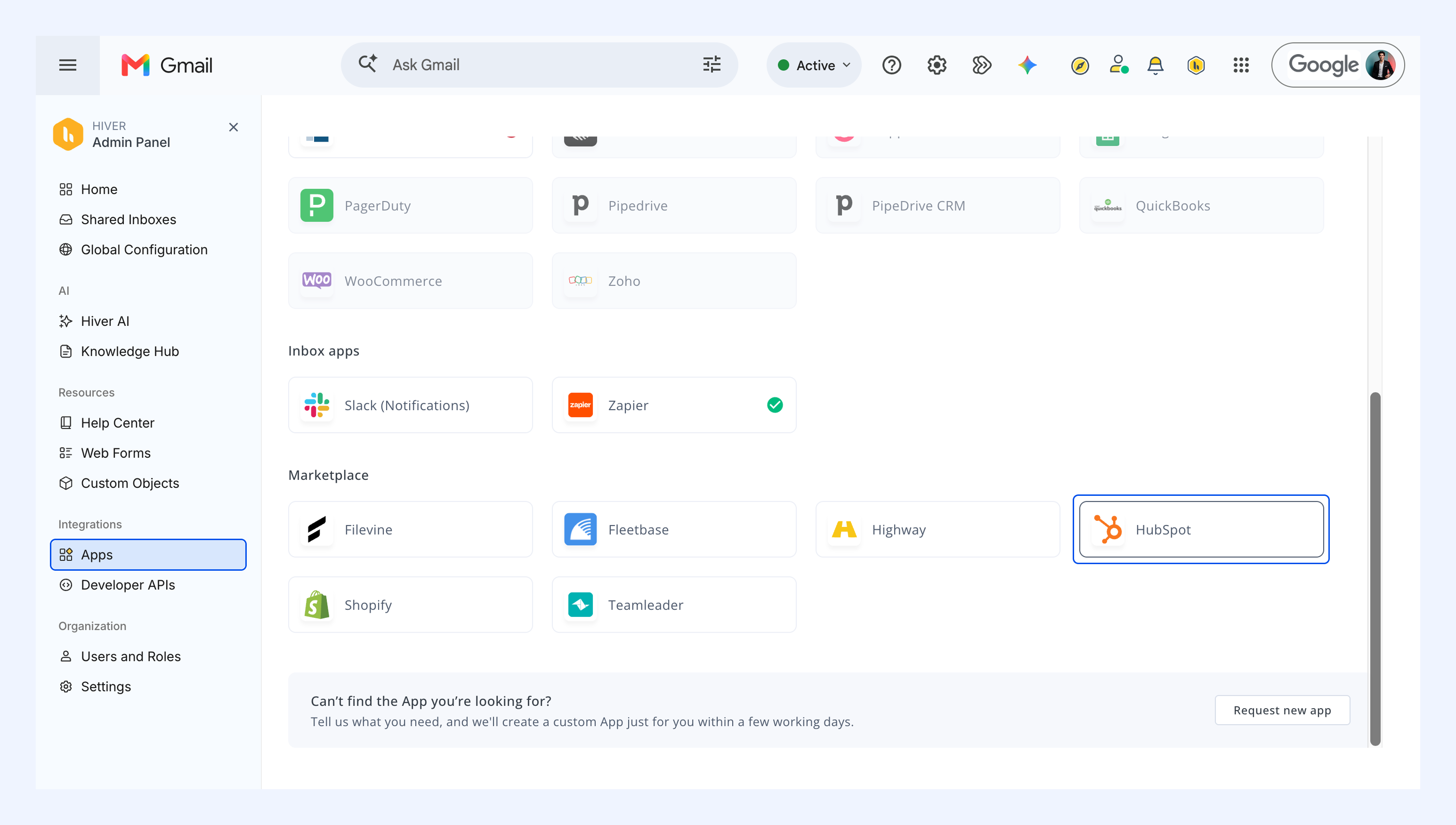
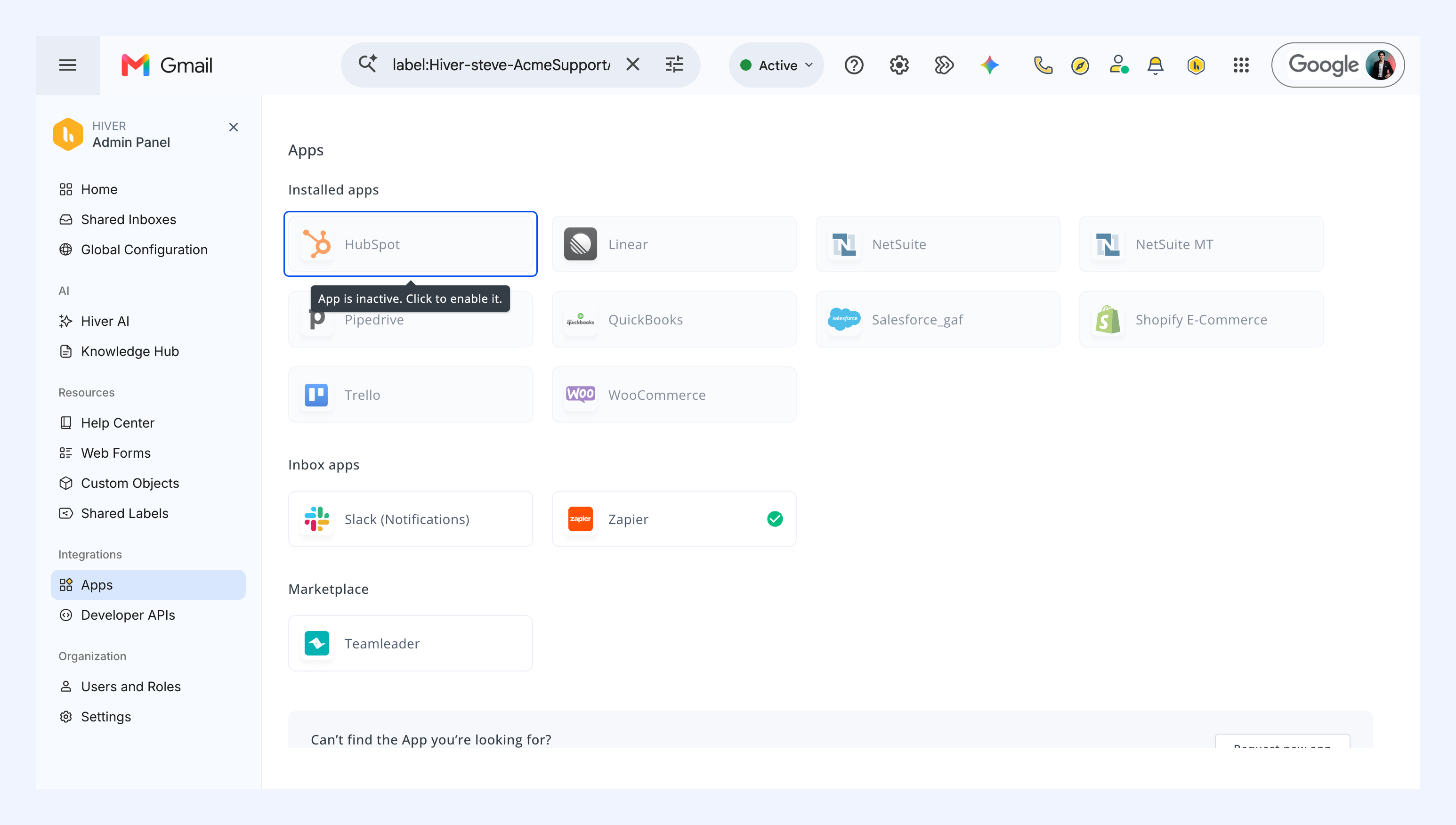
1. Go to Admin Panel → Integrations → Apps.
2. Find and select HubSpot.
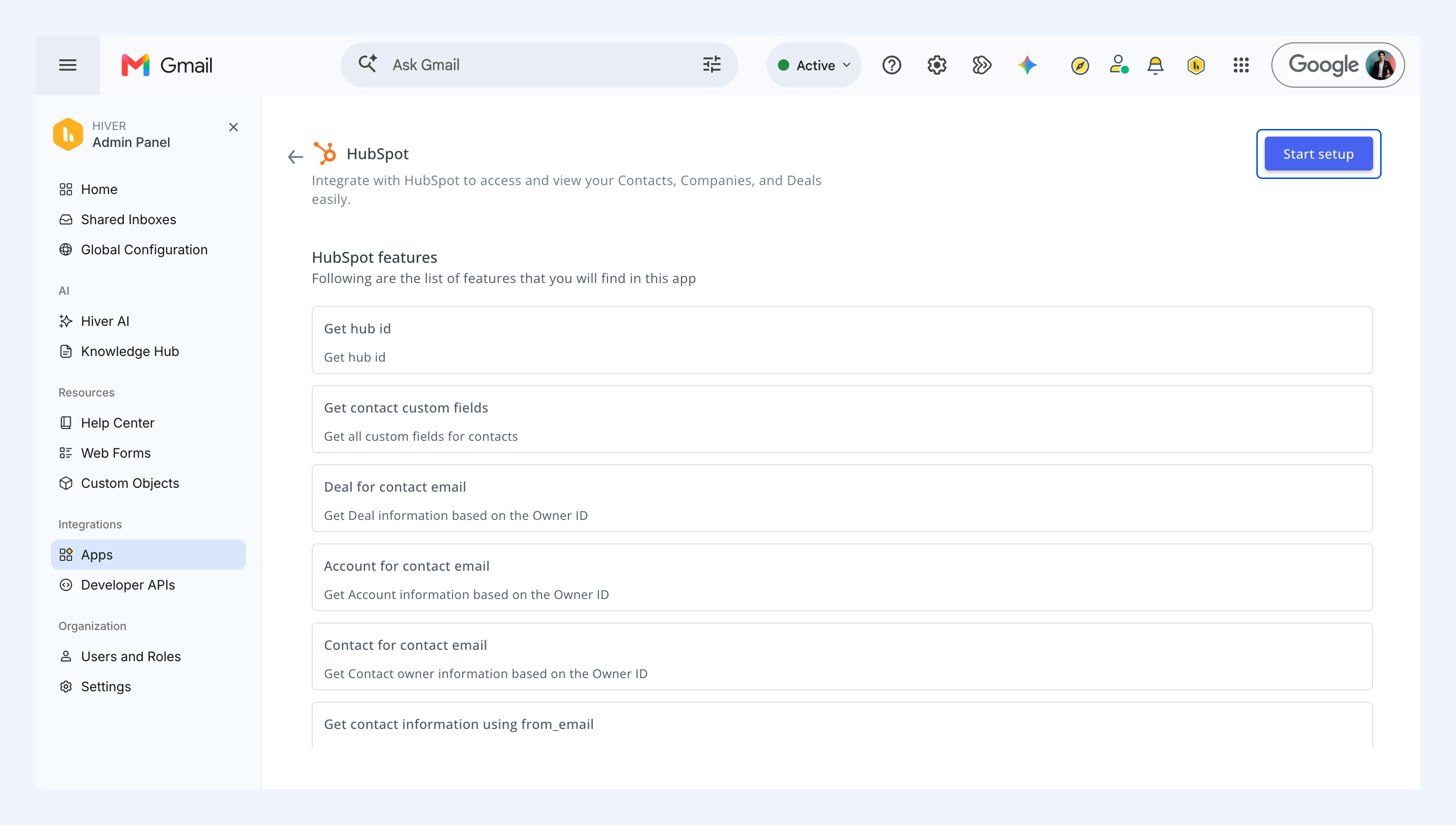
3. Review the app capabilities and click Start setup.
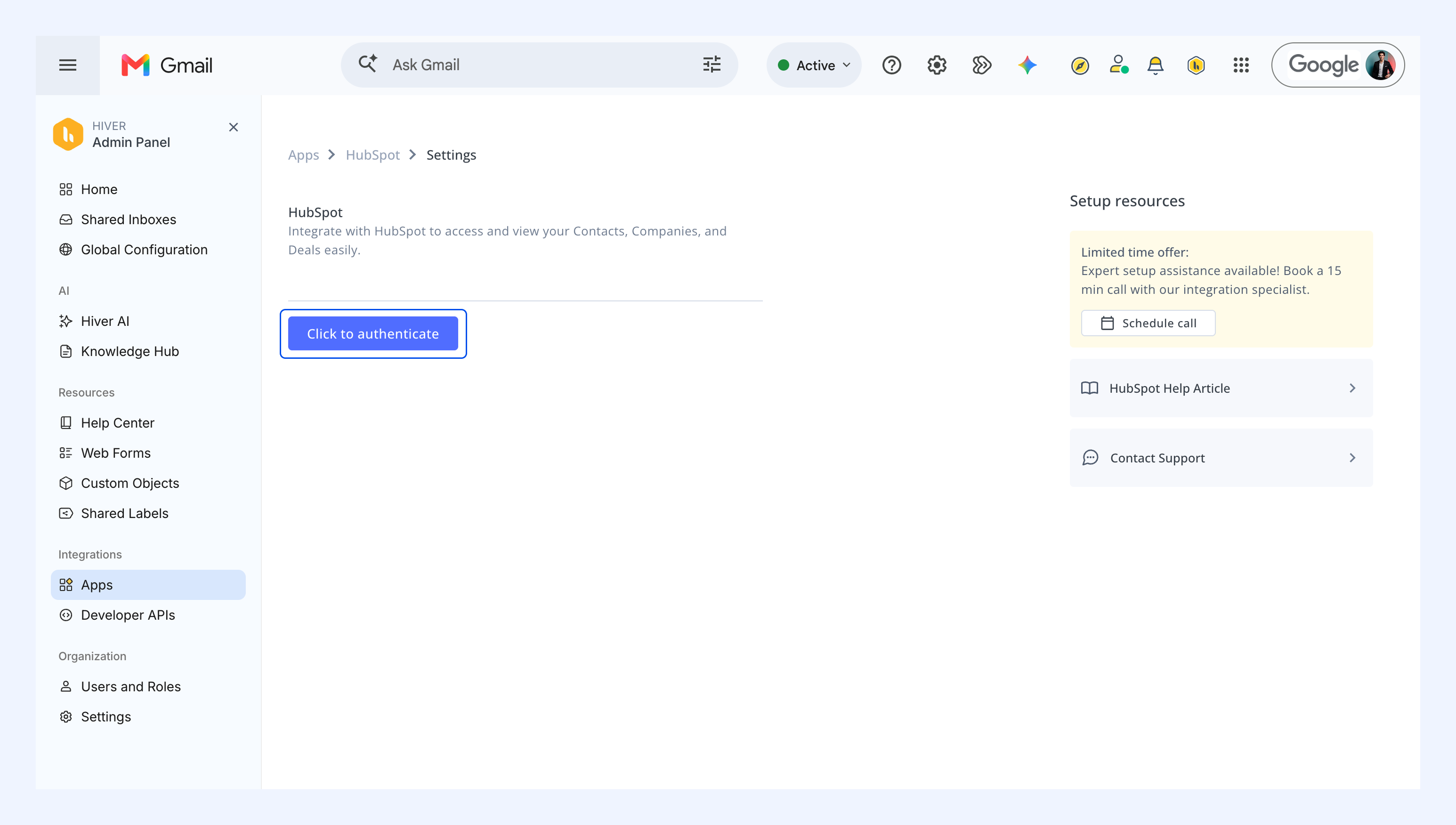
4. Select Click to authenticate.
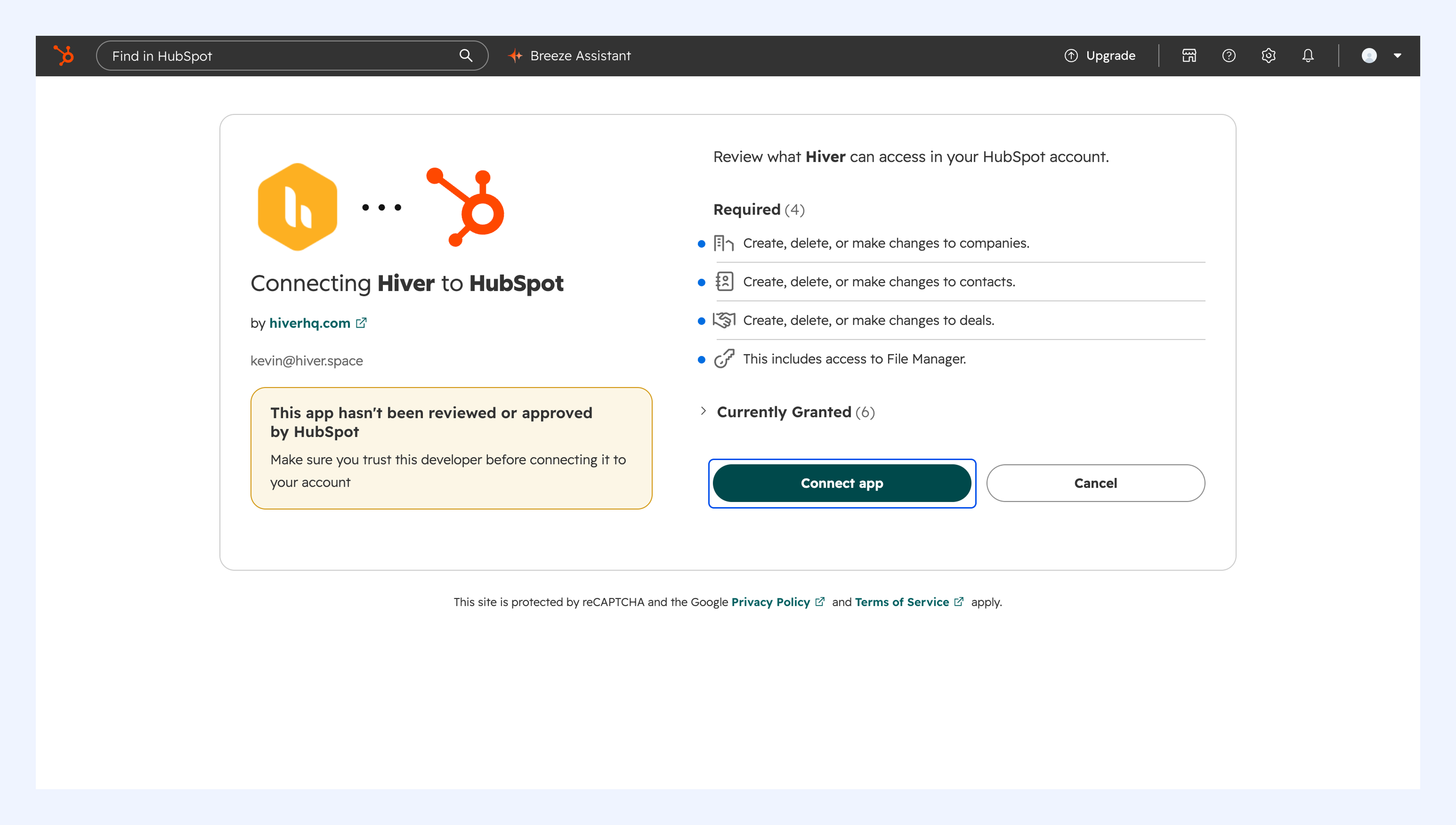
5. In the new tab that opens, sign in to HubSpot and choose the account you want to connect.
6. Review what Hiver can access in your HubSpot account, then click Connect app and confirm.
7. Once you're connected, return to Hiver and select HubSpot under Installed apps to continue setup.
Choose how Hiver finds customers in HubSpot
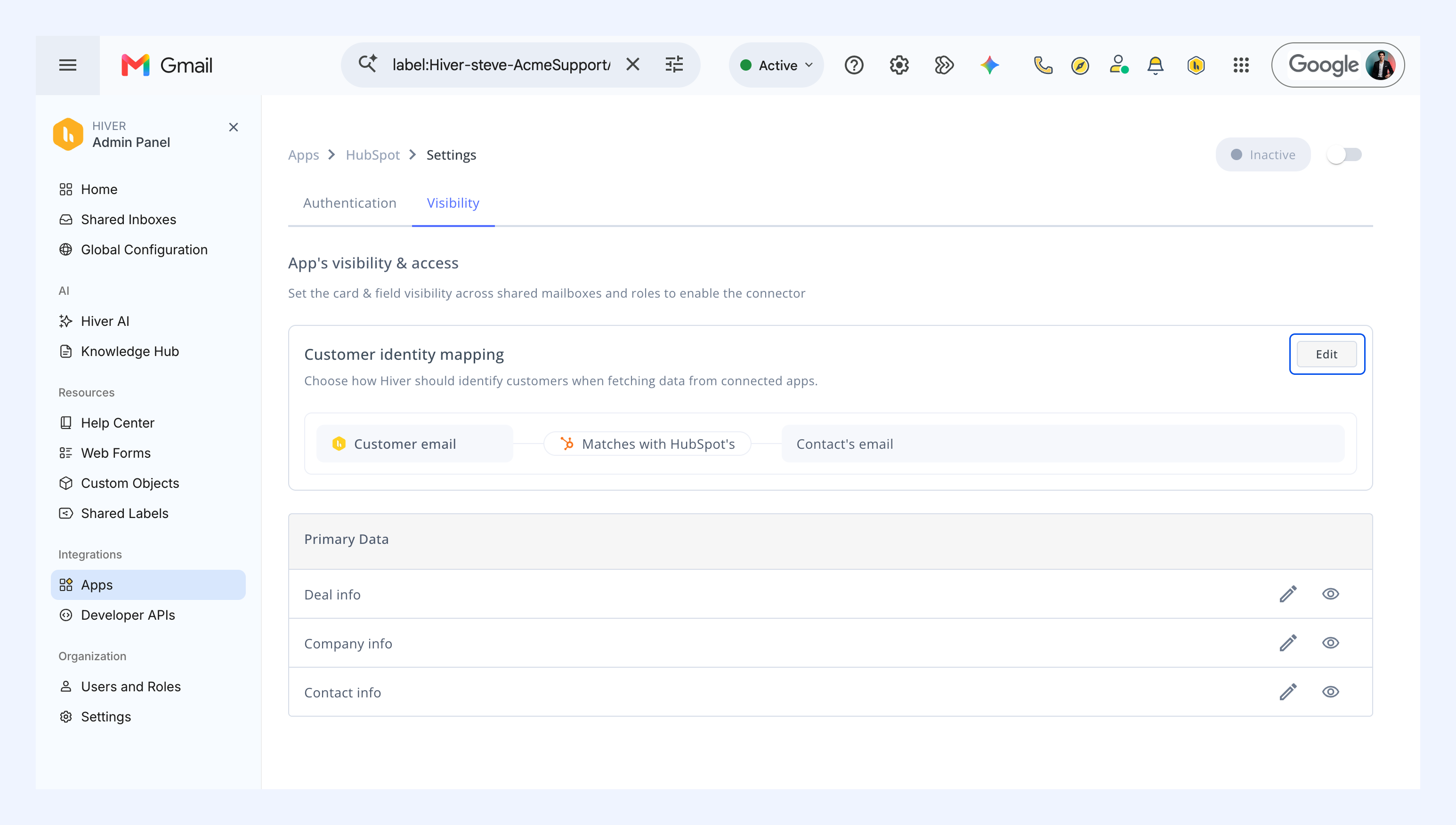
You can customize Customer identity mapping to tell Hiver how to find the right record in HubSpot. To do this:
1. Go to Visibility → Customer identity mapping, then click Edit.
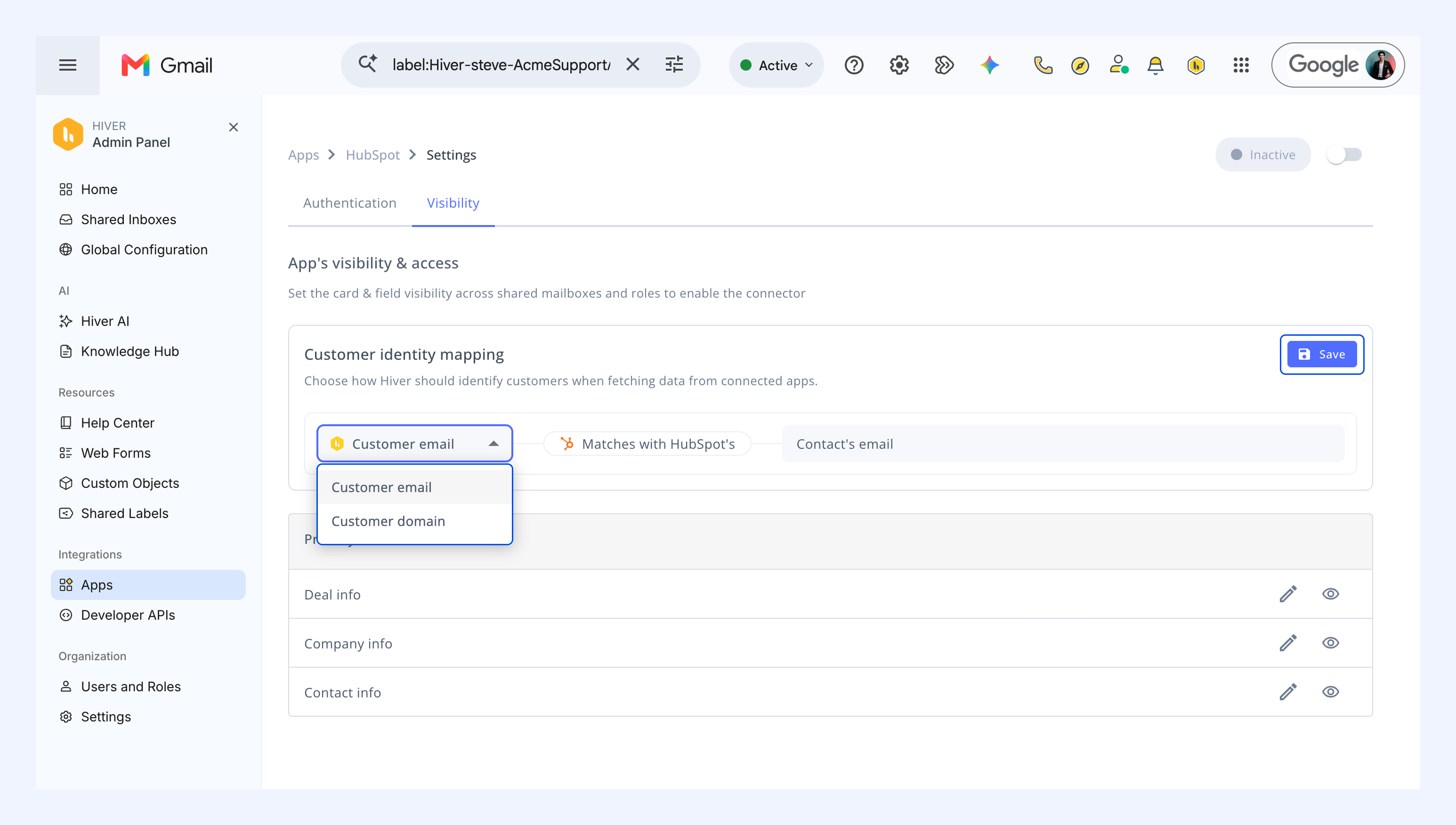
2. Pick Customer email or Customer domain and map it to the matching field in HubSpot. Hiver uses that pairing to identify the customer and pull in their details.
3. Click Save.
Choose who can see the HubSpot app
1. Go to Visibility and click the Configure visibility settings icon.
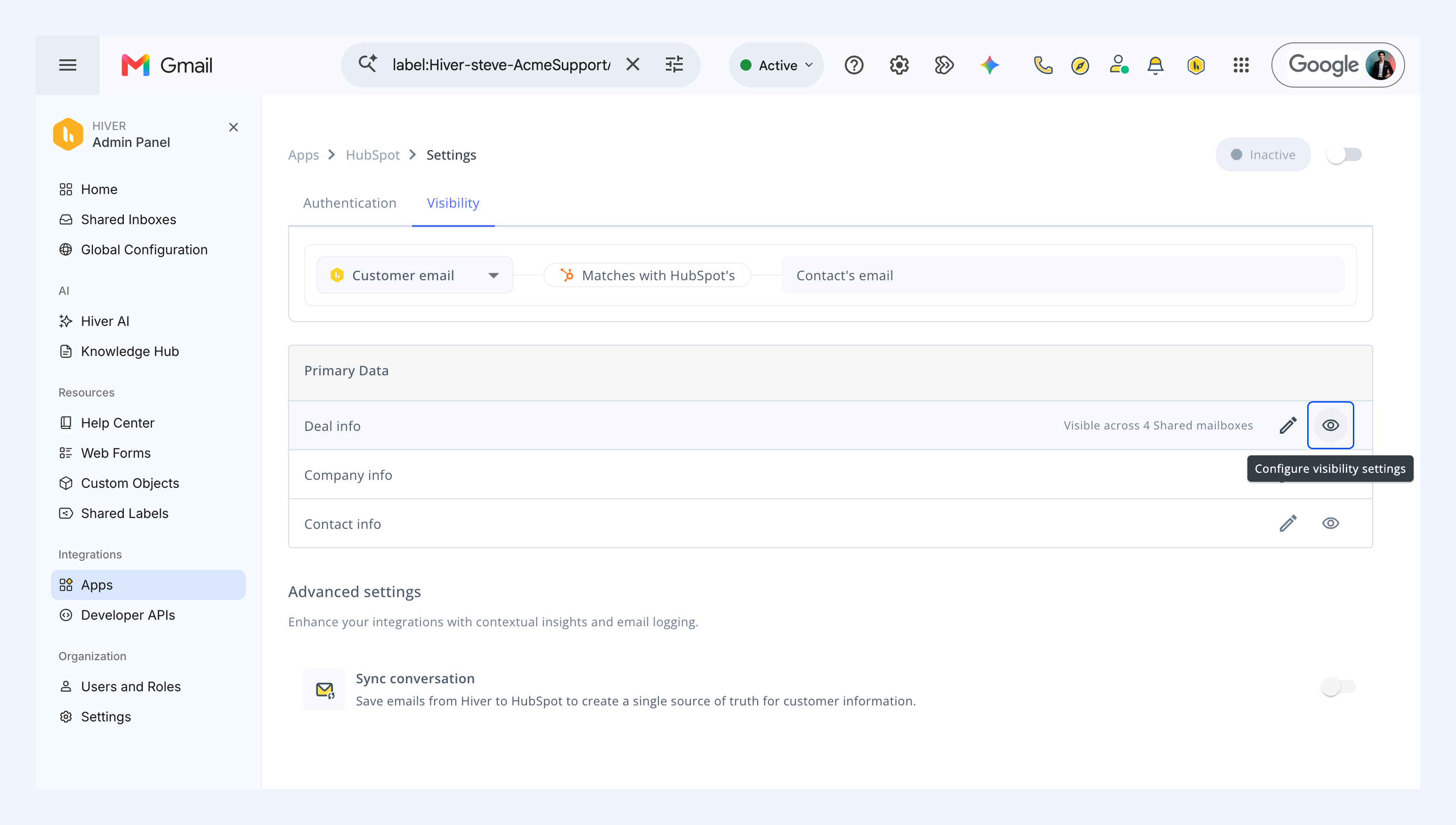
2. Select the Shared Inboxes where the HubSpot app should be available.
3. Select the roles that should see the HubSpot app.
4. Click Save.
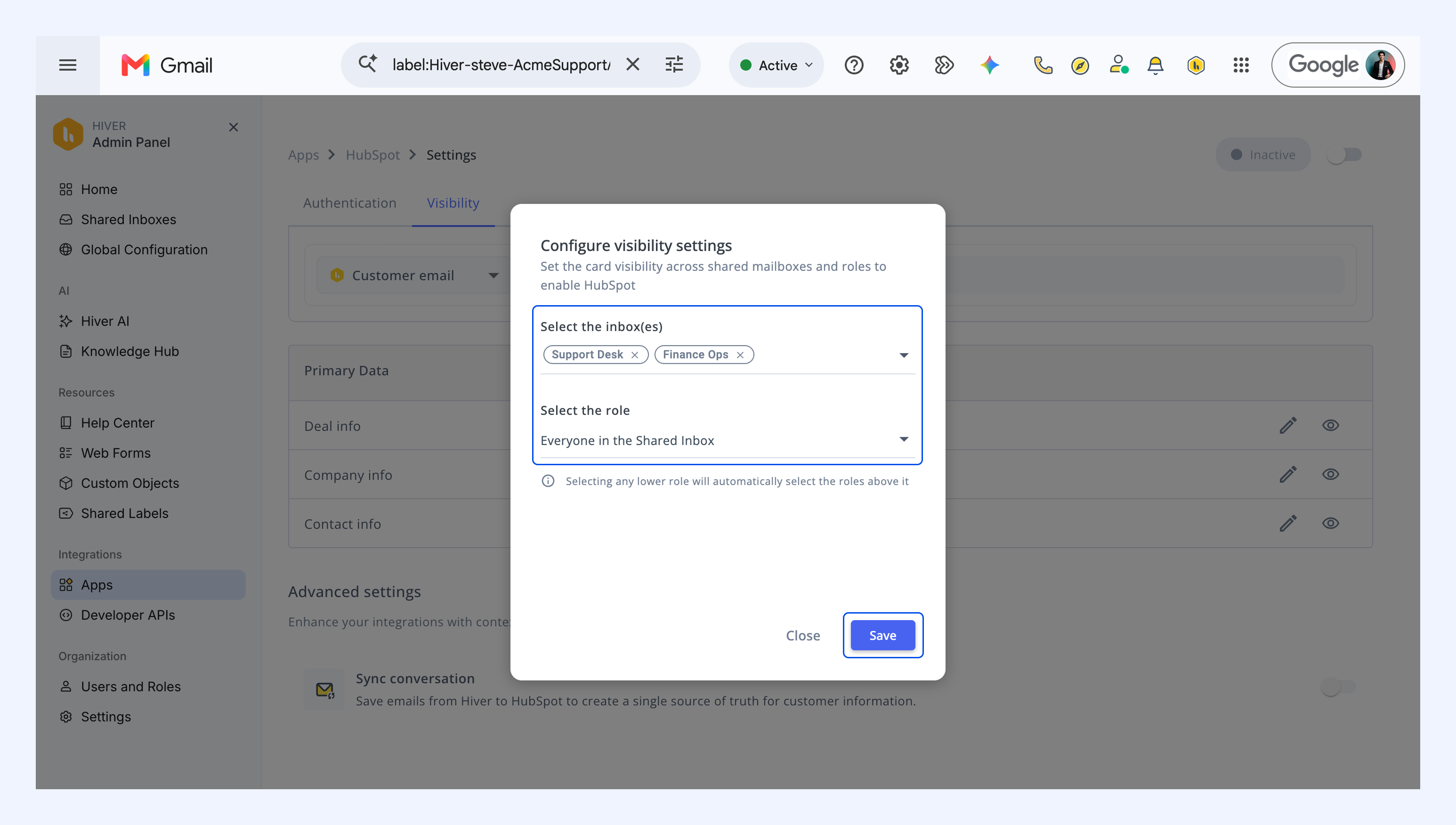
The HubSpot app will be available in the selected Shared Inboxes for users with the selected roles after the app is enabled.
Choose what data should be visible in Hiver
Next, choose which fields your team can see in Hiver.
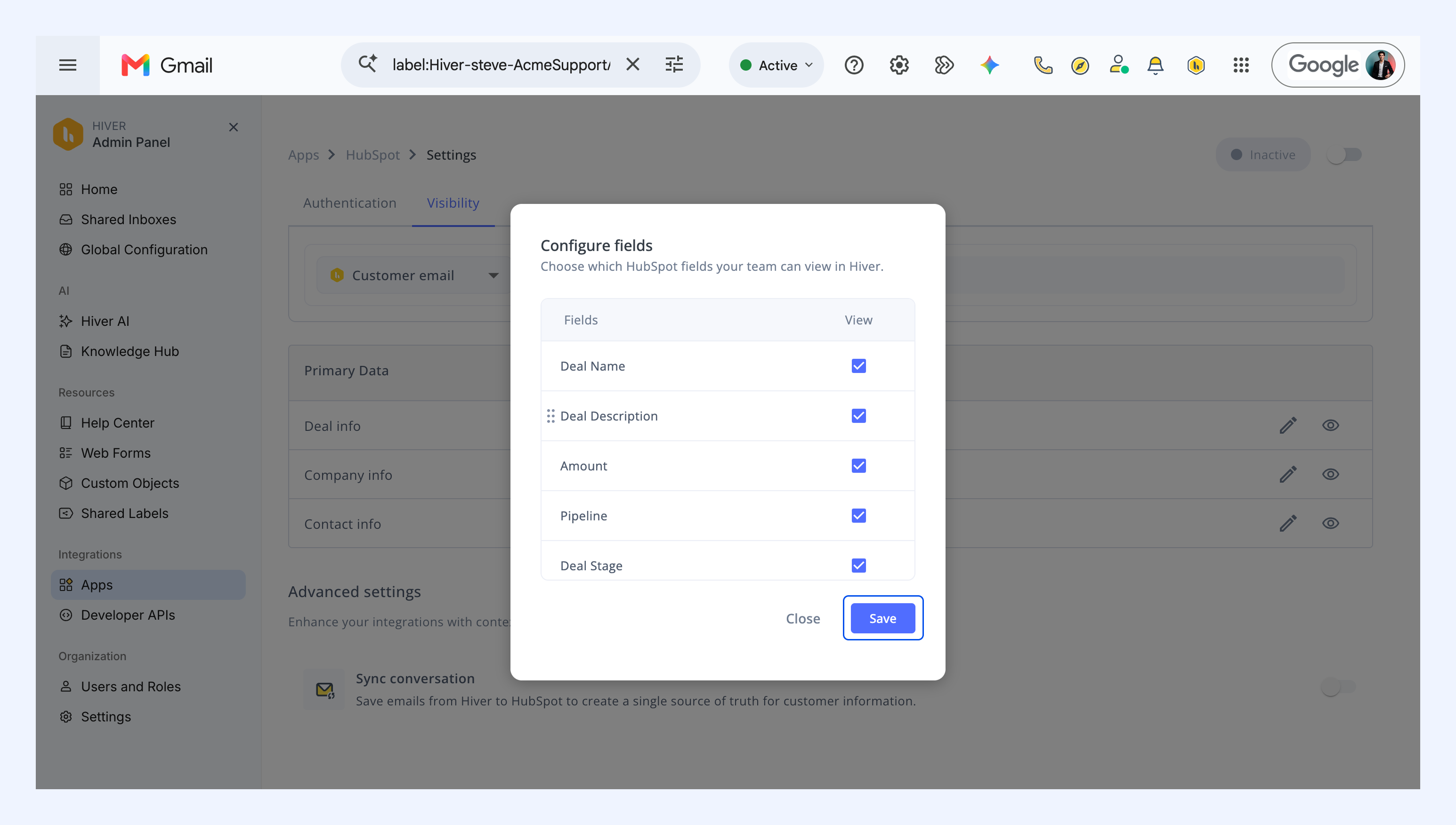
1. Click the Configure fields icon.
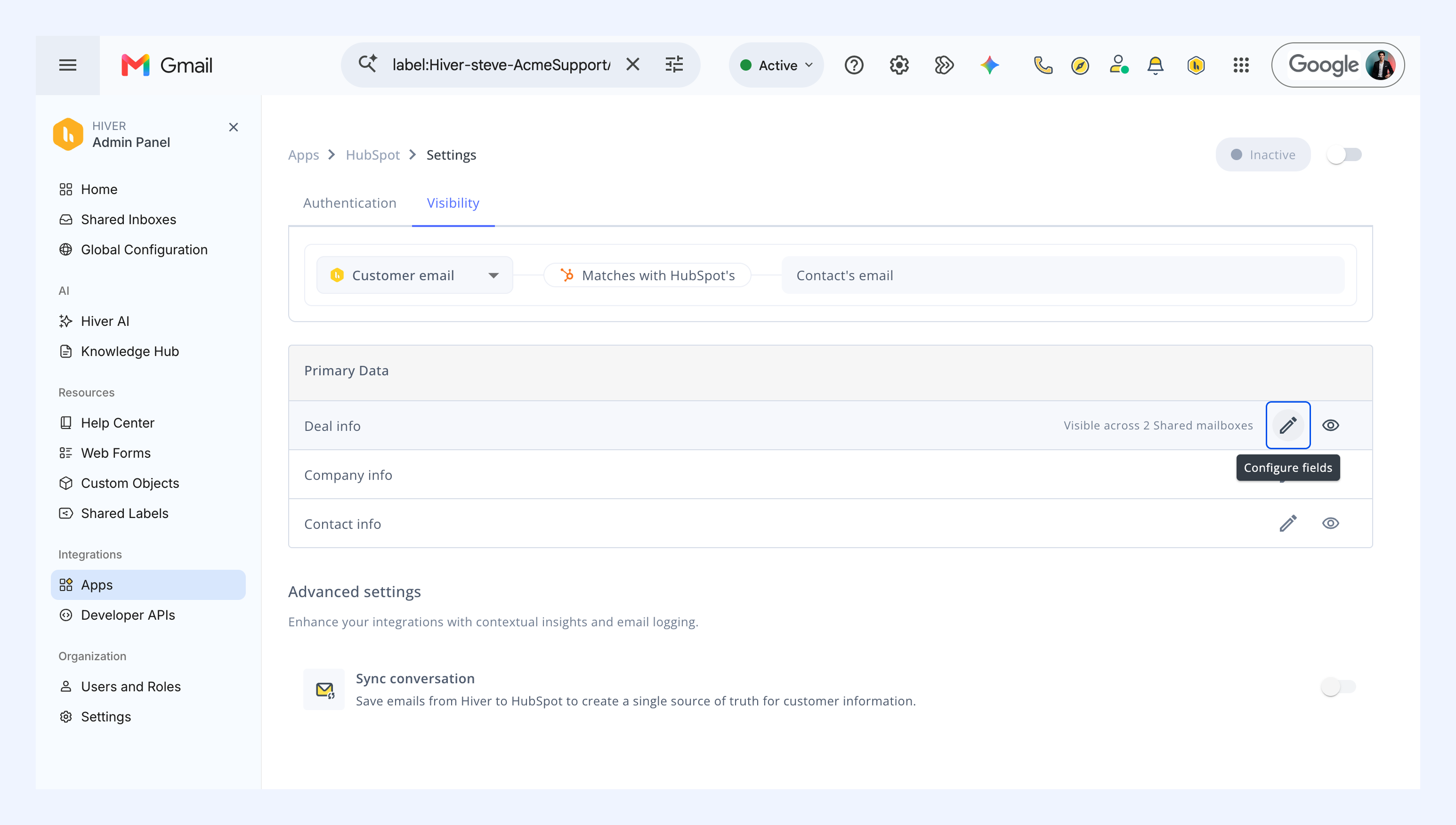
2. Choose your fields and click Save.
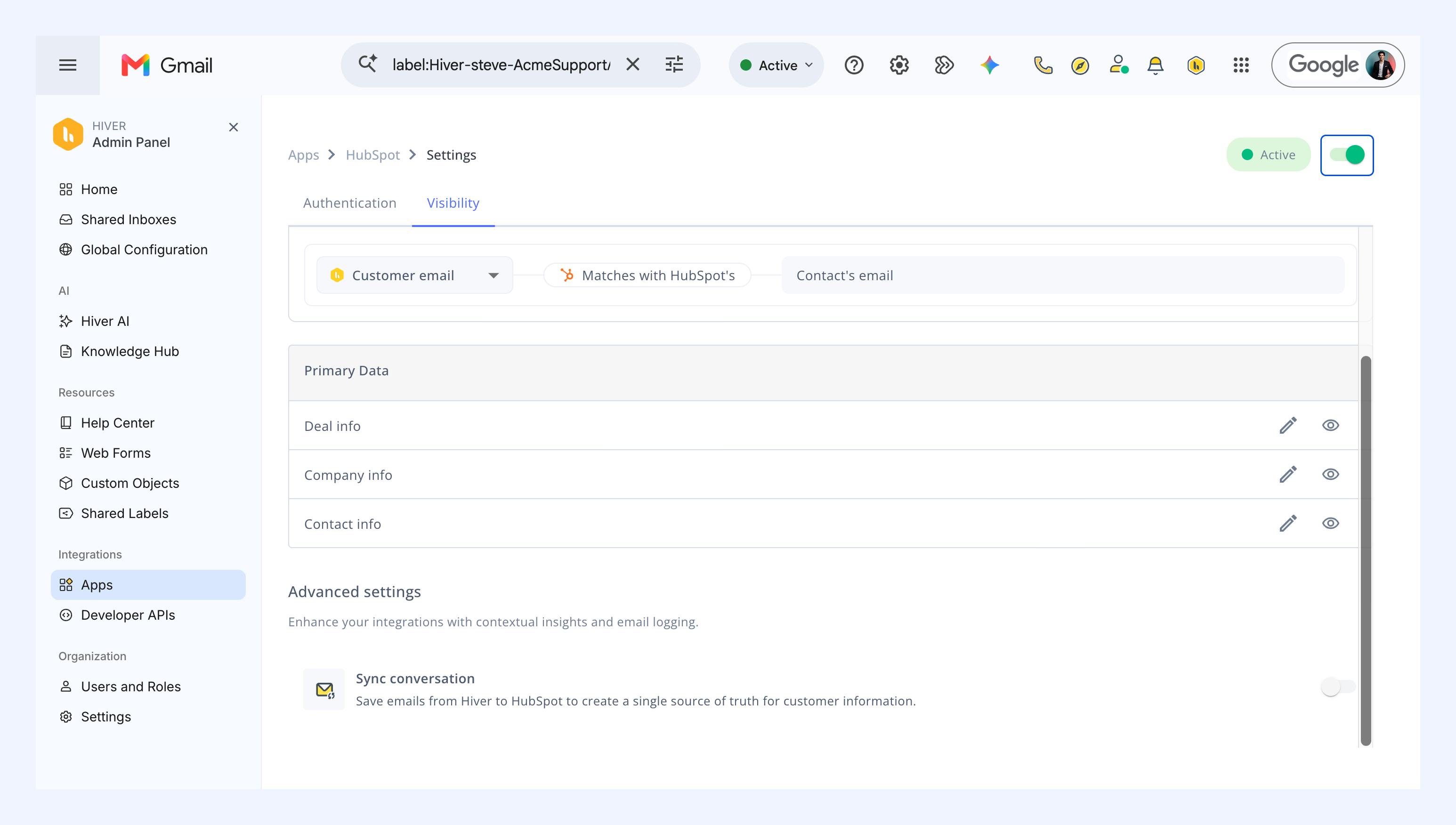
Enabling the app
After you choose who can see HubSpot and what data is visible, turn on the HubSpot app toggle. The HubSpot app becomes available in the selected Shared Inboxes for users with the selected roles.
Using the HubSpot app
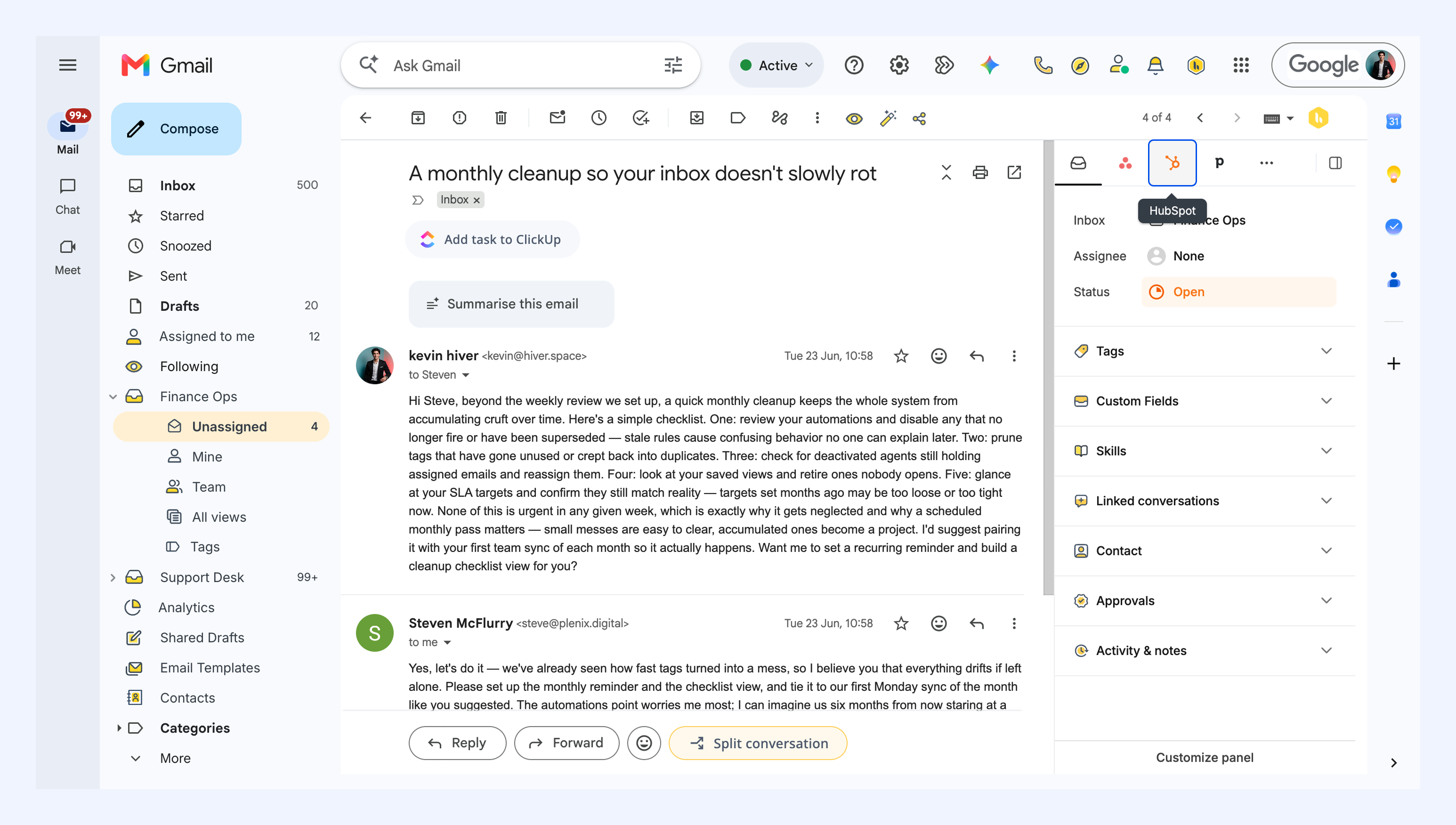
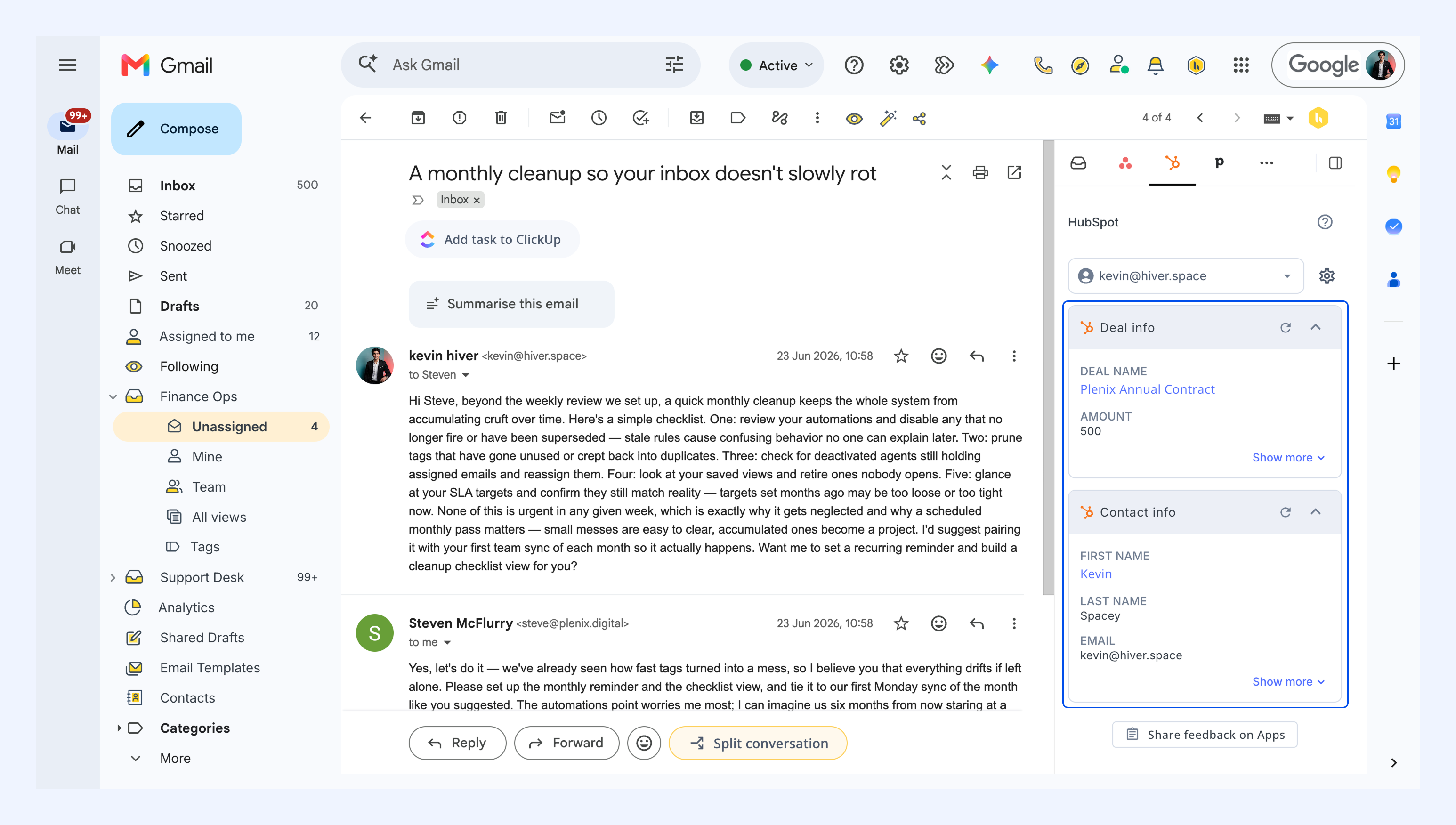
Hiver shows the HubSpot deal, company, and contact for the customer in a conversation. To view them:
1. Open HubSpot from the right panel.
2. When a record is updated directly in HubSpot, click the refresh icon to load its latest details in Hiver.
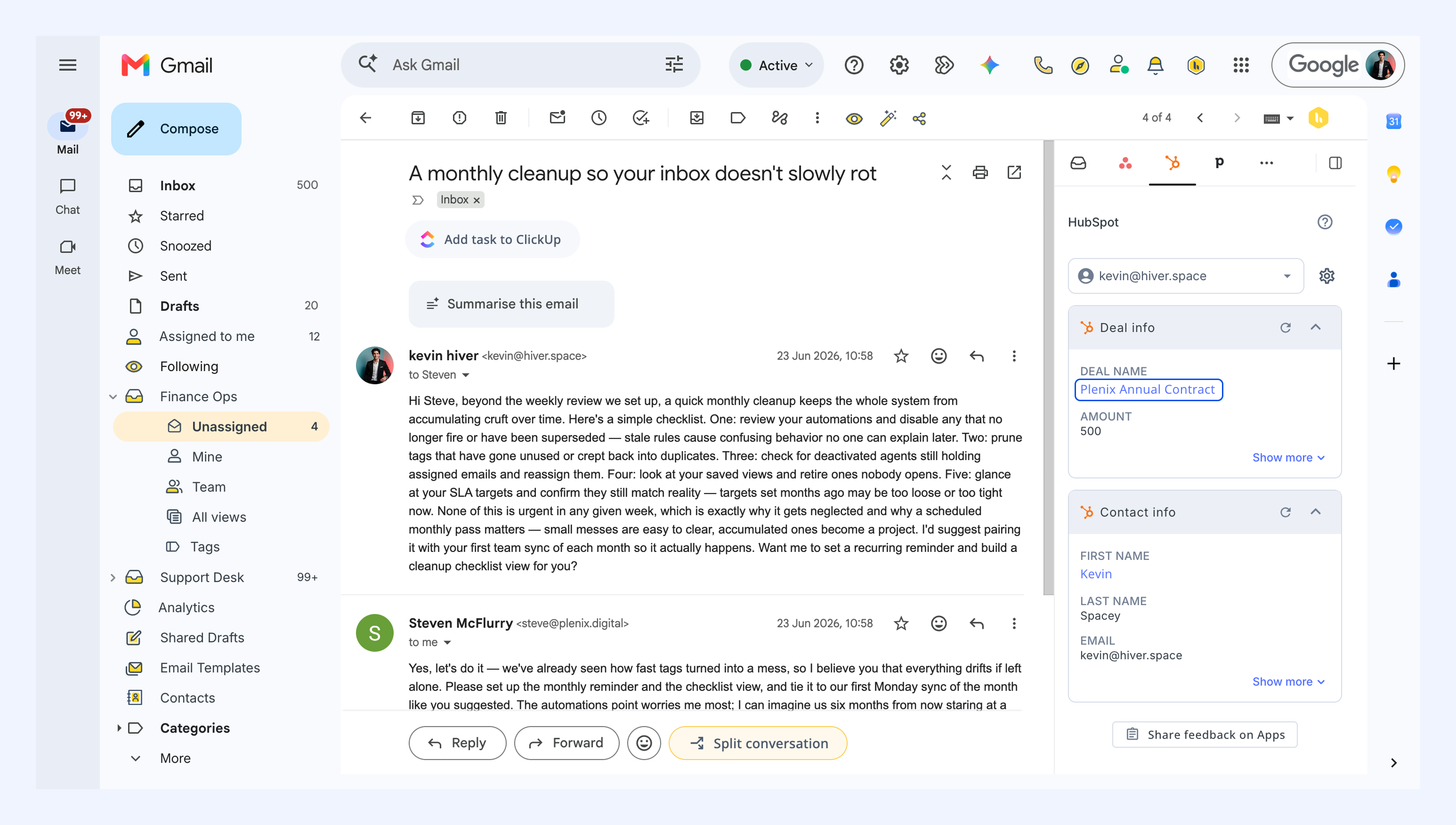
From the right panel in Hiver, use the link to open the record directly in HubSpot.
Sync conversations to HubSpot
You can sync an email conversation from Hiver to a HubSpot contact, company, or deal.
You can do this in two ways:
- Sync a conversation manually
- Log conversations with an Automation
Sync a conversation manually
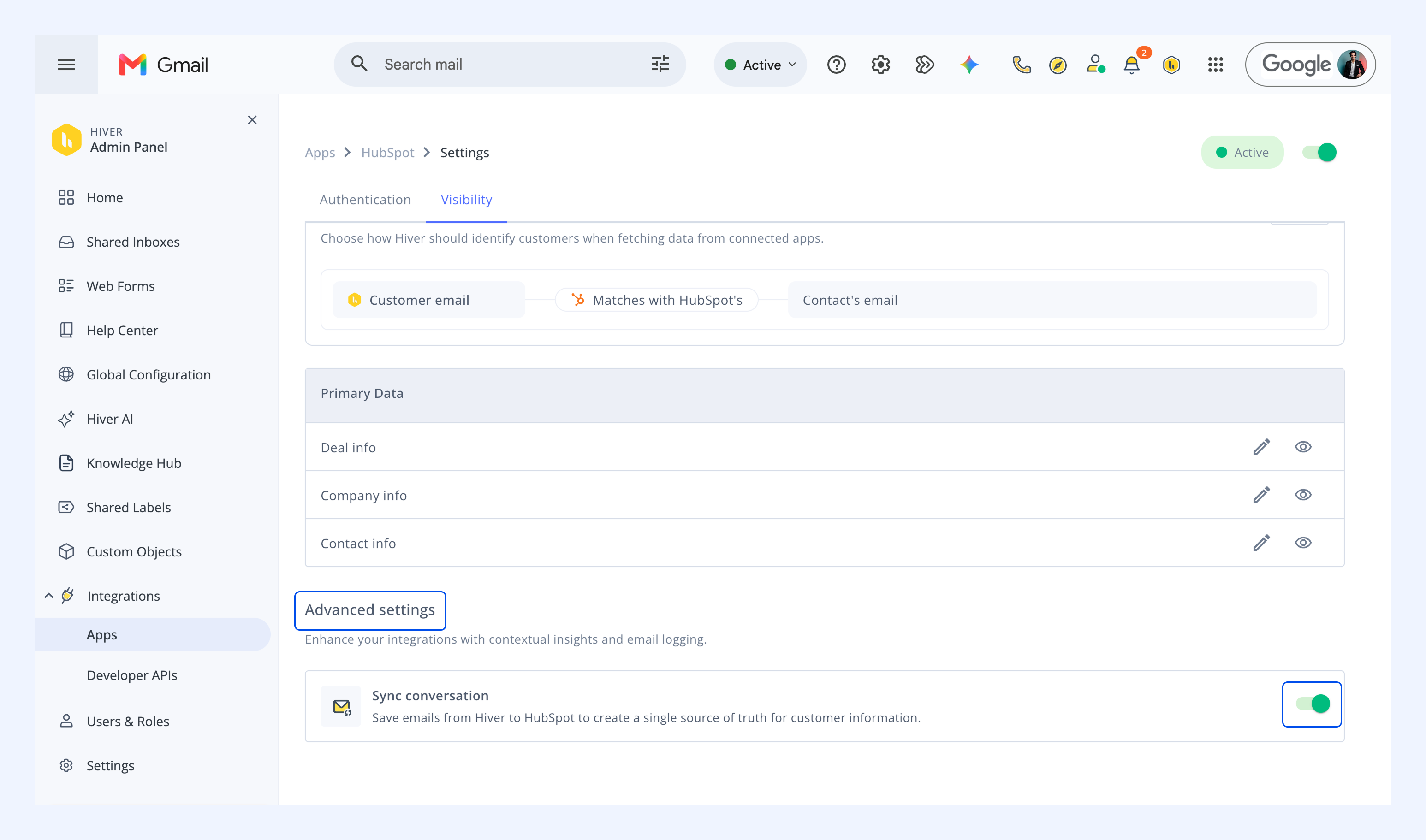
Go to Advanced settings and toggle on Sync conversation. Once enabled, you'll see a Sync conversation option on every email in your Shared Inbox.
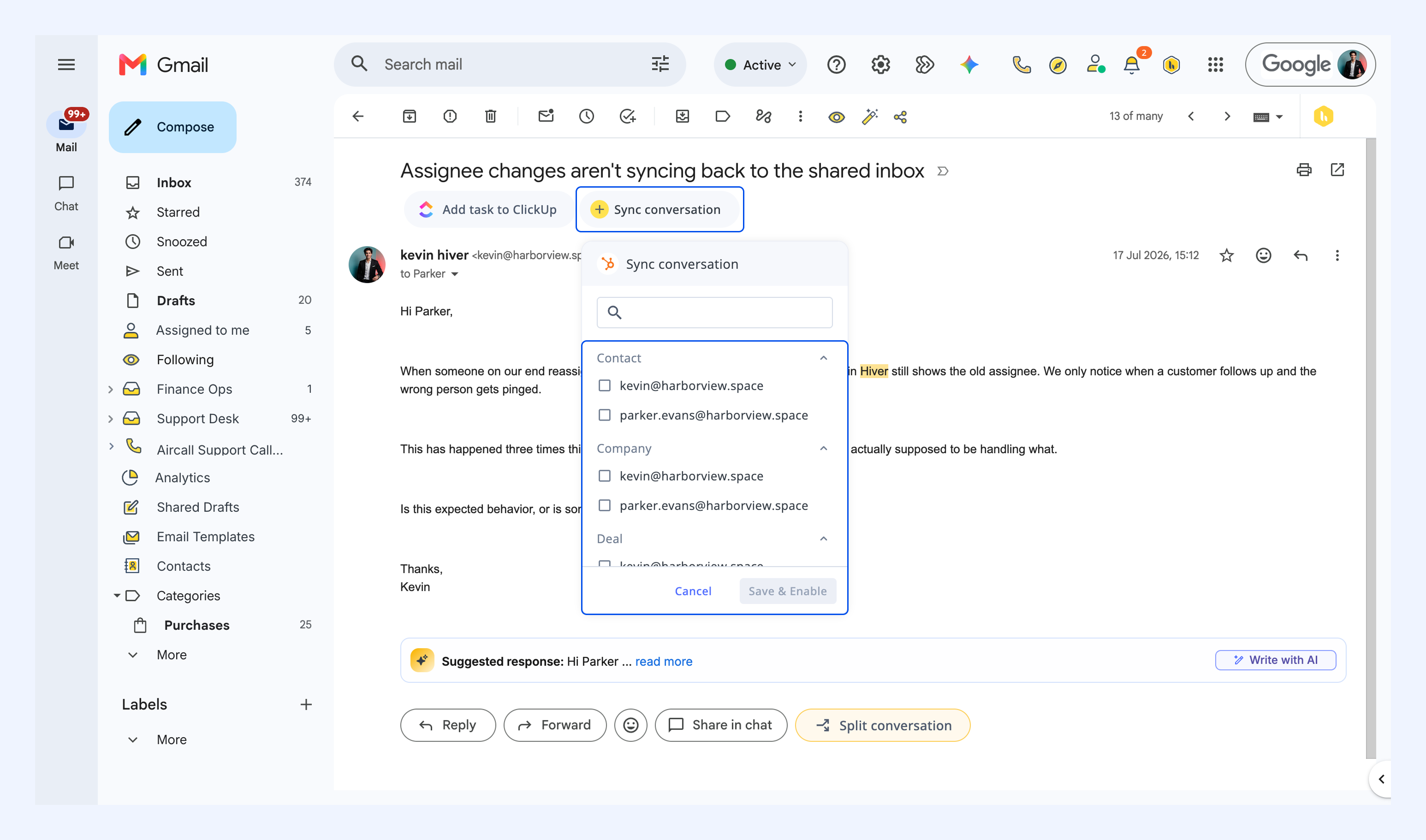
1. Open the conversation and click Sync conversation.
2. Search for and select the HubSpot contact, company, or deal you want to sync the conversation to. Hiver uses the email addresses in the conversation to suggest matching records.
3. Click Save and enable.
The selected email and all future replies in that thread are logged to the HubSpot record.
Log conversations automatically with Automations
You can log a conversation to HubSpot automatically, for conversations that meet the trigger and conditions you define. For example, log every conversation from a customer's domain to their HubSpot company as it arrives.
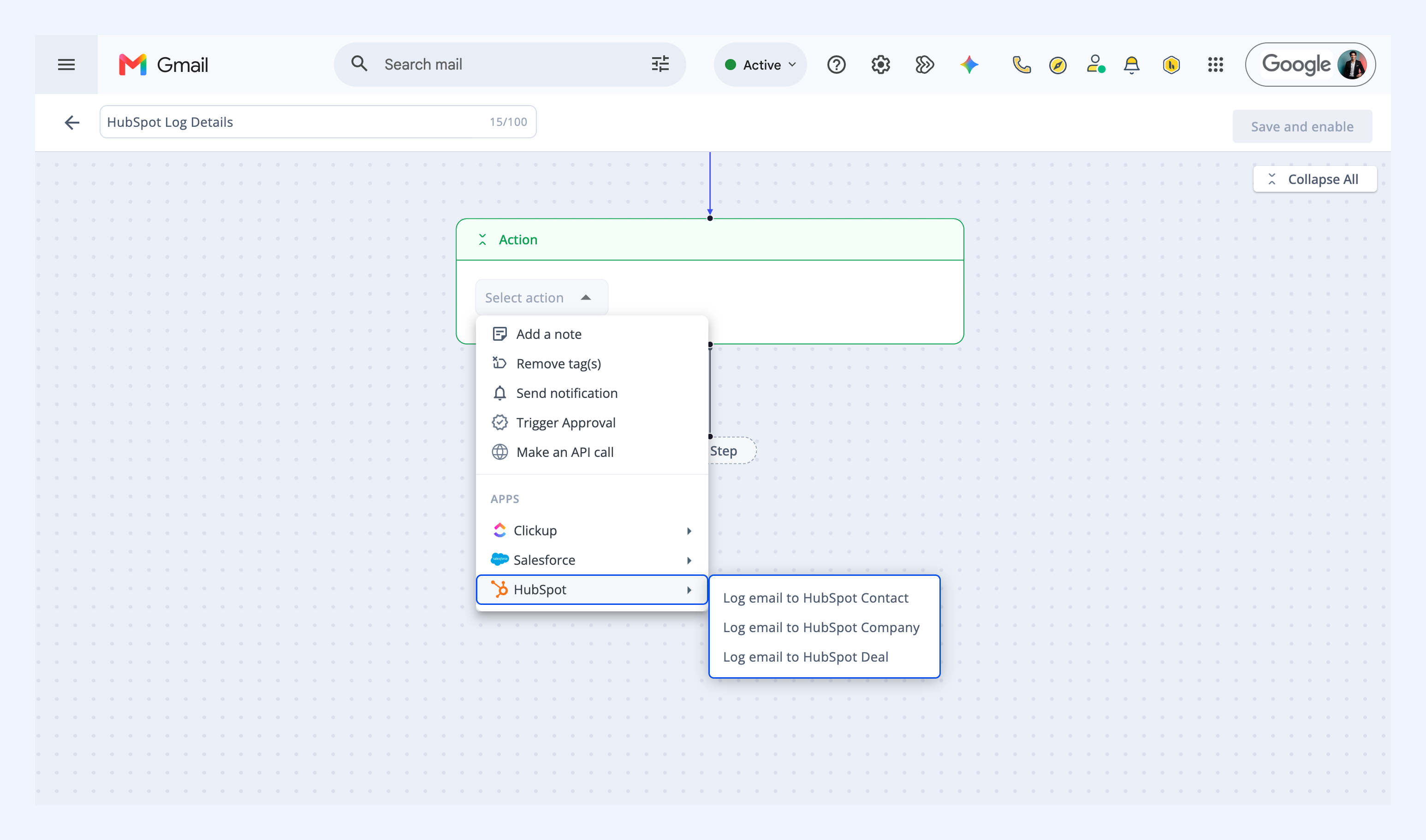
You can choose from three HubSpot actions:
- Log email to HubSpot Contact: Logs the conversation to the matching HubSpot contact.
- Log email to HubSpot Company: Logs the conversation to the matching HubSpot company.
- Log email to HubSpot Deal: Logs the conversation to the matching HubSpot deal.
To set up the Automation:
1. Create an Automation with the trigger and conditions you need.
2. Add an action, choose HubSpot from the Apps list, and select the log action you want.
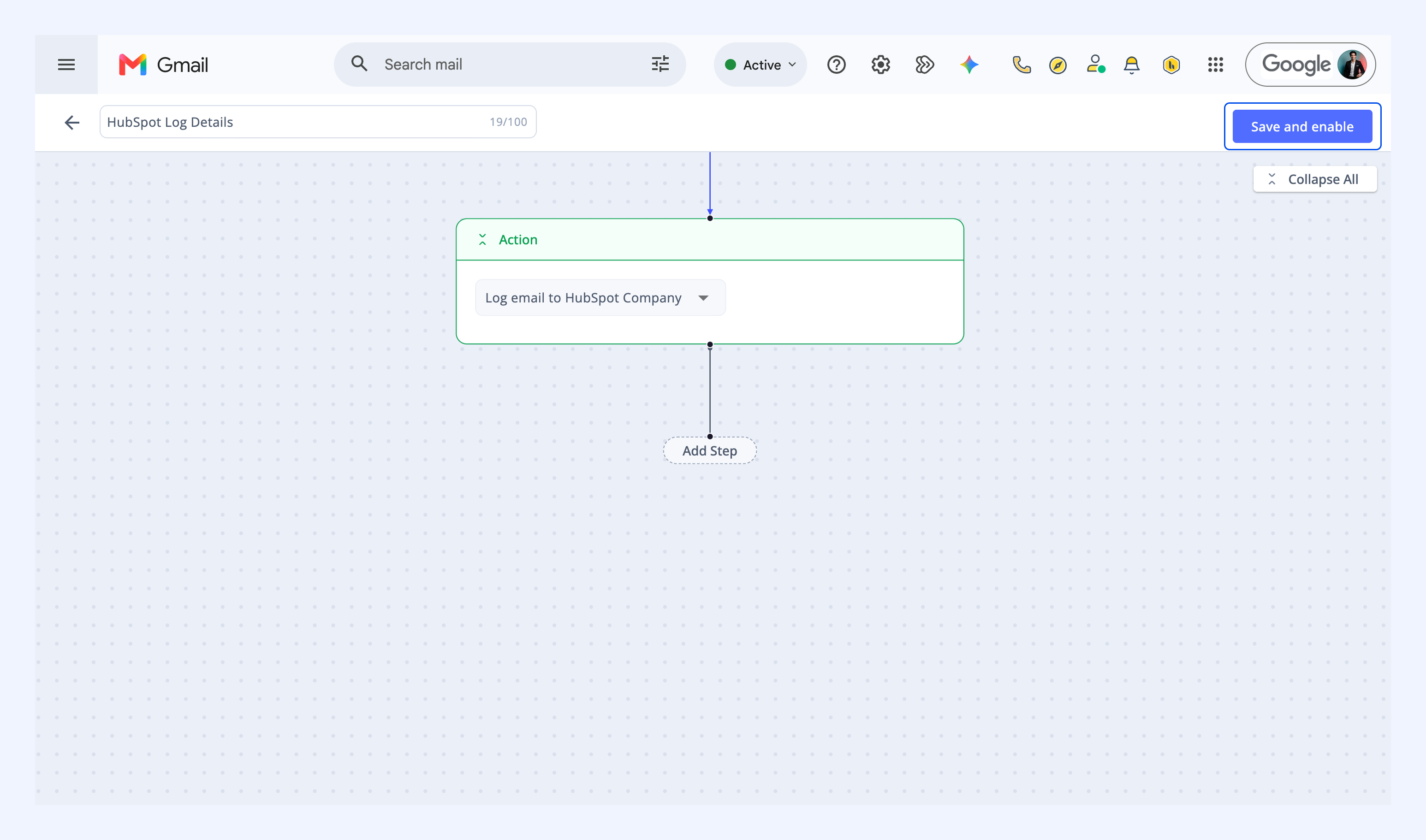
3. Click Save and enable to activate the Automation.
Next steps
Explore Hiver's project management apps
Show HubSpot data in Custom Fields
Automate end-to-end workflows using API calls in Automations