Exporting your Hiver data
You can export data from Hiver for auditing, analysis, or backup purposes.
Note: You need to be an Admin to export the data.
Data you can export
You can export the following information from Hiver:
- Details about conversations in your Shared Inboxes including the:
- Subject of the emails
- Conversation ID (the unique identifier for each email)
- Name of the assignee
- Status of the conversation (open/pending/closed)
- Tags applied
- Shared Notes
- Email Templates
- Shared Drafts
- All contacts in your account
Steps to export the data
1. Go to Admin Panel → Settings → Export data.
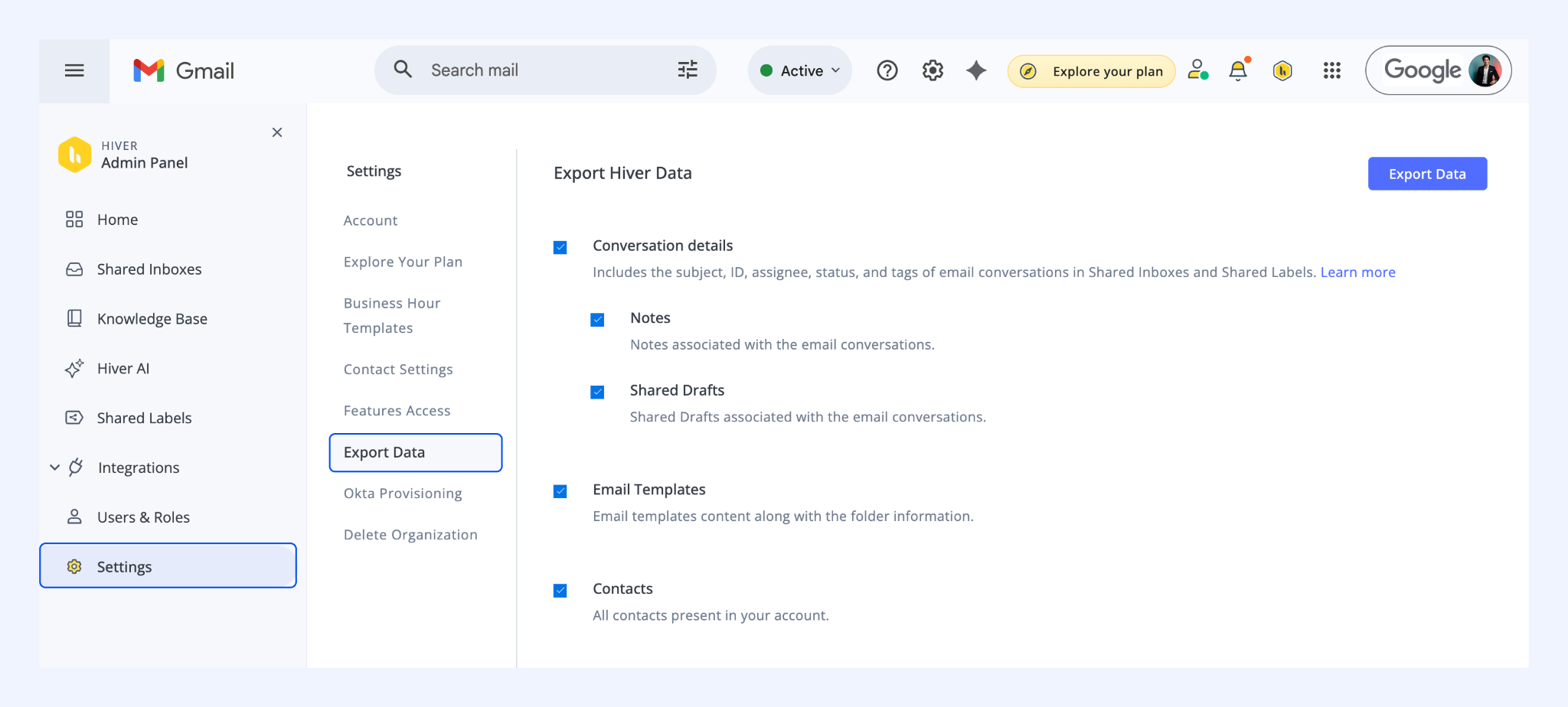
2. All data types are selected by default. Update the selections as needed, then click 'Export data'.
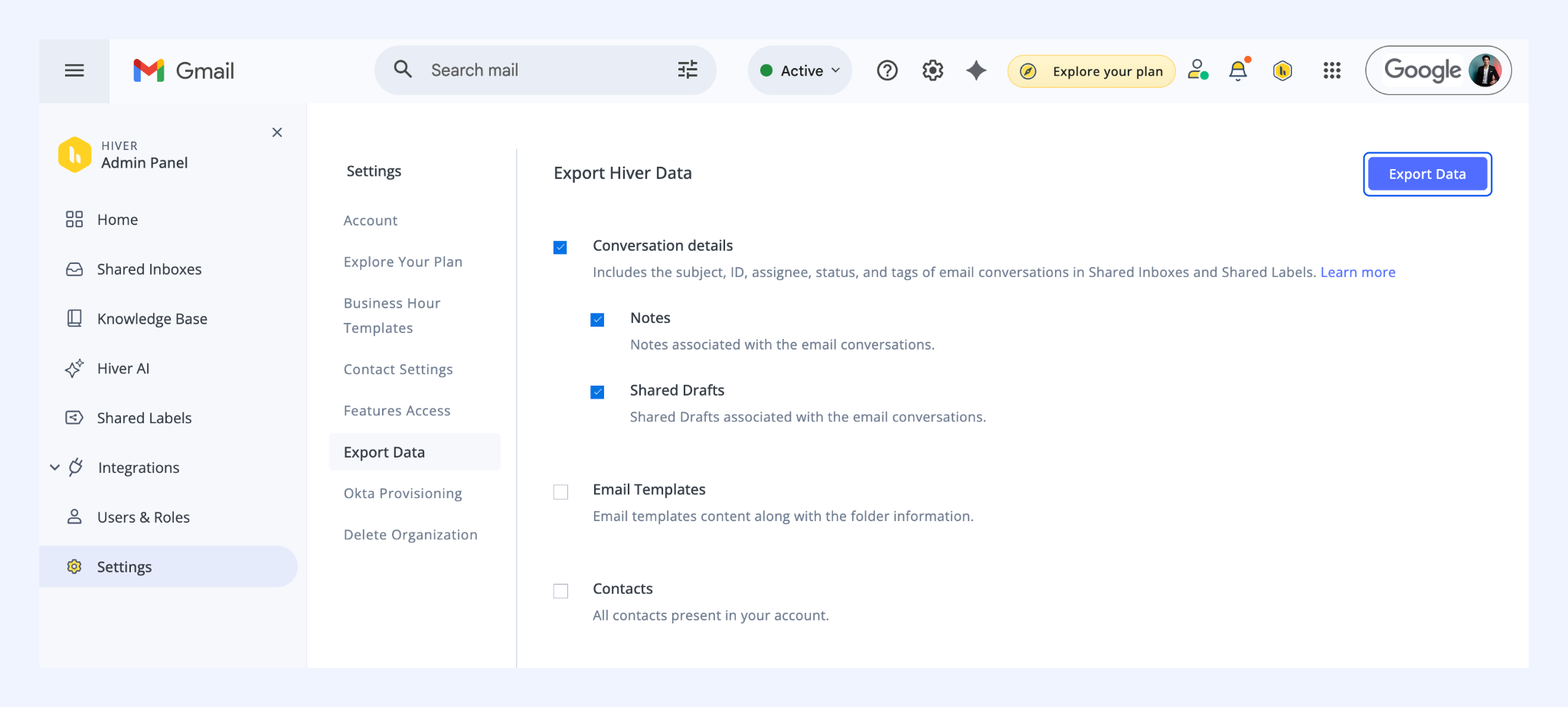
Once the export is complete, Hiver sends an email to the Admin who initiated the export. The email contains a link to a folder with the XML files.
Note: You cannot start a new export while another export is still in progress.