Conversations report
Hiver’s conversation reports help you understand your team’s workload. At a glance, you can see the number of Active, New, and Resolved conversations over a period of time, along with the metrics that reveal your team’s efficiency:
- First response time: How quickly the first reply is sent.
- First assign time: How quickly a conversation is routed to someone.
- Response time: How long it takes to reply to ongoing conversations.
- Resolution time: How long a conversation stays open before closure.
Get started with conversation reports
To get started, select the Shared Inbox you want to view reports for. You can also adjust the date range or switch to Business Hours, if needed.
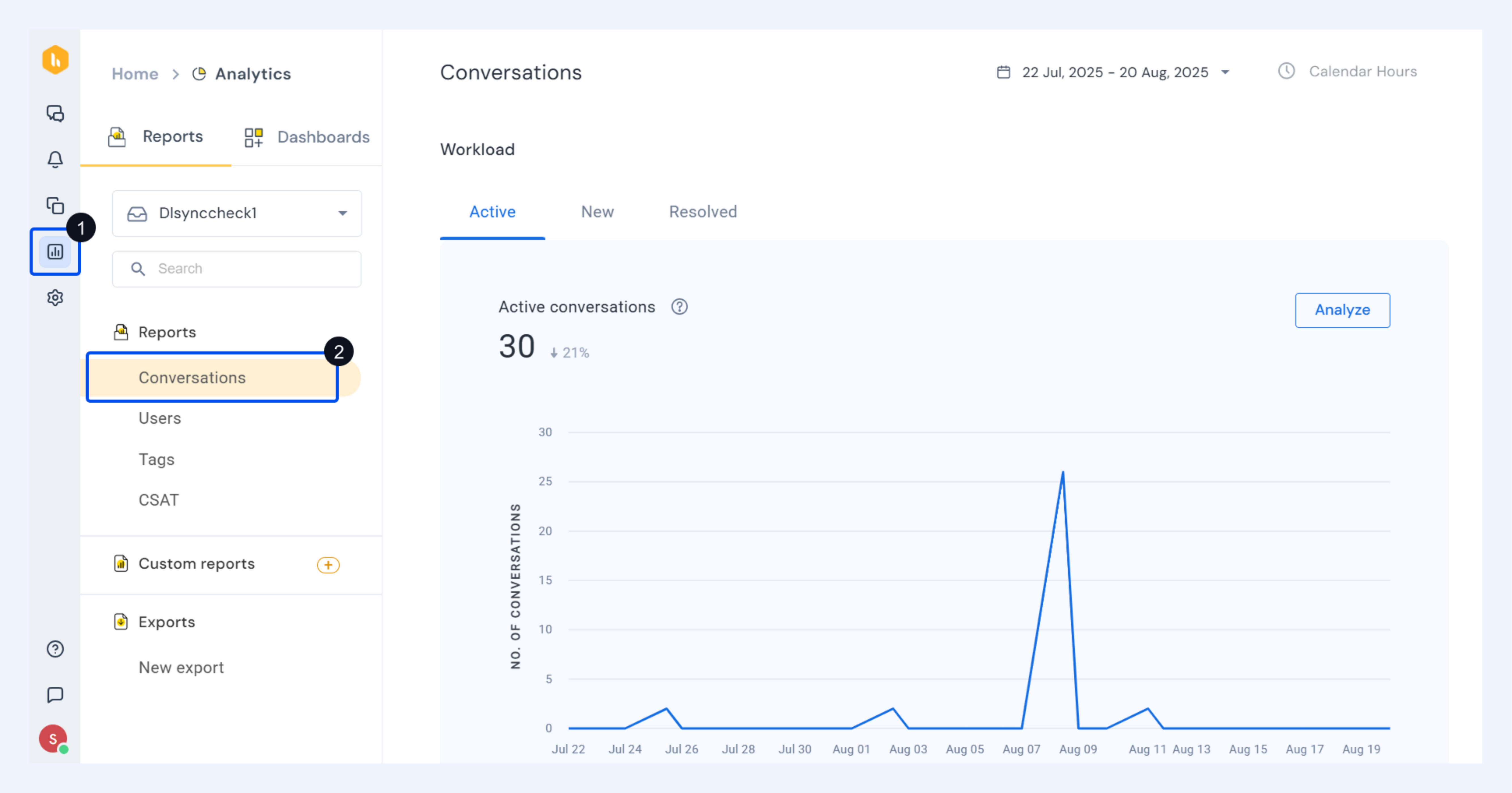
Conversation reports are organized into three tabs: Active, New, and Resolved. Each tab gives you a different view of conversation volume, with options to drill down further using grouping and filters. Let’s look at each conversation type.
Active conversations
Definition: Conversations where at least one email was sent or received during the selected reporting period.
If a conversation is added using Add to Shared Inbox, only emails exchanged after it was added are counted.
The pre-built view gives you the daily trend graph of active conversations. In other words, it visualizes how many conversations were active on each day within the selected period.
It also contains:
- The total number of Active conversations
- Percentage change in the number of Active conversations compared to previous timeframe of equal length
Analyze the report
Click Analyze to go beyond the overview. You can:
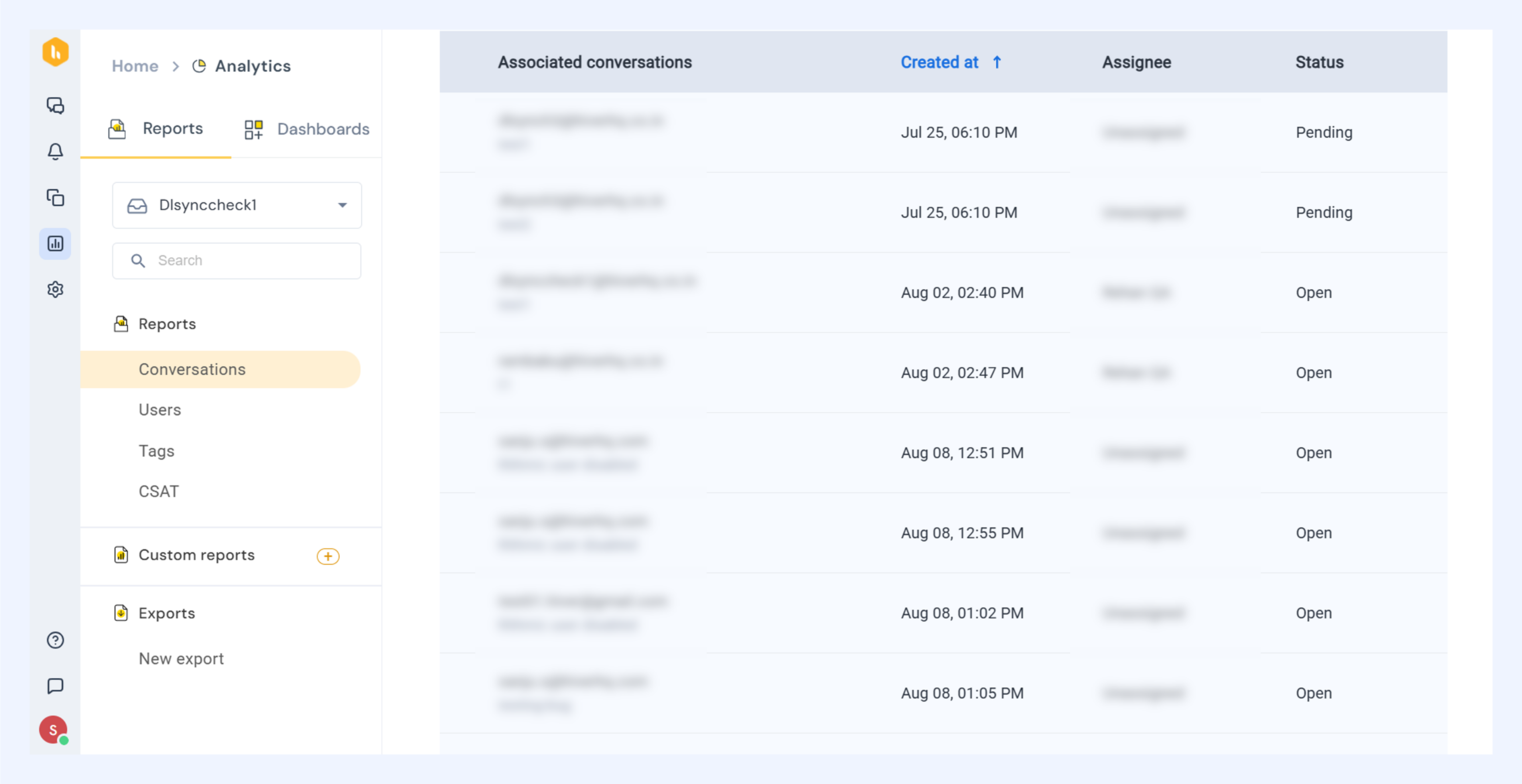
- See conversation details: View all conversations in the report, including details such as Created At, Assignee, and Status (Open, Pending, Closed).
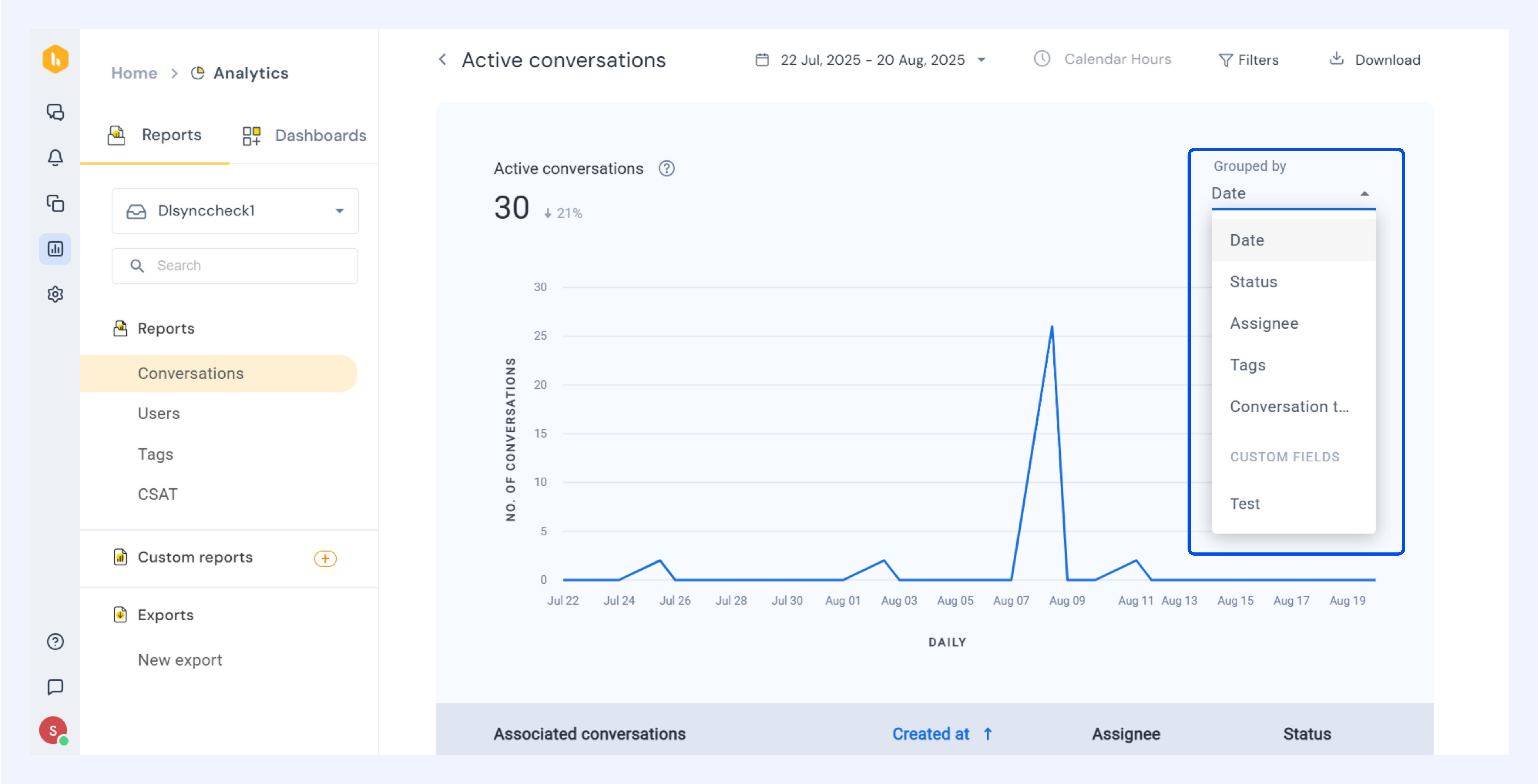
- Group data: Organize conversations by Date, Status, Assignee, Tags, Conversation type (Inbound, Outbound, Manually Added), or Custom fields.
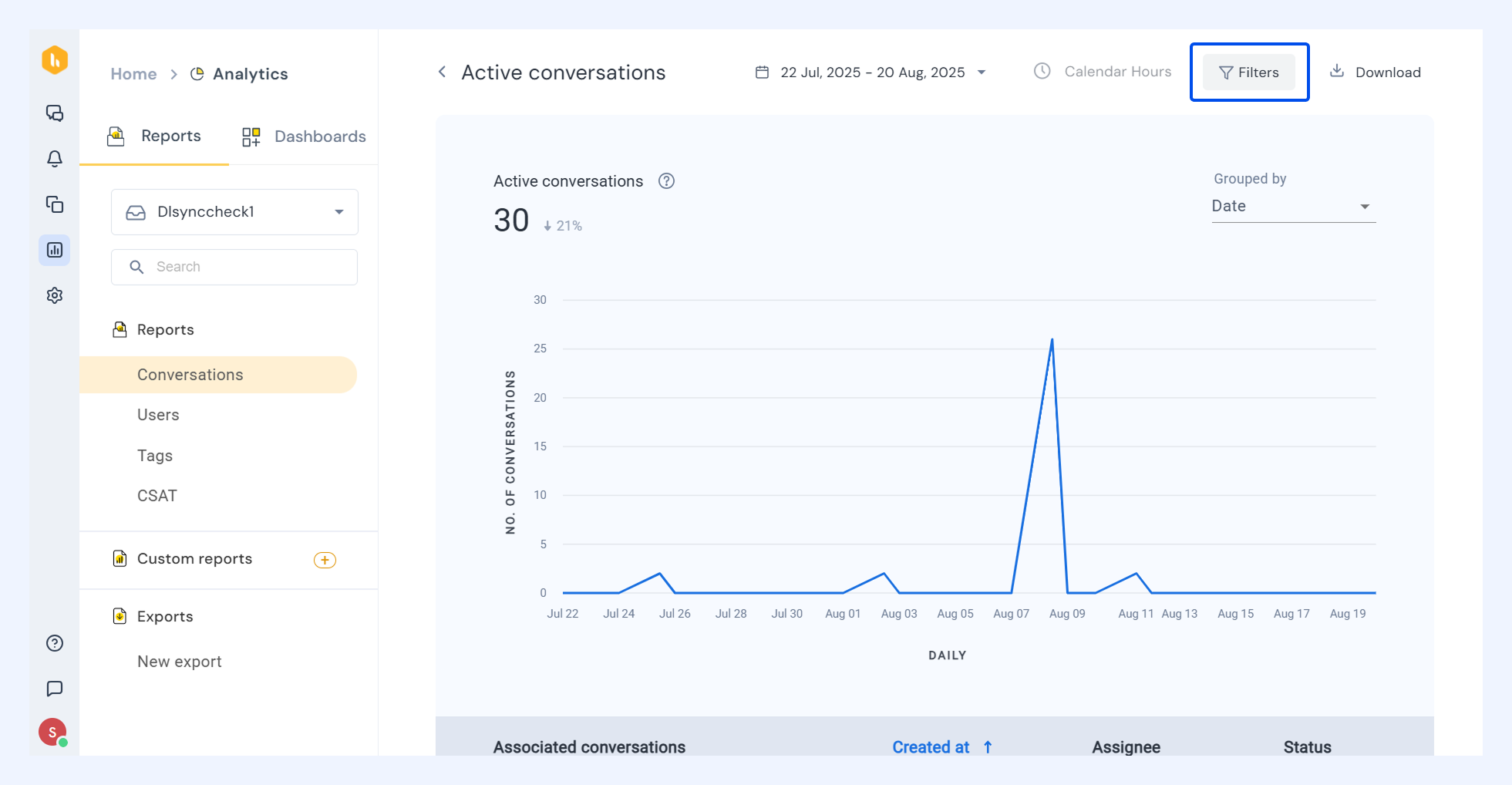
- Apply filters: Narrow results by Assignee, Status, Tags, Conversation type, or Custom fields.
New conversations
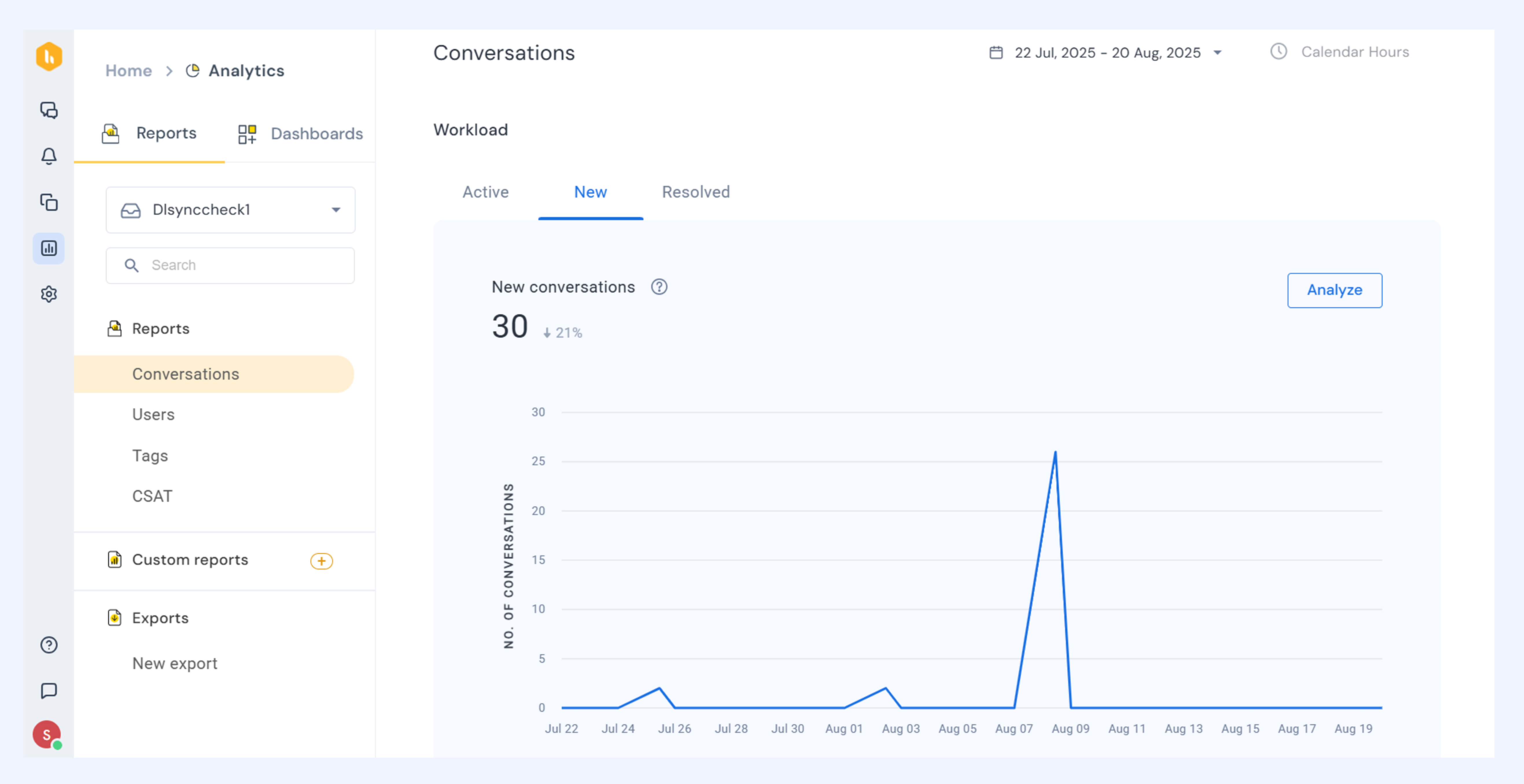
Definition: Conversations that were started or manually added to the Shared Inbox during the selected reporting period.
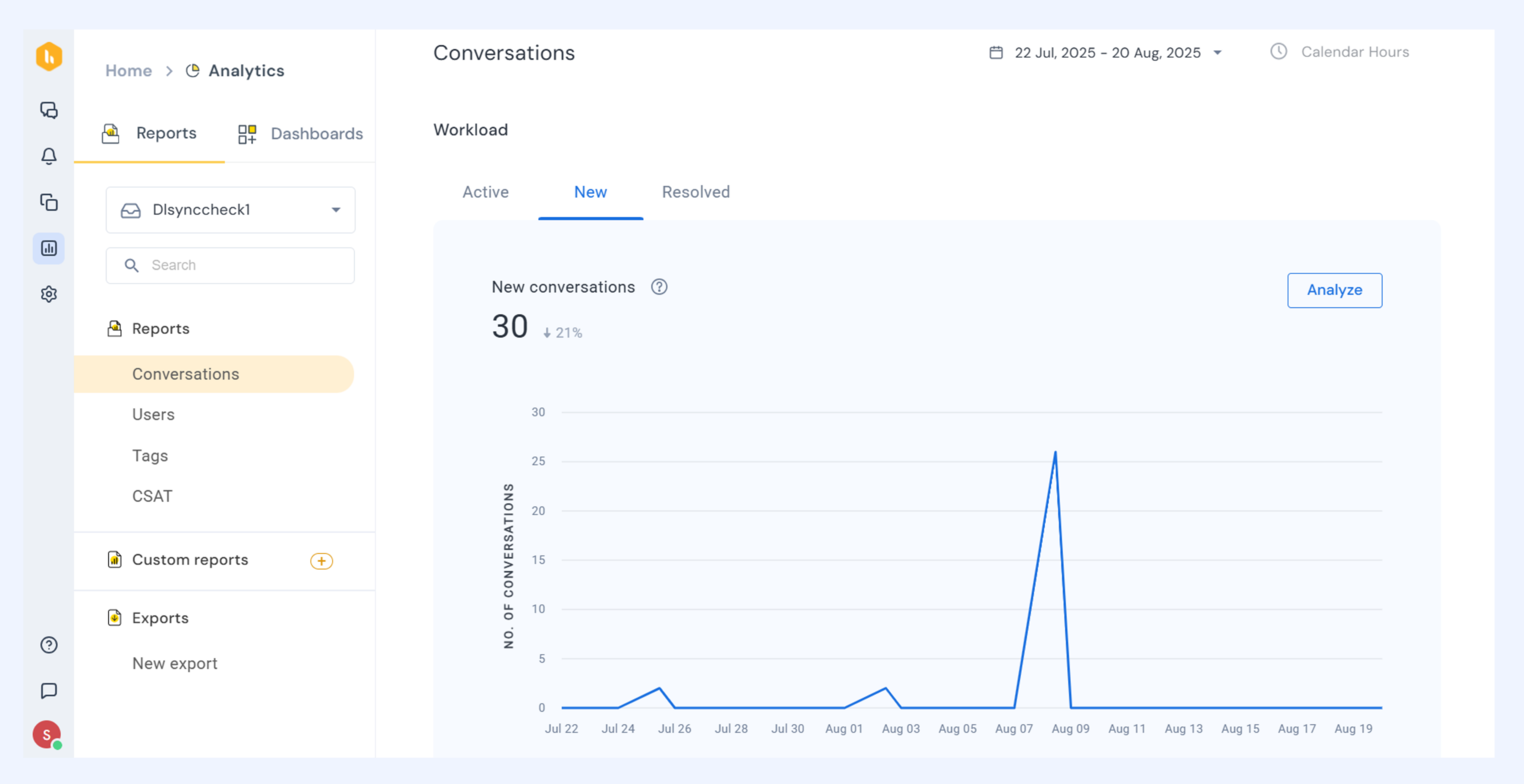
The pre-built view gives you the daily trend graph of new conversations your team has received during a selected timeframe.
It also contains:
- The total number of New conversations
- Percentage change in the number of New conversations compared to previous timeframe of equal length
Analyze the report
Click Analyze to go beyond the overview. You can:
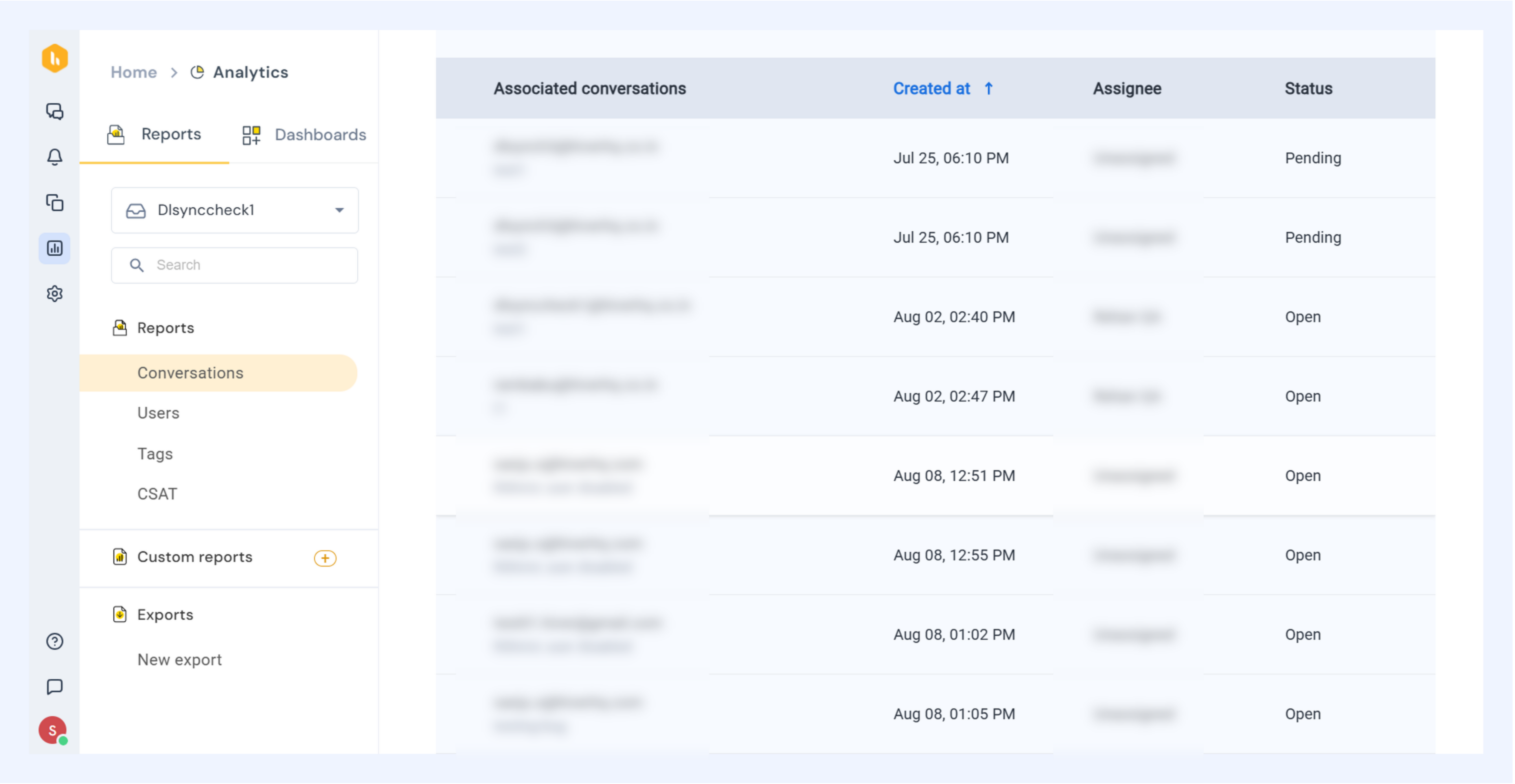
- See conversation details: View all conversations in the report, including details such as Created At, Assignee, and Status (Open, Pending, Closed).
- Group data: Organize conversations by Date, Status, Assignee, Tags, Conversation type (Inbound, Outbound, Manually Added), or Custom fields.
- Apply filters: Narrow results by Assignee, Status, Tags, Conversation type, or Custom fields.
Resolved conversations
Definition: Conversations that were closed during the reporting period and were not reopened afterward.
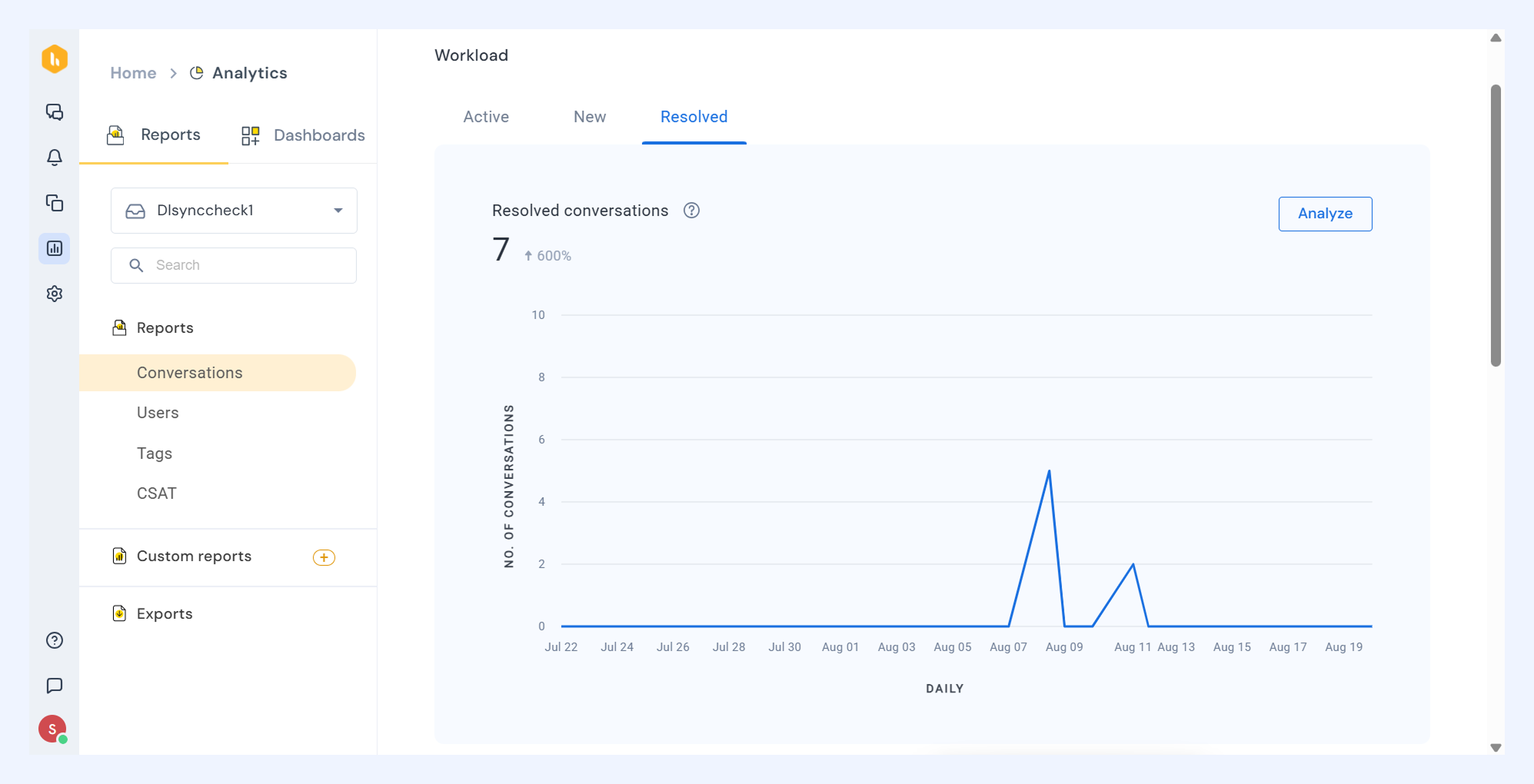
The pre-built view gives you the daily trend graph conversations that your team resolved in the selected timeframe.
It also contains:
- The total number of Resolved conversations
- Percentage change in the number of Resolved conversations compared to previous timeframe of equal length
Analyze the report
Click Analyze to go beyond the overview. You can:
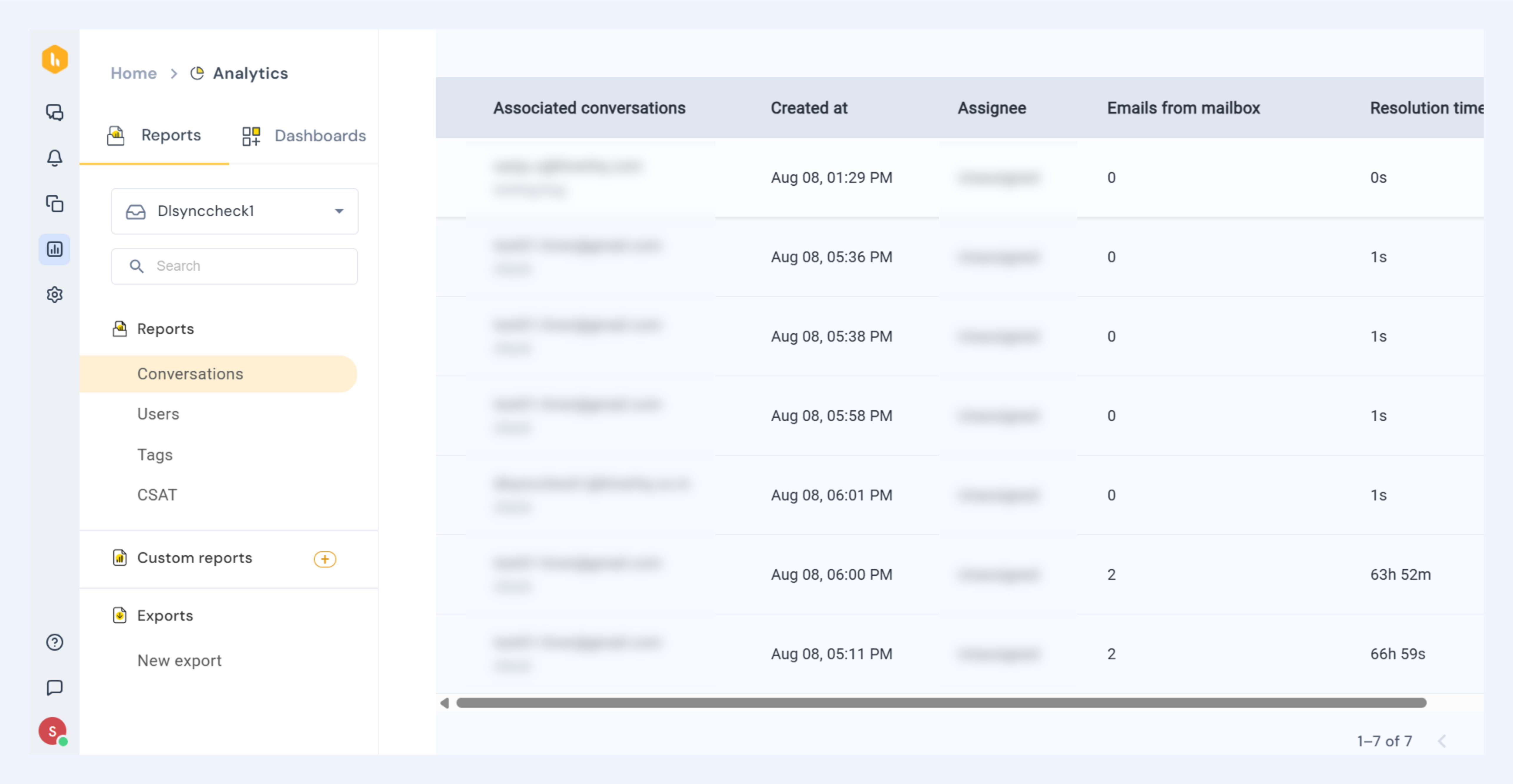
- See conversation details: View all conversations in the report, including details such as Created At, Resolved At, Assignee, Emails from Mailbox, and Resolution Time.
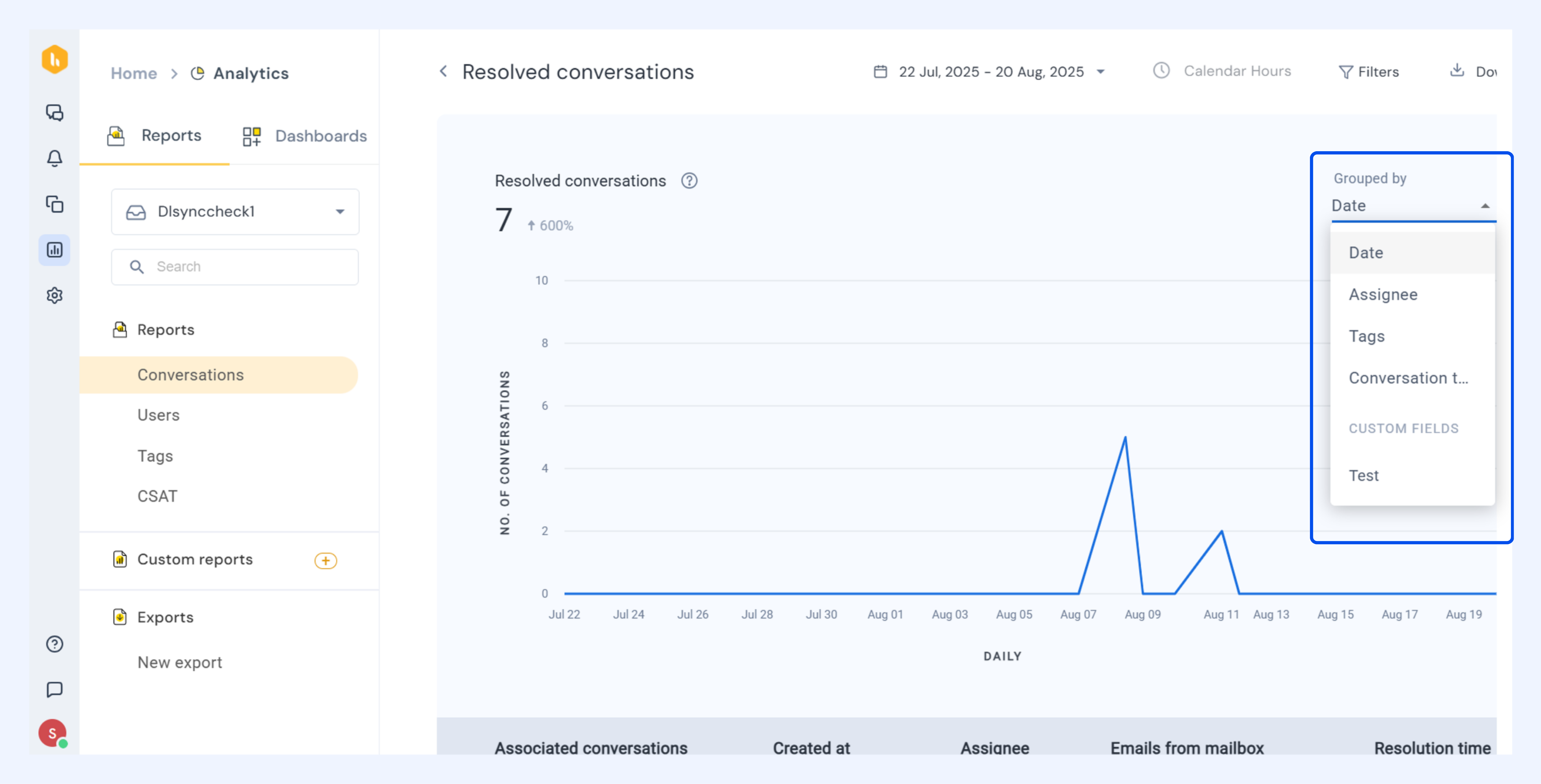
- Group data: Organize conversations by Date, Assignee, Tags, Conversation type, or Custom fields.
- Apply filters: Narrow results by Assignee, Tags, Conversation type, or Custom fields.
Performance in conversation reports
The Performance section highlights how efficiently your team handles conversations. It tracks key response and resolution metrics to surface opportunities for faster, more consistent support.
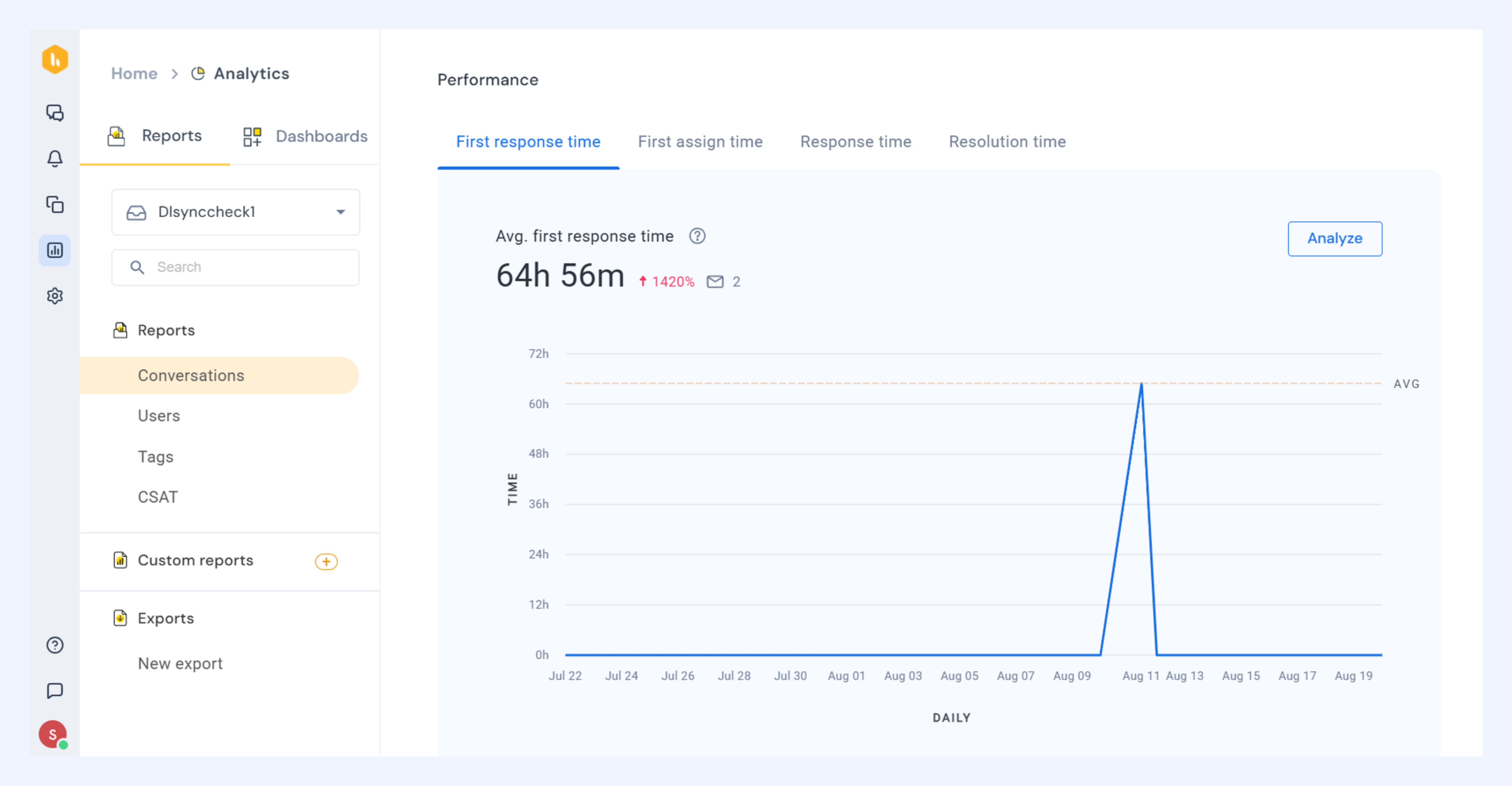
First response time
Definition: Measures how quickly the team replies to the first email in a conversation. It includes all first responses sent during the selected period, even if the conversation began earlier.
The pre-built view gives you the daily trend graph of first response time. It also contains:
- The average first response time
- Percentage change in average first response time compared to previous timeframe of equal length
Calculation
Average First Response Time = Total of all first response times ÷ Number of conversations with a response.
Analyze the report
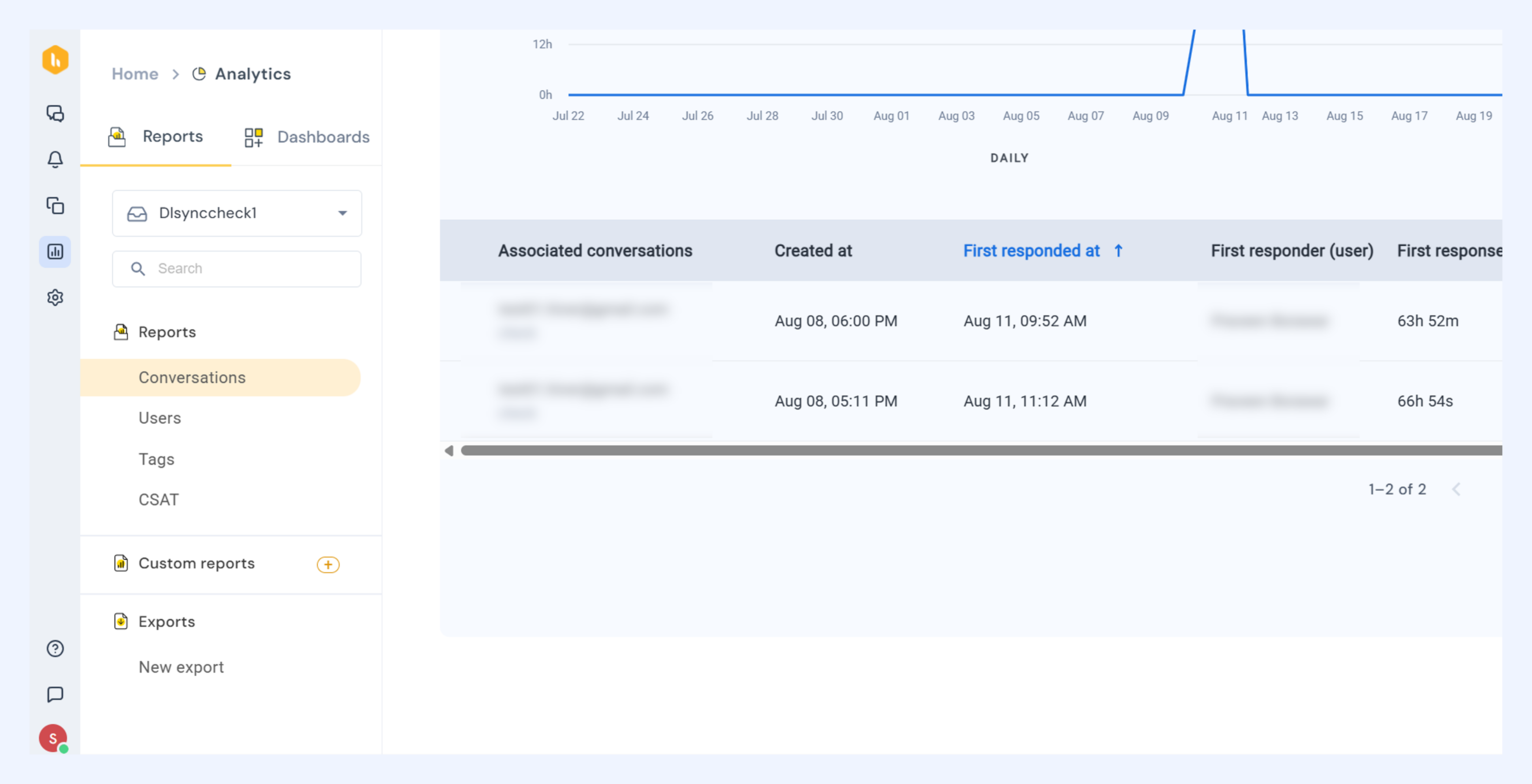
Click Analyze to go beyond the overview. You can:
- See conversation details: View all conversations in the report, including details such as Created At, First Replied At, First Responder, and First Response Time.
- Group data: Organize conversations by Date, Tags, First responders, Status, or Conversation type (Inbound, Outbound, Manually Added).
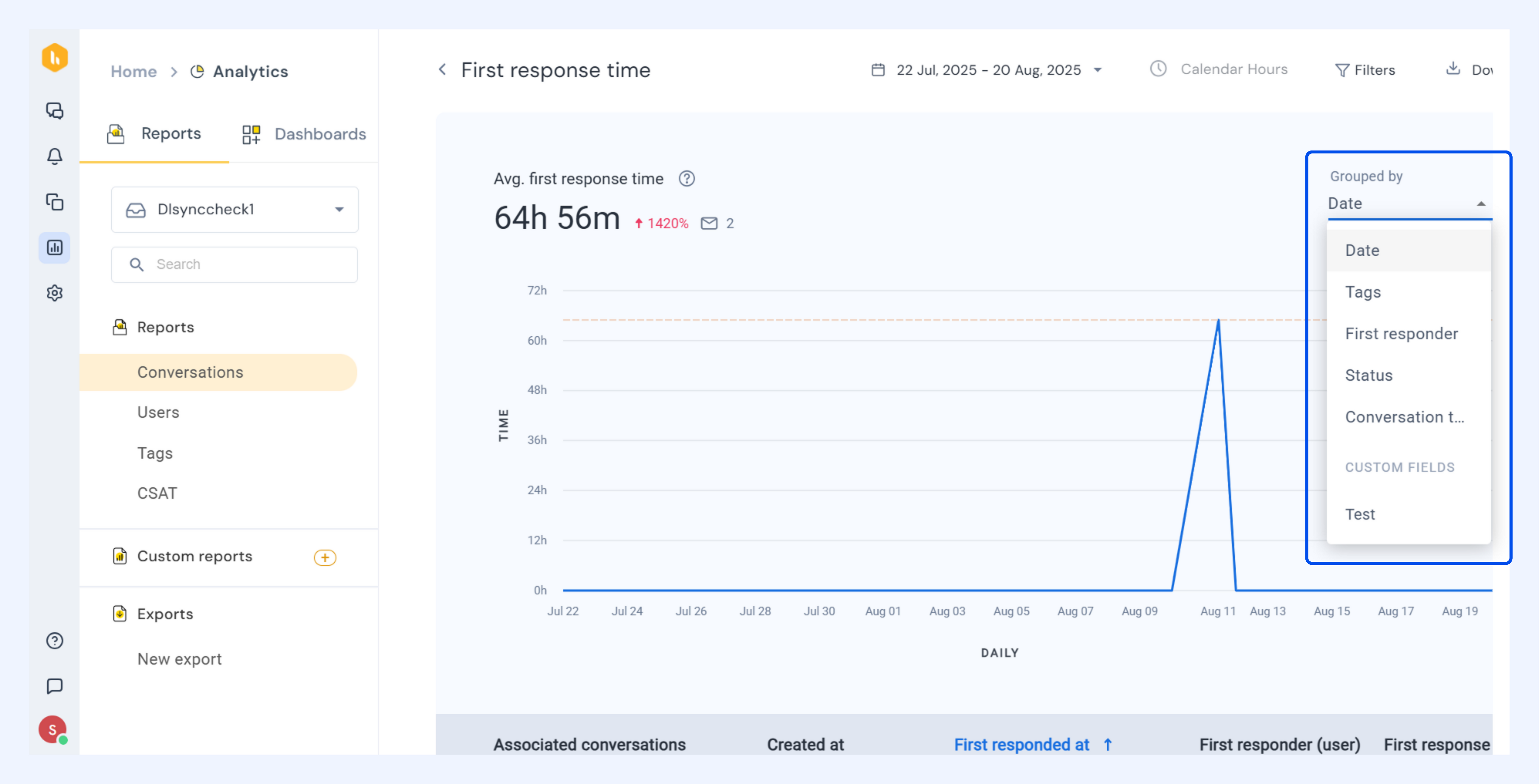
- Apply filters: Narrow results by First Responder, Status, Tags, or Conversation type.
First assign time
Definition: The duration it takes for a conversation to be assigned for the first time after entering the Shared Inbox. Conversations first assigned during the selected period are included, regardless of when they started or were added.
The pre-built view gives you the daily trend graph of the first assign time. It also contains:
- The average first assign time
- Percentage change in average first assign time compared to previous timeframe of equal length
Calculation
Average First Assign Time = Total assign time ÷ Number of conversations assigned during the period.
Analyze the report
Click Analyze to go beyond the overview. You can:
- See conversation details: View all conversations in the report, including details such as Created At, Assigned At, Assigned To, and First Assign Time.
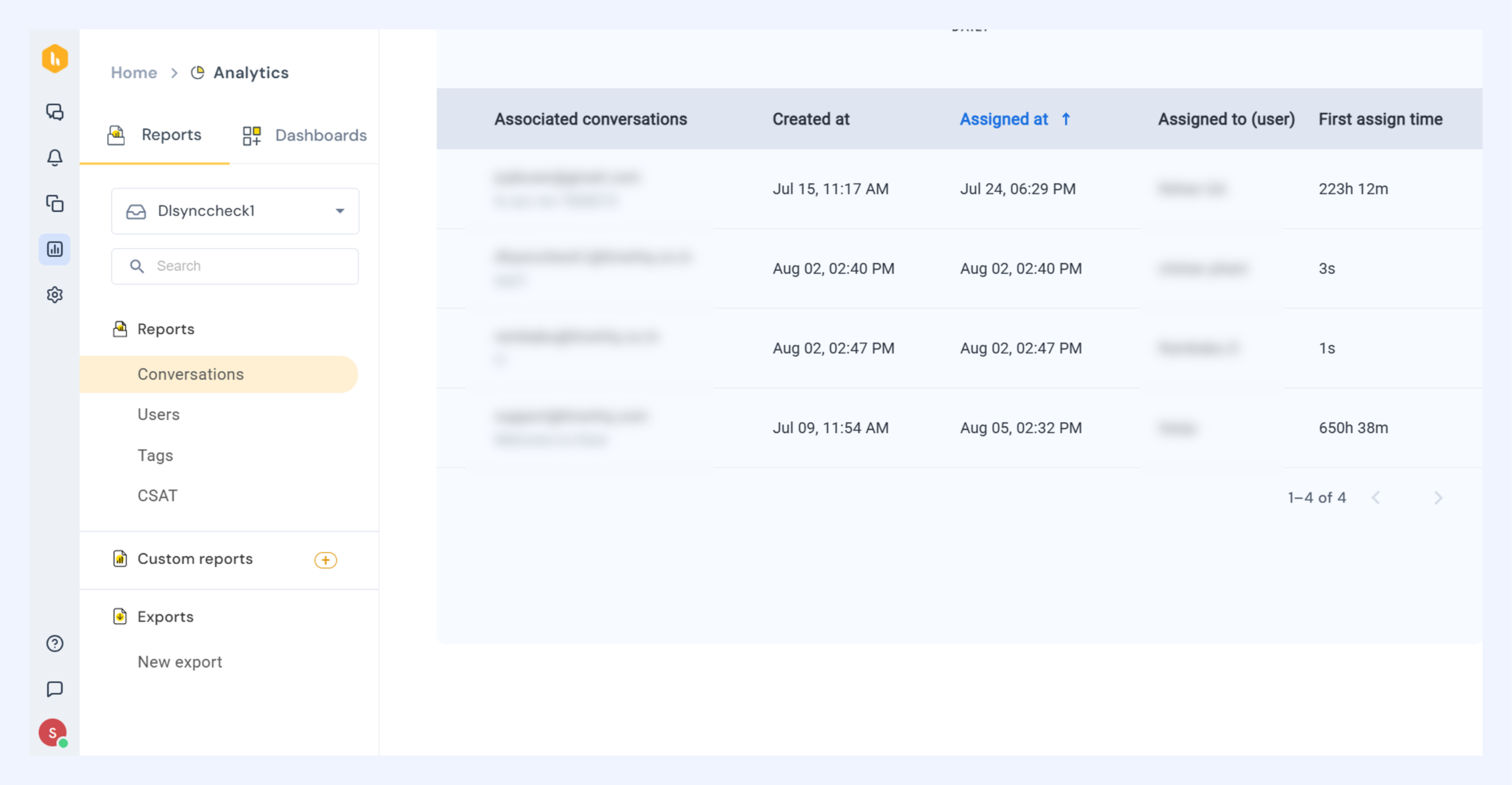
- Group data: Organize conversations by Date, Tags, Users, Conversation type (Inbound, Outbound, Manually Added), or Status.
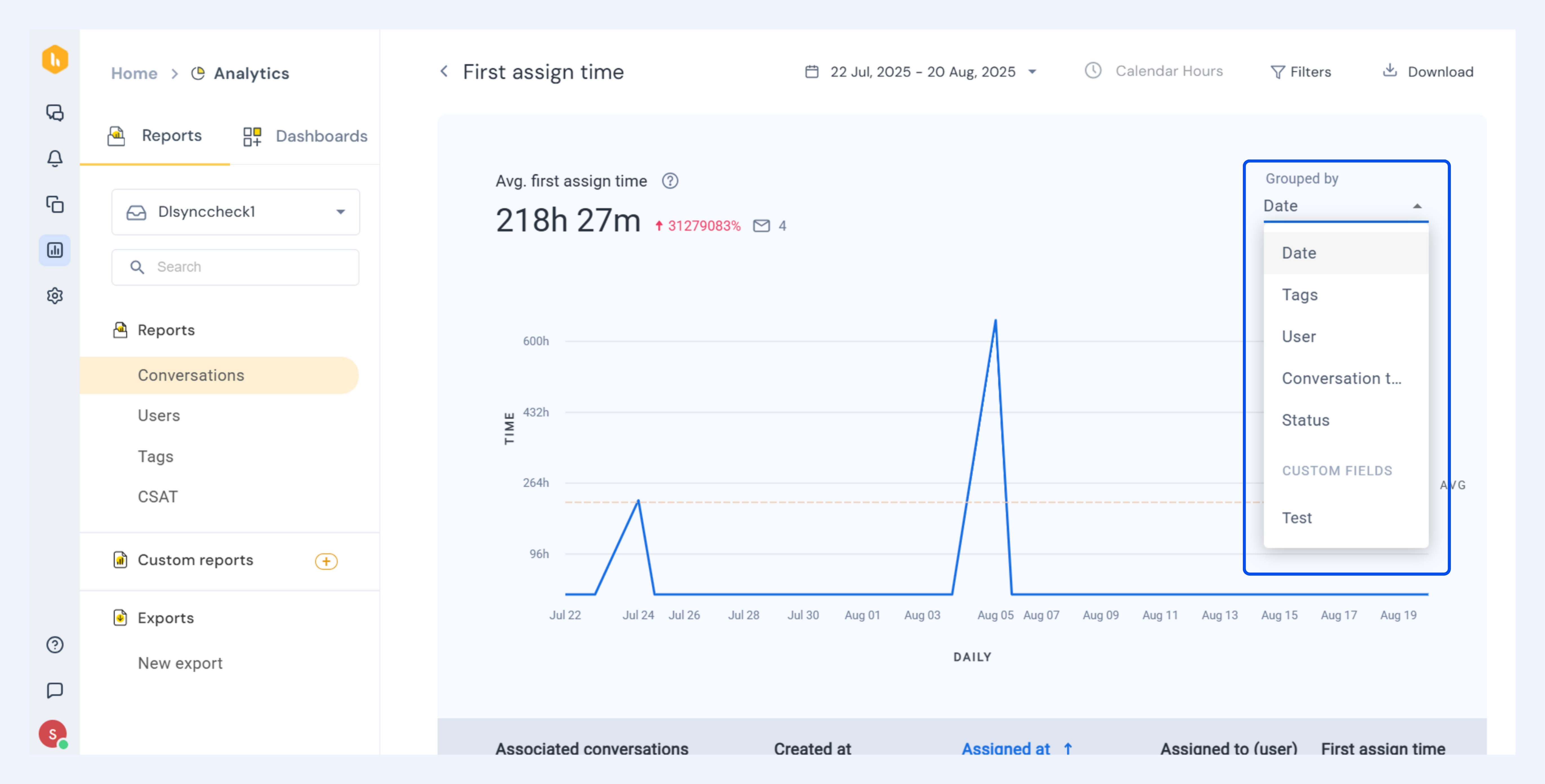
- Apply filters: Narrow results by Assigned To, Status, Tags, or Conversation type.
Response time
Definition: Tracks how long it takes the team to reply to emails in ongoing conversations. All responses sent during the selected period are included, regardless of when the conversation began or was added to the Shared Inbox.
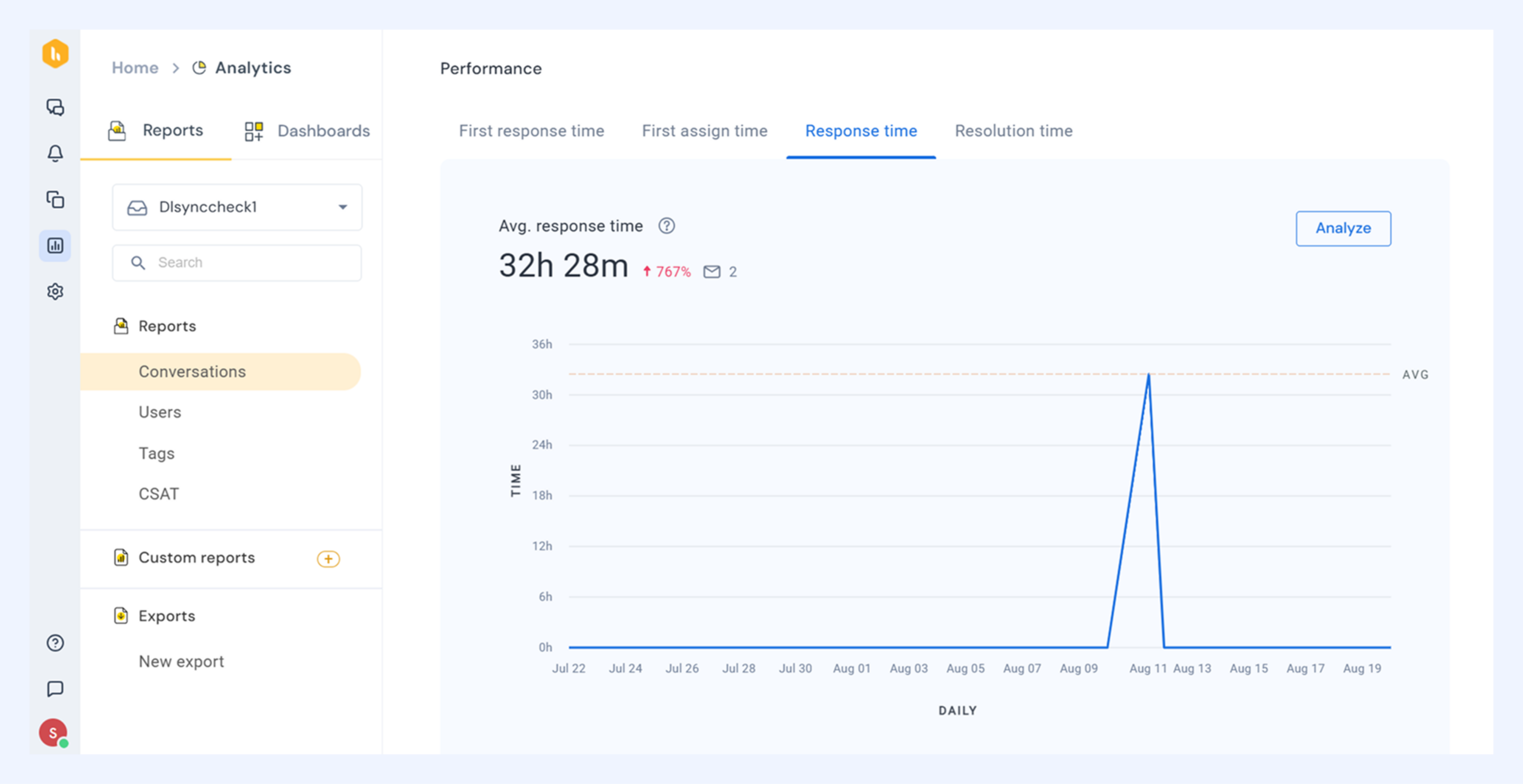
The pre-built view gives you the daily trend graph of response time. It also contains:
- The average response time
- Percentage change in average response time compared to previous timeframe of equal length
How it's calculated
Average response time = Sum of all response times ÷ number of responses during the reporting period.
- For back-to-back emails, the timer starts from the first unread incoming email. For example, if emails arrive at 9 AM and 10 AM, and a reply is sent at 11 AM, the response time is 2 hours.
- For manually added conversations, timing starts from when the conversation was added.
- If a conversation is part of multiple Shared Inboxes, response time is calculated separately for each.
Analyze the report
Click Analyze to go beyond the overview. You can:
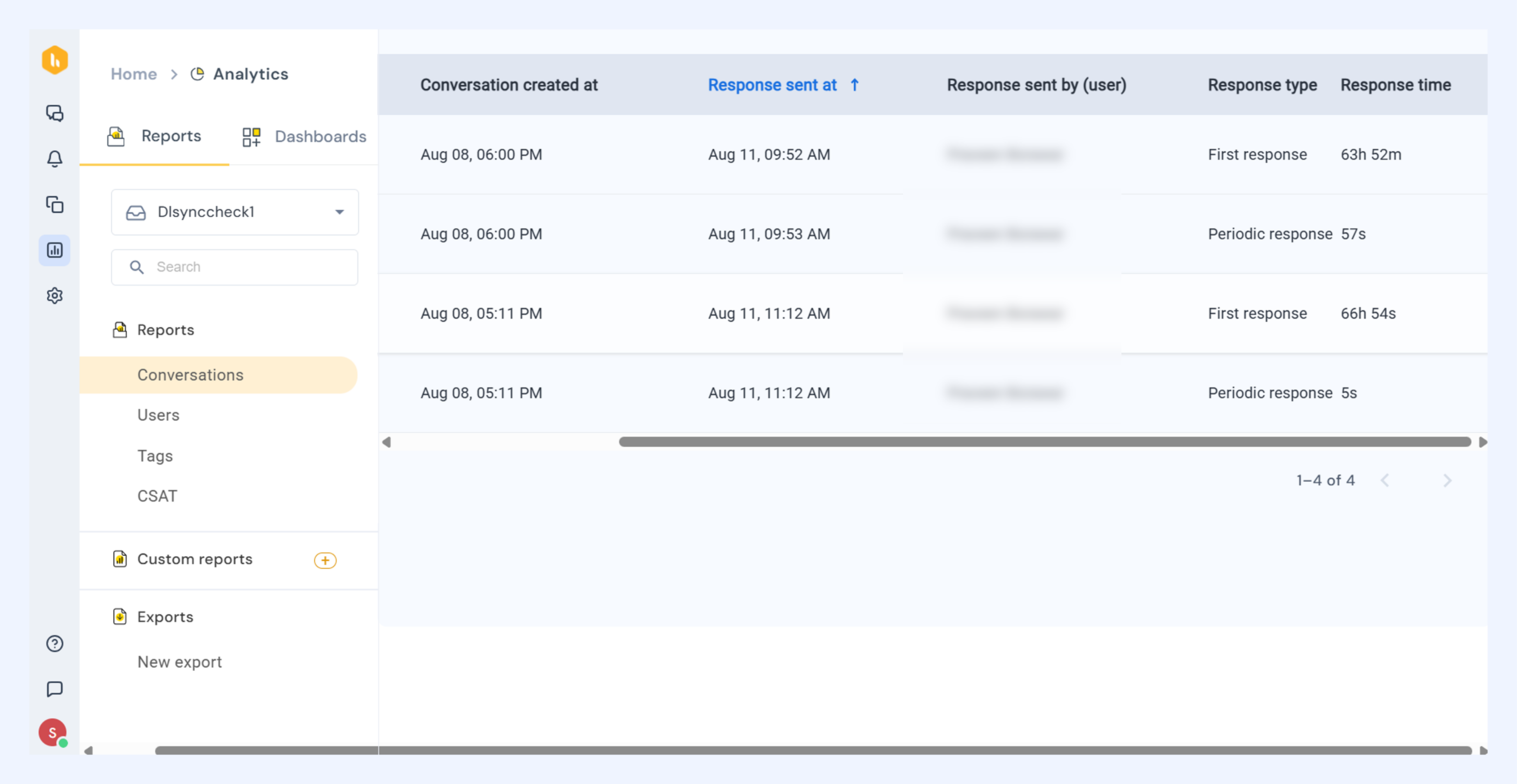
- See conversation details: View all conversations in the report, including details such as Conversation Created At, Response Sent At, Response Sent By, Response Type, and Response Time.
Note:
For new outbound emails (first email sent from the Shared Inbox), the response time is always.
- The first response data shows the time taken to reply to the first incoming email
- The next response data shows the time taken to reply to a follow-up customer email
- Group data: Organize conversations by Date, Tags, Sent By (user), Status, Response Type, or Conversation type.
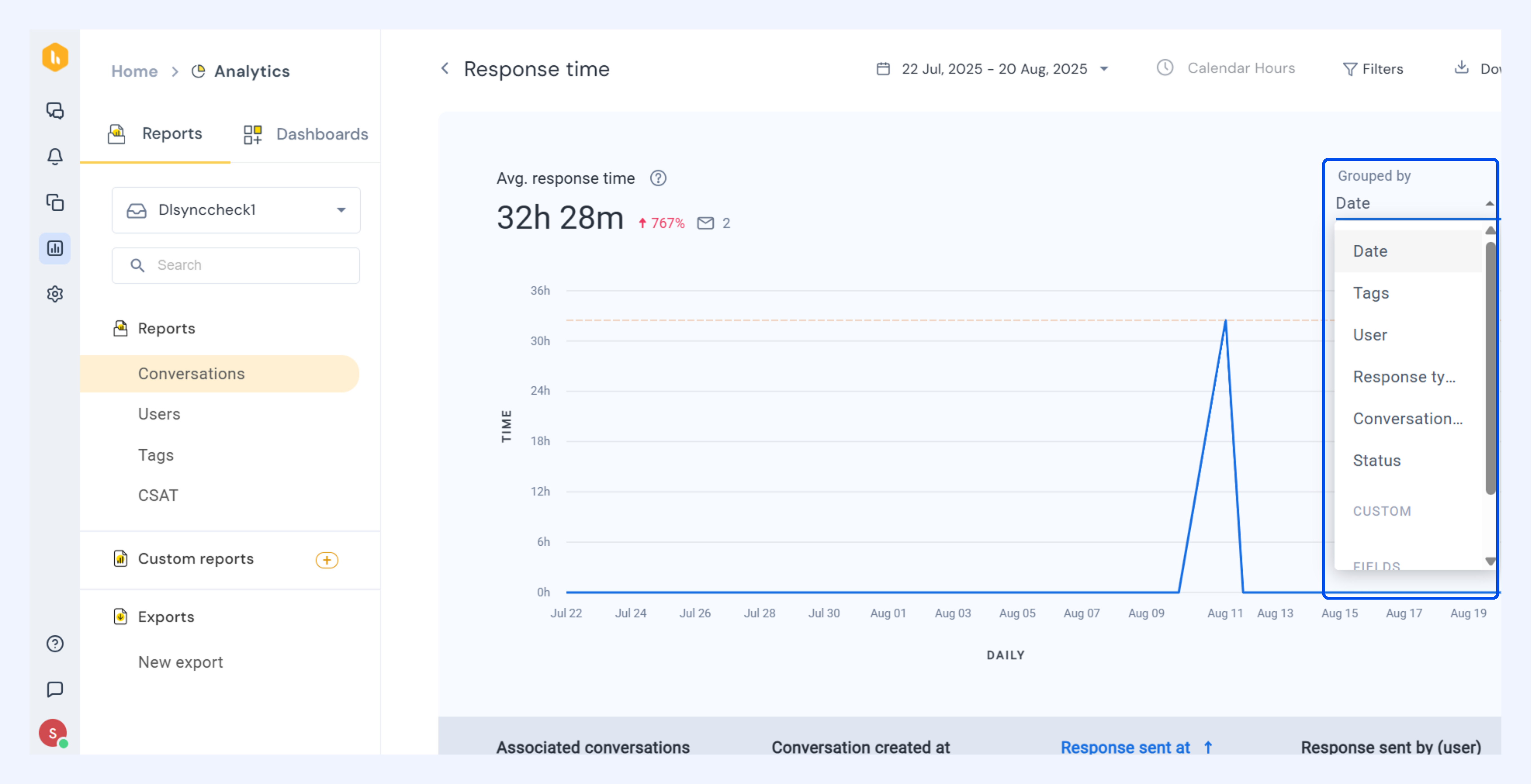
- Apply filters: Narrow results by Sent By, Status, Tags, Conversation type, or Response Type.
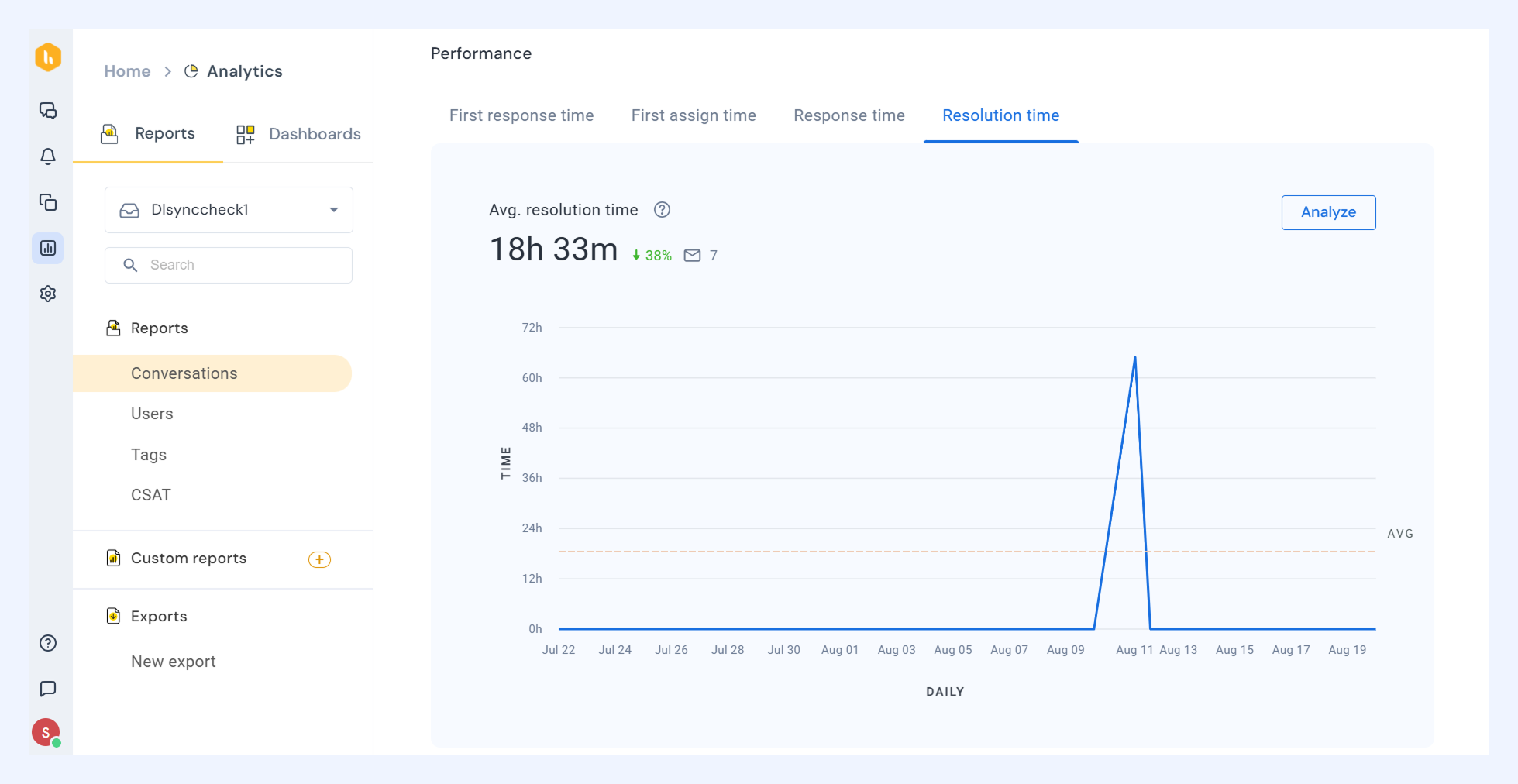
Resolution time
Definition: The time taken for a conversation to be marked as Closed.
The pre-built view gives you the daily trend graph of resolution time. It also contains:
- The average resolution time
- Percentage change in average resolution time compared to previous timeframe of equal length
Calculation notes
- If a conversation exists in multiple Shared Inboxes, resolution time is calculated separately for each.
- With Business Hours enabled, only time spent in 'Open' during working hours is counted.
- With Calendar Hours, total open time is calculated regardless of work hours.
Average Resolution Time
Total resolution time ÷ number of conversations closed during the period.
Analyze the report
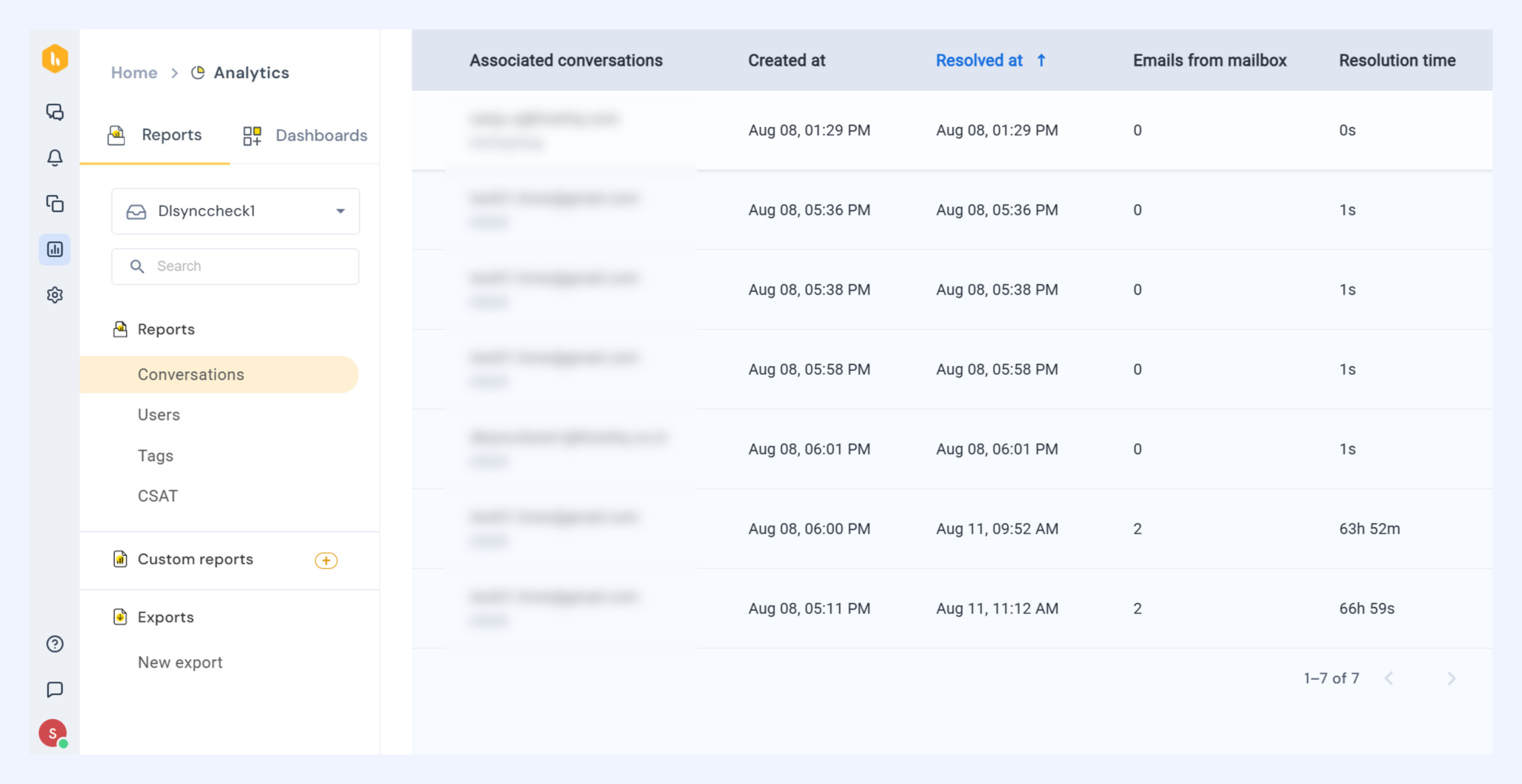
Click Analyze to go beyond the overview. You can:
- See conversation details: View all conversations in the report, including details such as Created At, Resolved At, Emails From Inbox, and Resolution Time.
- Group data: Organize conversations by Date, User, Tags, or Conversation type.
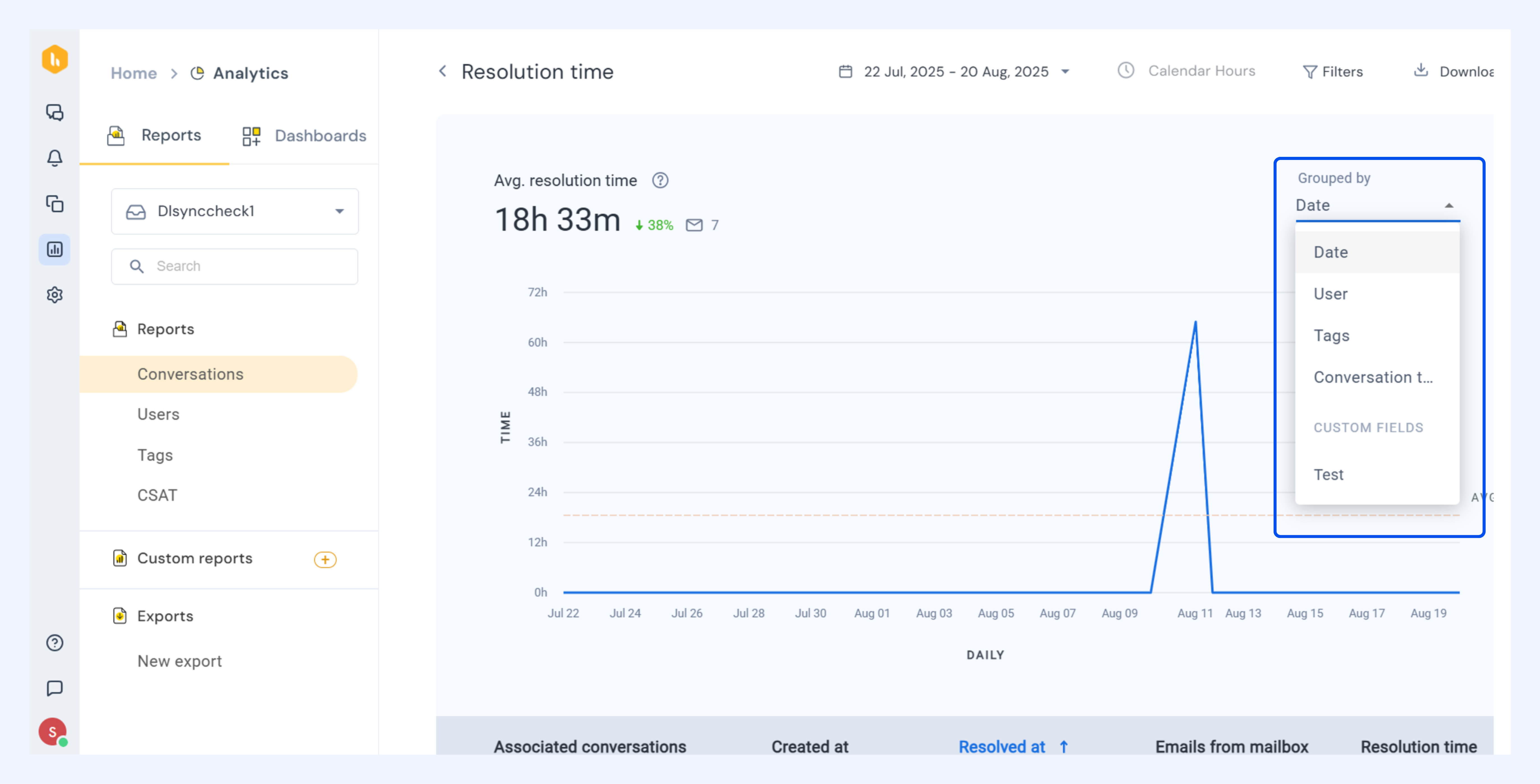
- Apply filters: Narrow results by User, Tags, or Conversation type.
Assessing data offline
You can download the Conversations reports for a quick analysis or export data for deeper review.
How to download the reports
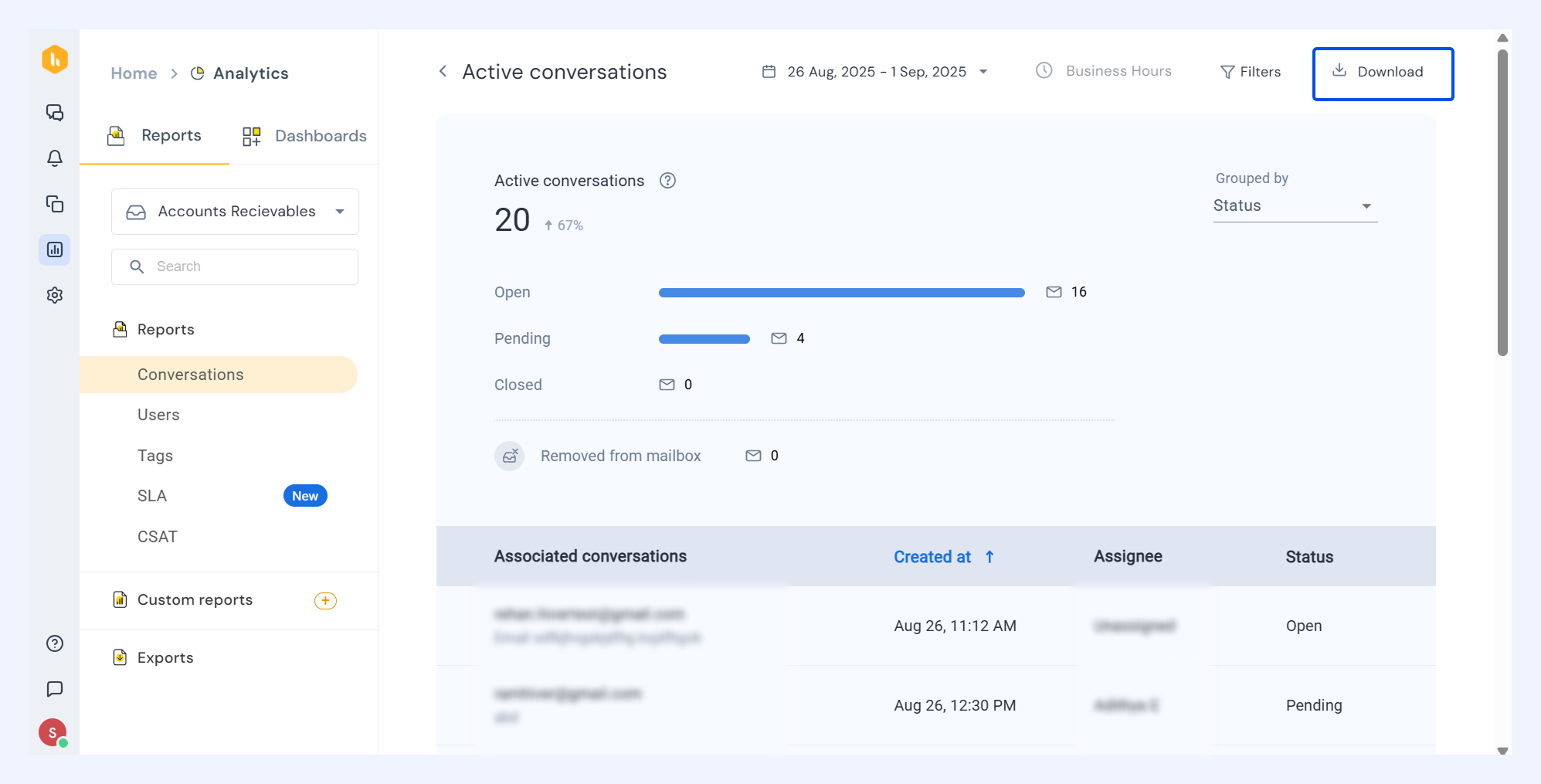
- Select a metric and click Analyze to view detailed data.
- Filter the data if needed, then click Download in the top right corner.