SLA reports
SLA reports give you a clear view of how well your team is meeting response and resolution deadlines across all your Shared Inboxes. You can track individual performance, spot trends in service level compliance, and identify which inboxes might need extra attention. These insights help you to optimize workflows and maintain the service standards your customers expect.
How to access SLA reports
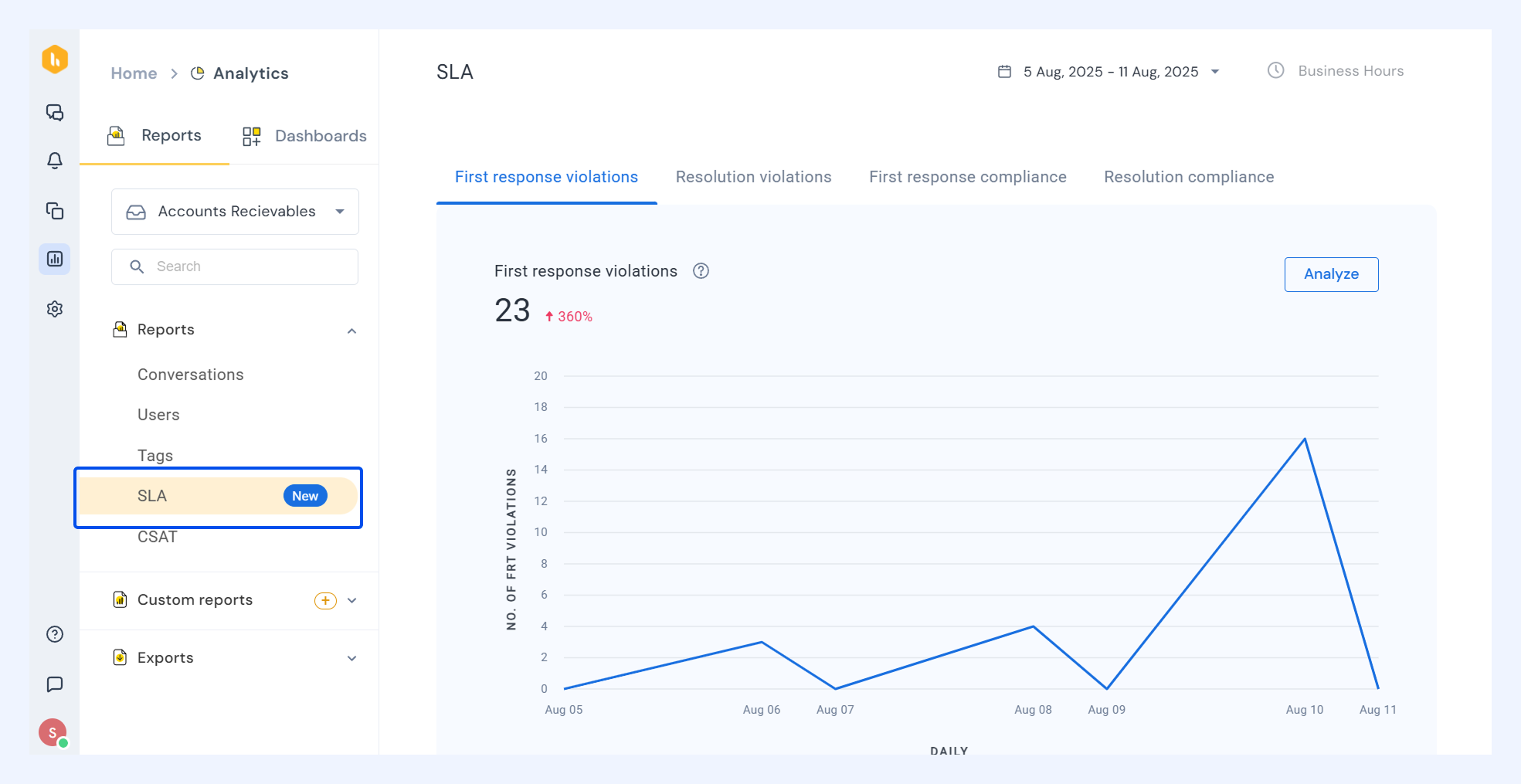
Find Analytics → SLA → select metrics to review and get insights into your performance.
You can also adjust the date range or switch to Business Hours, if needed.
Understanding SLA metrics
SLA Reports track four key metrics across different conversation types. Each metric displays an individual graph for your selected time period. This gives you a complete picture of which conversations met your SLA standards and which ones need attention.
First response violations
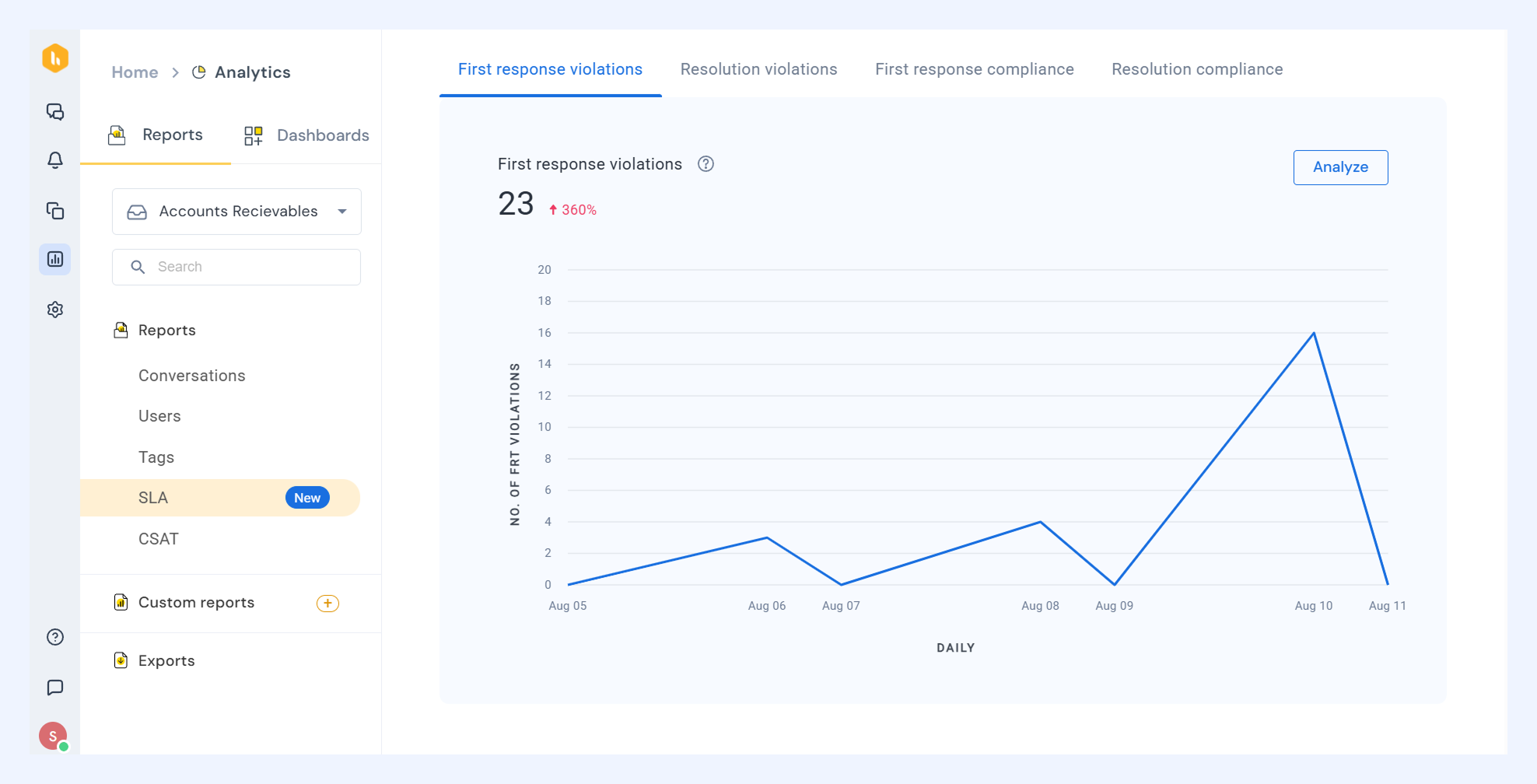
This metric shows conversations where your team didn't send the initial response within your First Response Time (FRT) deadline.
Click Analyze in the FRT graph to see detailed information, including:
- Associated conversations: Sender email address with a hyperlink to visit the conversation
- Created at: When the email was added to the shared inbox
- FRT violated at: When the SLA timer for FRT ended without a first response sent
- First responded at: When the first response was sent to the incoming email
- SLA policy: The name of the SLA policy that was triggered
Resolution violations
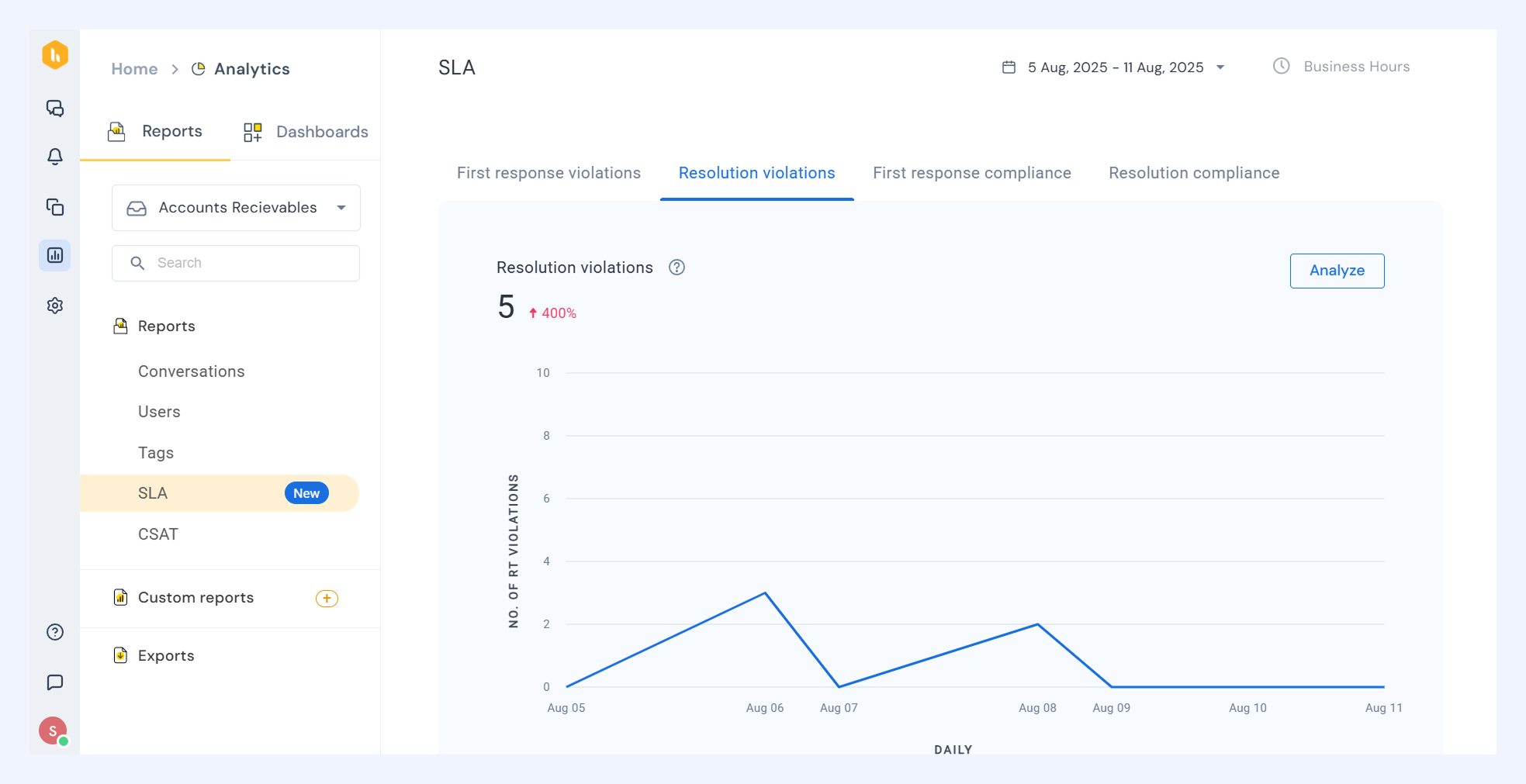
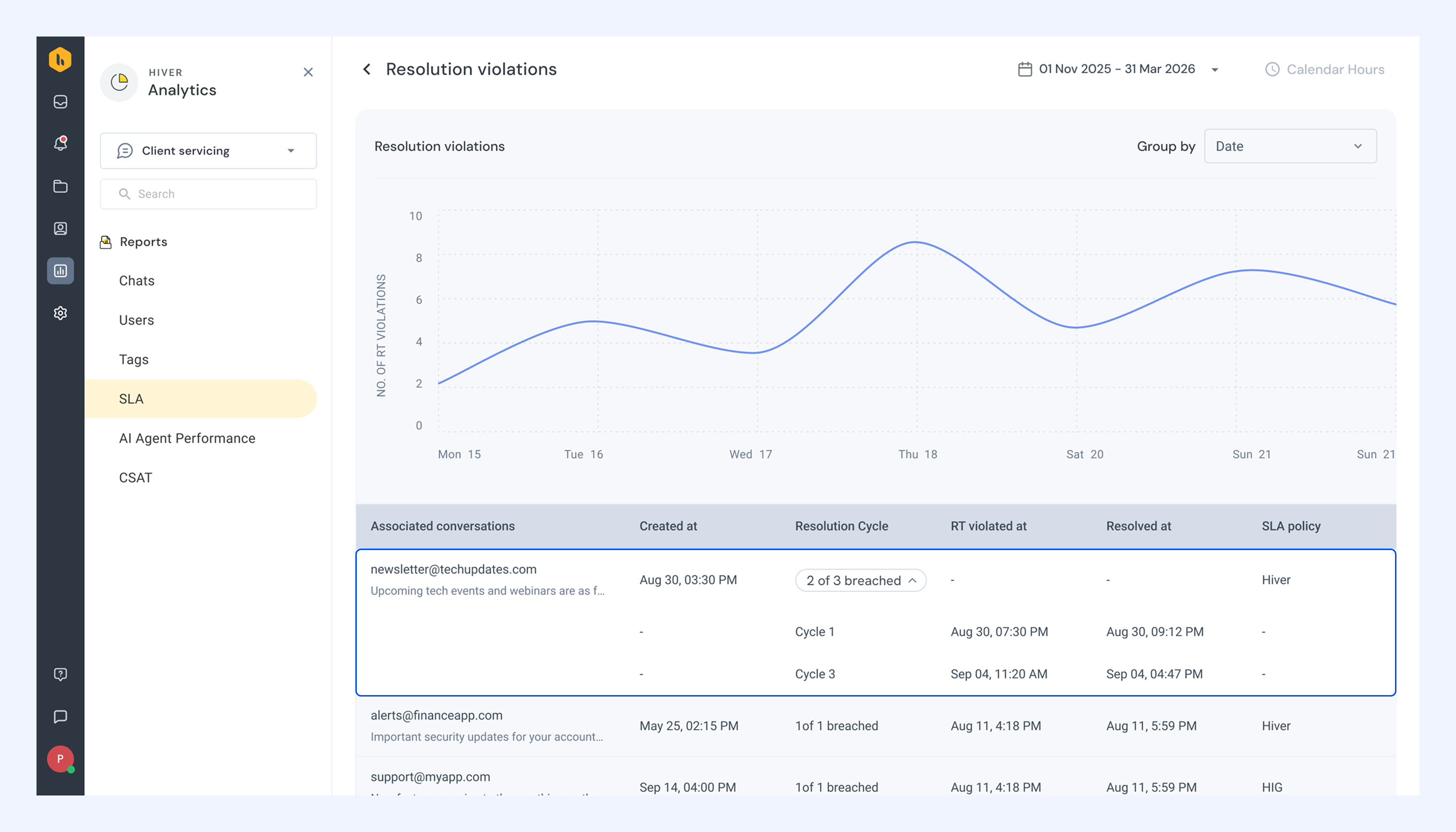
Conversations that weren't resolved or marked as 'Closed' within your Resolution Time (RT) deadline.
Use Analyze to access detailed metrics such as:
- Associated conversations: Sender email address with a hyperlink to visit the conversation.
- Created at: When the email was added to the Shared Inbox.
- Cycles violated: The number of resolution cycles that exceeded the resolution target, out of the total number of cycles. Expand the row to see each cycle with its own timings and breach status.
Note: A new resolution cycle begins when an external reply reopens a conversation after the period specified in your SLA settings.
- RT violated at: When the resolution target was breached for the corresponding cycle.
- Resolved at: When the email was first marked as Closed.
- SLA policy: The name of the SLA policy that was triggered.
First response compliance
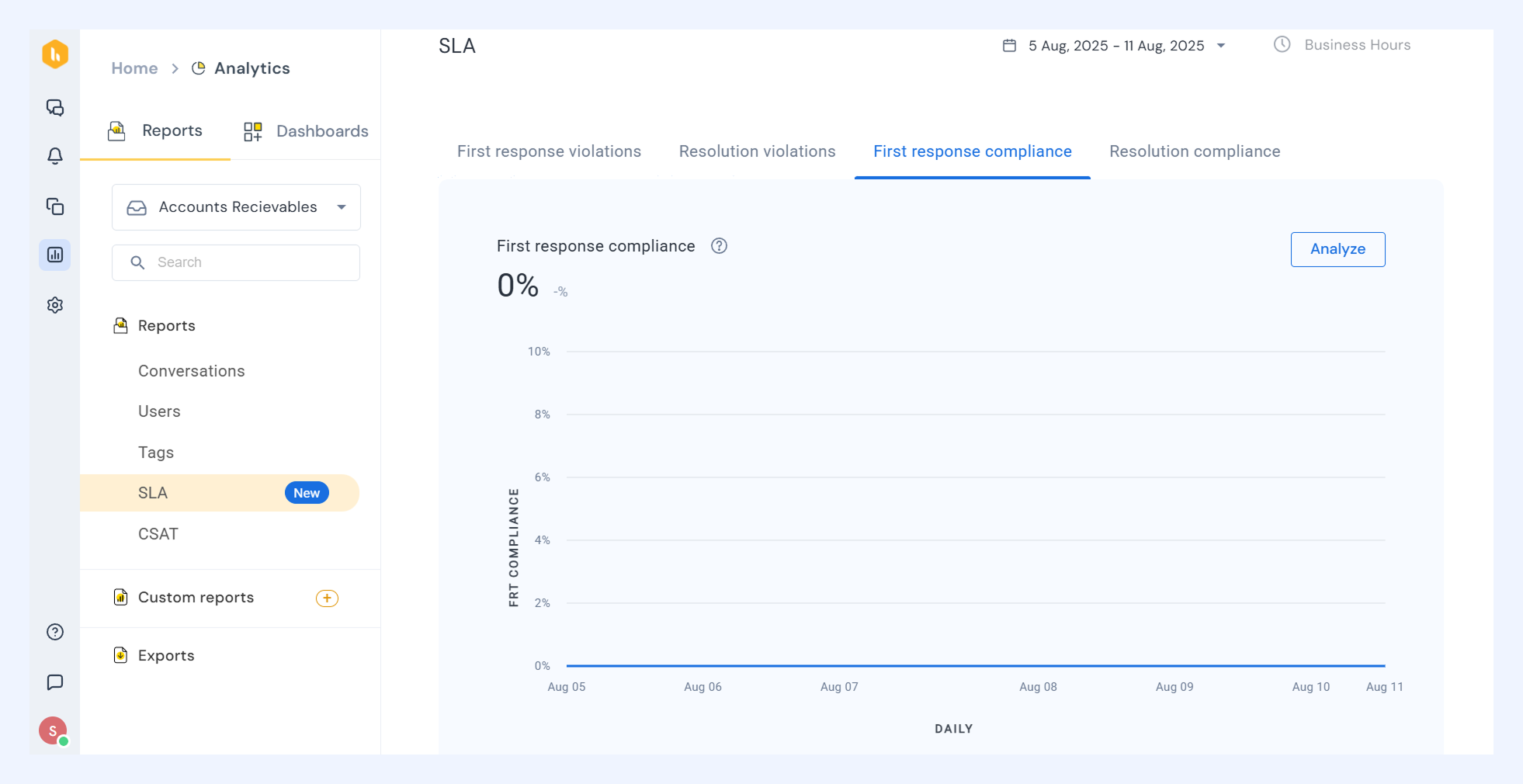
The percentage of conversations where your team responded within the FRT deadline.
Select Analyze in the First response compliance graph to find detailed insights on:
- Associated conversations: Sender email address with a hyperlink to visit the conversation
- Created at: When the email was added to the shared inbox
- First responded at: When the first response was sent out
- First responder (user): Name of the user who shared the first response to the incoming email
- SLA policy: The name of the SLA policy
Resolution compliance
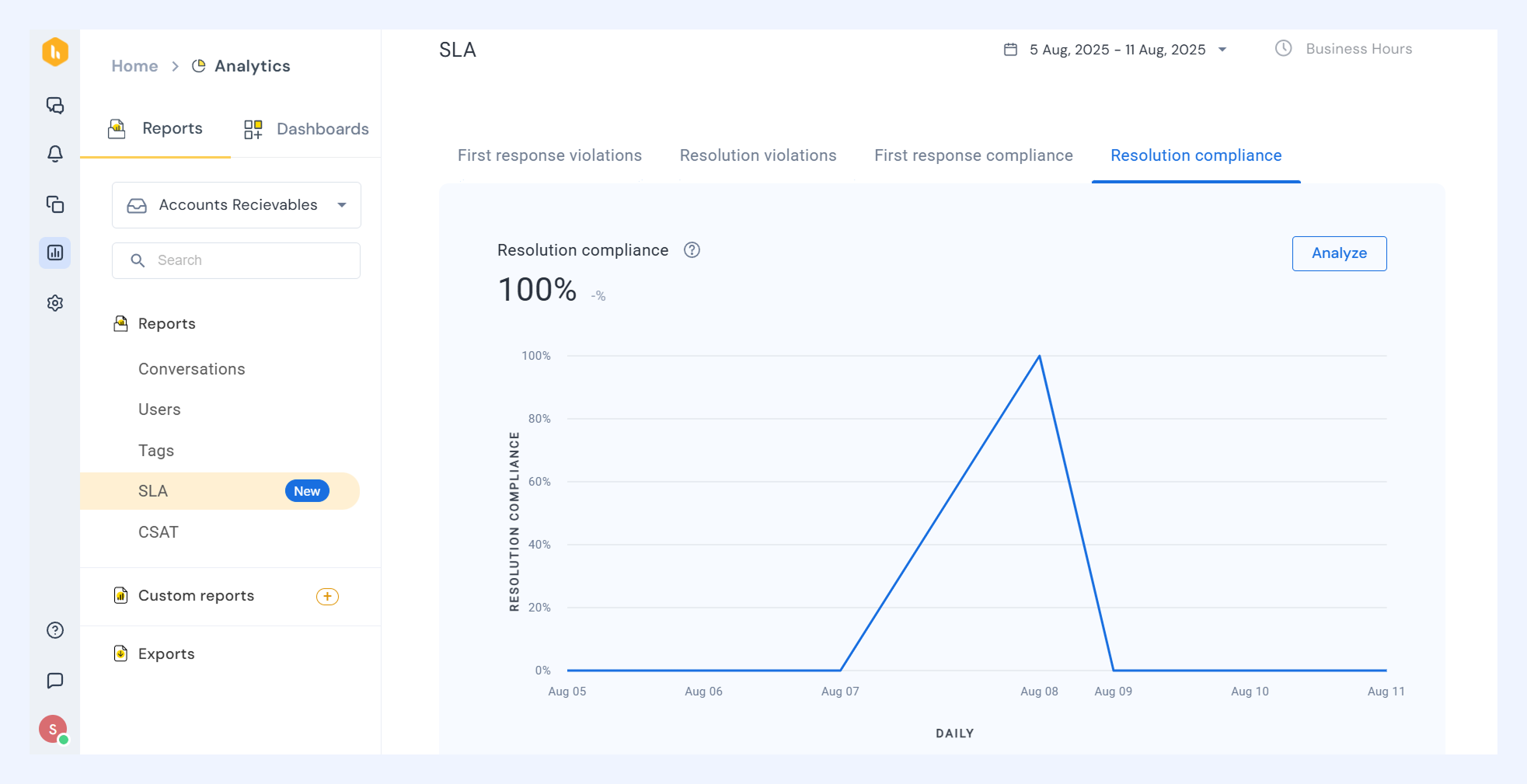
The percentage of conversations your team resolved within the RT deadline.
Click Analyze to get a detailed breakdown that covers:
- Associated conversations: Sender email address with a hyperlink to visit the conversation
- Created at: When the email was added to the shared inbox
- Resolved at: When the email was marked as resolved
- Assignee: The name of the user assigned to the conversation when it was marked as 'Closed'
Organizing SLA data to get deeper insights
The Grouped by option helps you organize and categorize these SLA metrics based on different attributes, such as assignee, tag, or period. You can group conversations to see if delays happen with specific team members, SLA policies, or conversation types. This grouping makes it easier to find the root causes of SLA violations and understand where your team is meeting compliance goals.
Select Analyze → Grouped by to categorize these conversations according to specific criteria:
| Option | Intent | Example usage |
|---|---|---|
| Date | View how first response violations are distributed across specific dates | Identify which days your team struggled most with response times |
| SLA policy | See violation counts for each SLA policy | Narrow down FRT SLA for priority accounts and analyse the root cause of the delay |
| Tags | View the count of conversations assigned to each tag | Check if 'Priority' or 'Urgent' emails weren't responded to, so your team can prioritize these conversations |
| First responder | See which team members responded to FRT-violated conversations | Use this to help analyze the root cause of delays |
| Assignee | View violation counts by team member | Identify who needs support in meeting first response deadlines |
| Status | See violations by the current conversation status | Use this to focus on 'Open' conversations that still need first responses |
| Conversation type | View violations by how conversations were initiated (inbound or outbound) | Find which new conversations to prioritize that have missed response deadlines |
| Company | See compliance counts for each account | Monitor if conversations from priority or new accounts are resolved on time |
Note: The ‘first responder’ option is not available for resolution violations and resolution compliance metrics, since those reports focus only on resolution time rather than the first reply.
Filtering SLA reports for more focused analysis
Filters help you view specific conversations within an SLA metric like First Response or Resolution Compliance. You can filter by assignee, tag, or status to see only the conversations you need to review. This makes it easier to analyze performance without sorting through unnecessary data.
To apply filters: Go to Analyze → Filters within your chosen SLA metric.
| Filter | First response violations | Resolution violations | First response compliance | Resolution compliance |
|---|---|---|---|---|
| First responder (user) | ✔️ | ✗ | ✔️ | ✗ |
| Assignee | ✔️ | ✔️ | ✔️ | ✔️ |
| Status | ✗ | ✔️ | ✗ | ✔️ |
| Tags | ✔️ | ✔️ | ✔️ | ✔️ |
| SLA policy | ✔️ | ✔️ | ✔️ | ✔️ |
| Conversation Type | ✔️ | ✔️ | ✔️ | ✔️ |
| RT violated: Yes/ No/ Resolution Due/ Undefined in policy | ✔️ | ✗ | ✔️ | ✗ |
| FRT violated: Yes/ No/ First Response due/ Undefined in policy | ✗ | ✔️ | ✗ | ✔️ |
Accessing SLA data offline
You can download SLA reports for quick analysis or export detailed data for deeper review and team sharing.
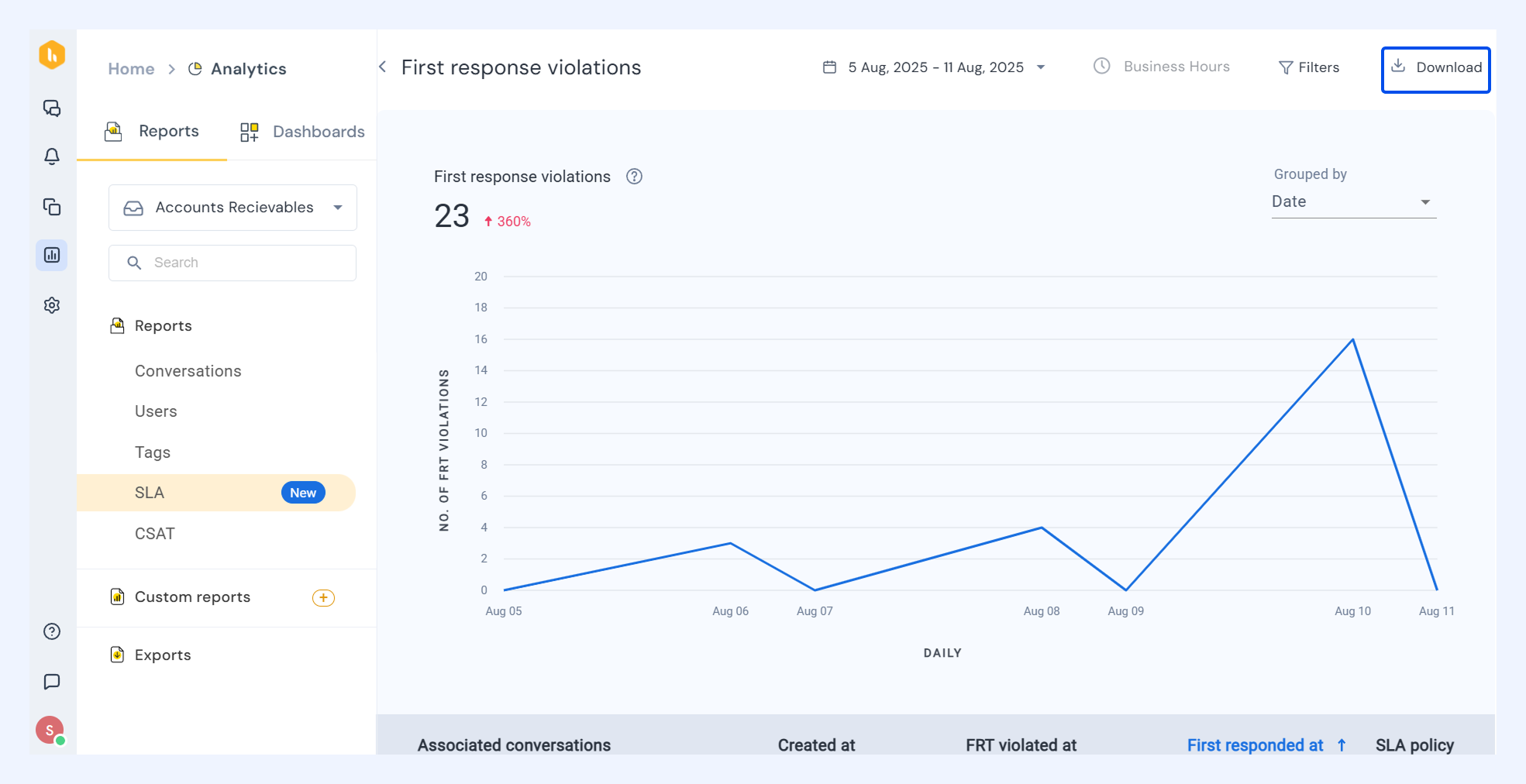
- Select a metric and click Analyze to view detailed data.
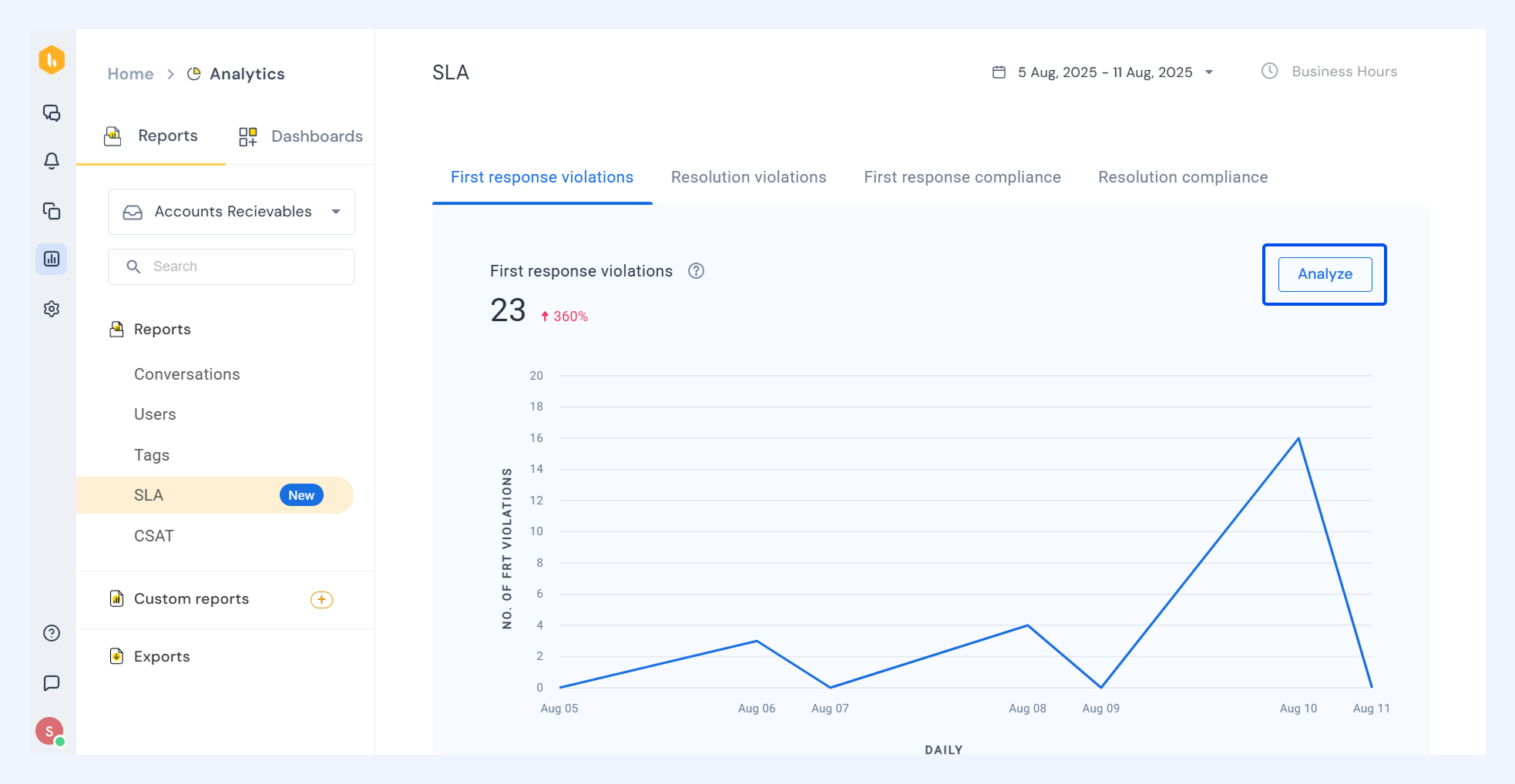
- Filter the data if needed, then click Download in the top right corner.
How to export SLA data
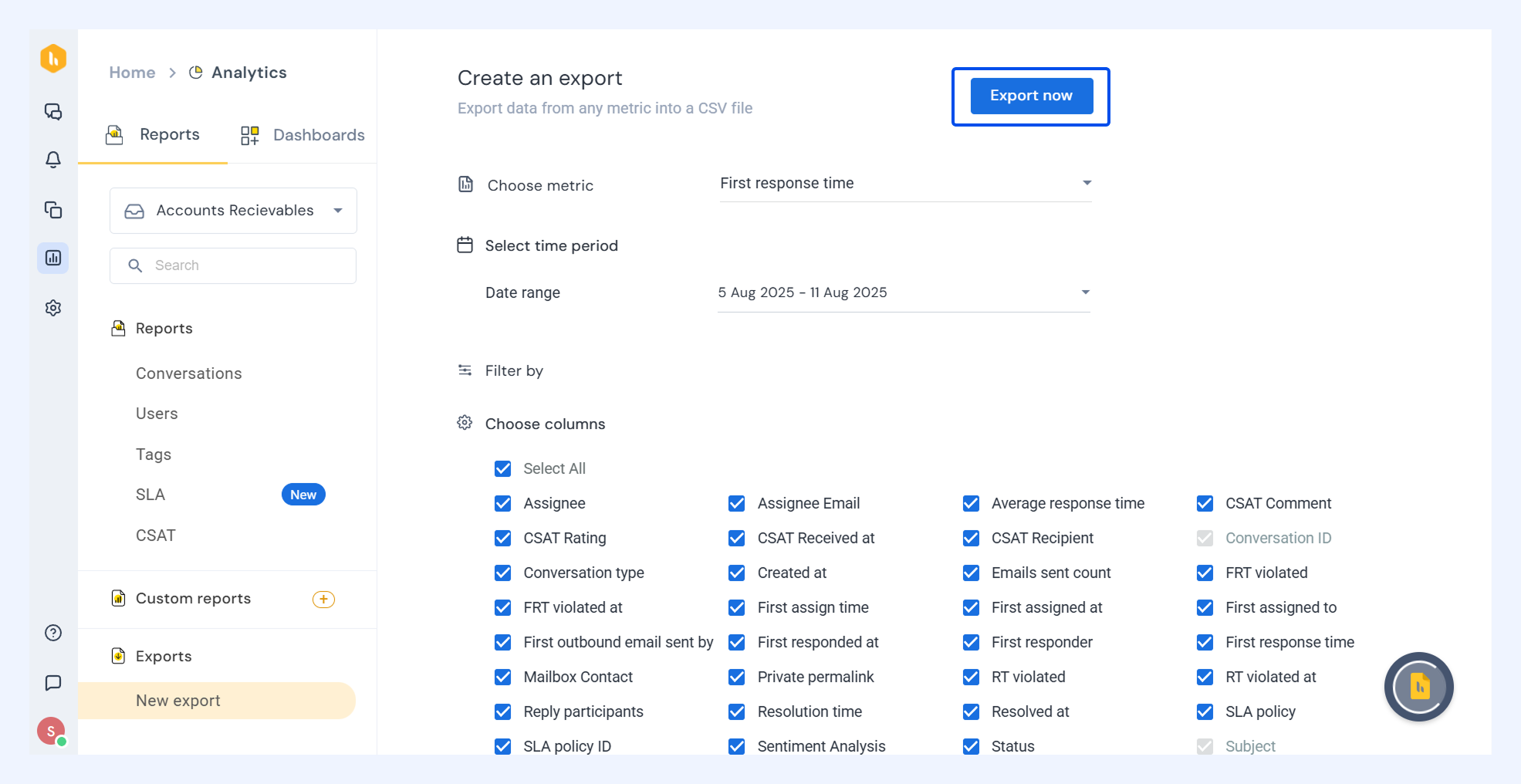
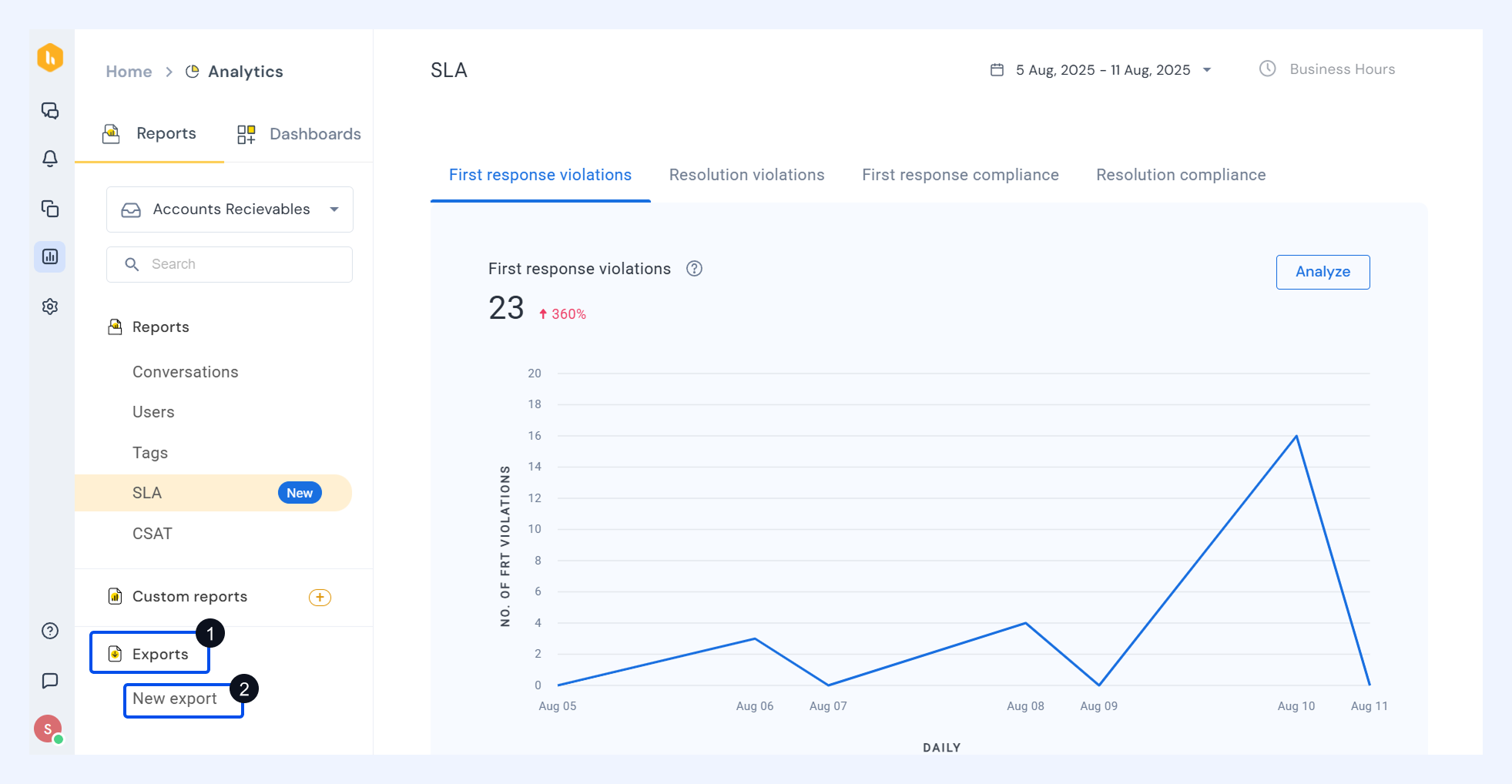
- Click the Exports tab on the left side, then click New Export.
- Select the metric and click Choose Columns to apply filters and further customize your data.
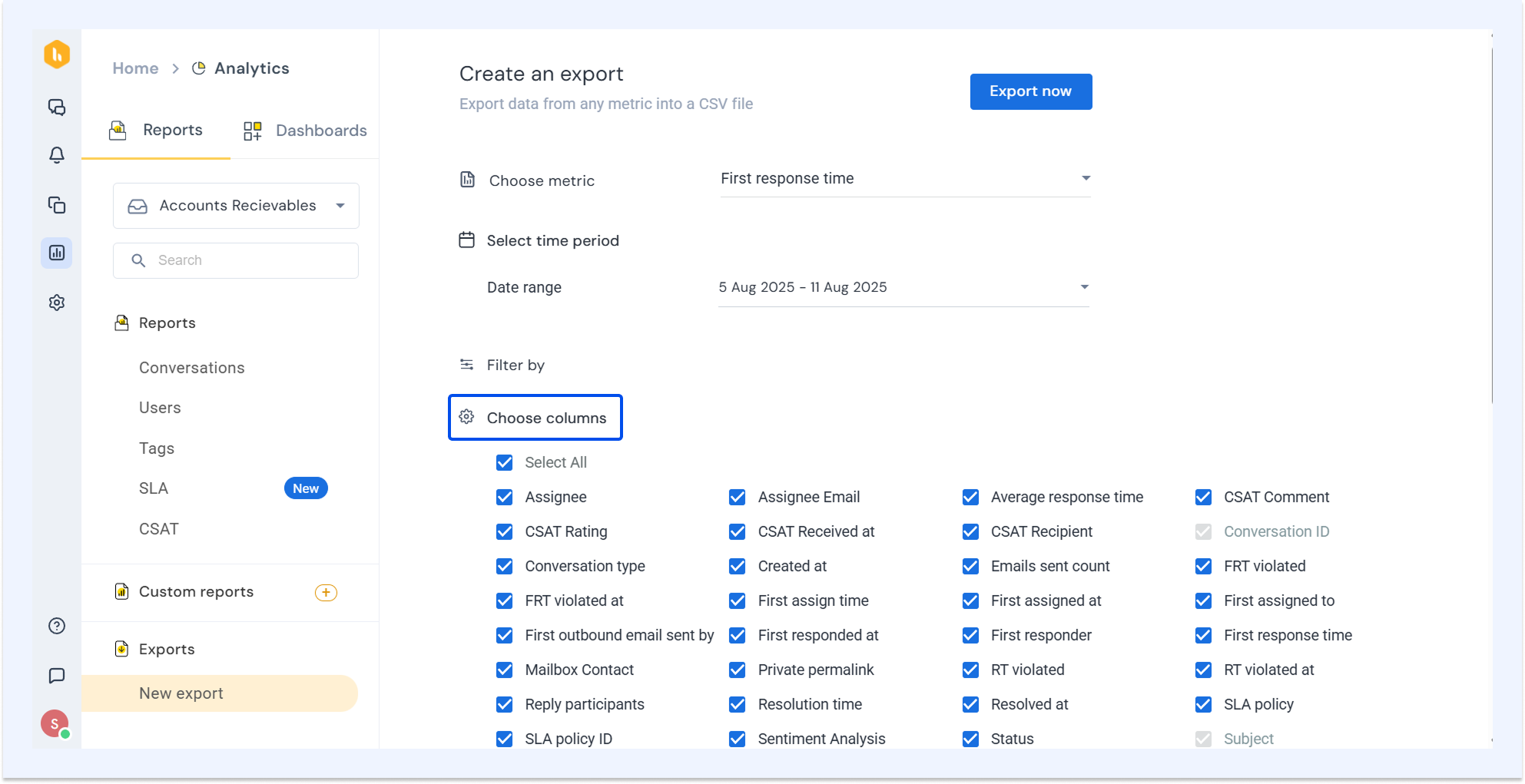
- Click Export Now to download your data in CSV format.