Adding personal emails to a Shared Inbox
Sometimes a customer may email you directly instead of contacting your team’s Shared Inbox. You can add that email to a Shared Inbox so it can be handled there with the rest of your team’s conversations.
There are three ways to do this.
Add an email from the right panel
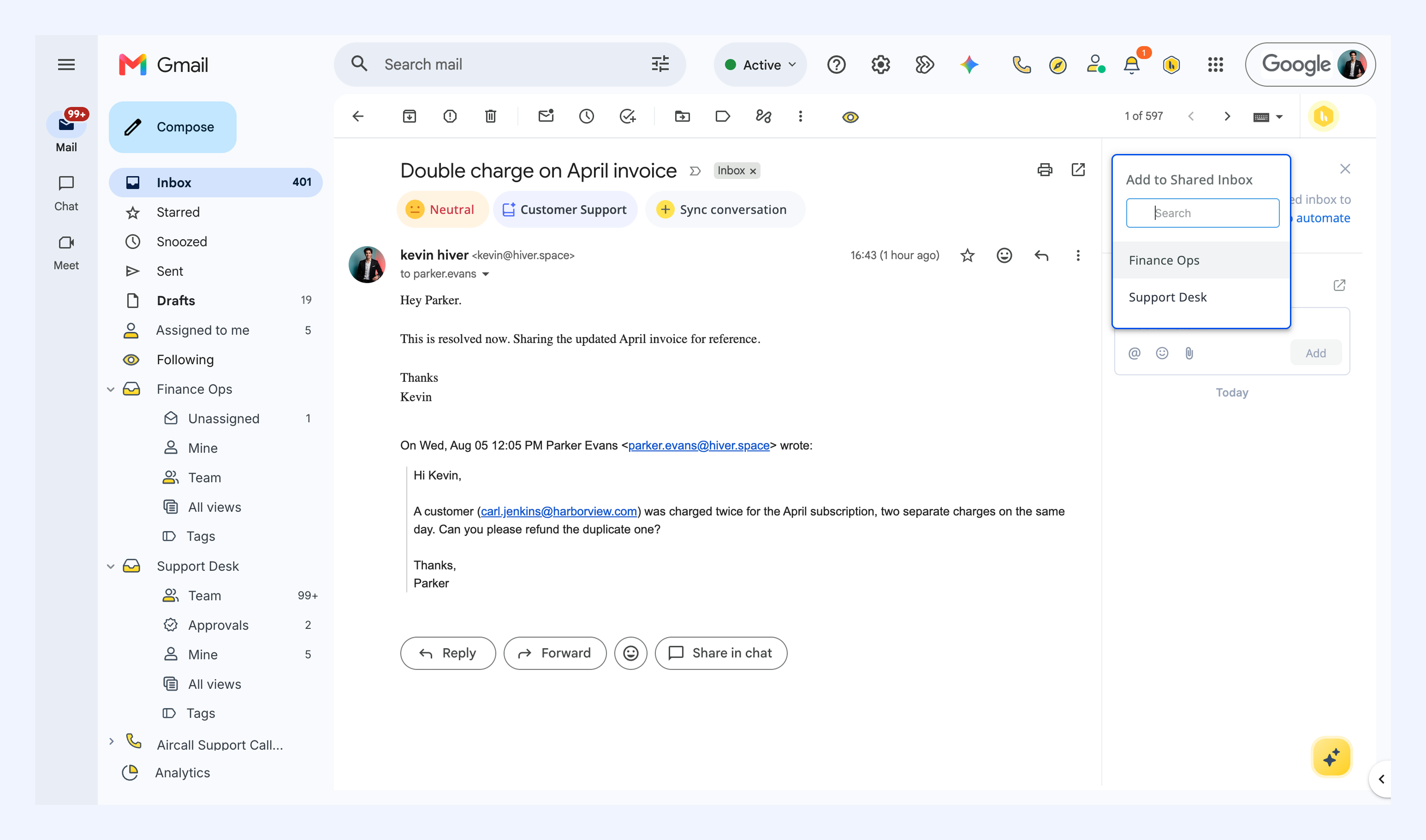
Open the email in your personal inbox, select Add to Shared Inbox from the right panel, and choose the Shared Inbox you want to add it to.
Add emails automatically with an Automation
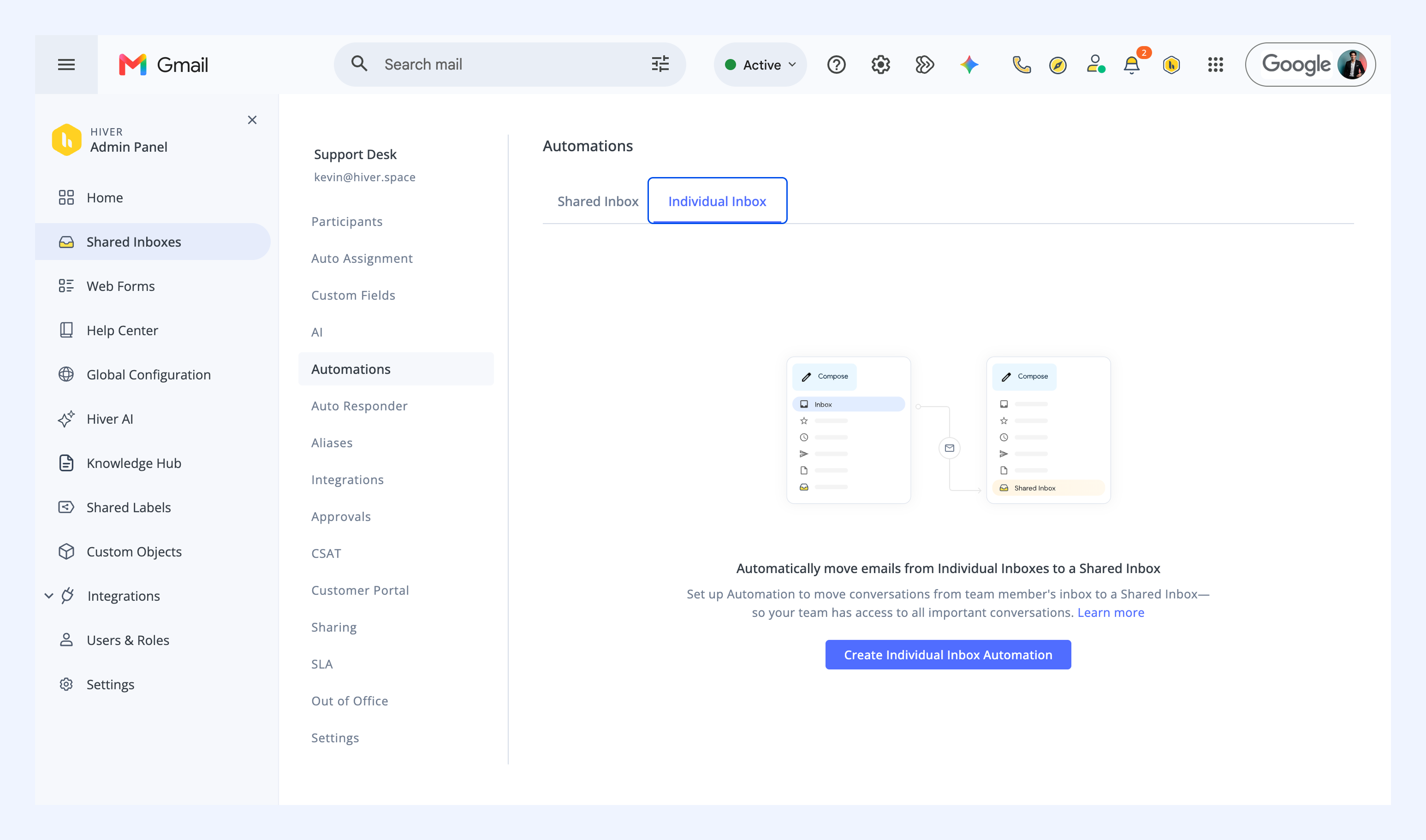
If certain emails regularly land in personal inboxes that need to be handled within a Shared Inbox, an admin can create an Automation to add them automatically when specified conditions are met.
Learn how to add personal emails to Shared Inboxes with Automations.
Forward an email to a Shared Inbox
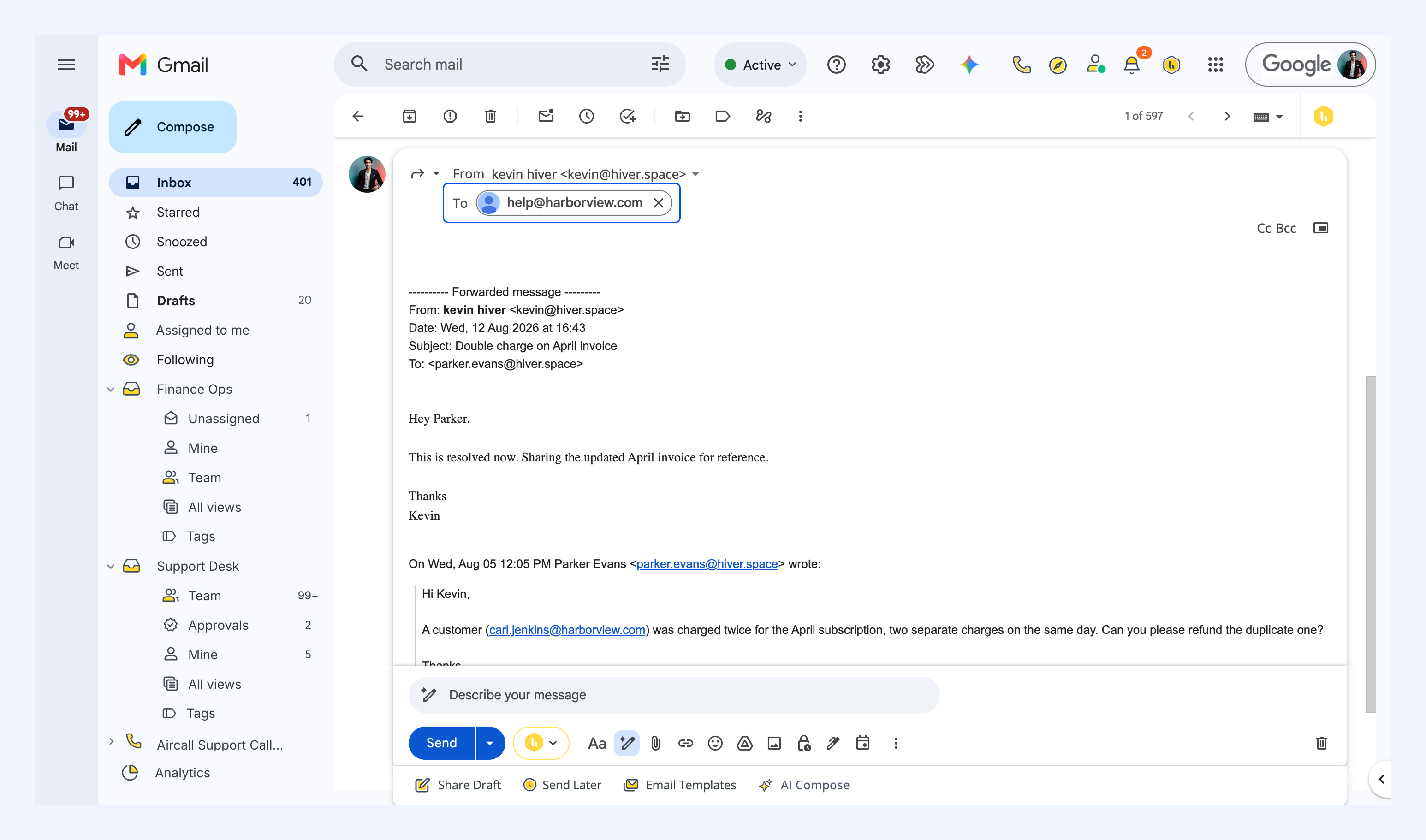
You can also forward the email to your Shared Inbox address.
Open the email in your personal inbox, select Forward, and enter the Shared Inbox address in the To field. The email arrives in the Shared Inbox, where your team can pick it up along with the rest of the conversations.