Publishing articles
Articles are support documents designed to help users find answers to common questions. This guide explains how to organize, create, and manage articles in your Help Center.
How categories work
Before creating articles, set up categories to organize related topics. Categories help users navigate easily and locate information.
Key details
- Categories appear in the left sidebar of your Help Center dashboard.
- Each article belongs to one category only.
- A category appears on the live site only if it contains at least one published article.
- New categories are added to the top of the list.
- When you open the dashboard, the top category is selected by default.
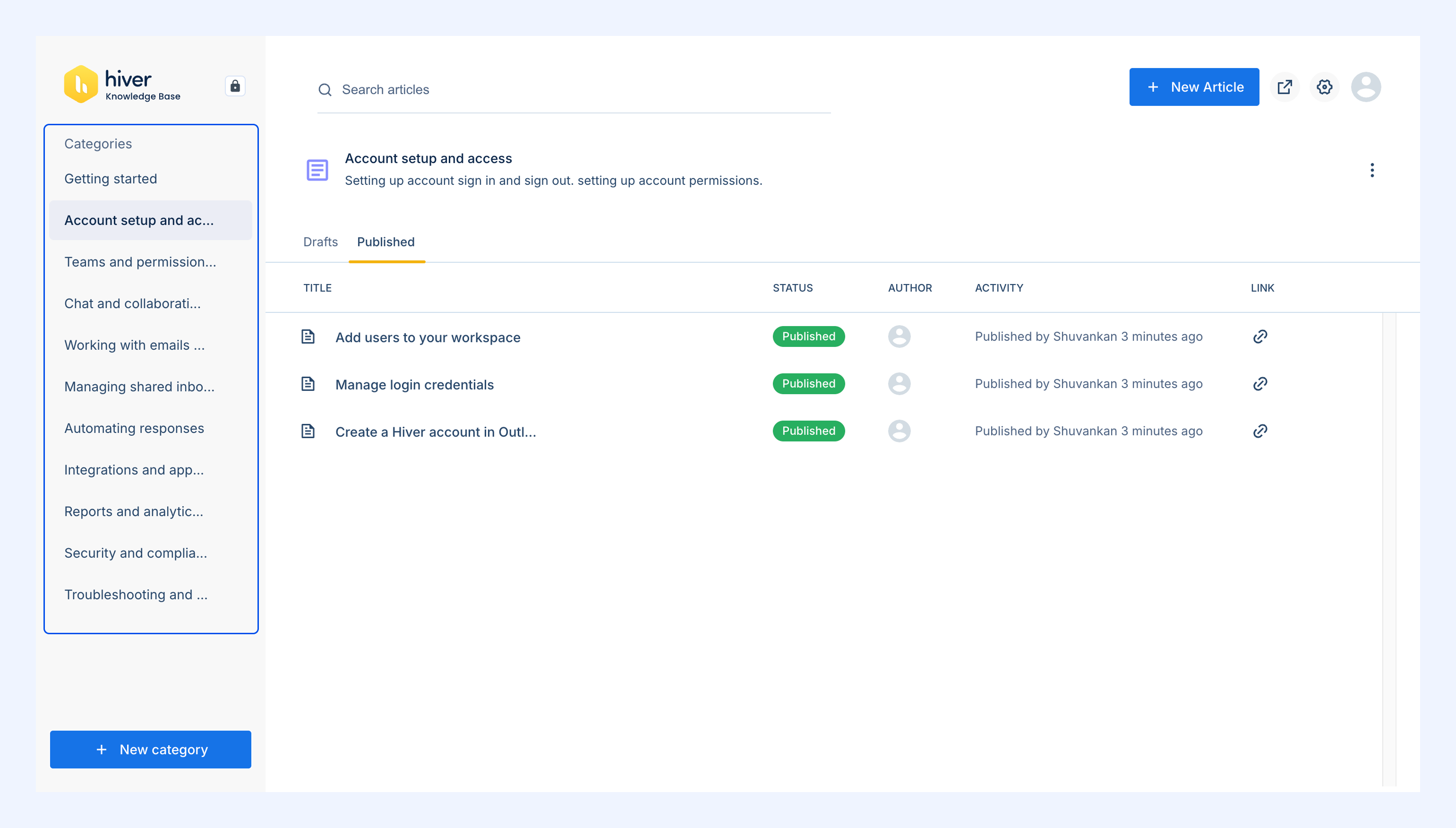
Creating a category
1. Go to your Help Center dashboard.
2. Click New Category.
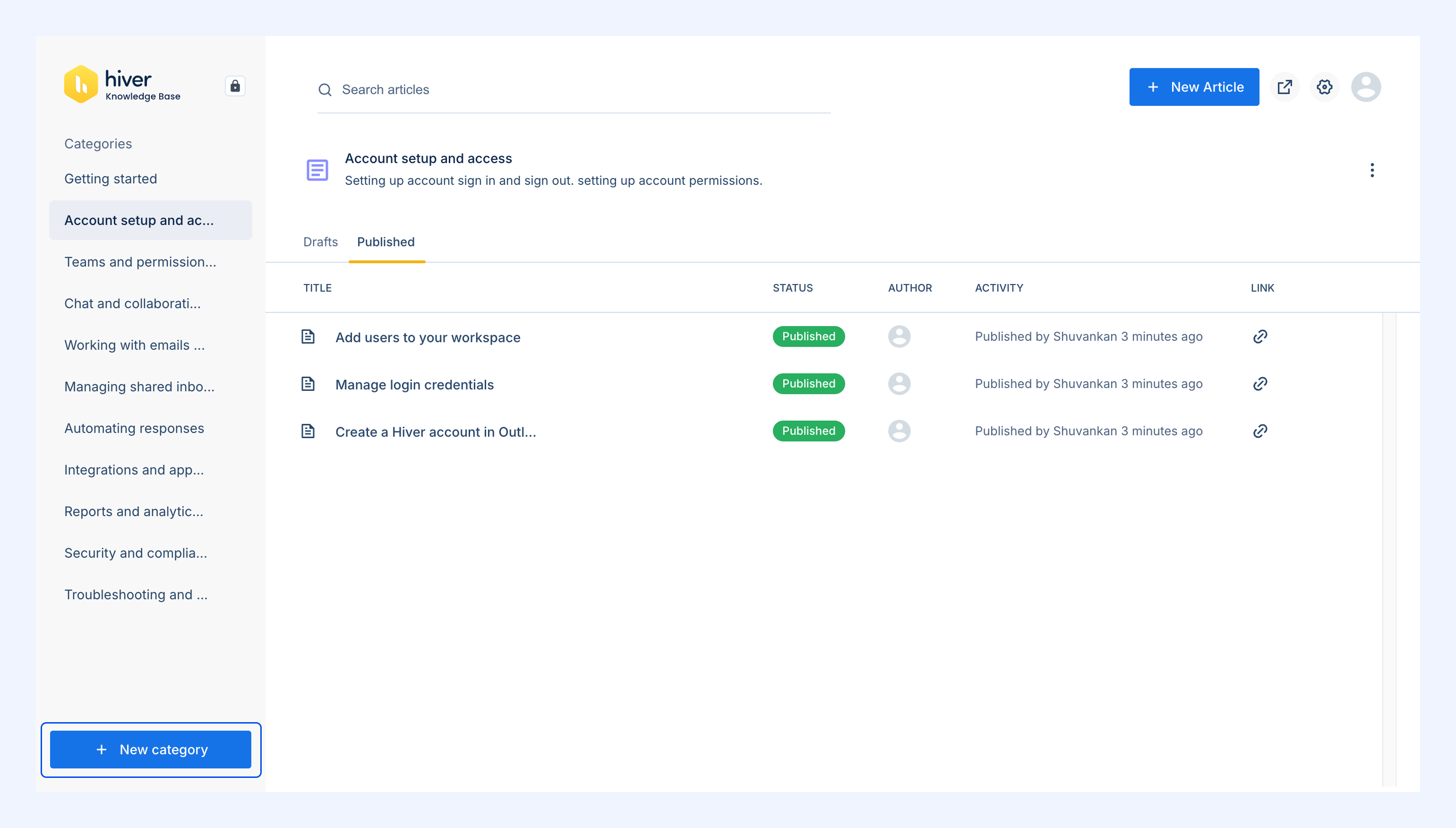
3. Enter a unique Category Name.
4. Upload an icon or select one from the icon library.
5. Review the auto-generated Slug and edit if needed.
6. Add a description.
7. Click Create.
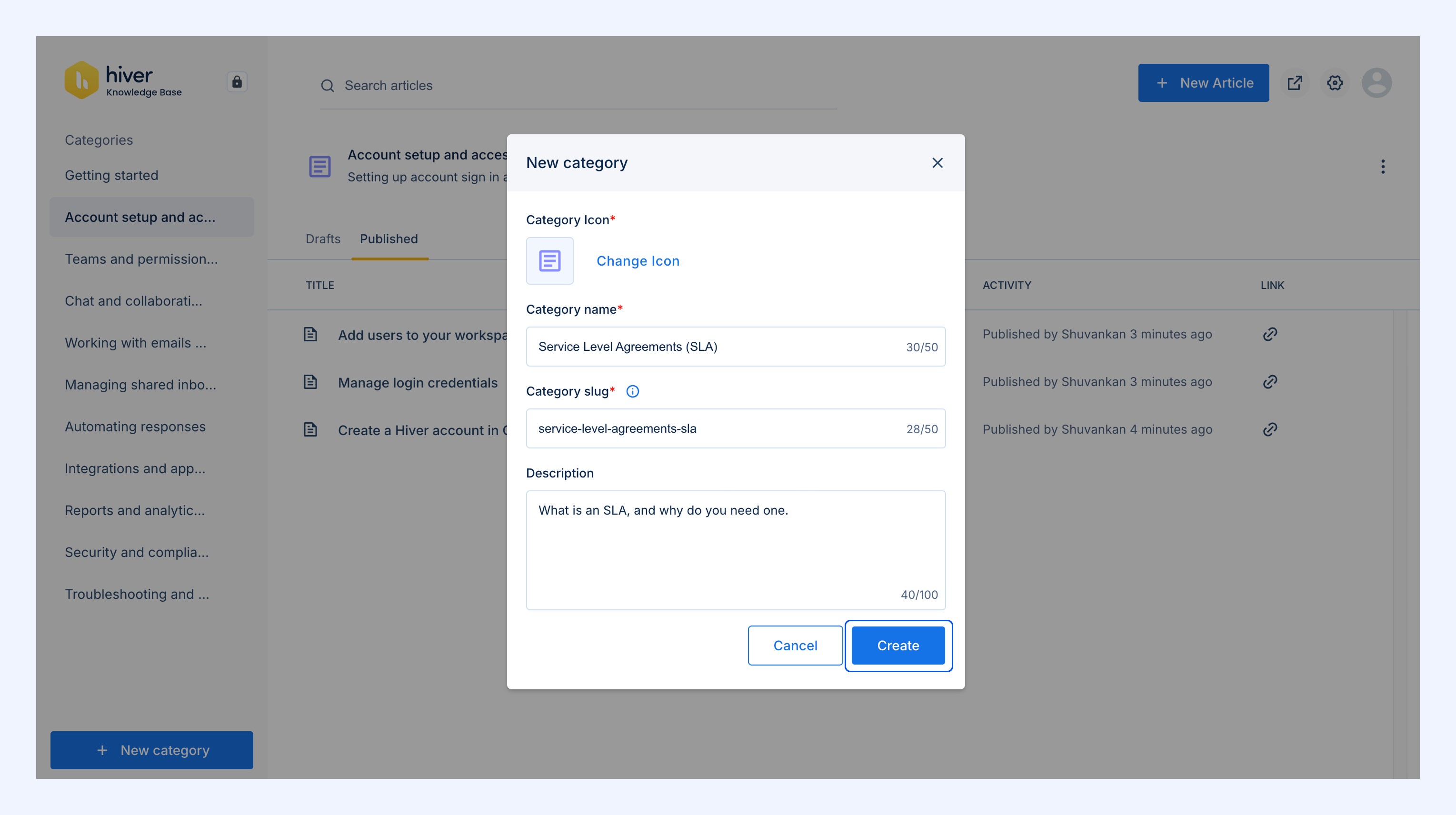
Note: The Slug is automatically generated from the category name but can be customized during or after creation.
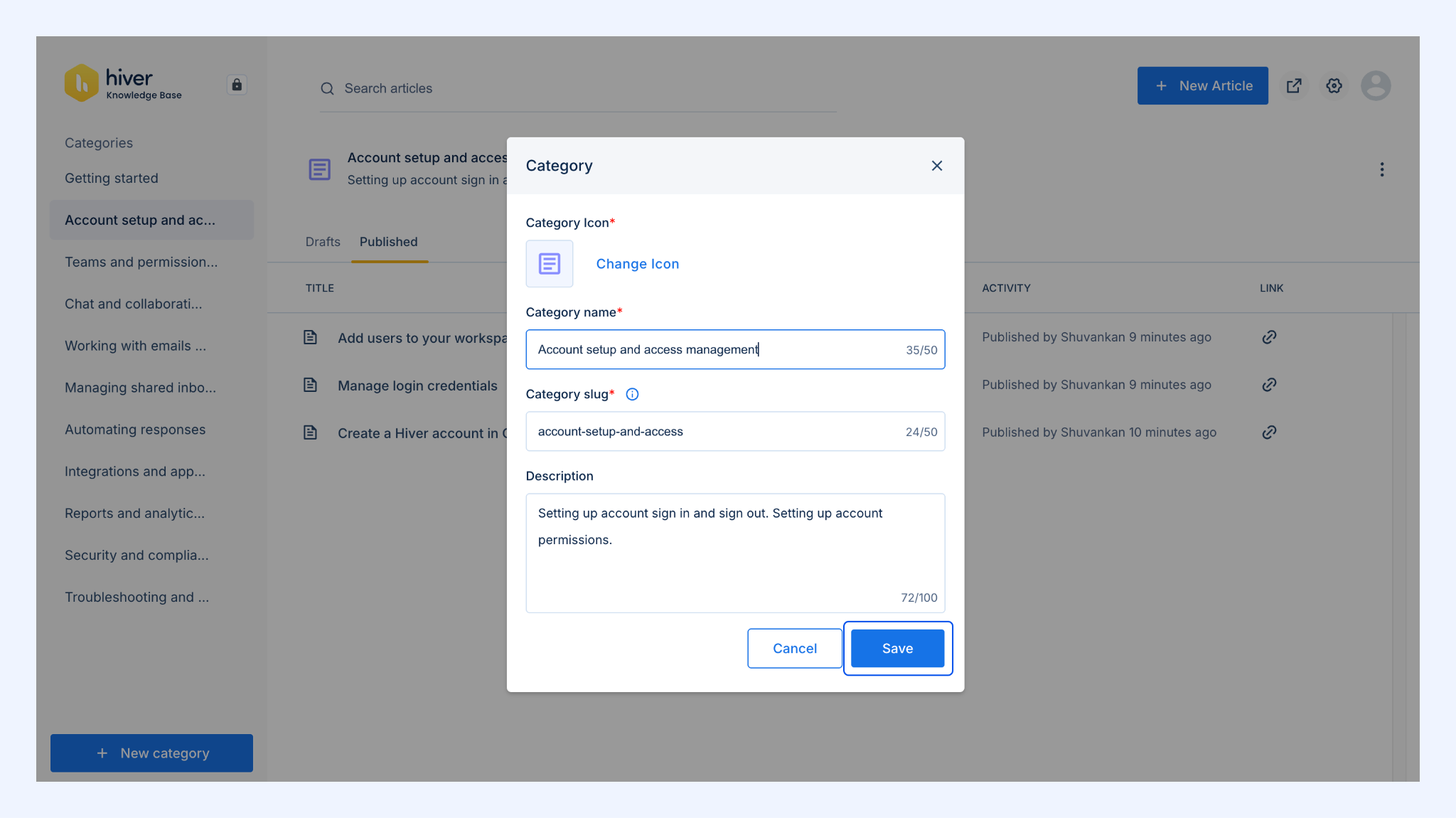
Editing a category
1. Find the category you want to edit in the left sidebar.
2. Click the three-dot menu next to the category name.
3. Select Edit Category.
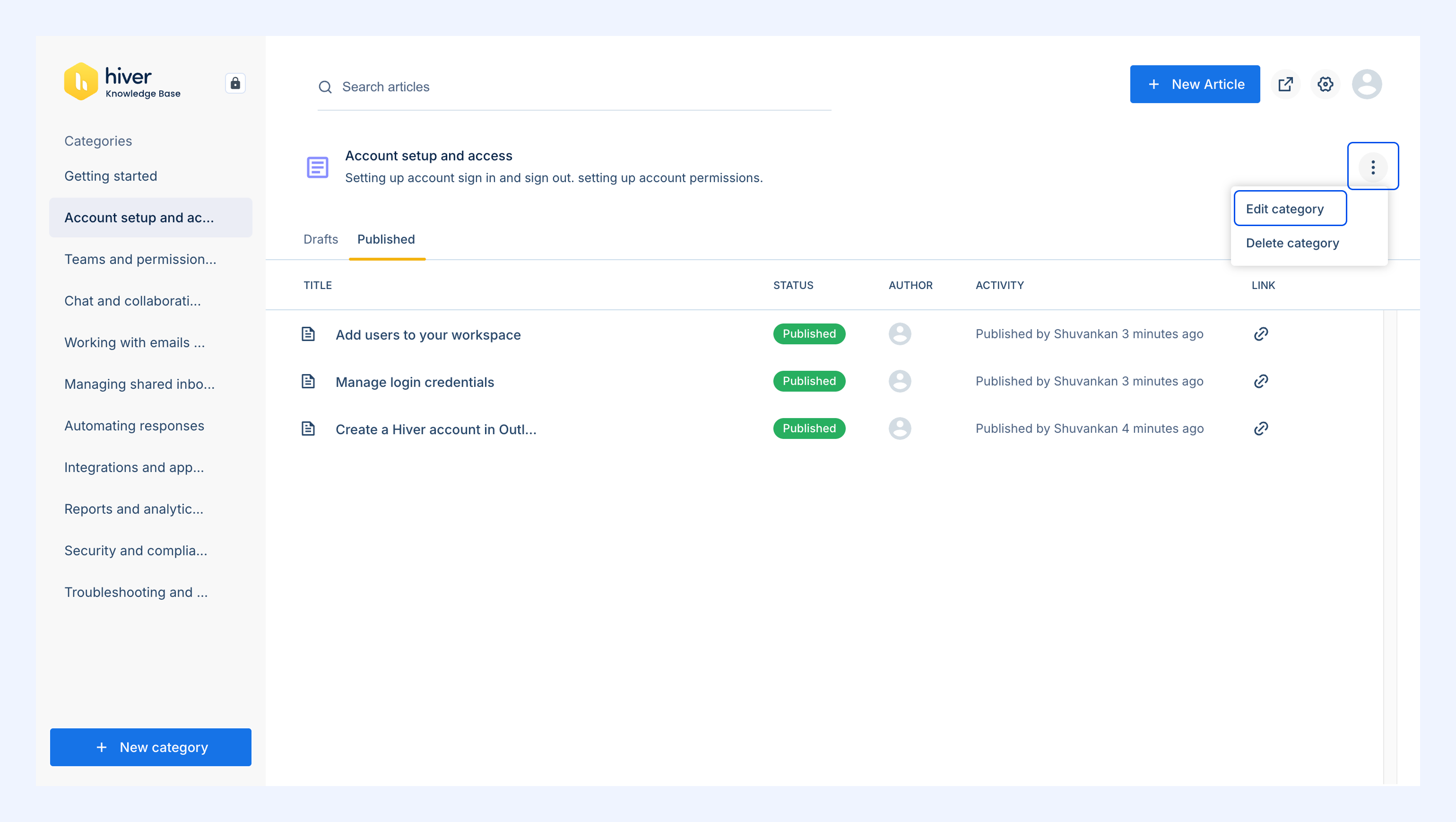
4. Update the category name, icon, or slug.
5. Click Save.
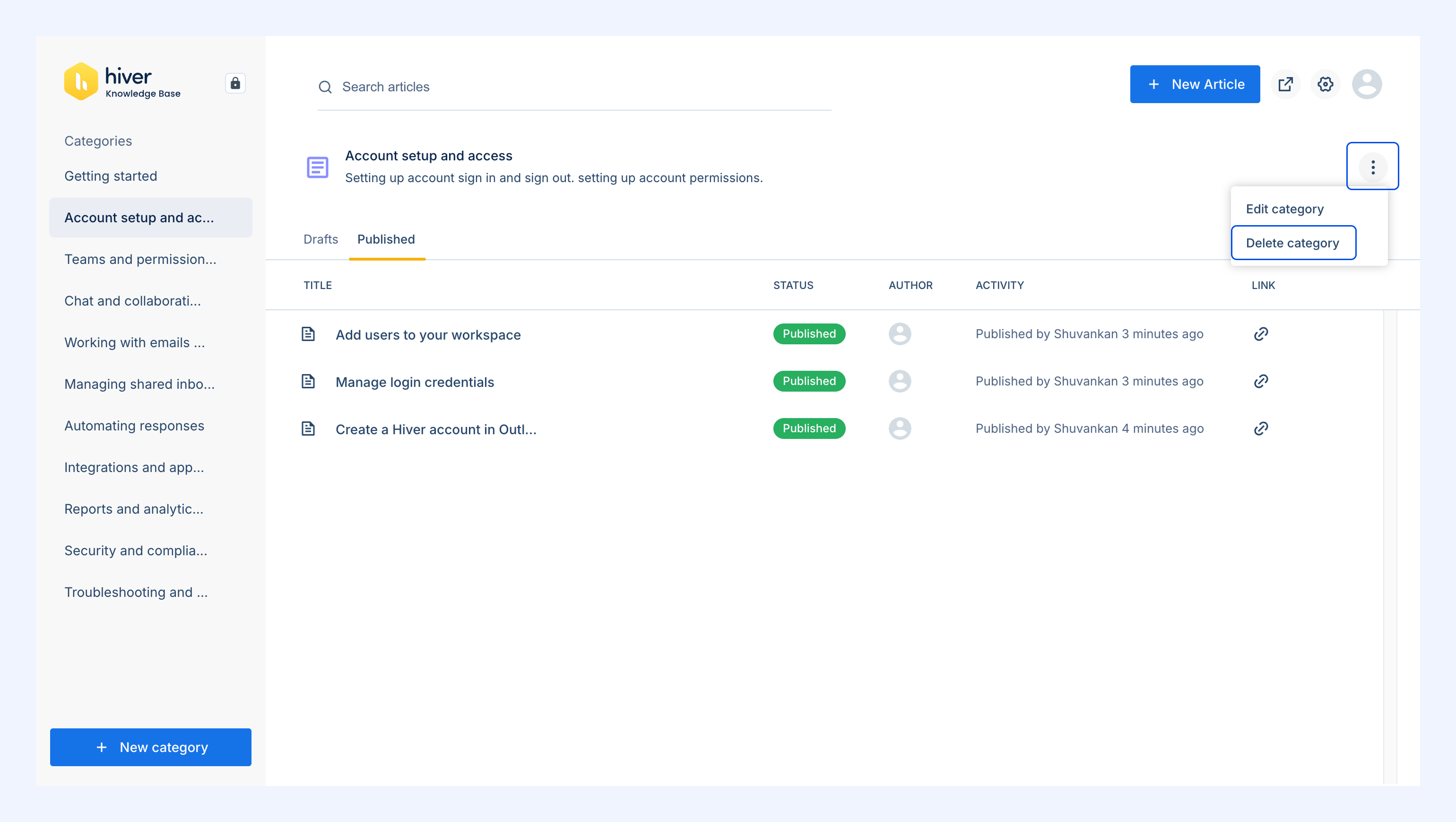
Deleting a category
1. Select the category you want to delete.
2. Open the three-dot menu and choose Delete Category.
3. In the confirmation dialog, click Delete.
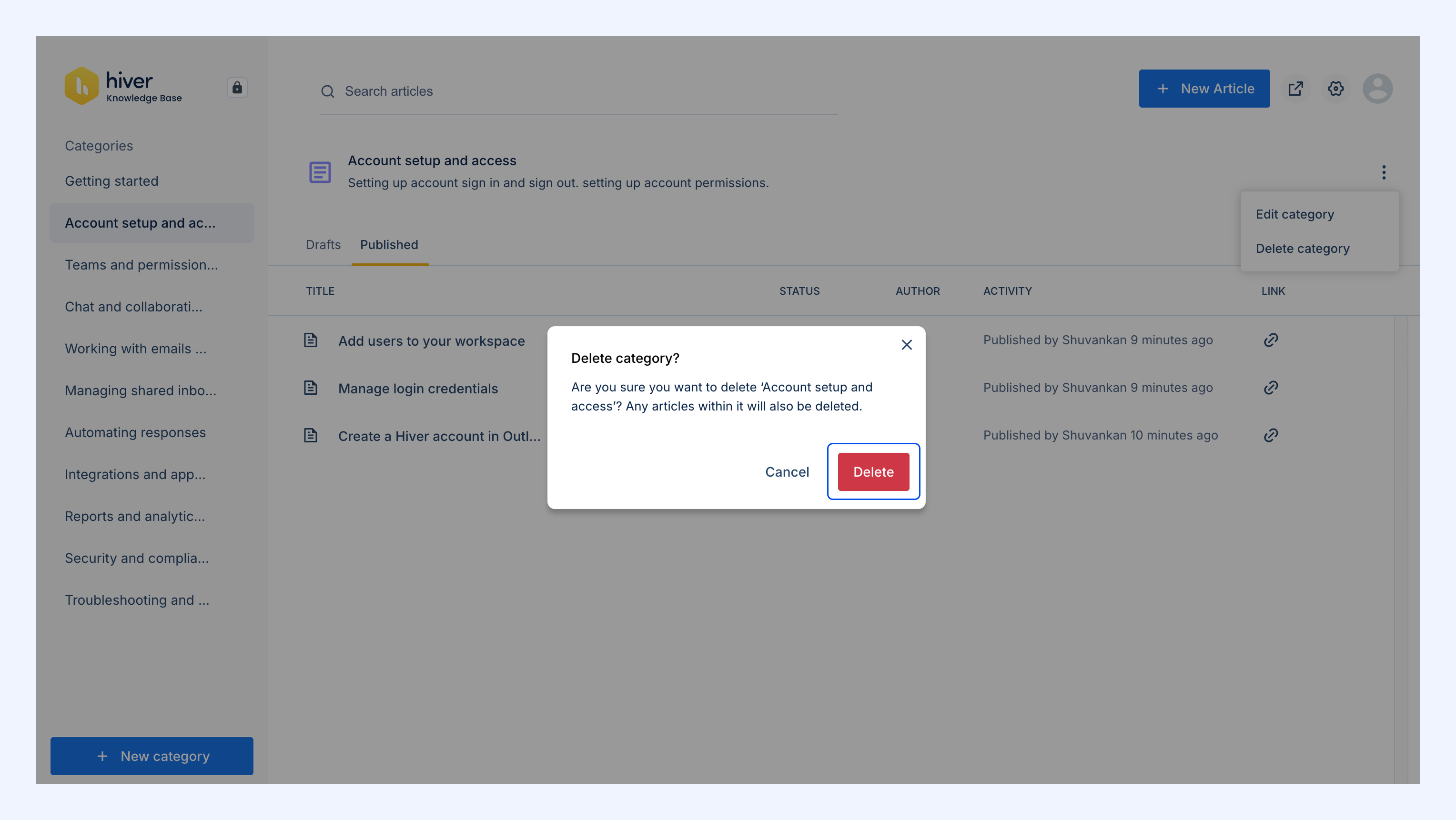
Note: Deleting a category permanently removes all articles within it.
Creating a new article
1. Select the category where the article should be added.
2. Click New article.
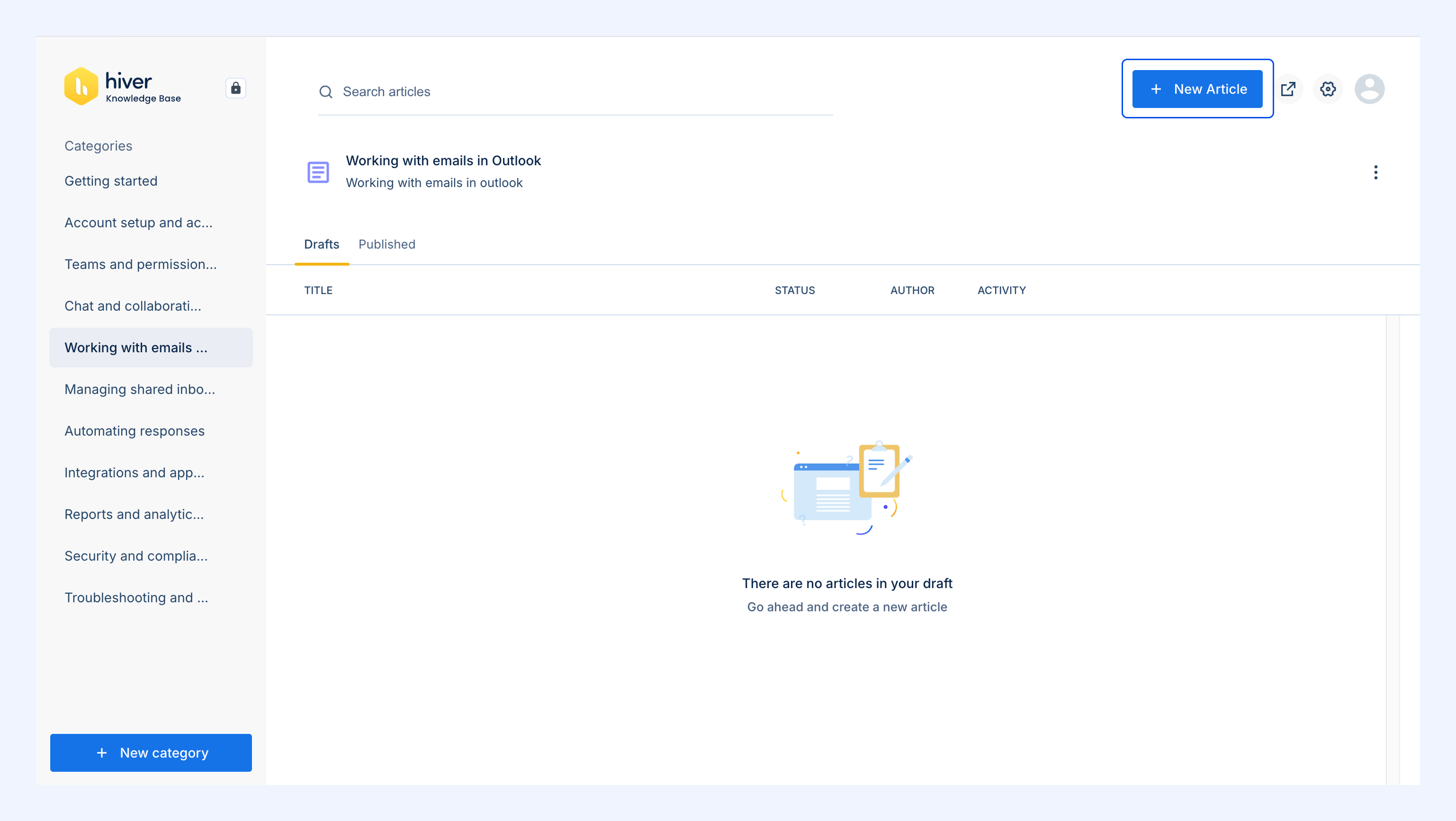
3. Enter a unique Title.
4. Add your content in the editor.
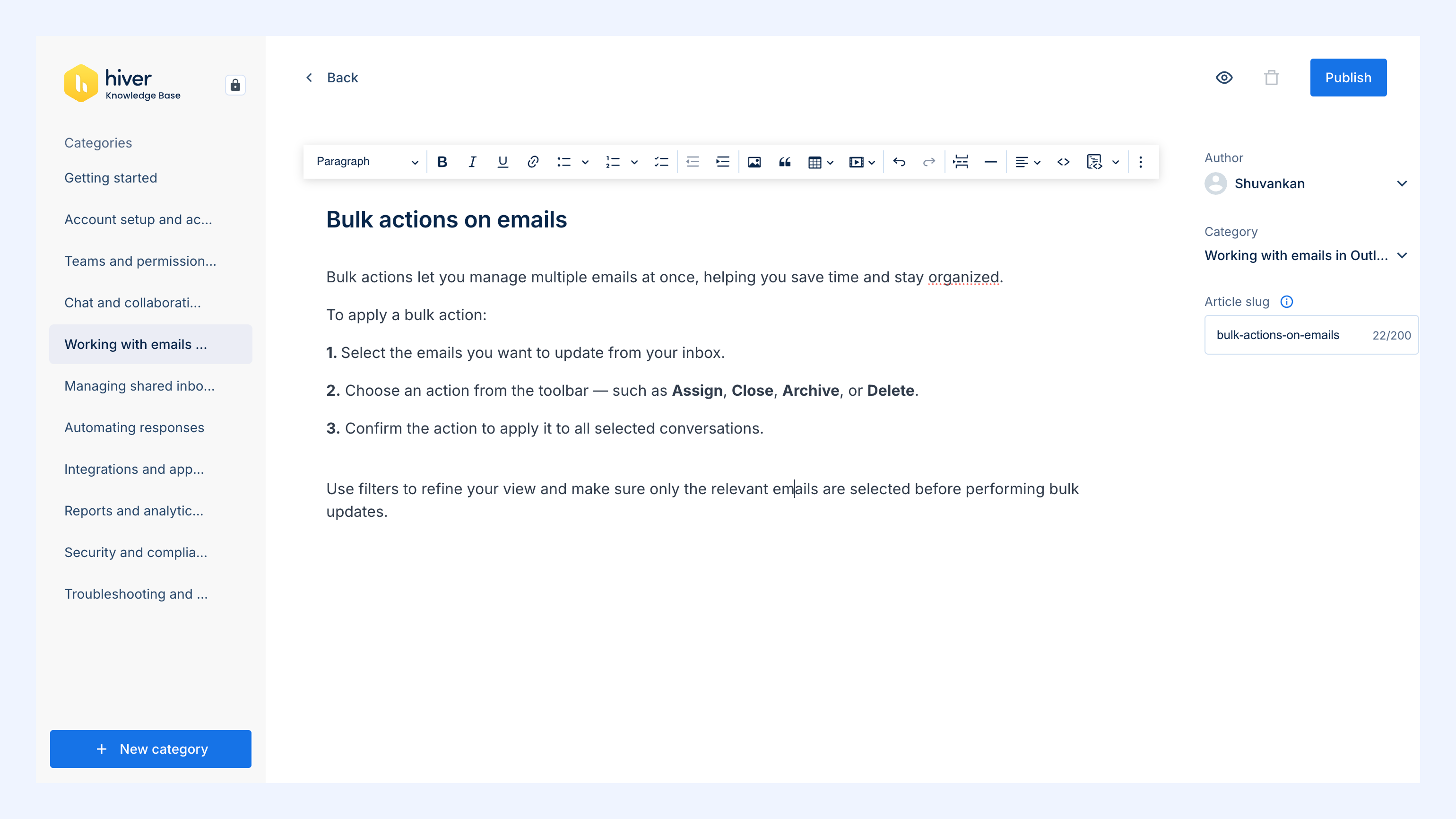
5. Click the Preview icon.
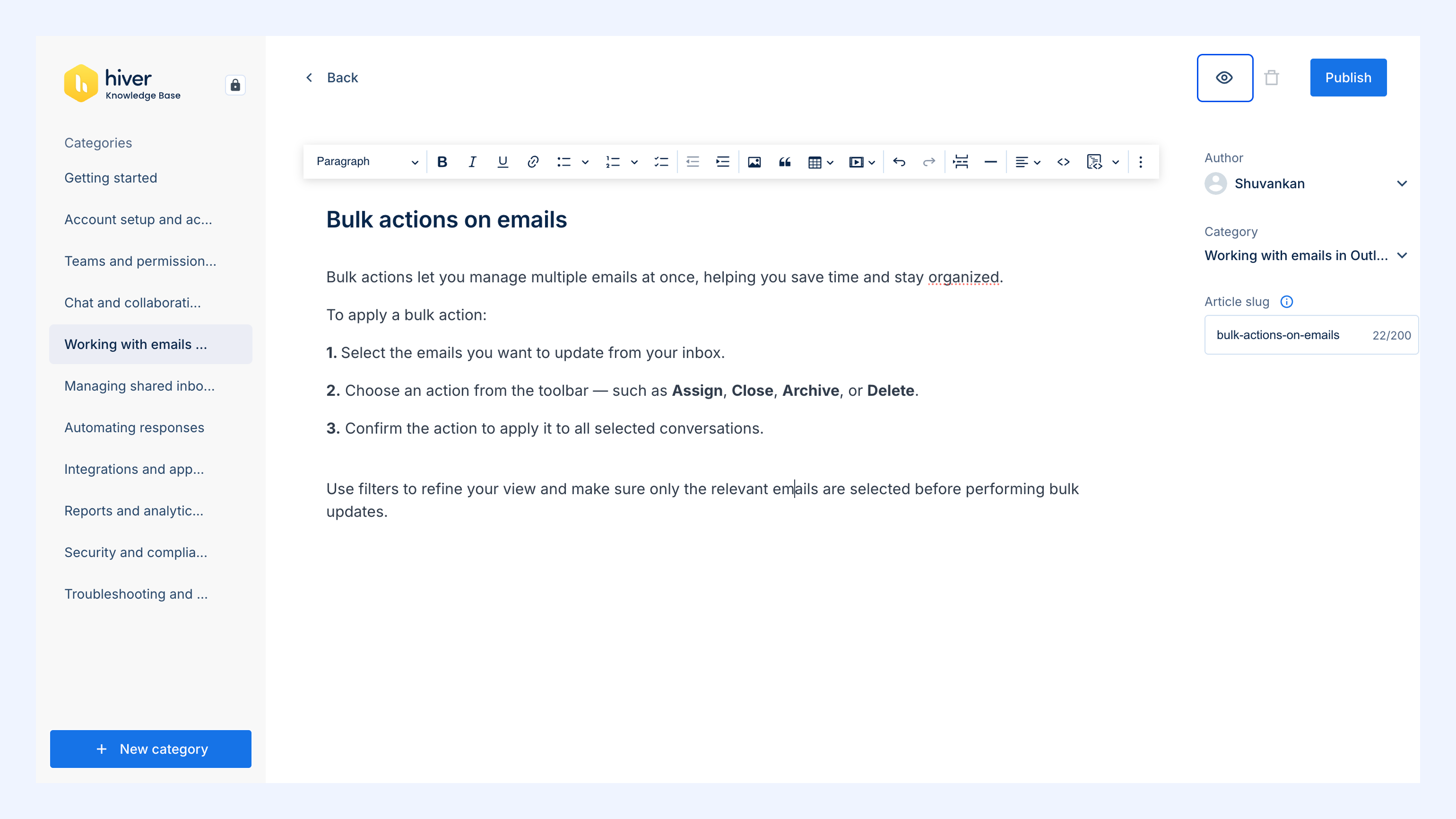
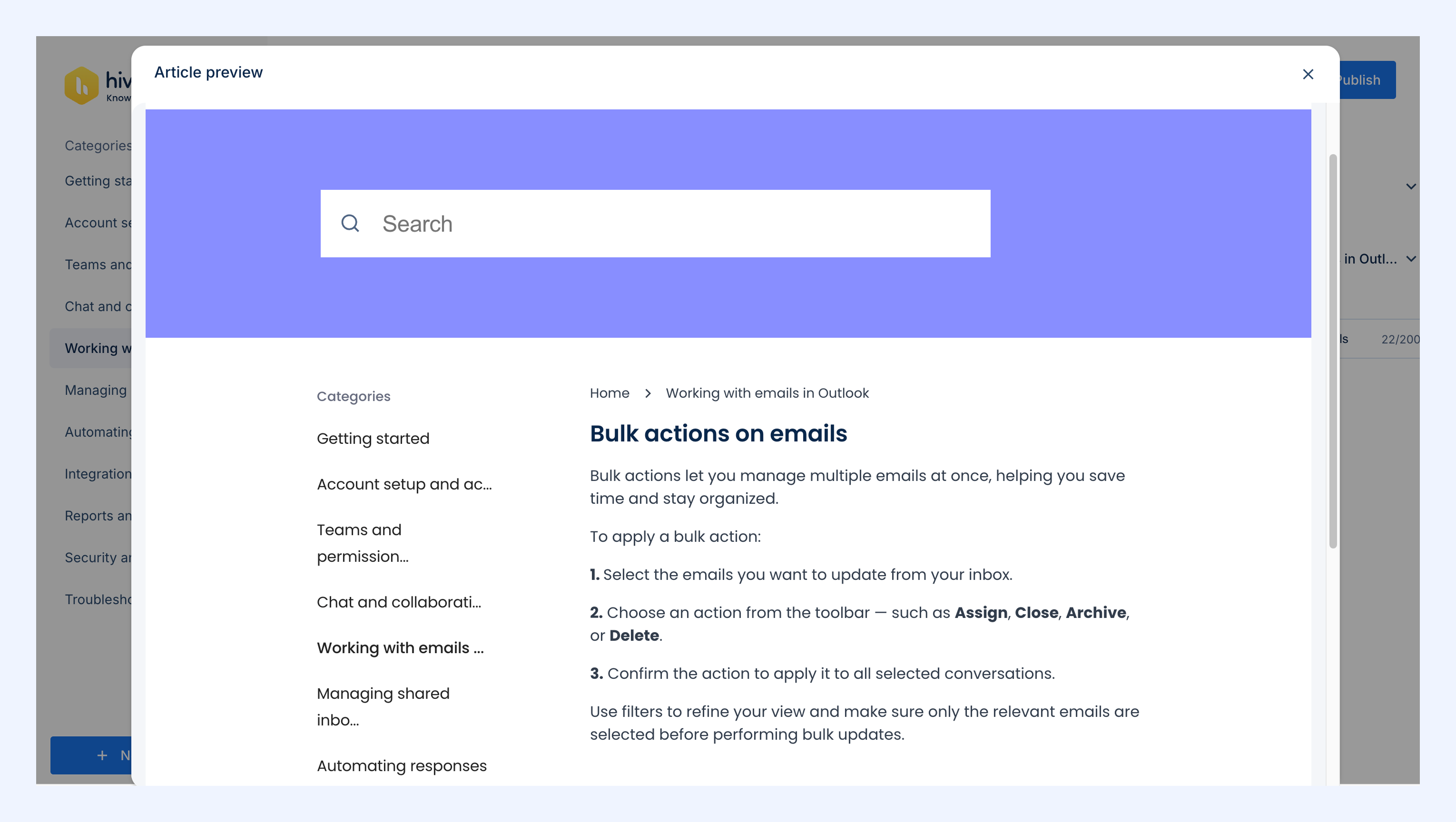
6. You will see a preview of how your article will look like in the Help Center.
Every new article starts as a draft with the following default attributes:
- State: Draft
- Author: Current user
- Category: Selected category
- Slug: Auto-generated from the title
Publishing an article
To make an article visible on your Help Center:
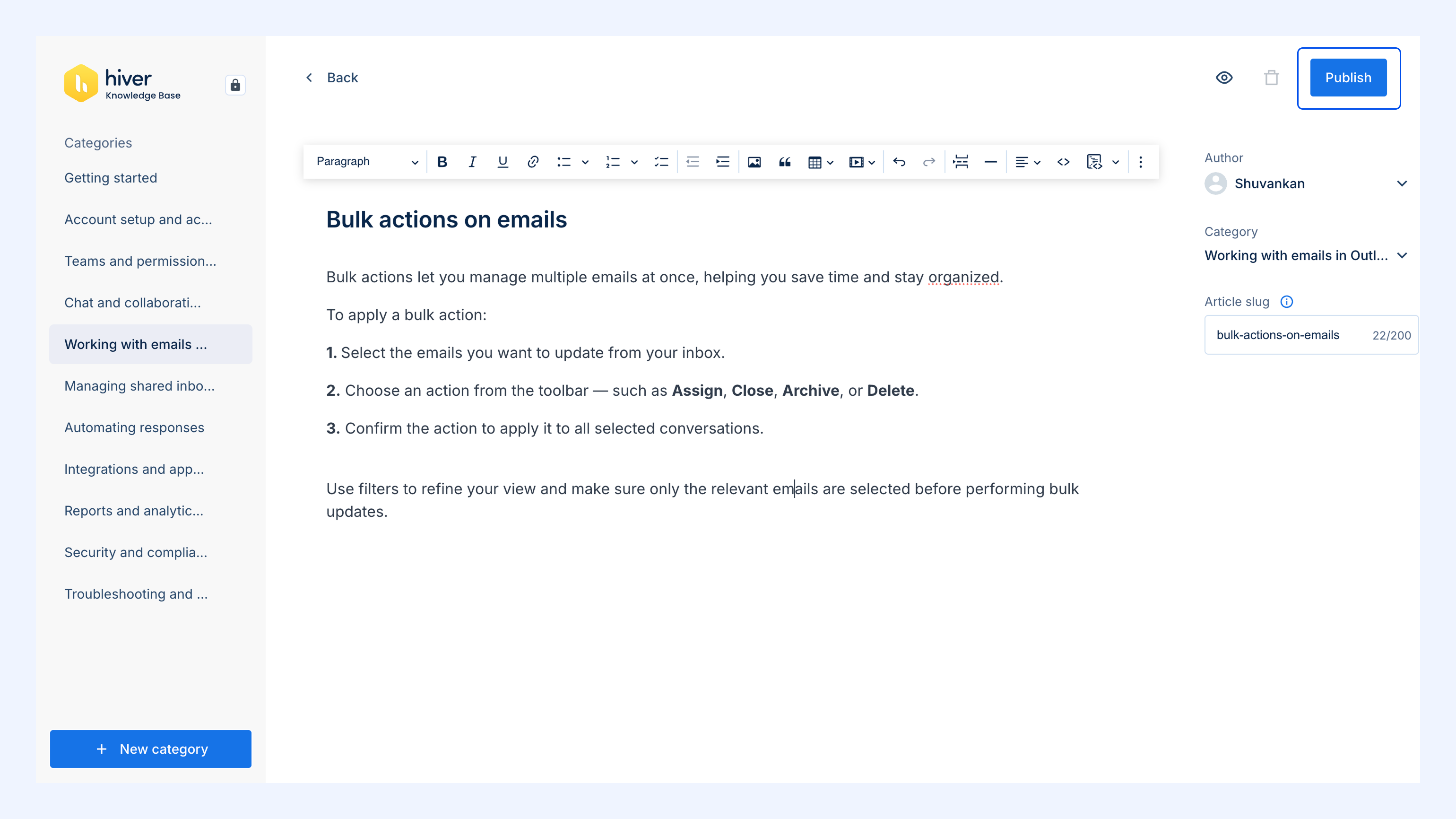
1. Complete all required fields (title, author, category, slug).
2. Click Publish.
Unpublishing an article
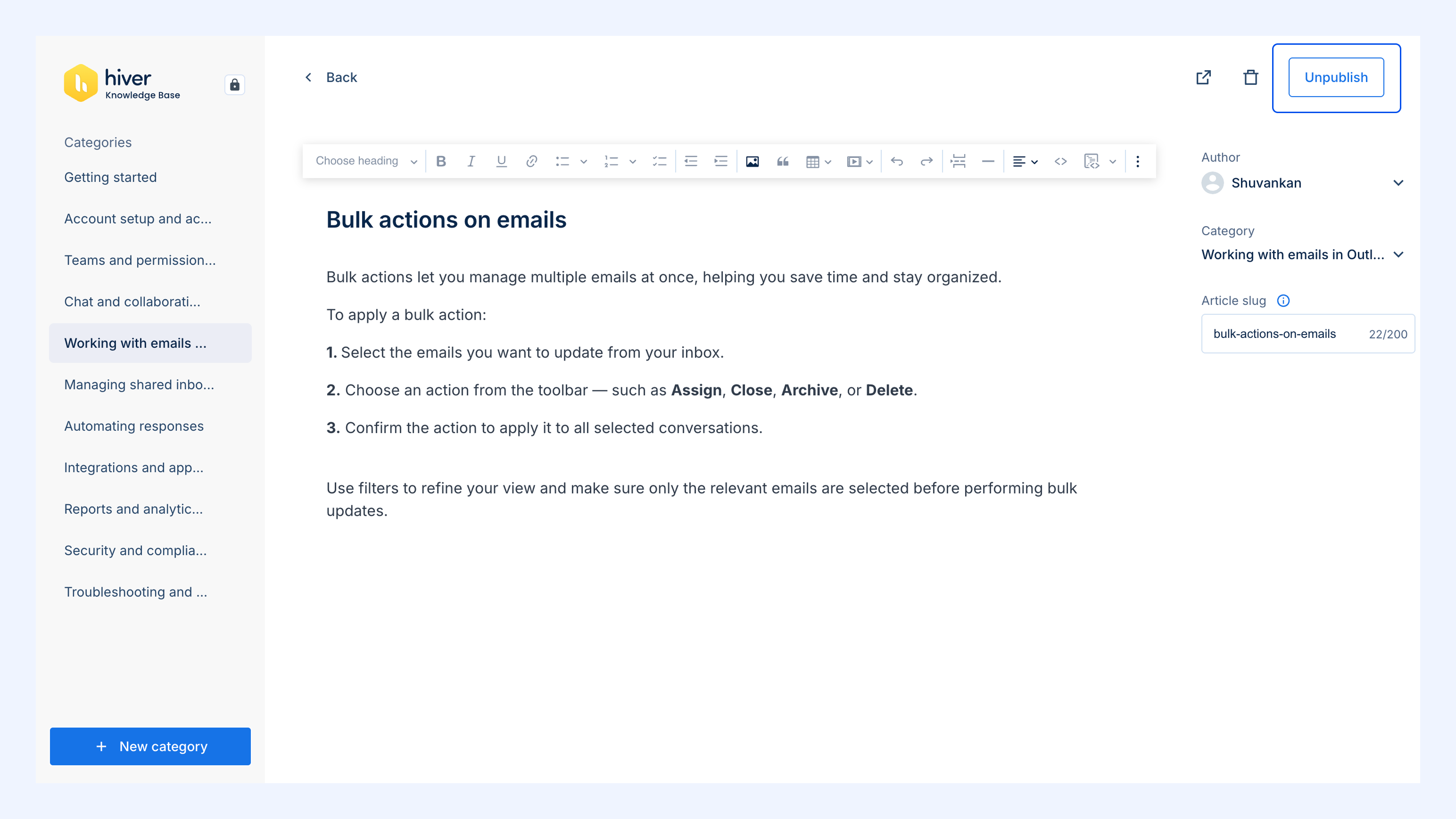
To remove an article from your Help Center:
1. Open the published article from the Category.
2. Click Unpublish.
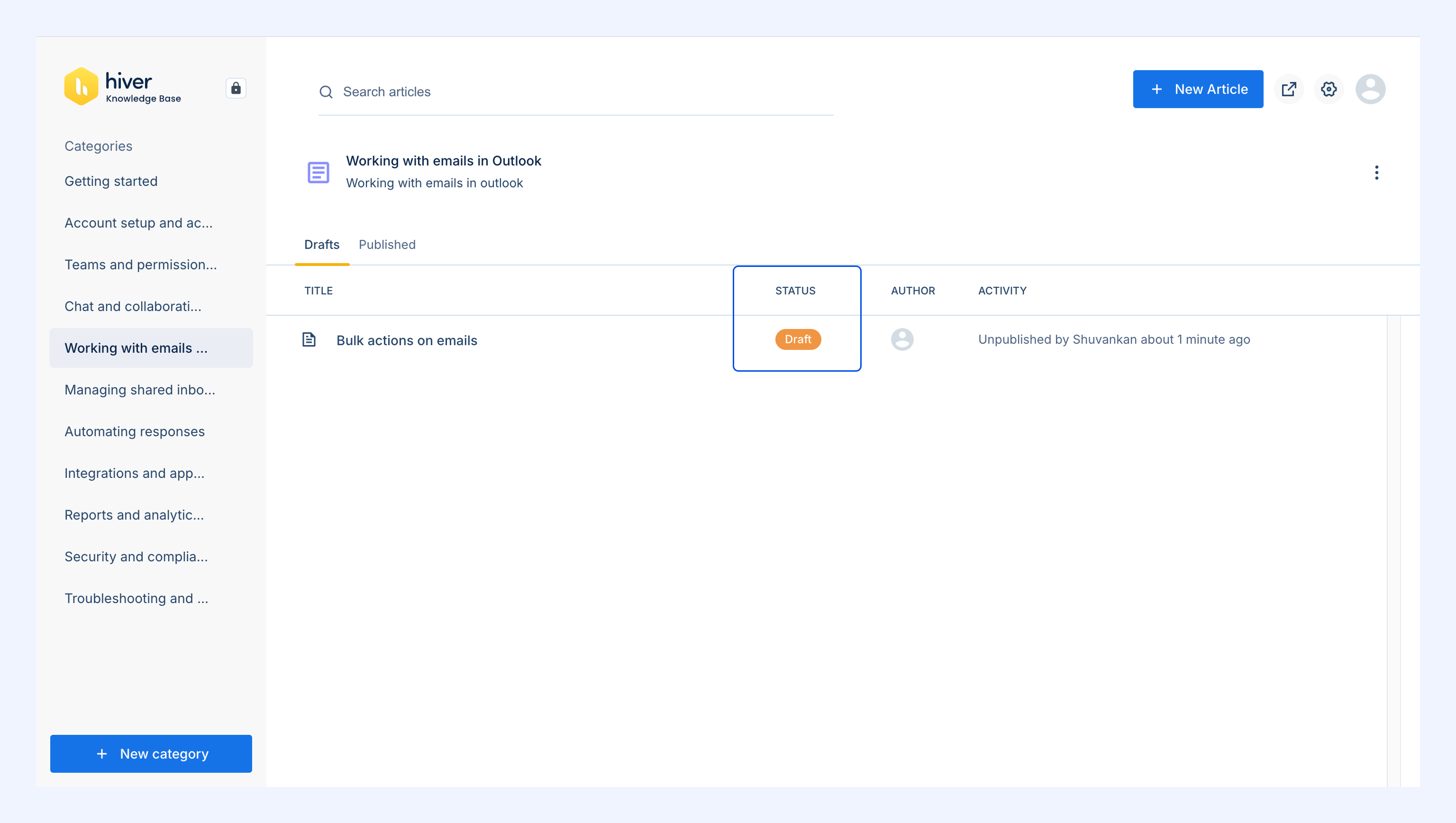
The article returns to Draft status and appears in the Drafts tab.
Editing a published article
Published articles can be updated at any time.
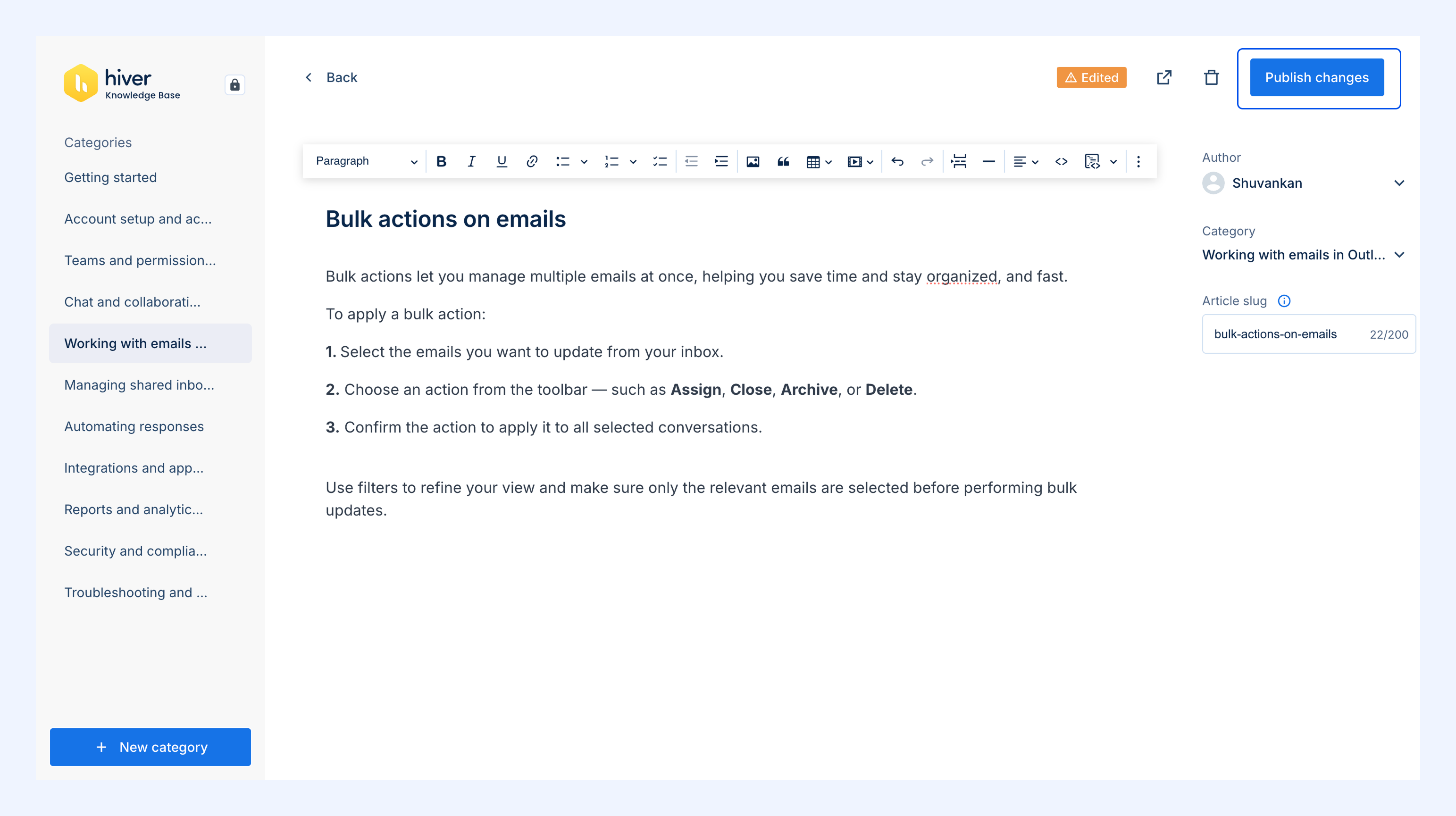
1. Open the category containing the article.
2. Edit the title, author, category, slug, or content.
3. Click Publish changes to save.
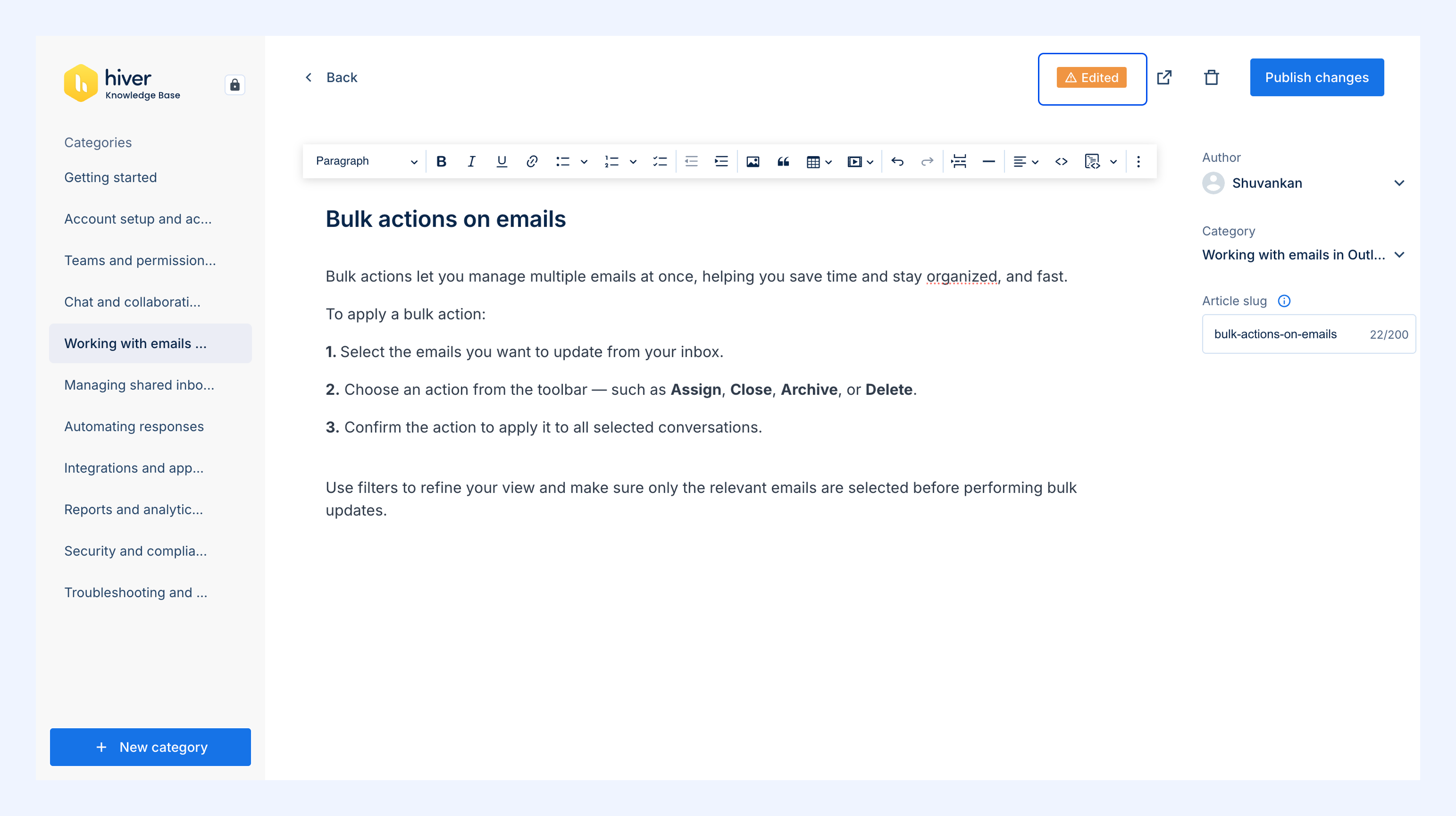
While editing, an Edited tag appears at the top of the article.
If you try to navigate away without saving, you’ll see a dialog:
- Discard changes – Removes all edits.
- Keep edits – Saves your progress and retains the Edited tag.
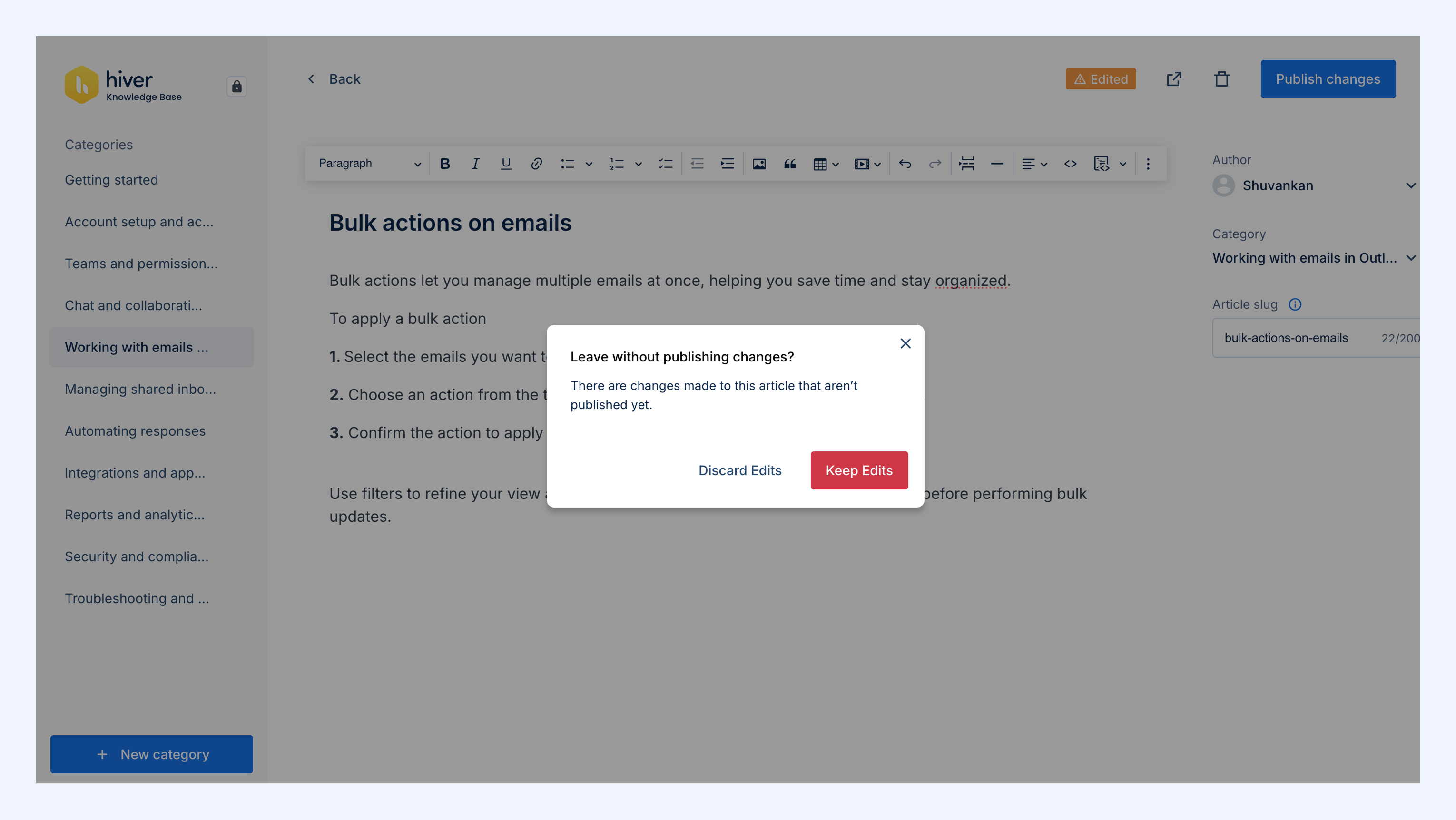
Note: Articles with unsaved edits show a triangle indicator in the article list.
Exporting articles
Admins can export all articles as a CSV file.
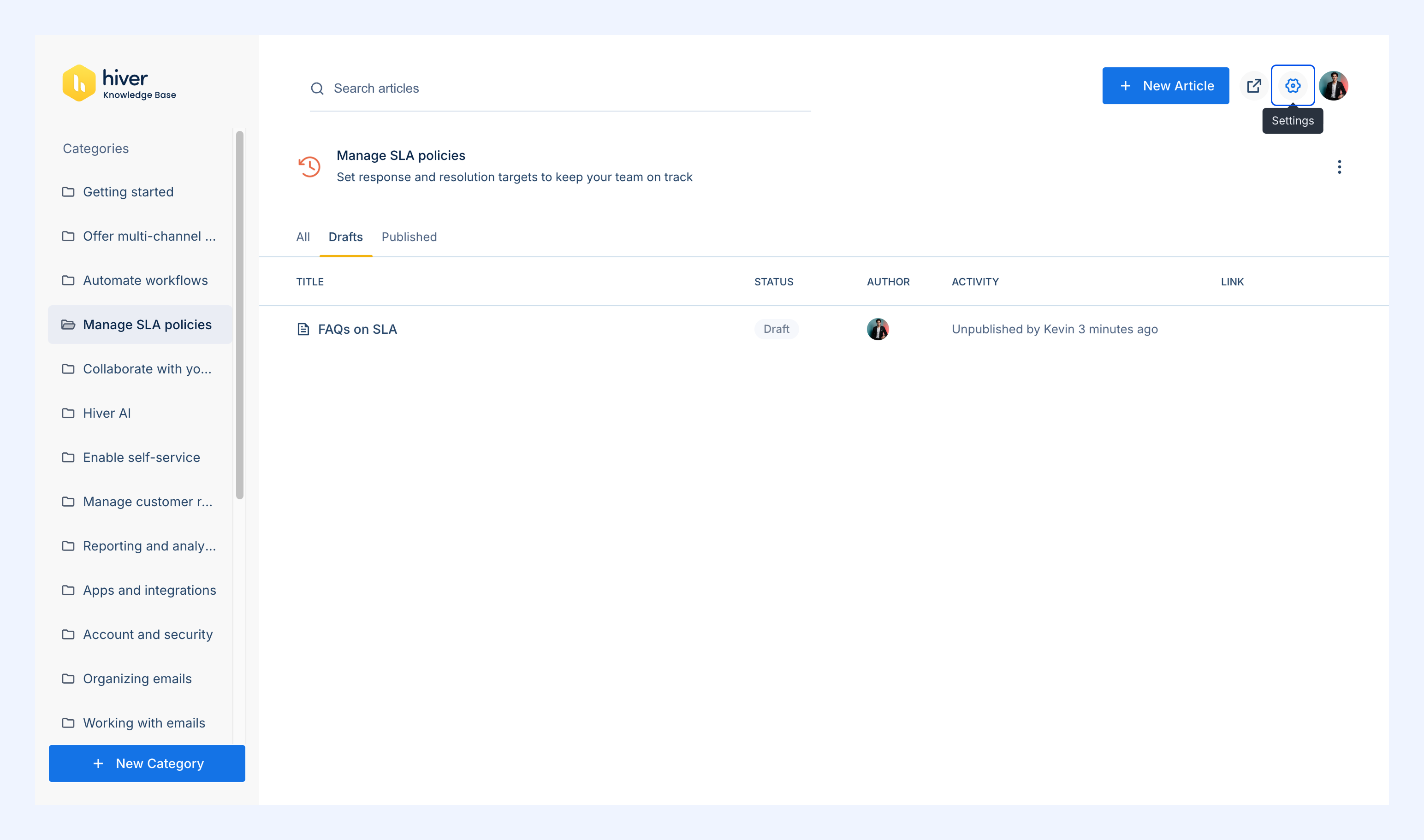
1. Click the Settings icon on the dashboard.
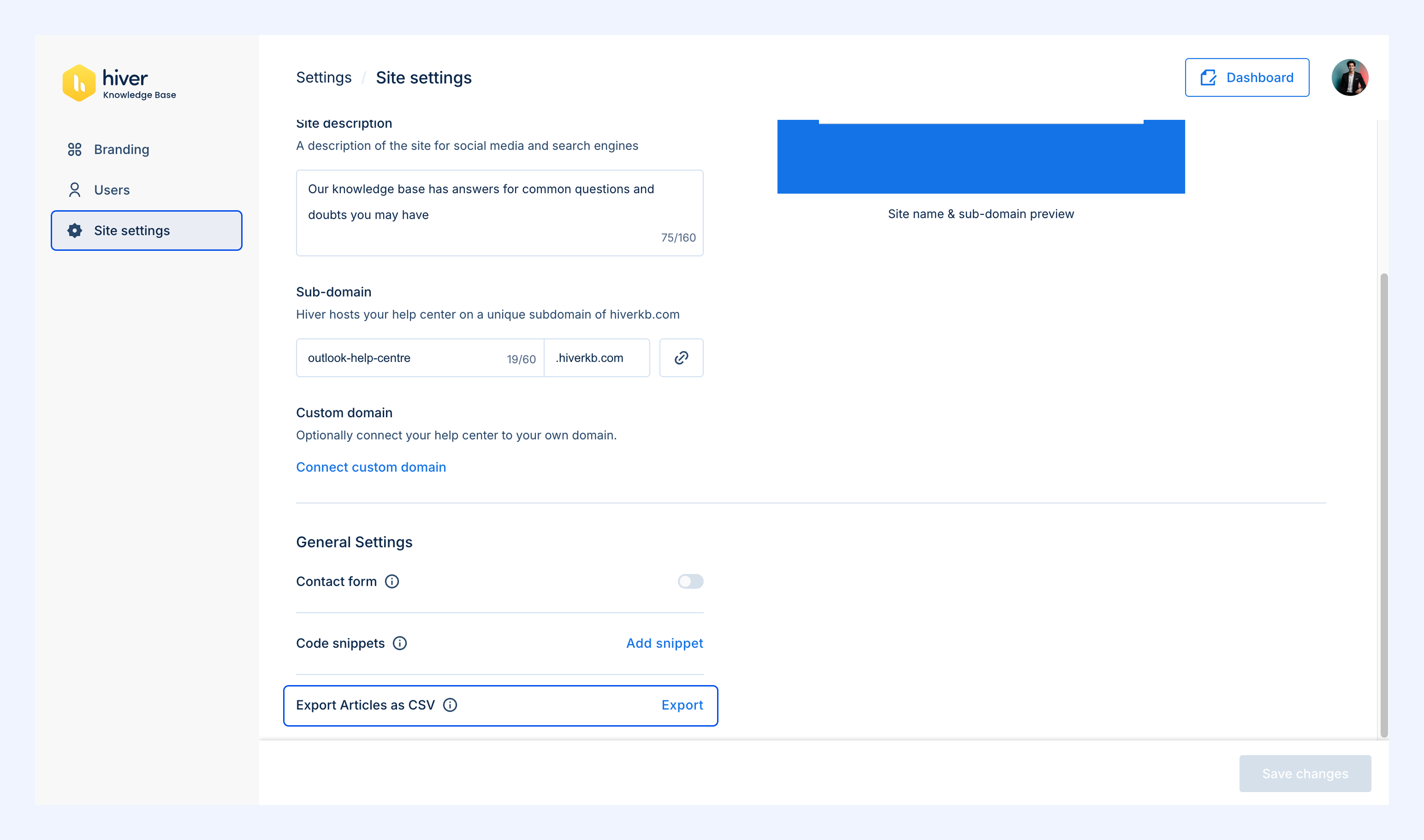
2. Go to Site Settings.
3. Find Export Articles as CSV.
4. Click Export.
The CSV downloads automatically and includes:
- Article ID
- Article title
- Article excerpt
- Publication status
- Author name
- Category ID
- Category title
- Created date
- Last updated date