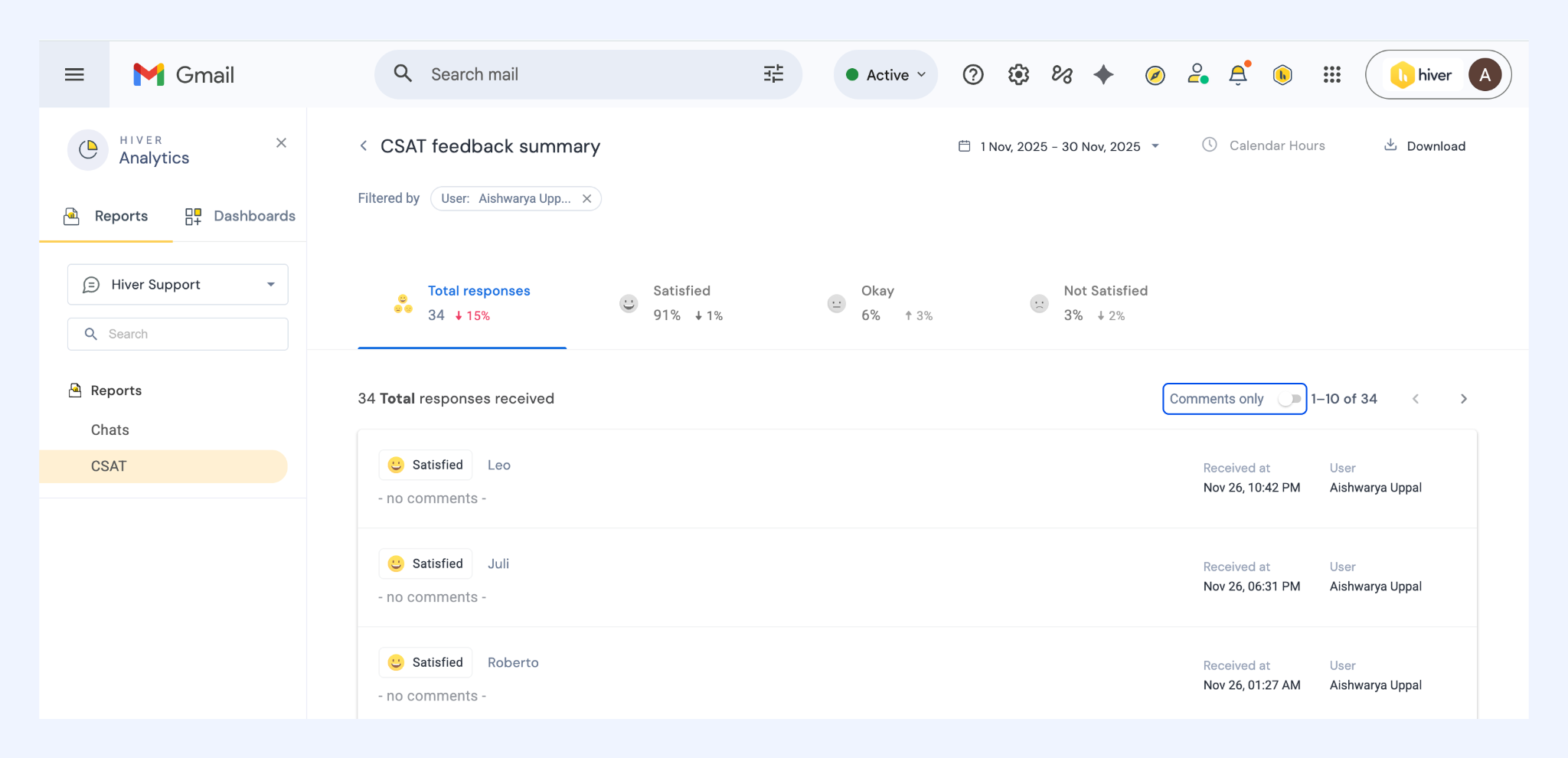
Live chat analytics overview
Chat Analytics gives you a clear view of how your team handles chat conversations. Use it to track workload trends, measure performance, and understand the experience your website visitors receive.
Chat Analytics can help you:
- Track the number of incoming, missed, and resolved chats
- Measure first response and resolution times
- Analyze CSAT ratings and customer comments
- Identify inboxes or agents that need attention
- Export chat and CSAT insights for reviews or audits
The Hiver Chat Analytics showcases two different reports:
How to access Chat Analytics
- In Gmail, go to Analytics.
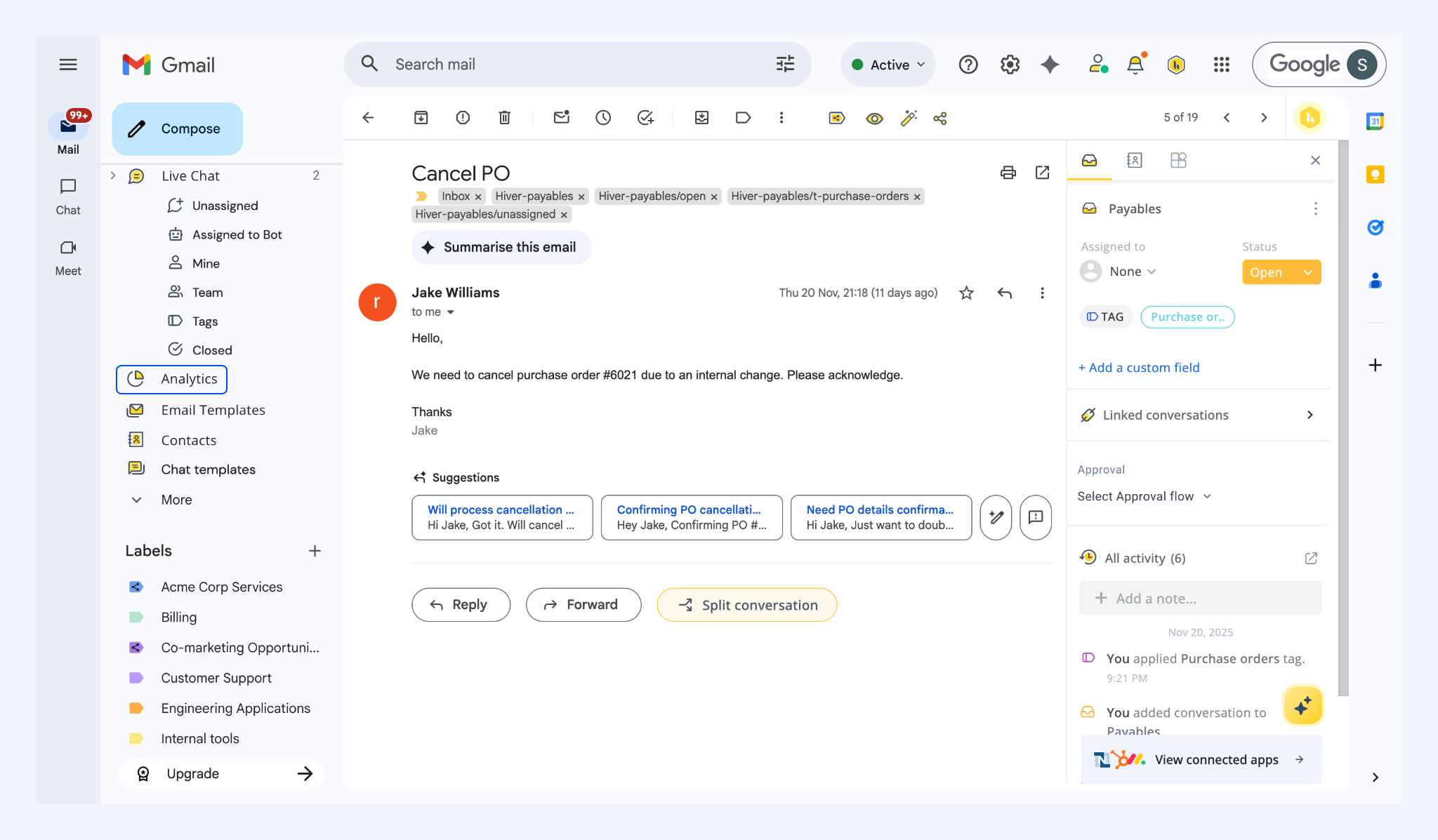
- Select your Chat Inbox.
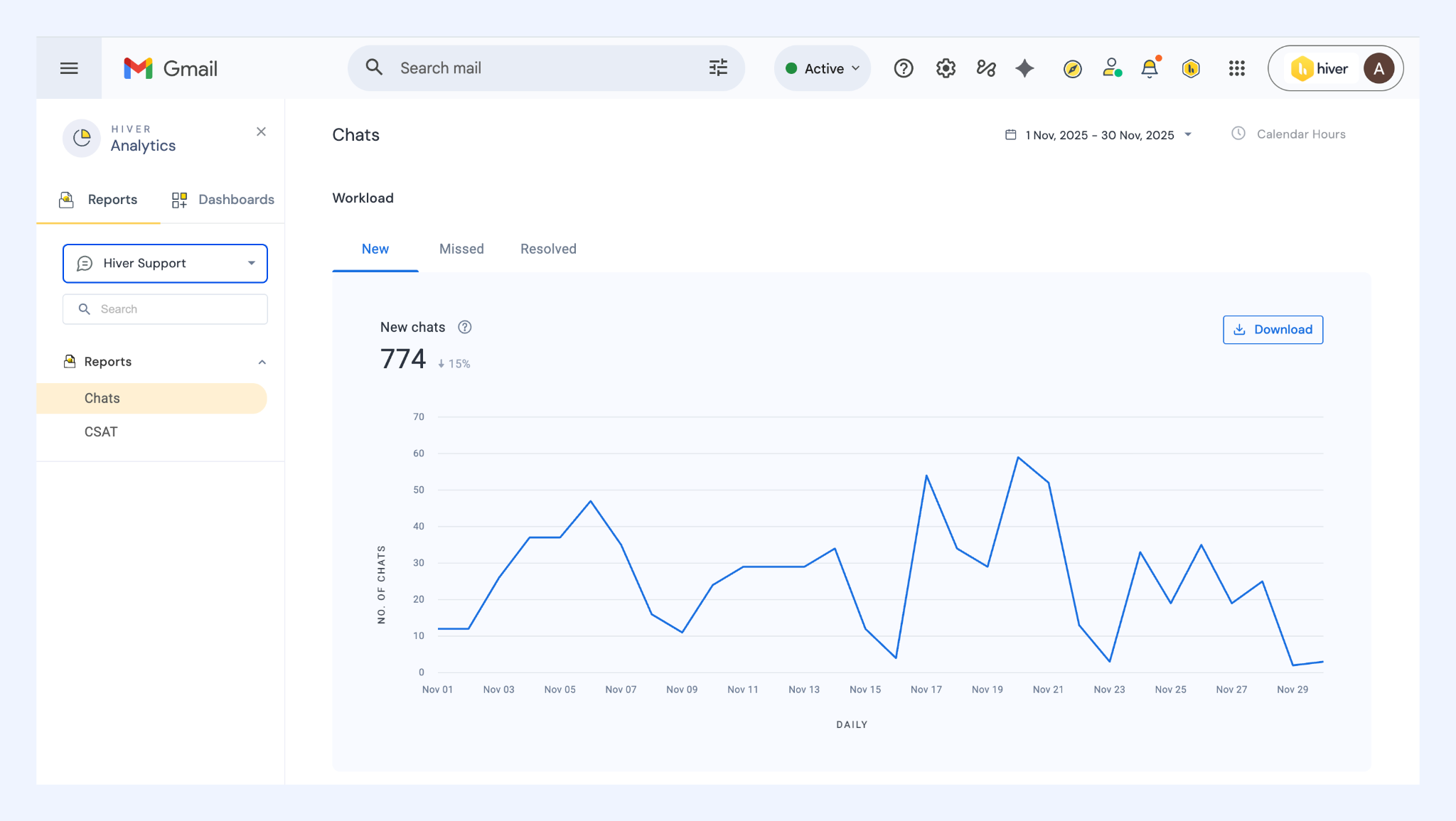
- All metrics update based on the date range selected at the top of the screen.
Note: Only Admins and Inbox Admins can access Chat Analytics.
How to explore the report
Chat Analytics contains two reports:
- Chats: workload and performance
- CSAT: customer satisfaction
Each report includes:
- An overview graph: Shows how the metric trended over the selected period.
- Trend indicators: Shows trends along with the delta in performance for each metric in comparison to the previous period.
- Summary metrics: Displays key counts for the selected tab.
- Download: Exports the data shown in the current tab.
Understanding the Chats report
The Chats report is divided into Workload metrics and Performance metrics.
1. Workload metrics
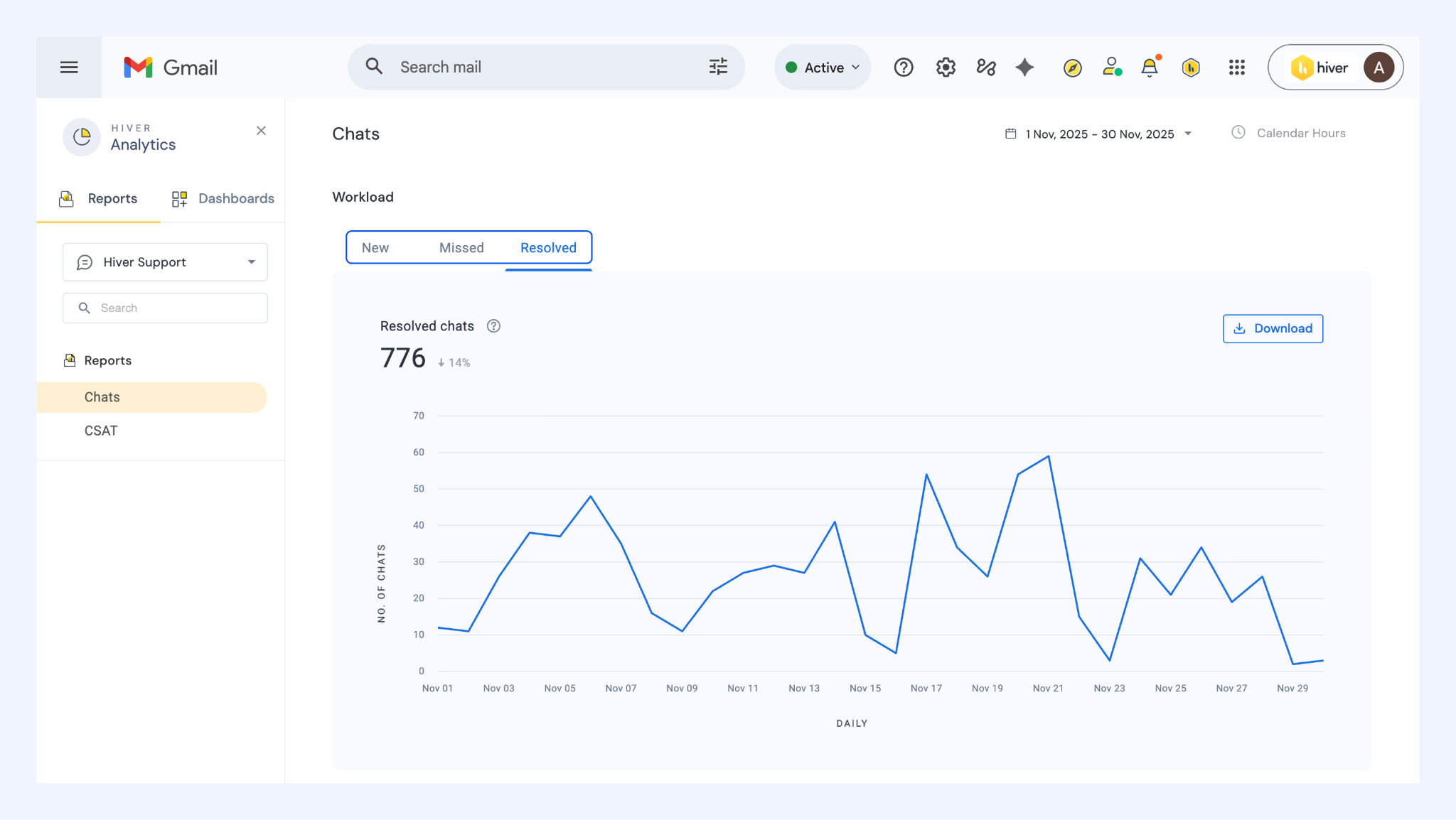
Workload metrics help you understand the volume of chat conversations your team is handling. It’s split across:
- New chats: Chats initiated during the selected date range.
- Missed chats: Chats where your team did not respond before the visitor left.
- Resolved chats: Chats marked as Closed during the selected date range.
Note: Incoming chats appear in Analytics 30 minutes after they are marked Closed.
2. Performance metrics
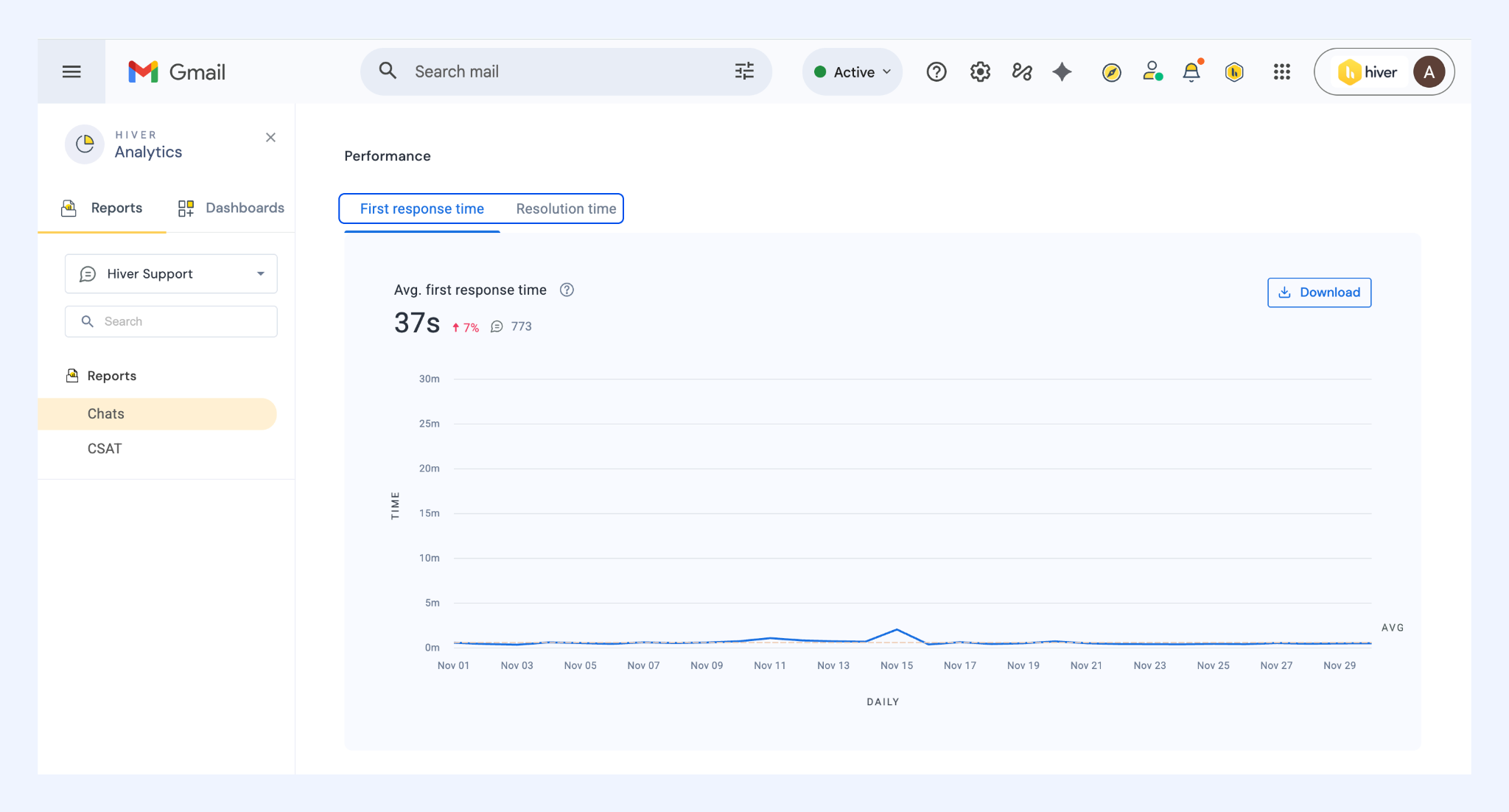
Performance metrics help you understand the time within which your team is able to reply and resolve chat conversations.
- First response time (FRT): Average time taken to send the first reply to incoming chats.
- Resolution time (RT): Average time it takes to resolve a customer conversation and mark the chat as Closed.
Understanding the CSAT report
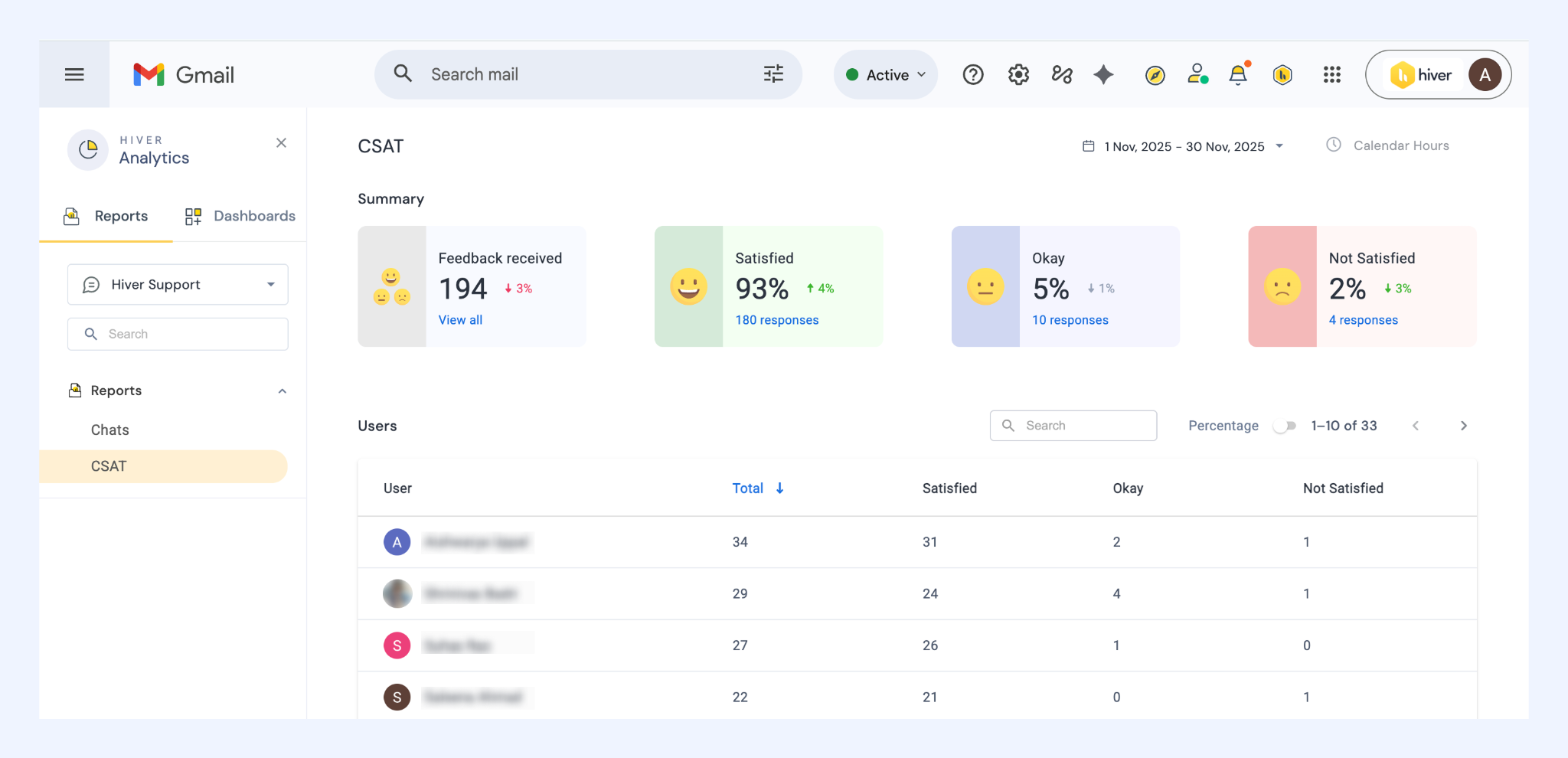
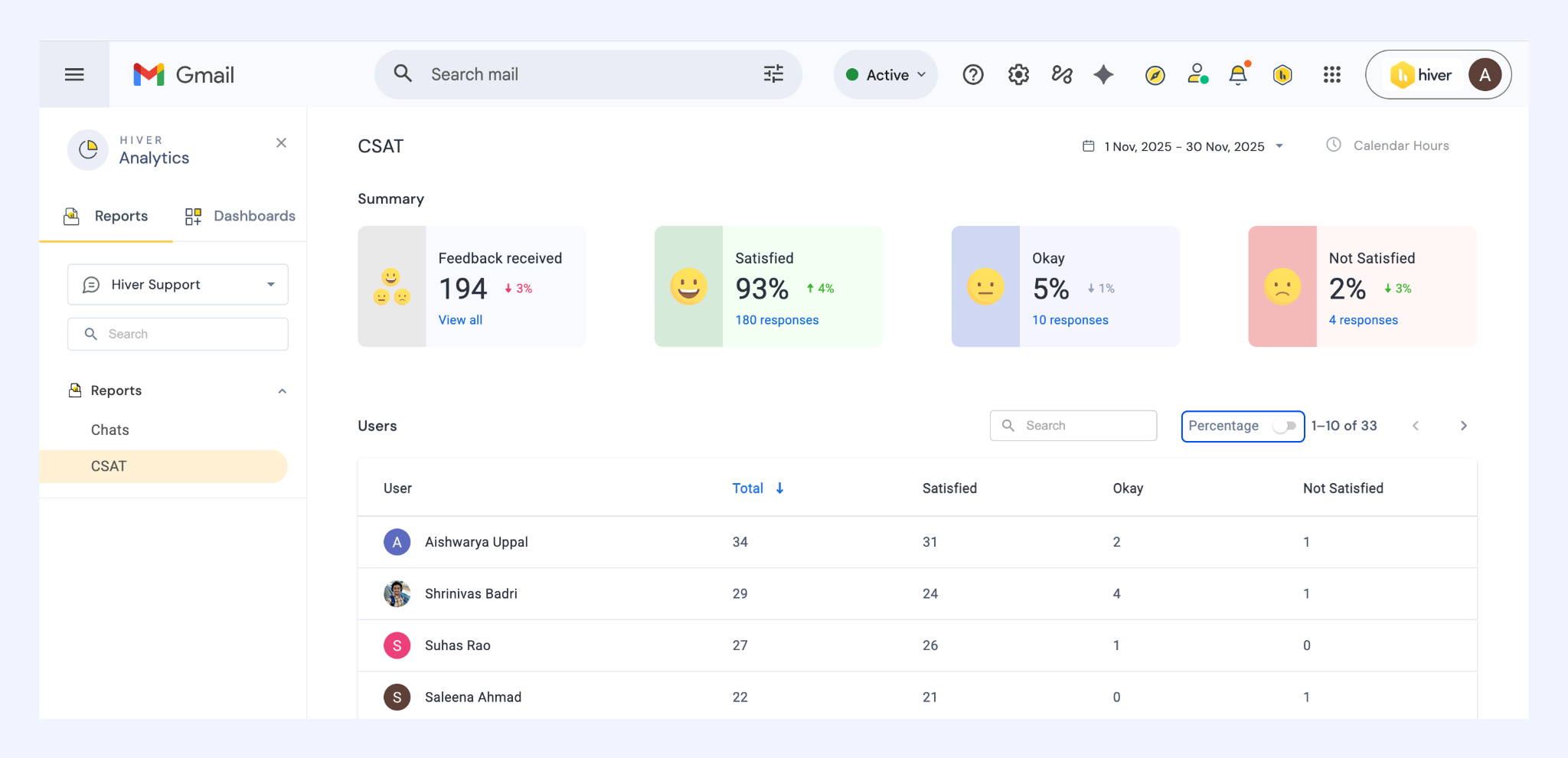
The CSAT report displays customer satisfaction results for chat conversations.
Summary
The summary includes:
- Total feedback received
- Satisfied: count and percentage
- Okay: count and percentage
- Not satisfied: count and percentage
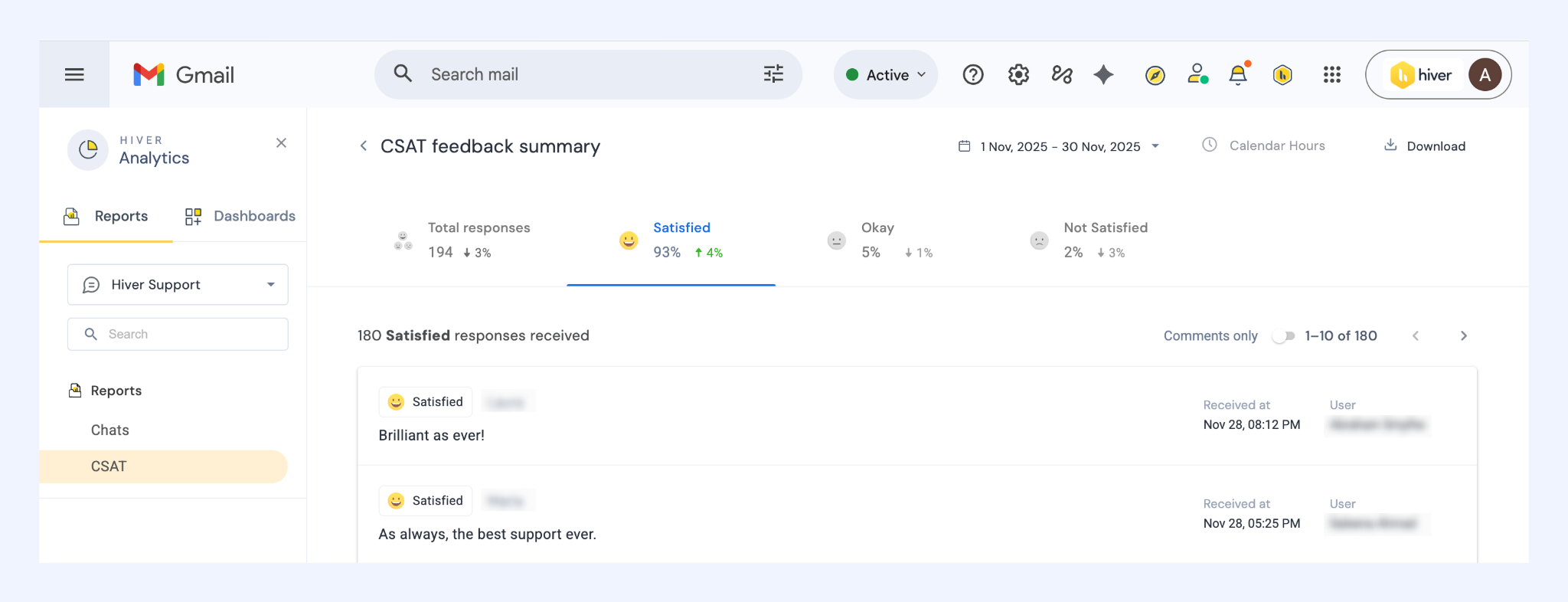
Selecting a rating category shows related chat conversations including details like:
- Customer name
- Rating and comment
- Timestamp
- Assignee
User-level breakdown
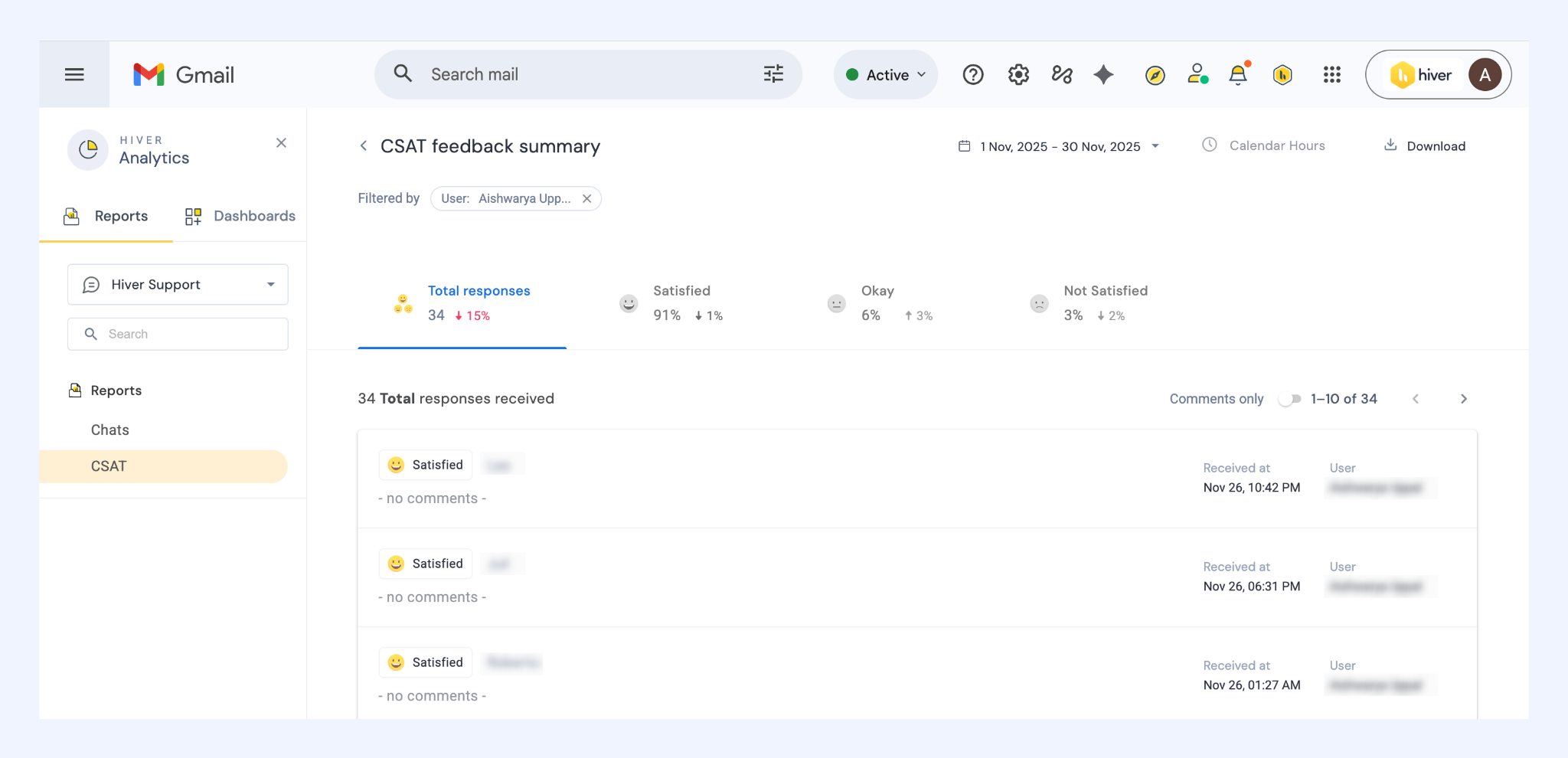
Displays each agent’s survey count and satisfaction breakdown. Selecting a user shows all CSAT responses associated with them.
Additional options
- Percentage: Enable this toggle to view CSAT data as percentages instead of response counts.
- Comments only: Enable this toggle to view only CSAT responses that include written feedback.