Using Customer Satisfaction Surveys (CSAT)
Customer satisfaction surveys help you understand how happy your customers are with your support. Using Hiver, you can add a CSAT survey to your replies to collect feedback and:
- Track satisfaction trends: Monitor how customer satisfaction changes over time and identify patterns.
- Close the feedback loop: Get direct input from customers about their support experience.
- Measure team performance: Use satisfaction scores as a key performance indicator for your support team.
- Identify improvement areas: Pinpoint specific interactions or team members that need attention.
Hiver’s customer satisfaction survey includes a simple rating system where customers can indicate if they're satisfied or not, and an optional comment field for additional context. All feedback data is available in the Analytics section under the CSAT tab, where you can view overall satisfaction scores and individual ratings.
Prerequisites
- You need to have Admin access to set up CSAT.
- This feature is available only on Pro and Elite plans and must be enabled separately for each Shared Inbox.
Enabling customer satisfaction surveys
To start collecting customer feedback, you need to enable CSAT from your Shared Inbox settings.
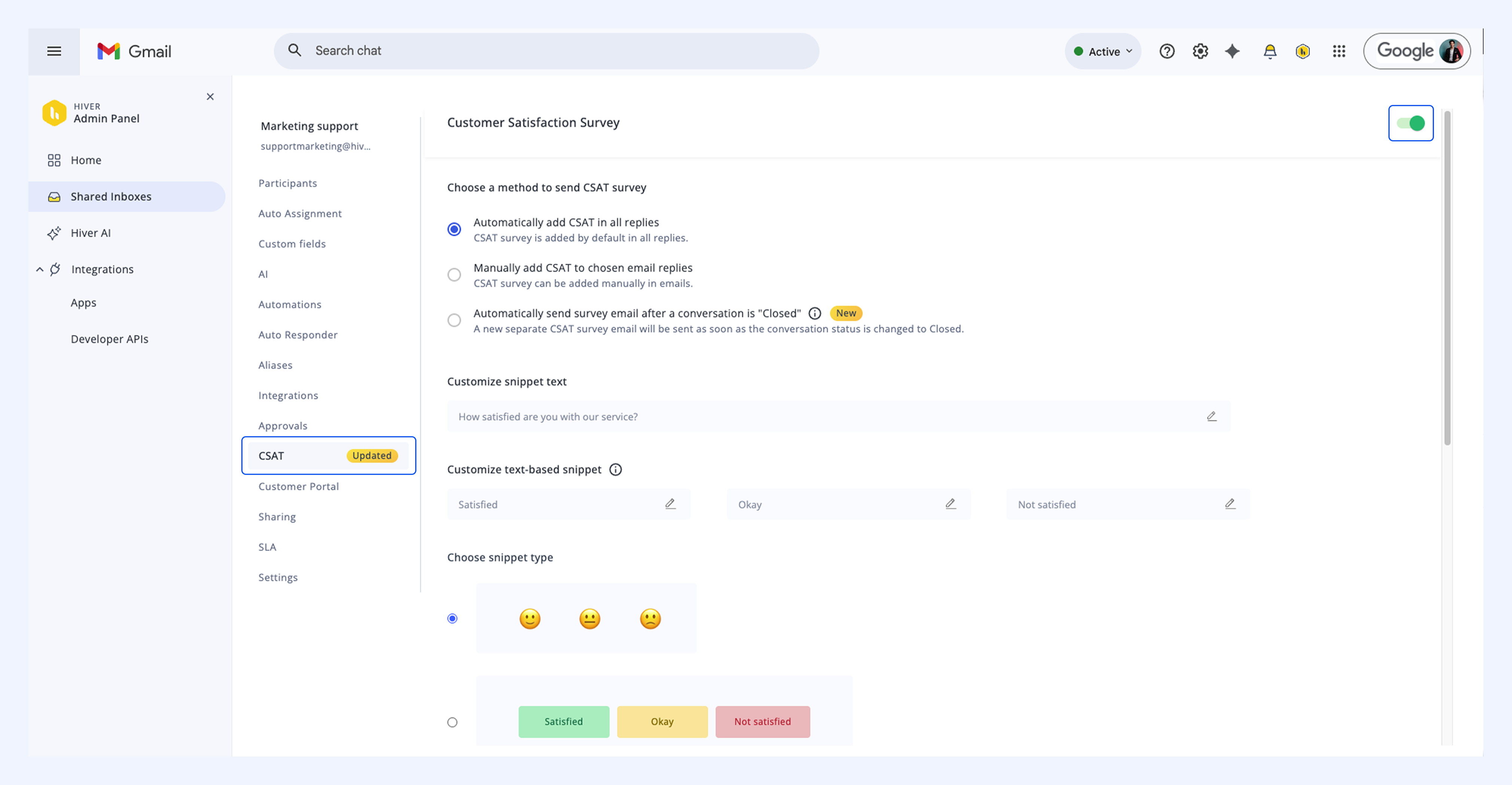
1. Click the Hiver settings icon in your Gmail inbox and select Admin Panel.
2. Go to the Shared Inboxes section and choose the inbox you want to enable CSAT for.
3. Go to the CSAT tab.
4. Turn on the toggle to enable CSAT.
Customizing your CSAT survey
After enabling CSAT, you can customize the survey text, format, and frequency to match your requirements.
Survey frequency
You can control when CSAT surveys are sent to customers. There are three ways to send surveys and you can select one that suits your needs:
1. Automatically send surveys in all email replies: Every response your team sends will include the CSAT survey.
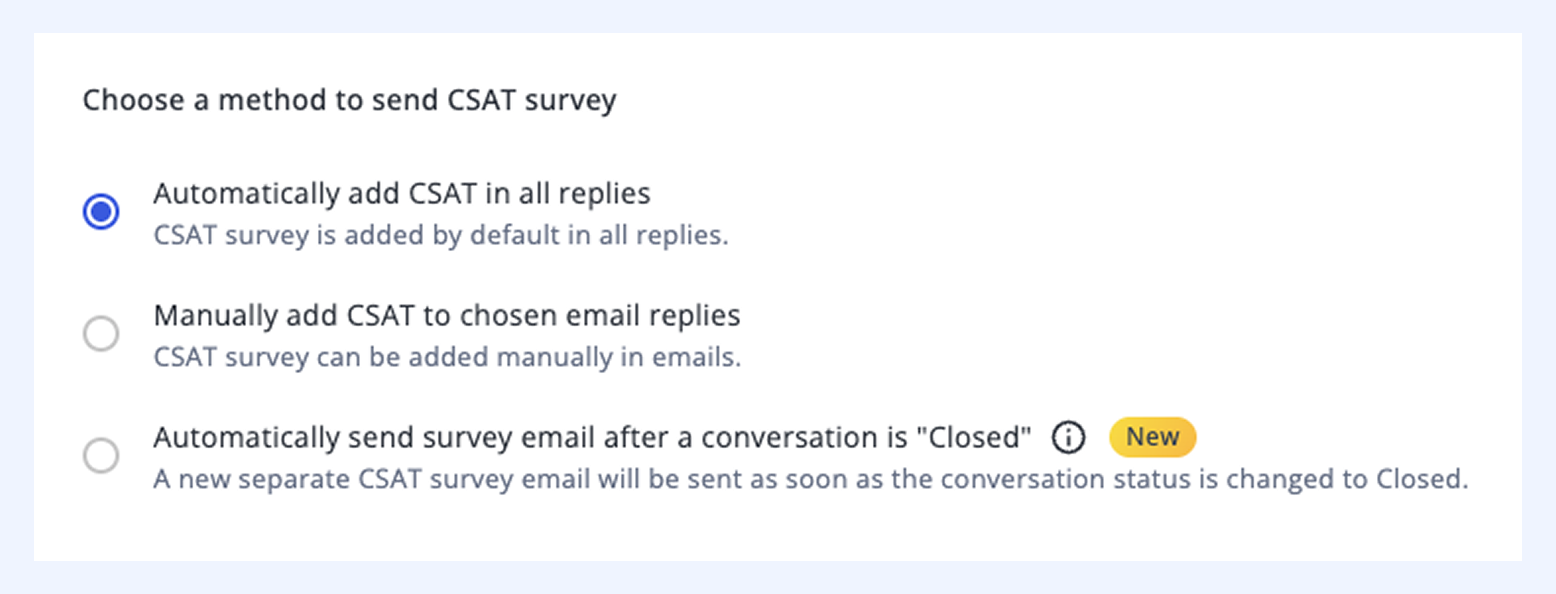
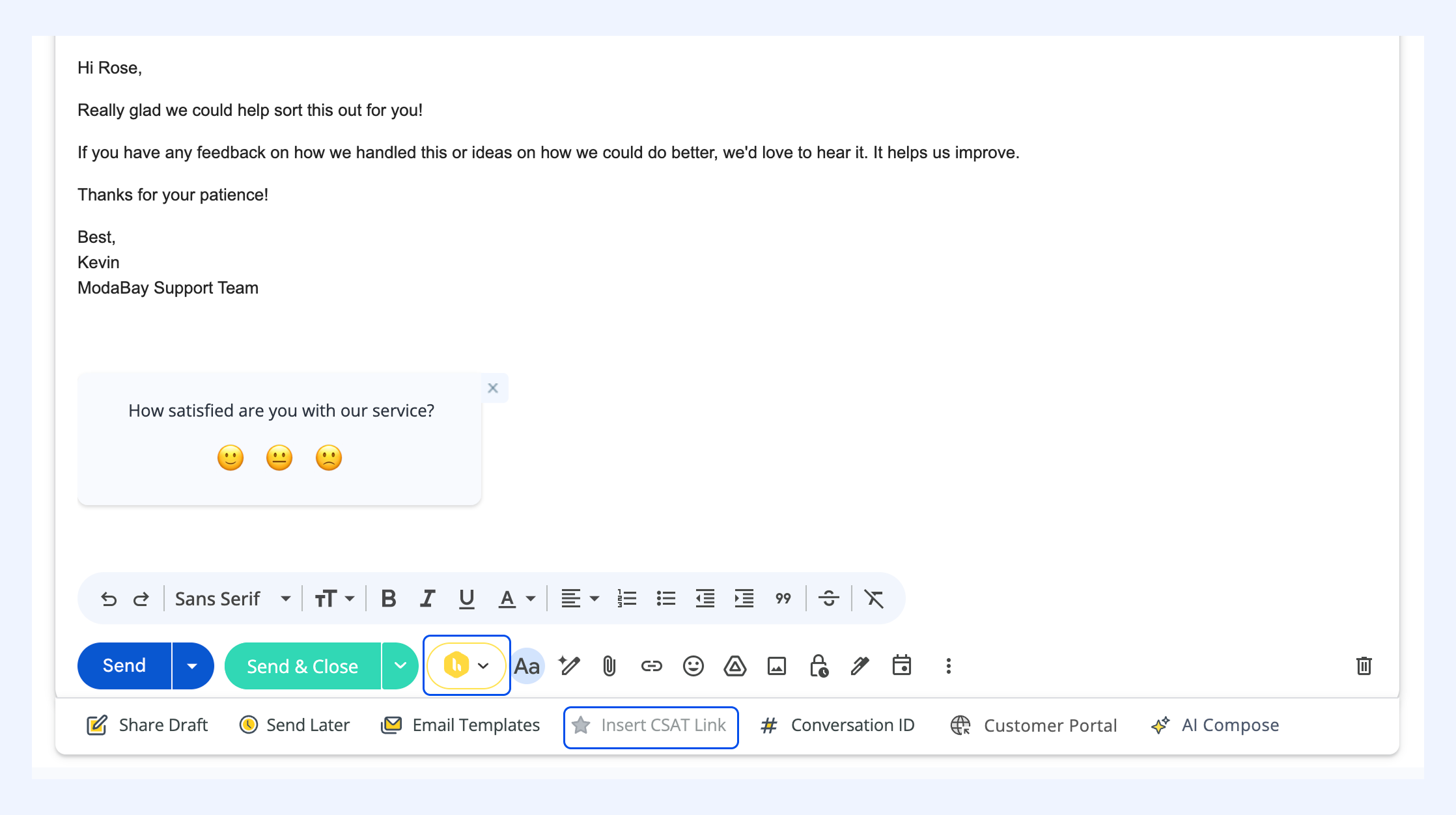
2. Manually add CSAT to chosen email replies: You can select specific conversations where you want to include the survey.
Note: To add a CSAT survey to your reply, click the Hiver icon in the toolbar, and then select Insert CSAT Link (the star icon). This will add the survey to your email and the button will grey out.
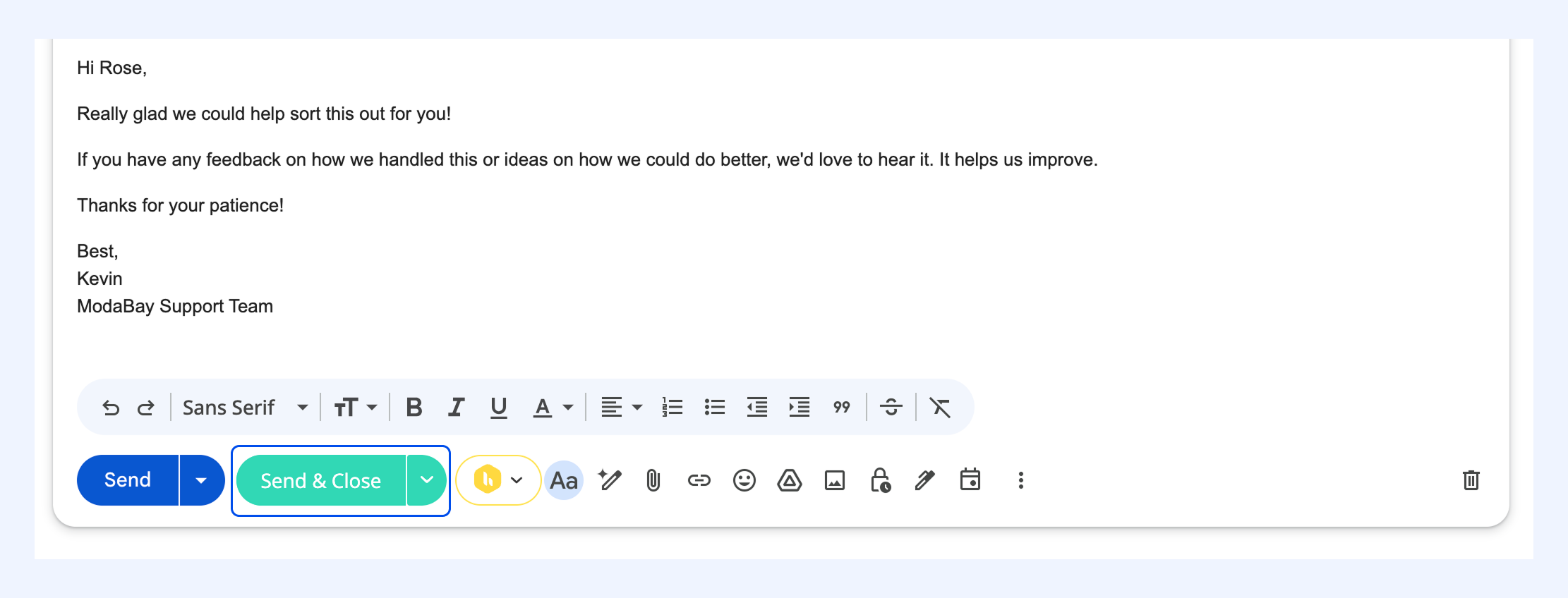
3. Automatically send survey after a conversation is closed: The survey is sent only when a conversation's status is marked as closed.
Tip: You can use the Send & Close button to send your reply and mark the conversation as closed in one action. This will trigger the CSAT survey to be sent with your reply.
This option also has a couple of advanced settings that offer more flexibility.
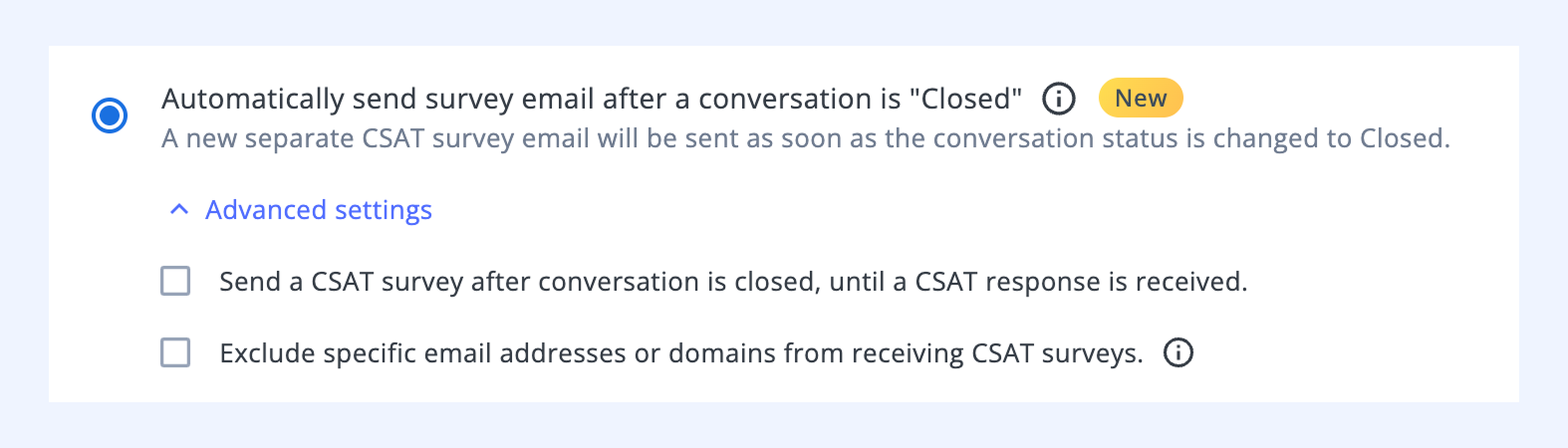
1. Send CSAT until a response is received
When this option is enabled, the CSAT survey will be sent each time a conversation is closed, but only until the customer submits a response. Once a response is received, no further surveys will be sent for that conversation. This helps prevent duplicate survey requests in long-running threads where conversations may reopen and close multiple times.
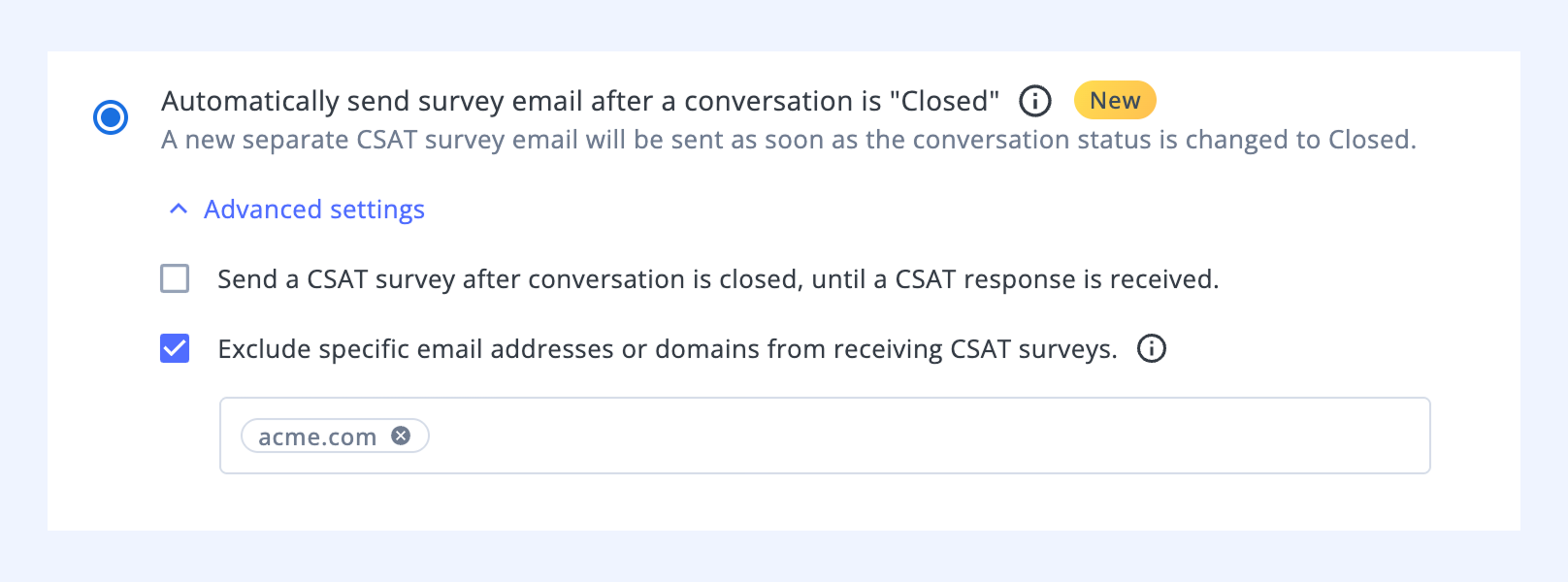
2. Exclude specific email addresses or domains
You can exclude particular email addresses or domains from receiving CSAT surveys. This is helpful for internal conversations or specific accounts where collecting feedback is not needed. To add multiple addresses or domains, type one, then press the Space key after each entry.
Note: Do not use @ before domain names, e.g., use acme.com and not @acme.com
Snippet text
The snippet text is the question shown above the rating options in your CSAT survey. The default text is 'How satisfied are you with our service?' and you can change this to any question that fits your support style.
To customize the snippet text:
1. Click the Edit (pencil) icon next to the snippet text field.
2. Update the text.
3. Click the Check icon to confirm.

Note: You can use the same steps to edit the default values in all CSAT options.
Text-based snippet
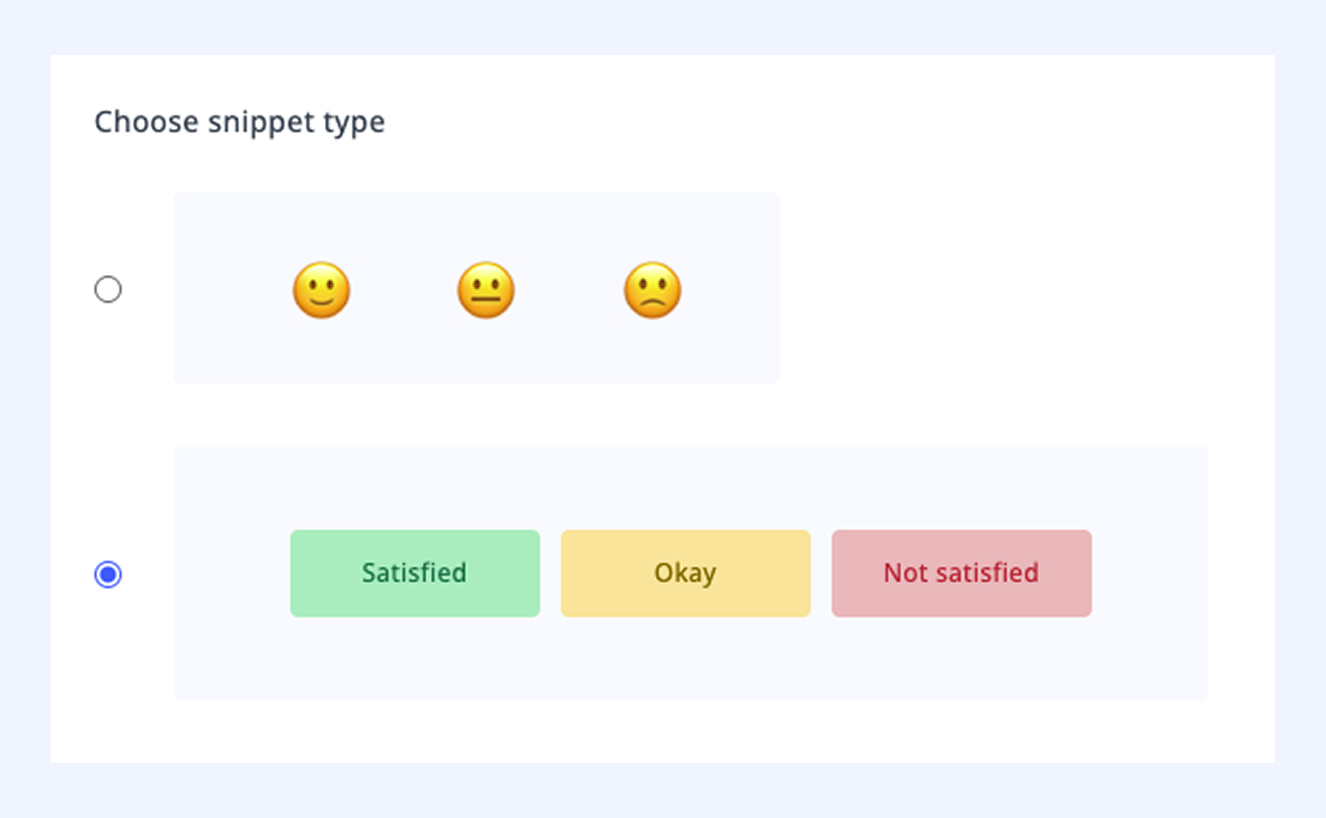
These are the rating options customers see when responding to your survey. The defaults are Satisfied, Okay, and Not satisfied, but you can change them to fit your preference.

Snippet type
You can select how rating options are shown to customers as text (e.g., Satisfied, Okay, Not Satisfied) or as emojis for a more visual approach.
To change the snippet type, select either the Text or Emoji options. You can use the Snippet preview to see how your survey will look to customers.
Snippet order
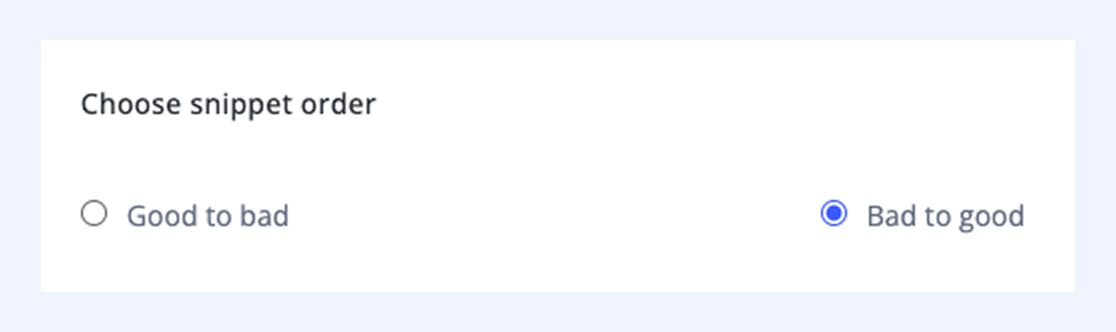
The snippet order determines how the rating options are arranged in your survey. You can choose between good to bad where positive ratings appear first, or bad to good where negative ratings appear first.
This setting works for both text and emoji formats, and the preview section shows you exactly how the order will appear to customers.
Feedback form
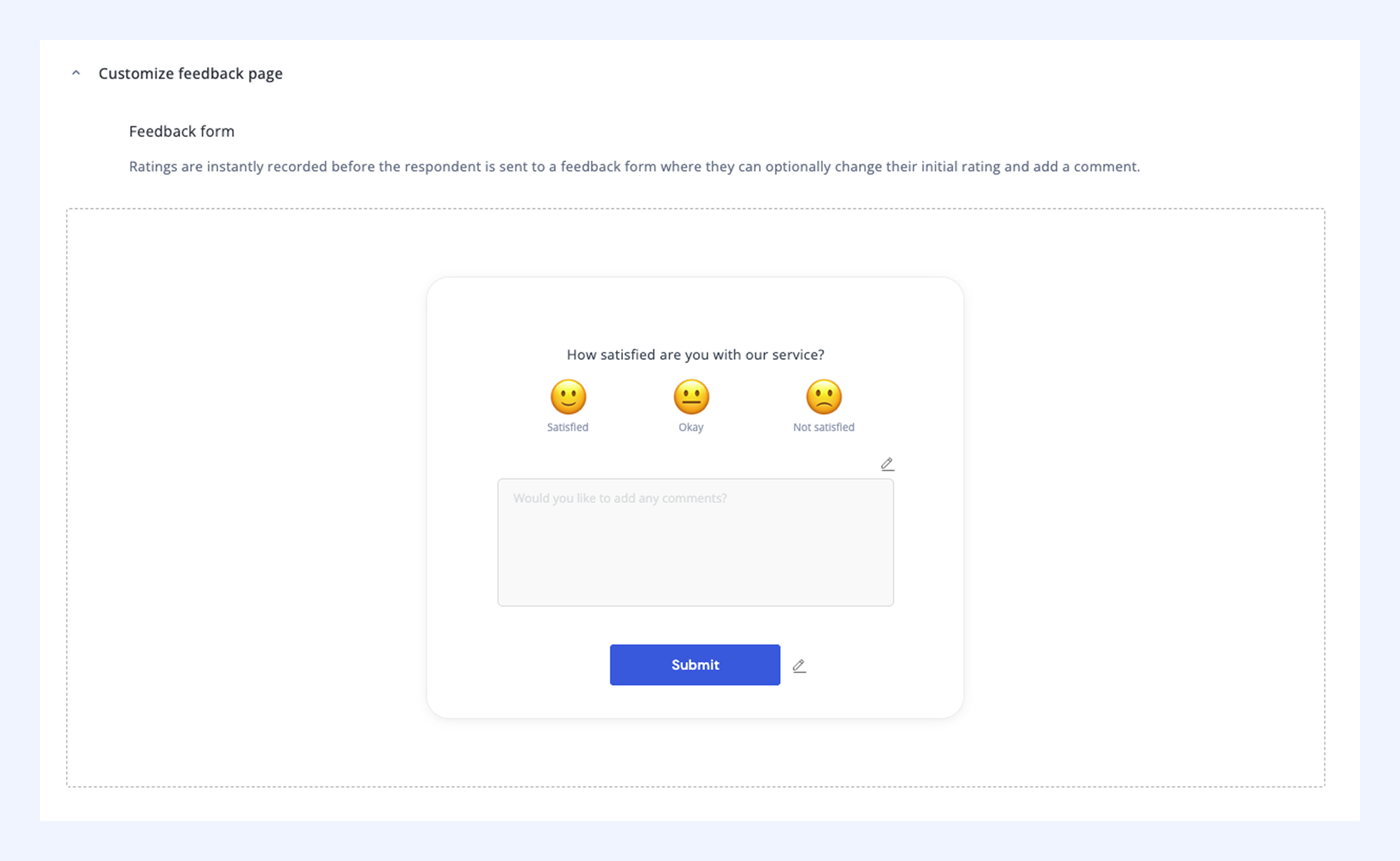
In addition to the customer satisfaction rating, you can also use a feedback form to collect written feedback from customers. The feedback form includes a comment box where customers can explain their rating in more detail.
To customize the feedback form:
1. Expand the Customize Feedback page settings.
2. You'll see a preview showing the snippet options, format buttons, and the comment box.
3. Click the Edit icon to change the snippet text that appears inside the comment box.
4. You can also customize the Submit button text.
5. Click the Check icon to confirm your changes.
6. Scroll down and click Save on the bottom left.
Thank you message
After customers submit their feedback, they see a thank you message. You can customize this message to acknowledge their input and match your support team’s voice.

Analyzing CSAT responses
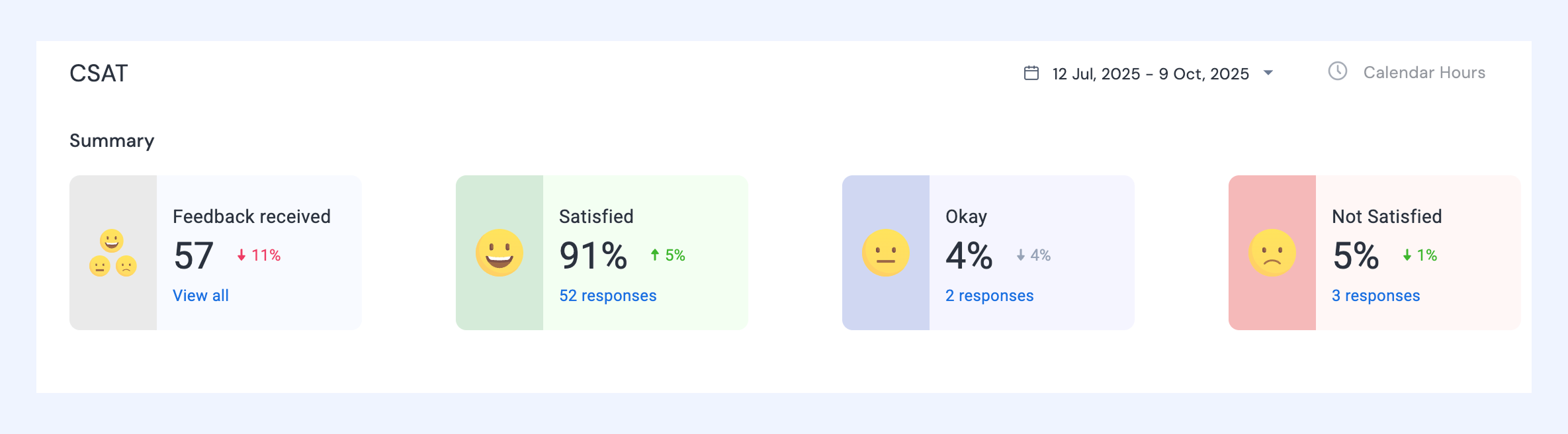
You can view and analyze customer responses using the CSAT report in the Analytics tab.
Go to Analytics and select your Shared Inbox. You can:
1. See a detailed breakdown of all CSAT ratings
2. Review customer comments and open the related conversations
Frequently asked questions about CSAT
1. What is satisfaction score?
Satisfaction score shows how well your team is keeping customers happy. It's calculated as: number of satisfied ratings divided by total ratings, shown as a percentage.
2. Can customers leave comments with their CSAT rating?
Yes, if you’ve set up a feedback form with your CSAT survey, customers can add optional comments along with their rating. You can view all comments in the Analytics tab under CSAT, and click the mail icon to see the full conversation.
3. What happens if a customer rates the same email multiple times?
If a customer updates their rating for the same email, only the most recent rating is counted. This ensures your satisfaction score reflects the customer's final feedback on that interaction.