Replying to email conversations in Hiver
When you’re handling an email conversation in a Shared Inbox, Hiver gives you different ways to prepare and send your response.
This article covers replying and forwarding, collaborating on drafts, using AI Copilot and email templates, and scheduling responses for later.
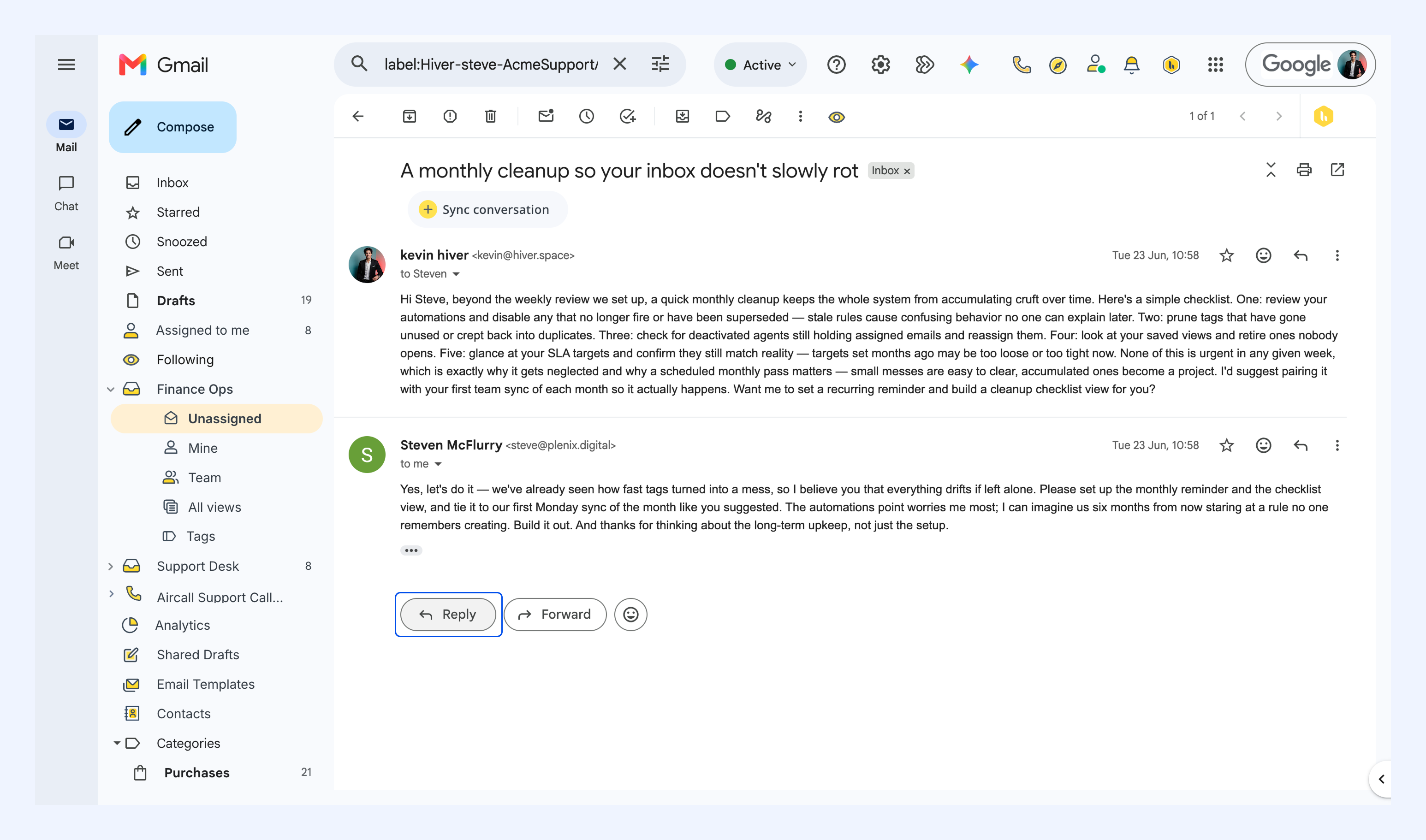
Reply to a customer
Open the conversation and select Reply to respond from the Shared Inbox. Your response is sent from the Shared Inbox address and stays part of the shared conversation, so your team can continue to see the full context.
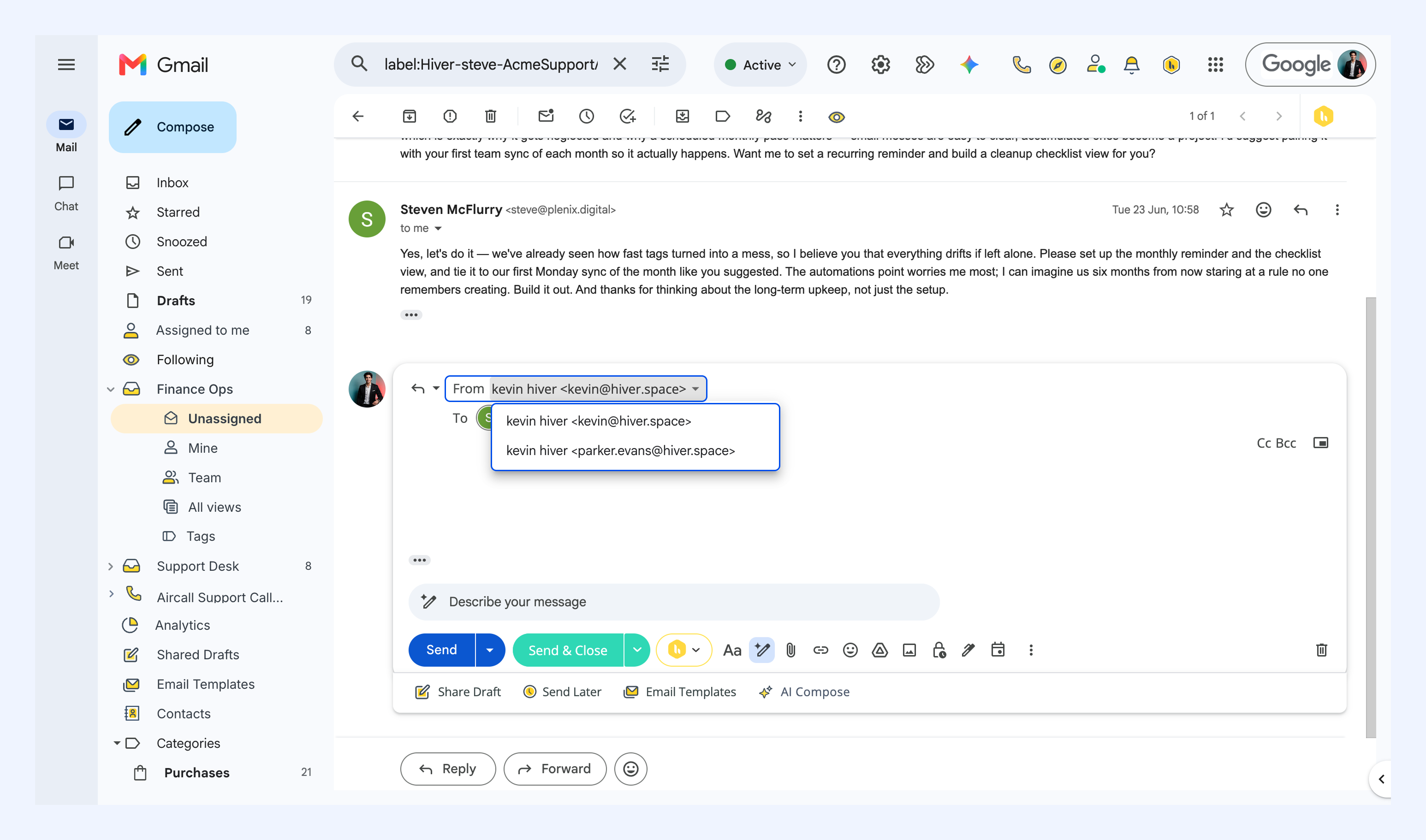
Choose the address you reply from
Before sending a response, check the From address and choose the email address you want the customer to receive the reply from.
If you have multiple sender addresses available, you can select the appropriate one for the conversation.
Learn how to set up your sender address.
Collaborate on a response with Shared Drafts
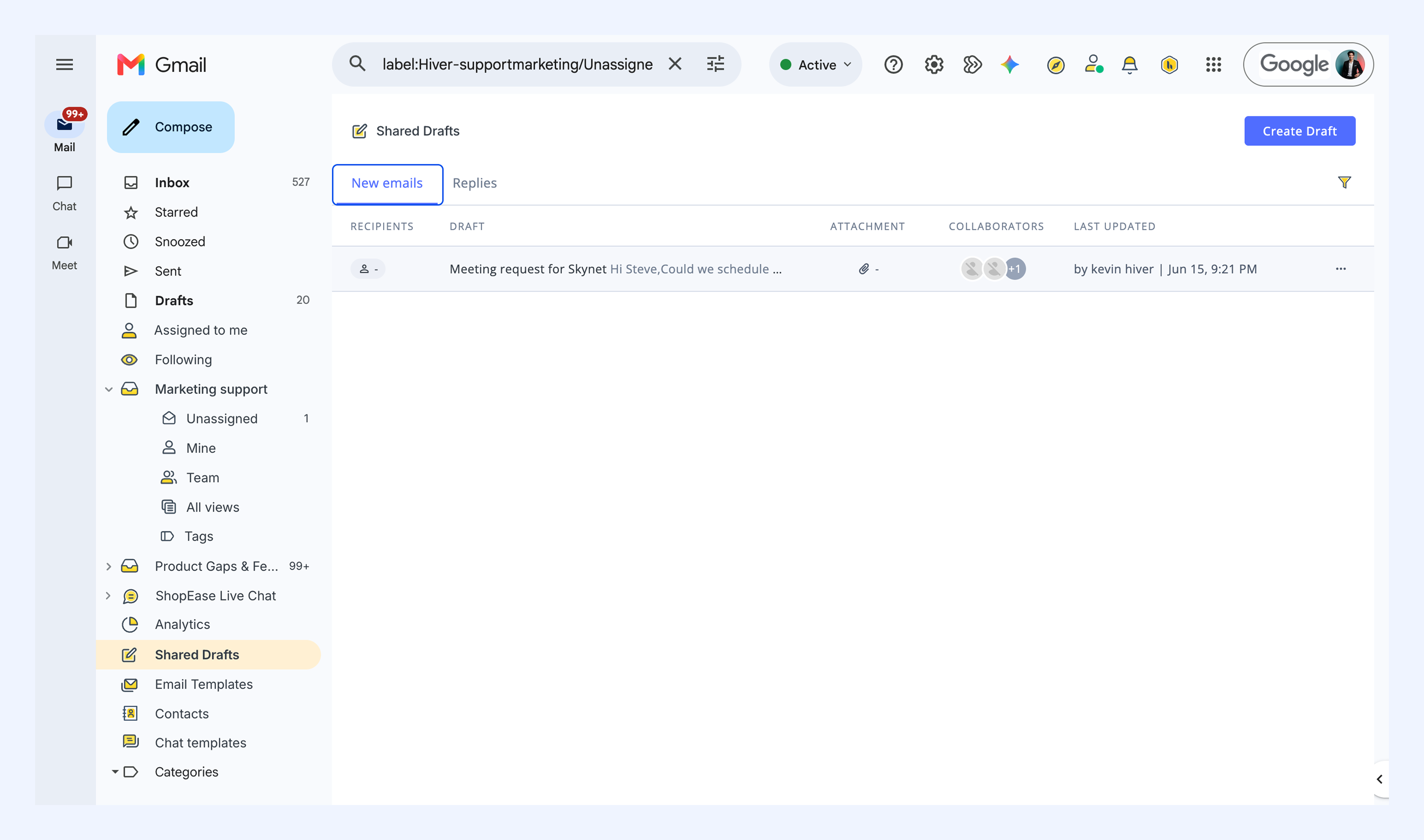
Use Shared Drafts when you want to work on a response with another teammate before it is sent.
This is useful for conversations where you need someone else to review, add context, or help refine the response without moving the discussion outside Hiver.
Learn more about Shared Drafts.
Get help from AI Copilot
Use AI Copilot while working on a conversation to quickly understand the context and prepare your response.
You can:
- Ask AI to find answers and relevant information about the conversation.
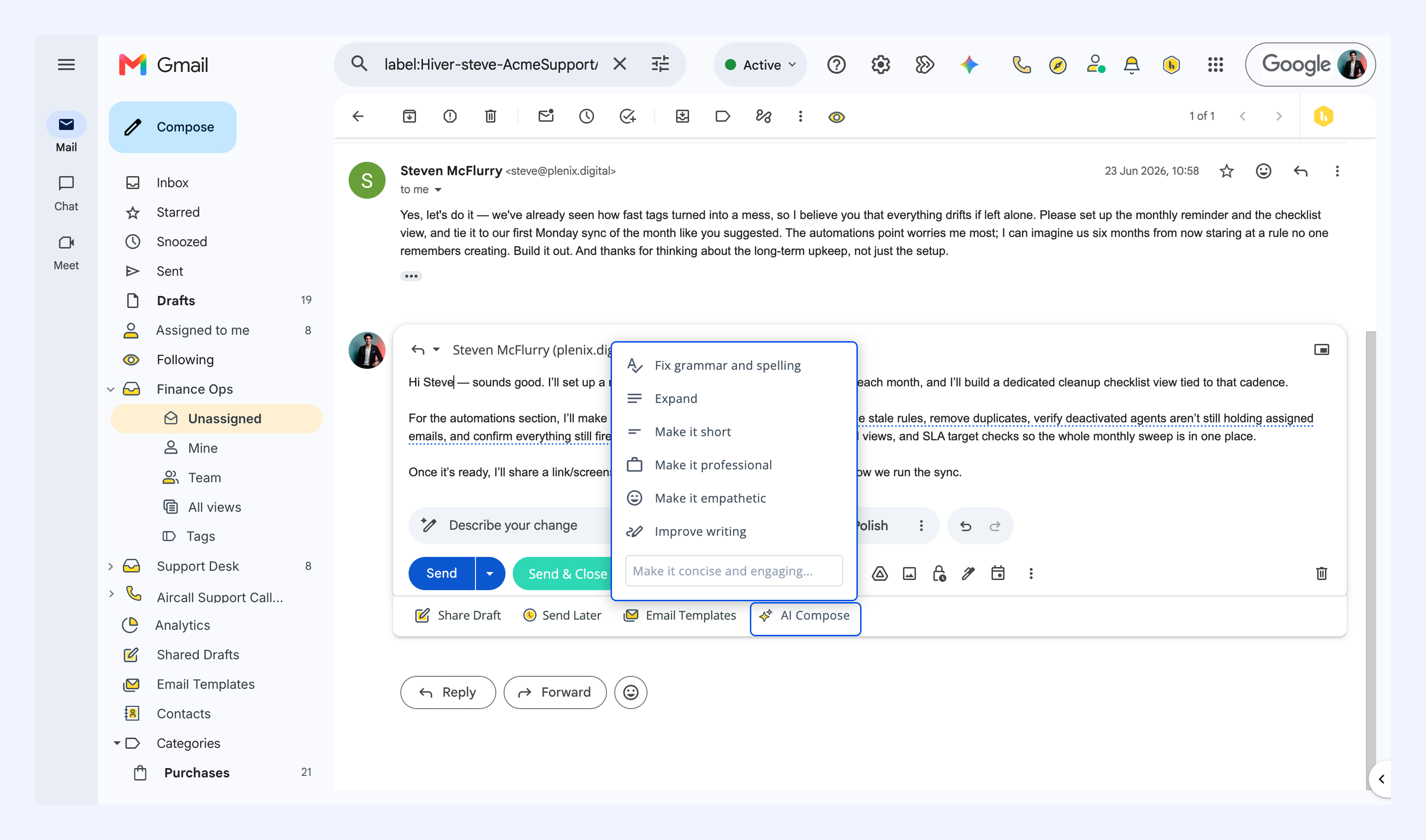
- AI Compose to draft a response, refine what you’ve written, or adjust its tone and length.
- AI Summarizer to get a concise summary of a long conversation before responding.
Get started with AI Copilot.
Use email templates
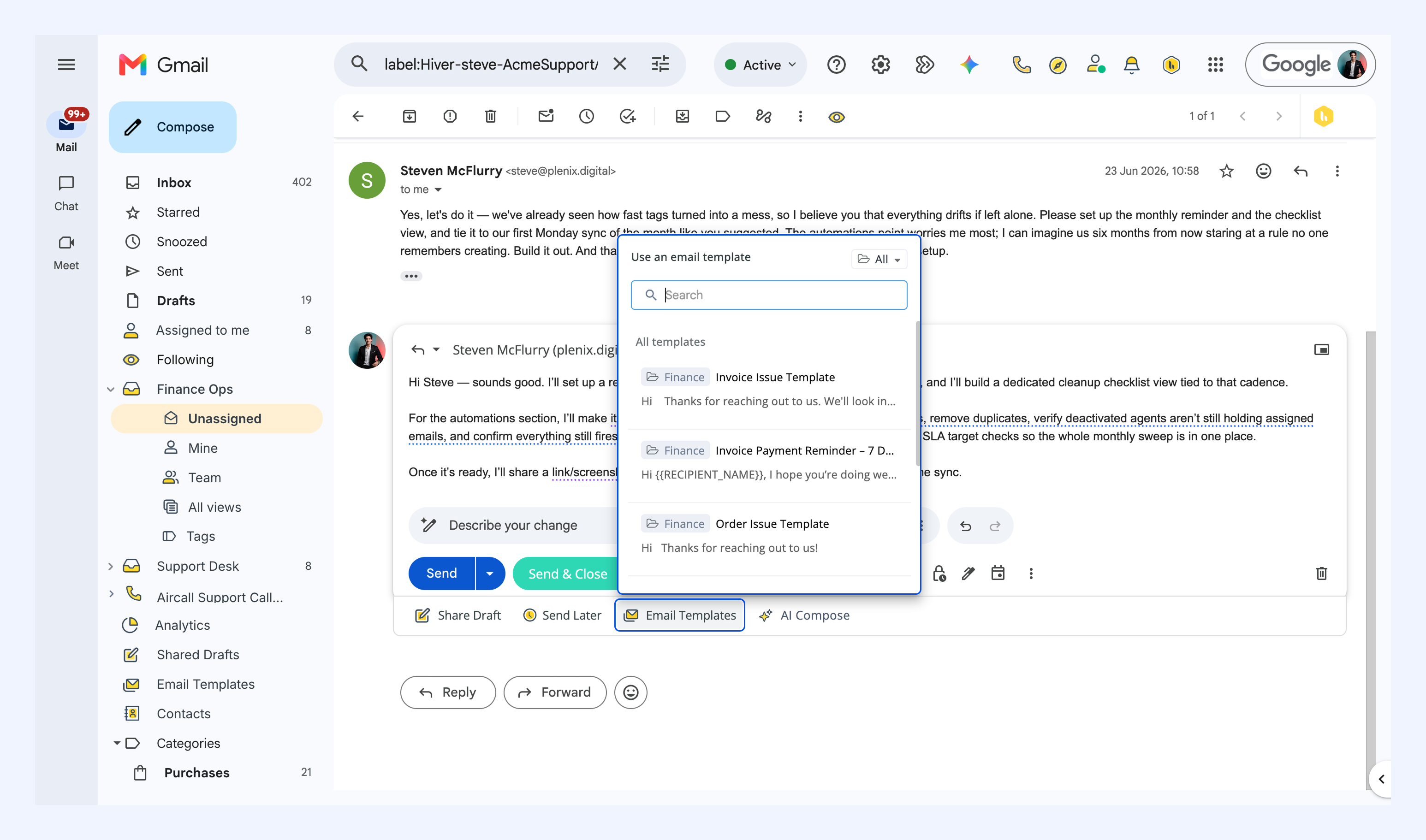
Insert an email template when your team frequently sends the same or similar responses. Templates can help you respond faster while keeping common communication consistent.
Learn more about email templates.
Schedule a reply for later
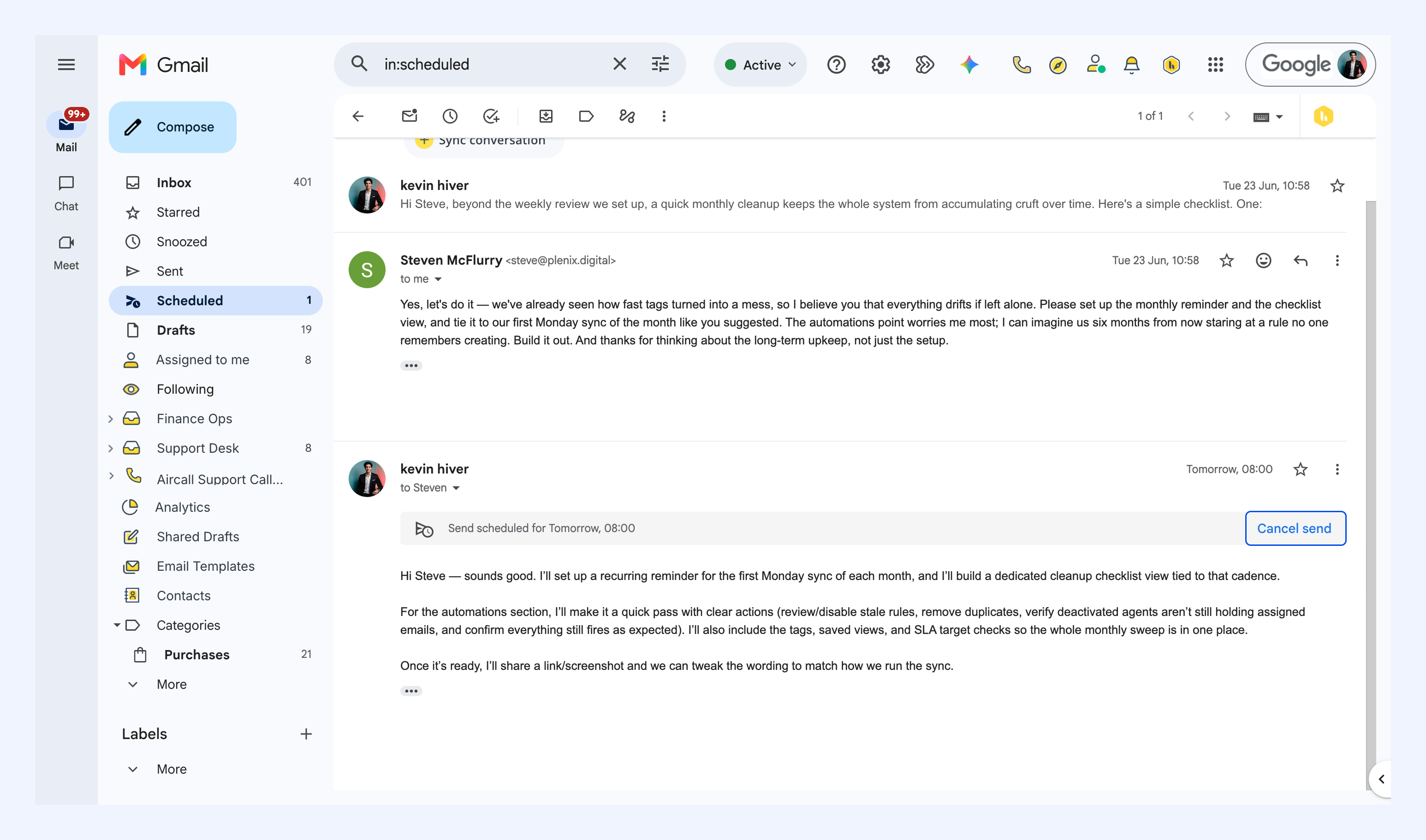
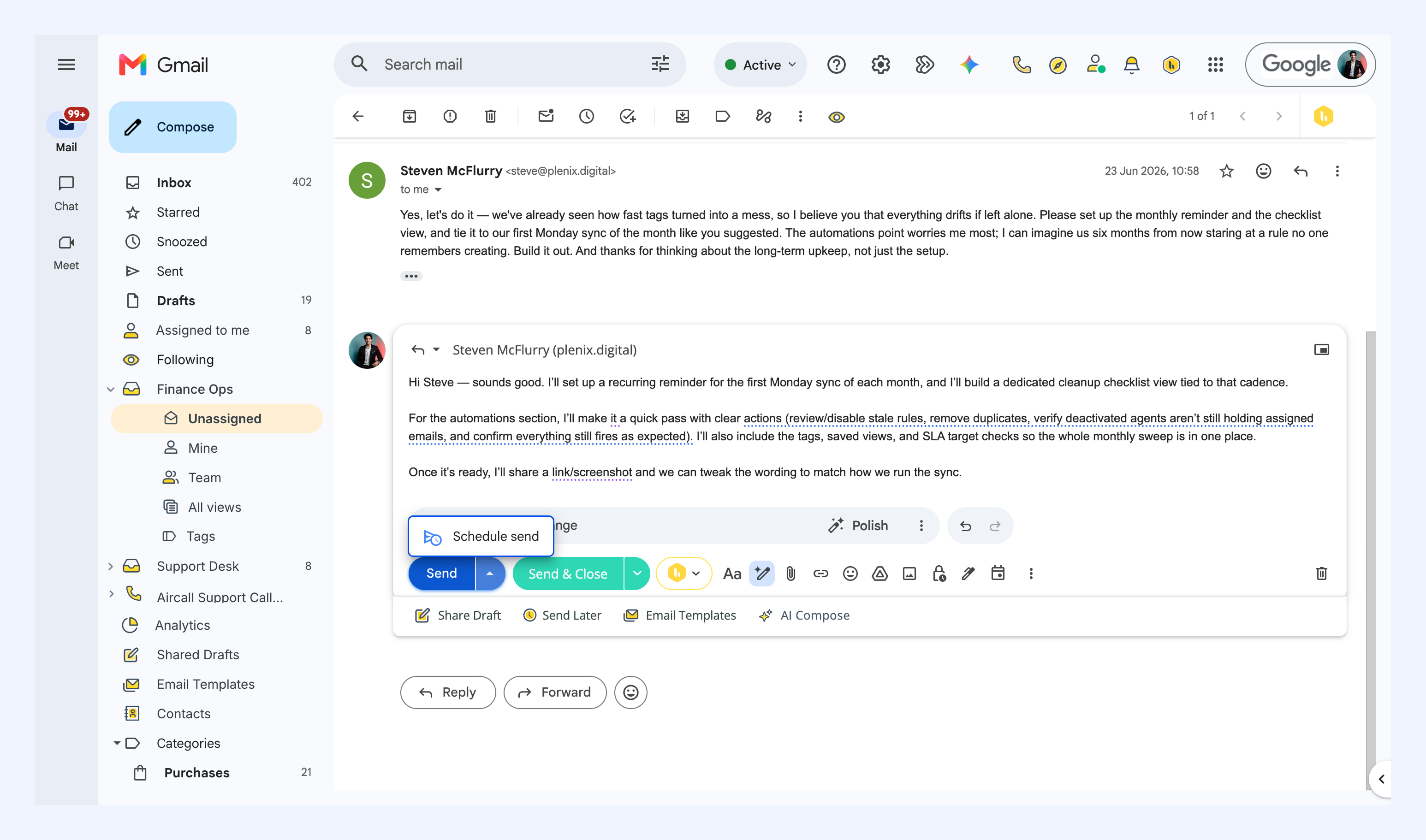
Use Schedule send when you want to prepare a response now but have it delivered at a specific time.
Scheduled emails are available under the Hiver Scheduled label and in your Gmail Drafts.
Unschedule an email
If you need to change or send a scheduled email earlier:
1. Find the scheduled email.
2. Select Cancel send.
You can then edit the email or choose a new delivery time.