Restoring access to a Shared Inbox
Hiver connects to each Shared Inbox through a Google or Microsoft account. When Hiver loses access to that account, new emails stop syncing to your Shared Inbox. Your team can’t send emails until an Admin restores access. You’ll still receive new emails in Gmail or Outlook, and Hiver syncs them once access is restored.
Prerequisites
Before you begin, make sure you have admin access in Hiver.
Restoring access
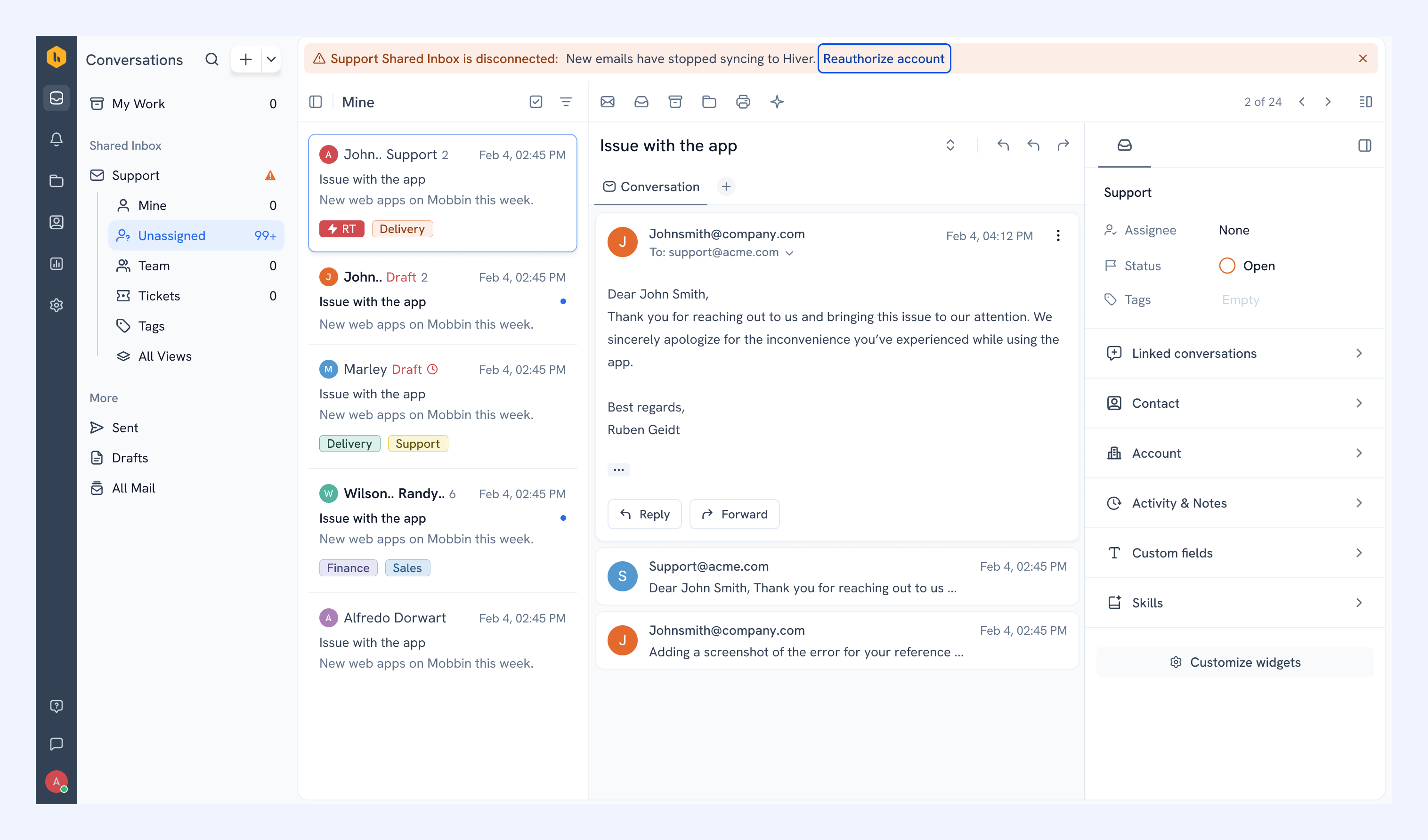
Hiver notifies every Admin on your account by email and shows a banner on the inbox.
1. Click Reauthorize account in the email or the banner. Hiver opens the inbox in the Admin Panel.
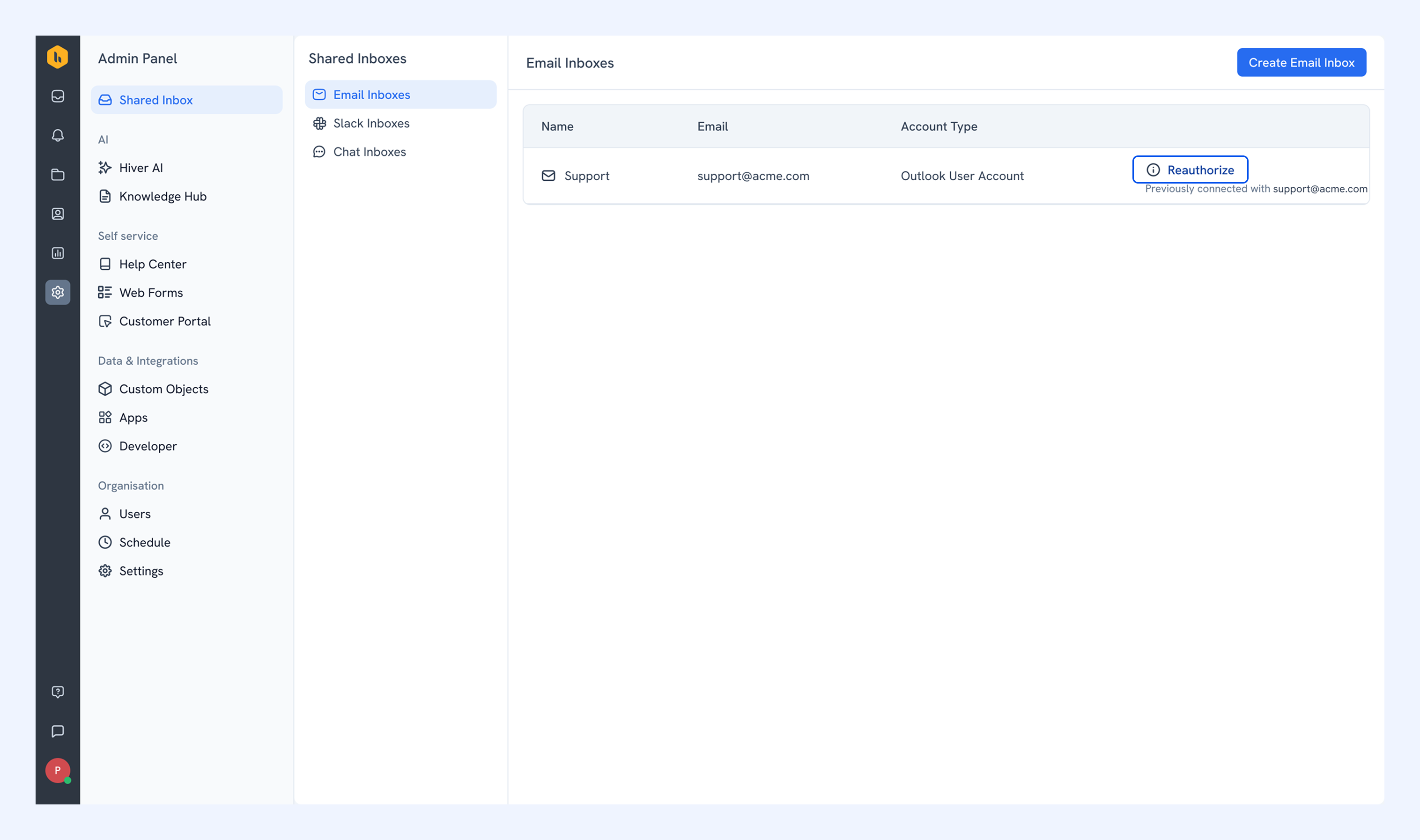
2. Click Reauthorize and sign in. The account you use depends on your setup:
- Google or Microsoft user mailbox: Sign in with the mailbox’s own account.
- Google Group: Sign in with a Gmail account that receives the Group’s emails and is configured to send from its address.
- Outlook Shared Mailbox: Sign in with a Microsoft user account that has the required mailbox access and sending permissions.
- Outlook Distribution List or Microsoft 365 group: Sign in with a Microsoft account that receives its emails and has the required sending permissions.
After access is restored, Hiver emails all Admins to confirm. Emails received during the interruption may still be syncing. Open the Shared Inbox to check its sync status. Hiver shows a confirmation in the inbox once syncing is complete.
Note: Drafts that failed to send and scheduled emails aren’t sent automatically. Send them again once access is restored.
FAQs
Will Admins be reminded if access isn’t restored?
Yes. If access hasn’t been restored, Hiver sends all Admins reminders 4, 24, and 72 hours after detecting the access loss. Reminders stop once access is restored.
What if the account used to connect the inbox isn’t available anymore?
Ask your Google Workspace or Microsoft 365 admin to identify another account with the permissions needed to restore Hiver’s access to your Shared Inbox. For an Outlook Shared Mailbox or Distribution List, you can also change the Source User.
Next steps
Setting up permissions for your Outlook shared mailbox or distribution list