Searching for conversations
Searching for a conversation should not require you to juggle between multiple Shared Inboxes. With Hiver Omni’s omnichannel search, you can search for conversations across email, chat, Slack, WhatsApp, and SMS channels from one place, all without switching between inboxes.
Steps to search for a conversation in Hiver Omni
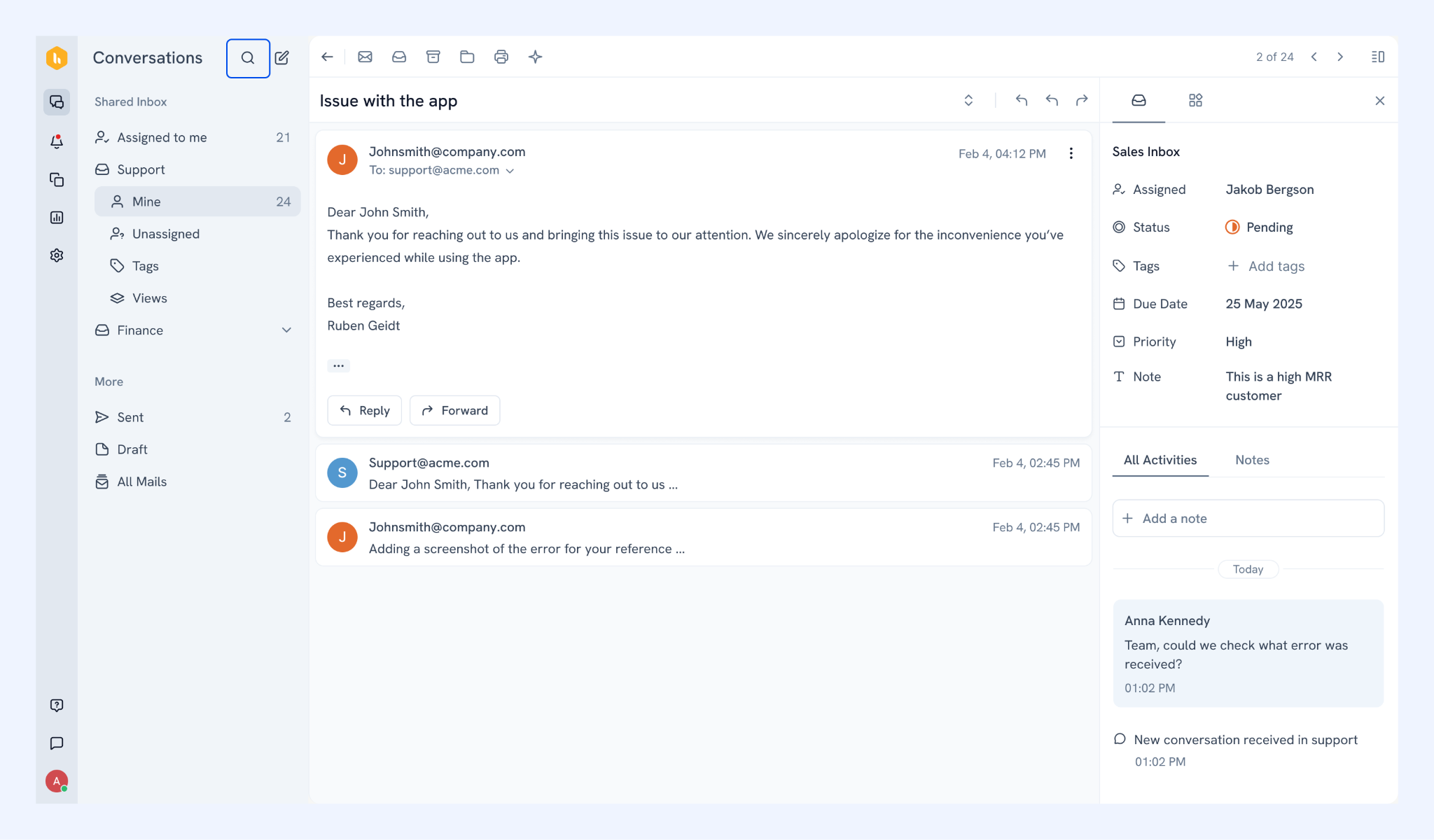
1. Click the search icon at the top of your inbox. A search box will open.
2. Type a keyword, name, or phrase. Results from across all your channels will appear as you type.
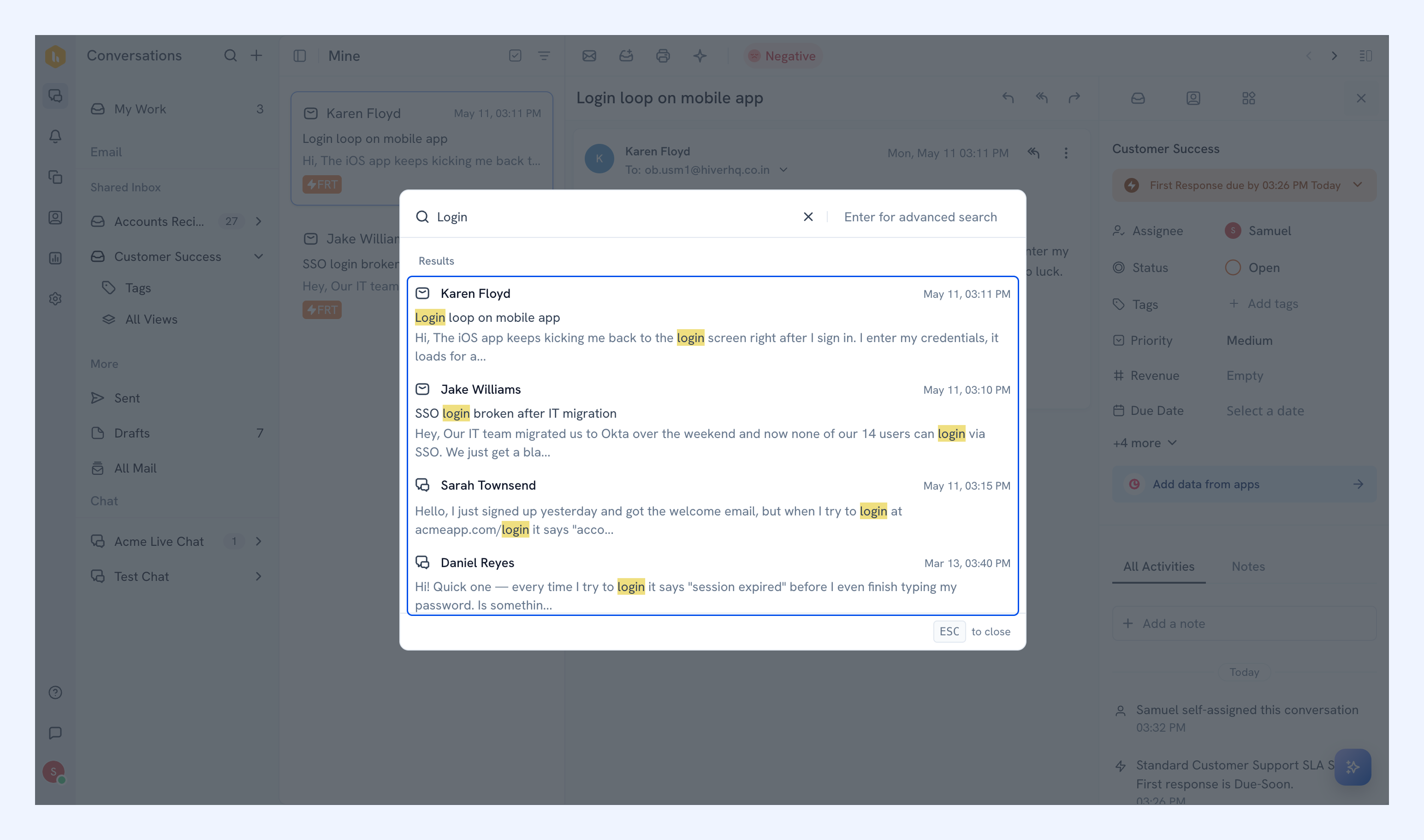
3. Click a result to open that conversation.
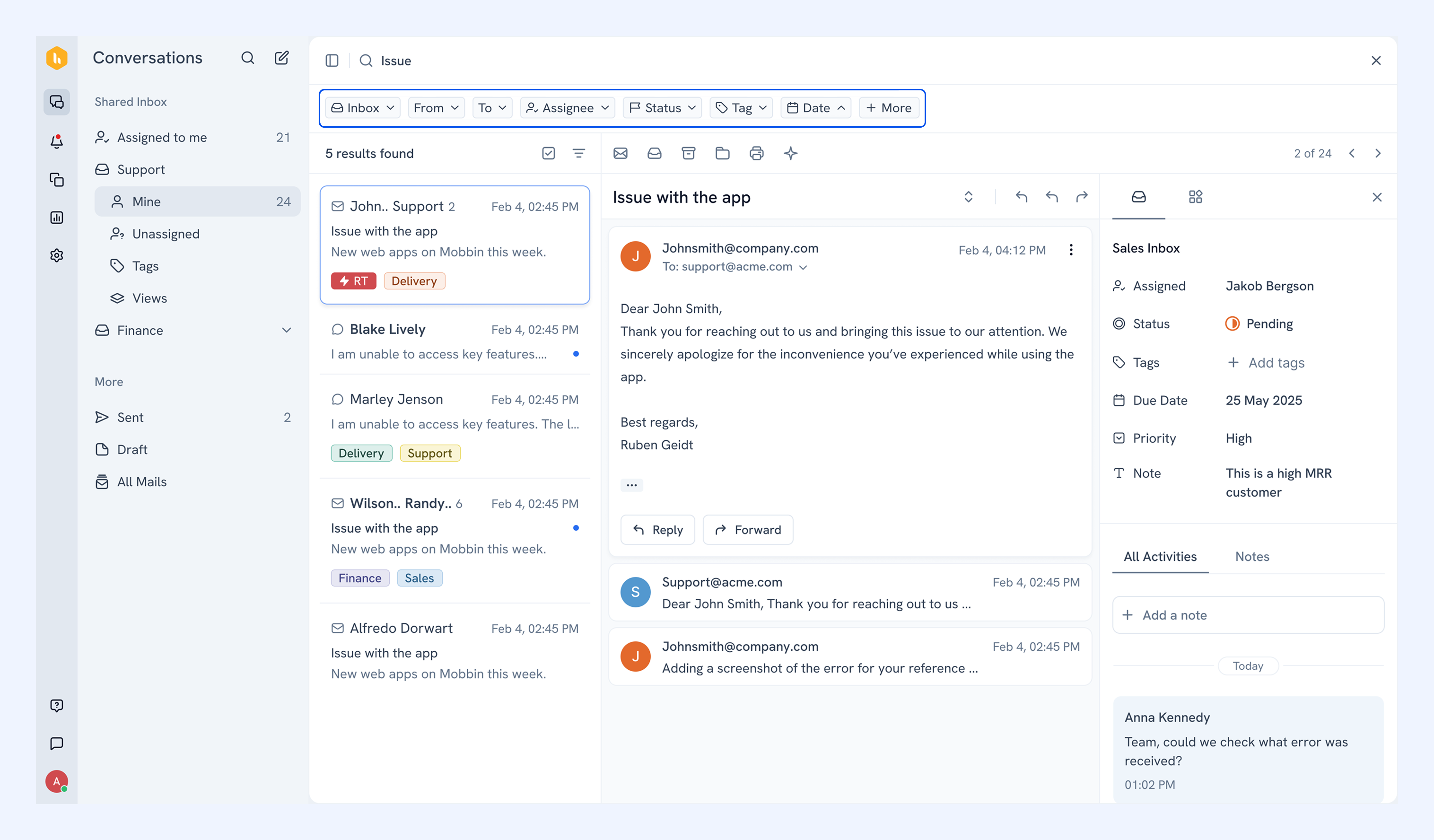
4. In the search results page, you can also use these filters to narrow down conversations by:
- Inbox: a shared or personal inbox
- From: the sender's email address
- To: the recipient's email address (available for email conversations only)
- Assignee: the team member the conversation was assigned to
- Status: conversations in open, pending, closed status
- Tags: a specific tag
- Date: when the conversation was created
- More: additional filters like keywords in the subject line (available for email conversations only)
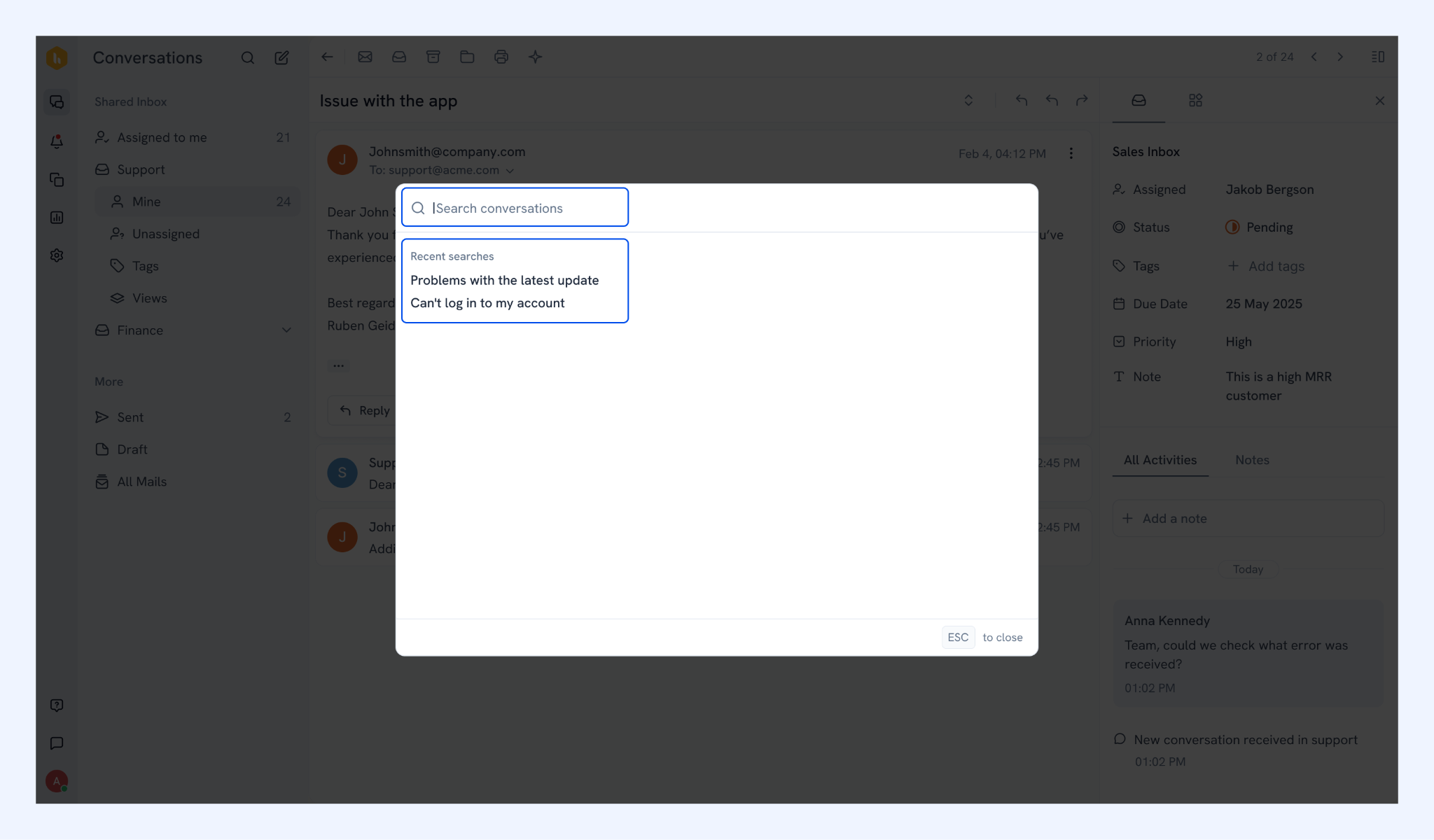
Recent searches
When you open the search box, you'll find your search history listed. Click any of them to run that search again.
A few things to know
- Use quotation marks (e.g. 'refund request') to search for an exact phrase.
- Search is not case sensitive. 'Refund' and 'refund' give the same results.
- If you type multiple words, only conversations containing all of them will show up.
- From and To accept multiple email addresses separated by commas. Results will include conversations matching any of them.
- Status, assignee, and Tags also accept multiple values. Results will include conversations matching any of the values you pick.
- You can only search conversations in Shared Inboxes you have access to and in your own personal inbox.