Hiver bulk actions
Bulk actions in Hiver Omni enable you to manage multiple emails in one go. Instead of making changes to emails one by one, you can tag, assign, and update them together to work more efficiently.
Note: You can process up to 50 emails in a single bulk action.
How to select emails for bulk action
To select emails for bulk actions:
- Hover over an email.
- A checkbox will appear on the left side of the email.
- Click the checkbox to select that email.
- Repeat this process for each email you want to include in your bulk action.
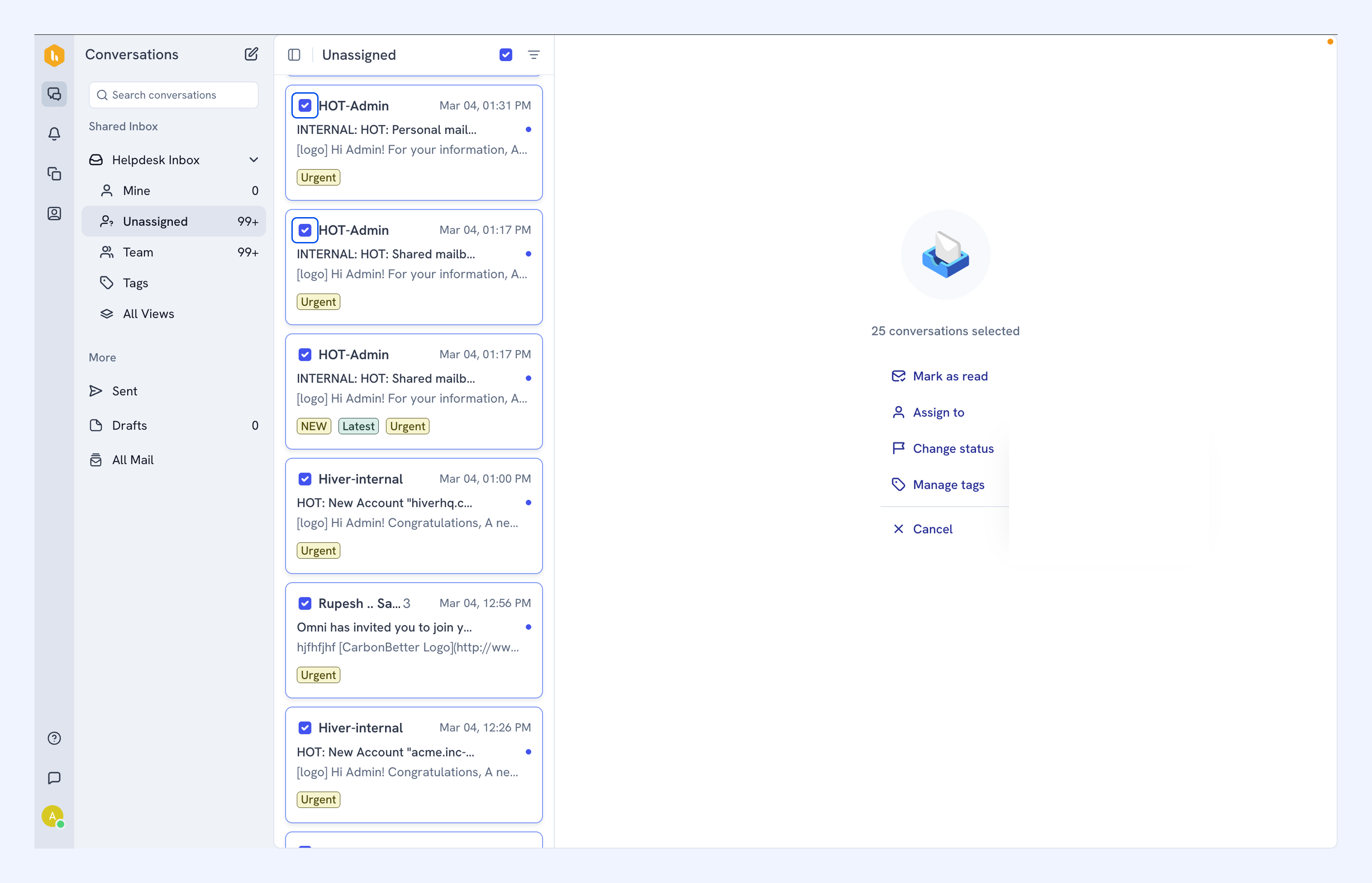
Actions you can perform
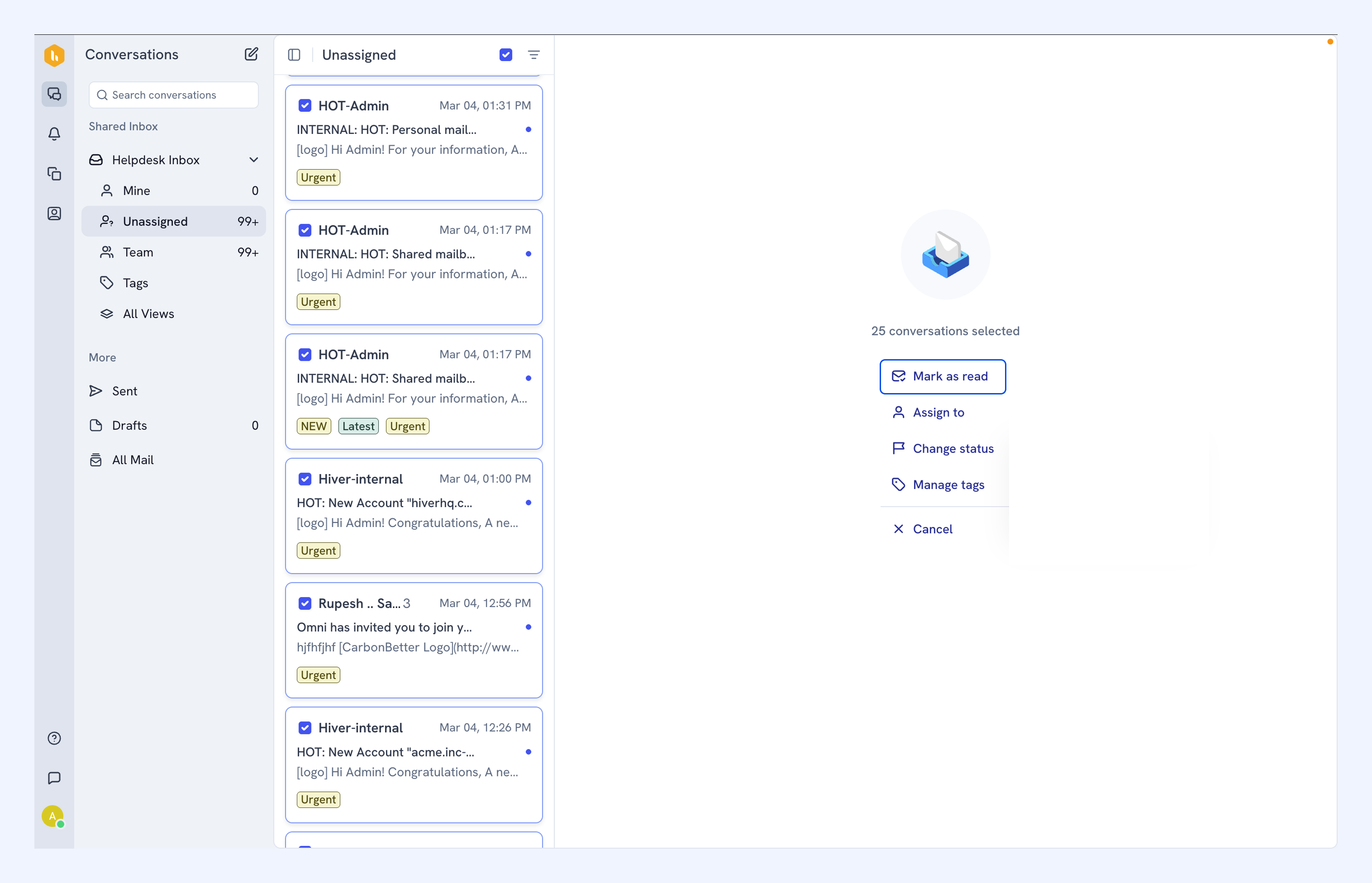
1. Mark as read
- Select the emails you want to mark as read.
- Click Mark as read.
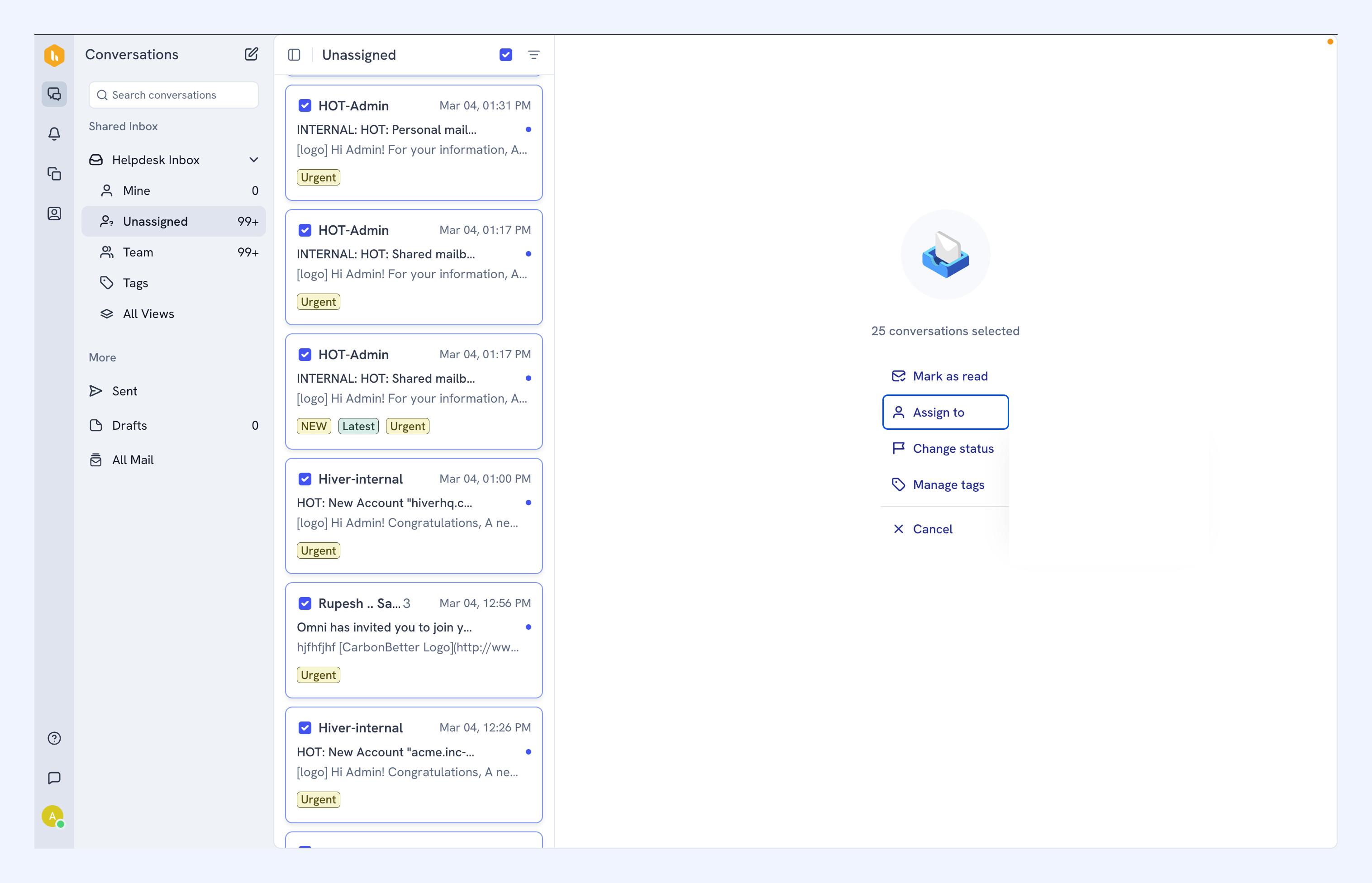
2. Assign to
- Select the emails you want to assign to your team.
- Click Assign to.
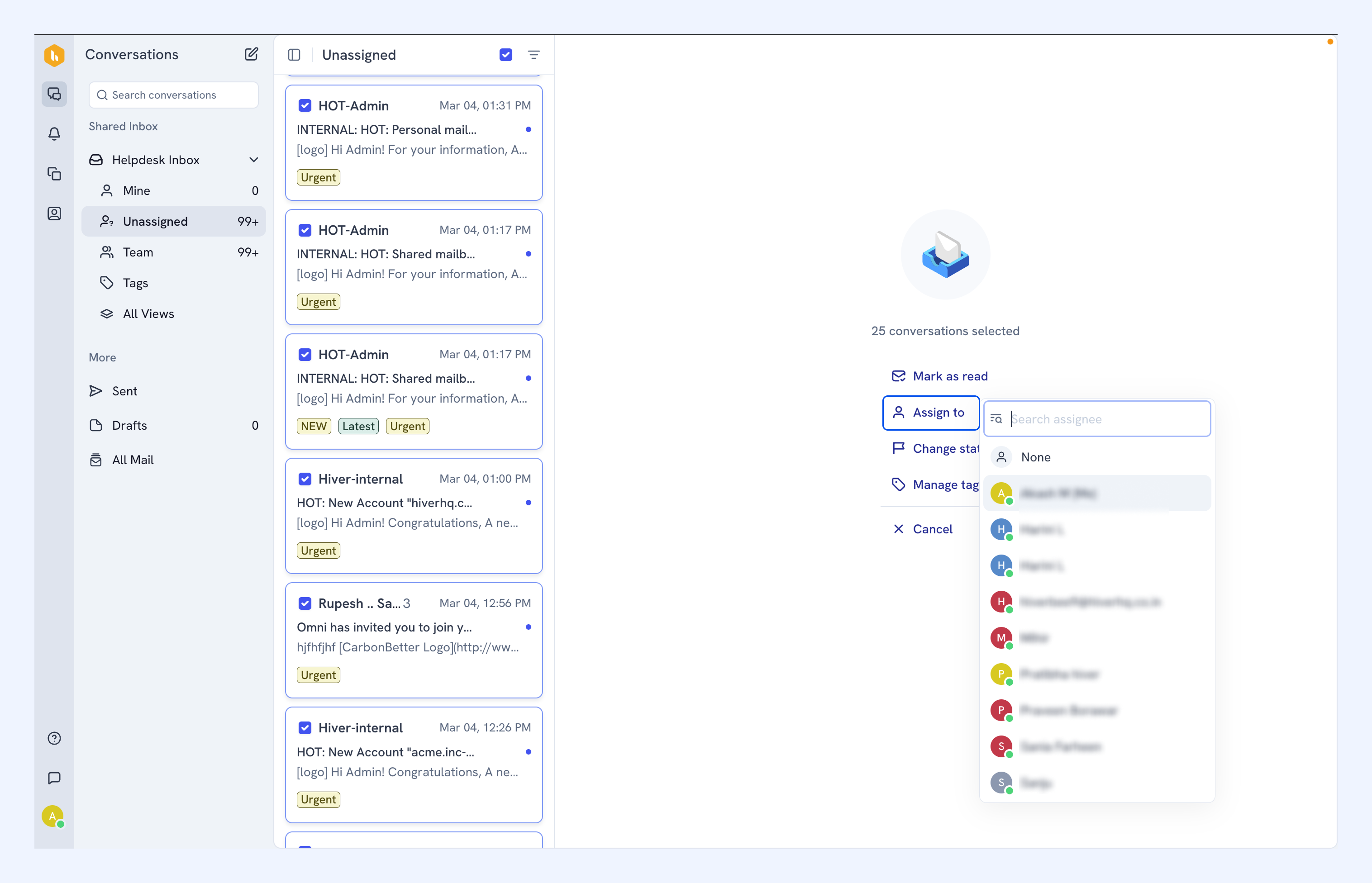
- Choose a teammate and the emails will be assigned to them.
Tip: Select None if you want to unassign emails in one go.
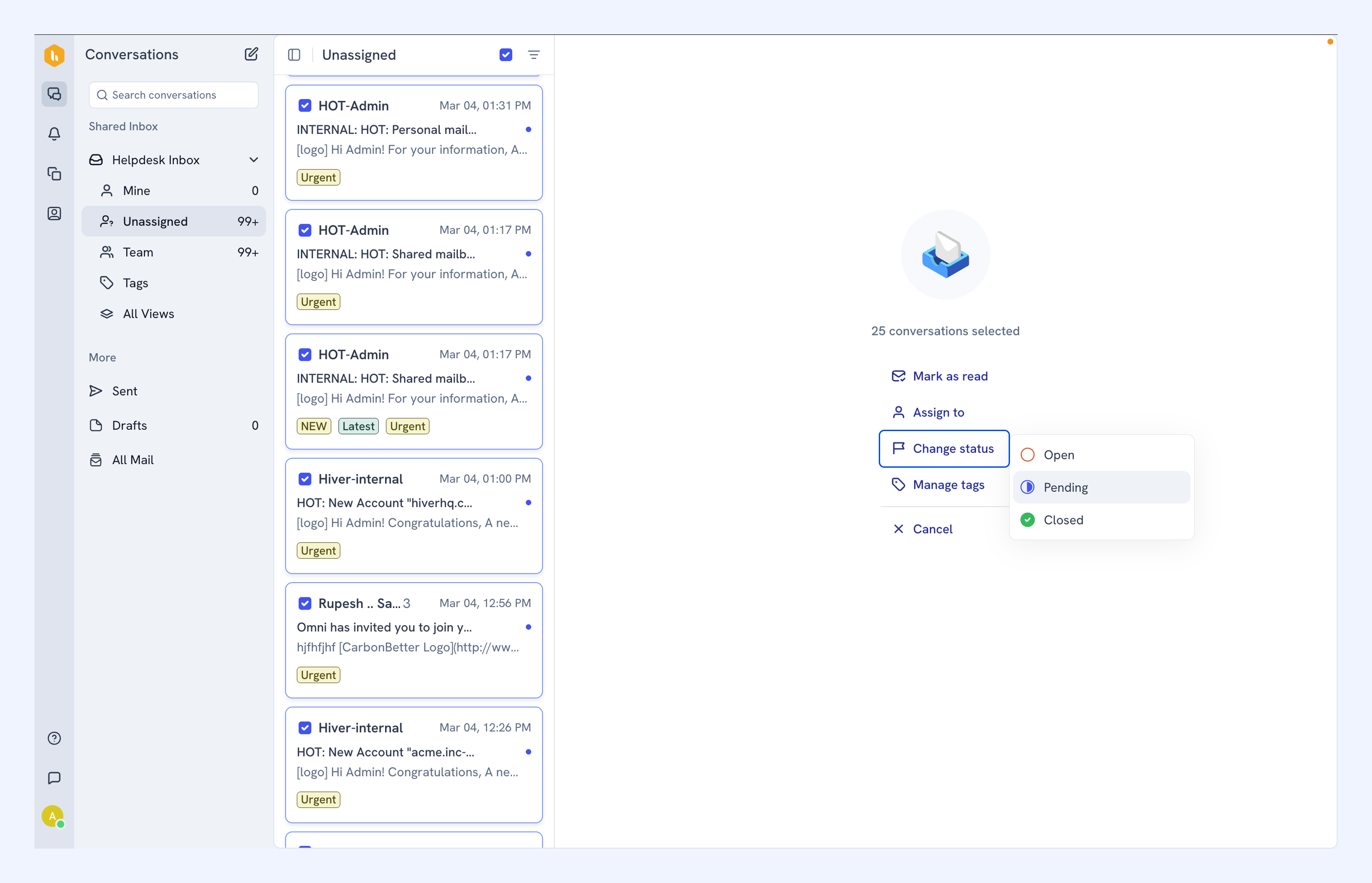
3. Change status
- Select the emails you want to update
- Click Change status from the menu and choose between Open, Pending, or Closed
4. Manage tags
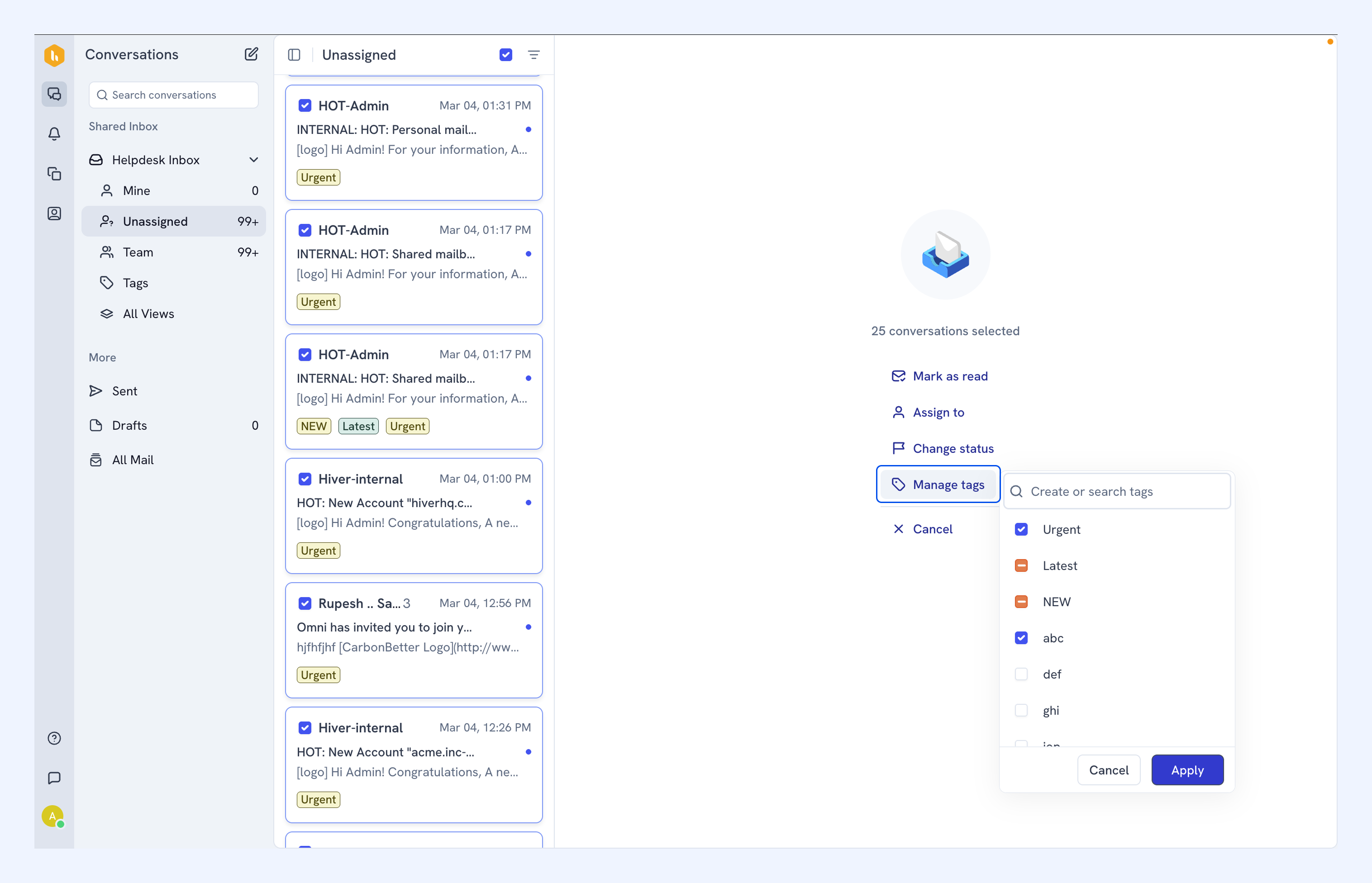
You can apply or remove tags across multiple conversations at once using Manage tags.
Understanding tag states
When you open the Manage tags panel, each tag shows one of two states:
- Blue tick: The tag is present on all selected conversations. Clicking the tick again clears it; clicking Apply will then remove the tag from all selected conversations.
- Hyphen: The tag is present on only some of the selected conversations. Clicking the hyphen turns it into a tick; clicking Apply will then add the tag to all selected conversations.
Apply a tag
- Select the conversations you want to tag.
- Click Manage tags.
- Choose tags from the list. Tags with a blue tick will be applied to all selected conversations.
- Click Apply.
Remove a tag
- Select the conversations you want to update.
- Click Manage tags.
- Click a tag that has a blue tick to clear it.
- Click Apply. The tag will be removed from all selected conversations.
Using bulk action with Views
If you want to apply bulk actions only to specific emails, you can do this with email Views. Using Views helps you target the right emails and avoid making unnecessary changes across your inbox.
- Open a View from the left sidebar to see the filtered emails
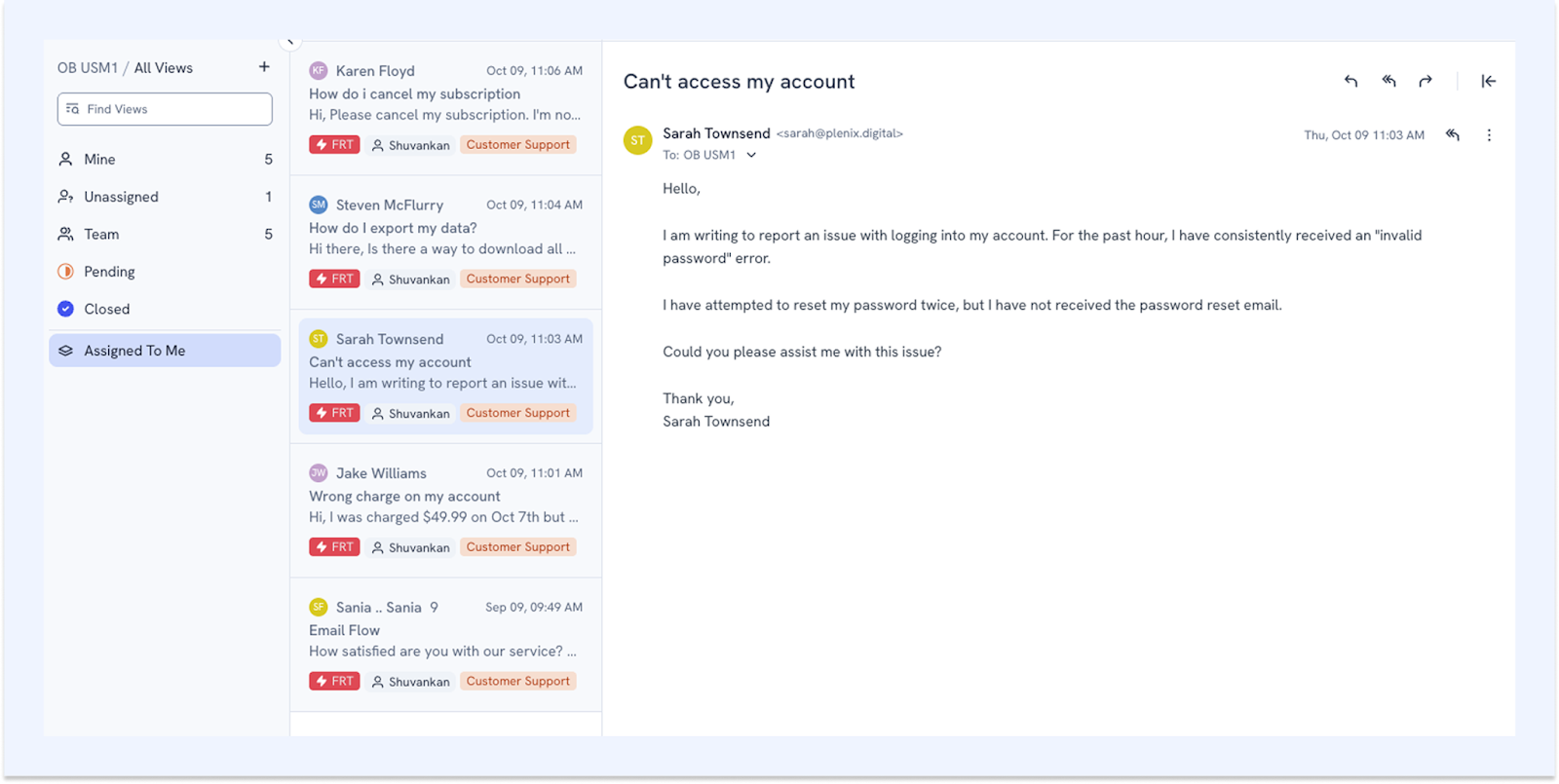
- Select the emails your want to update
- Apply your bulk action