Managing your Voice Inbox
Every incoming call is logged as a conversation in your Voice Inbox, along with its recording, summary, and transcript. From your Voice Inbox, you answer incoming calls, call customers back, review past calls, and follow up on voicemails and missed calls.
Receiving calls
Set your Voice availability
You receive calls only while you're available on Voice.
To set your availability:
1. Click your profile icon, open Your availability.
2. Toggle on Voice.
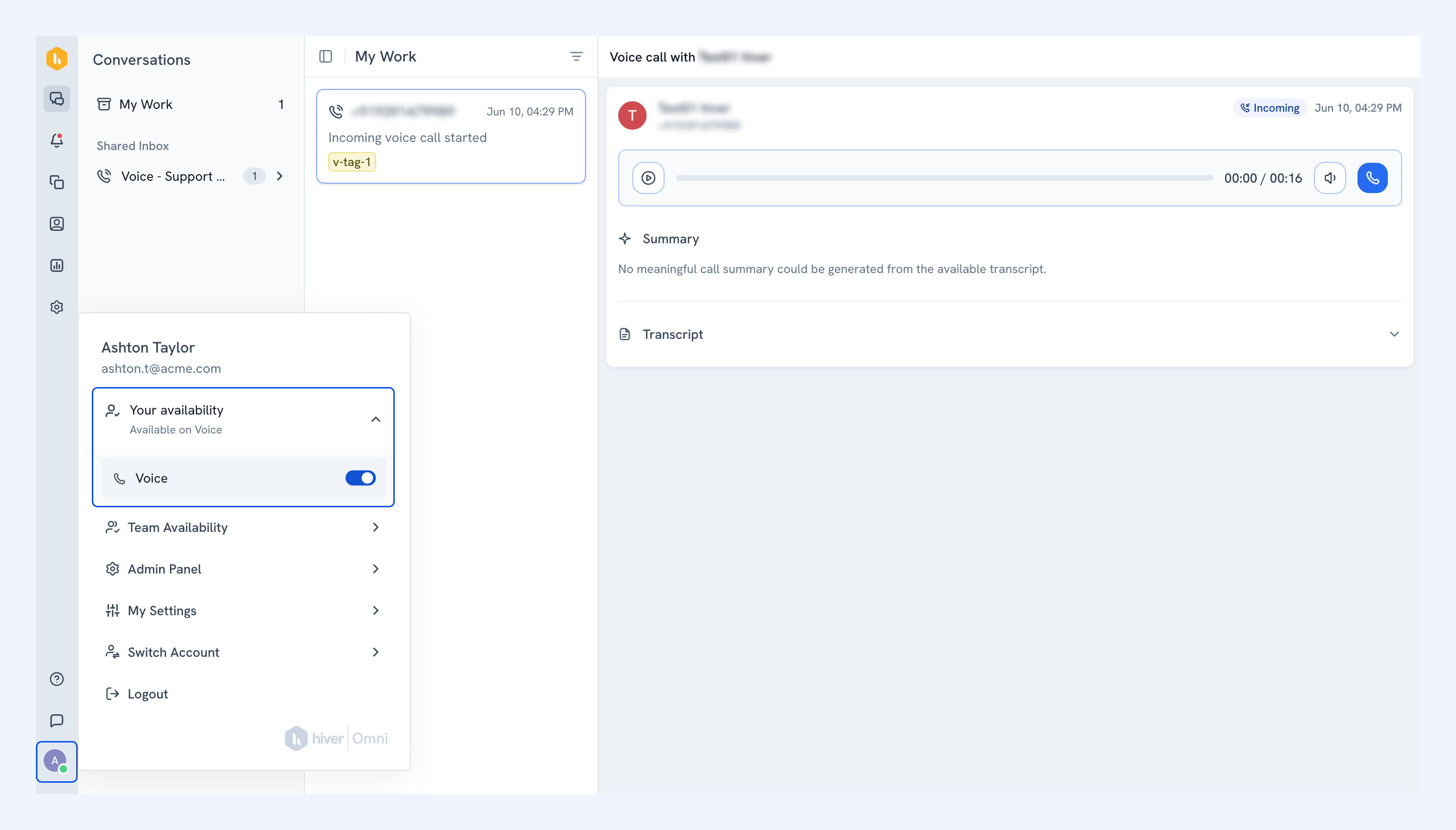
How incoming calls are routed
Incoming calls rotate among available members in the order they were added to the Voice Inbox. A call rings each member for up to 30 seconds. If a member rejects it or doesn't answer, it moves to the next available member.
Hiver tries up to three members. If none of them answers, the call goes to voicemail. If no members are available, the caller hears your welcome message before reaching voicemail.
Answer an incoming call
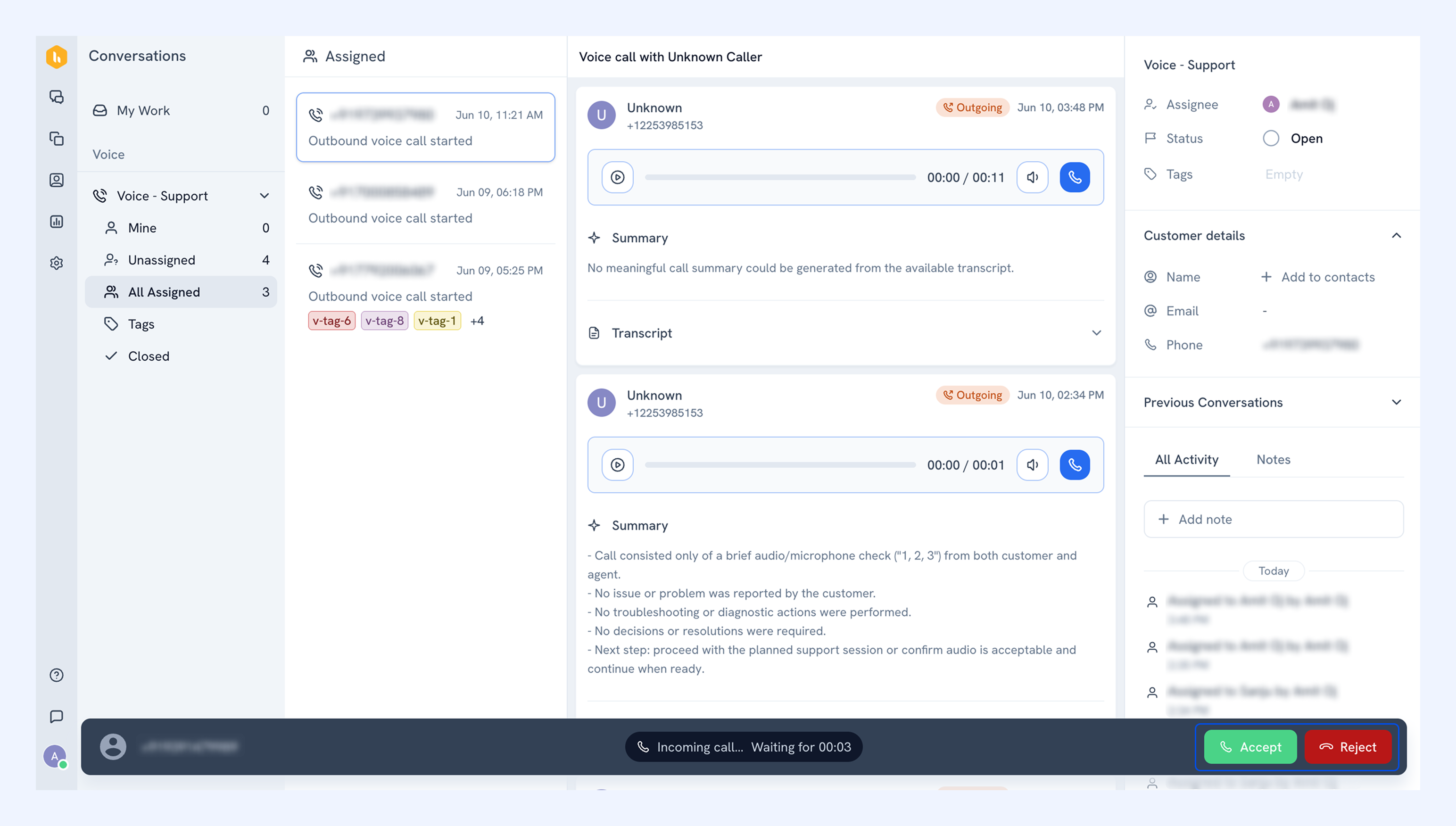
When a customer calls your Voice Inbox number, Hiver routes the call to an available member and shows a call bar at the bottom of the screen.
1. Click Accept to connect, or Reject to decline.
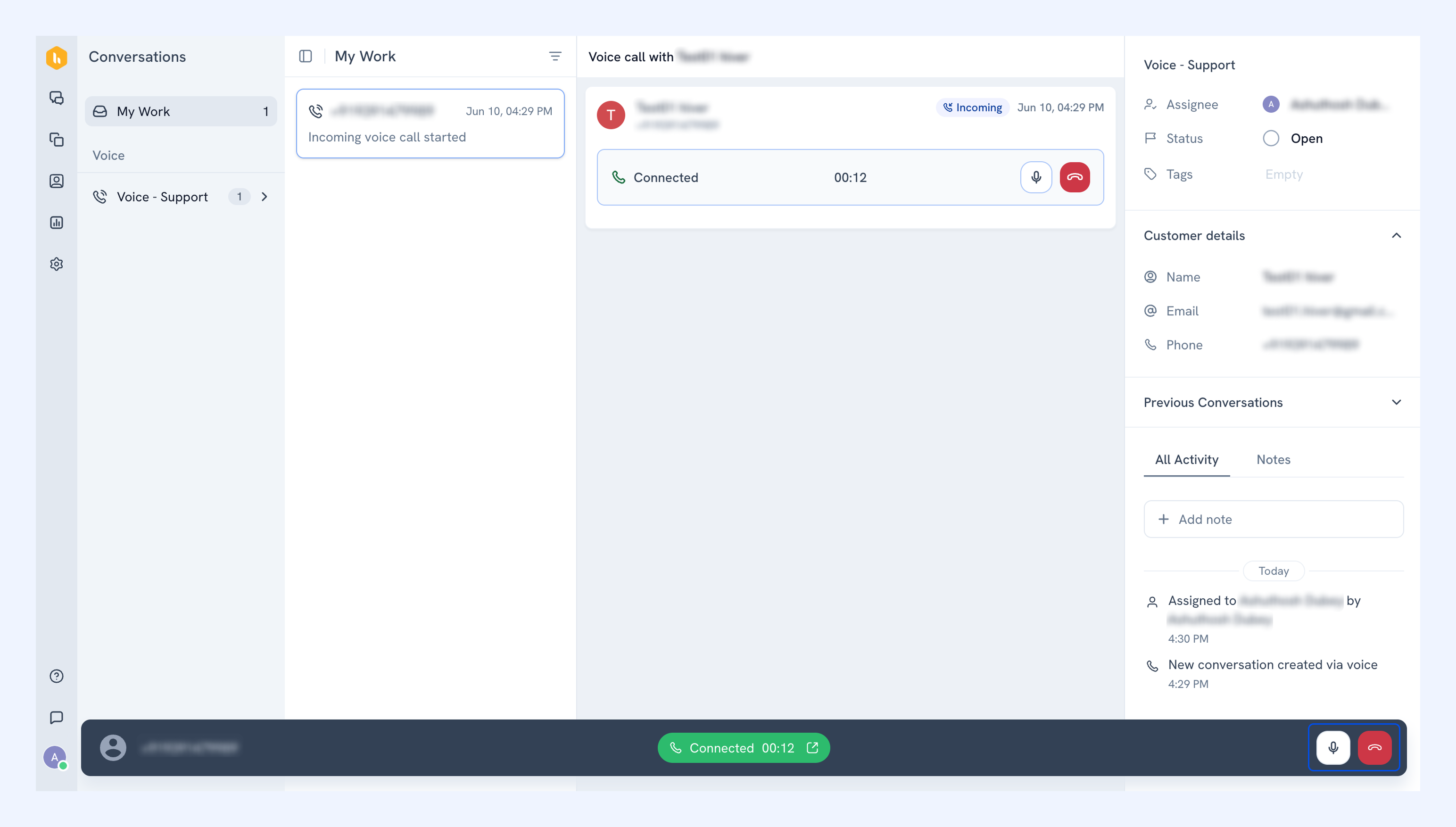
2. Once connected, use the call bar to mute or end the call.
You can also view the customer’s details, the conversation status and tags, and past conversations with the customer in the right panel.
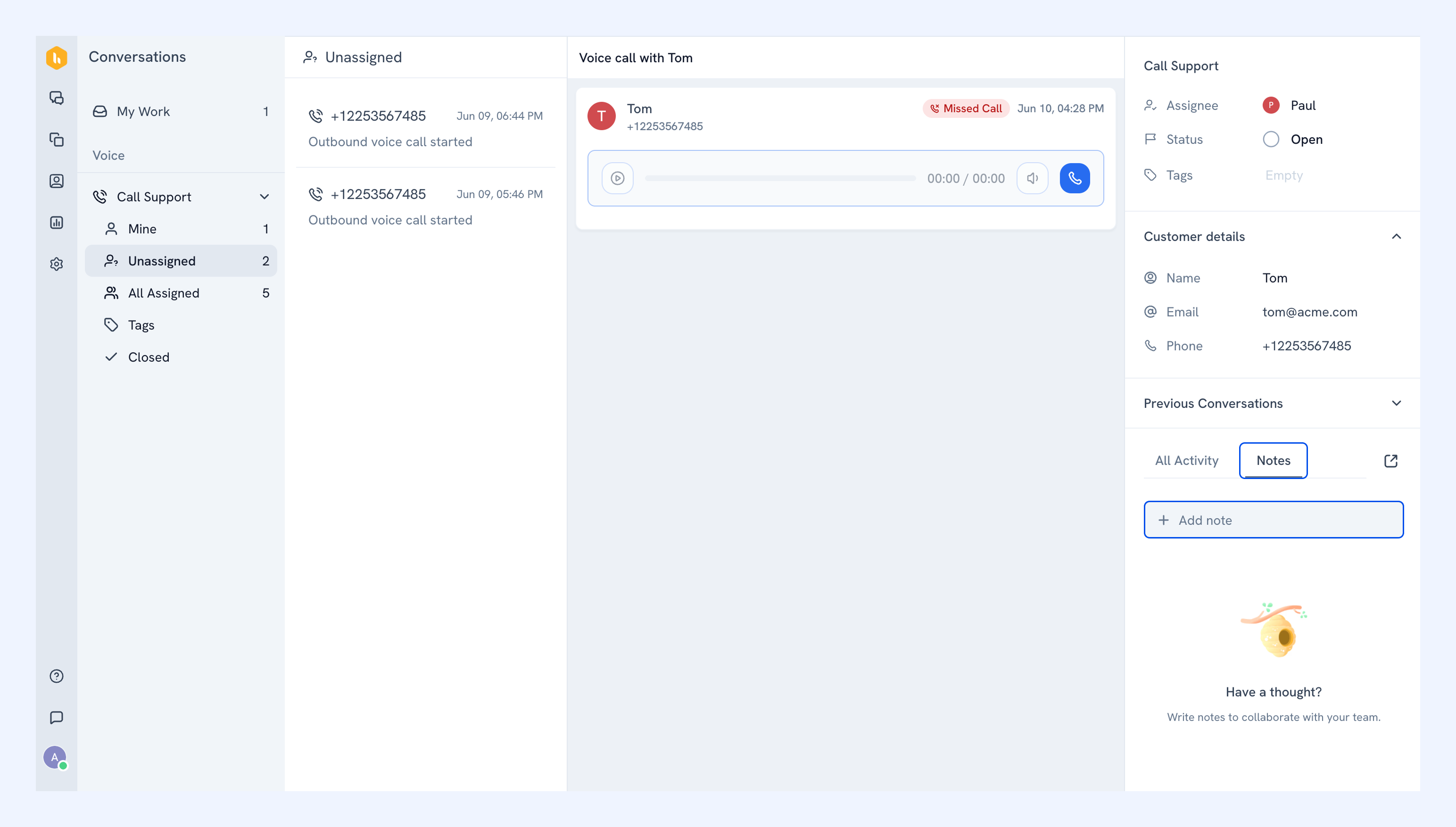
Tip: Add notes to a call to share context or follow up with teammates.
Making a call
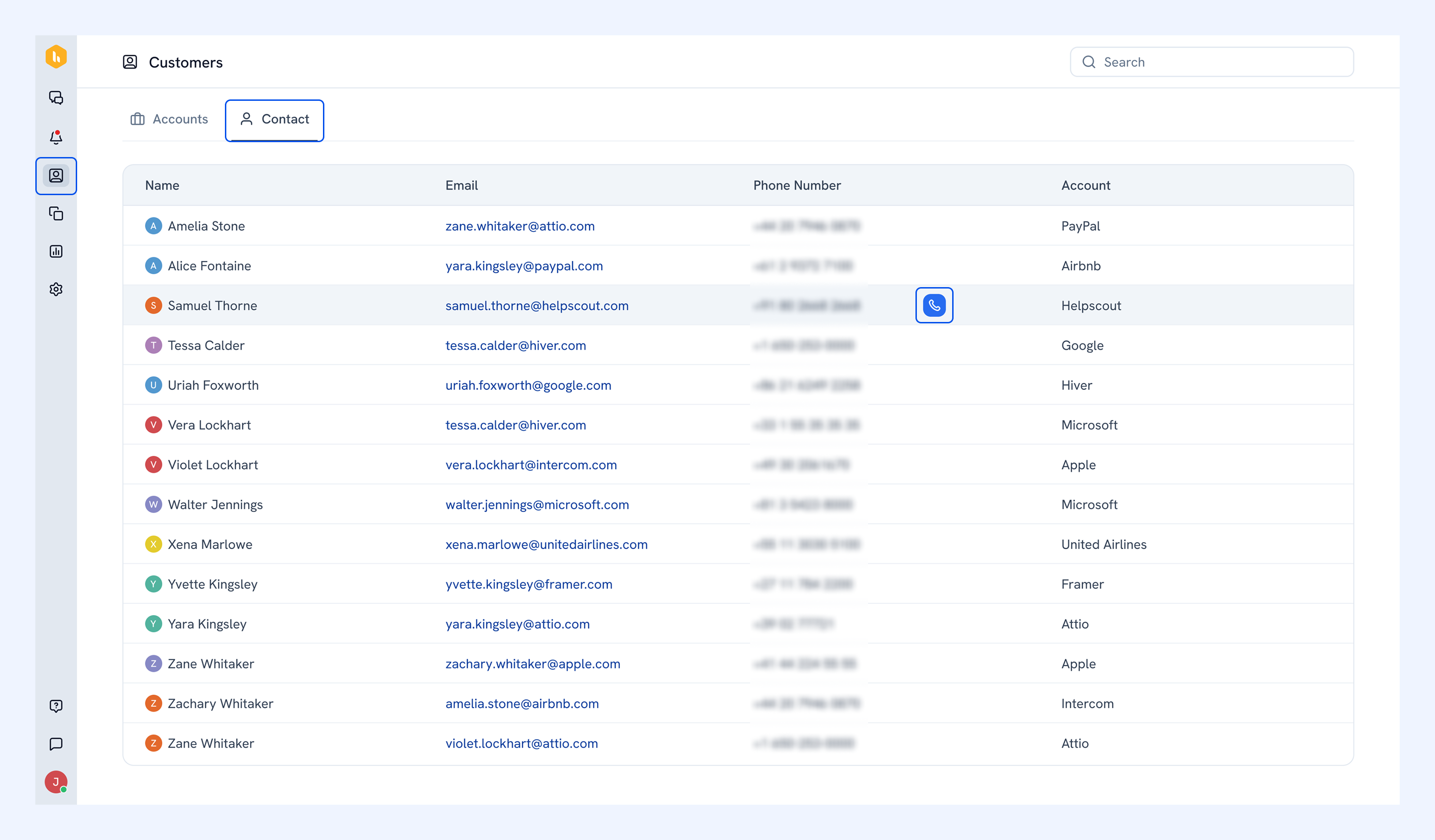
1. Go to Customers → Contact.
2. Hover over the contact you want to reach and click the call icon.
Reviewing and following up on calls
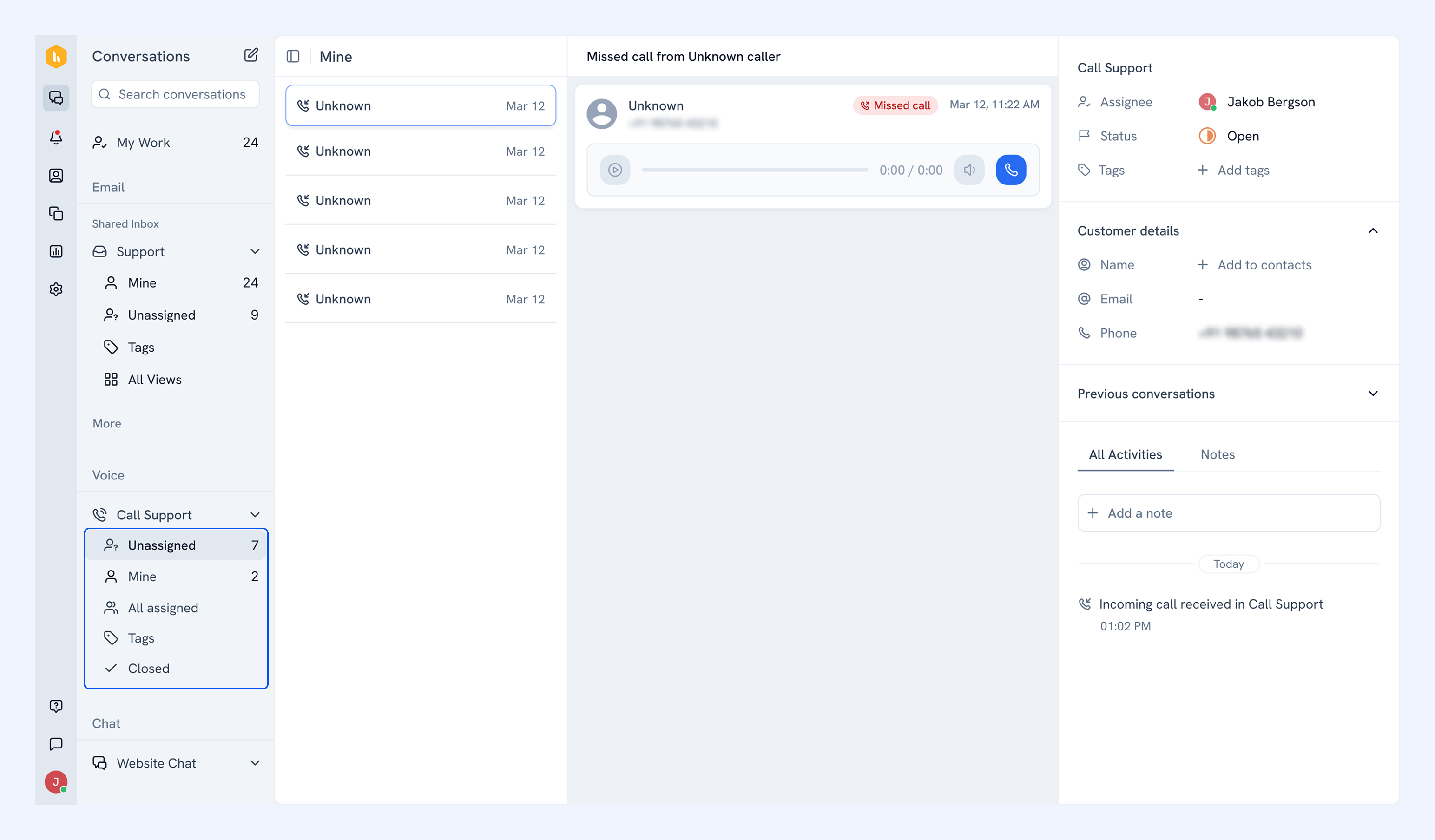
Find calls in your Voice Inbox
You can access your calls from the following views:
- Mine: Calls assigned to you
- Unassigned: Calls not yet assigned
- All assigned: Calls assigned across the team
- Tags: Calls grouped by Tag
- Closed: Resolved calls
Review recordings, summaries, and transcripts
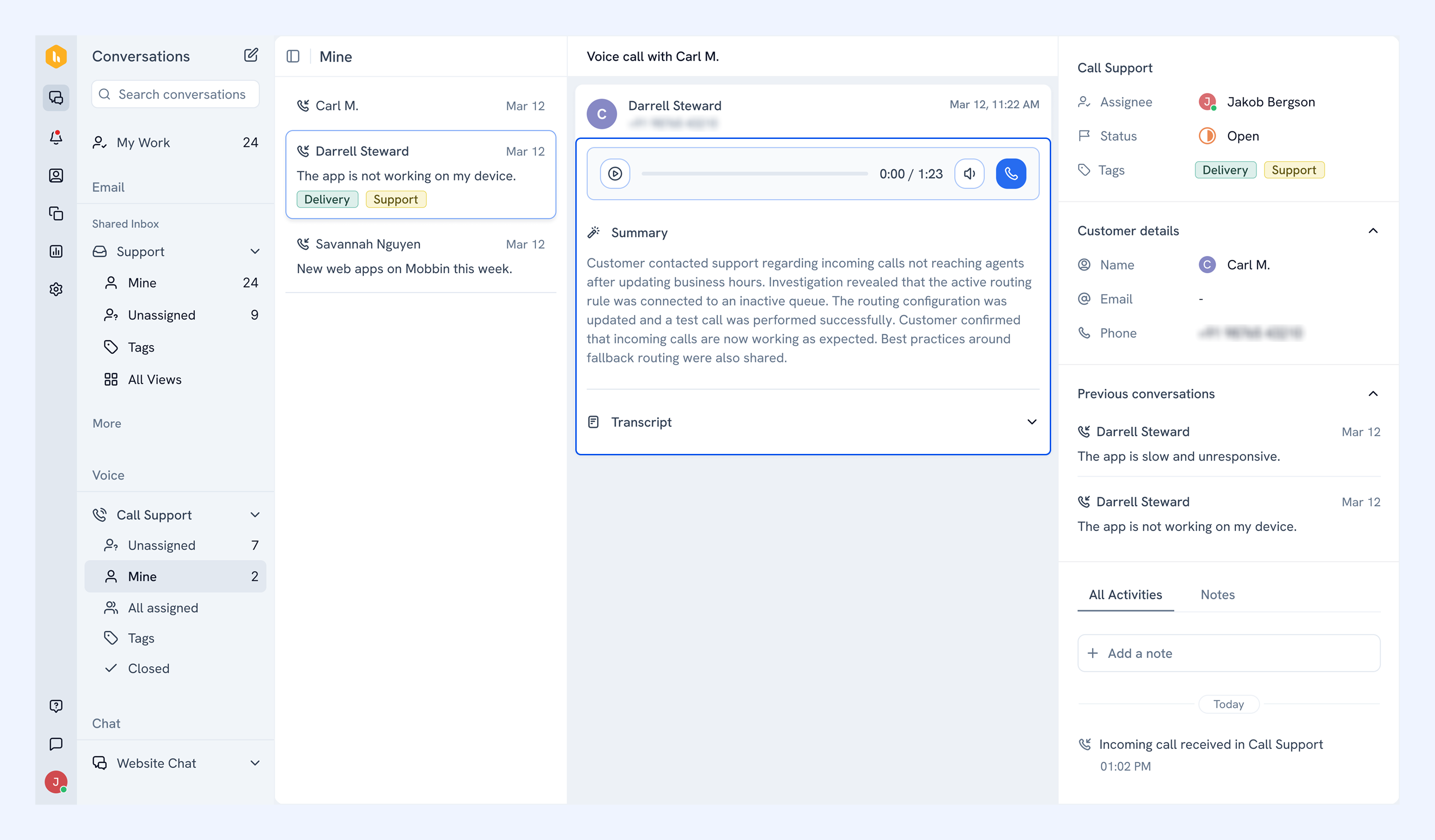
Each call contains:
- Recording: Listen to the full call audio anytime.
- Summary: Quickly understand what the call was about.
- Transcript: Review the full conversation in text.
Note: Recordings and transcripts will become available once the call ends.
Update call details
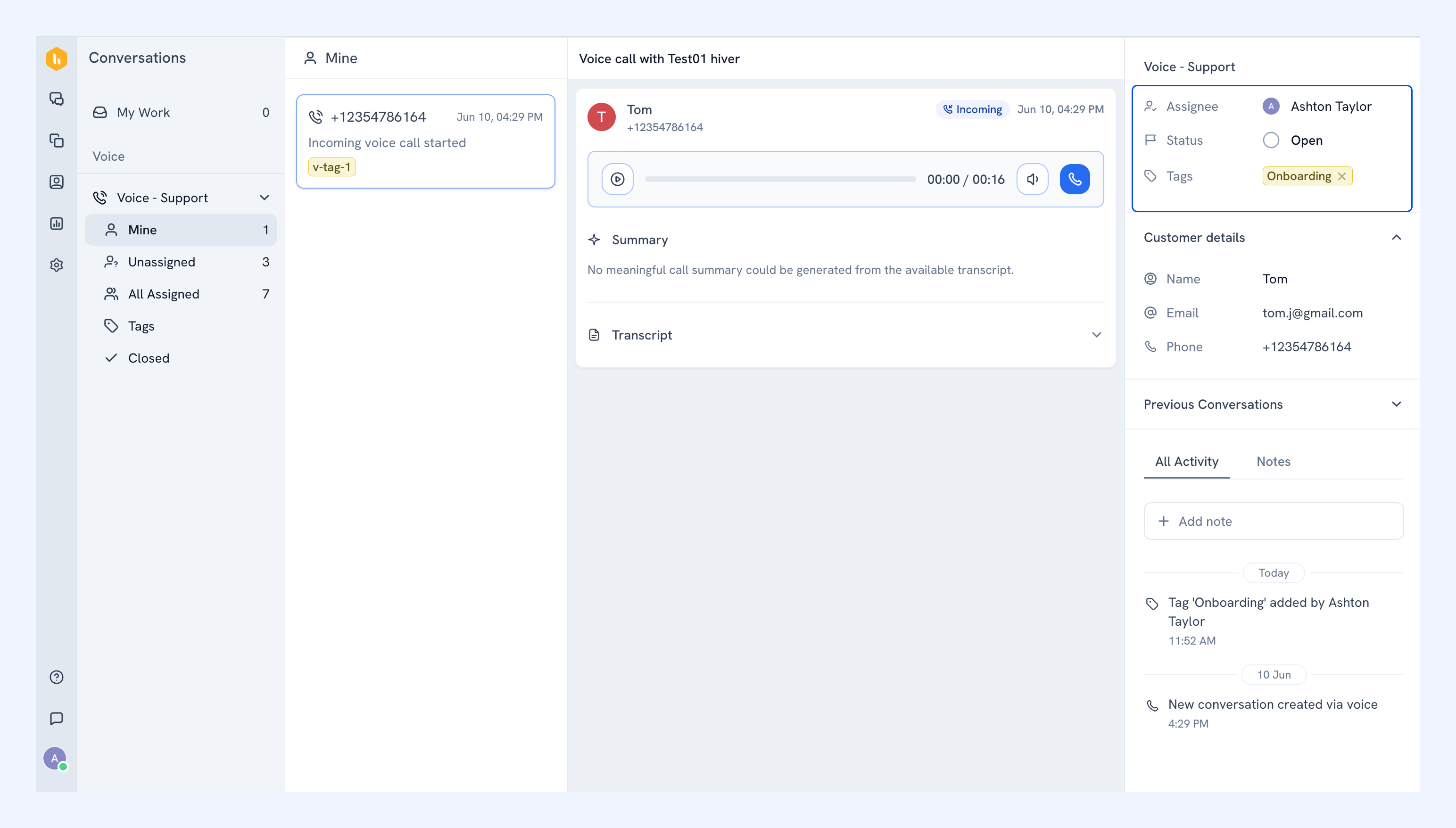
Use the right panel to update a call:
- Assignee: Assign the call to a teammate.
- Status: Update the status as the conversation progresses.
- Tags: Add tags to organize and filter calls.
Note: The team member who answers a call is automatically assigned to it.
Follow up on unanswered calls
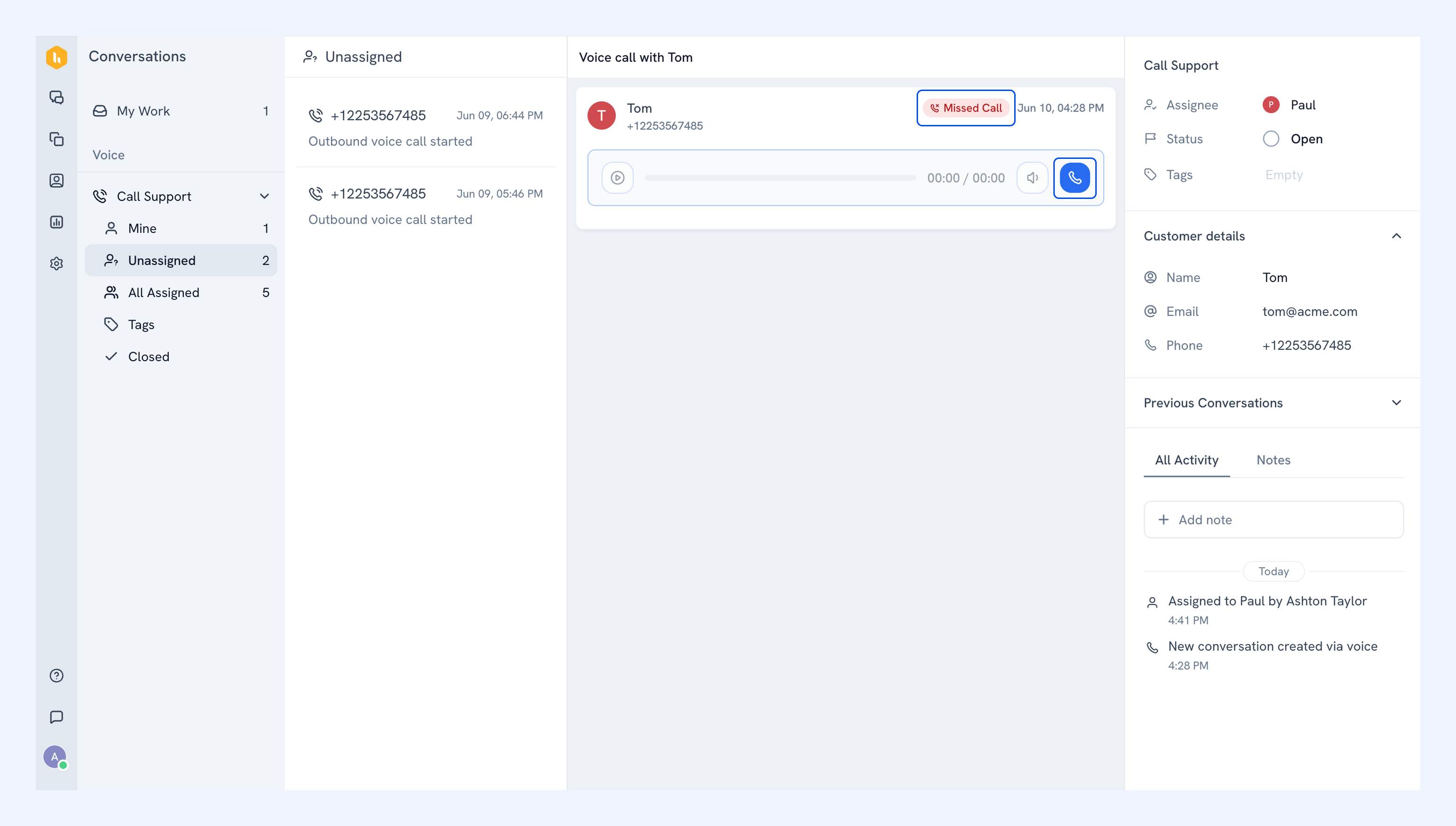
When a call goes unanswered, it is tagged Missed call. Open it to see the customer's number and call them back.
Save an unknown caller as a contact
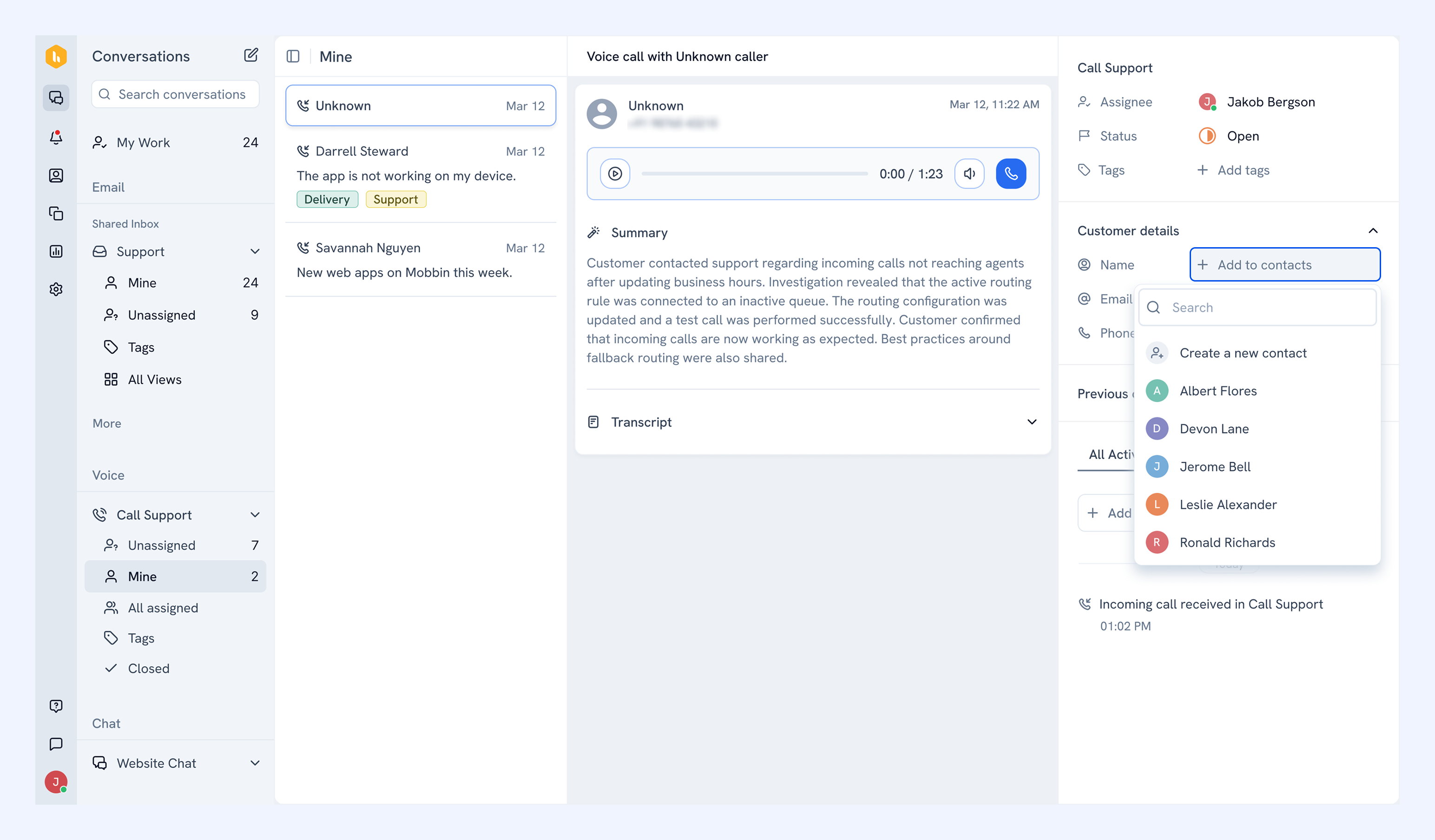
A call from a number that isn't saved in your contacts will show up as Unknown. To link the number to an existing contact:
1. Open Customer details in the right panel and click Add to contacts.
2. Search for an existing contact and select them.
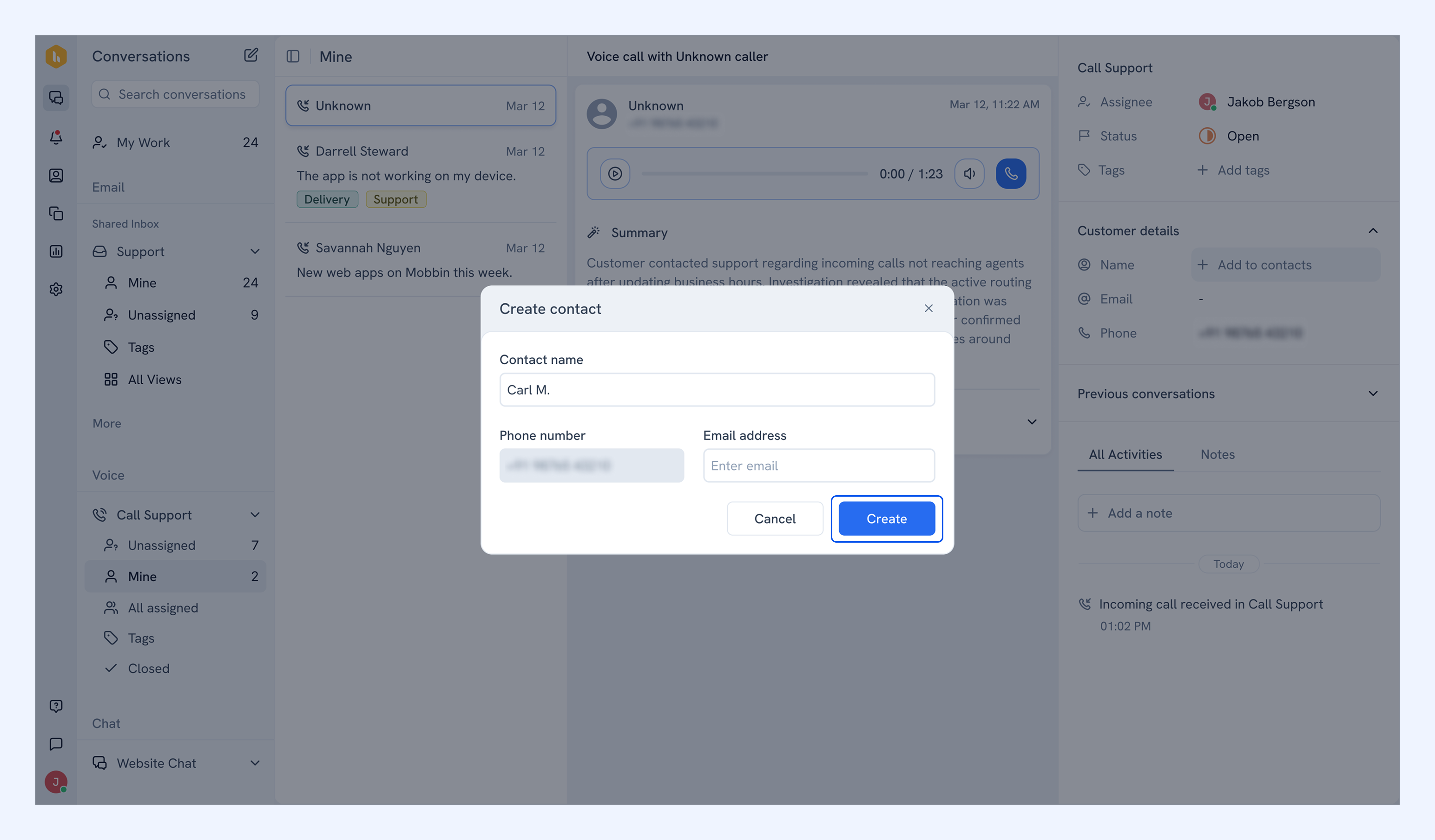
To link the number to a new contact:
1. Click Create a new contact.
2. Add a name and email, then click Create.
Related articles
FAQs
Can I receive calls while working in another Shared Inbox?
Yes. The call bar appears regardless of the Shared Inbox you're working in.
What's the difference between a missed call and a voicemail?
A missed call is an unanswered call where the customer didn't leave a message. A voicemail is an unanswered call where the customer left a message. Both are saved as conversations.
Can I change how calls are routed?
Not yet. Calls follow a fixed routing order and ring for 30 seconds per member. To stop receiving calls, a member can turn off Voice under Your availability.
If a customer calls back, does the call go to the member who spoke to them last?
No. Every call comes in as a new conversation and goes to whoever answers it.