Linking related conversations
Hiver lets you group and manage related conversations from the same customer or across multiple customers as Linked Conversations. This ensures your team has full context, responds consistently, and resolves issues faster, especially in broader issues like billing errors, downtimes, or bugs.
This guide will walk you through how to set up and manage Linked Conversations.
Why use Linked Conversations
Similar conversations can pile up in two common ways:
1. Across multiple customers: During a product outage or a shipping delay, many customers tend to flood your inbox with similar requests, making it difficult to track and respond consistently.
2. From the same customer: A customer might first request a product replacement and later follow up with a delivery date change. Without the earlier thread, an agent may lack context to respond effectively.
In both cases, Linked Conversations help your team keep track of the bigger picture and coordinate efforts. This allows your team to:
- Get full context: See all related requests and ensure teammates have the context they need before replying.
- Respond consistently across customers: Keep responses aligned when multiple customers report the same issue.
- Avoid duplicate work: Prevent multiple teammates from responding to the same issue separately.
- Ensure ownership: Track who owns each thread and reassign when needed.
- Enable faster handovers: Give teammates instant visibility into related issues for smooth transitions.
Steps to link conversations
1. Open a conversation and go to the Hiver right panel.
2. Open Linked Conversations and click Start linking.
.png)
3. Search for the conversations you want to link. You can search by the customer’s name or by the email subject.
.png)
4. Hover over the conversation you want to link, select the checkbox, and click Link.
.png)
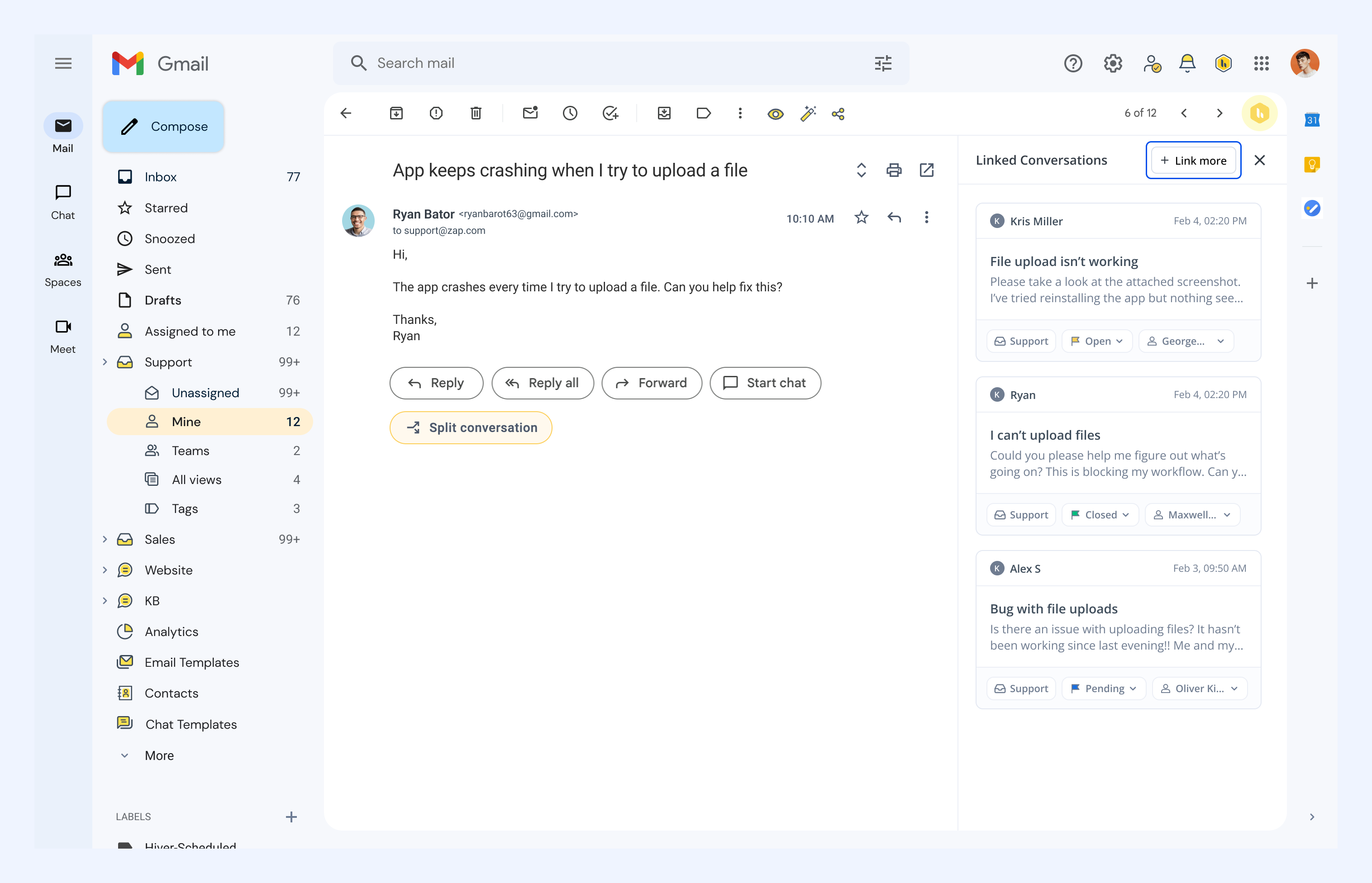
Once linked, the selected conversations will appear in the Linked Conversations panel. To link more conversations, click Link more.
Managing Linked Conversations
The Linked Conversations panel gives you an overview of each related thread, including its tag, status, and assignee. This helps your team stay coordinated and ensures no context is lost.
From the Linked Conversations panel, you can:
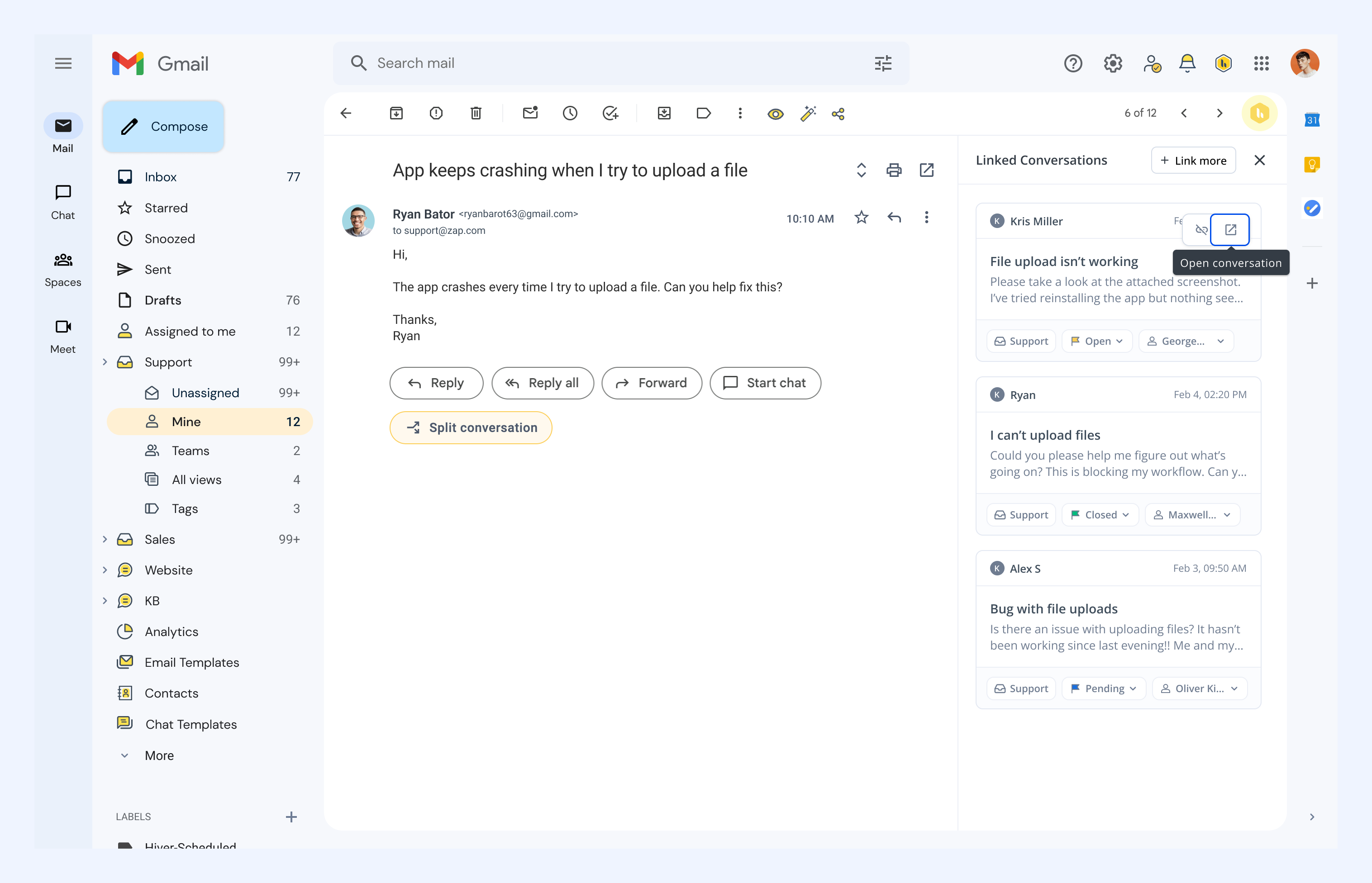
1. Open any related conversation: Click Open conversation to open it.
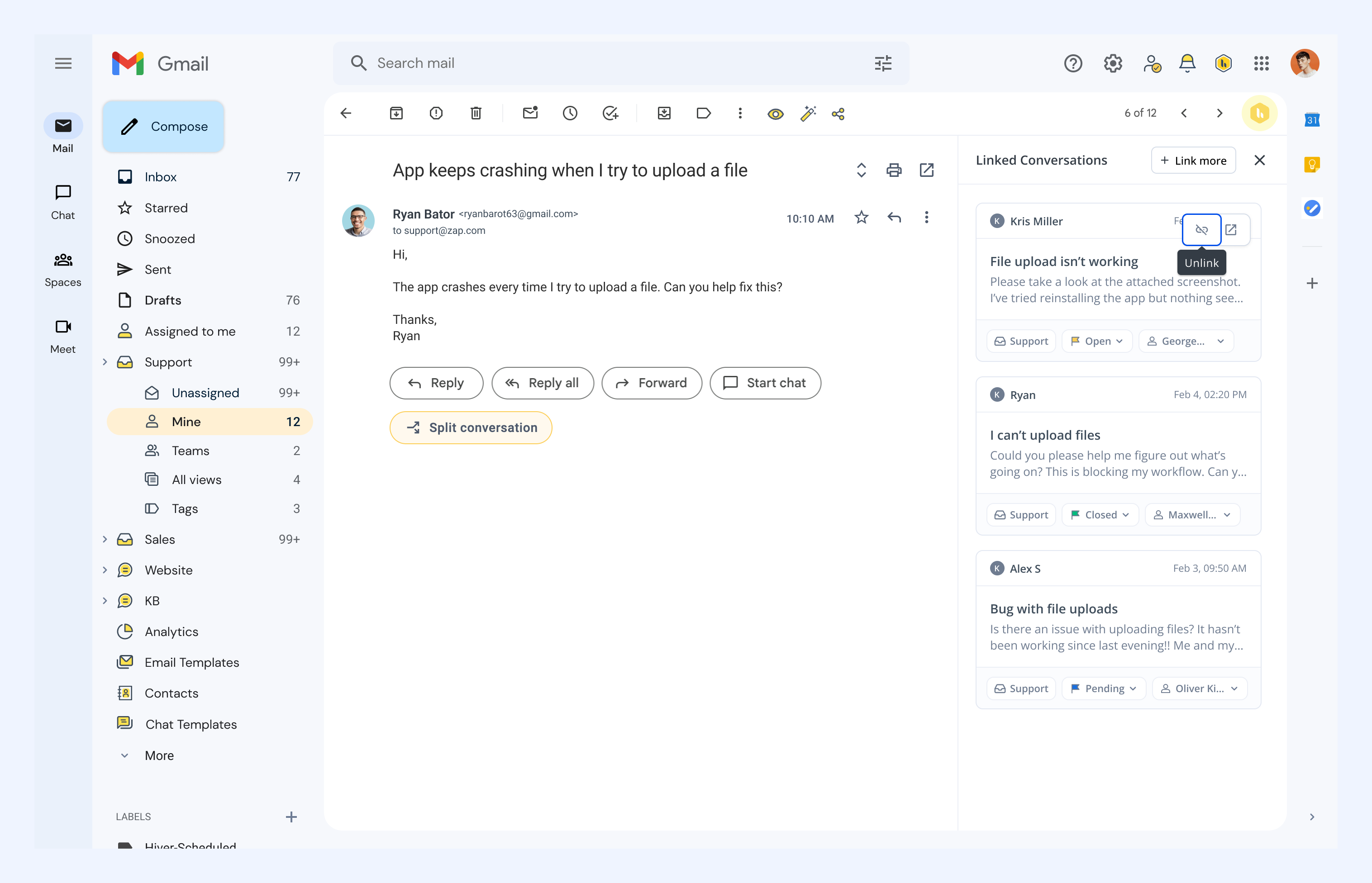
2. Unlink a conversation: Click Unlink and confirm.
Note: Unlinking removes the conversation from the linked group but does not delete it.