Viewing account and contact details in conversations
When you're replying to a customer, it helps to know who they are: their company, their details, and what they've contacted you about before. Hiver shows all of it in the Customers panel.
This guide covers how to open account and contact details from inside a conversation and how to change the primary contact. To manage these records from the Customers tab, see managing accounts and contacts.
Viewing account information
1. Open a conversation from your Shared Inbox.
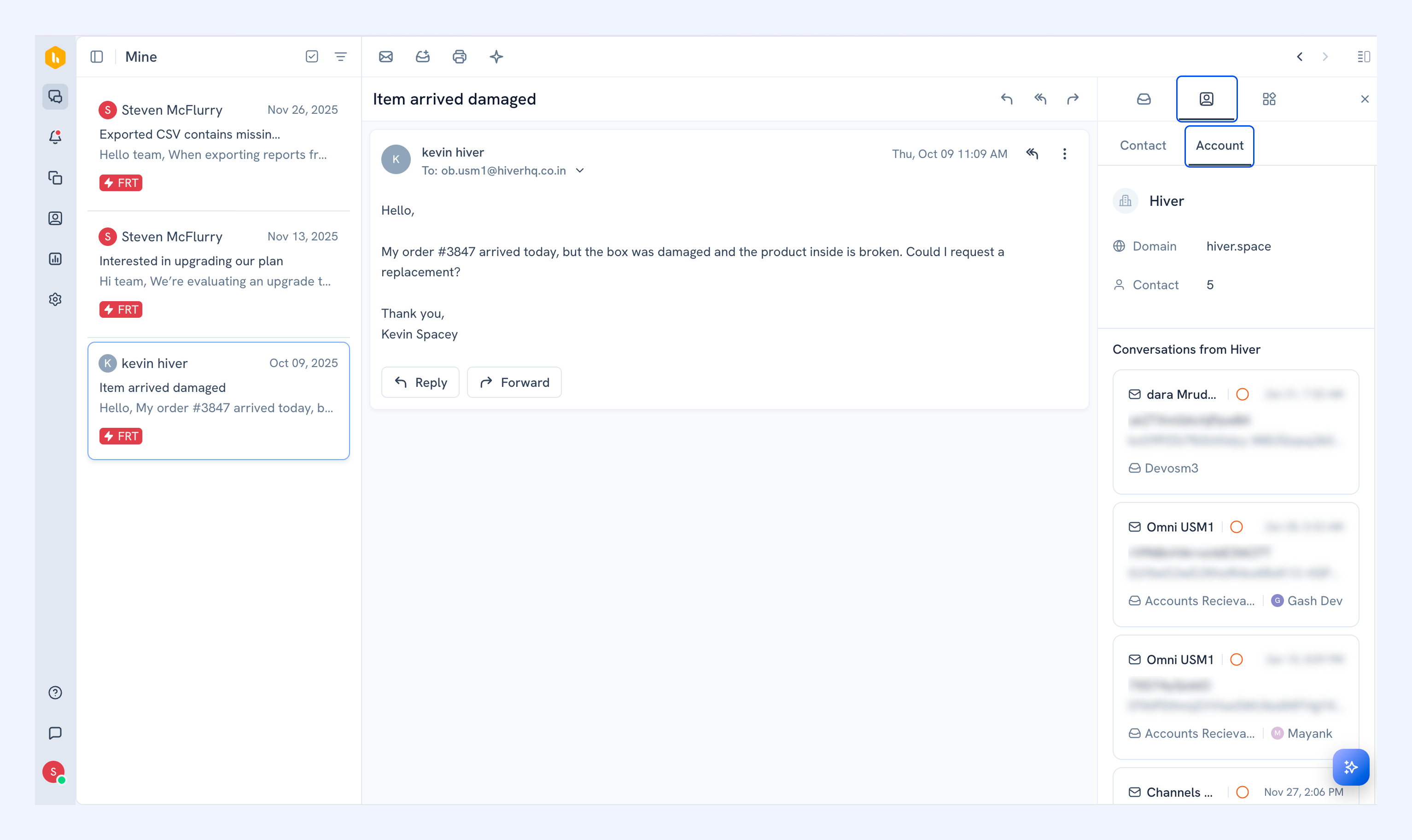
2. Click the Customers tab.
3. Select Account to see the account name, domain, the number of contacts from the company, and a complete list of previous conversations with this account across all inboxes.
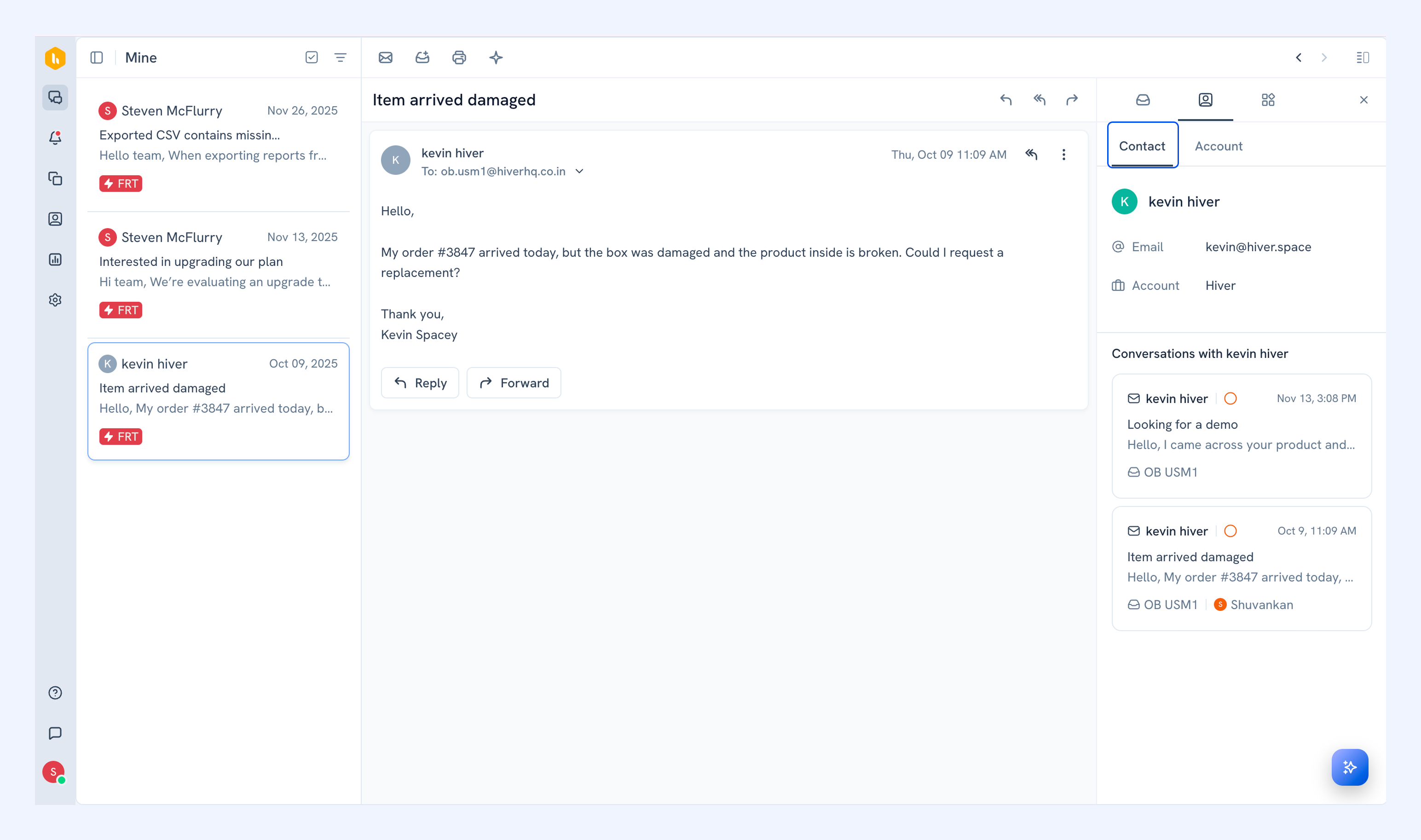
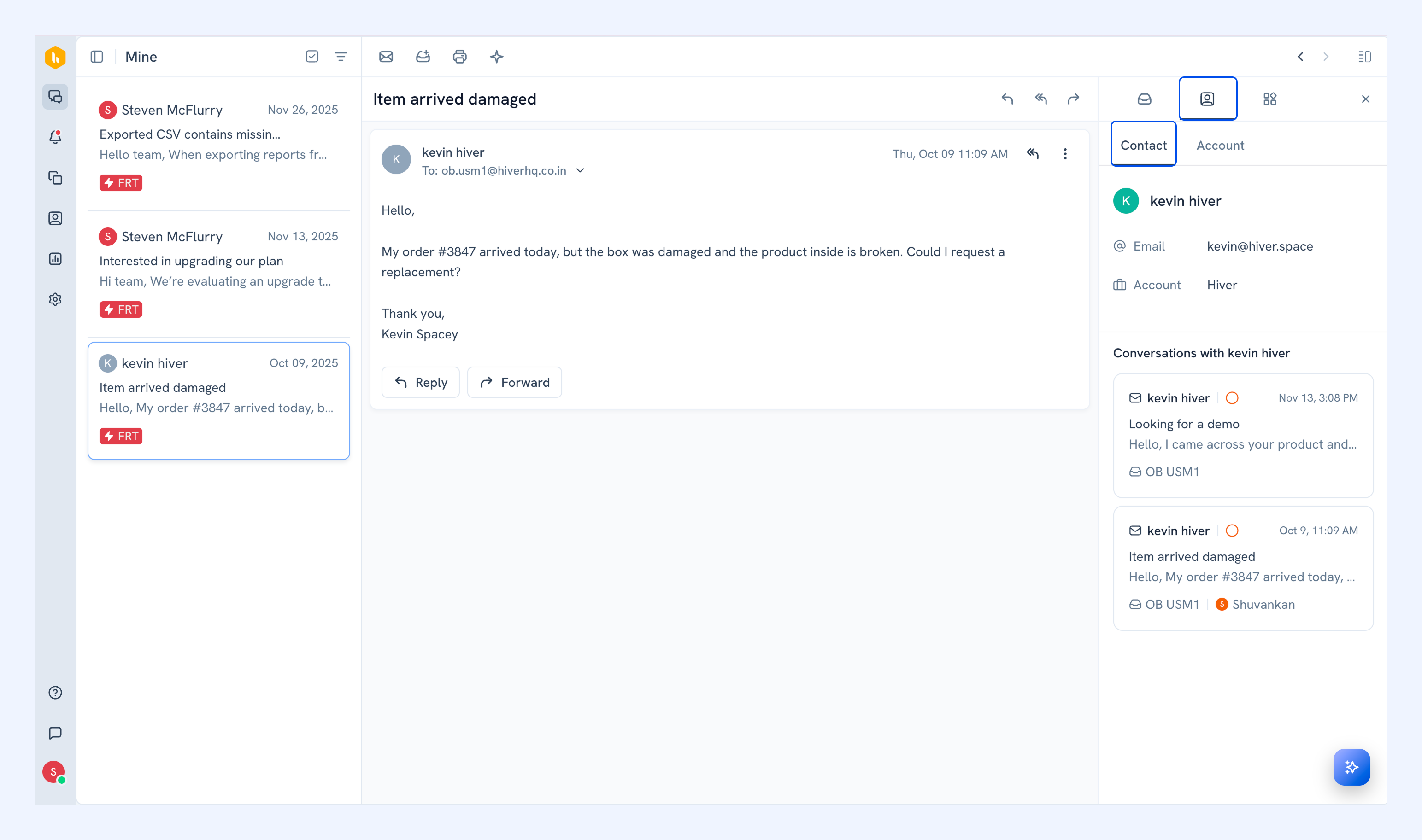
4. Select Contact to see the contact's name, email, phone number, and their complete conversation history across all inboxes.
Changing primary contact
The primary contact is the main person associated with a conversation. You can change who the primary contact is for any conversation:
1. Open any conversation and go to Customers → Contact.
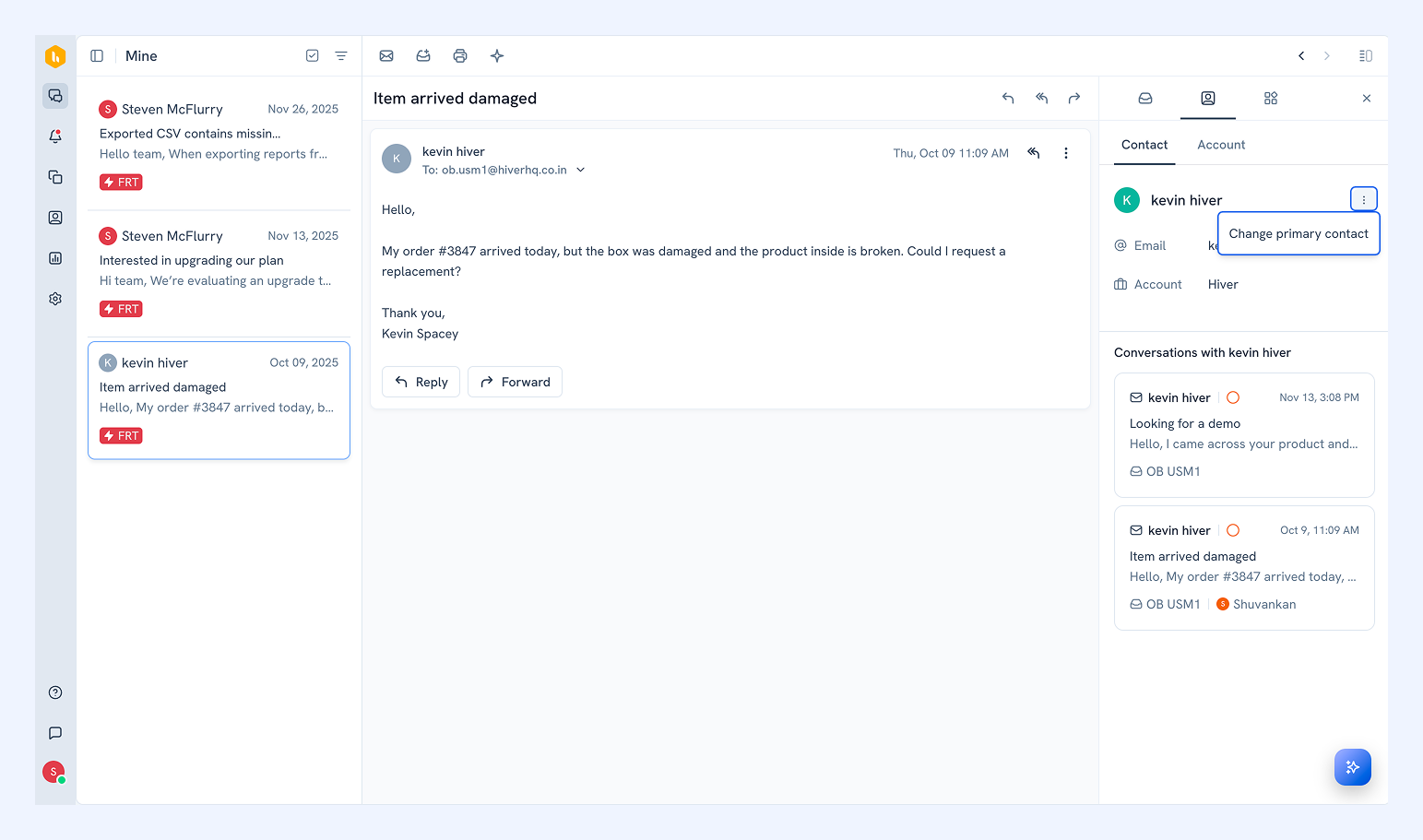
2. Hover over the contact section and click the three-dot menu.
3. Select Change primary contact.
4. Enter or select the new contact name.
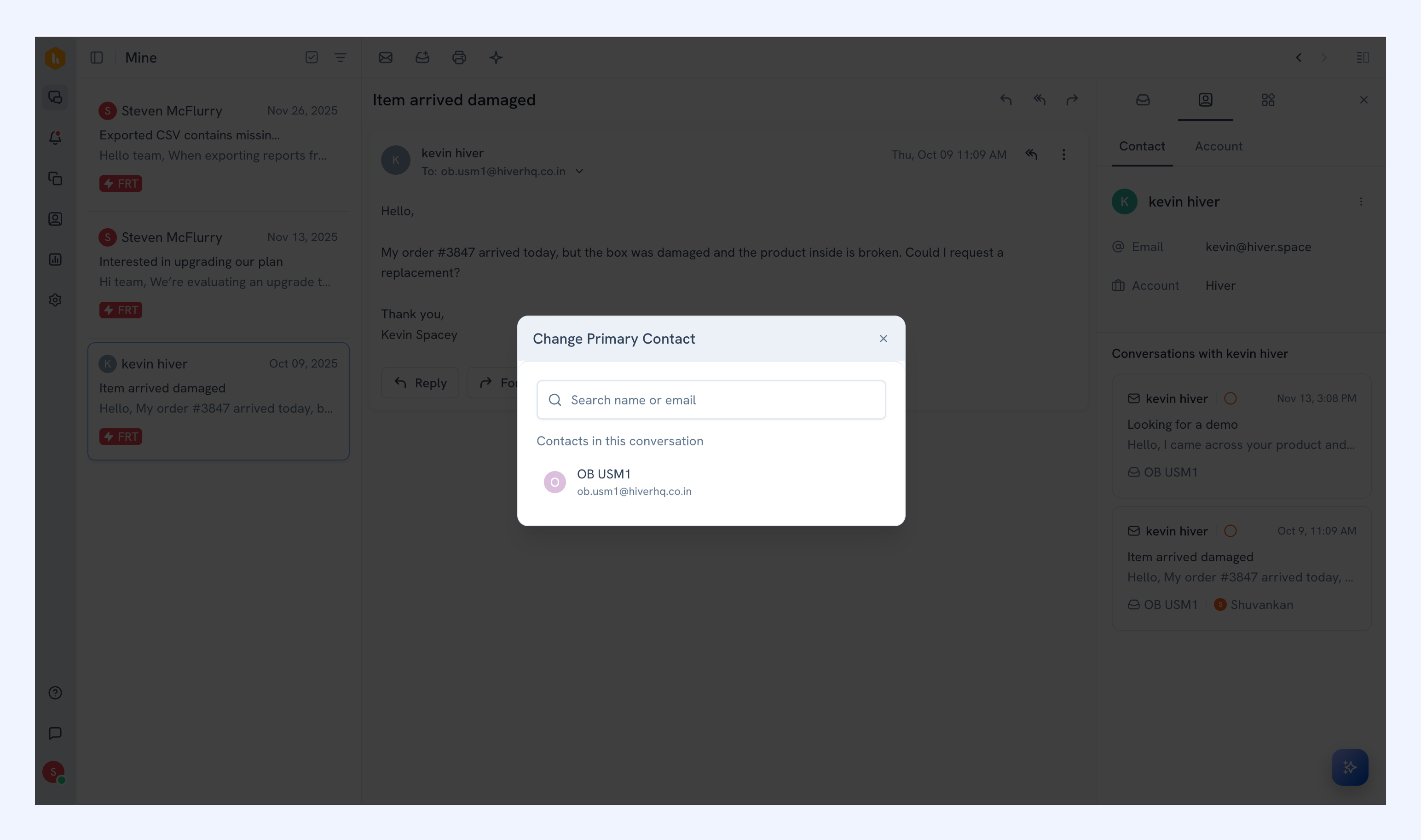
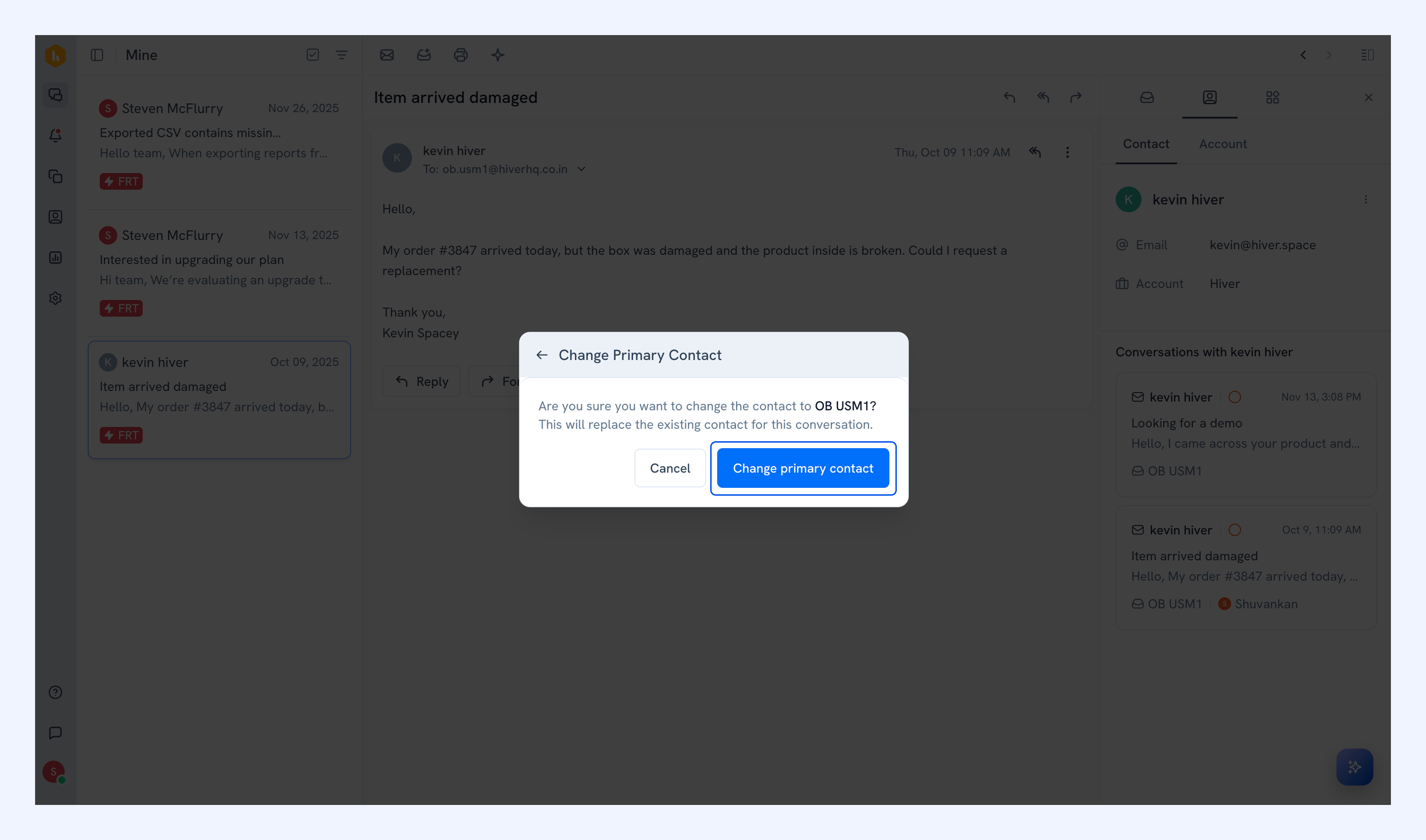
5. Click Change primary contact to confirm.
Related articles
Managing accounts and contacts
Importing and syncing accounts and contacts
Managing emails in Shared Inbox