Assigning channels to My Work queues
My Work gives members a single place to manage conversations assigned to them across inboxes and channels. Members can customize their view and choose whether to show conversations that haven’t been assigned to anyone.
As an Admin, you choose which channels belong to the Live and Standard queues based on how your team handles conversations.
Choose which channels need live attention
- Live queue: For channels where conversations need quick responses. When a new live conversation arrives while a member is working elsewhere in Hiver, a red dot flashes beside Live Queue to draw their attention to it.
- Standard queue: For channels where conversations can be handled more flexibly.
For example, if your team handles Slack conversations in real time, you can place Slack in the Live queue.
By default, Chat, Voice, SMS, and WhatsApp belong to the Live queue, and Email and Slack belong to the Standard queue. You can change the queue for any enabled channel.
Assign channels to queues
Only Admins can change this setting.
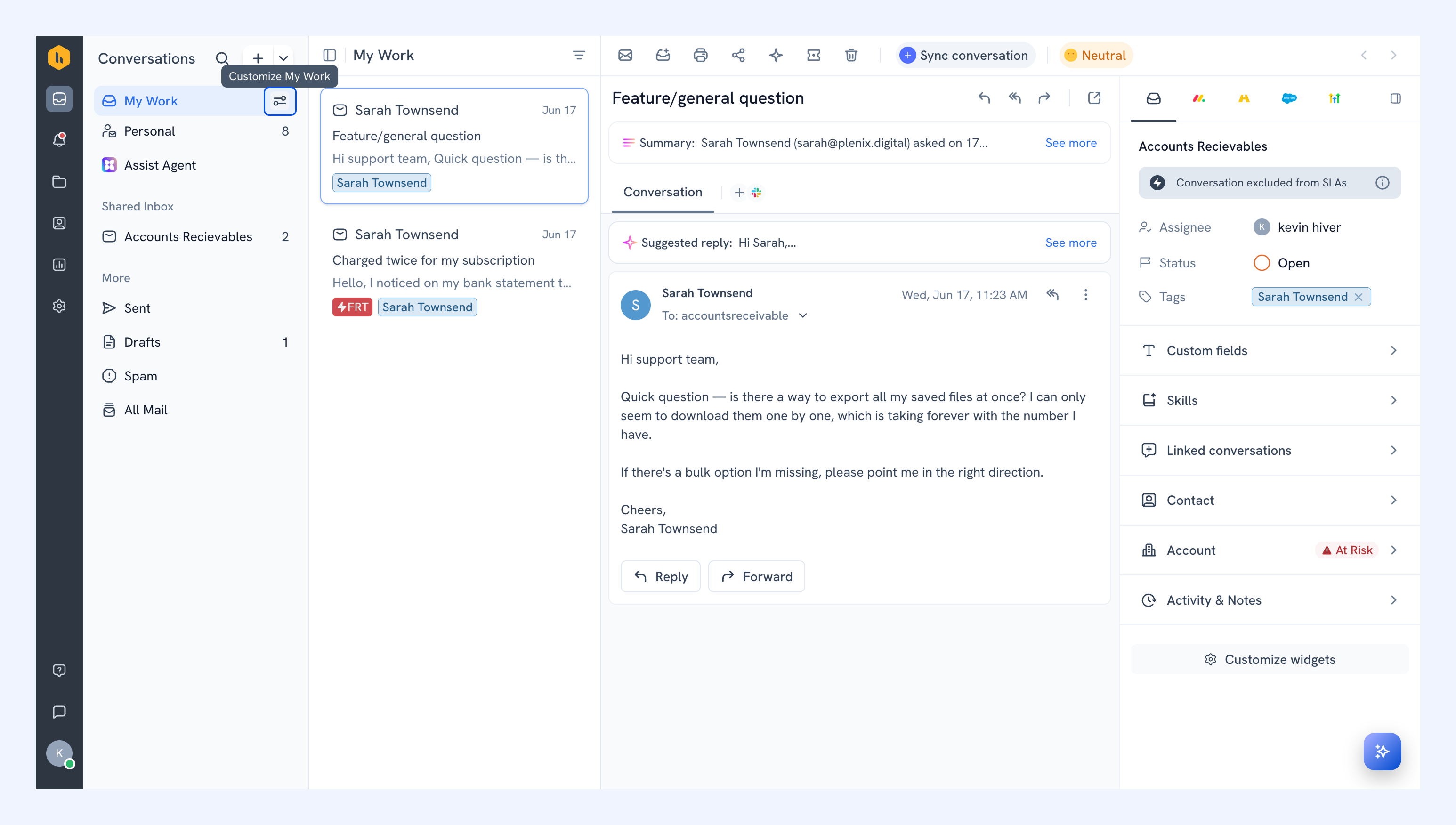
1. Hover over My Work and click the customize icon.
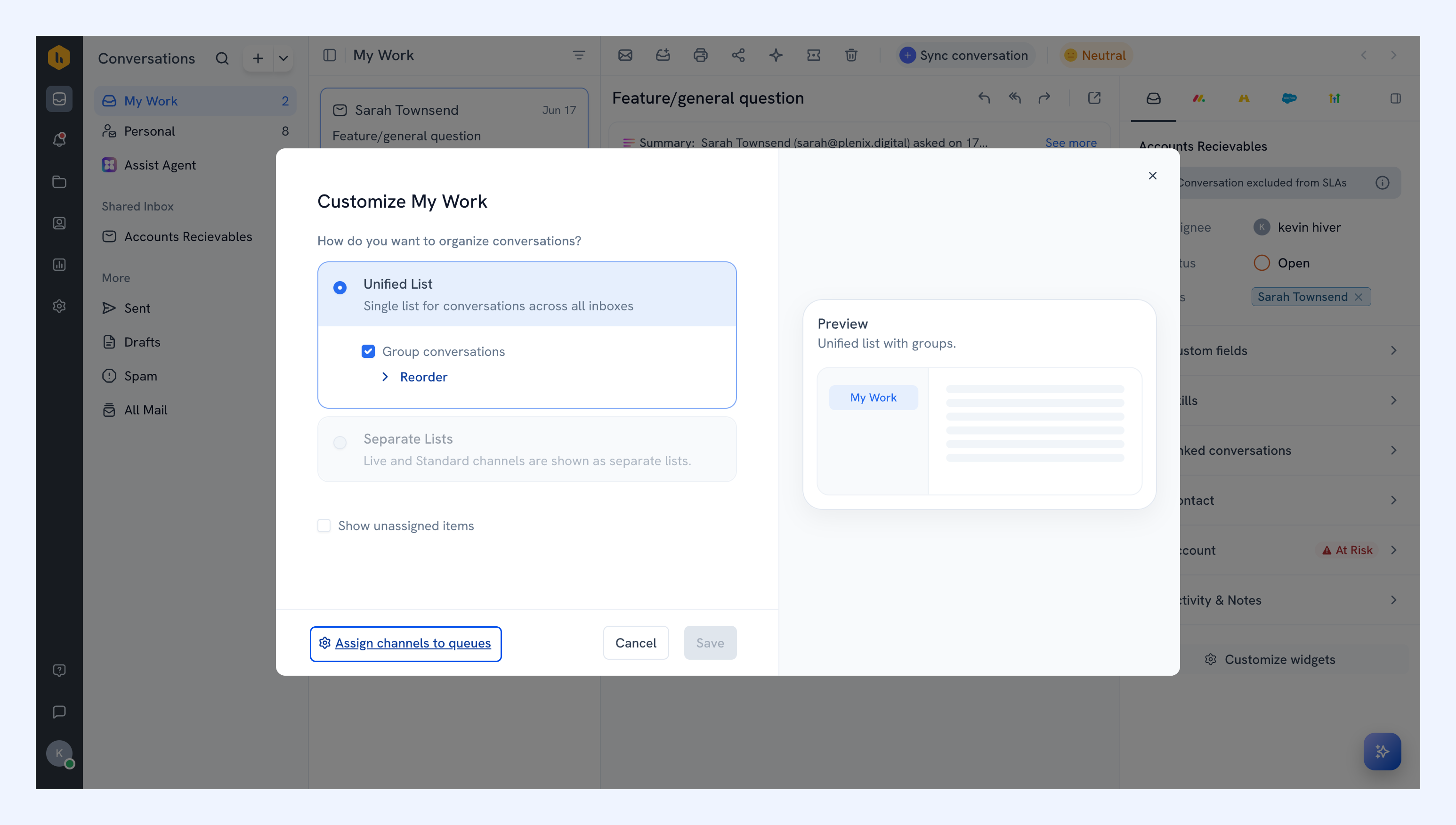
2. Click Assign channels to queues.
3. For each channel, select Live queue or Standard queue.
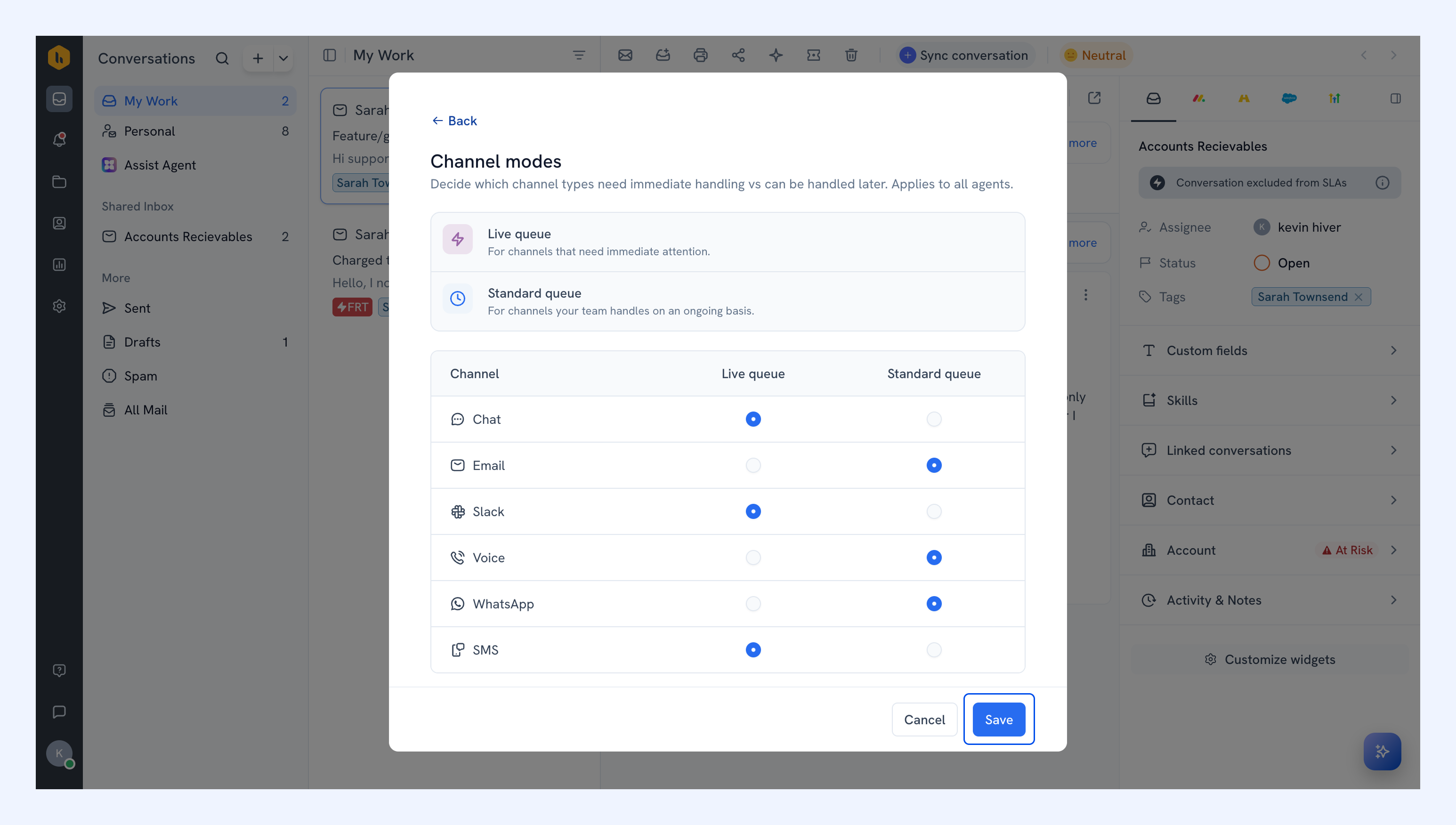
4. Click Save.
Your changes apply immediately to My Work for everyone on your account, including which channels trigger live attention signals.
Members cannot change the channel configuration. Each member can choose whether to display conversations in a unified list or separate lists, include unassigned conversations, and customize grouping.
Learn more about setting up My Work.