Setting up Round Robin Assignment
You can use Round Robin Assignment to automatically assign emails received in a Shared Inbox to users so that each one gets tasks in turn. This ensures equal and prompt assignment of emails, improving efficiency.
Enable Round Robin Assignment
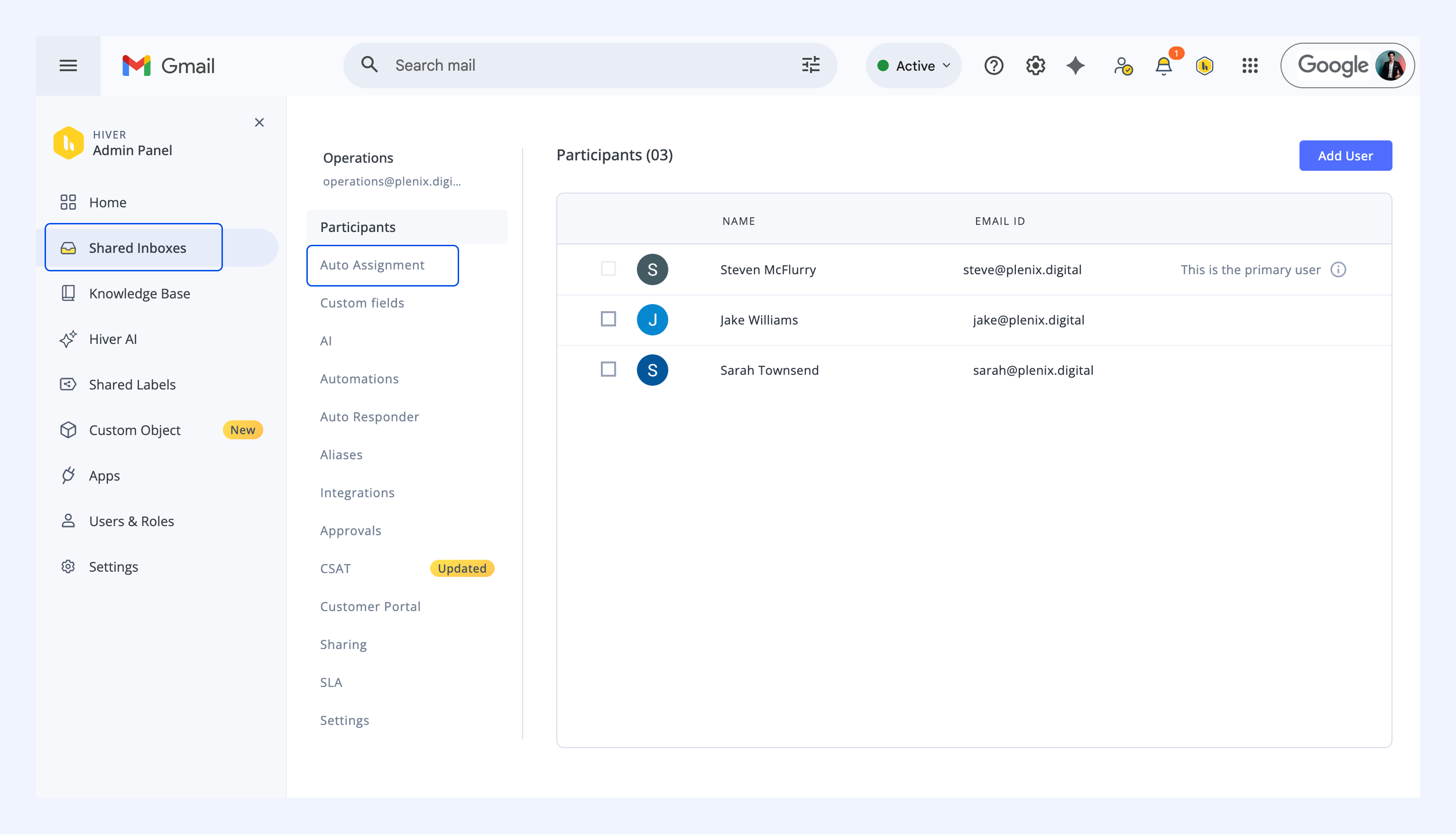
1. Go to Hiver Settings → Admin Panel → Shared Inboxes.
2. Select the Shared Inbox where you want to enable Round Robin Assignment.
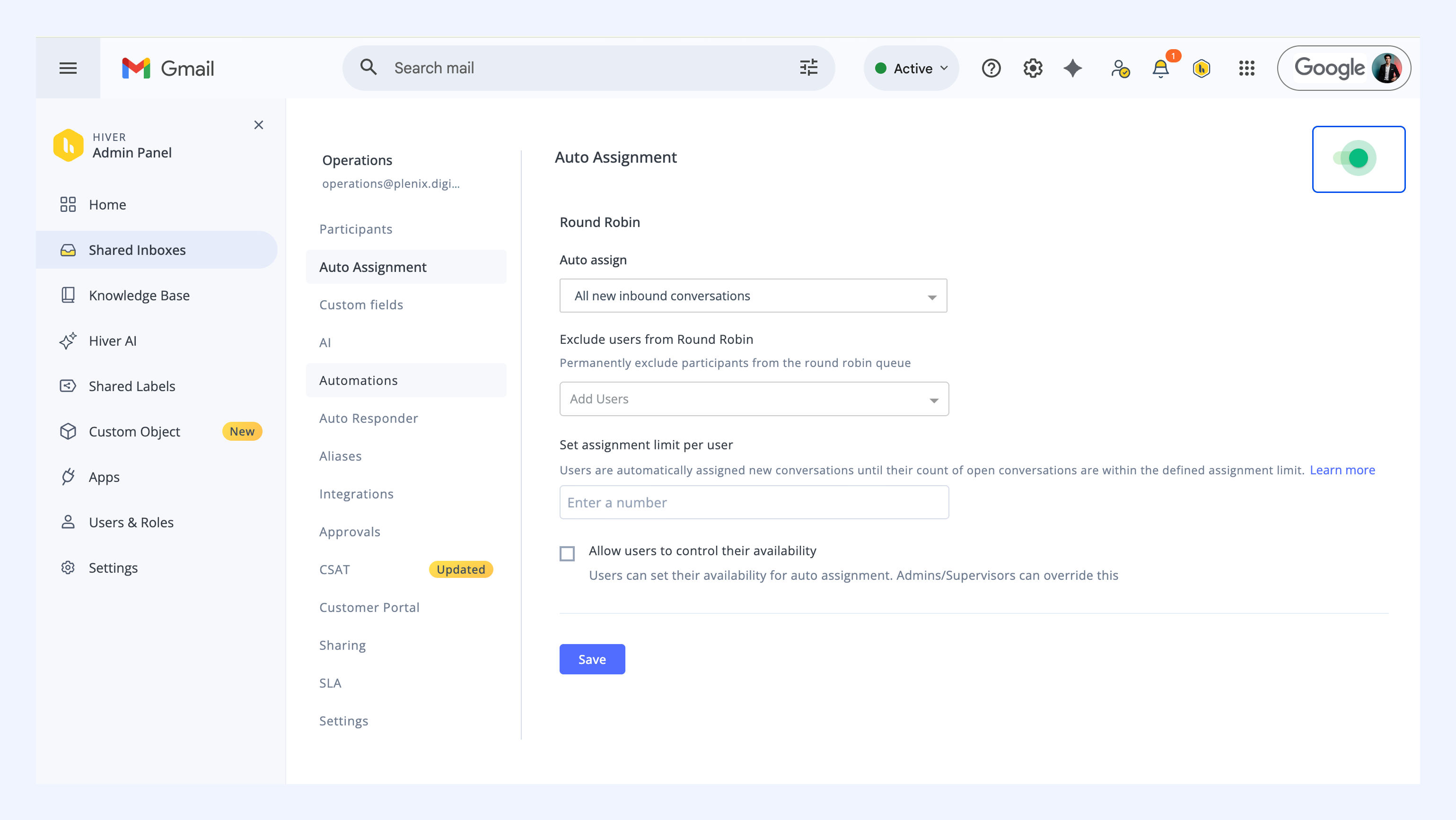
3. Click Auto Assignment.
4. Turn on the toggle to enable Auto Assignment.
Round Robin Assignment Based on Tags
You can use Round Robin Assignment based on Tags to define specific conditions for which conversations should be auto-assigned. This ensures only relevant conversations get automatically assigned. Learn more about email Tags.
This is useful for teams who want to use auto-assignment but have specific workflows where only certain types of conversations should be assigned across all users of the inbox.
To set this up,
1. Follow steps 1-5 from the Enable Round Robin Assignment section above.
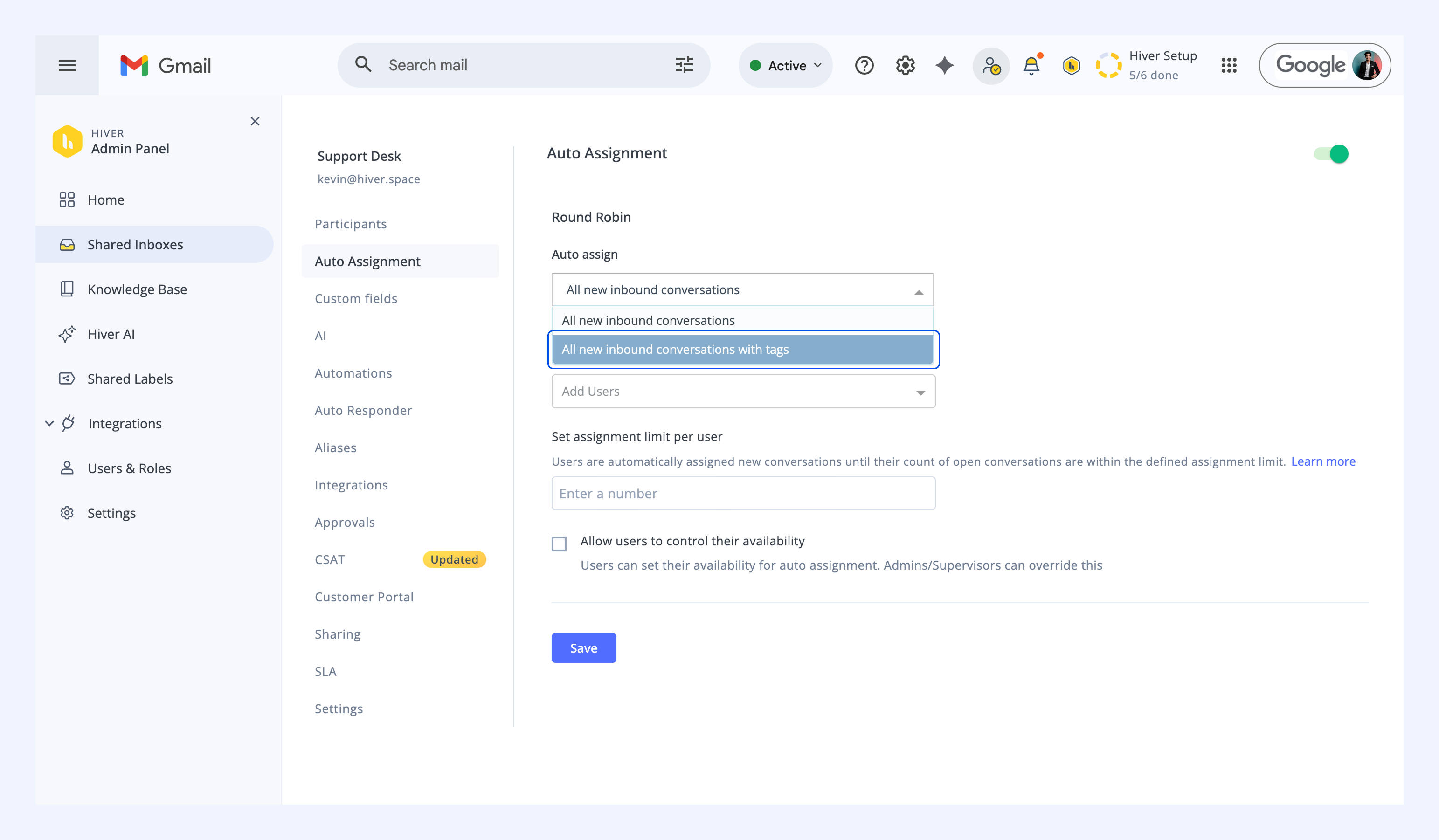
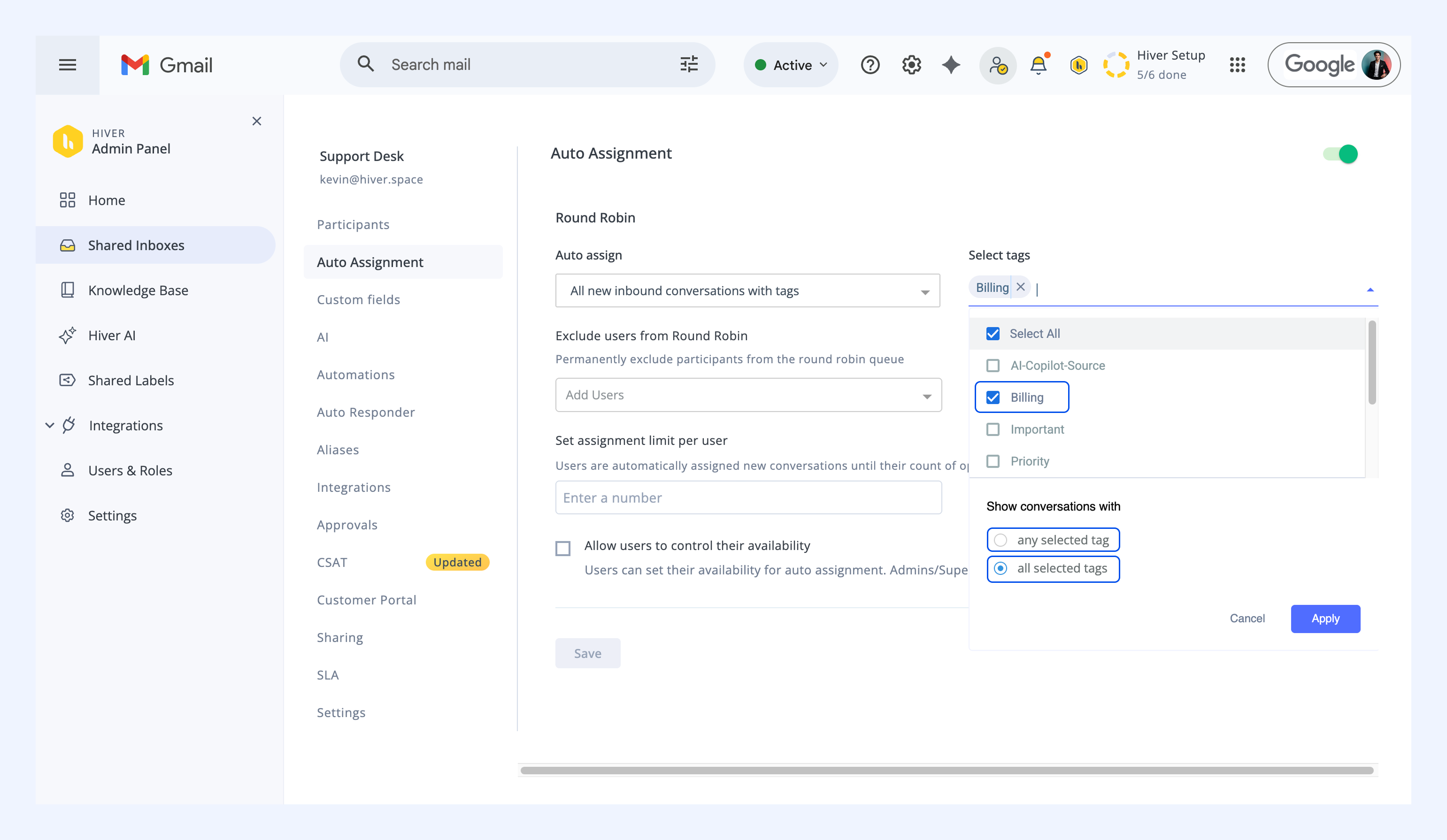
2. On the Auto Assignment screen, click the dropdown menu and select All new inbound conversations with Tags.
3. Select the Tags based on which you want the conversations to be assigned. Next, under Show conversation with, choose between any of the Tags or all of the Tags.
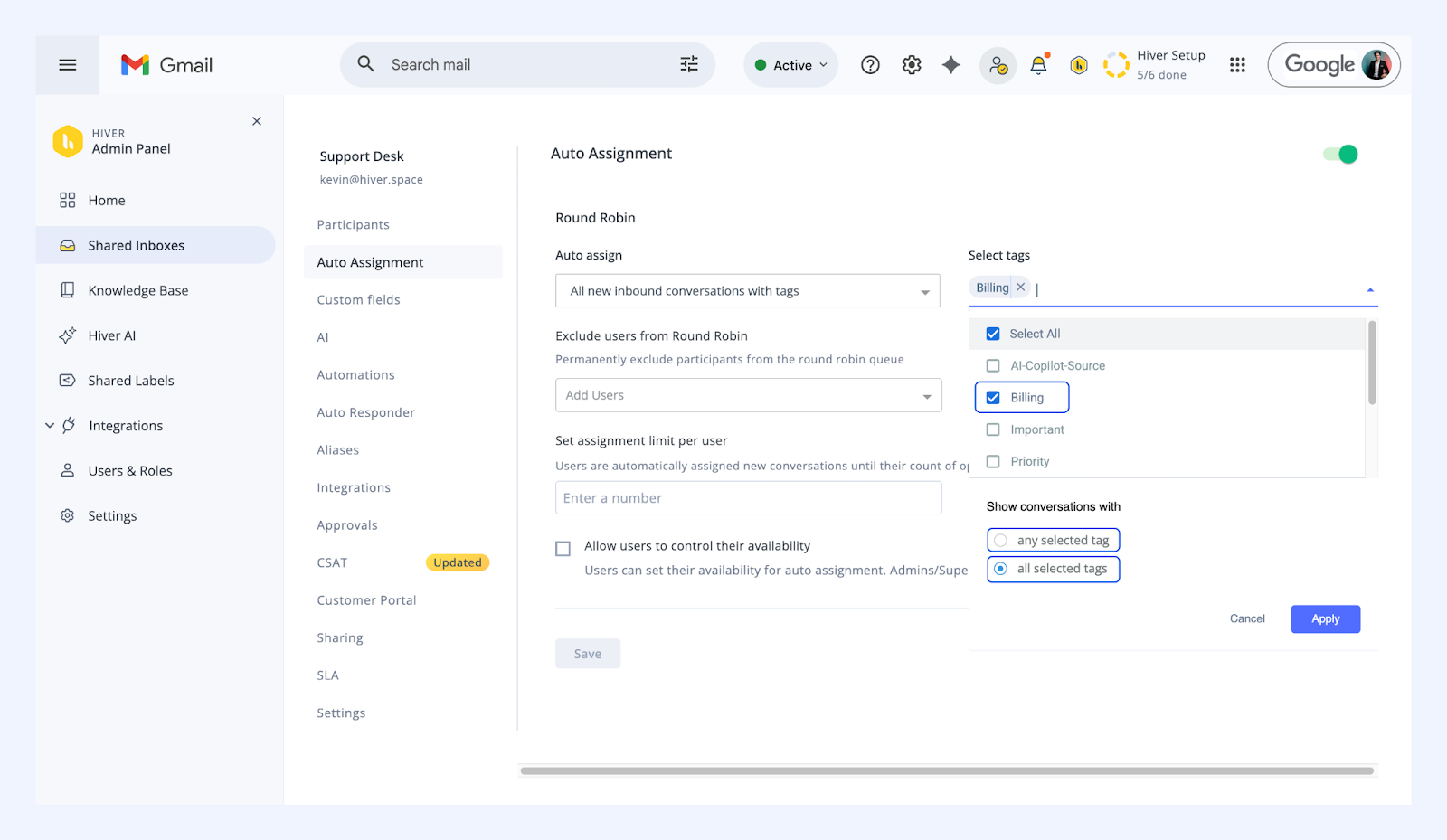
4. Click Apply and then click Save.
Note: You can only create Tag-based Round Robin Assignment for Tags on which automations have been previously set up.
Exclude users from Round Robin Assignment queue
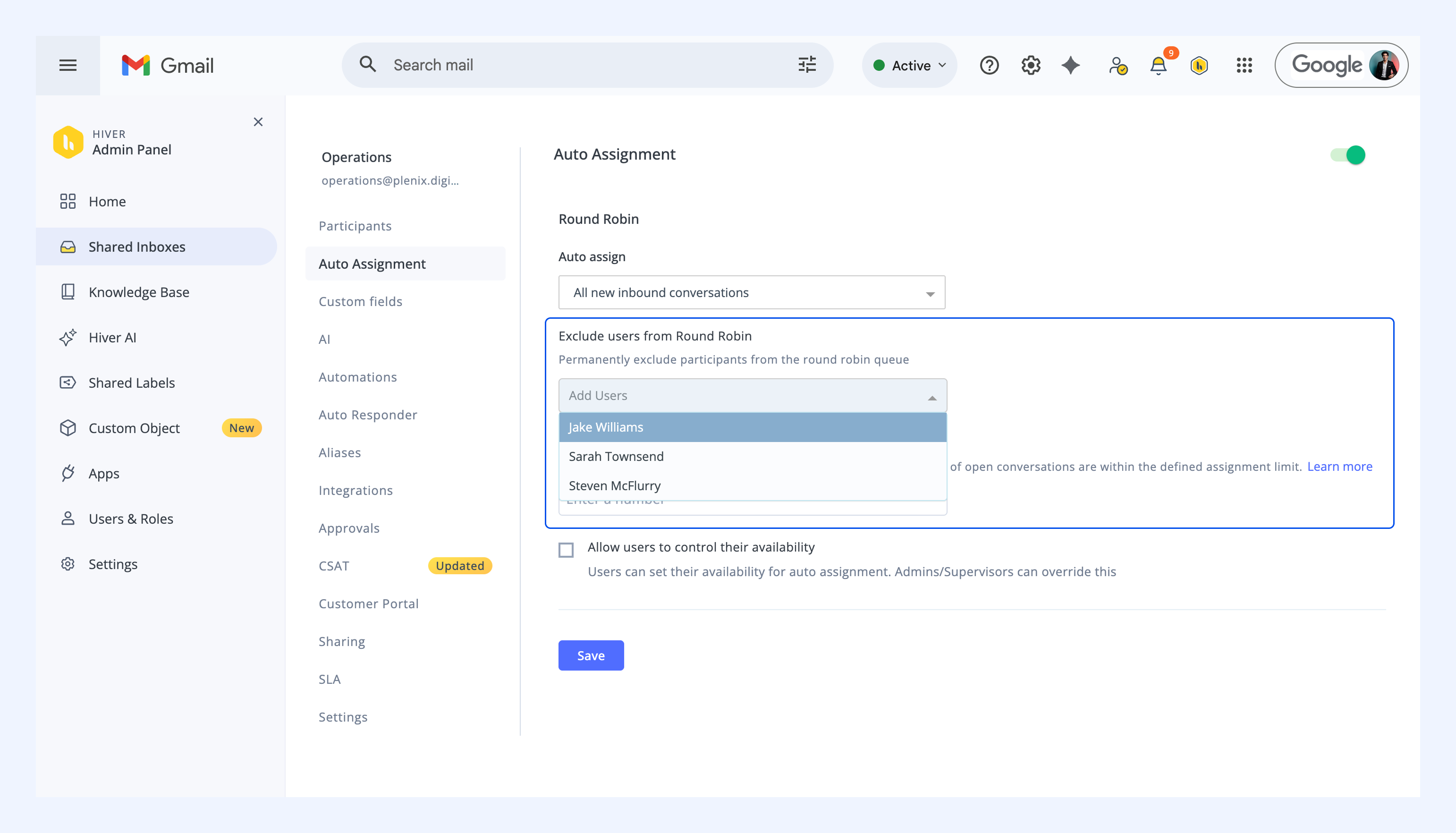
You can exclude certain users, such as admins, from automated Round Robin Assignments. This can be changed at any time, and the new settings are reflected immediately.
To exclude a user, choose their name from the dropdown under the Exclude users from Round Robin setting. Repeat this step to remove more users.
Assignment limits for Round Robin Assignment
To prevent your team from becoming overburdened with the number of conversations being automatically assigned to them, you can set up a defined assignment limit.
Note: This feature is only available on the Pro and Elite plans.
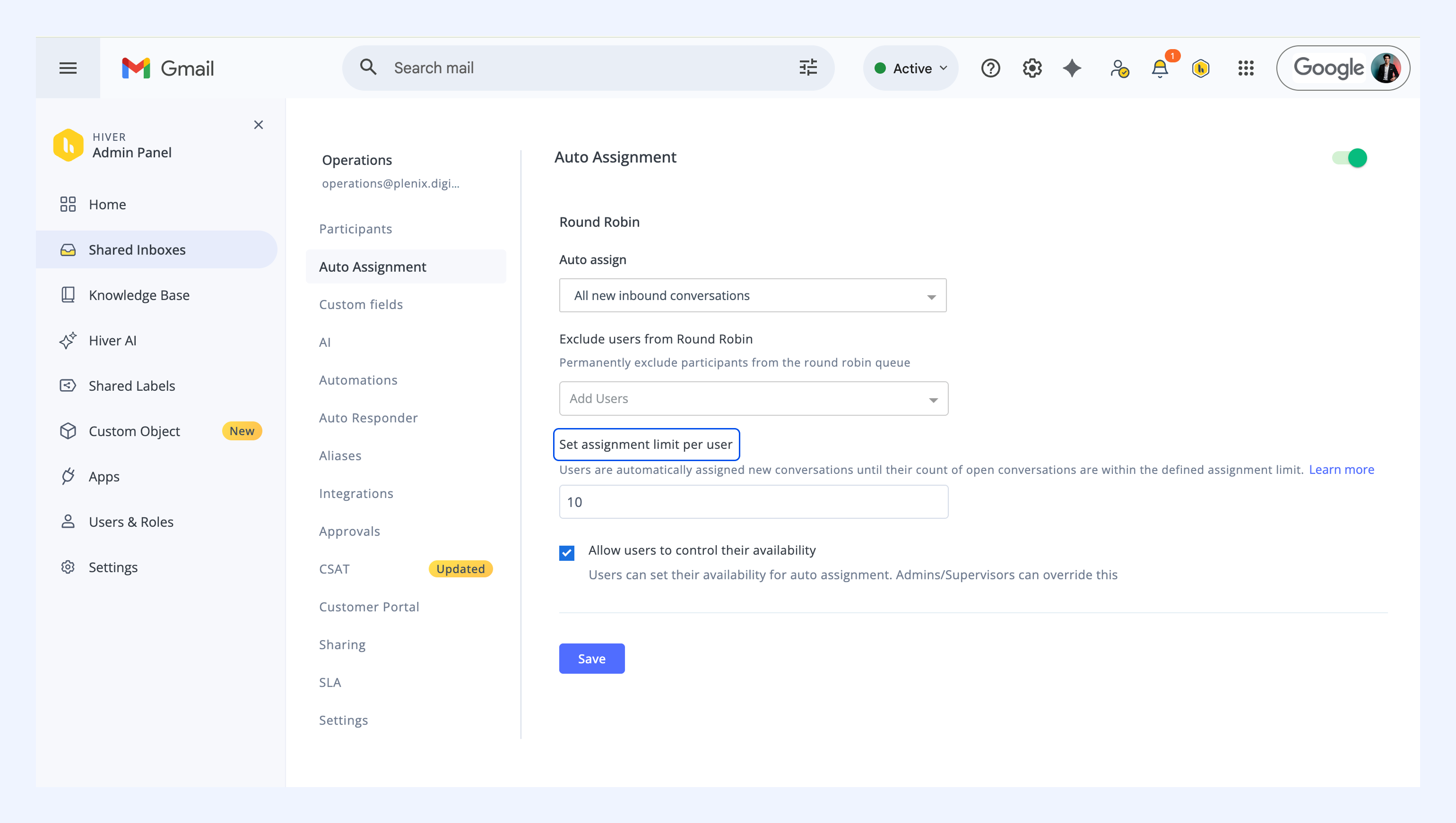
For example, if you define 10 as the assignment limit, any member of the assignment pool will only be assigned conversations if the number of their Open conversations is less than the defined limit of 10.
Manage user availability for Round Robin Assignment
Emails are automatically assigned only to users who are marked as available. By default, all users in a Shared Inbox start as unavailable.
Once you enable Auto Assignment, you’ll need to choose which users should be part of the auto-assignment queue. You can do this two ways:
Let users manage their own availability
Allowing your team to control their own availability ensures smooth handoffs when someone is on break or out of office without affecting response times.
To enable this, select the Allow users to control their availability checkbox.
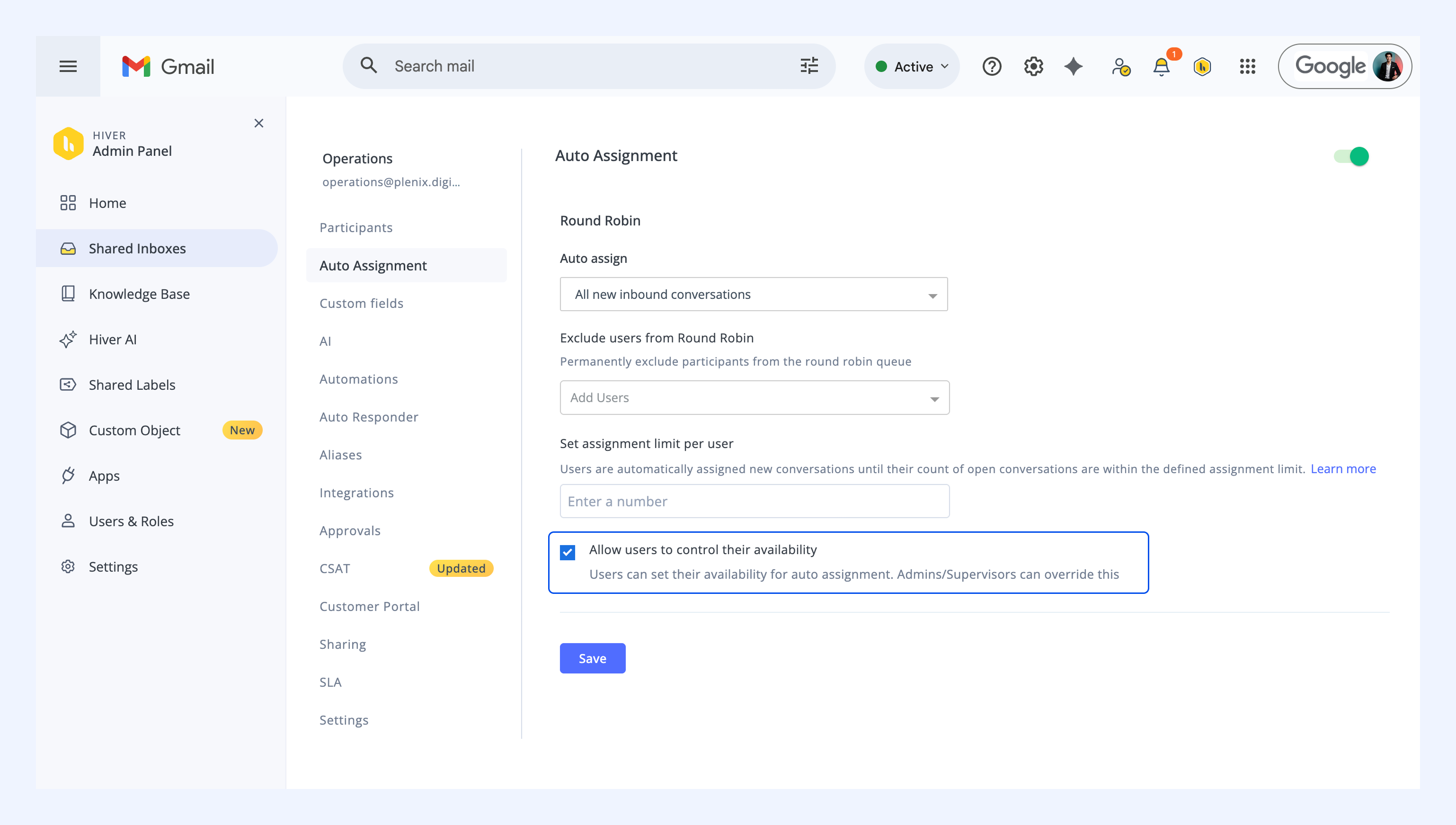
1. If enabled: Users can mark themselves available or unavailable using the Available for Auto Assignment toggle in the Hiver settings dropdown.
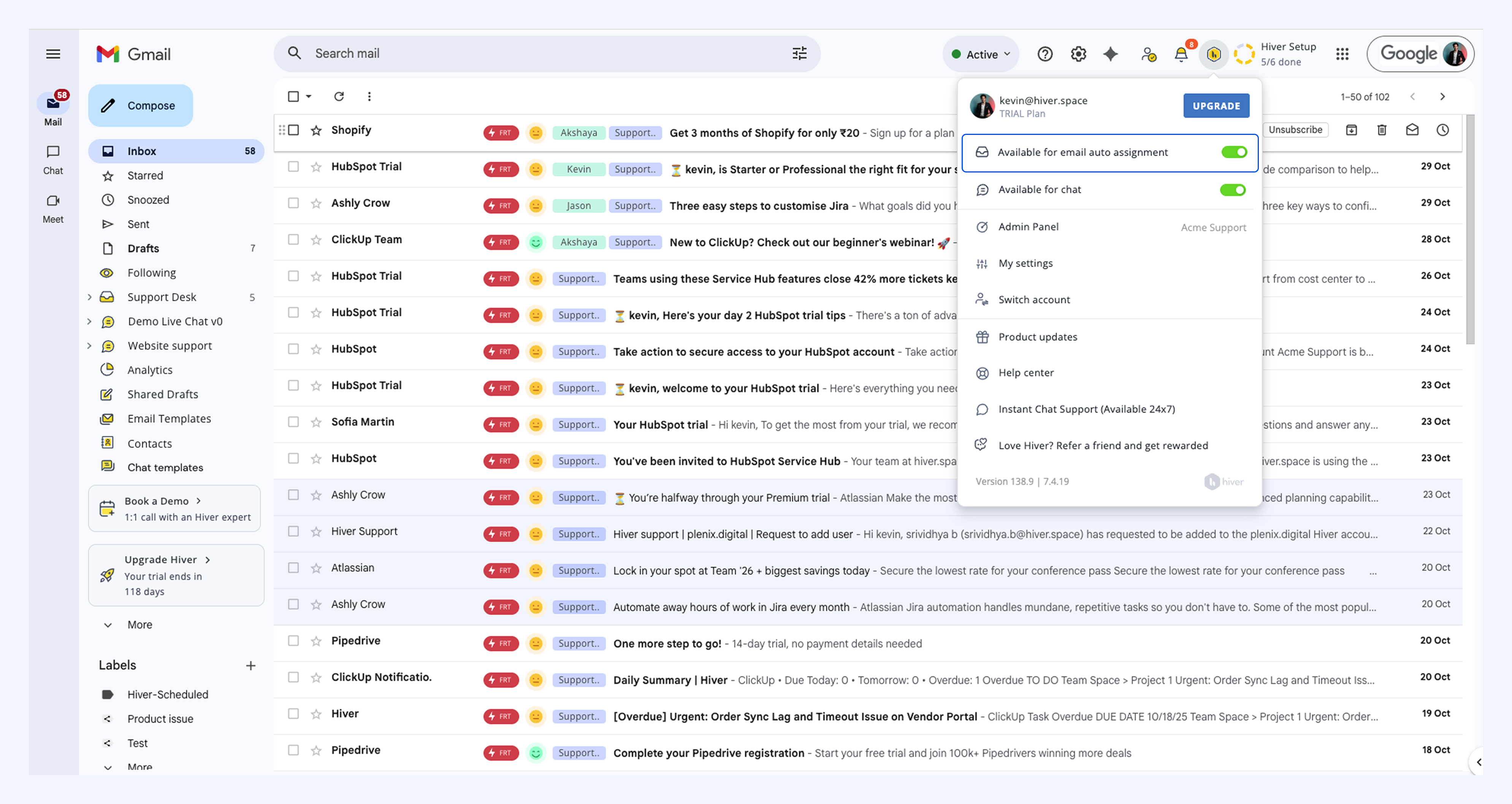
2. If disabled: Only users with permission to manage availability can change it for others. This permission is available by default for Supervisors, Inbox Admins, and Admins. Learn more about roles and permissions.
To manage availability as an admin or supervisor
1. Click the Manage user availability icon (the third Hiver icon from the top-right corner of Gmail).
2. If you manage multiple Shared Inboxes, select the relevant one from the dropdown.
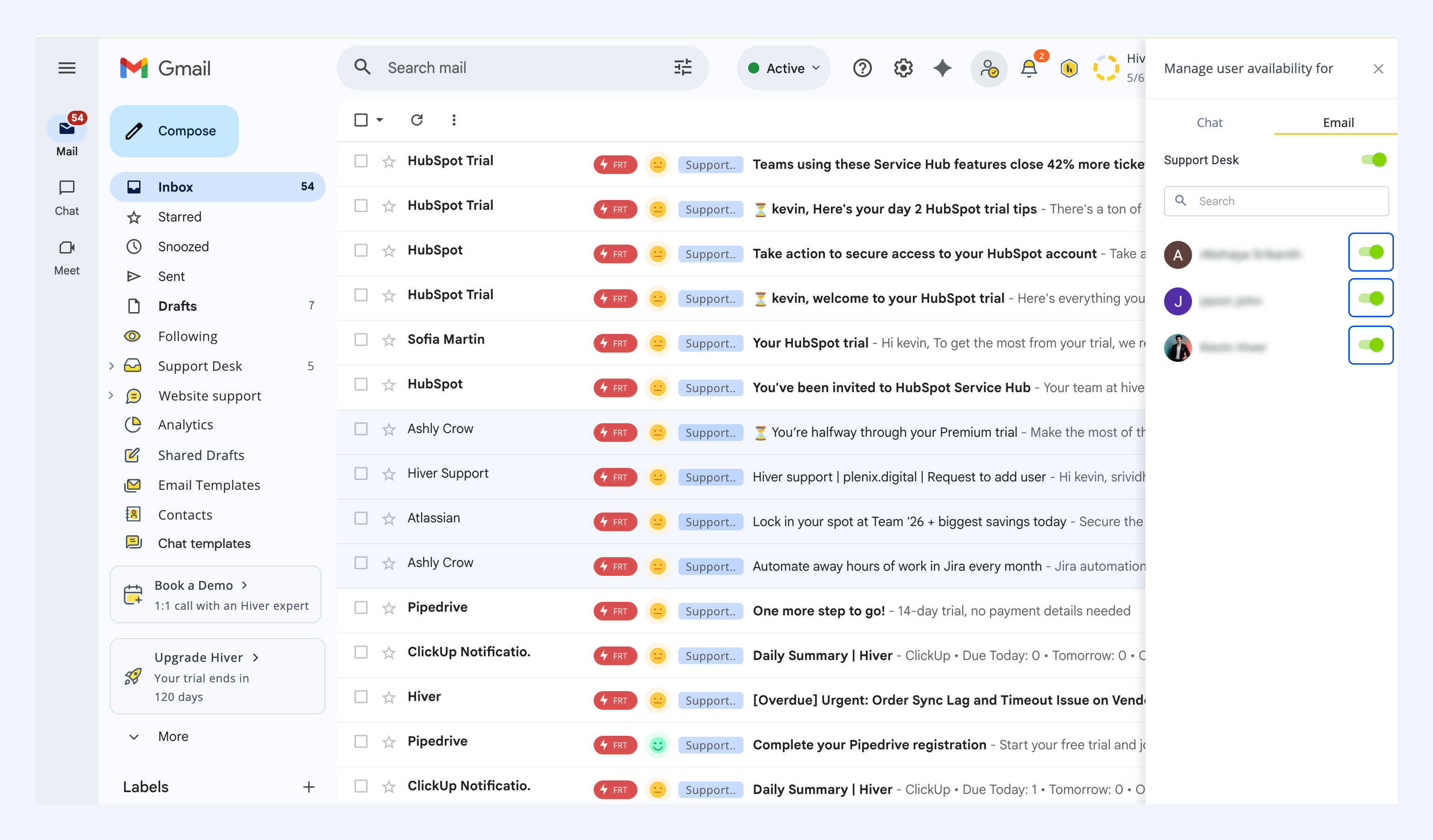
3. Use the toggles next to each user’s name to mark them as available or unavailable. You can also use the toggle next to the Shared Inbox name to update availability for all users at once.
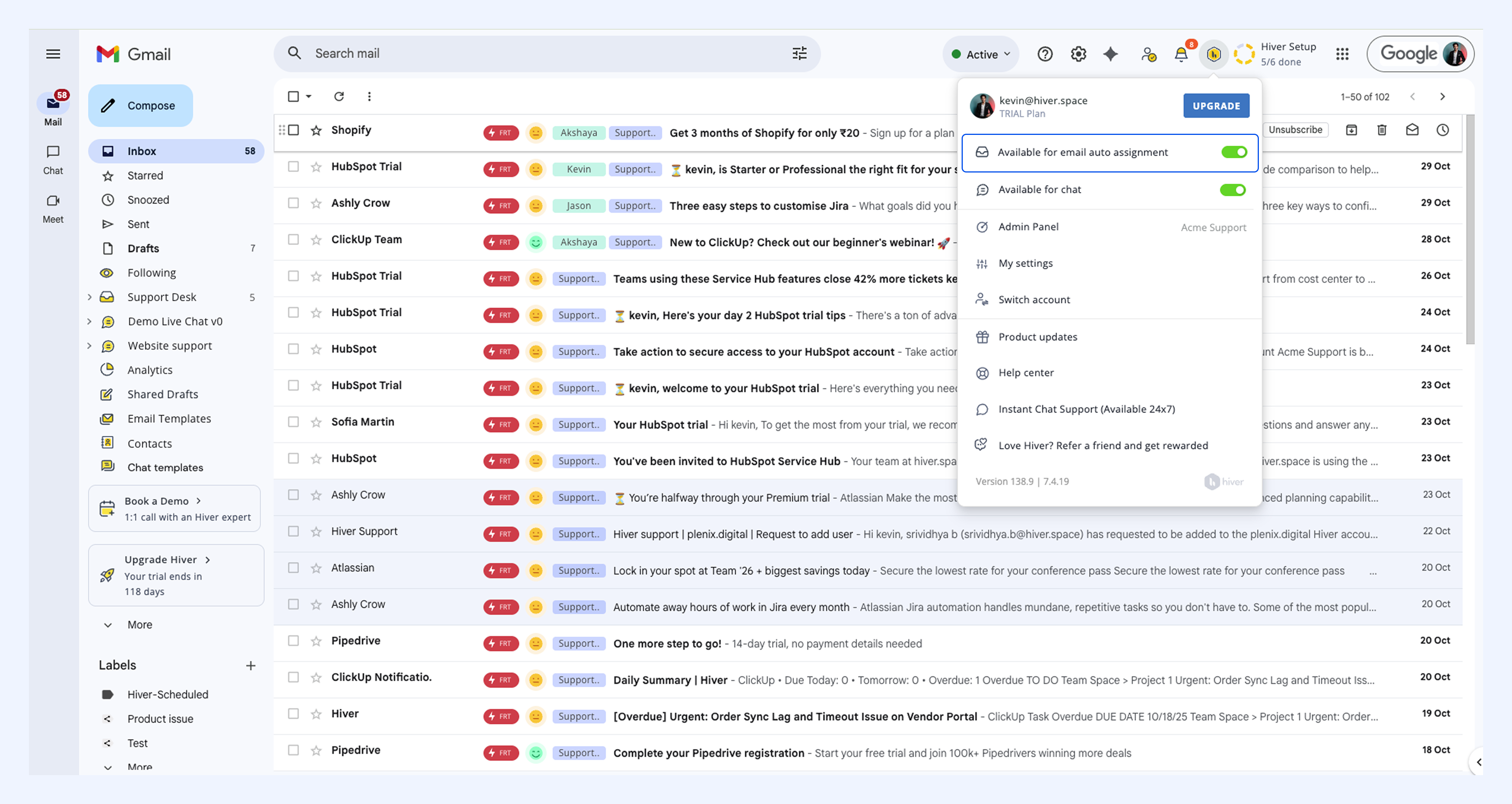
If this option is selected, users can set their own availability through the Available for Auto Assignment option found in the Settings dropdown.
If this option is not selected, then availability must be set by users who have permission to manage user availability. This permission is available by default for the Supervisor, Inbox Admin, and Admin roles.
Users with roles that give them permission to manage user availability can access it from within the Gmail interface using these steps:
1. Click the Manage user availability icon.
2. If you have multiple Shared Inboxes with auto assignment enabled, select the required Shared Inbox.
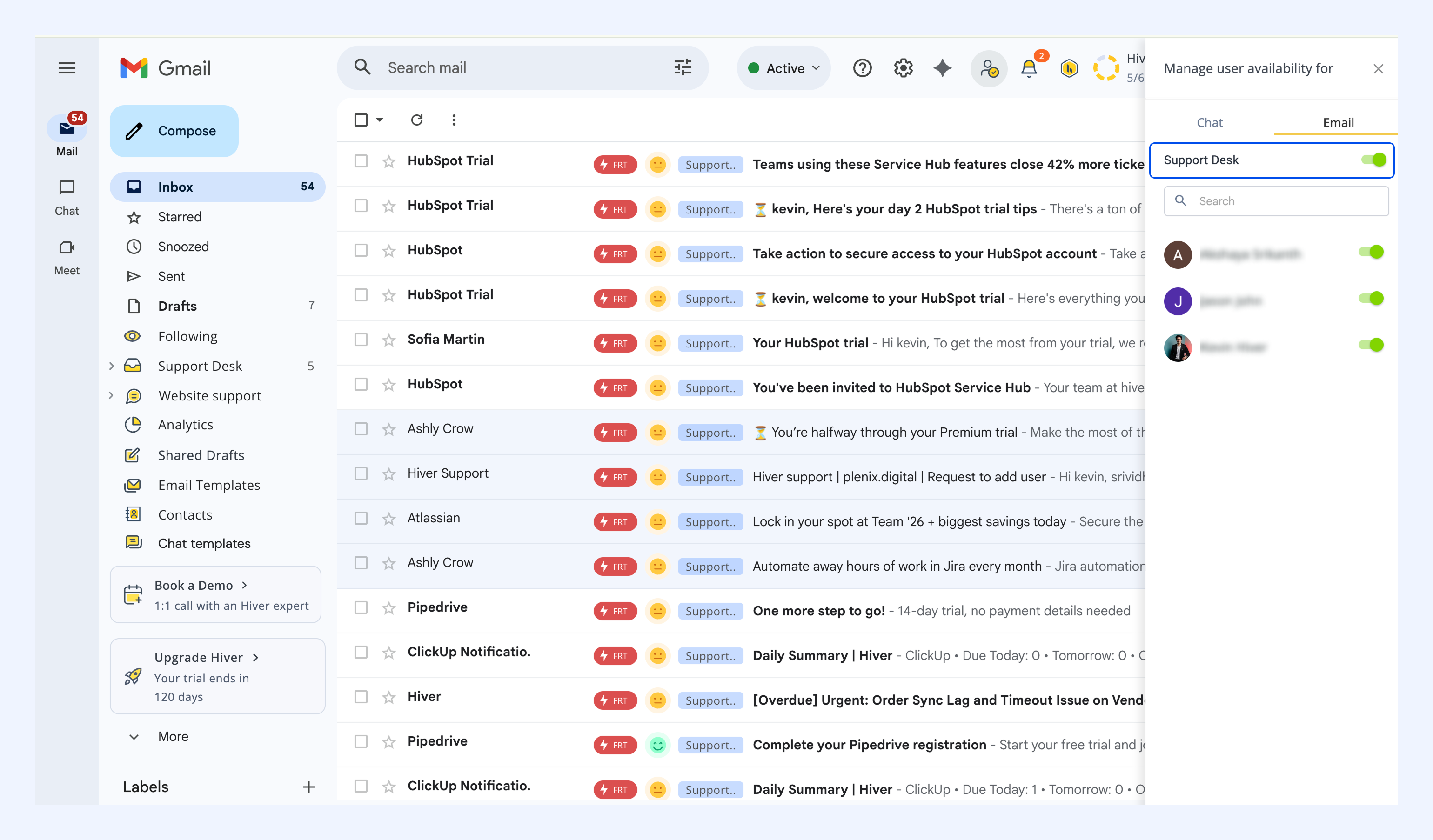
3. Indicate available users by using the toggle next to their names.
Things to remember about Round Robin Assignment
- Auto Assignment will not work on emails added to the Shared Inbox using the Add to Shared Inbox button.
- A user can control their availability only if the setting to control their availability has been enabled across all inboxes they are part of.
- The availability of a user can be overridden by users who have permission to manage user availability.
- An email that has been automatically assigned to a user can be manually reassigned or closed if needed.
- Auto Assignment works only for new emails that arrive in the Shared Inbox after Auto Assignment has been set up.
- User availability can be managed only for users who are not part of the excluded users list.
FAQs
Q: What happens if all members are at the defined limit?
A: Auto Assignment will be paused for new inbound conversations if all team members are at the defined limit. The incoming new conversations will be pushed to the Unassigned section. Auto Assignment will resume when the number of Open conversations for any team member in the assignment pool drops below the defined limit.
Q: What is the maximum assignment limit?
A: You can define a maximum value of 99 for the assignment limit per member.
Q: What if I have custom automations that assign conversations?
A: Custom automation rules are evaluated first before auto assignments can occur. If you have automation rules with actions to assign conversations, these conversations will not be passed through to the Round Robin pool.
Q: Can any member have more Open conversations than the defined limit?
A: A member can have Open conversations above the defined limit if conversations are manually assigned to them or assigned via custom automation rules.
Q: Do all conversations from the Unassigned section get auto-assigned?
A: No. From the Unassigned section, only new inbound conversations that remained unassigned due to all members being at the defined capacity will be picked up for re-assignment via Round Robin Auto Assignment.