Using Shared Drafts
Whether you’re responding to a customer or preparing to send out an announcement, Shared Drafts in Hiver let you and your teammates co-write, refine, and send the best messages together. This is especially useful in cases where you need someone to review your draft or when multiple people are involved in writing an email response.
In Hiver, you can create Shared Drafts in two ways:
1. Within an ongoing conversation: Draft a response in an existing email thread and share it with teammates for review.
2. From scratch: Co-write new emails with your teammates.
Create a Shared Draft within an ongoing conversation
1. Open a conversation in your Shared Inbox.
2. Click Reply, Reply all, or Forward, then write your message. Attach files if you need to.
3. Click the Share Draft button in the compose window.
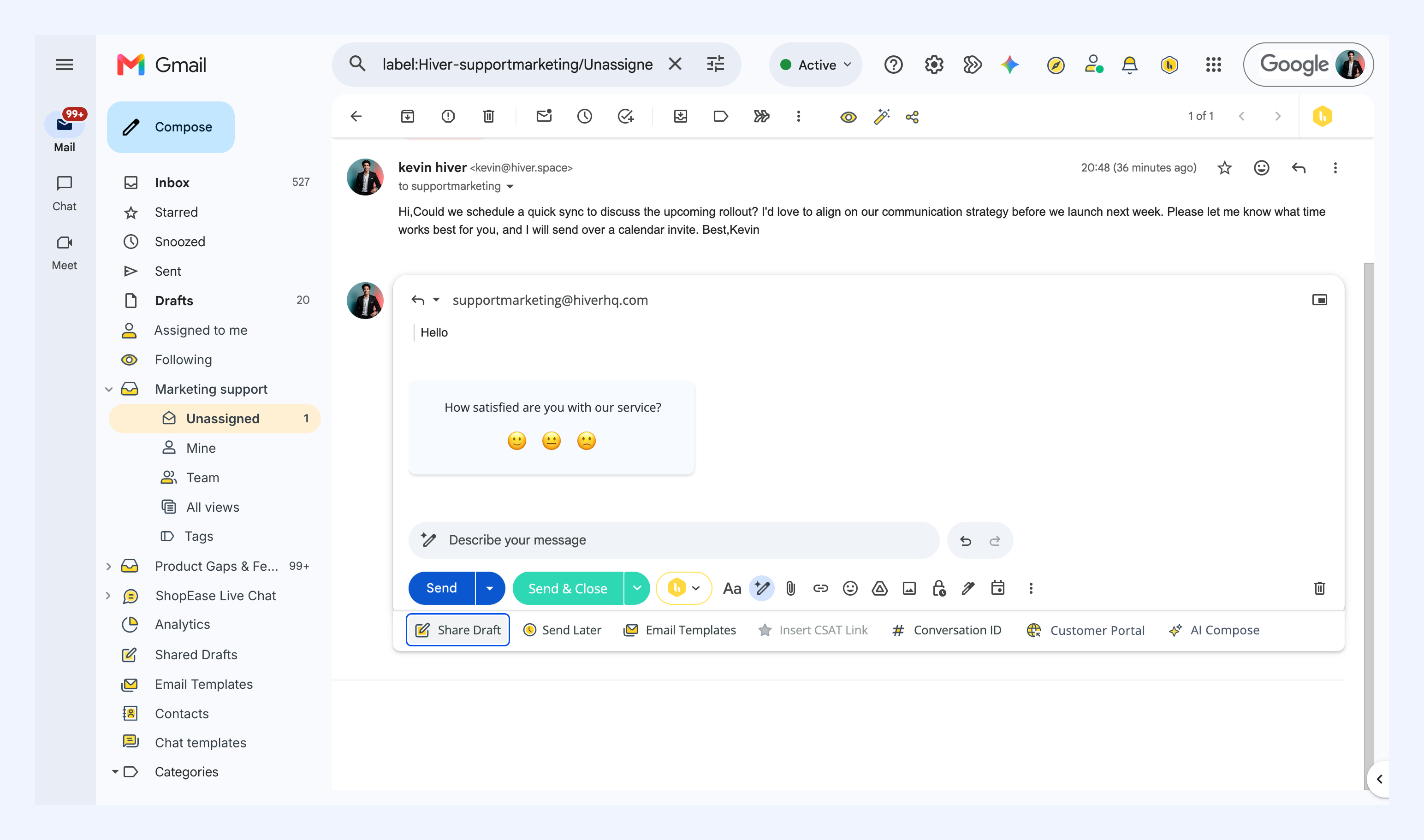
The draft is now visible to everyone in the Shared Inbox, both in the conversation thread and under Replies in the Shared Drafts tab.
Create a Shared Draft from scratch
1. In Gmail, open Shared Drafts and click Compose Email Draft.
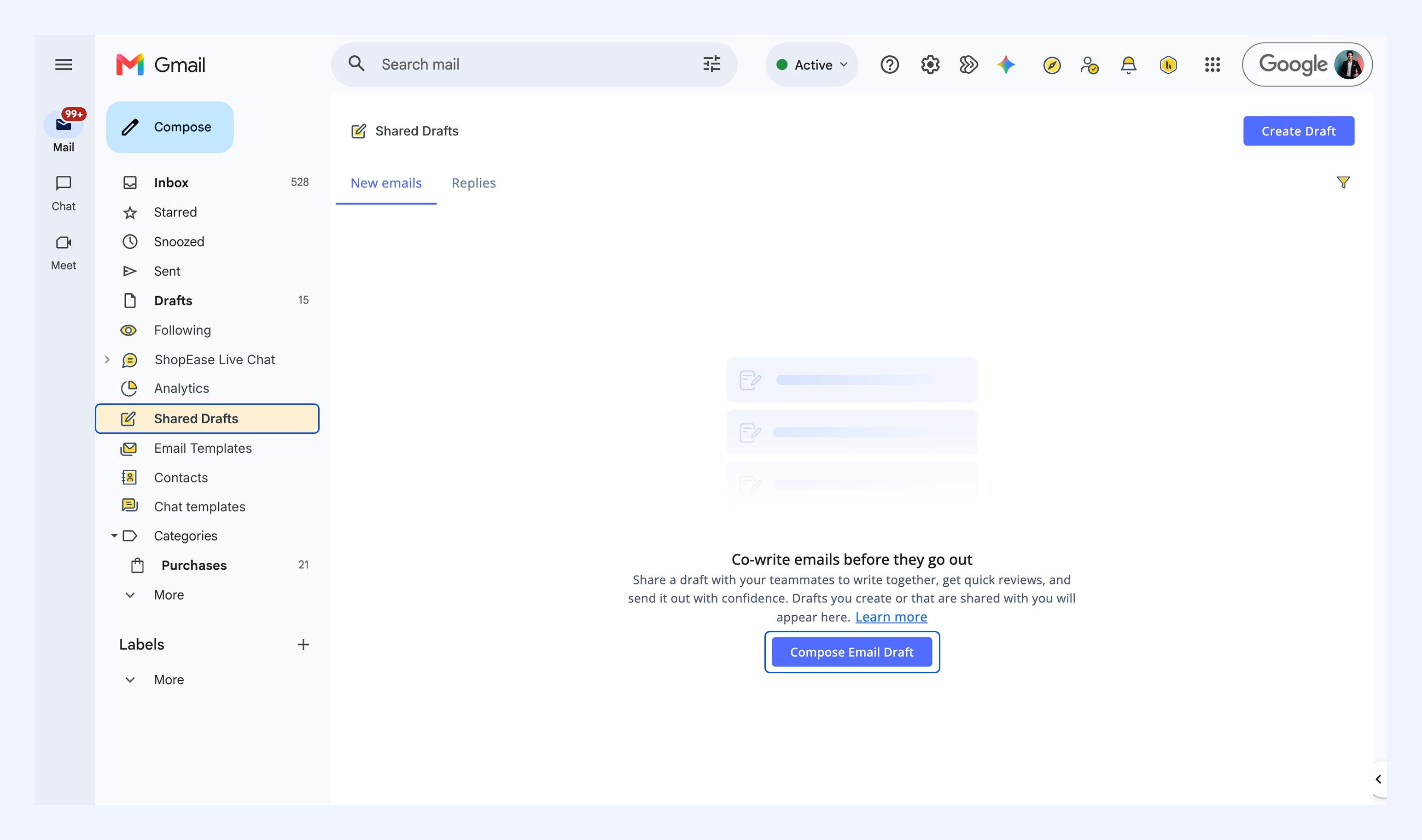
2. In From, choose the address you want to send from. You can choose your personal address, or a Shared Inbox address or alias you're set up to send from. By default, the email is sent from the personal address of whoever clicks Send.
If you don't see an address, you may first need to set it up and verify it in Gmail's Send mail as settings.
3. Add a subject line.
4. Optionally, add recipients in the To and CC/BCC fields. You can also add these later, when you're ready to send.
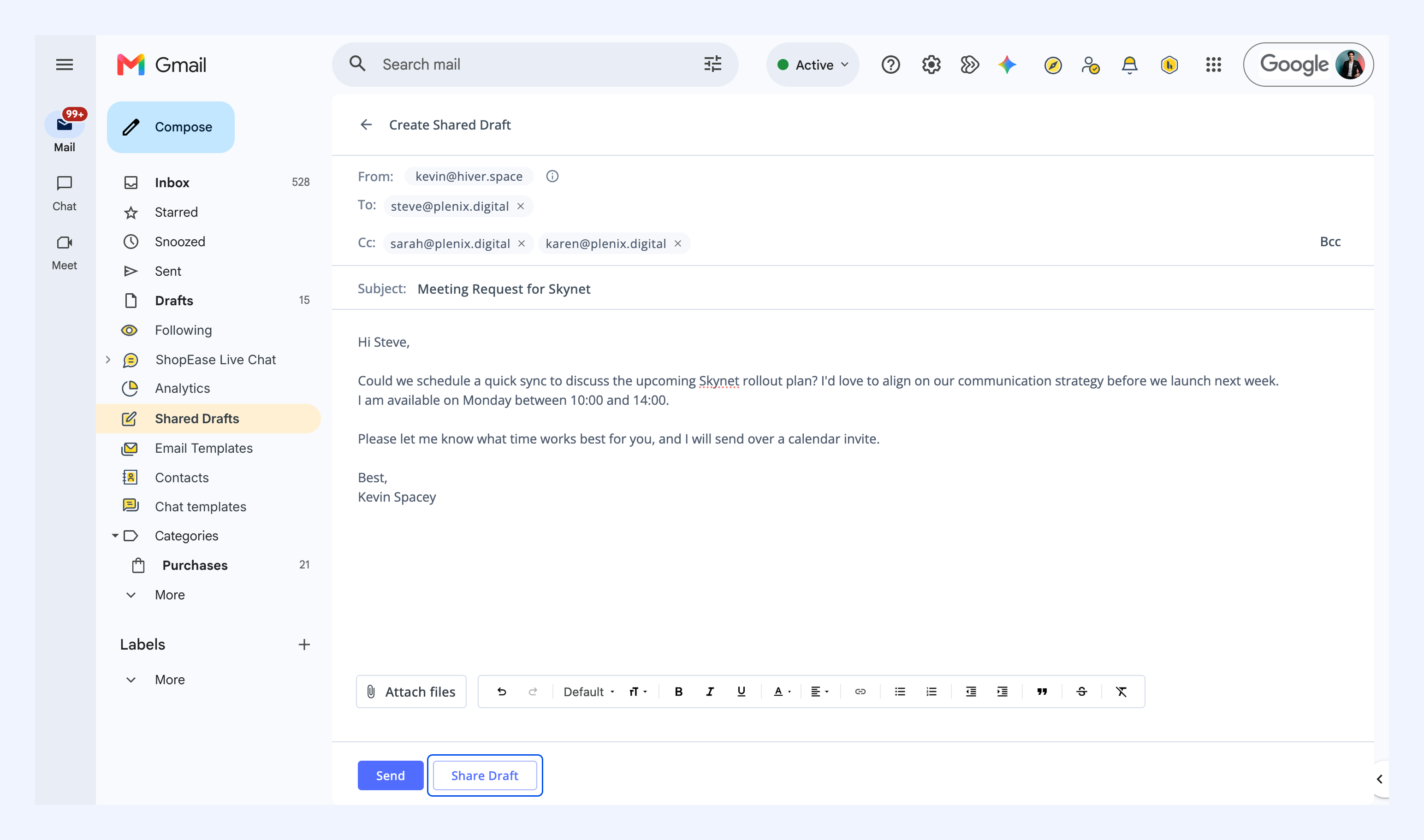
5. Write your message. You can format text, and add links and attachments.
6. Click Share Draft.
7. Choose the teammates you want to collaborate with, and click Done.
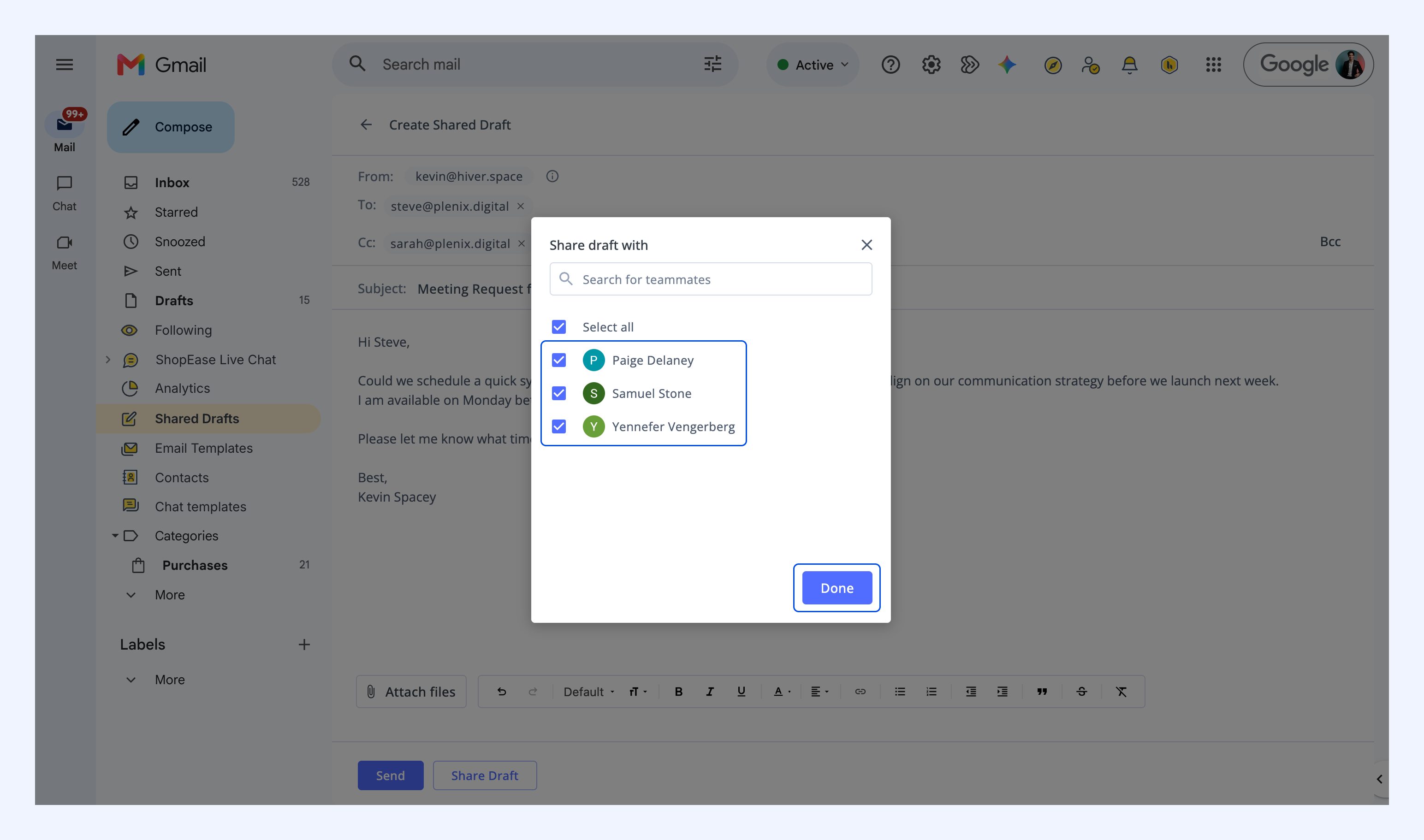
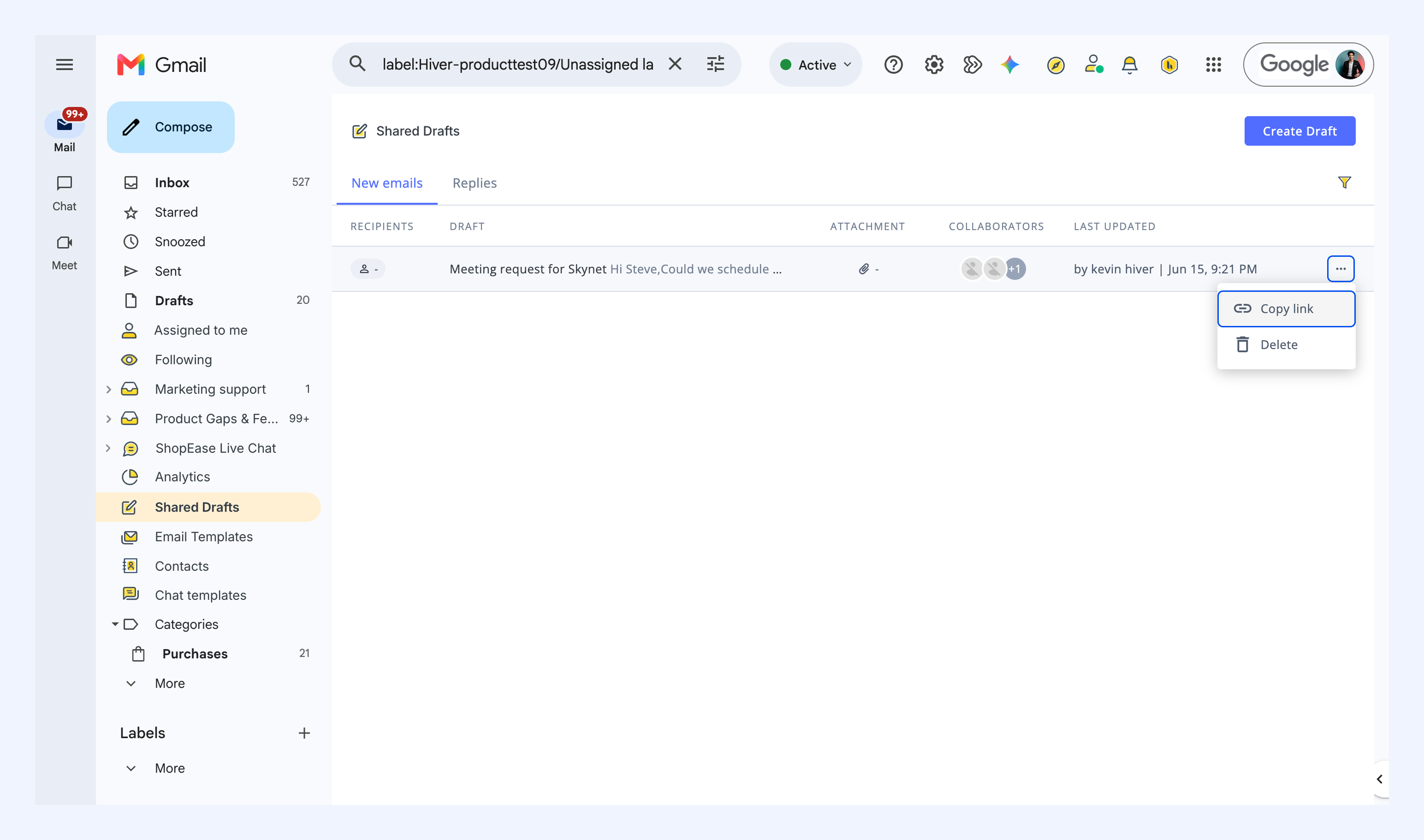
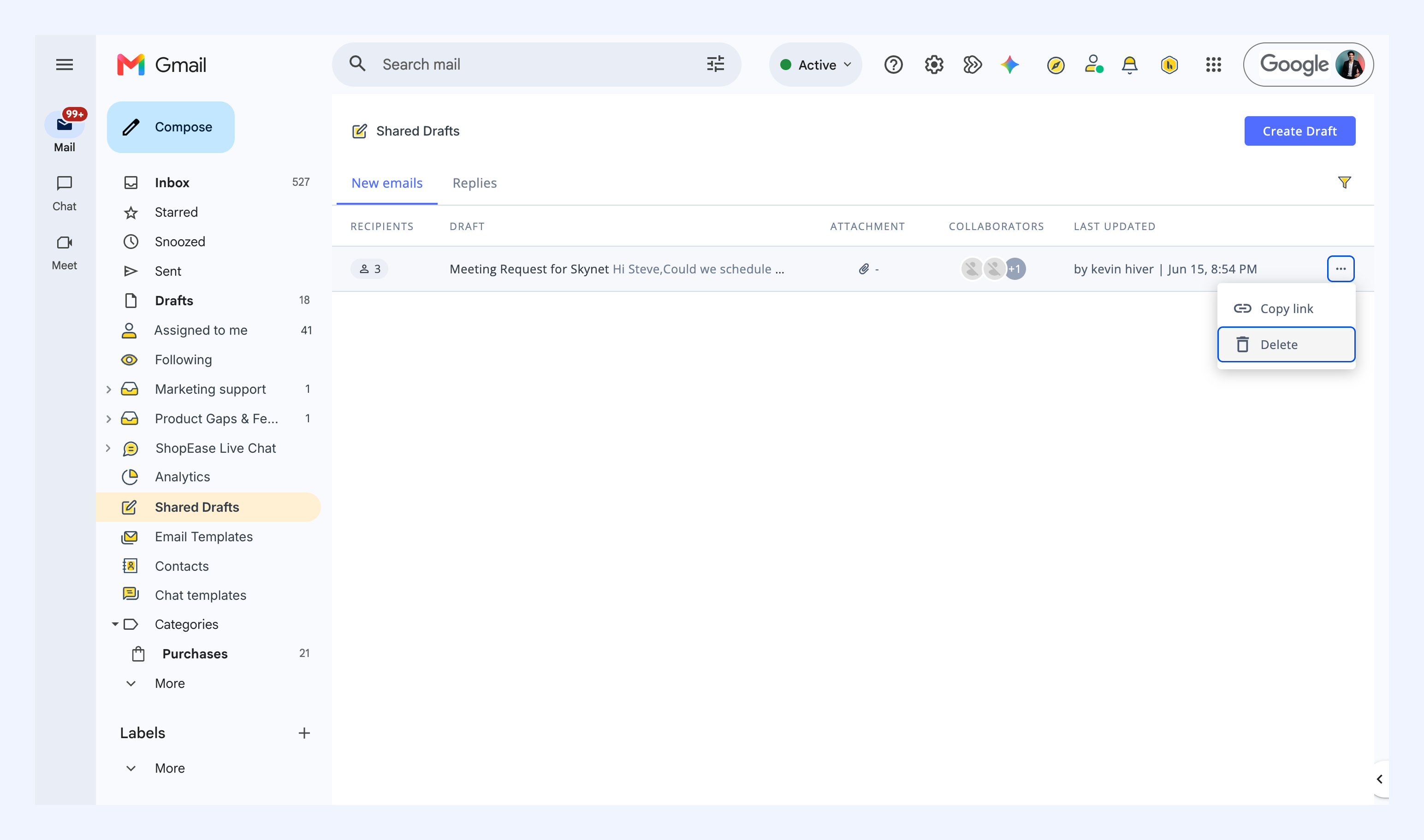
Your teammates will get a notification and can find the draft under Shared Drafts → New emails. You can also copy a link to the draft from the three-dot menu and share it with them.
Finding all your Shared Drafts
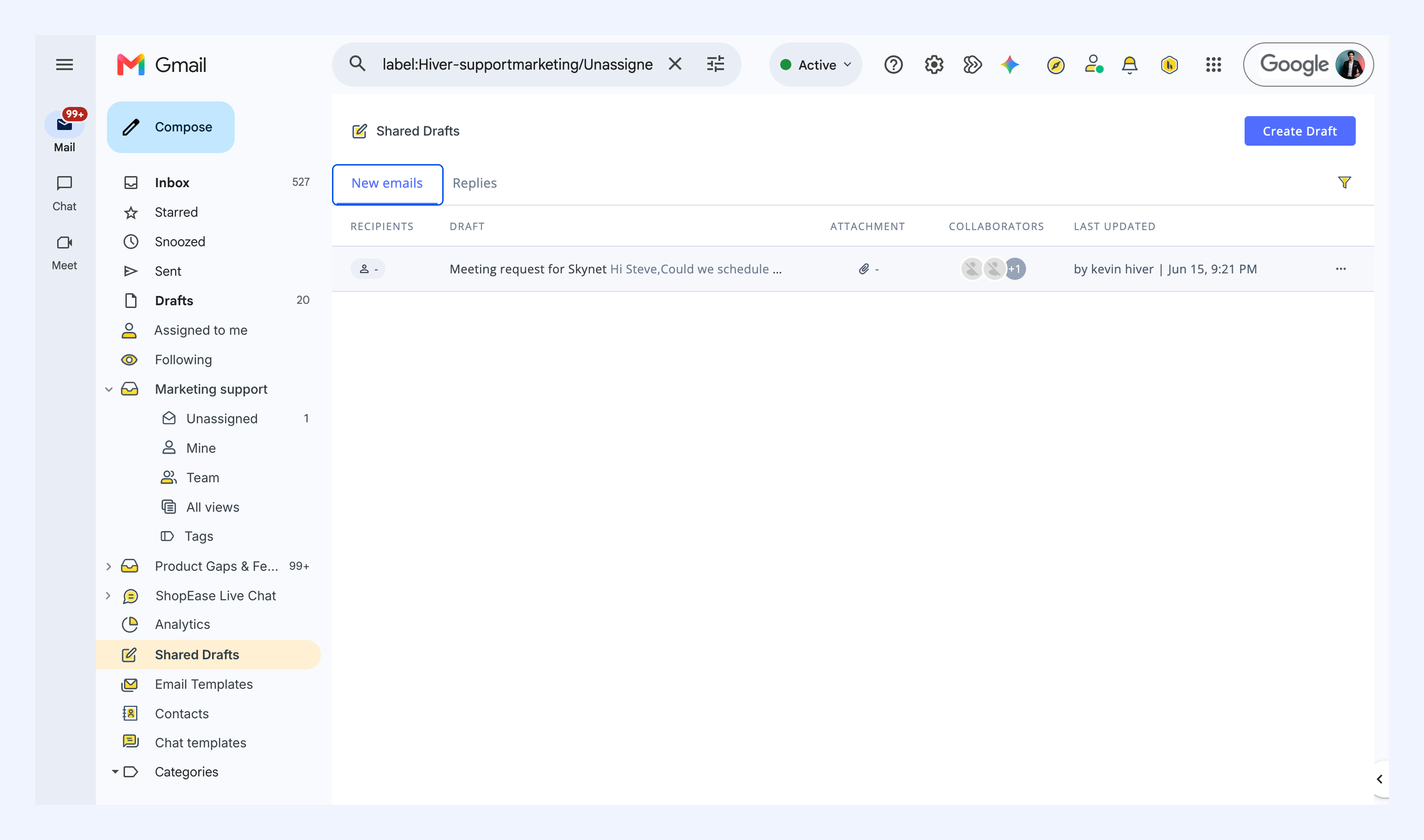
The Shared Drafts tab contains your team’s drafts across two tabs: New emails and Replies.
New emails
This tab contains drafts you and your teammates create from scratch for new, outbound emails. Click a row to open one, where you can edit, send, or delete it. You can also copy a link to share with your team.
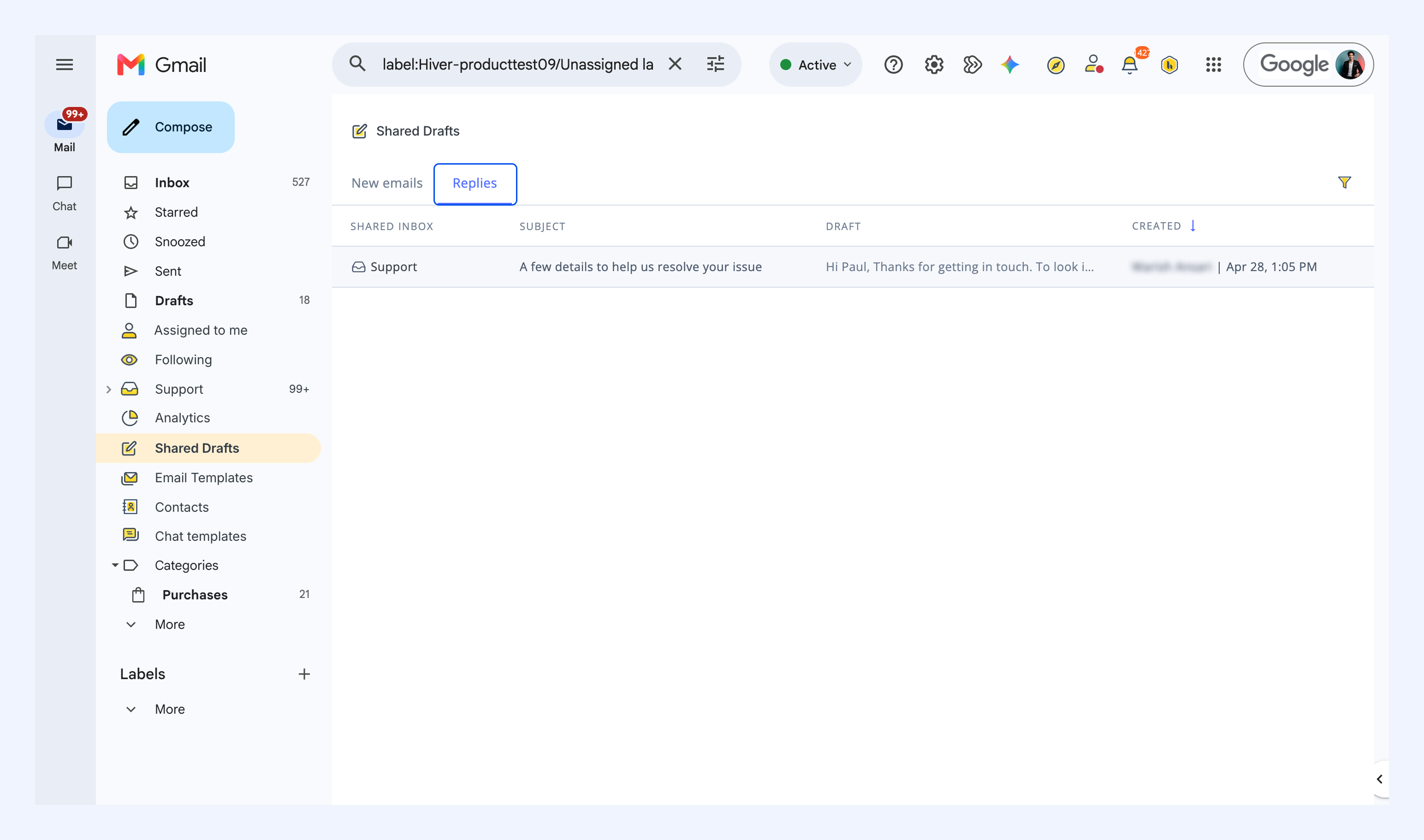
Replies
Here you’ll find drafts created from ongoing customer conversations. Click a row to open the conversation with the draft, where you can review and edit it.
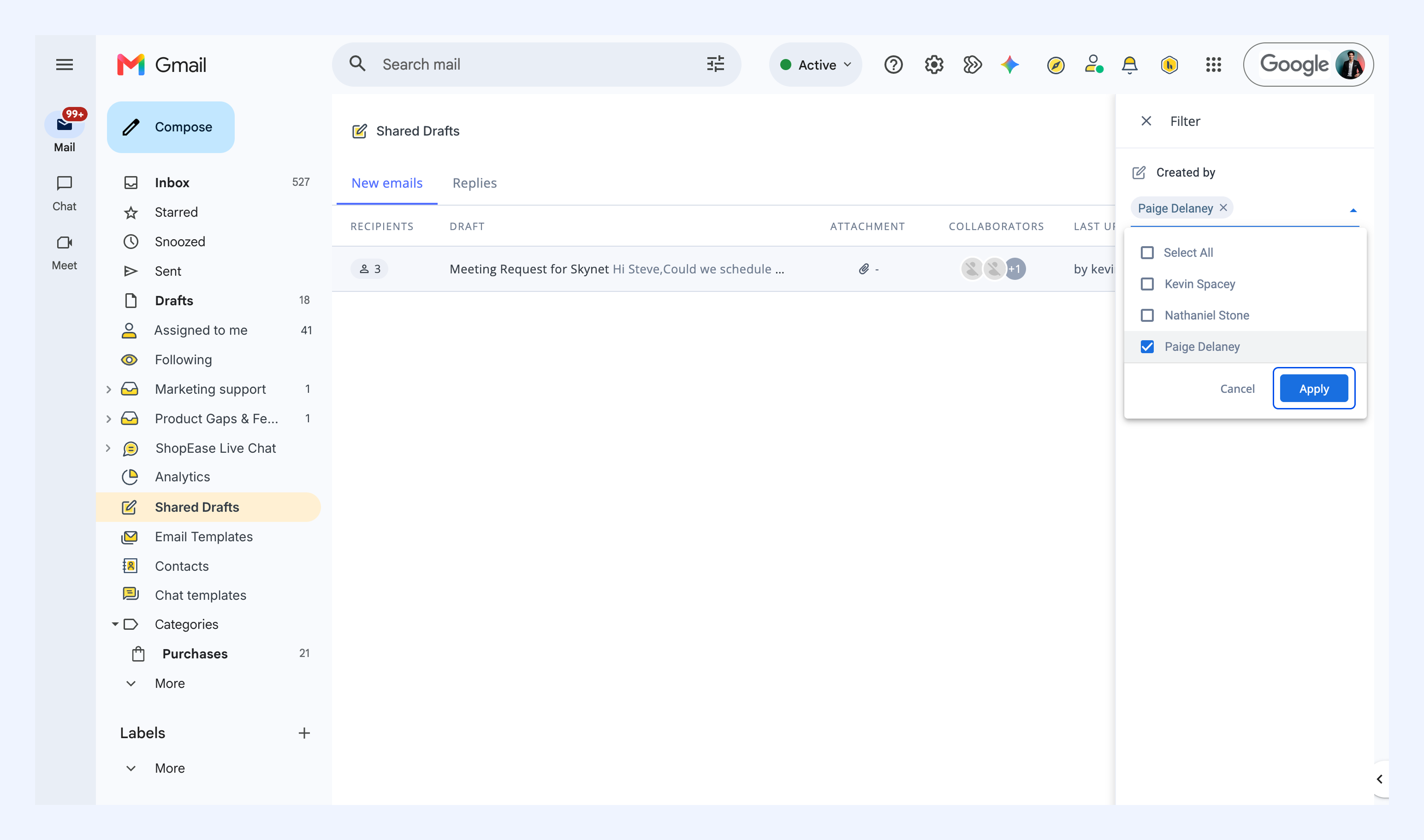
Filtering your drafts
Click the filter icon to narrow down the results by who created the draft.
Managing your Shared Drafts
How you manage a draft depends on how it was created:
Draft created from scratch (New emails)
- To edit a draft, open it from the New emails tab. Any changes you make are saved automatically.
- To send, add recipients and click Send. The draft then moves to your My Sent folder.
- To delete, open the three-dot menu and click Delete.
Draft started in a conversation (Replies)
Open the conversation to edit, send, or delete it. Changes save automatically, and deleting it removes it for everyone in the Shared Inbox.
FAQs
Where do reply drafts show up?
You can access Shared Drafts in ongoing conversation from:
- The conversation thread
- Replies tab in Shared Drafts.
Who can edit or delete a shared reply draft?
For a reply draft, everyone in the Shared Inbox. For a draft created from scratch, only the teammates you shared it with.
Why can't I share my draft?
This usually happens when the draft doesn't have a subject line. Add one, then try sharing again.
What happens when I send a from-scratch draft?
It's removed from the Shared Drafts tab and saved to your My Sent folder.
Related articles