Using shared notes
Notes in Hiver make it easy for teams to collaborate and share context right inside customer conversations.
By adding notes, you can:
- Share important context without cluttering the email thread
- Tag teammates using @mentions to loop in the right people
- Keep attachments tied to the right conversation for easy access
- Categorize and search notes to track recurring issues
Each conversation has its own dedicated notes section in the Hiver Activity panel, ensuring everyone stays aligned and up to date.
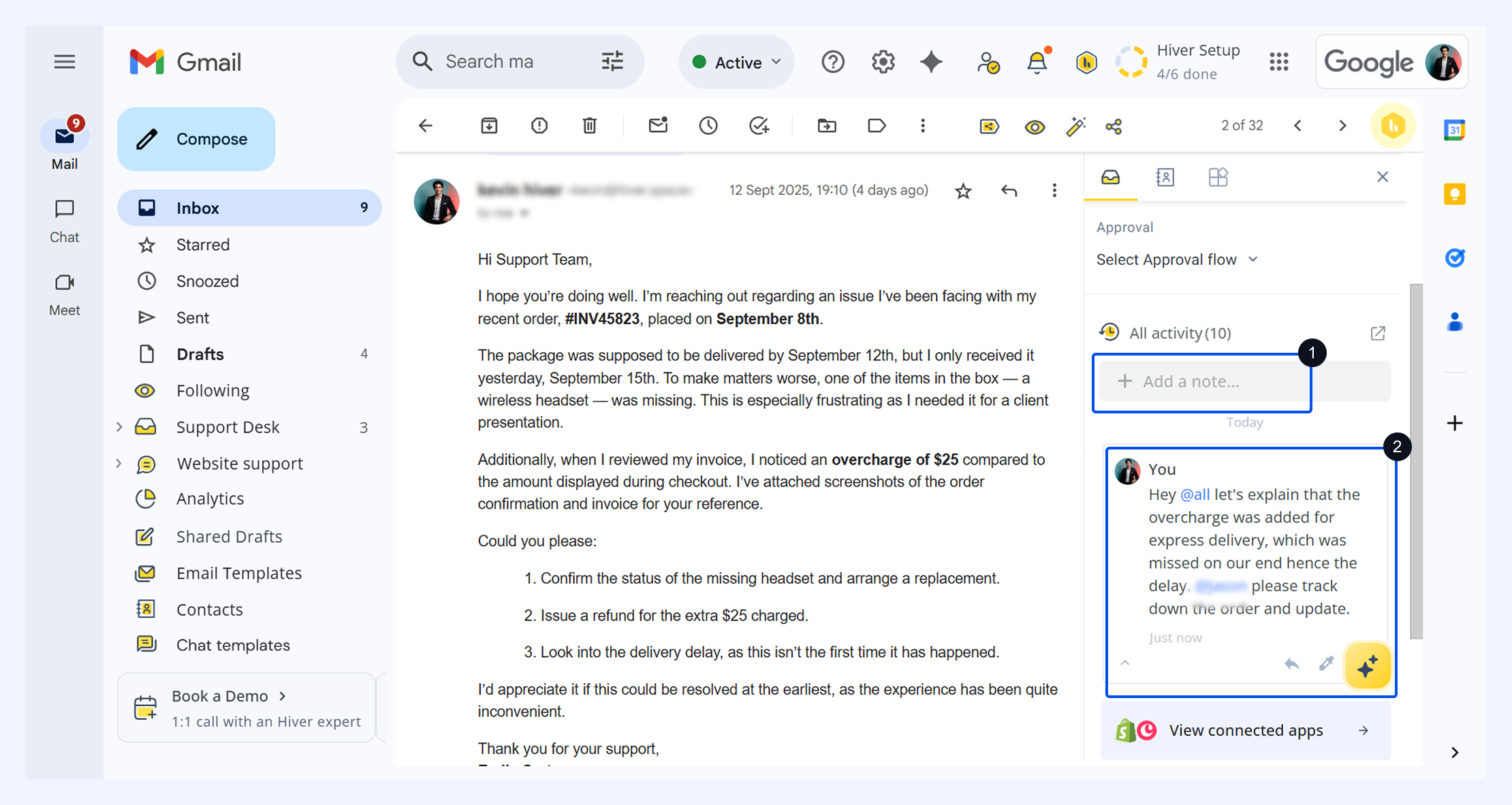
How to add a note
1. Open the conversation where you want to add a note.
2. In the Hiver Activity panel, click Add a note. 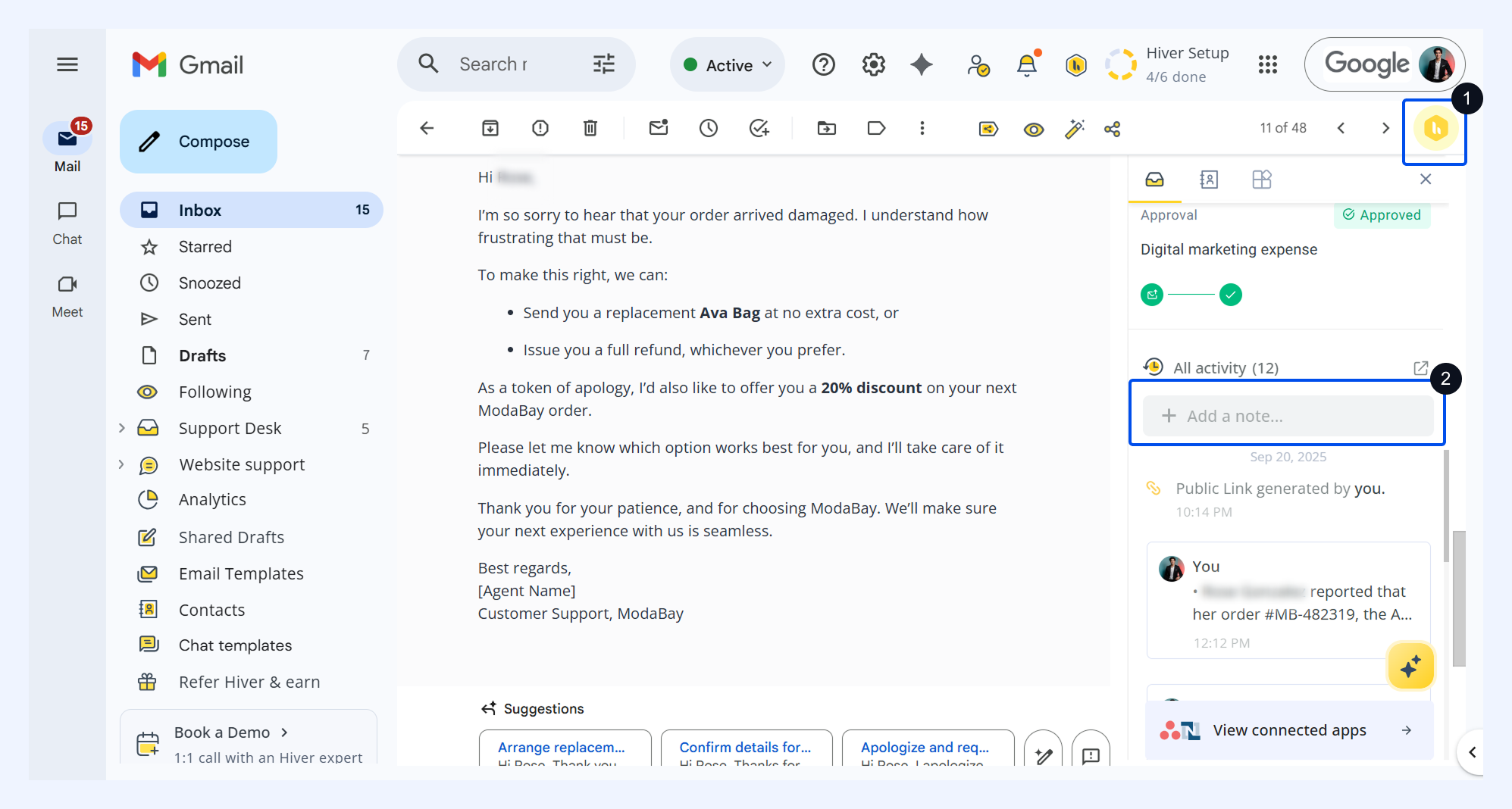
3. Type your message in the note field.
4. Optionally, you can also attach files or insert emojis .
5. Click Done to add the note.
Tip: Pin important Notes to the top of a conversation so your team can quickly see key updates or next steps without scrolling.
Mentioning teammates
To collaborate with specific teammates:
- Type @username to notify them directly.
- Use @all to notify everyone in the Shared Inbox.
- If you don’t mention anyone, the note will remain as a reference comment on the thread.
Tagged teammates will receive a notification in Hiver and via email (if enabled).
Adding attachments
You can include relevant files to provide more context in your notes.
- Click the Attachment icon to upload files (up to 1 MB).
- You can attach images, documents, PDFs, or audio files.
- Preview or download attachments after posting.
Note: Drag-and-drop uploads aren’t supported.
Adding color
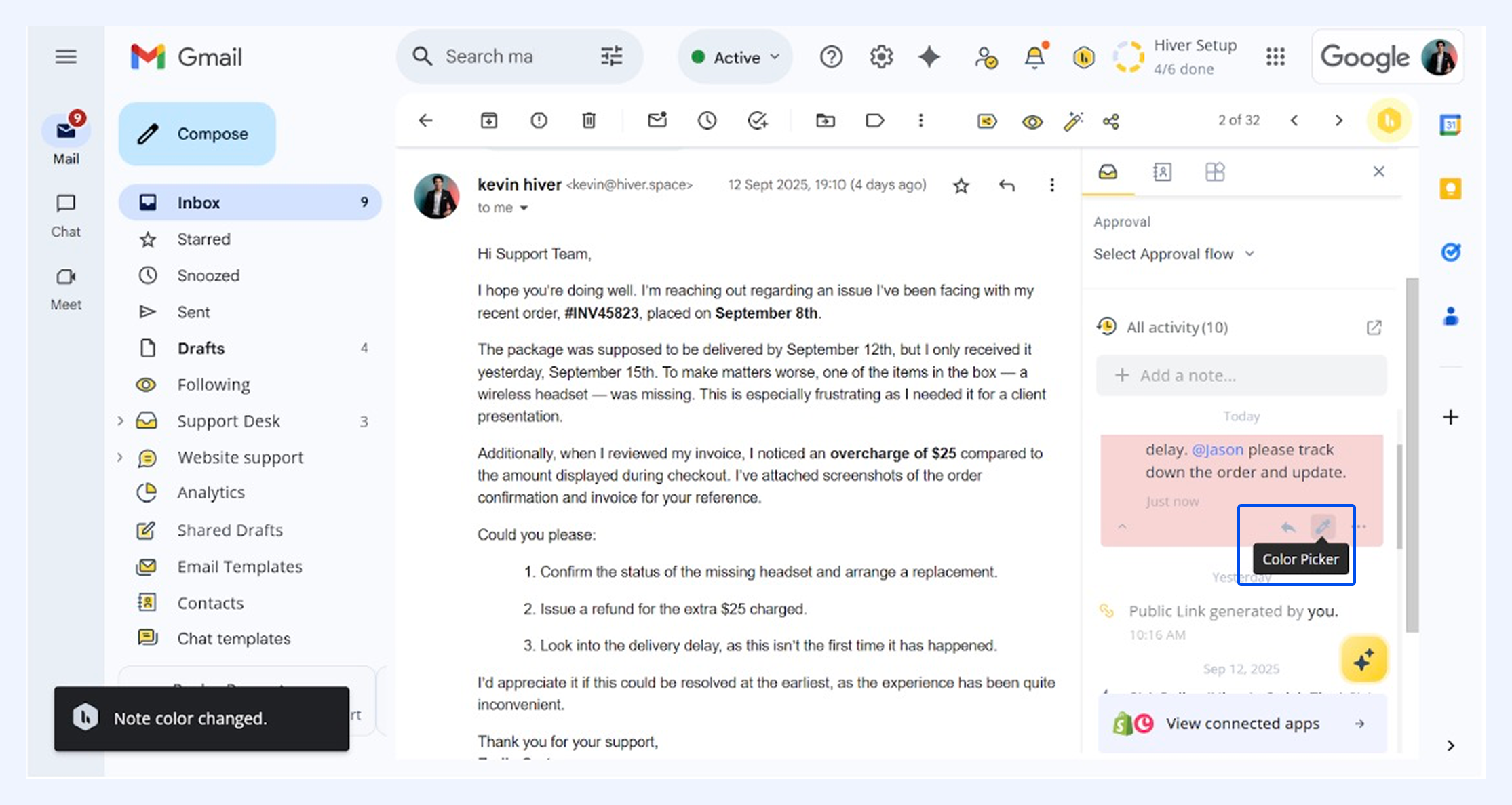
Use color to visually categorize notes and make them easier to spot. Once you post your note, click the Color Picker and select a background color that fits your use case.
Replying to notes
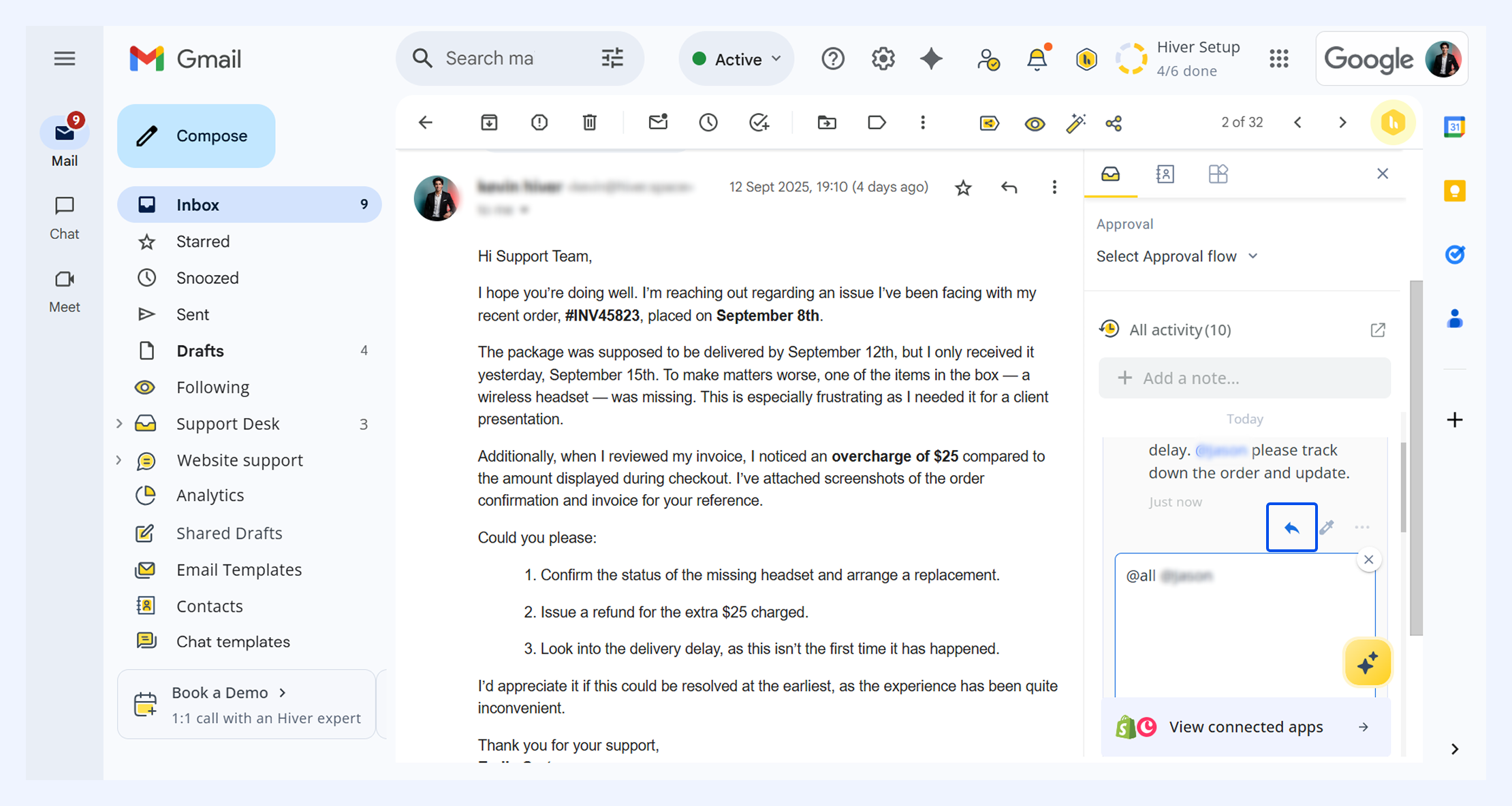
You can respond directly to a note to continue the discussion.
- Click Reply under a note.
- Type your response and click Add.
Your reply appears in the same note thread, helping your team keep discussions organized and easy to follow.
Managing notes
Edit or delete notes
- Only the author of a note can edit it.
- Notes can be edited within four hours of posting to fix errors.
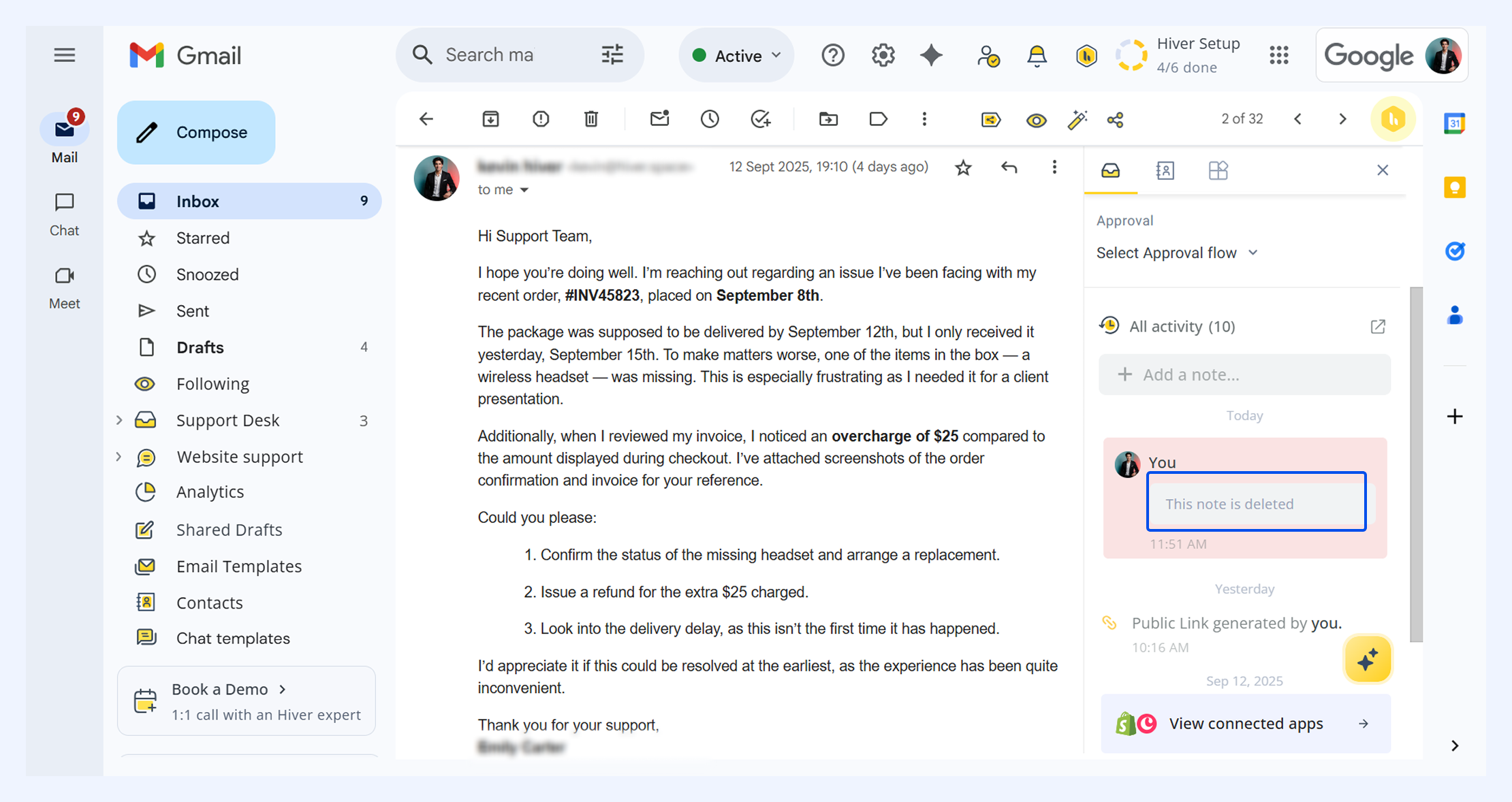
- Deleted notes are replaced with the message “This note has been deleted” in the Activity panel.
- Deleted notes can’t be recovered.
Edit or delete attachments
- While writing a note, you can remove an attachment before posting it.
- After posting, you can edit the note’s text, but not the attachment itself.
- To remove an attachment from a posted note, delete the entire note.
Searching for a note
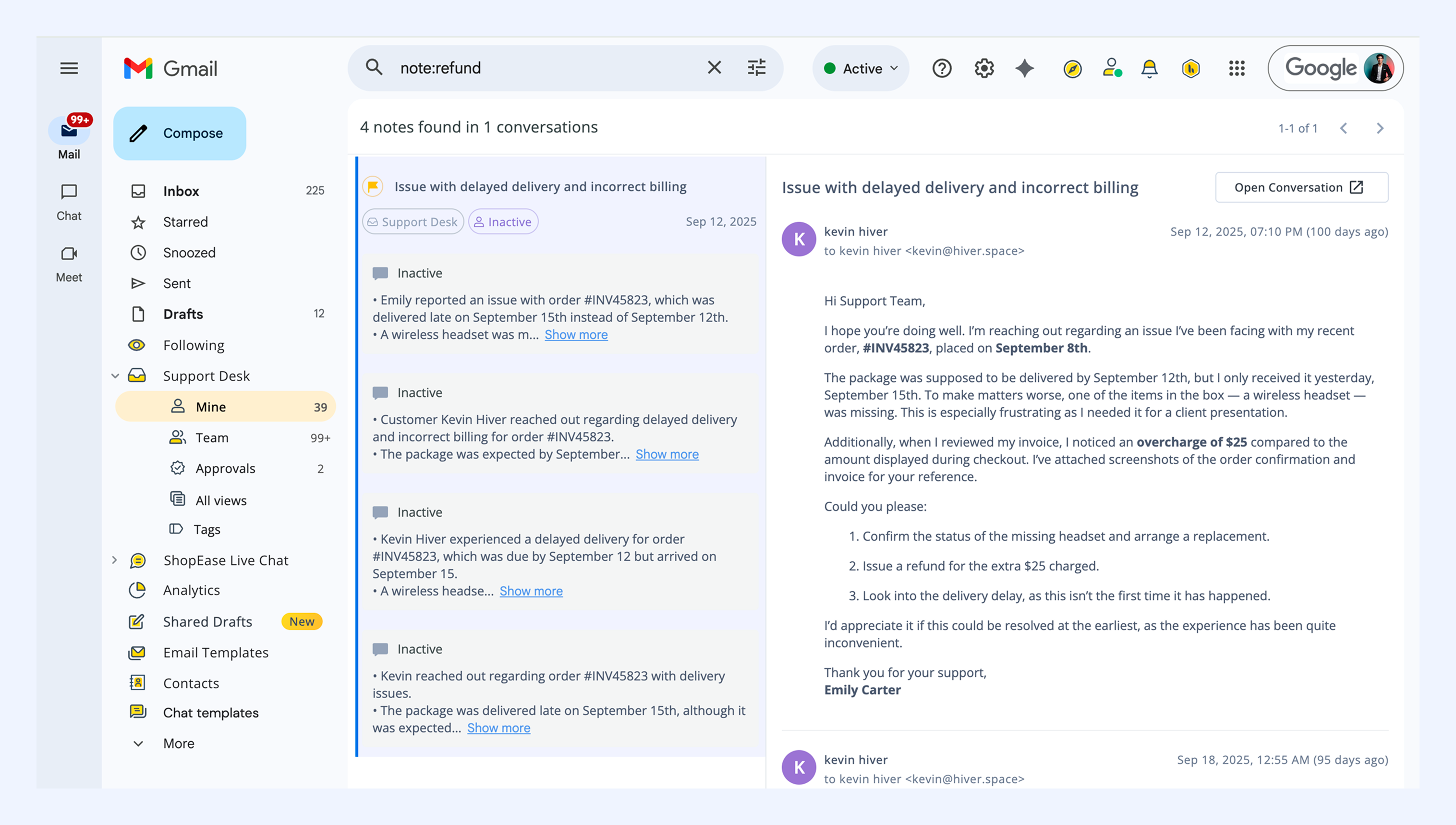
You can search for notes across conversations using Gmail search in two ways:
- Type your keyword and select the suggestion Search Hiver notes for “keyword.”
(for example, type “refund” to see the prompt: Search Hiver notes for 'refund') - Use the format note:keyword
(for example, note:refund)
Note: Notes remain searchable for up to 36 months.
When you search for a note, results appear in a split-view layout:
- The left panel lists conversations that match your search keyword.
- The right panel shows a preview of the related conversation.
.png)
Click a conversation to preview it. This allows you to quickly understand the context of a note without leaving the search view.
From the preview, click Open conversation to go to the conversation.
Note:
- Additional details such as attachments, assignee, tags, status, custom fields, and other Hiver-specific data are visible only in the full conversation view.
- If a conversation contains multiple notes that match the same search keyword, they’re grouped together under the same conversation. You can expand the group to view all matching notes.
- If a conversation belongs to multiple Shared Inboxes, the result shows the number of Shared Inboxes. In this case, status and assignee details aren’t displayed.
FAQs about shared notes in Hiver
1. Why can I edit a note only within the first 4 hours of creation?
Everyone makes mistakes, whether it’s a typo, a spelling error, or a piece of information that needs correction. The 4-hour edit window gives you time to fix these issues or validate details without needing to delete or add another note.
After this window, notes become part of the permanent Activity panel history. This ensures notes accurately reflect the journey of the conversation and aren’t altered later, preserving the integrity of the shared inbox record.
2. Who can see shared notes in Hiver?
Notes are visible depending on whether they’re added to emails with Shared Labels or inside a Shared Inbox.
- Shared notes on emails with Shared Labels
- Visible to all users who have access to those Shared Labels.
- Only teammates tagged with @username will receive a Hiver notification.
- Other users can view the note when they open the email.
- Shared notes on emails in a Shared Inbox
- Visible to everyone who is part of that Shared Inbox.
- Only tagged teammates receive a Hiver notification.
- All other members can see the note once they open the conversation.
Next steps