Copper integration with Hiver Omni
Copper is a CRM platform that helps teams manage customer relationships and sales pipelines. The Copper integration lets you view opportunity, company, and contact details directly in Hiver Omni, so you can access relevant customer information without leaving your inbox.
Why integrate Copper with Hiver
Connecting Copper with Hiver helps your team:
- View opportunity details and deal status while reading customer emails.
- Access company profiles and contact information without switching tabs.
- See sales pipeline progress directly in your inbox.
Prerequisites
Before you get started, make sure you have:
- A Copper administrator account with API key permissions.
- Admin access in Hiver.
- Postman (desktop app or web version at https://web.postman.co).
Get your Copper API Key
1. Sign in to your Copper account.
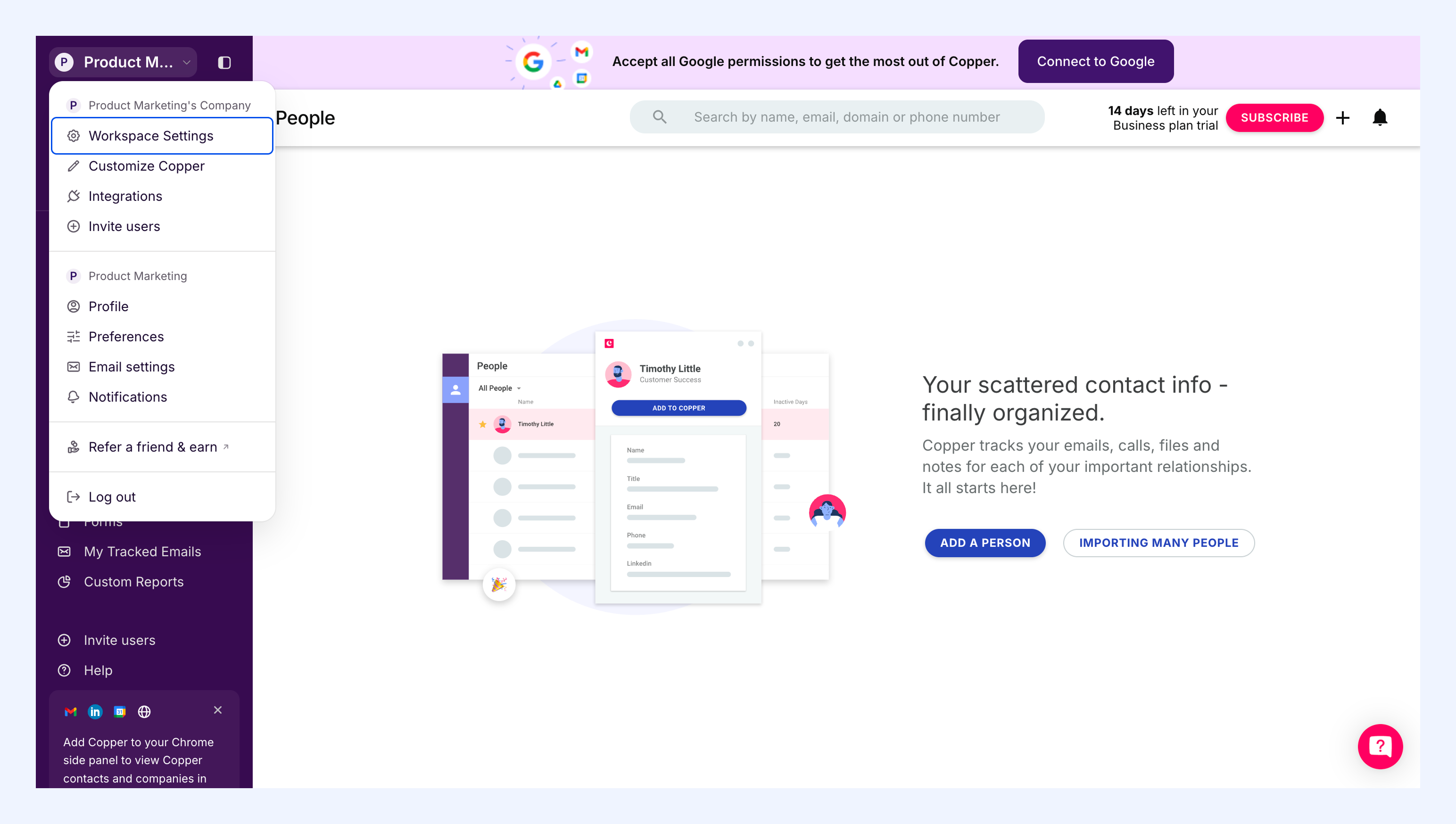
2. Click your profile icon in the top left corner and select Workspace Settings.
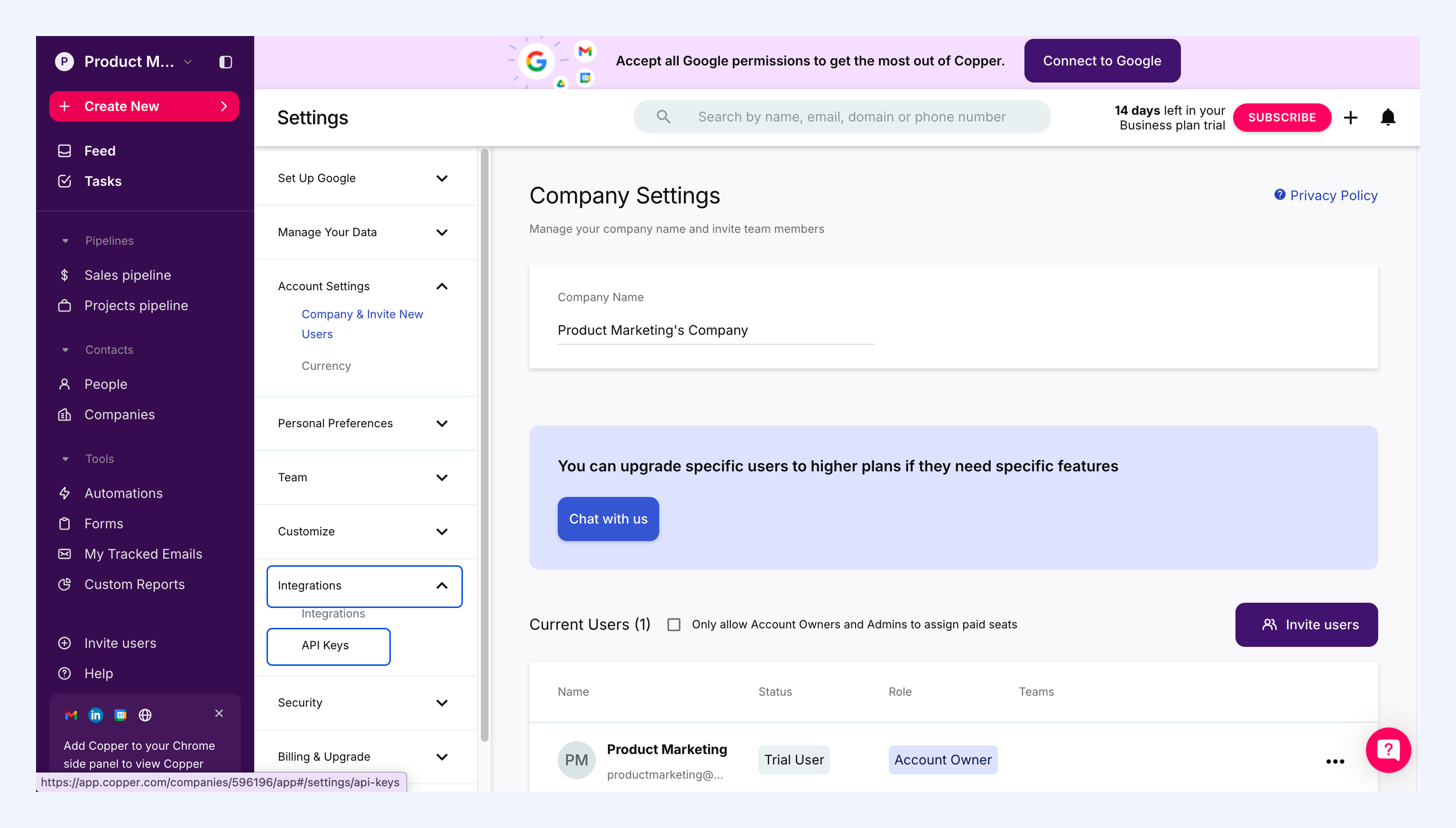
3. Go to Integrations → API Keys.
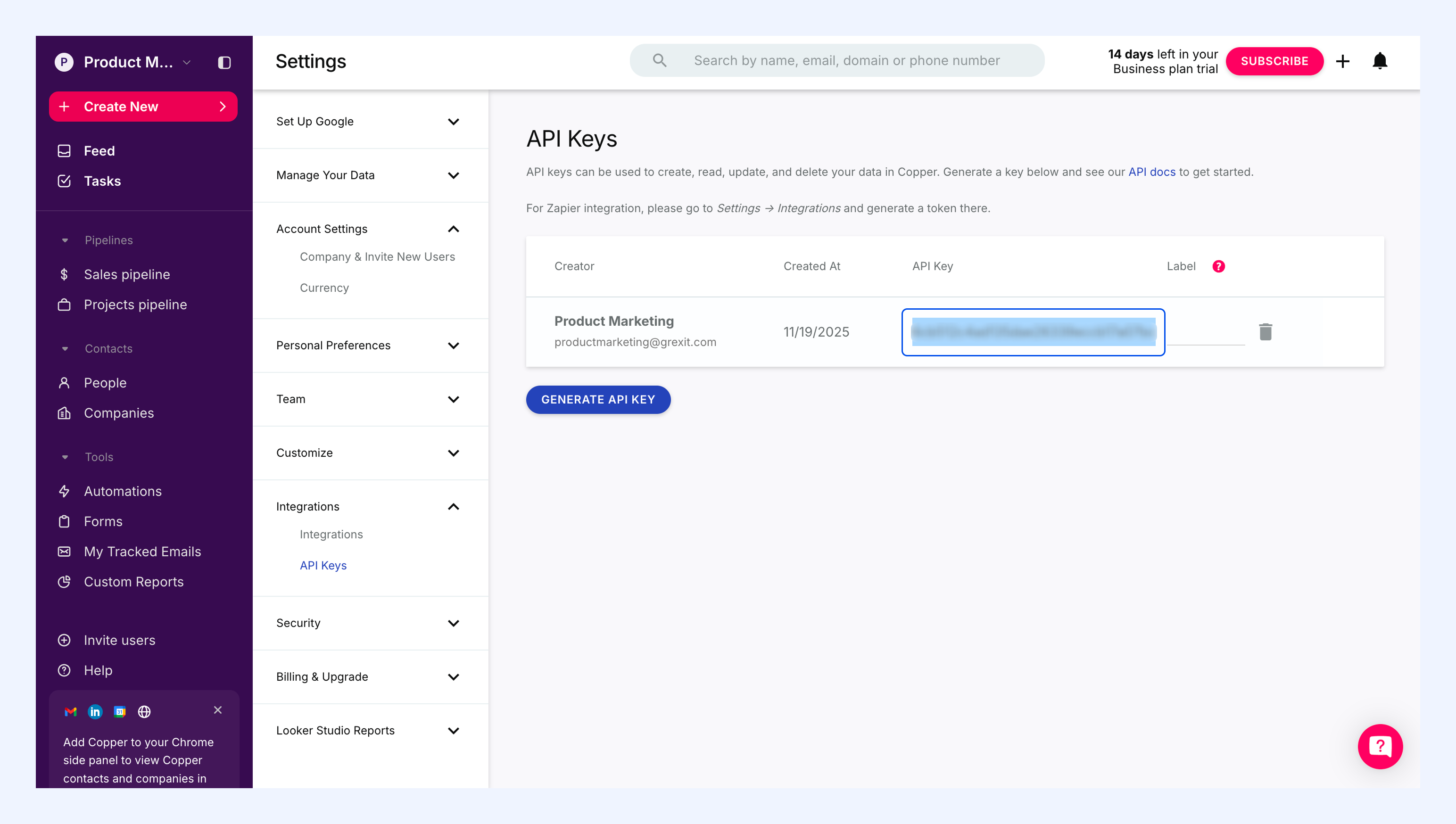
4. Click Generate API Key.
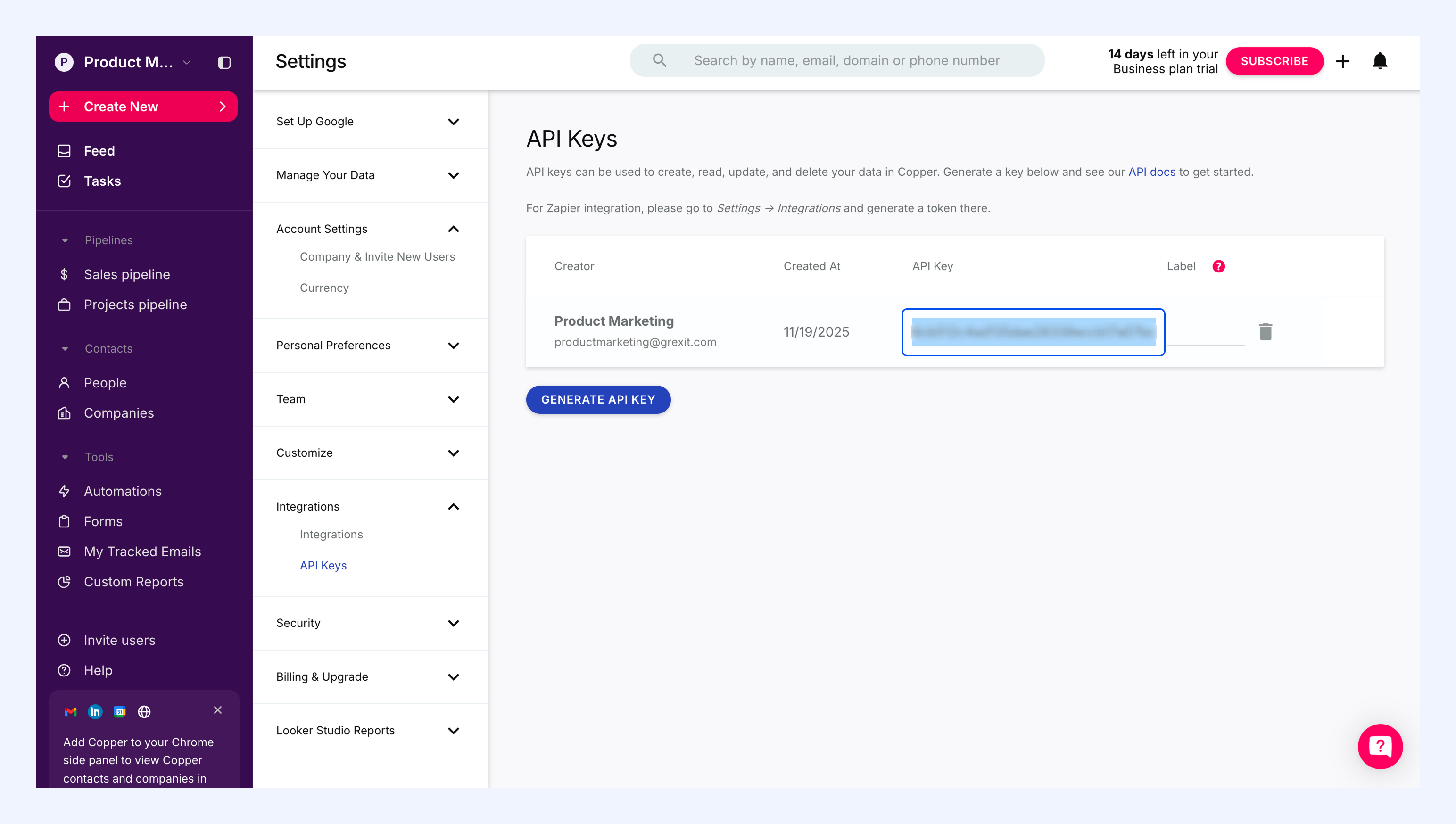
5. Copy your API Key and keep it somewhere safe. You will need it when setting up Hiver.
Get your Copper account ID
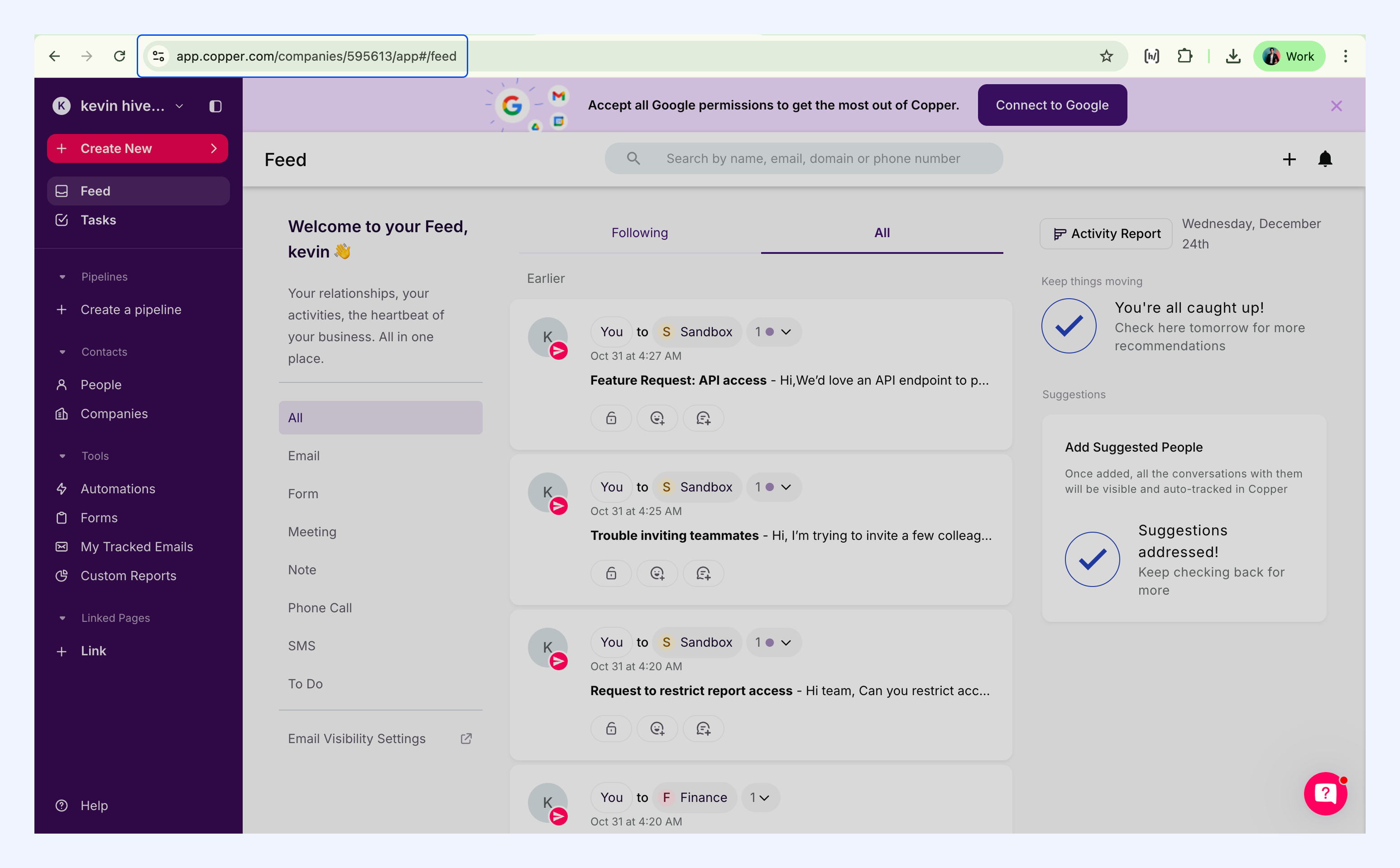
Your Copper account ID is visible in your browser's address bar when you're logged into Copper.
1. Sign in to your Copper account.
2. Look at the URL in your browser's address bar. It will look something like this: https://app.copper.com/companies/595613/app#/feed
3. The number after /companies/ is your account ID.
4. Copy and save this ID for the next step.
Set up the Copper integration in Hiver
Now that you have your credentials, you can connect Copper to Hiver.
1. In Hiver Omni, go to Admin Panel → Apps and locate Copper.
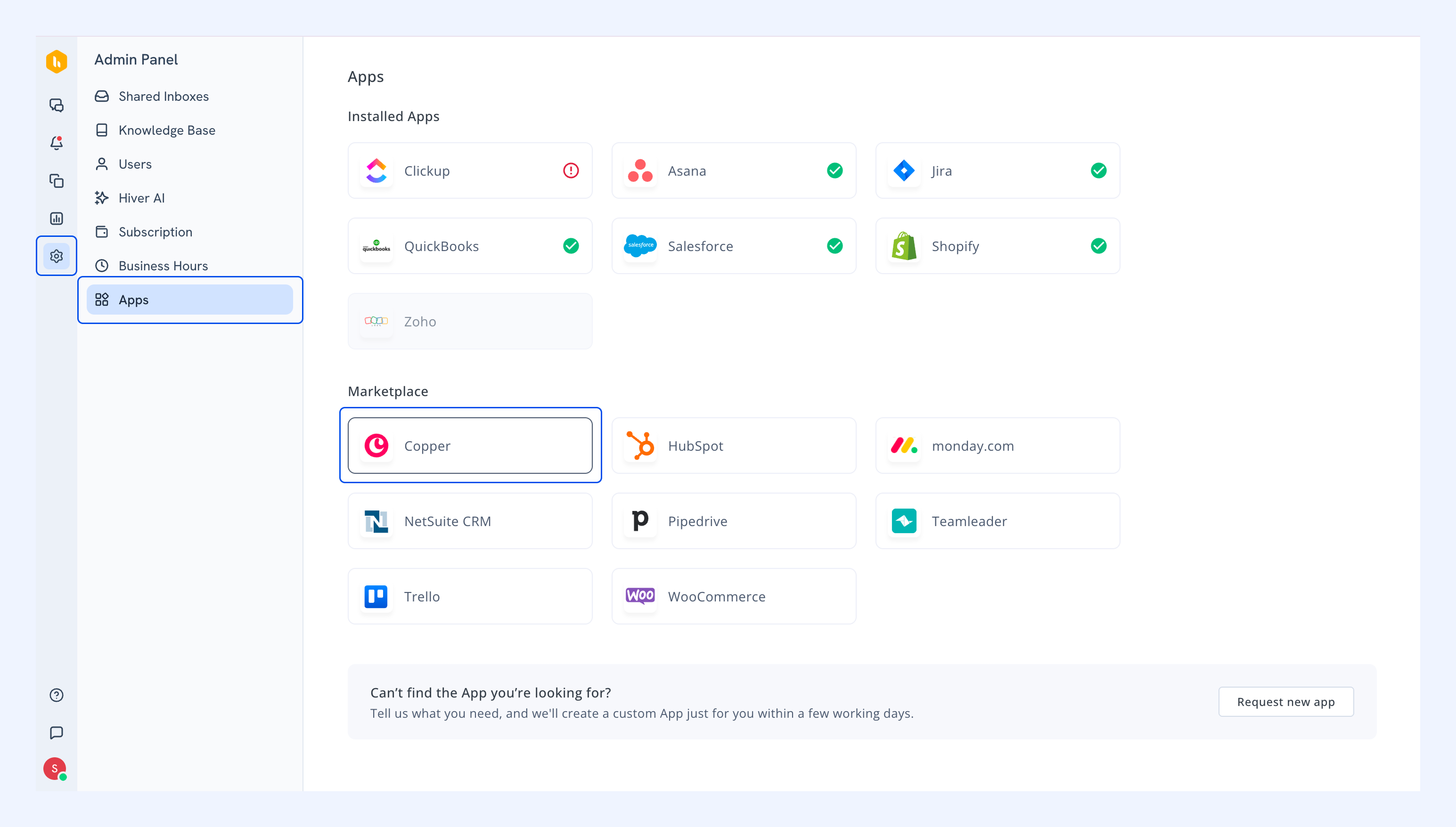
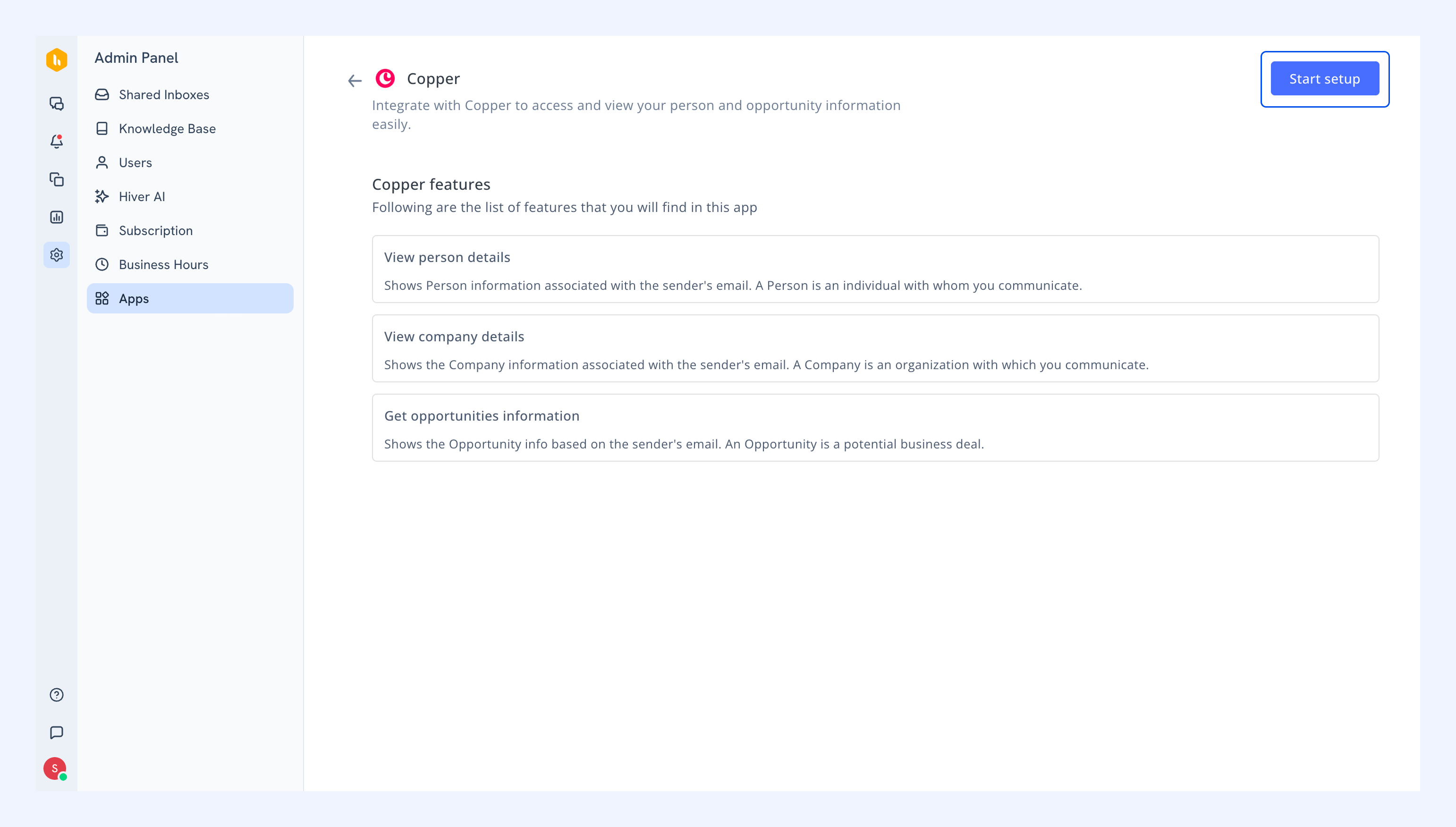
2. Click on Copper to open the setup page.
3. Review the features of the integration, and click Start setup.
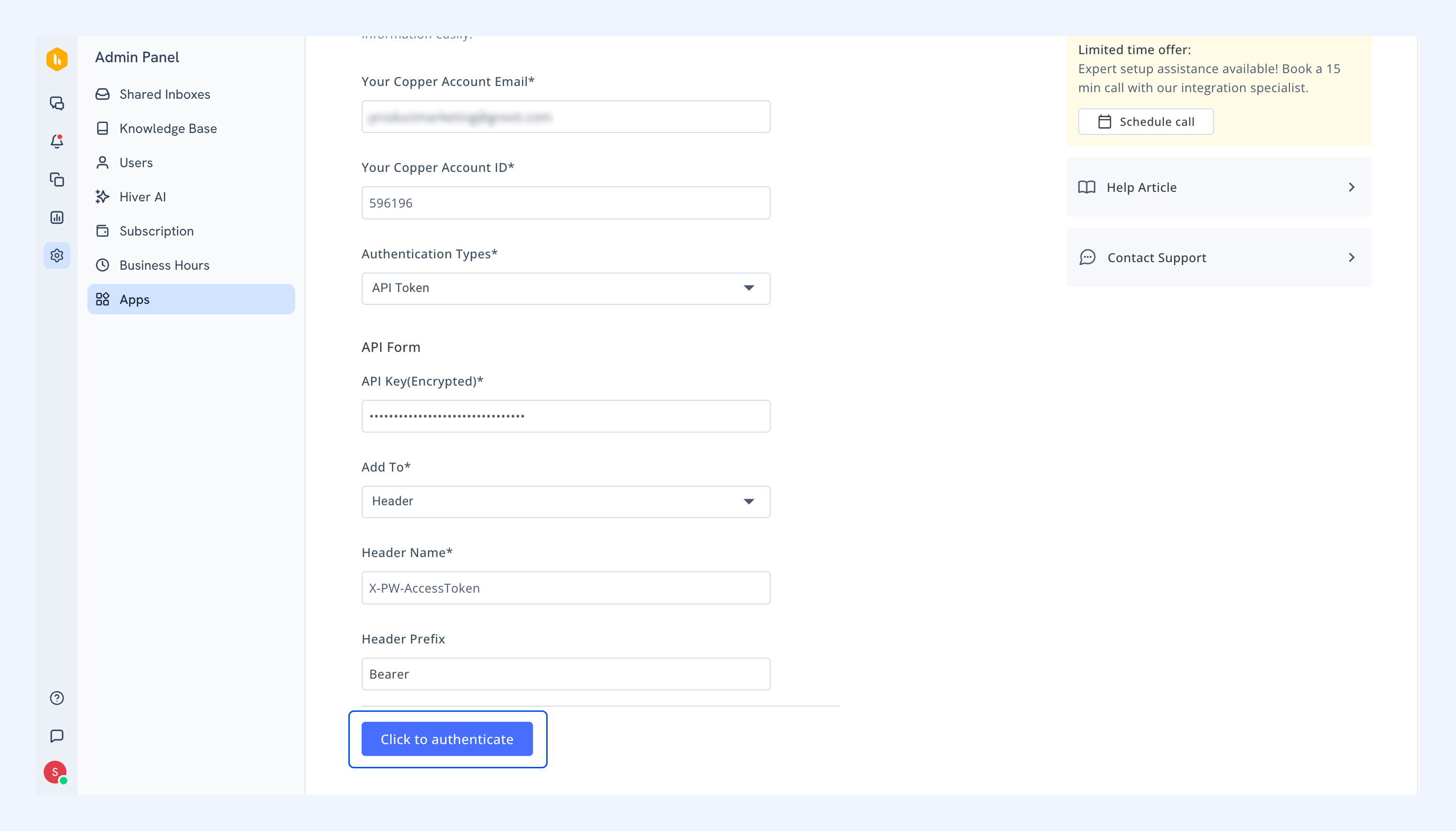
4. In the setup page, you’ll see the details required for authentication. Fill these in with the details you saved earlier:
- Your Copper Account Email: The email address you used to login to Copper.
- Your Copper Account ID: The ID copied from Postman’s response field.
- Authentication Types: Set as API Token.
- API Key: Copied from Workspace settings → Integrations → API keys in Copper Settings.
- Add To: Set as Header.
- Header Name: Set as X-PW-AccessToken.
- Header Profile: Set as Bearer.
5. Select Click to authenticate.
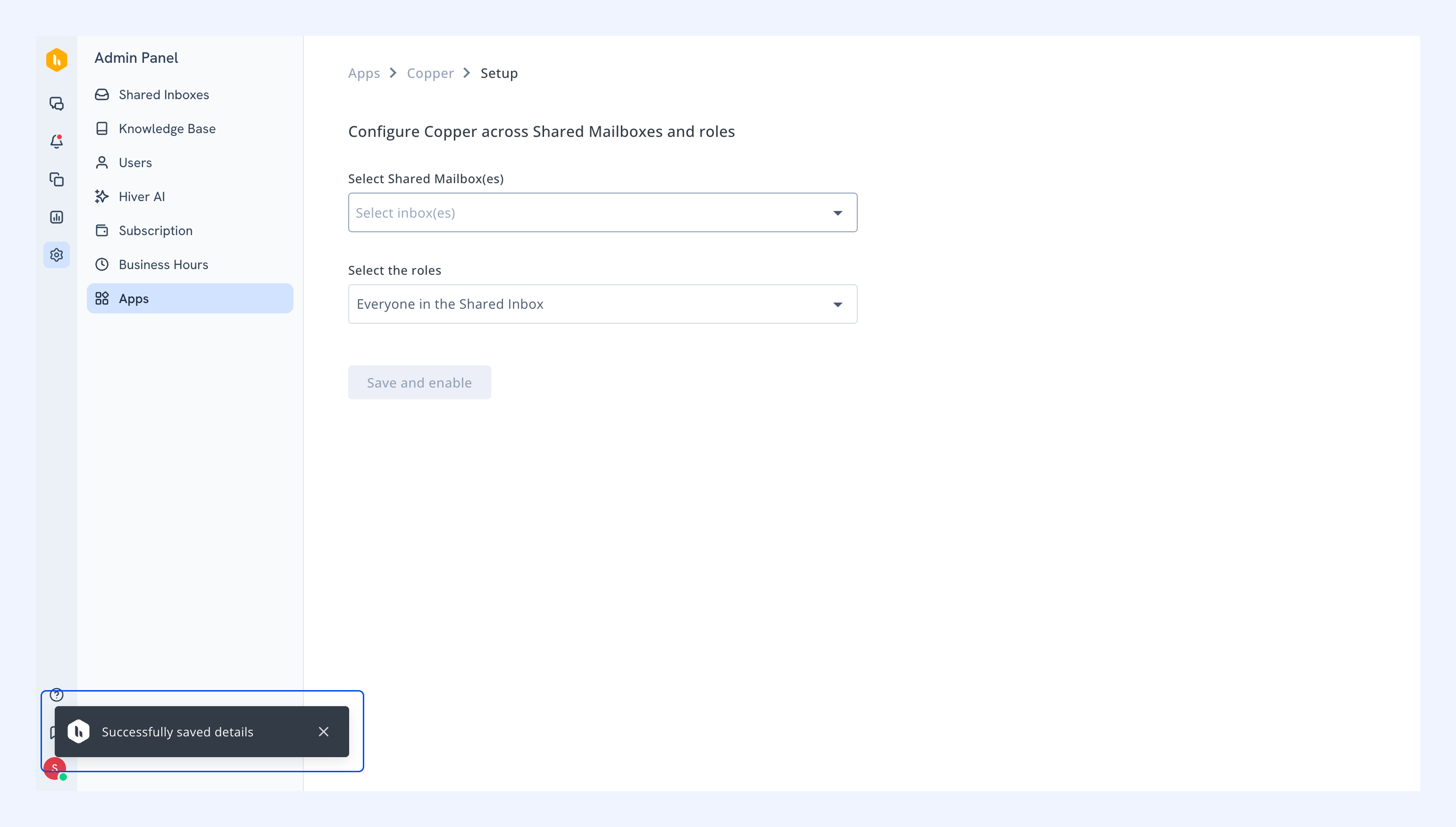
6. You'll see a confirmation message that your details were successfully saved.
Configure visibility settings
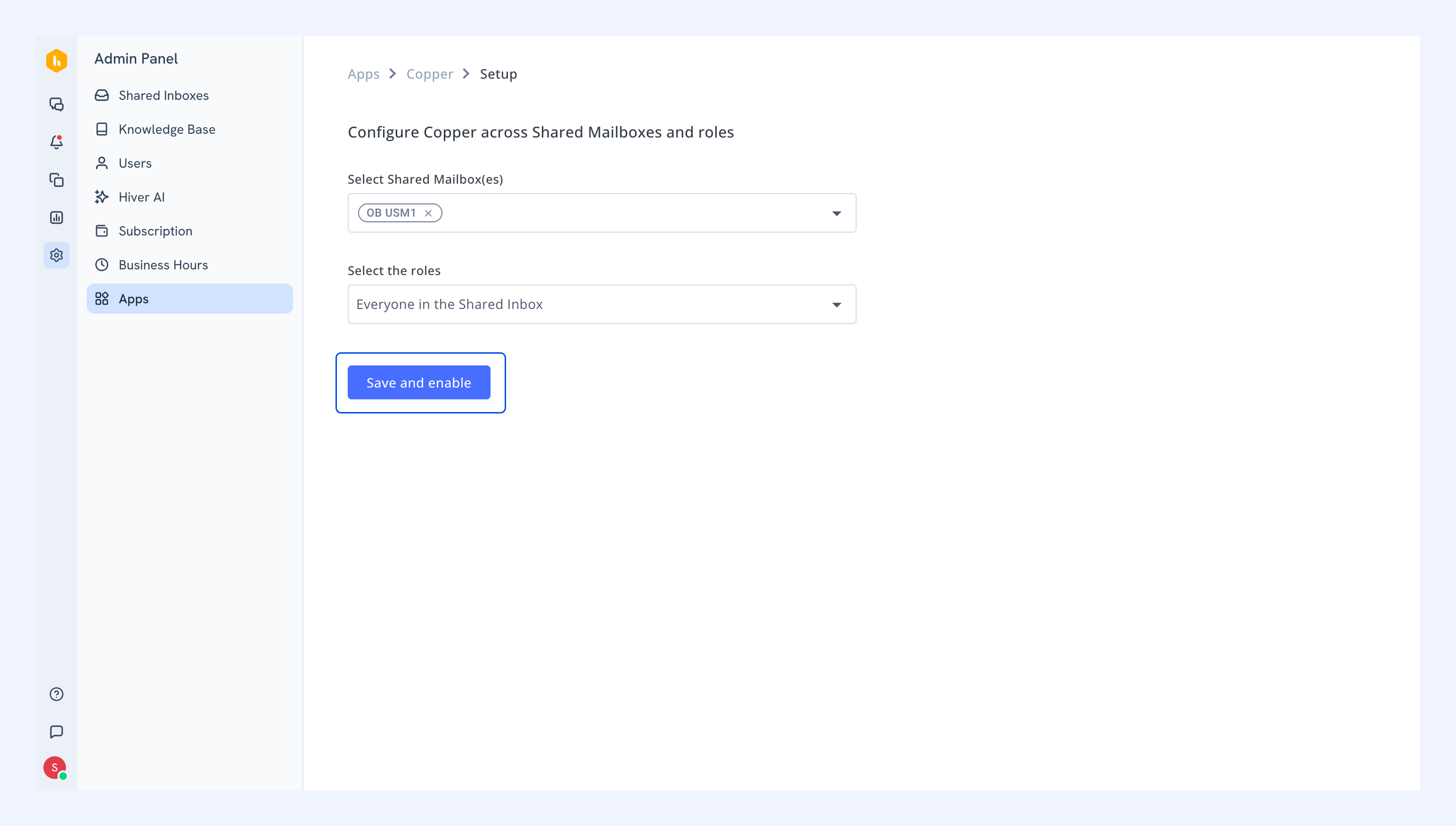
Choose which Shared Inboxes and team members can access the Copper integration.
1. From the Select Inbox(es) dropdown, choose the Shared Inboxes where you want Copper data to appear.
2. Choose which team member roles can view Copper information:
- Admin only: Only admins can see Copper data
- Everyone: All team members in the Shared Inbox can see Copper data
3. Click Save and Enable.
Using the Copper integration
Once the setup is complete, Copper information will appear in the Apps tab of your email conversations.
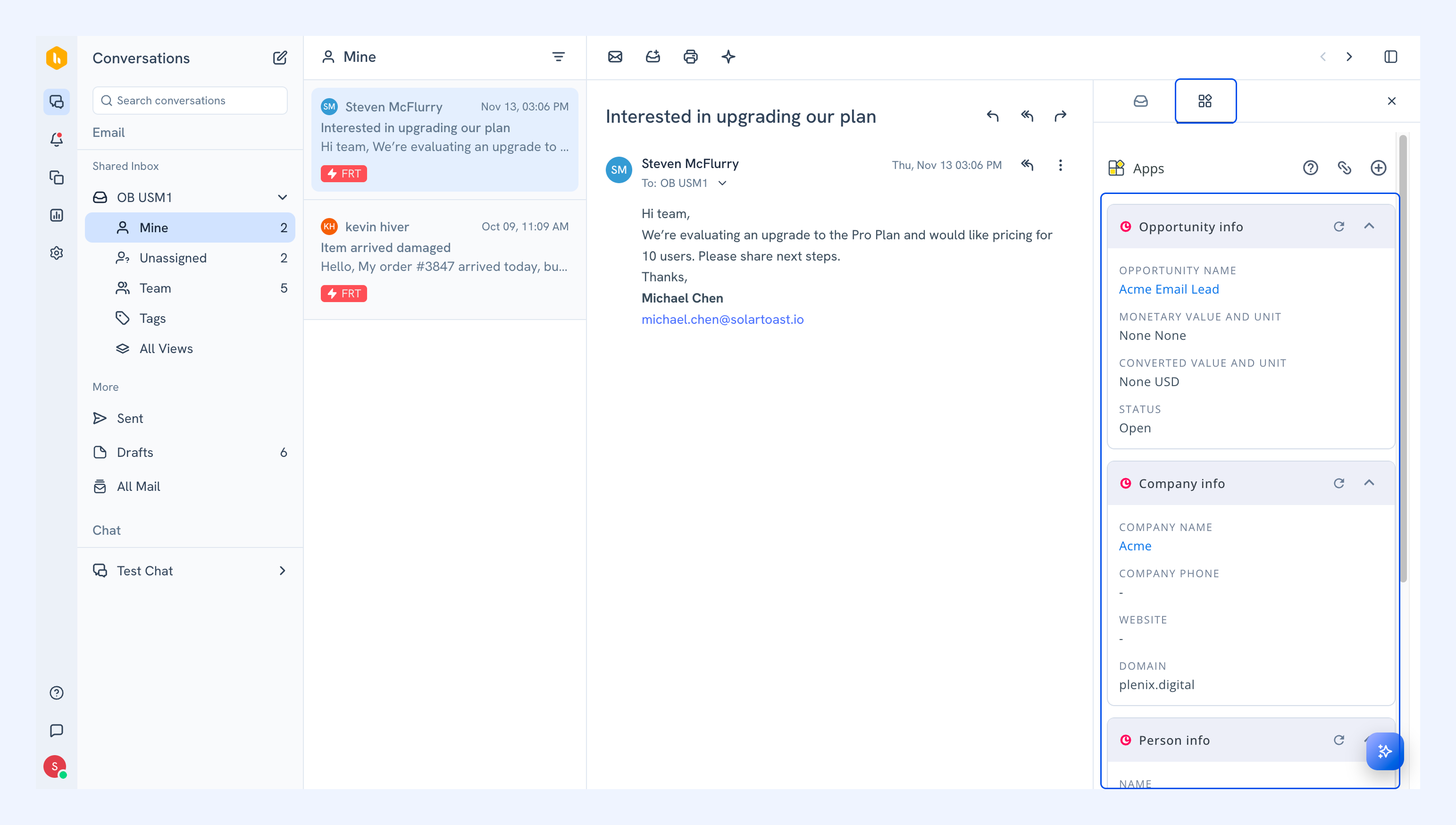
You'll see cards for the details you’ve configured:
- Opportunity information: Sales pipeline details and deal progress.
- Company information: Company profiles and contact details.
- People information: Contact details for individuals associated with the email.
Related articles
Jira integration in Hiver Omni
Asana integration in Hiver Omni
Shopify integration in Hiver Omni