Pipedrive integration with Hiver Omni
Pipedrive is a sales CRM that helps teams manage leads, track deals, and automate sales workflows. When your support team handles inquiries from prospects or customers, they need quick access to deal context and contact history. The Pipedrive integration allows your team to access all the details they need to engage with customers right beside their conversations.
Why integrate Pipedrive with Hiver
The Pipedrive-Hiver integration enables your team to:
- View CRM data instantly: Access deals, contacts, organizations, and projects directly in Hiver Omni without switching tabs.
- Respond with context: Tailor replies and prioritize key accounts by viewing Pipedrive insights in Hiver Omni.
- Build cross-team alignment: Keep sales and support teams on the same page by ensuring they view the same shared deals and contact details.
Prerequisites
Before setting up the Pipedrive integration, ensure you have:
- Admin access in Hiver.
- Admin access in your Pipedrive account.
Setting up the Pipedrive integration
1. Go to Admin Panel → Apps.
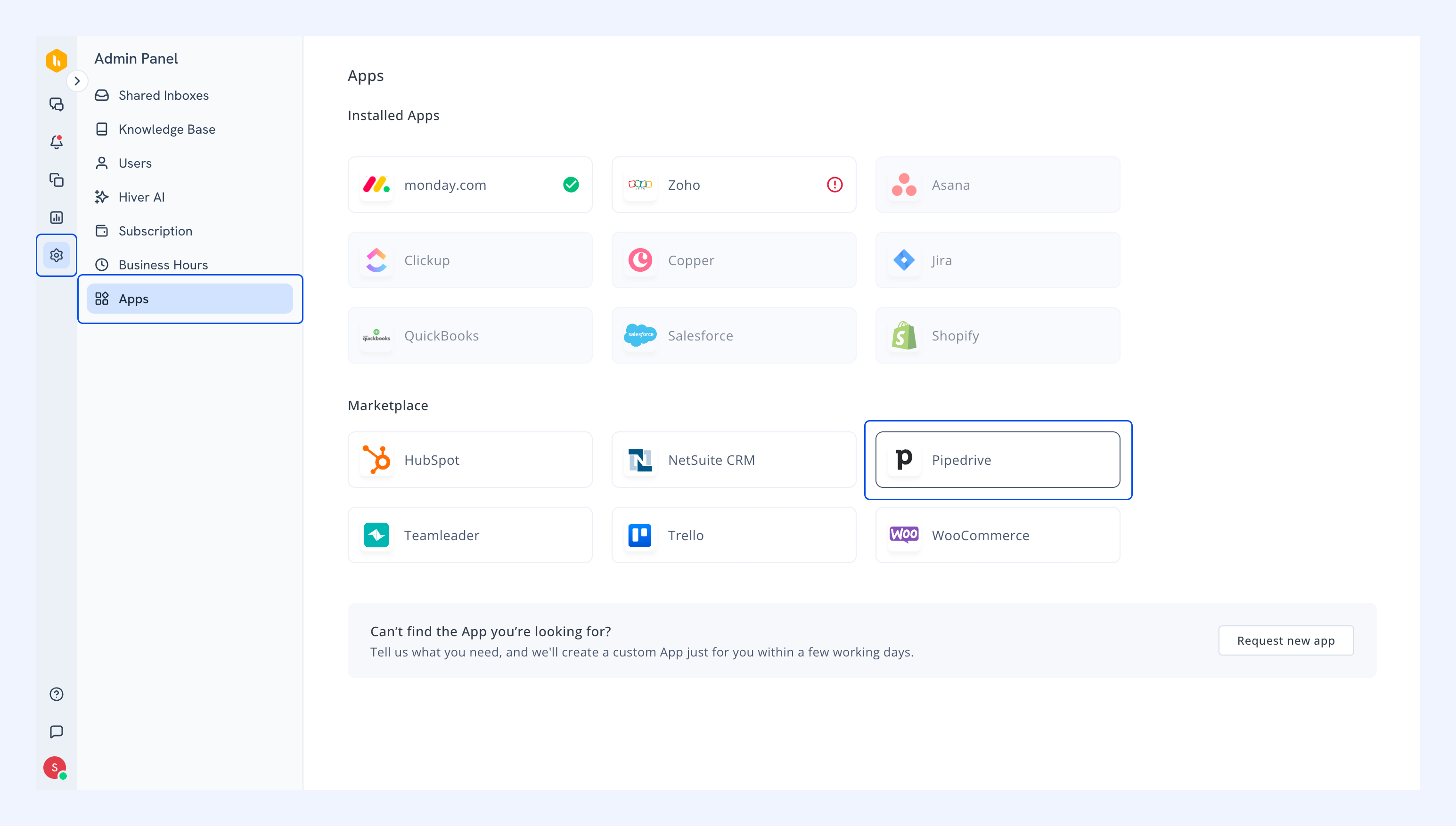
2. Find and click Pipedrive from the list.
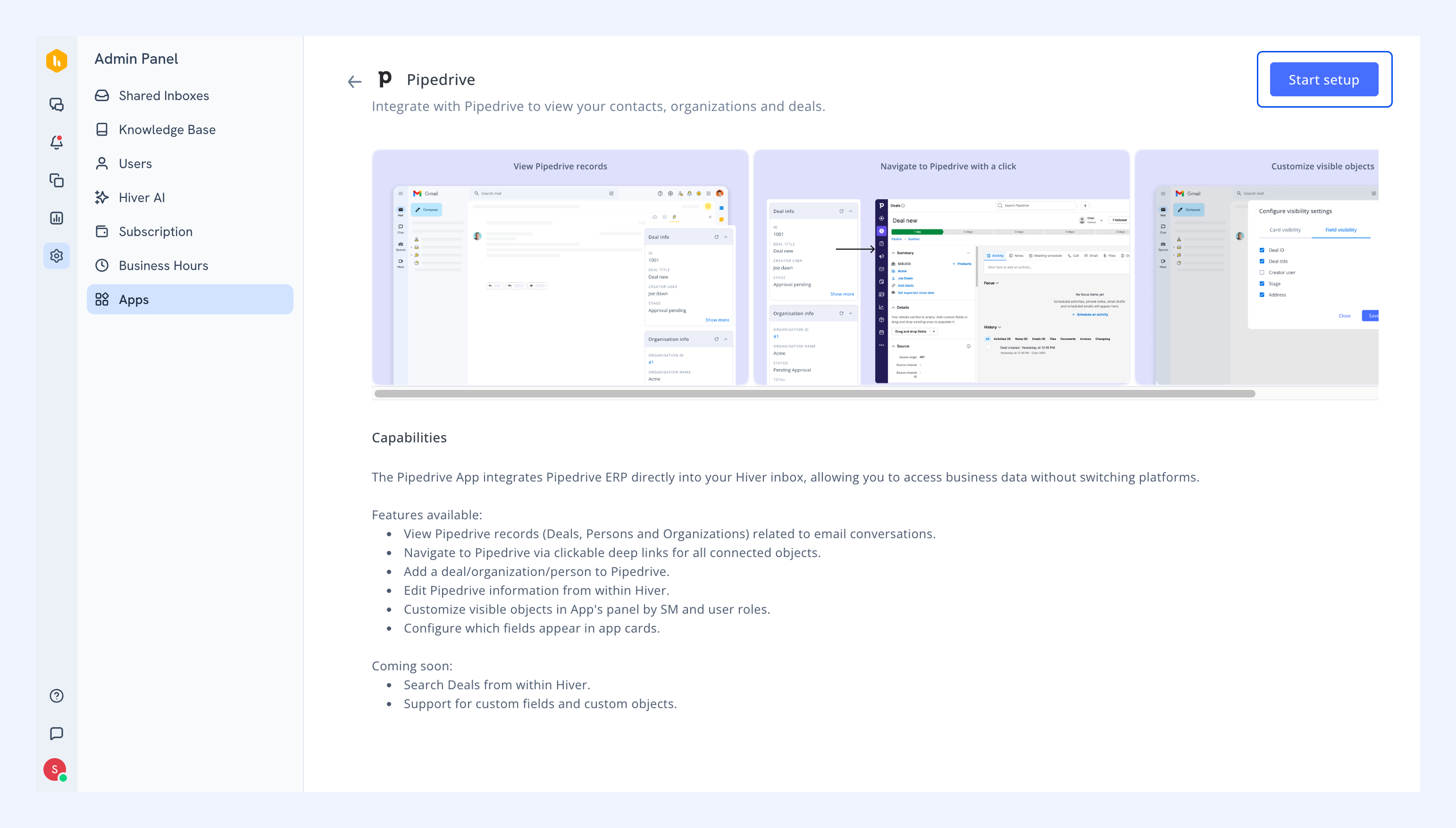
3. Review the features of the integration and click Start setup.
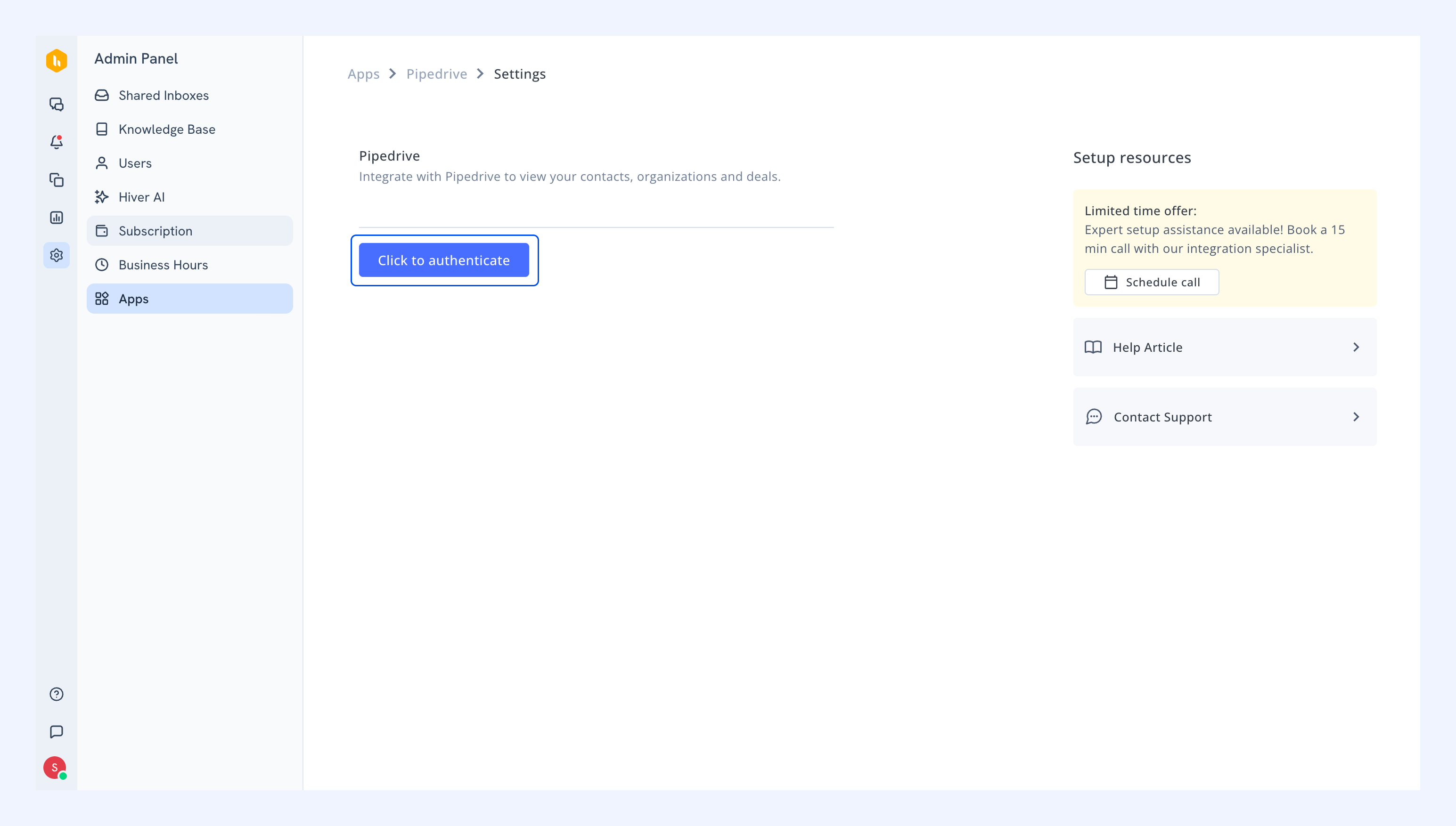
4. Select Click to authenticate.
5. In the new tab that opens, sign in to your Pipedrive account.
6. Review the permissions Hiver is requesting, then click Allow and Install to grant access.

7. After signing in, you’ll be returned to the Apps page in Hiver. The app will appear as inactive.
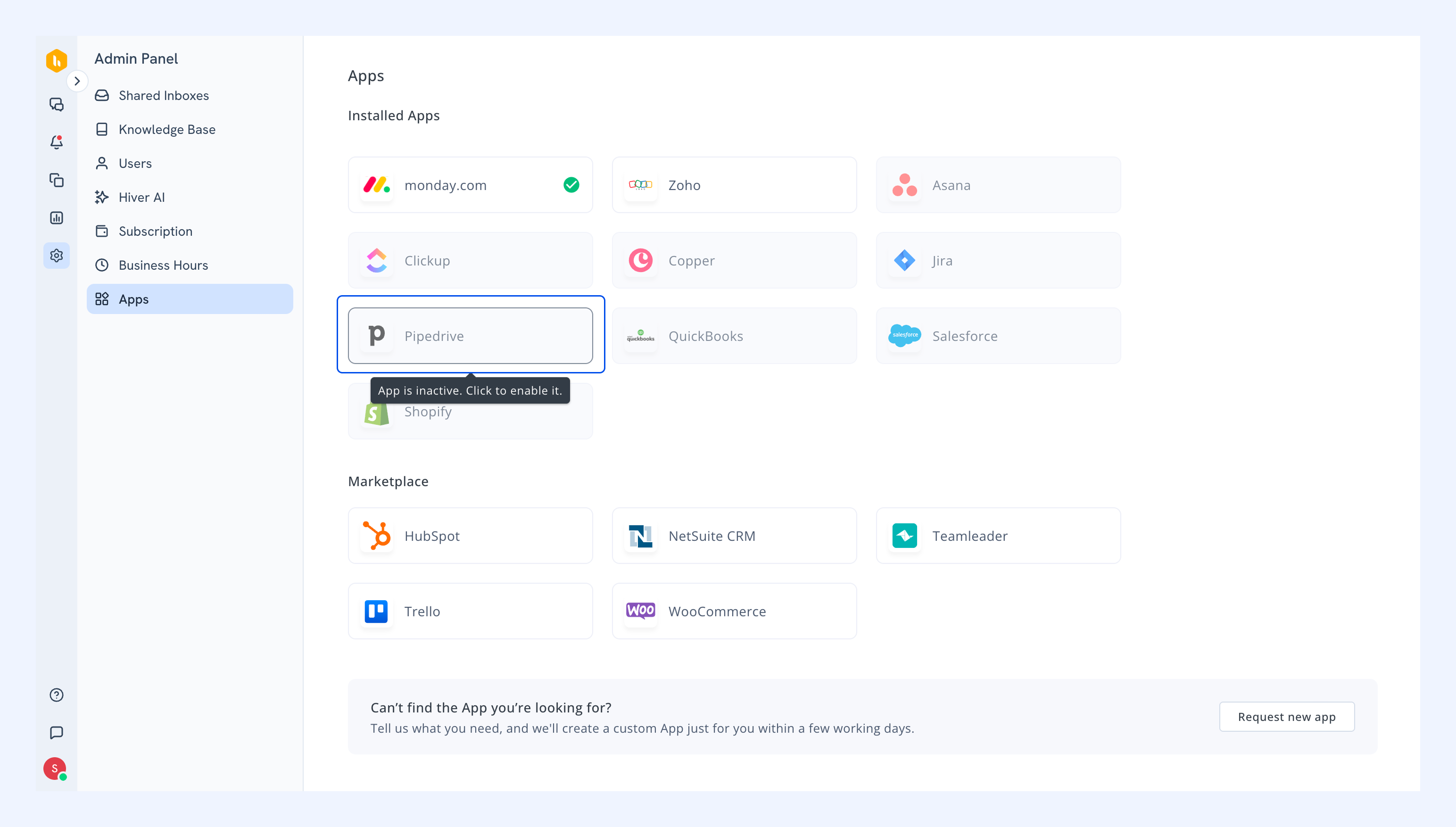
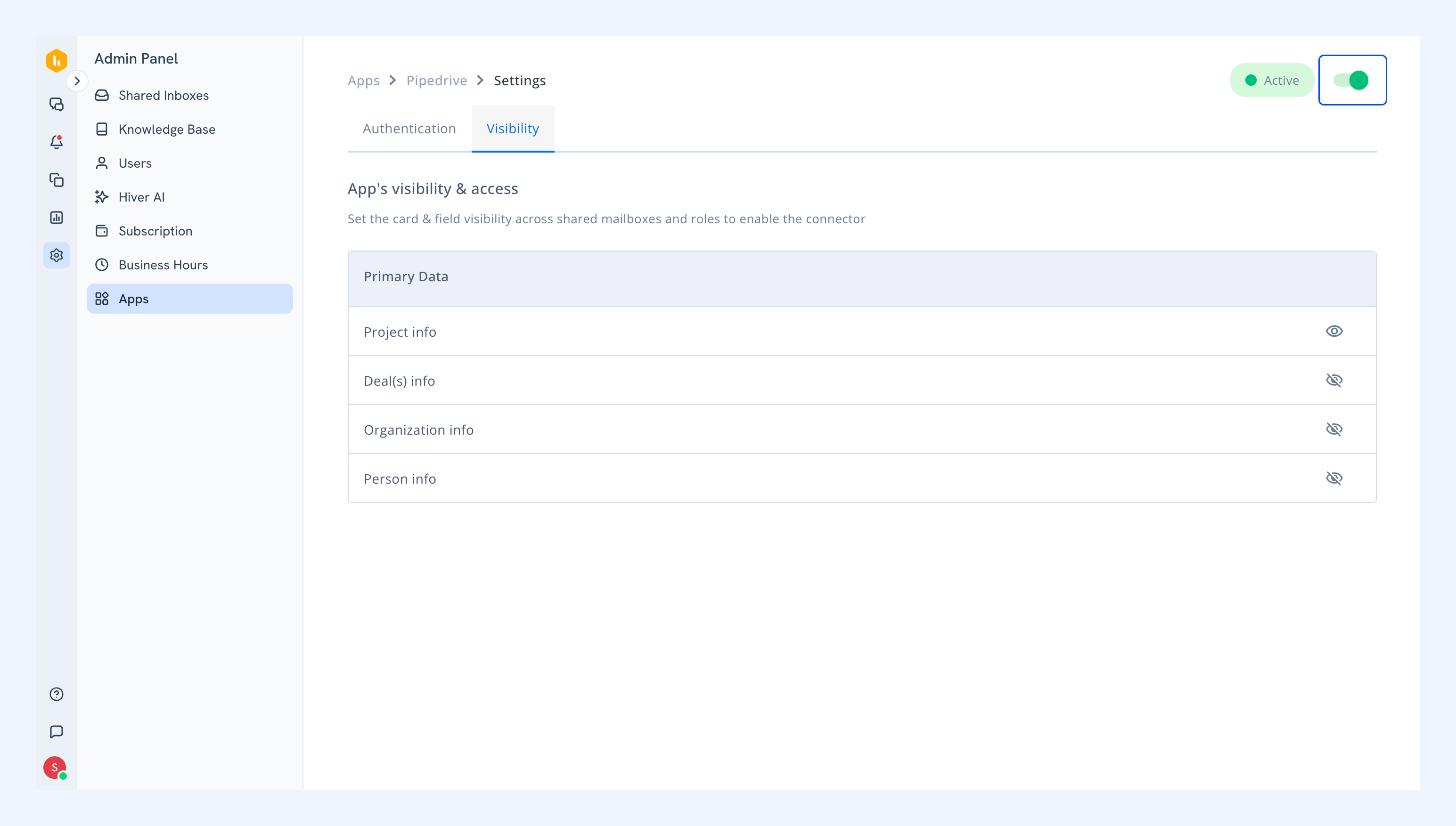
8. Click the app and go to the Visibility tab.
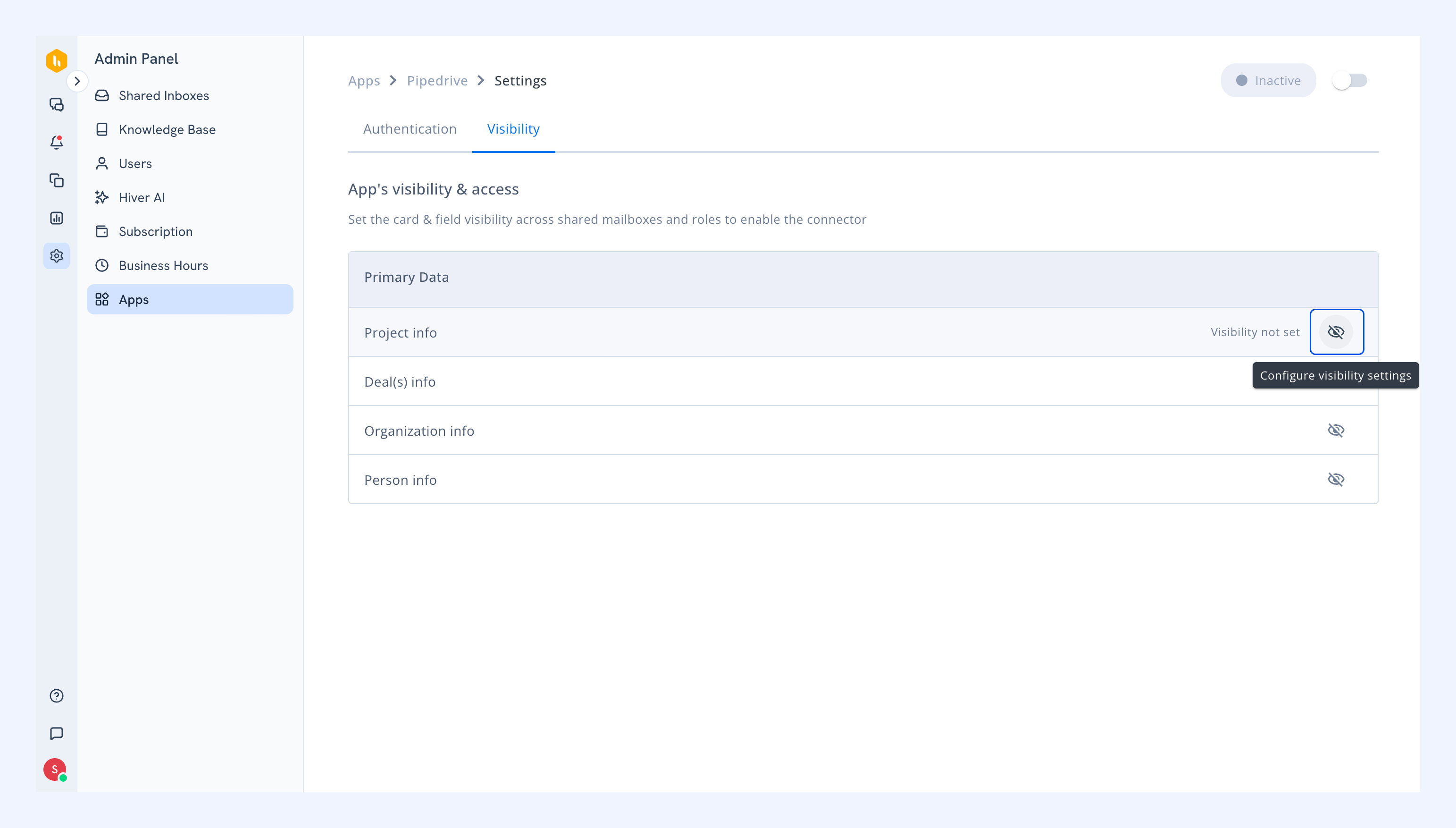
9. Click the visibility icon next to each card type (Deal, Organization, Person, Project) to configure settings.
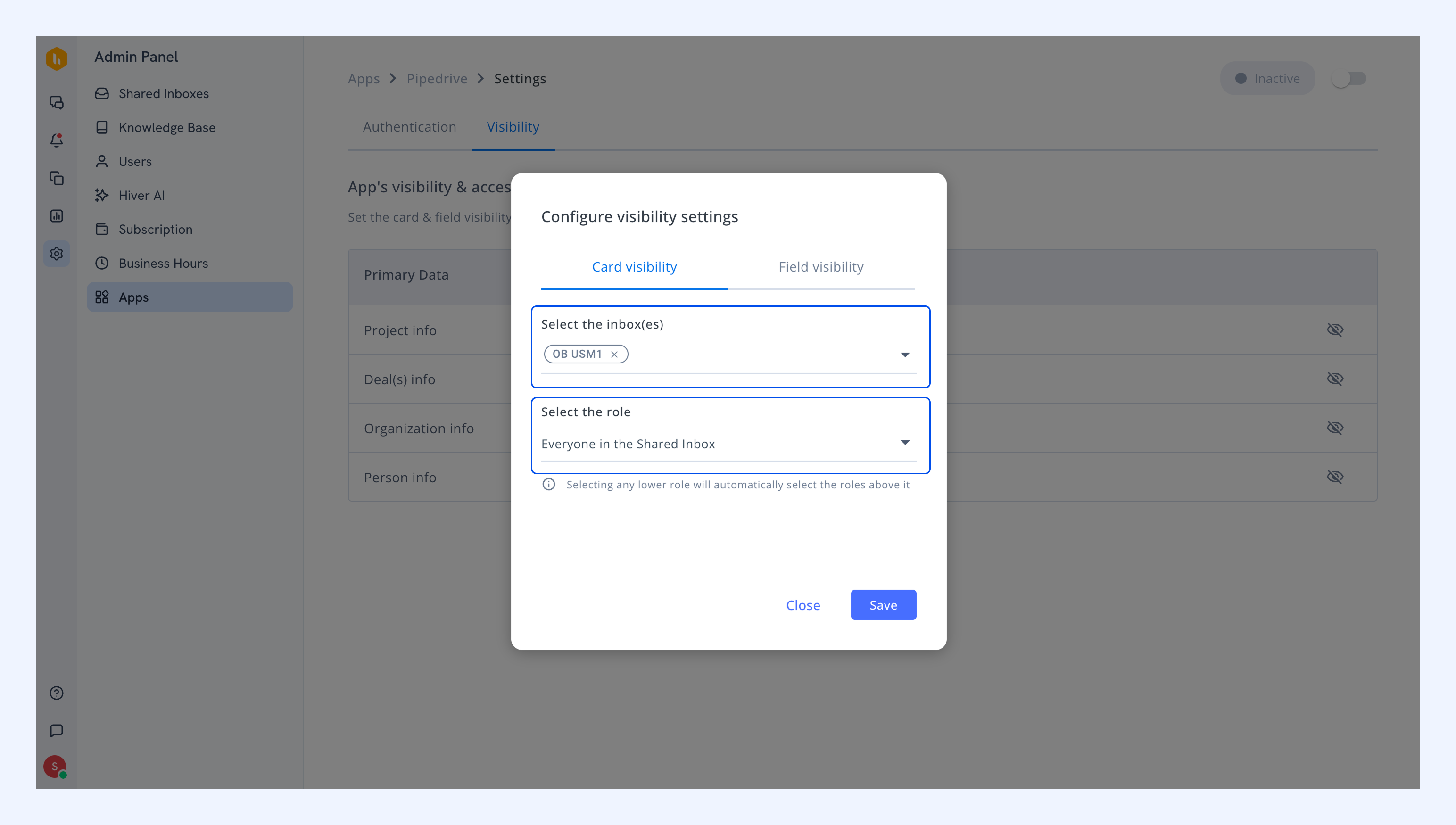
- Card visibility: Choose which Shared Inboxes can access Pipedrive data and which user roles (Admins or Everyone) can view the data.
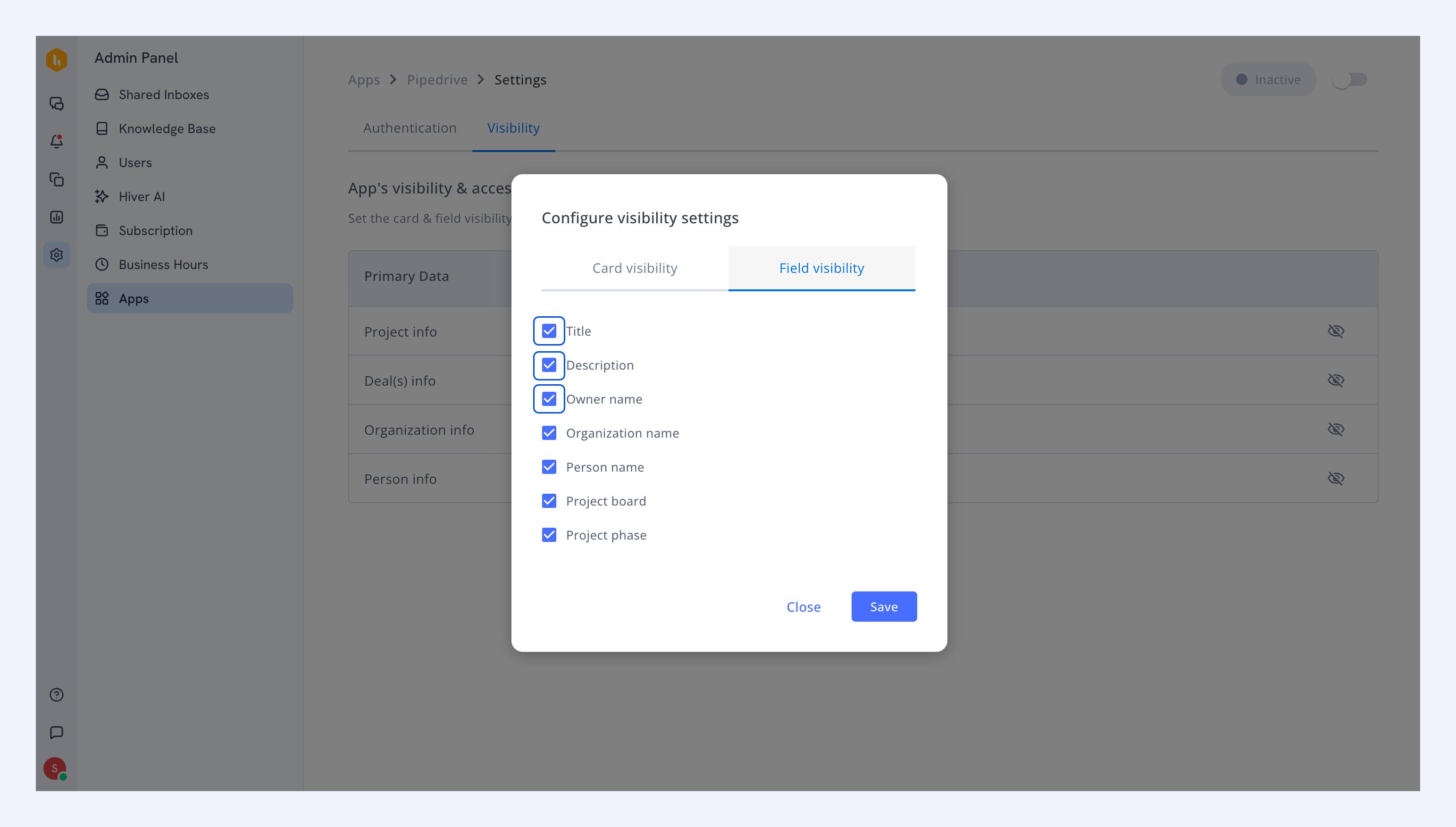
- Field visibility: Select which data fields should appear in conversations.
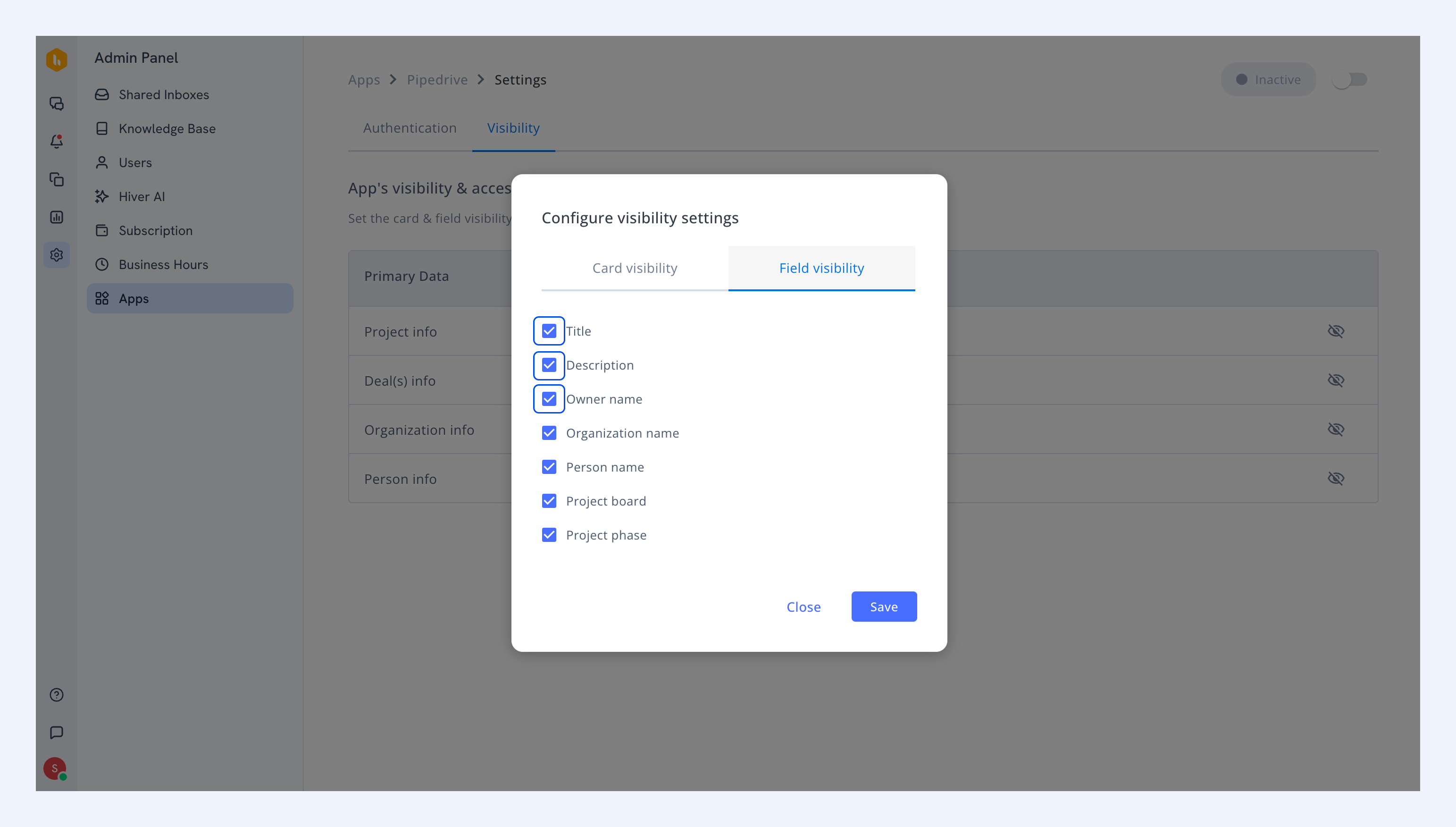
10. Click Save after configuring visibility settings.
11. Turn on the toggle to enable the app.
Using the Pipedrive integration in Hiver Omni
Once enabled, you can create new records or link existing projects from Pipedrive directly within your conversations.
Creating new records in Pipedrive
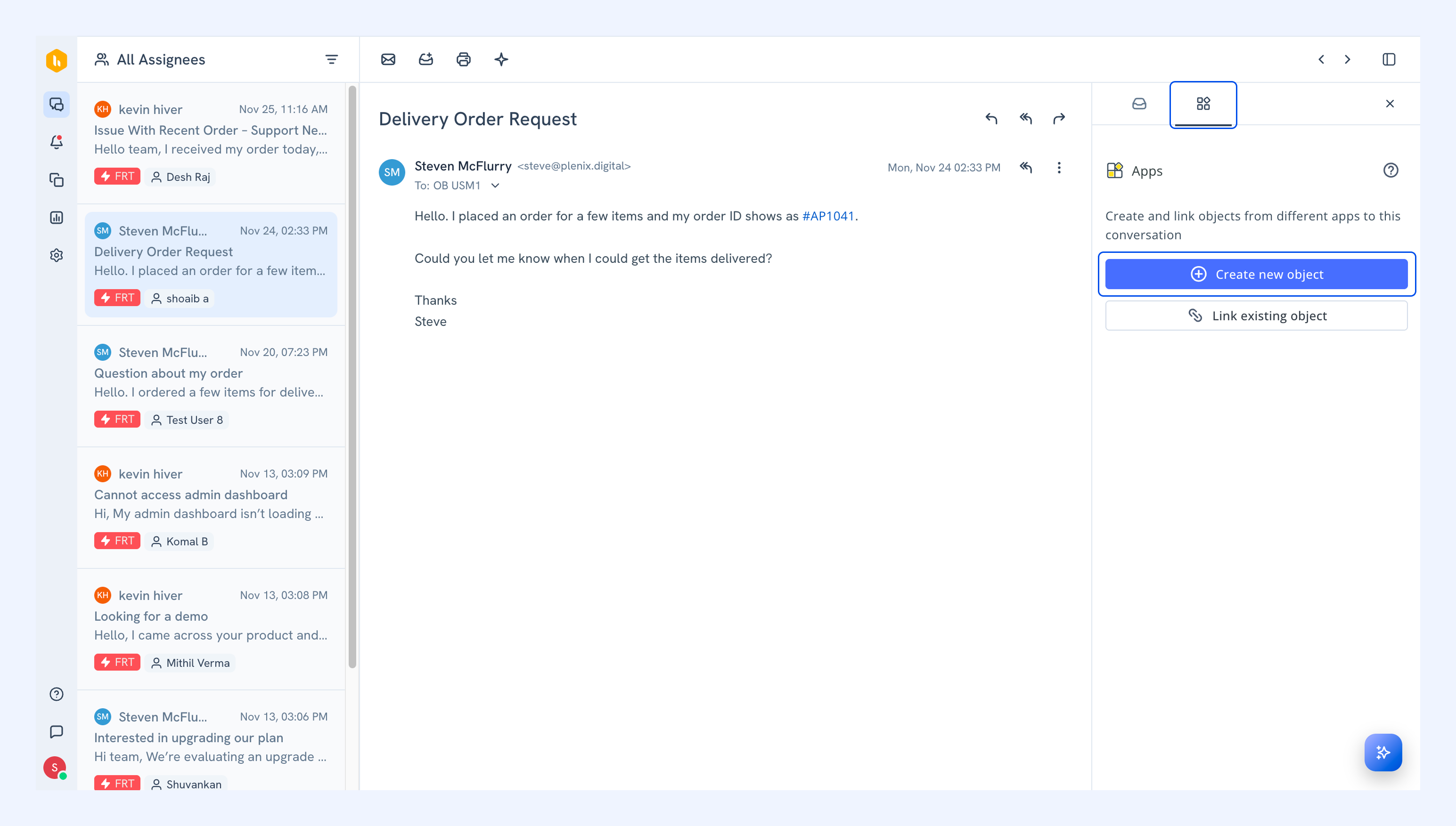
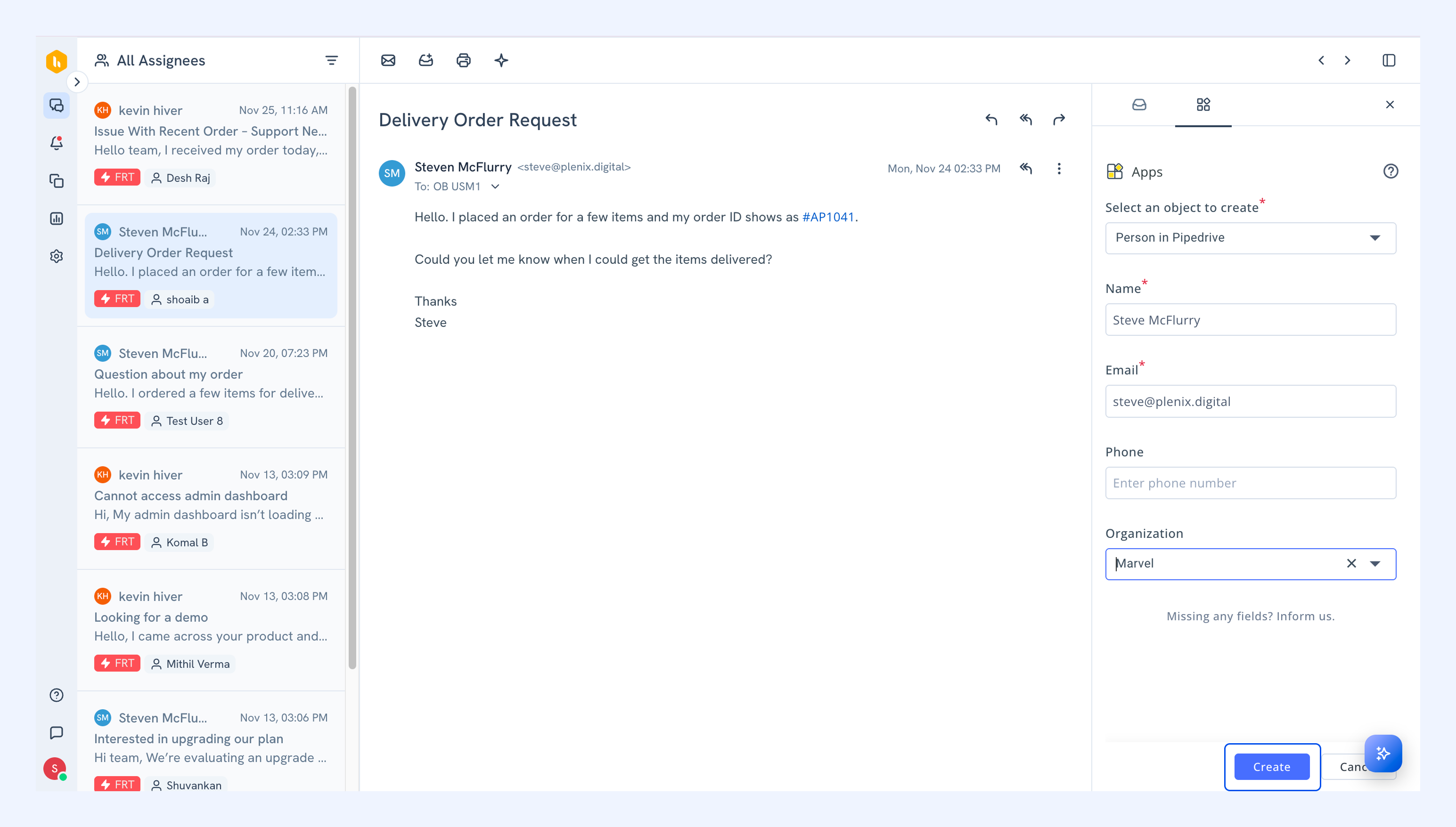
1. Open a conversation and go to the Apps tab.
2. Click Create new object.
3. From the dropdown, select the type of record you want to create: Deal, Organization, Person, or Project.
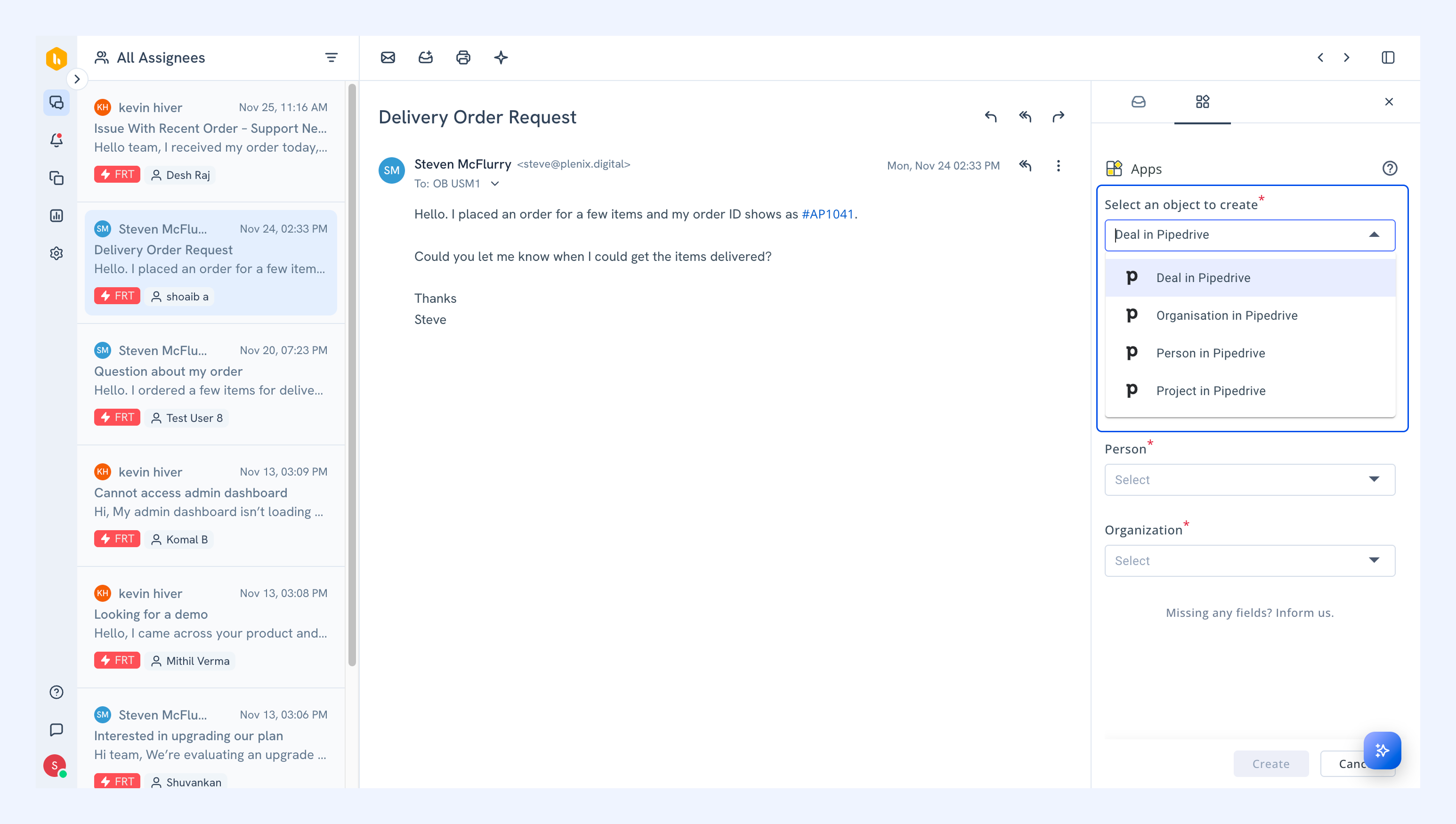
4. Enter the required details and click Create.
Linking existing Pipedrive projects
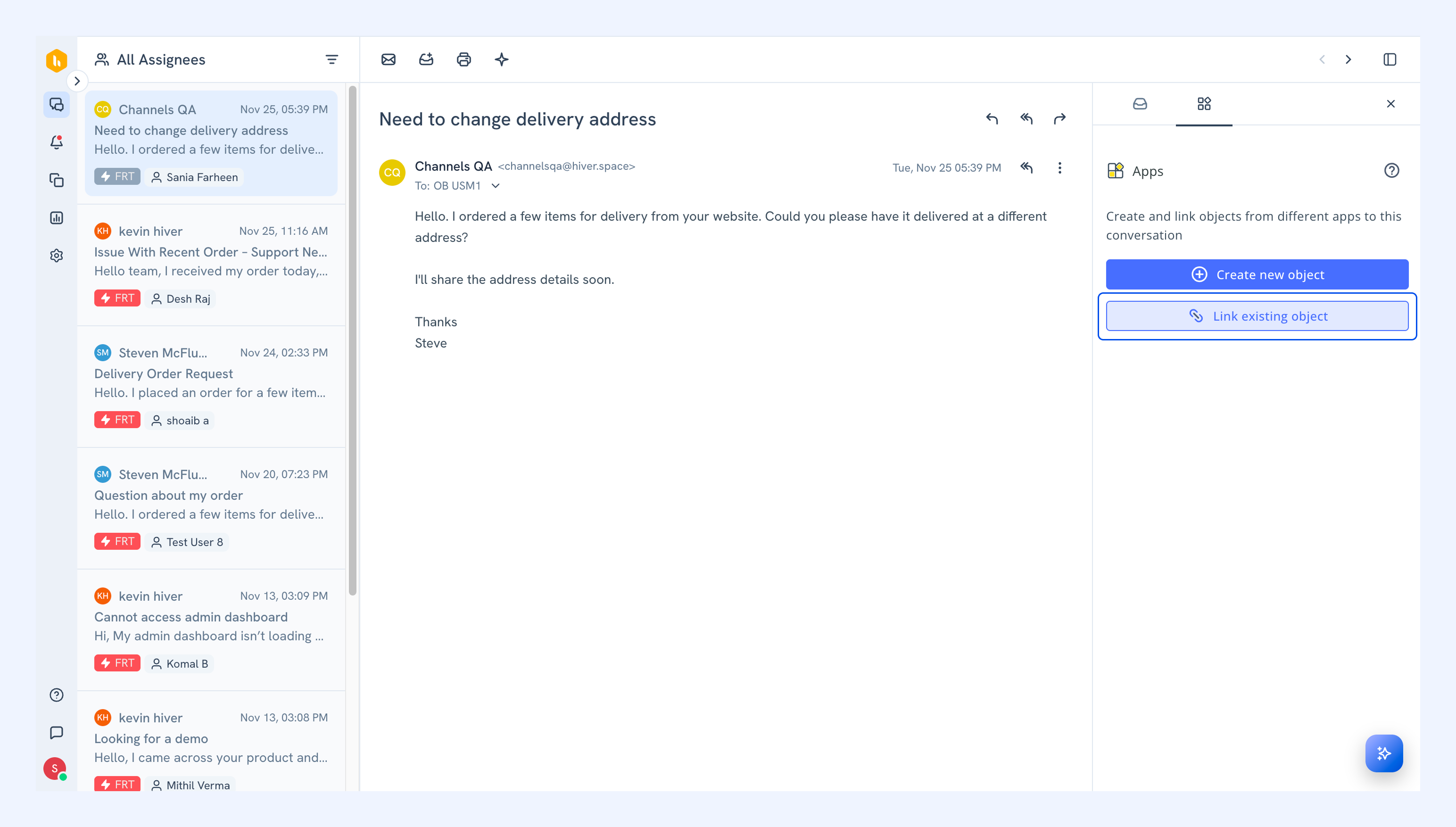
1. In the Apps tab, click Link existing project.
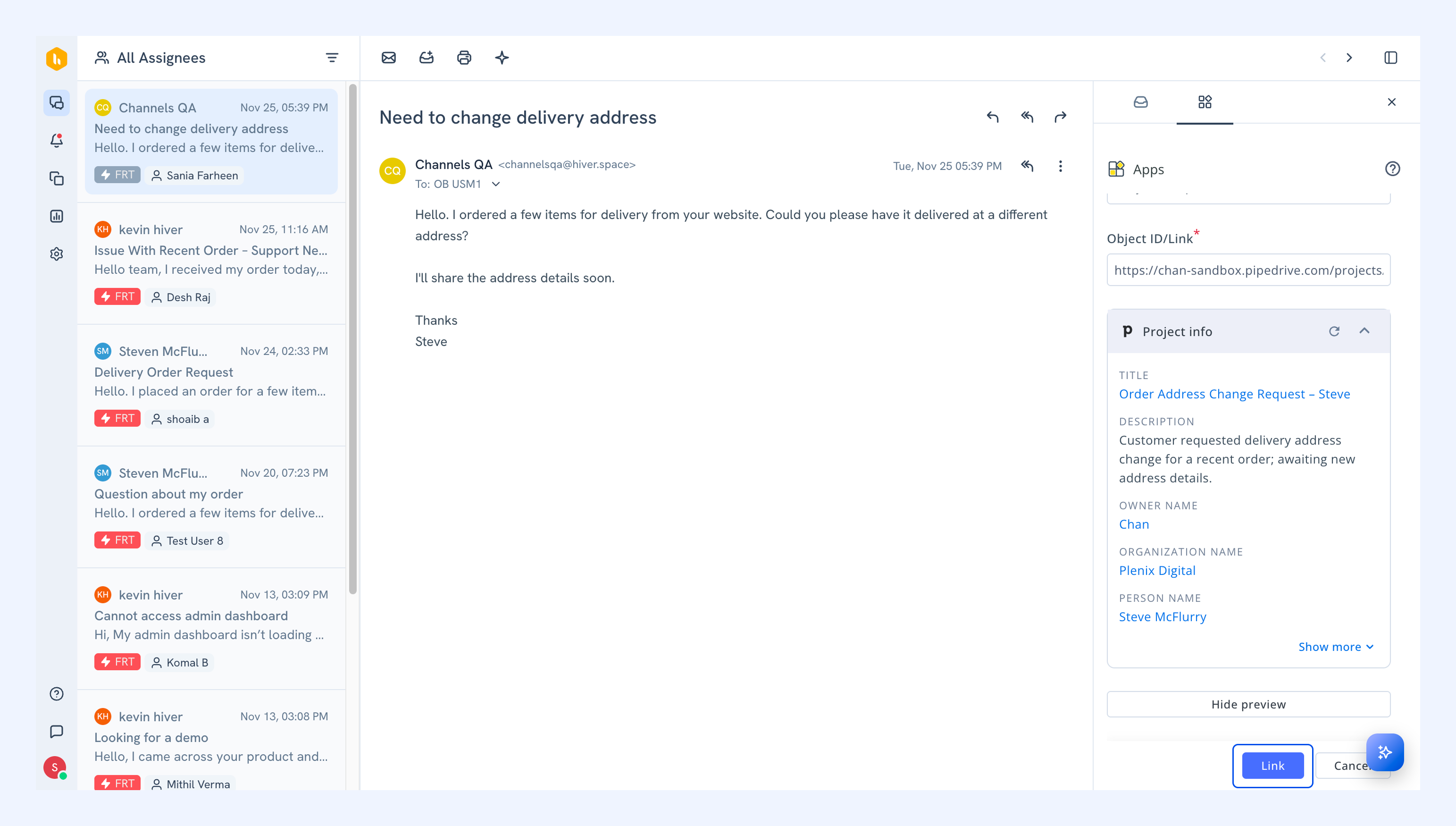
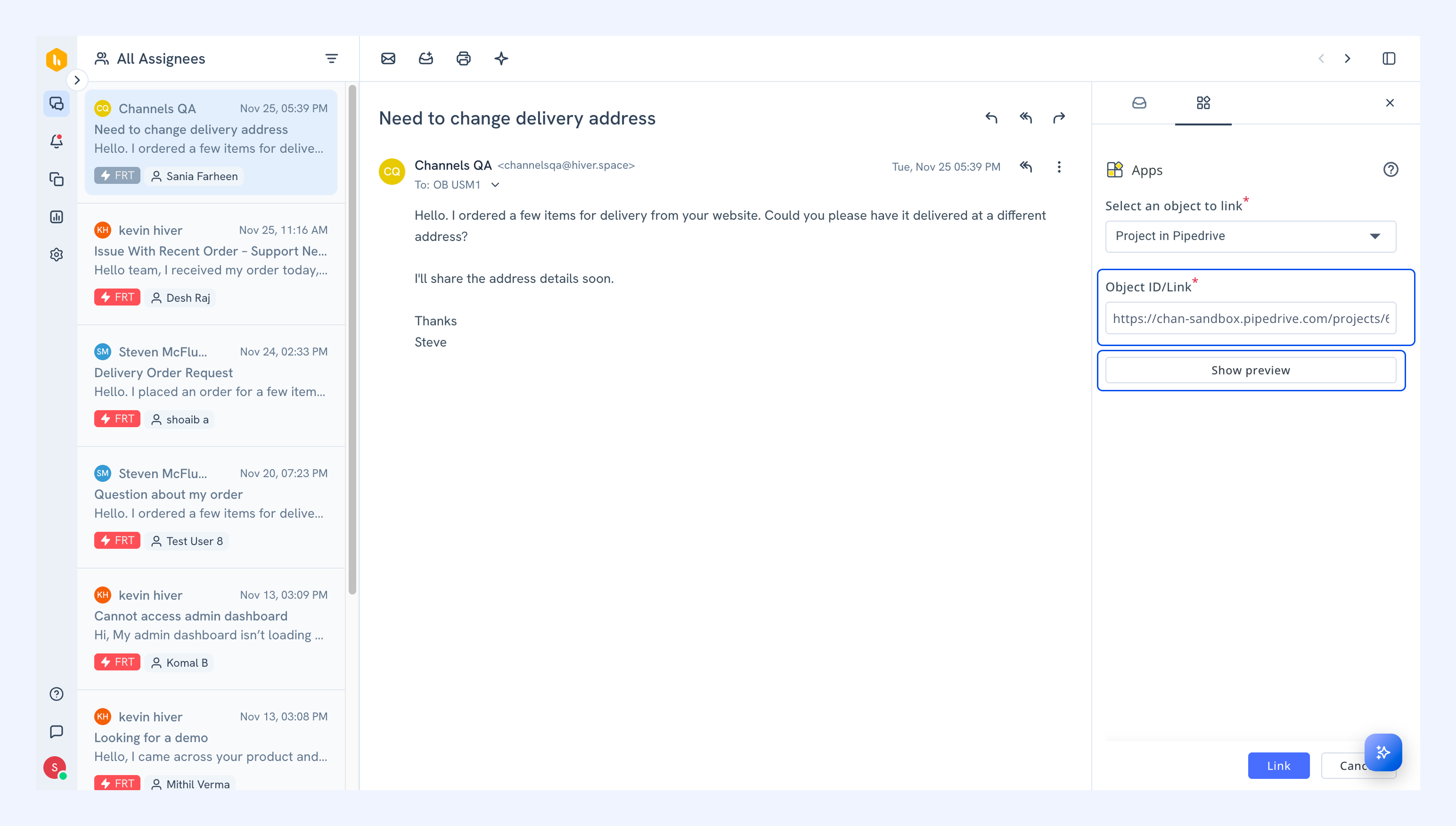
2. Enter the project link and click Show preview to see the project details.
3. Click Link to connect the project to your conversation.
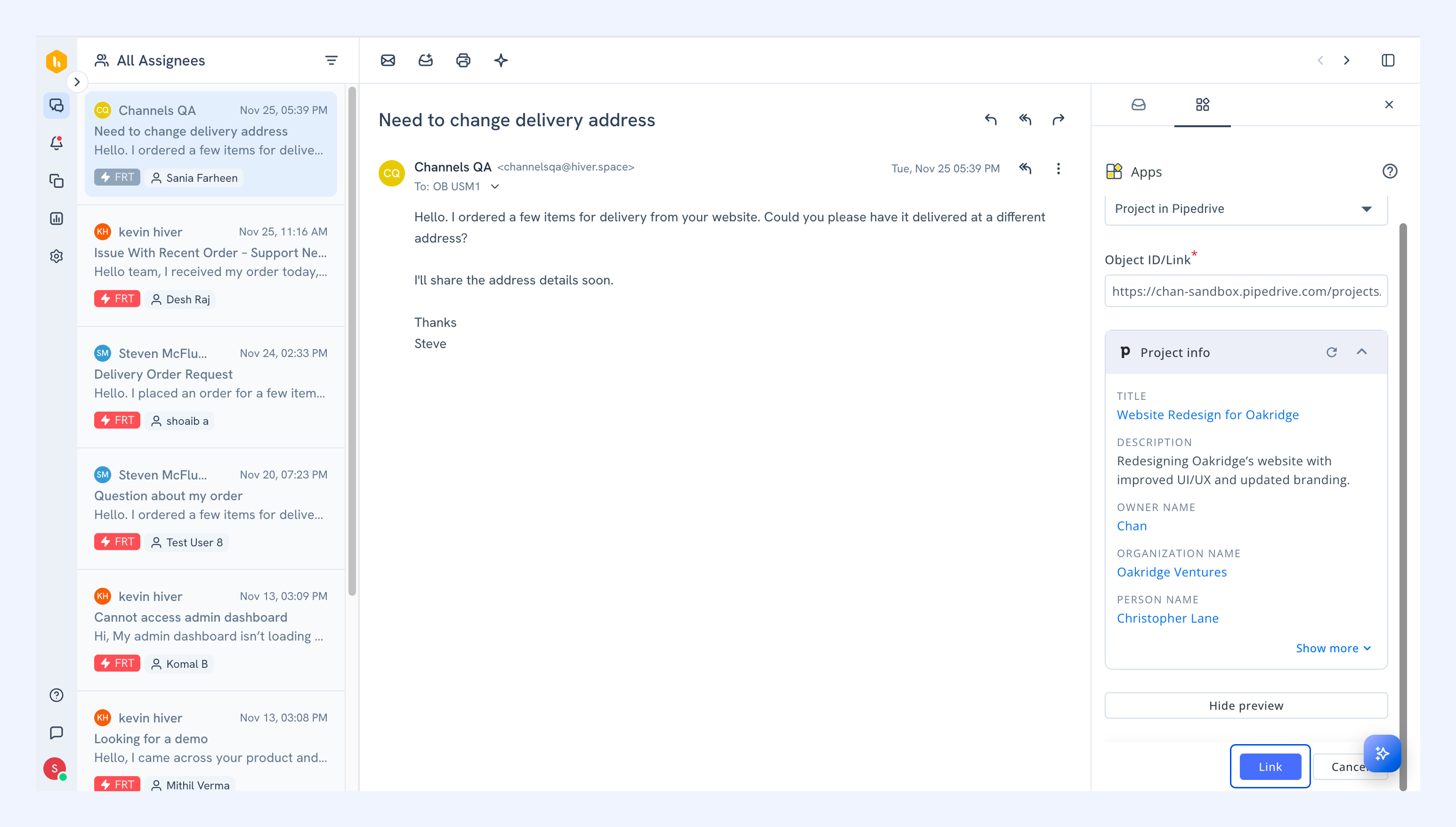
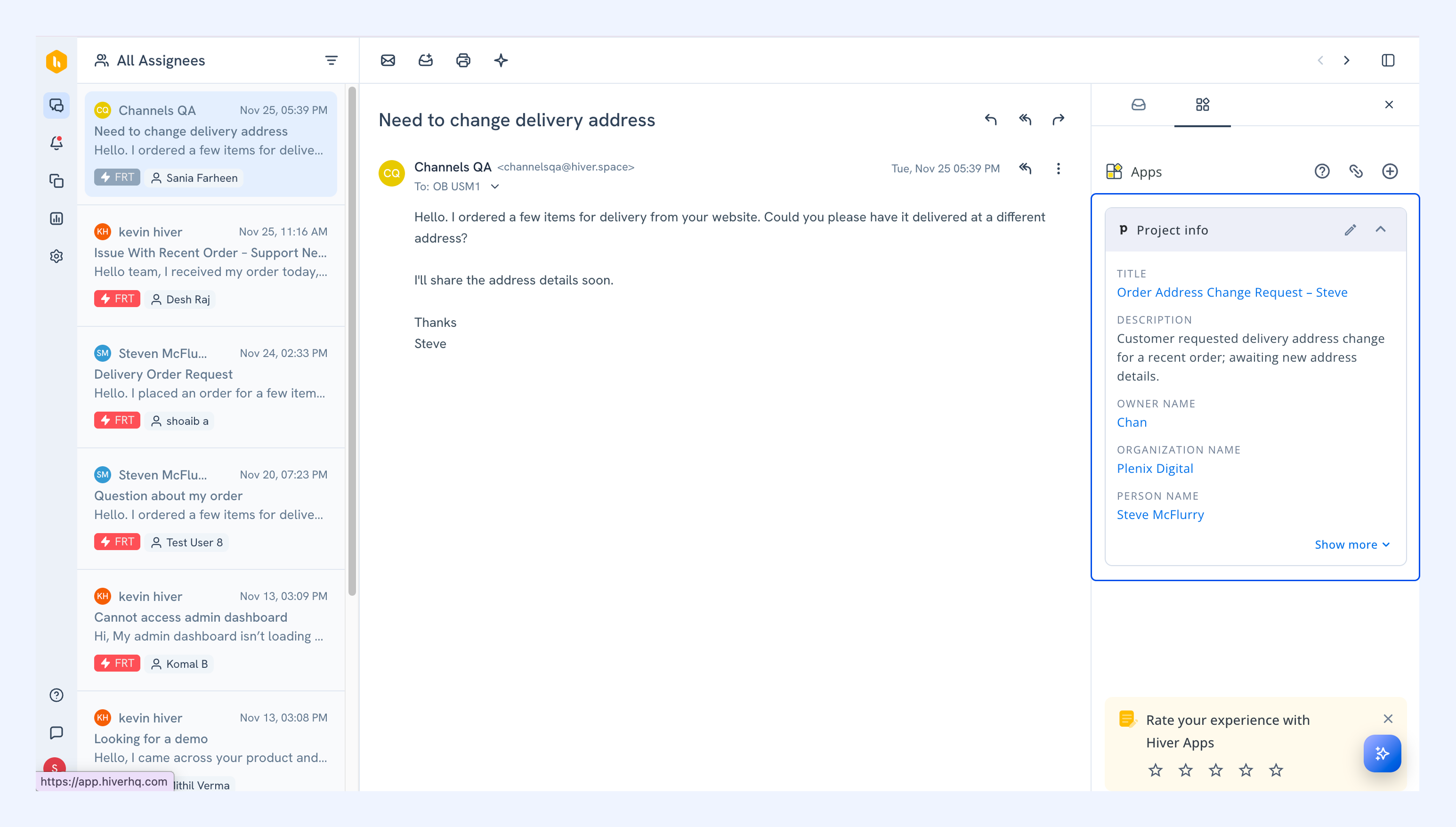
The linked project details will appear in the Apps tab.
Related articles
Salesforce integration in Hiver