Using Custom Object
Custom Object lets you bring structured data from your existing systems into Hiver Omni and use that data in your Automations. You can upload a CSV file with data exported from your CRM or internal tool and use it to dynamically assign conversations, apply tags, or trigger other actions.
For instance, let’s say you maintain a list of customers mapped to different support tiers, such as priority support, standard support, and basic support.
Once you upload this as a Custom Object in Hiver, you can create an Automation rule that routes:
- Conversations from high-value or VIP customers to a dedicated account manager
- Conversations from mid-tier customers to a senior support specialist
- Conversations from all other customers to the general support team
This ensures each conversation is assigned to the right person based on the customer’s tier, without manual triaging.
Customer Domain | Support Tier | Assigned To |
| acmecorp.com | Priority | sara@company.com |
| bigenterprise.io | Priority | ryan@company.com |
| midmarket.co | Standard | alex@company.com |
| growthlabs.in | Standard | nina@company.com |
| startuphub.io | Basic | jhon@company.com |
| smallbiz.org | Basic | jhon@company.com |
Note: You can create a Custom Object and dynamic mapping based on the From email, From domain, To email, Cc, Reply-to email, Reply-to domain, and Subject.
Benefits of using Custom Object in Automations
Bring in existing data in Hiver: Use your customer, account, and data from existing data sources to keep your workflows consistent.
Simplify and scale automations: Instead of creating multiple rules for each account or team member, use one dynamic rule powered by data. This reduces errors and makes it easier to audit or troubleshoot workflows.
Keep workflows accurate as things change: When ownership, tags, or mappings change, you can upload an updated CSV to keep all automations in sync, instead of updating multiple rules.
Reduce manual work for your team: Automatically assign, tag, or route conversations based on your data, so your team doesn’t have to triage every conversation manually.
Prerequisites
To use Custom Object, you need to:
- Have Admin access in Hiver Omni
- Be on the Elite plan
- Create CSV file that:
- Is under 10 MB and contains a maximum of 30,000 rows and 10 columns
- Includes a header row (for example, customer domain, assignee, tag)
- Contains no empty cells and includes values that exactly match with data in your Shared Inbox
Important note:
- Your Custom Object won’t run as expected if there’s any deviation in spelling or spacing.
- In case you want to use Custom Object to assign conversations, make sure you use the email addresses of the assignees, and not their names.
Creating a Custom Object
1. Go to Admin Panel → Custom Object, and click Create Custom Object.
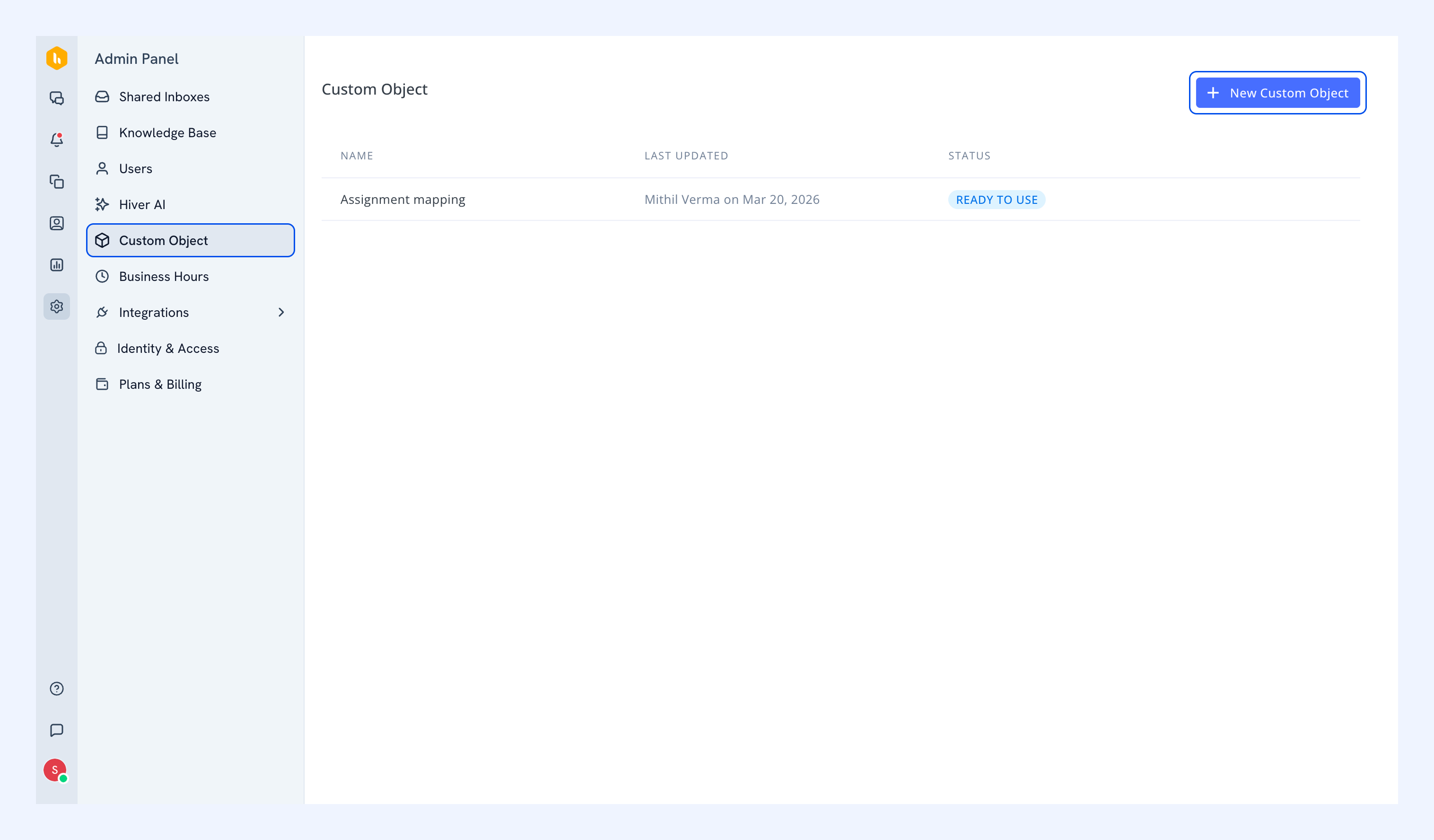
2. Enter a unique name for your Custom Object.
3. Click Upload CSV, select your file, and click Next.
.png)
4. A preview of your file will be created. You can review it to confirm formatting, and if everything looks good, click Create Custom Object.
.png)
Hiver will validate your file. Once the Custom Object is created, the status changes to Ready to use.
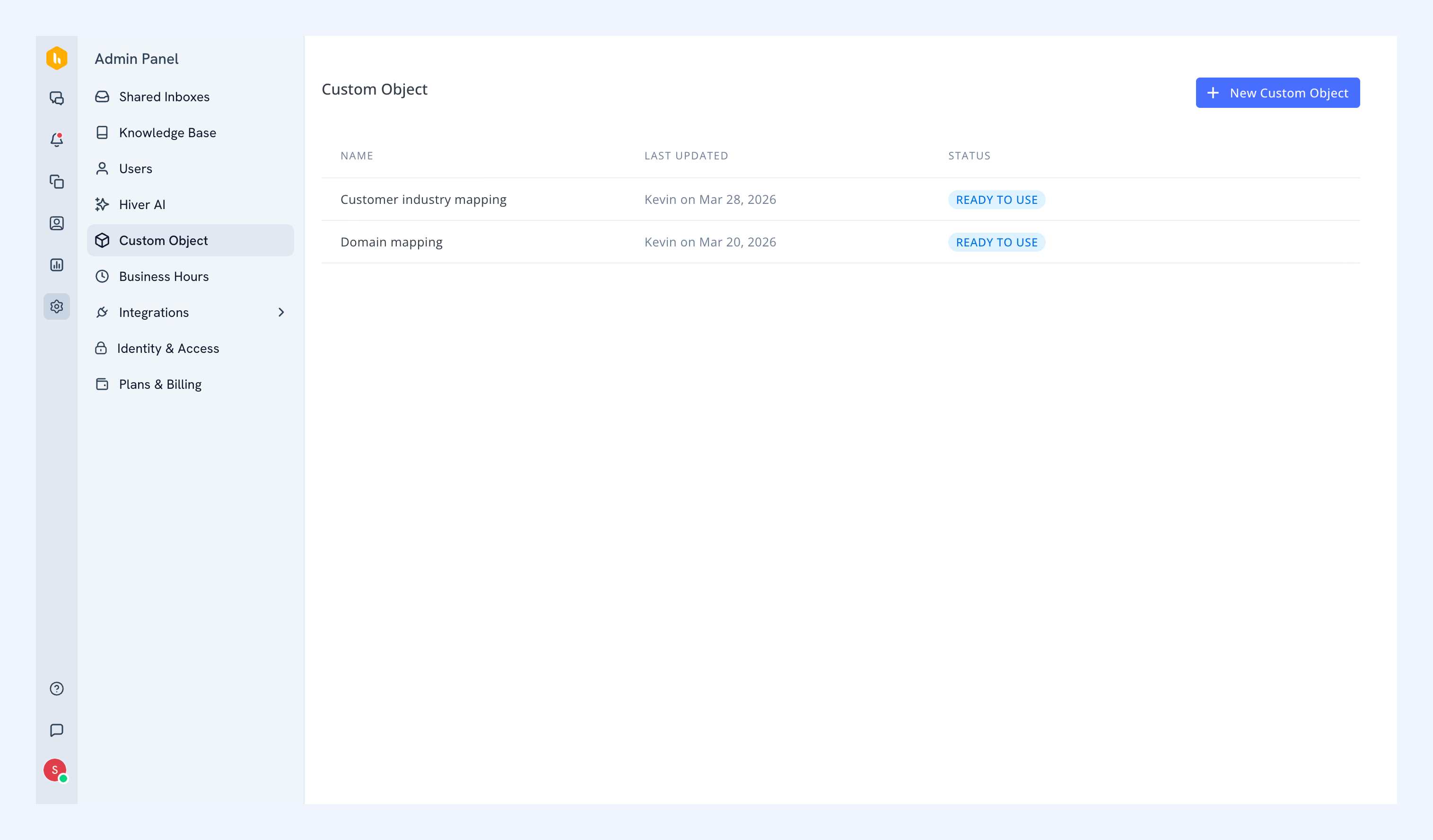
Statuses you may see:
- Validating data: File is being processed
- Ready to use: Available for Automations
- Active in automation: Currently used in an Automation rule
Using Custom Object in Automations
You can use Custom Object in both Shared Inbox and Individual Inbox automations to handle assignment and tagging based on your customer data.
Here are a few common ways you can use them in Shared Inbox Automations:
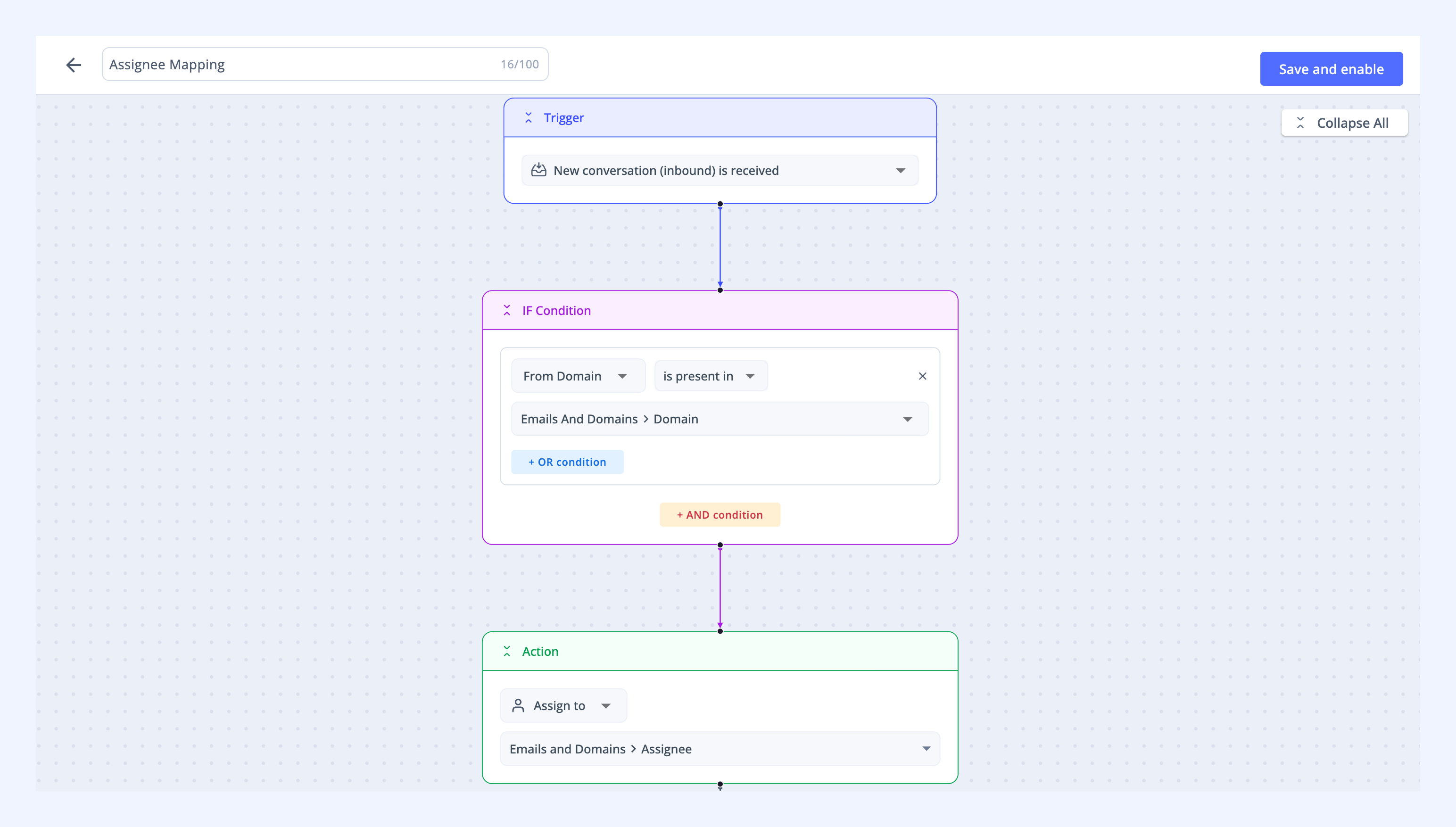
1. Assign conversations to the right teammate
Instead of creating a separate rule for every team member, use a Custom Object to map customers to the teammate who handles them. The Automation assigns conversations to the right people based on your data. If ownership changes, you can update the CSV and the Automation continues to work.
How it works:
- When a new conversation is received
- If the sender's email or domain matches a value in your Custom Object
- Then assign the conversation to the mapped teammate
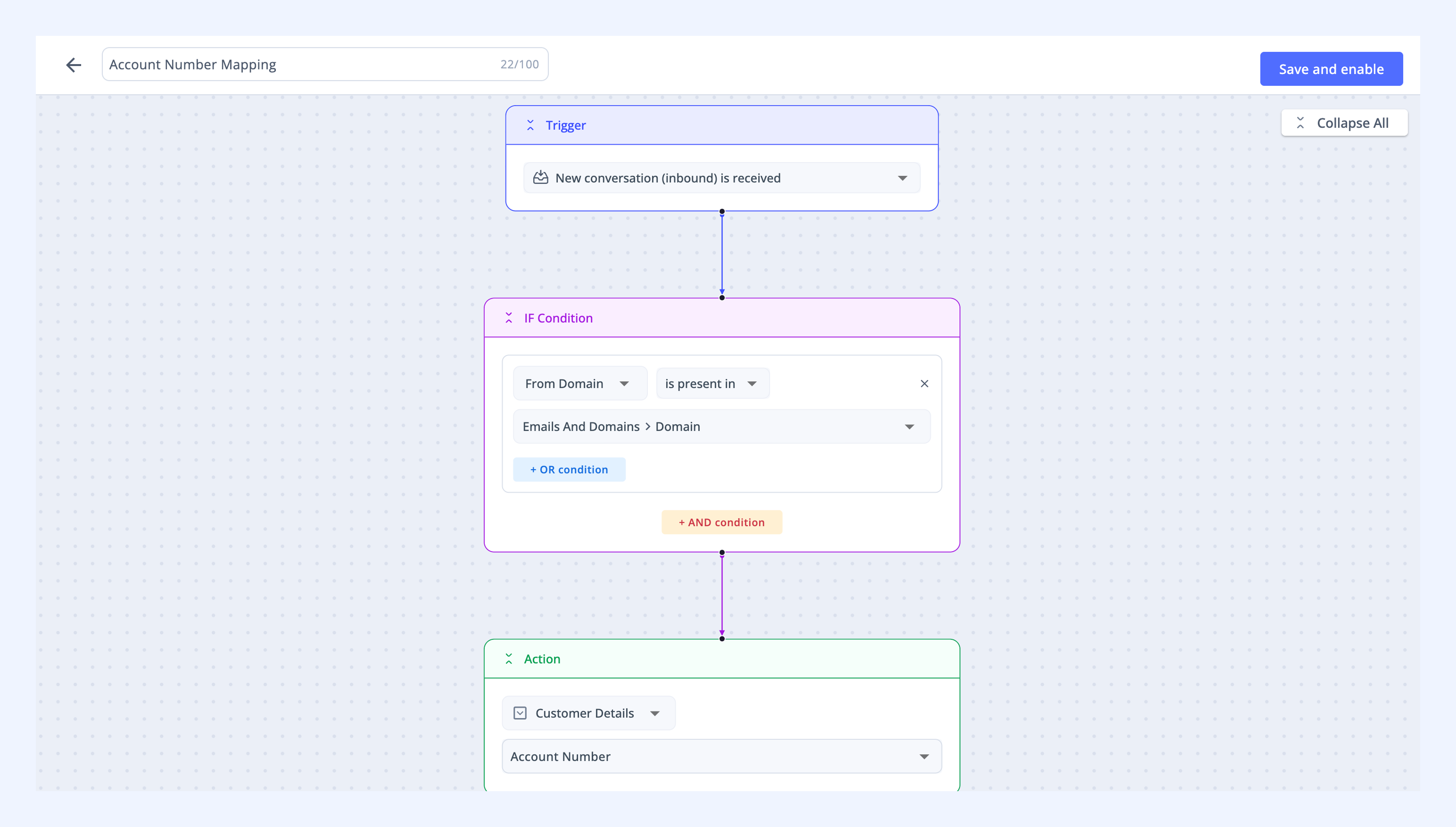
2. Add context to conversations with Custom Fields
Use Custom Object to bring in details like plan type, region, renewal date, or account owner as Custom Fields automatically. This gives your team the context they need on every conversation without having to look it up elsewhere or add it manually.
How it works:
- When a conversation is received
- If the sender matches a value in your Custom Object
- Then update Custom Fields (e.g. Account Number) with the mapped values
3. Tag conversations for reporting
Use a Custom Object to apply tags based on customer segment, product line, or any other attribute in your data. Tags make it easier to filter conversations and run accurate reports.
How it works:
- When a new conversation is received
- If the sender matches a value in your Custom Object
- Then add the mapped tags
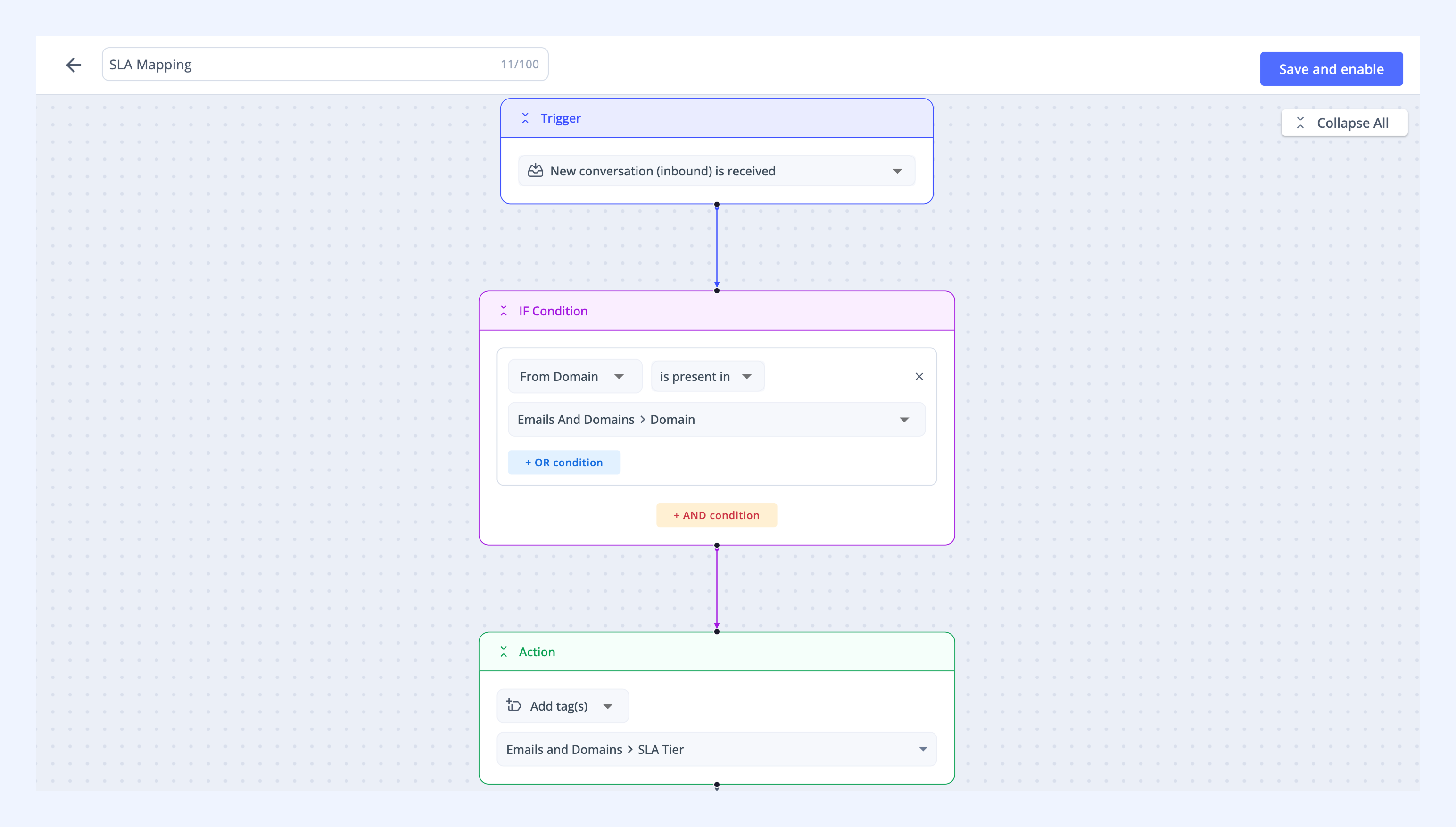
Steps to create an Automation using Custom Object
Say you support customers on different plans, and you want every incoming conversation tagged with the customer's plan tier so your team can filter accordingly. You can set this up with a Custom Object that maps each customer to their plan, and an Automation that applies the right tag based on the sender.
1. Create a Custom Object with two columns: Customer email and Subscription plan.
| Customer email | Subscription plan |
| sara@company.com | Premium |
| ryan@company.com | Standard |
| alex@company.com | Basic |
2. Go to Admin Panel → Shared Inboxes, and select the Shared Inbox where you want to create the Automation.
3. Select Automations → Create Automation → Start from scratch.
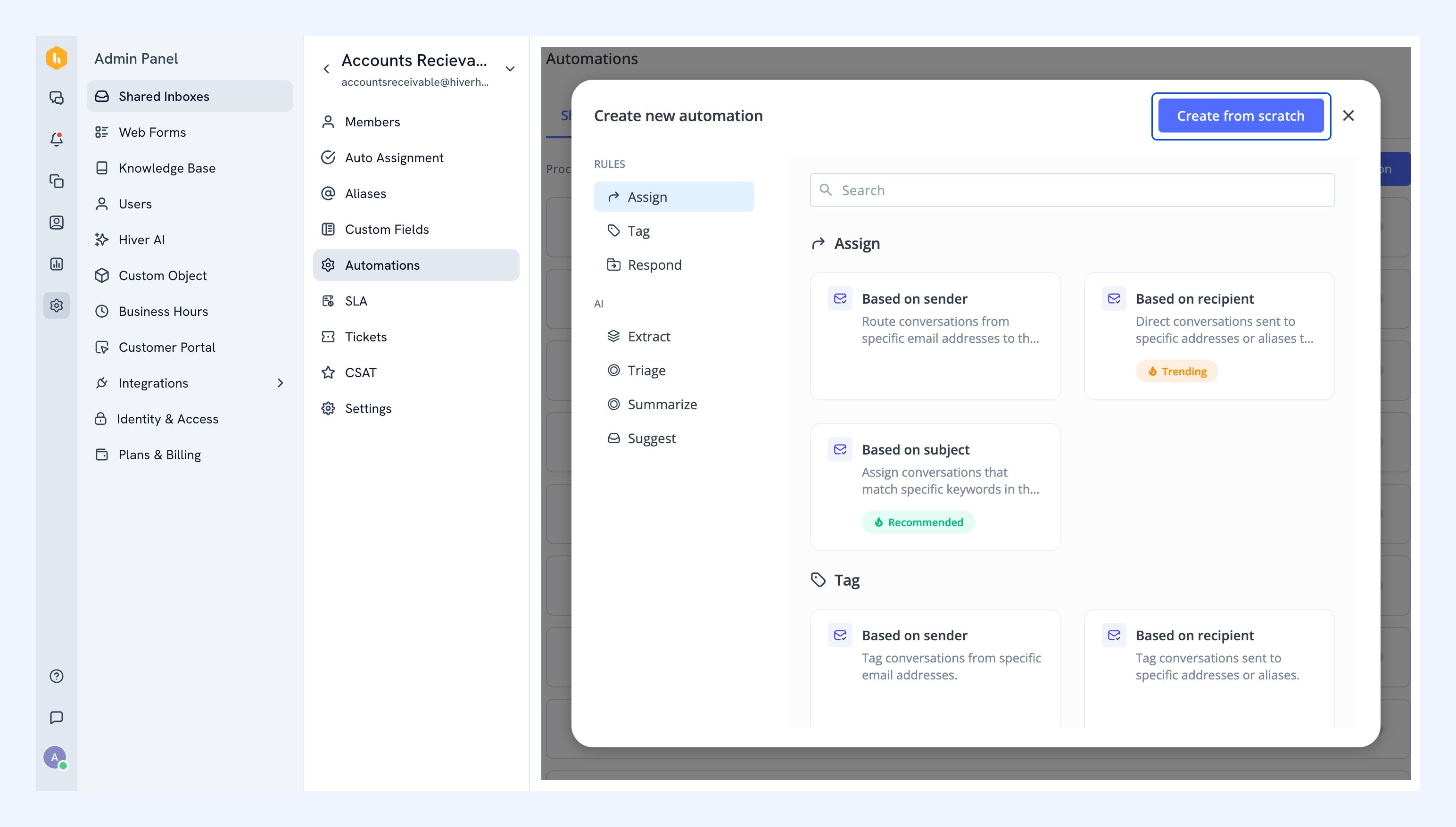
4. Give your Automation a name.
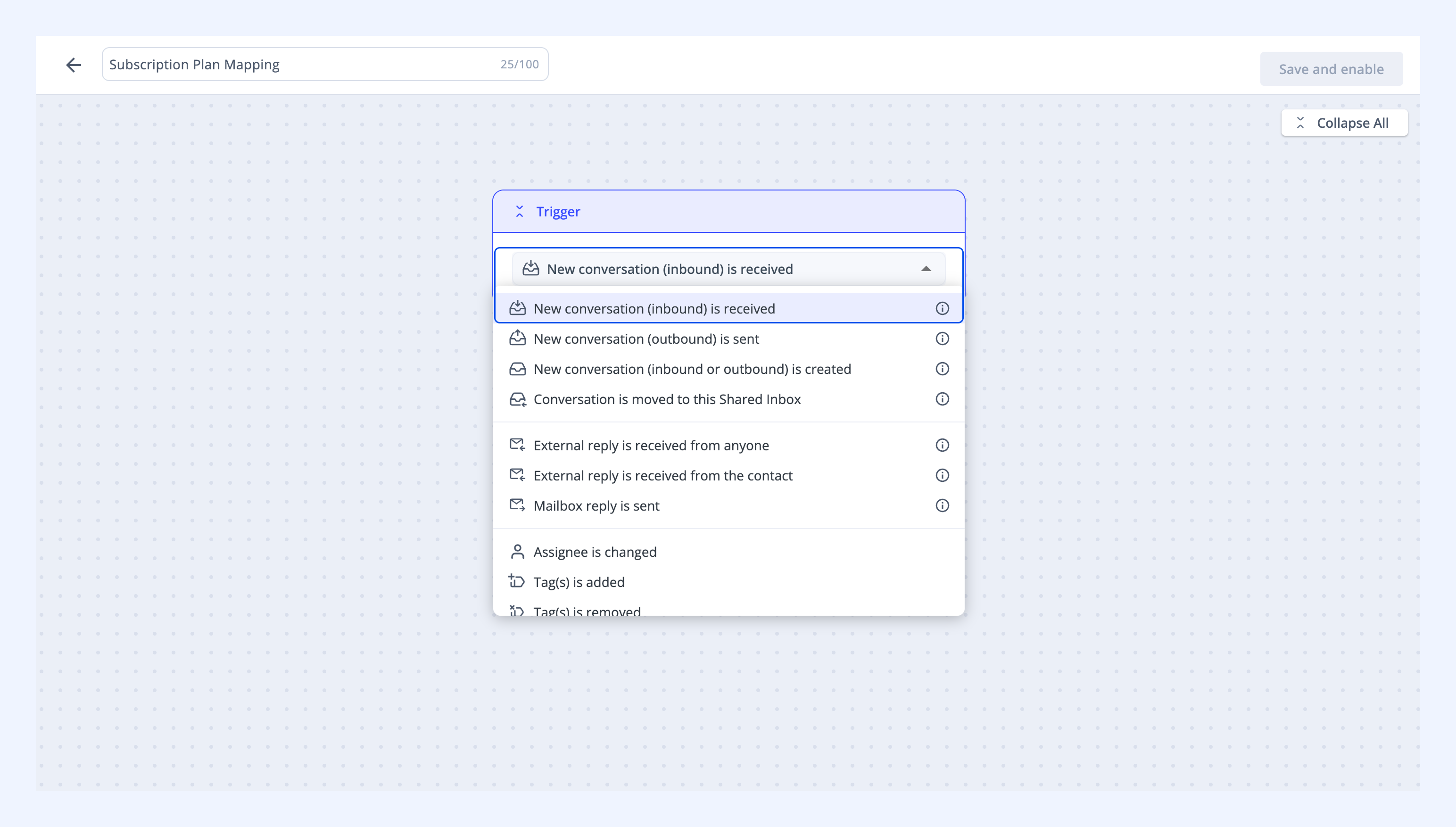
5. Set the trigger: New conversation (inbound) is received.
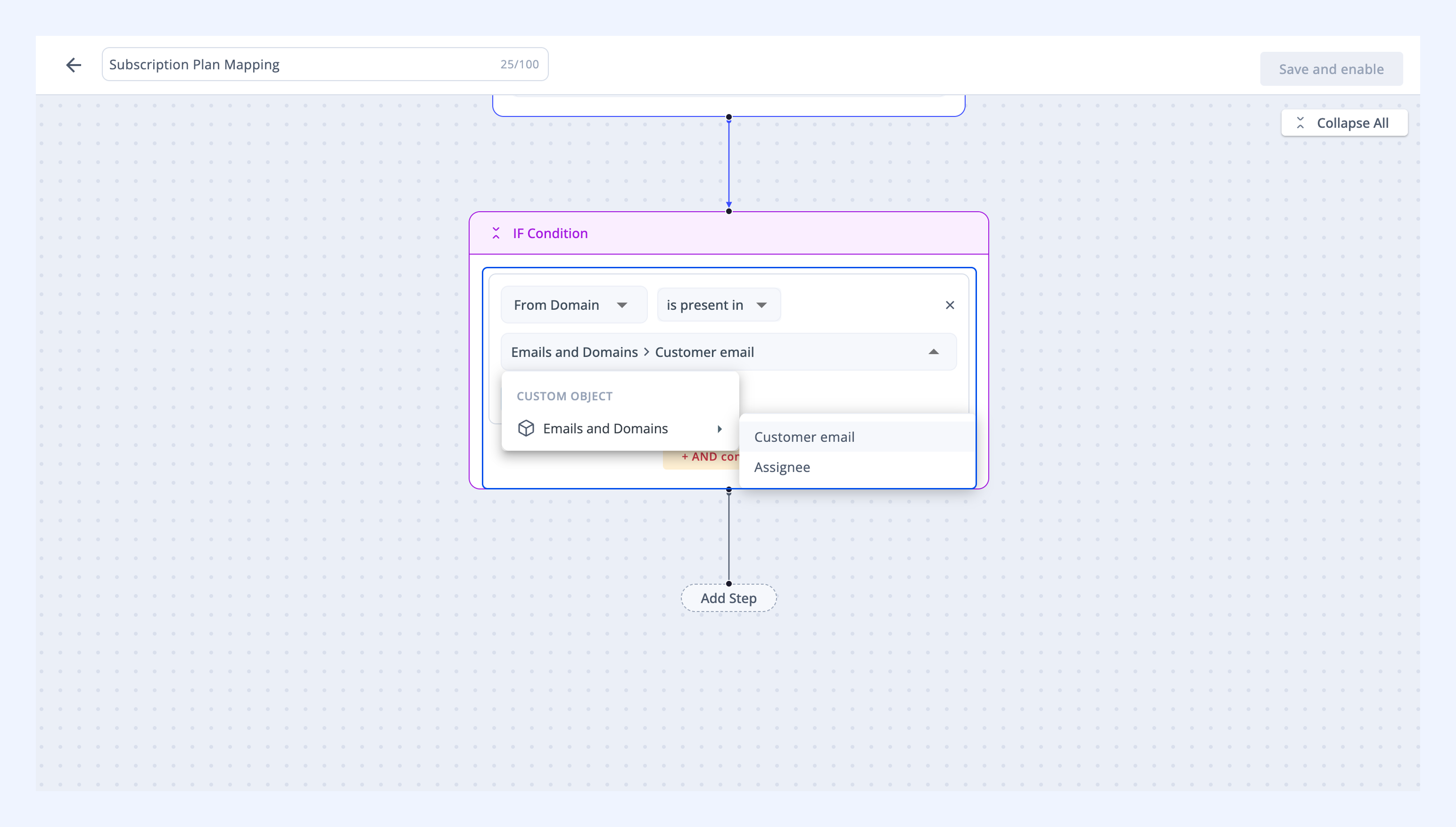
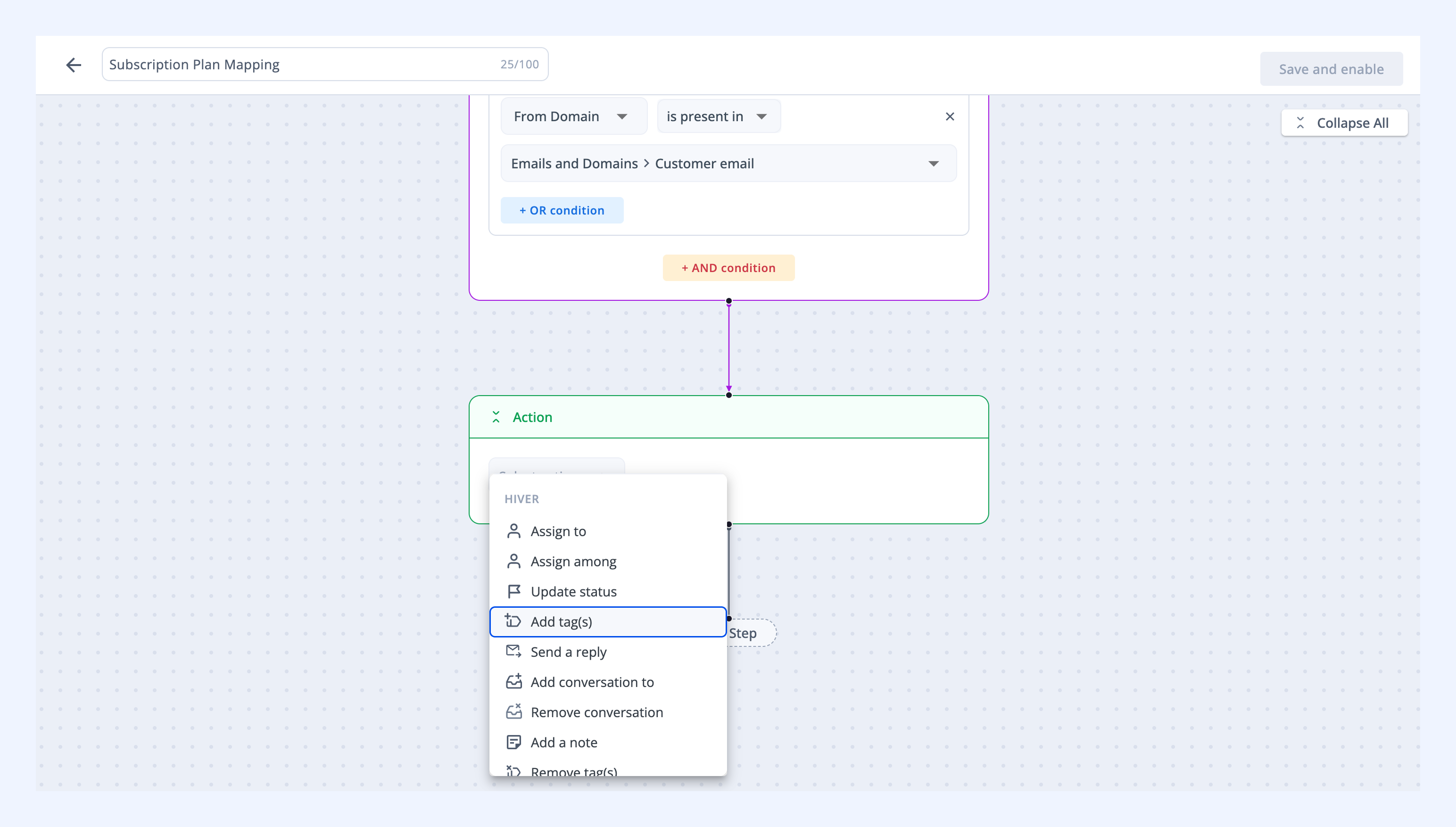
6. Click Add step → IF condition, and select:
- The condition From domain
- The operator is present in
- Select your Custom Object, then pick the Customer email column.
Tip: You can also use the following conditions to build Automations with a Custom Object.
| Condition | Operator | Ideal for |
| To domain | is present in | Matching recipient domains |
| To email | is present in | Matching recipient email addresses |
| Cc | is present in | Matching copied recipients |
| Reply-to domain | is present in | Matching domains where replies are directed |
| Reply-to email | is present in | Matching the exact email address that receives replies |
| Subject | Contains any value from | Matching keywords in the subject line |
7. Click Add step → Action, and choose Add tag(s).
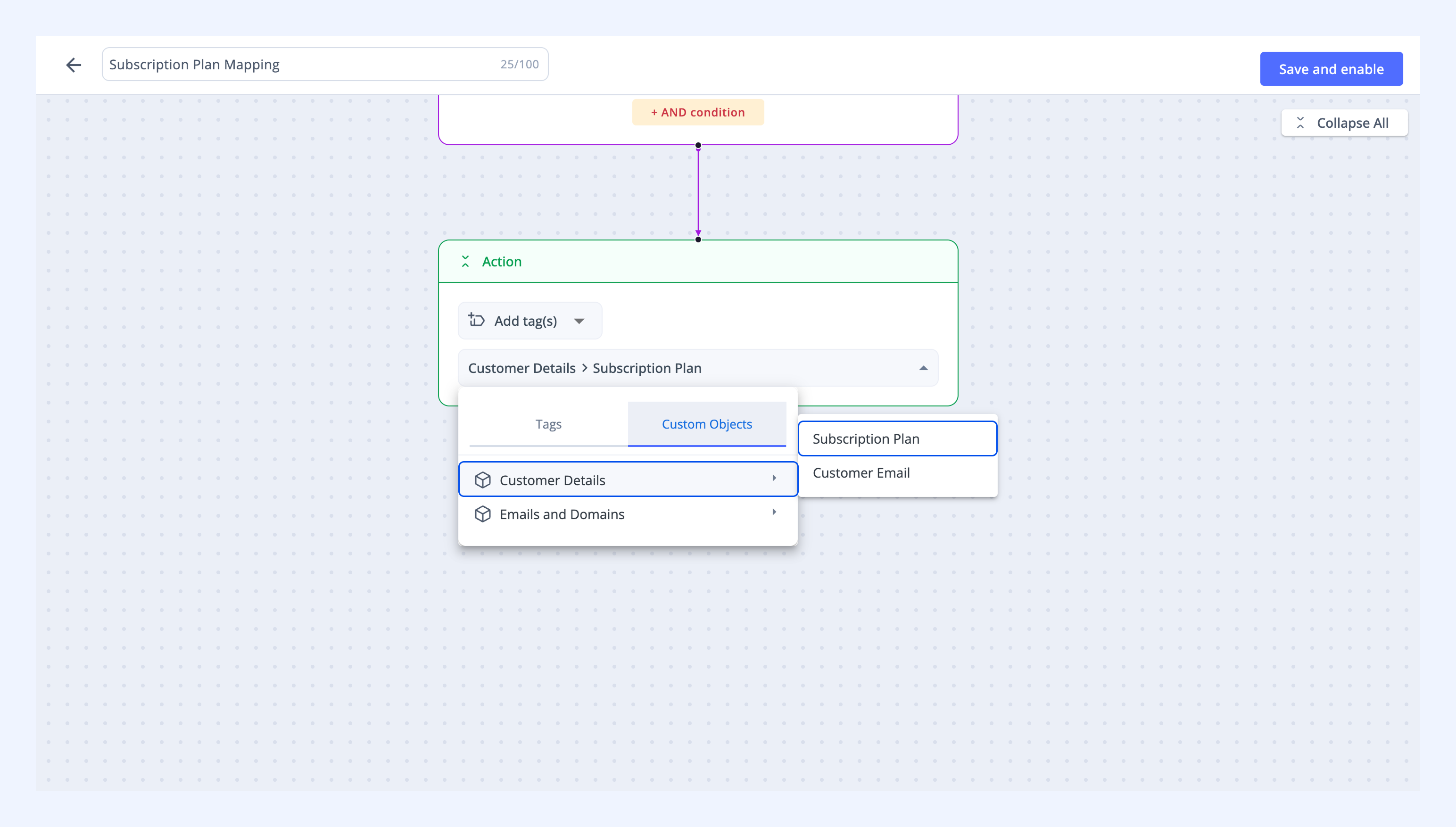
8. Select your Custom Object, then pick the subscription plan column.
9. Click Save and enable.
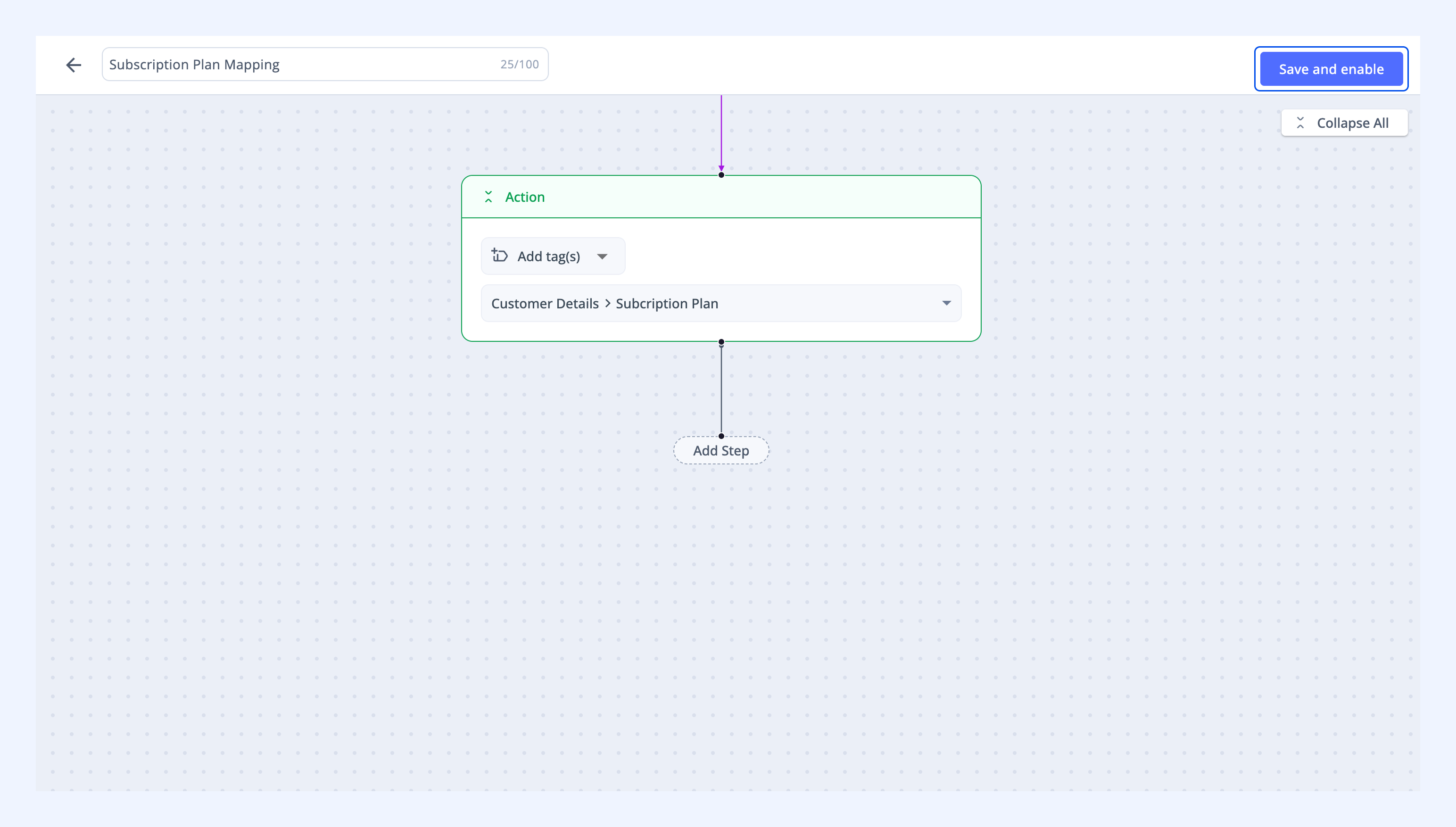
When a new conversation comes in, Hiver matches the sender's email with your Custom Object and applies the corresponding plan tag.