Contacts report
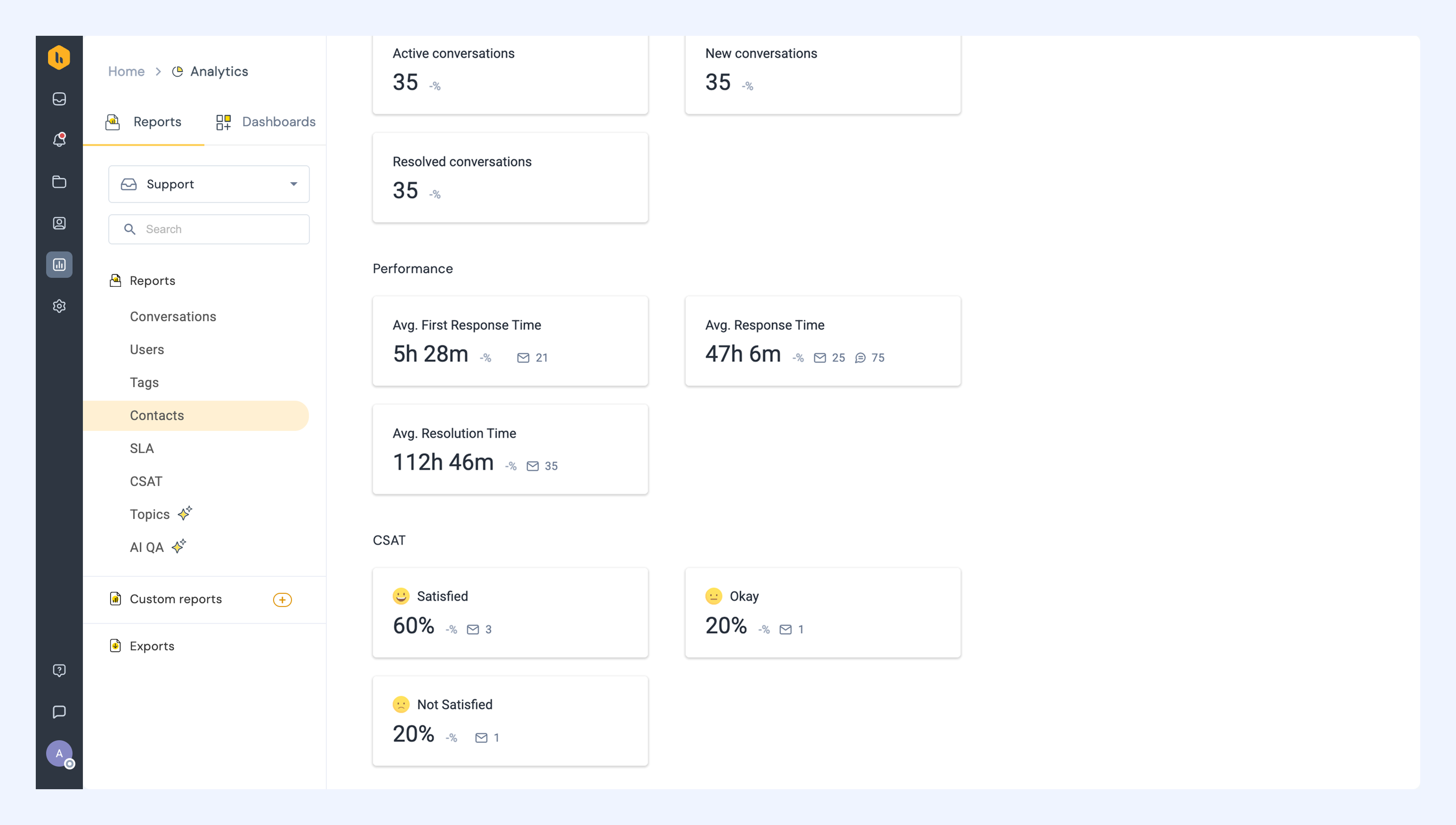
The Contacts report shows which accounts and contacts your team has the most conversations with, and how quickly your team responds to and resolves those conversations. Use it to compare conversation volume, response times, resolution times, and customer satisfaction across accounts or contacts.
Open the report
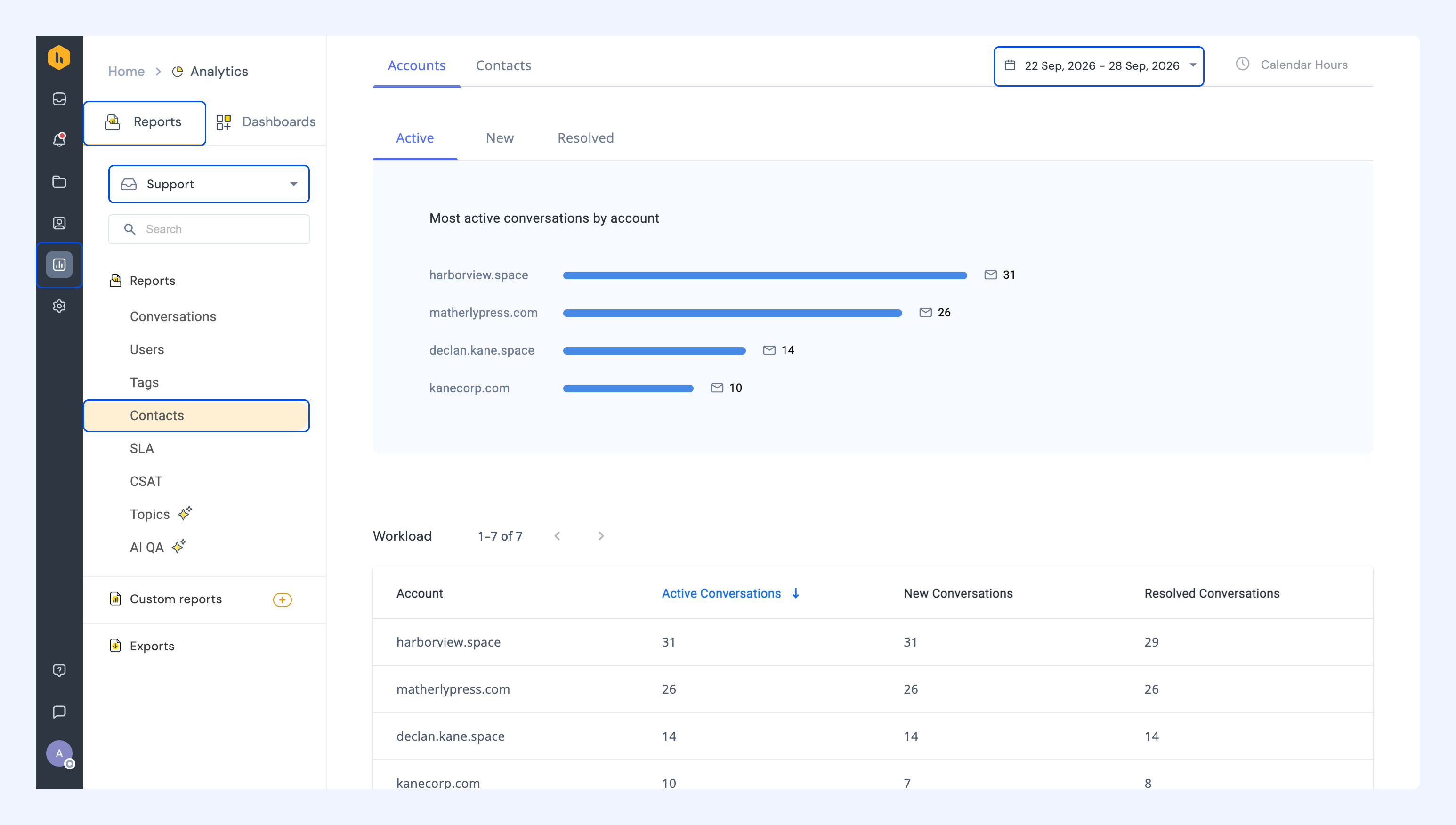
Go to Analytics → Reports → select your Shared Inbox → Contacts. Use the date dropdown to set the time range you want to look at.
Choose accounts or contacts
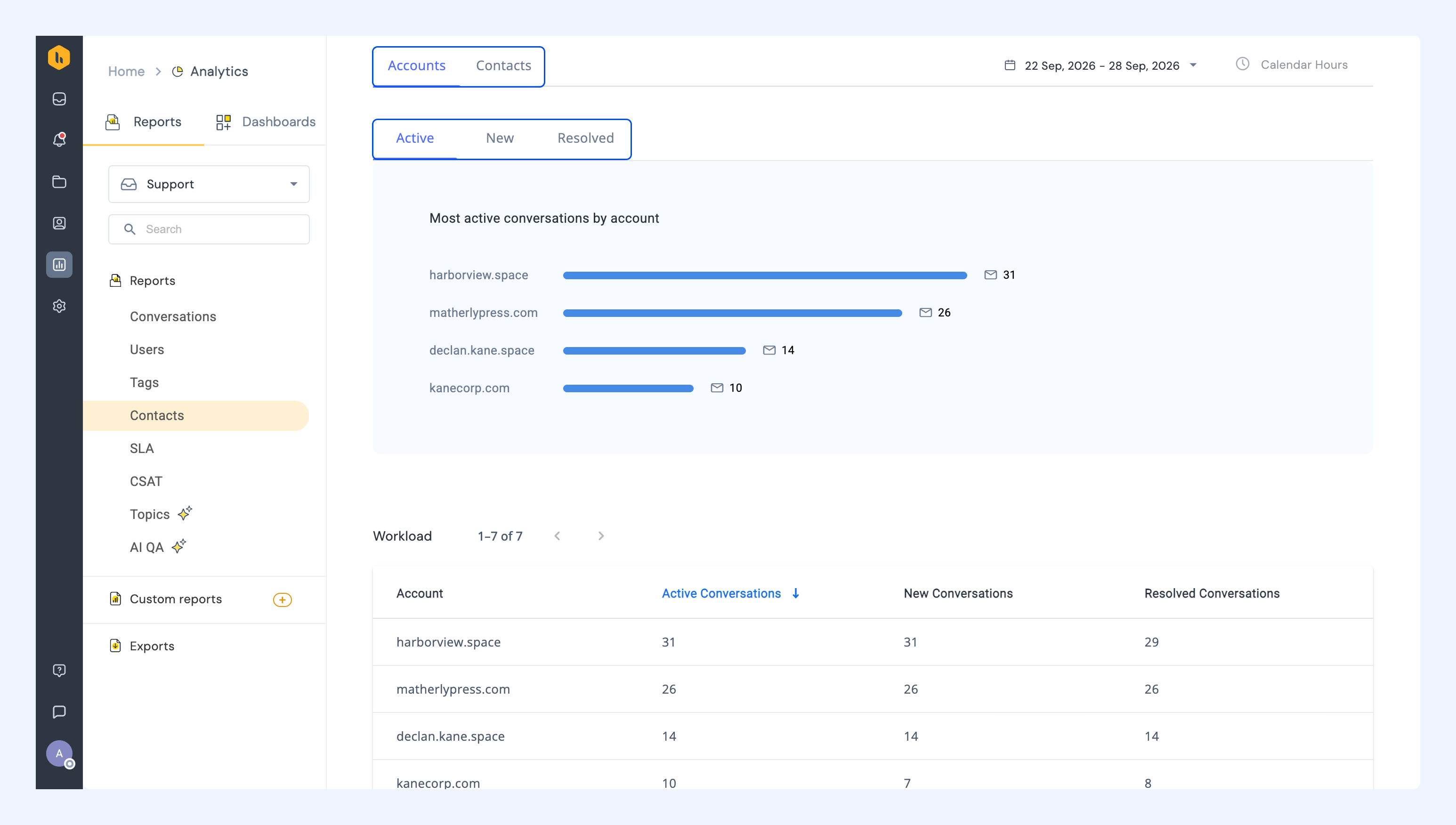
Choose how you want to group conversations
- Accounts: Conversations grouped by email domain.
- Contacts: Conversations grouped by individual email address.
Select Active, New, or Resolved to compare accounts or contacts by conversation activity during the selected date range:
- Active: Conversations where at least one email was sent or received during the date range.
- New: Conversations started or added to the Shared Inbox during the selected date range.
- Resolved: Conversations closed during the selected date range and not reopened.
Compare conversation volume
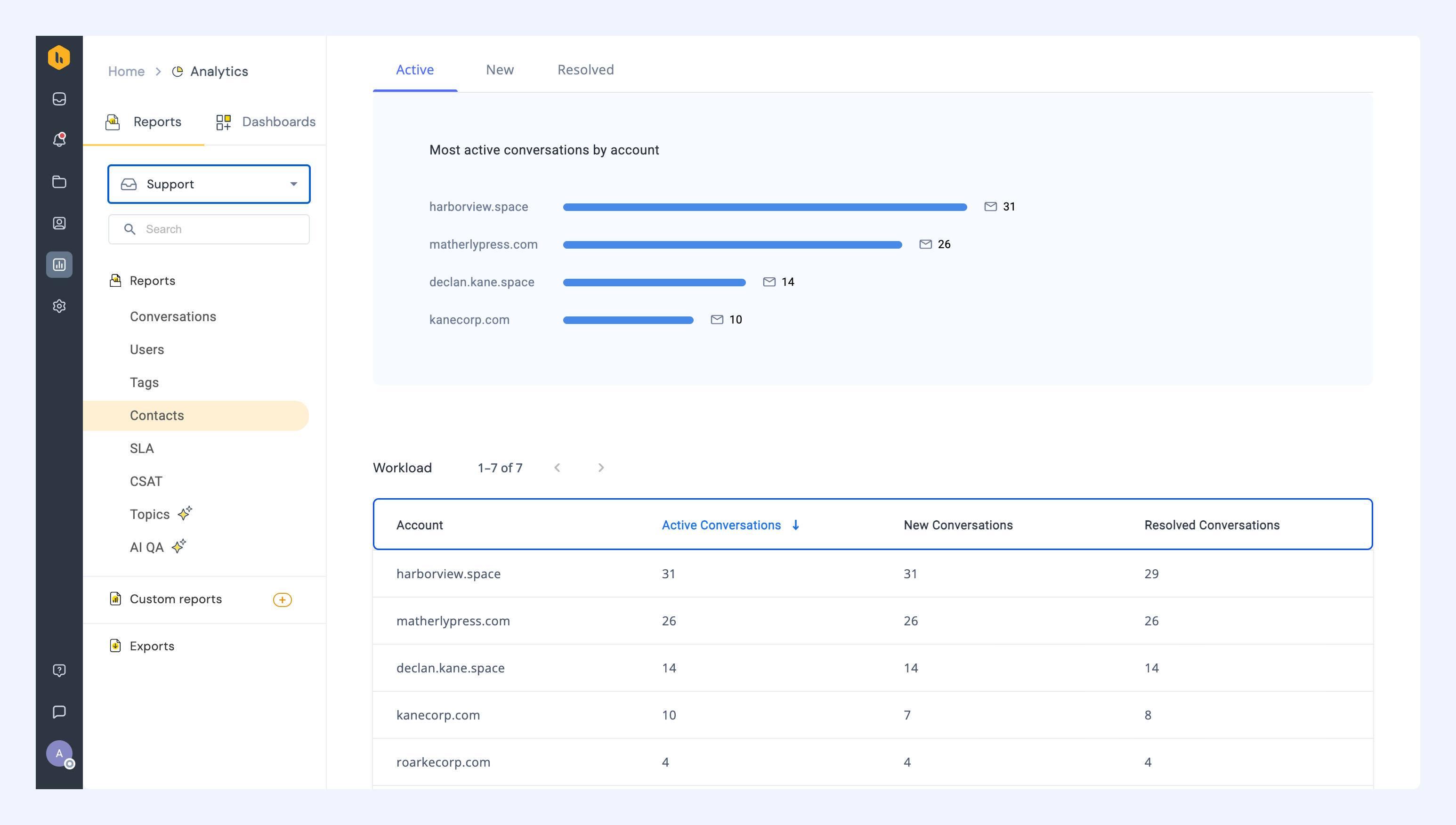
The Workload section shows the number of active, new, and resolved conversations for each account or contact. Compare these counts to see which accounts or contacts generate the most work for your team.
Compare performance metrics
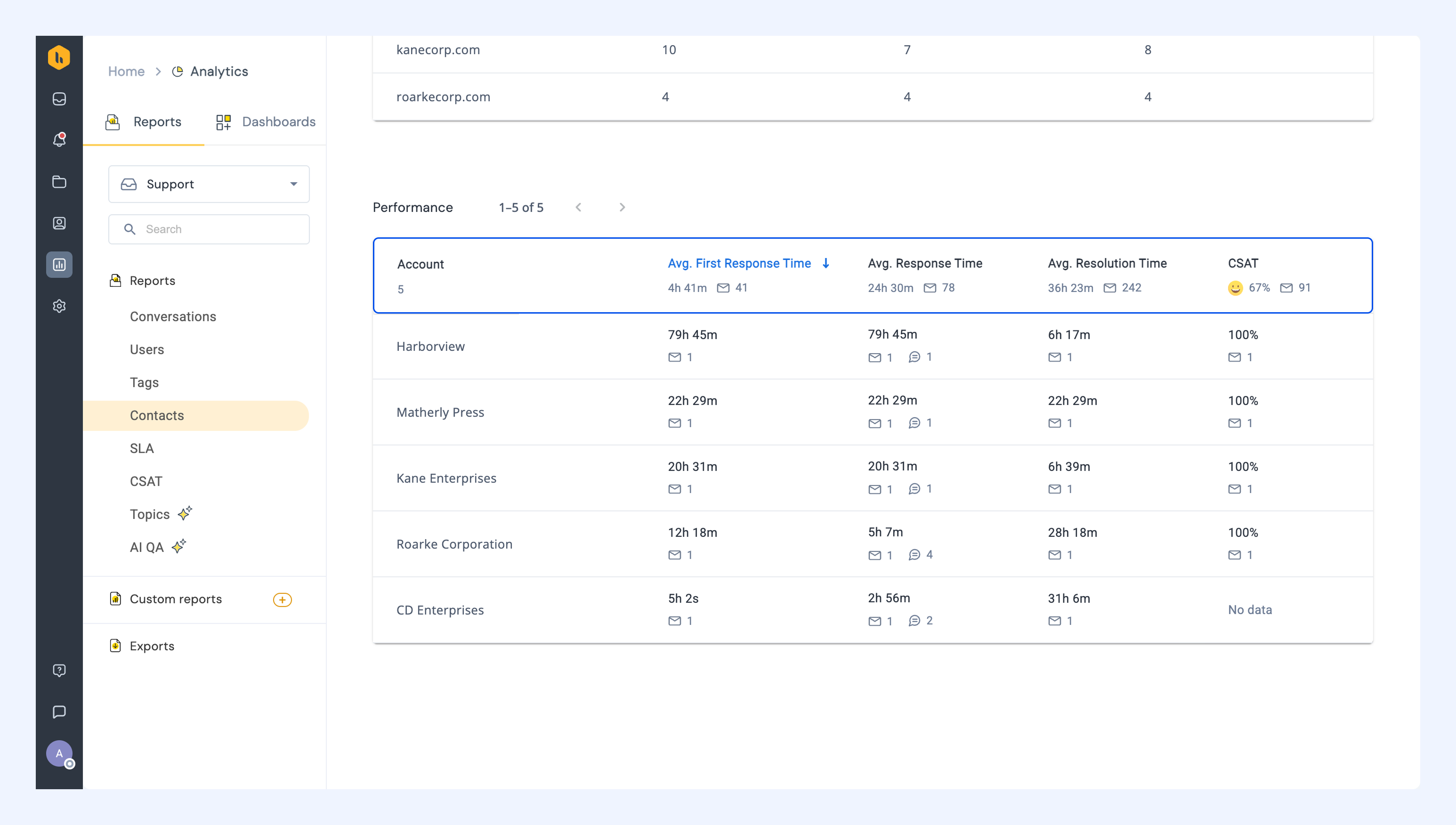
The Performance metrics section shows how your team handles conversations with each account or contact. Compare these metrics to identify differences that need a closer look:
| Metric | What it shows |
|---|---|
| Average first response time | The average time taken to send the first reply. |
| Average response time | The average time taken to reply to customer messages. |
| Average resolution time | The average time taken to resolve a conversation. |
| CSAT | The customer satisfaction score, based on CSAT survey ratings. |
Note: No data in the CSAT column means no ratings were received for that account or contact during the date range.
Take a closer look at an account or contact
Click an account or contact in the table to view its workload, performance, and CSAT details. Use these details to examine an account or contact whose conversation volume, response times, or customer satisfaction needs attention.