Creating CSAT surveys
Customer Satisfaction Surveys (CSAT) help you measure how happy the customers are with the conversations your team handles in Hiver. By collecting simple, quick feedback at the end of emails, you can:
- Track overall satisfaction trends over time
- Identify team members consistently receiving positive or negative feedback
- Use customer comments to improve service quality
- Access reports that break down satisfaction by conversation and by user
Note: CSAT is available on Pro and Elite plans.
Enable CSAT for a Shared Inbox
- Click the Admin panel and go to Shared Inboxes.
- Click the Shared Inbox you want to enable CSAT for, then select the CSAT tab. Now turn on the toggle to enable the feature.
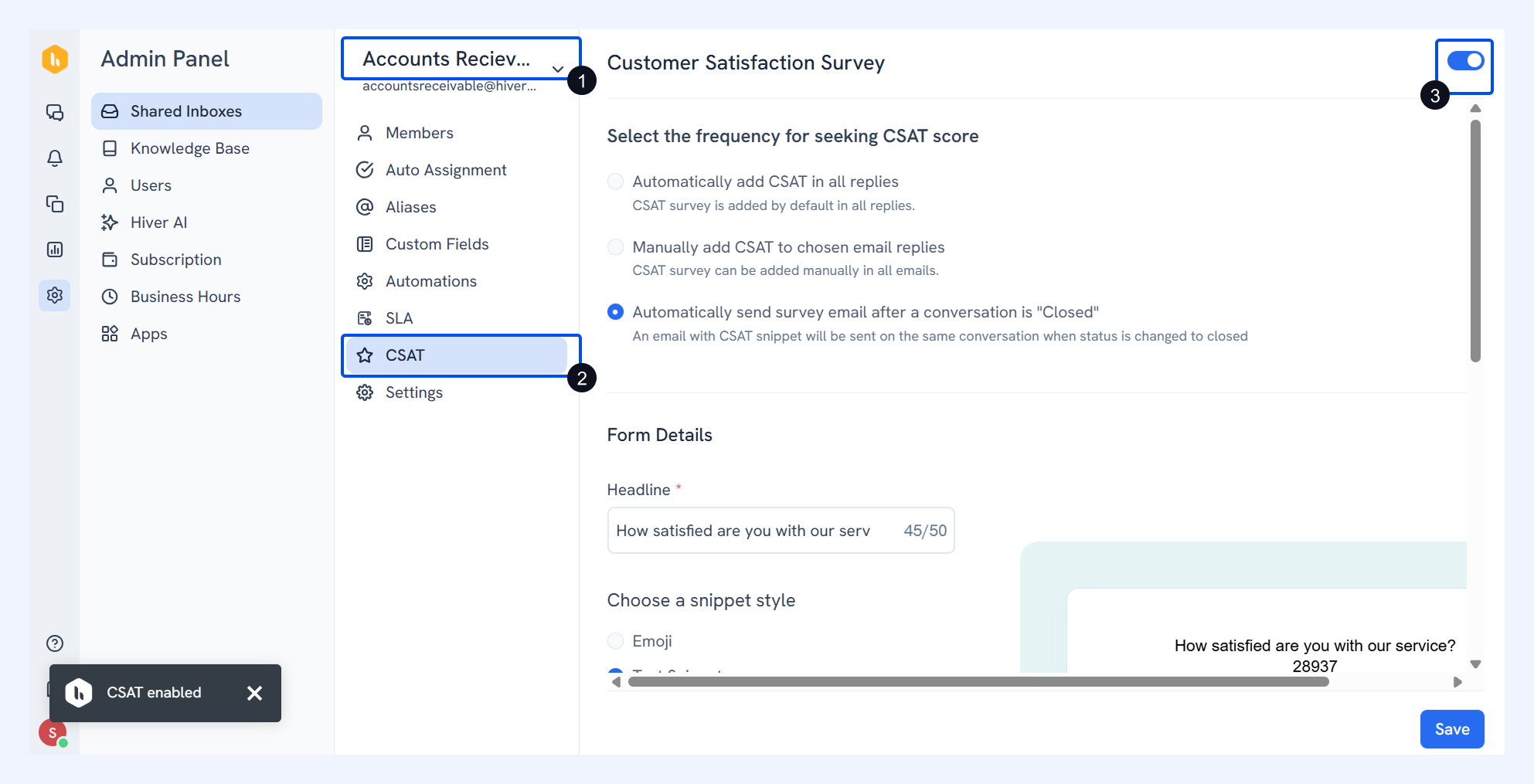
Customize your CSAT survey
Once CSAT is enabled, you can customize how the survey is added and how it looks.
1. Choose when to send CSAT surveys
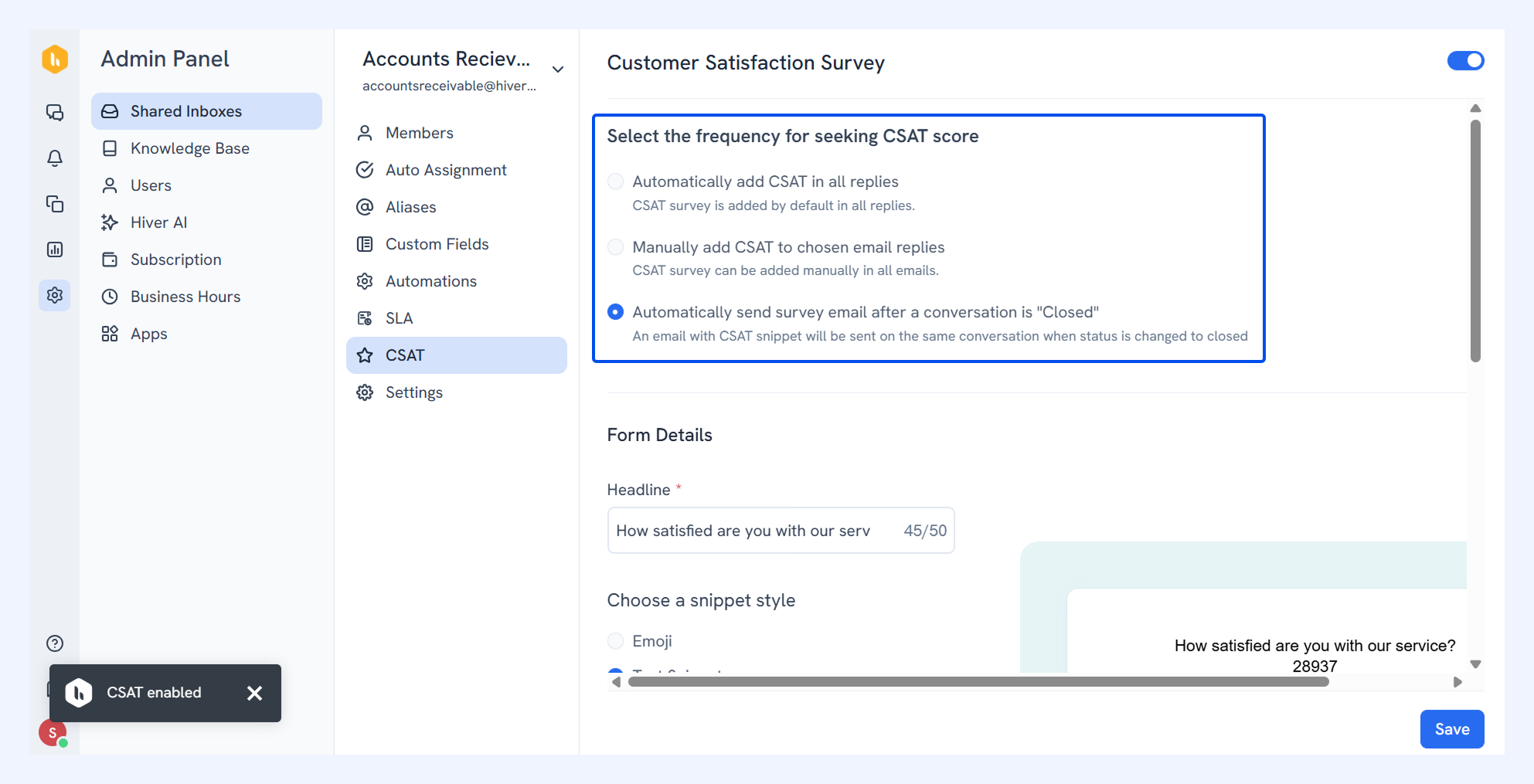
- Automatically add CSAT in all replies: The CSAT survey is included by default in every reply sent from the Shared Inbox.
- Manually add CSAT to chosen email replies: Your team members can choose to insert the CSAT snippet when needed by clicking Insert CSAT link in the compose window.
- Automatically send survey email after a conversation is Closed: When a conversation’s status is changed to Closed, an email with the CSAT snippet is automatically sent on that conversation thread.
2. Customize form details
You can customize how your survey form appears to customers. The table below covers the options available for customization, along with examples for reference.
Field | Description | Example |
Headline | The question displayed at the top of the survey. | How satisfied are you with our service? |
Choose a snippet style | Select the format of response options. | Emoji / Text snippet (Not satisfied, Okay, Satisfied) |
Choose a snippet order | Arrange how ratings appear. | Bad to Good / Good to Bad |
Description placeholder text | Optional guidance shown in the comment box. | Would you like to add any comments? |
Button text | The text on the survey submission button. | Submit |
Thank you message | The confirmation message shown after submission. | Thank you for your feedback! |
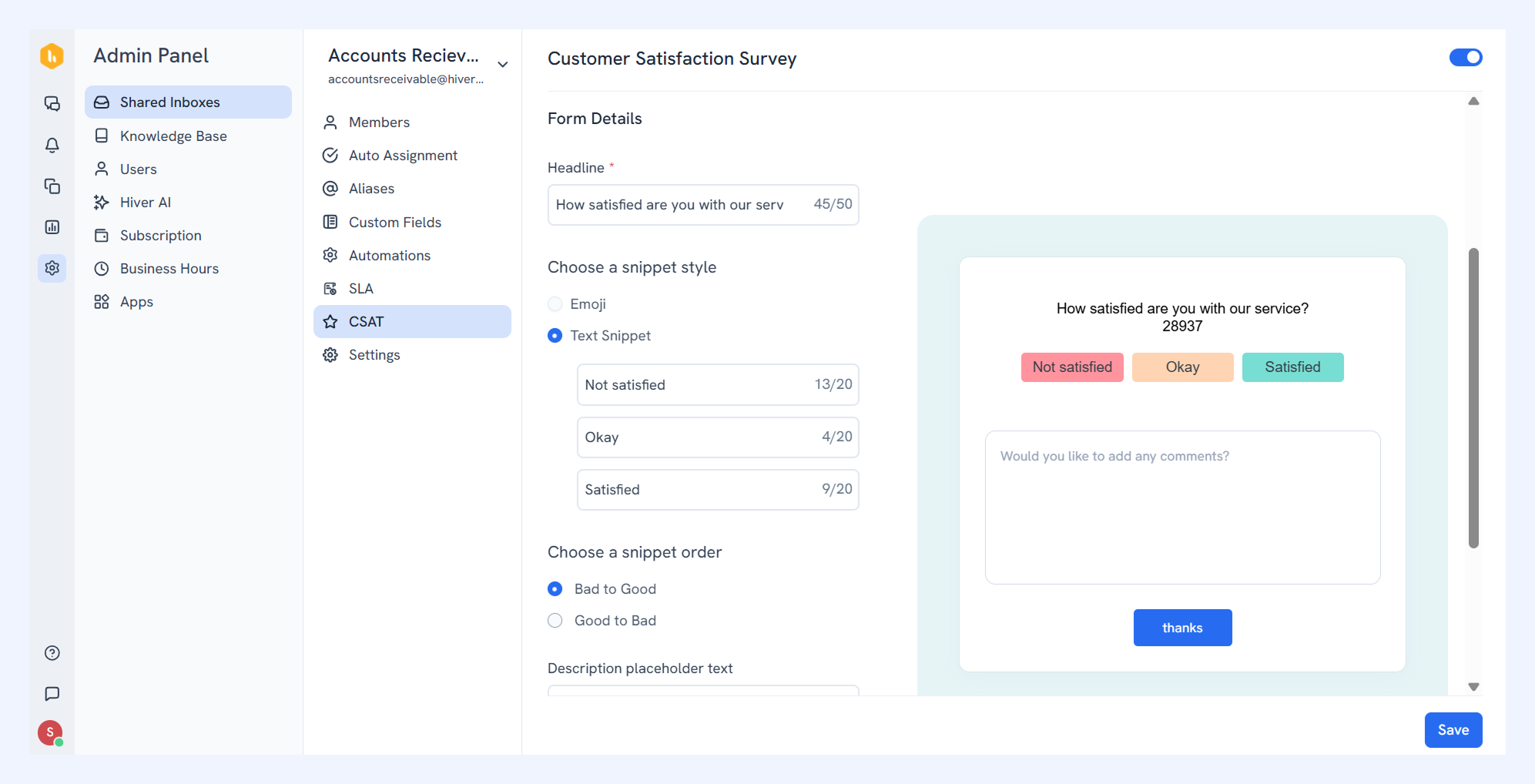
Note: The default options are Satisfied, Okay, and Not satisfied. In Hiver Analytics, ratings always display as these three.
CSAT reports in Hiver Analytics
Once enabled, you’ll see a CSAT tab in the Analytics section for each Shared Inbox.
You can:
- View the breakdown of all ratings received
- Read customer comments
- Open the rated conversation directly by clicking the mail icon
- Track the Satisfaction Score
The Satisfaction Score is a KPI showing how well your team keeps customers happy.
Satisfaction Score = (Number of Satisfied ratings – Number of Not satisfied ratings) / Total responses × 100
If a customer leaves multiple ratings on the same conversation, only the latest one counts toward the score.
To access CSAT reports, go to Analytics in the left side panel, then Reports → CSAT.
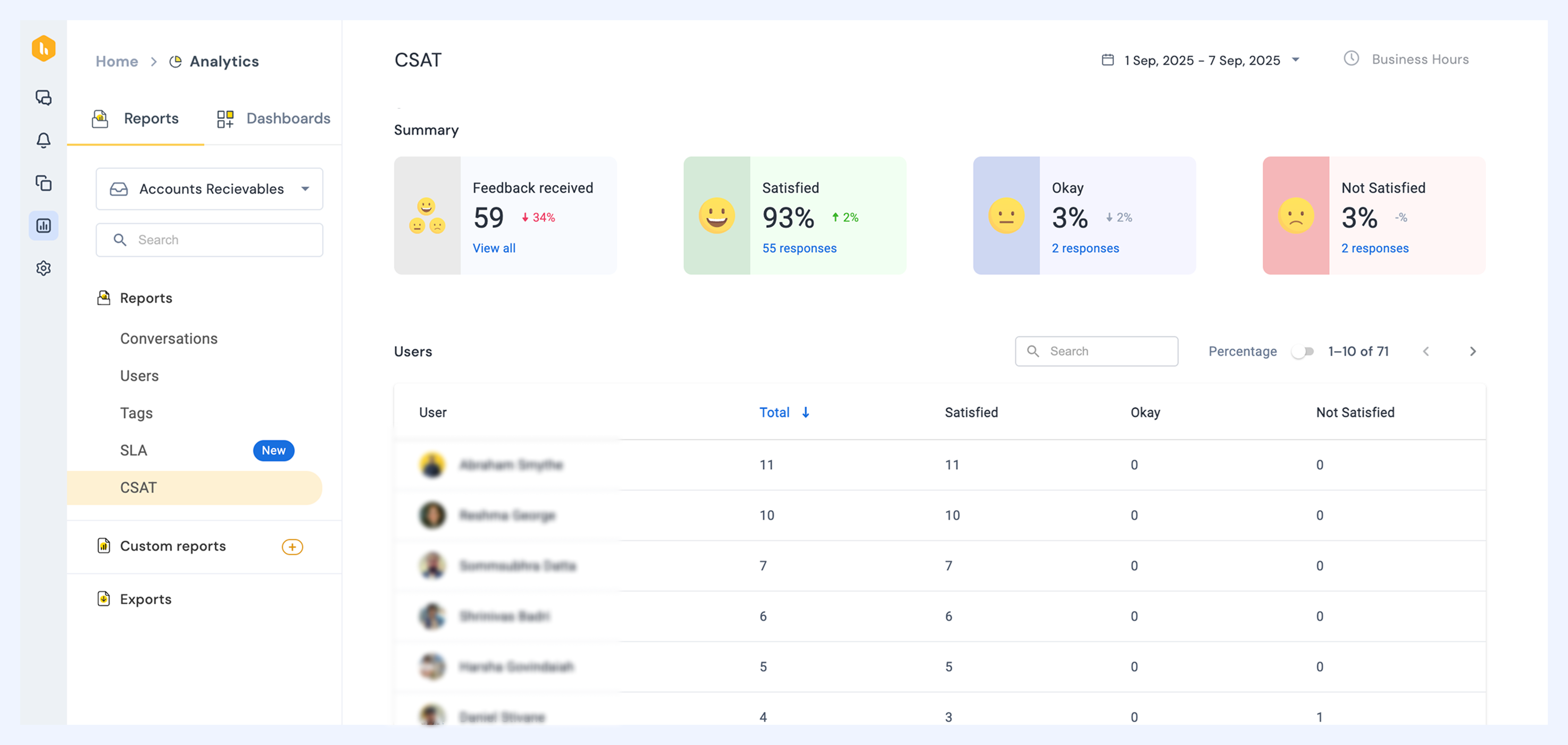
1. Summary
The CSAT Summary gives an overview of customer feedback received during the selected period. For each feedback rating, you’ll see:
- The percentage split
- Percentage change in feedback received compared to the previous period
- Absolute count of conversations with the feedback rating.
You can click on a feedback rating to view detailed information on:
- Conversations that received the specific rating
- Comments added by the customer
- Date and time when the feedback was received
- User who received the feedback
2. Users
This section shows the feedback received by each member of your team during the selected period.
Click on any user to see information on:
- Total number of feedback responses received
- Percentage of feedback received per rating (Not satisfied, Okay, Satisfied)
Tip: Switch between absolute numbers and percentage of metrics by enabling the Percentage toggle to the Search bar.
Next steps
Reporting and Analytics in Hiver
Conversations reports in Hiver Analytics
Tags reports in Hiver Analytics