Users report
The Users report gives you a clear view of how conversations are assigned, handled, and resolved across your team. By tracking user activity, you can:
- Understand workload distribution and spot imbalances.
- Measure individual performance through response and resolution times.
- Identify trends in email volume to manage staffing and efficiency.
This report combines workload metrics (assigned conversations, emails sent) with performance insights (response times, resolution times, CSAT).
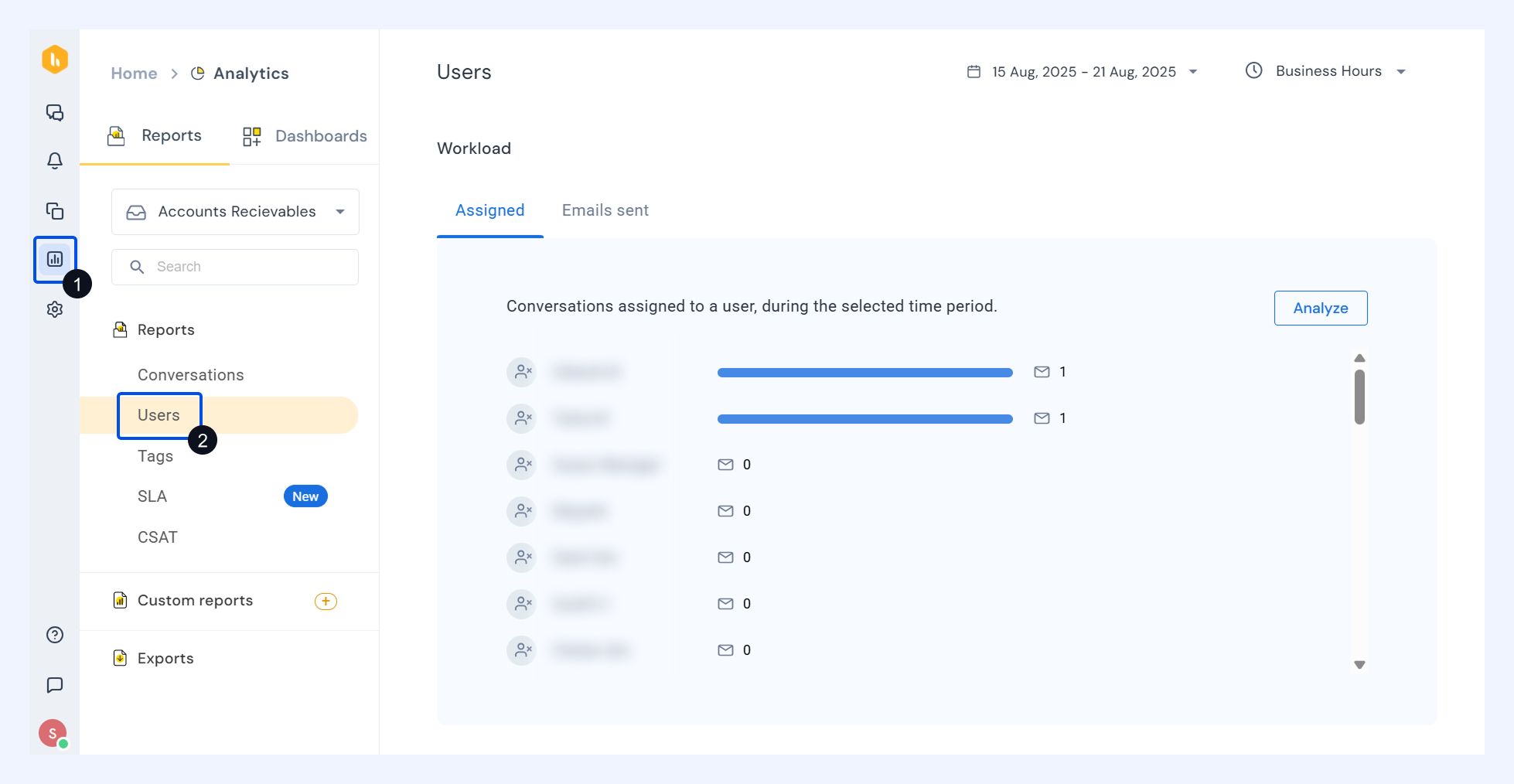
To access the Users report, go to Analytics → Reports → Users.
Workload metrics
The Workload section shows how conversations are distributed among team members, helping you track assignments and email volume.
1. Assigned
Definition: The number of unique conversations assigned to each user during the selected reporting period.
The pre-built view shows how conversations were distributed across your team. It also includes:
i) The total number of Assigned conversations
ii) A breakdown by user to show how the workload was shared
Analyze the report
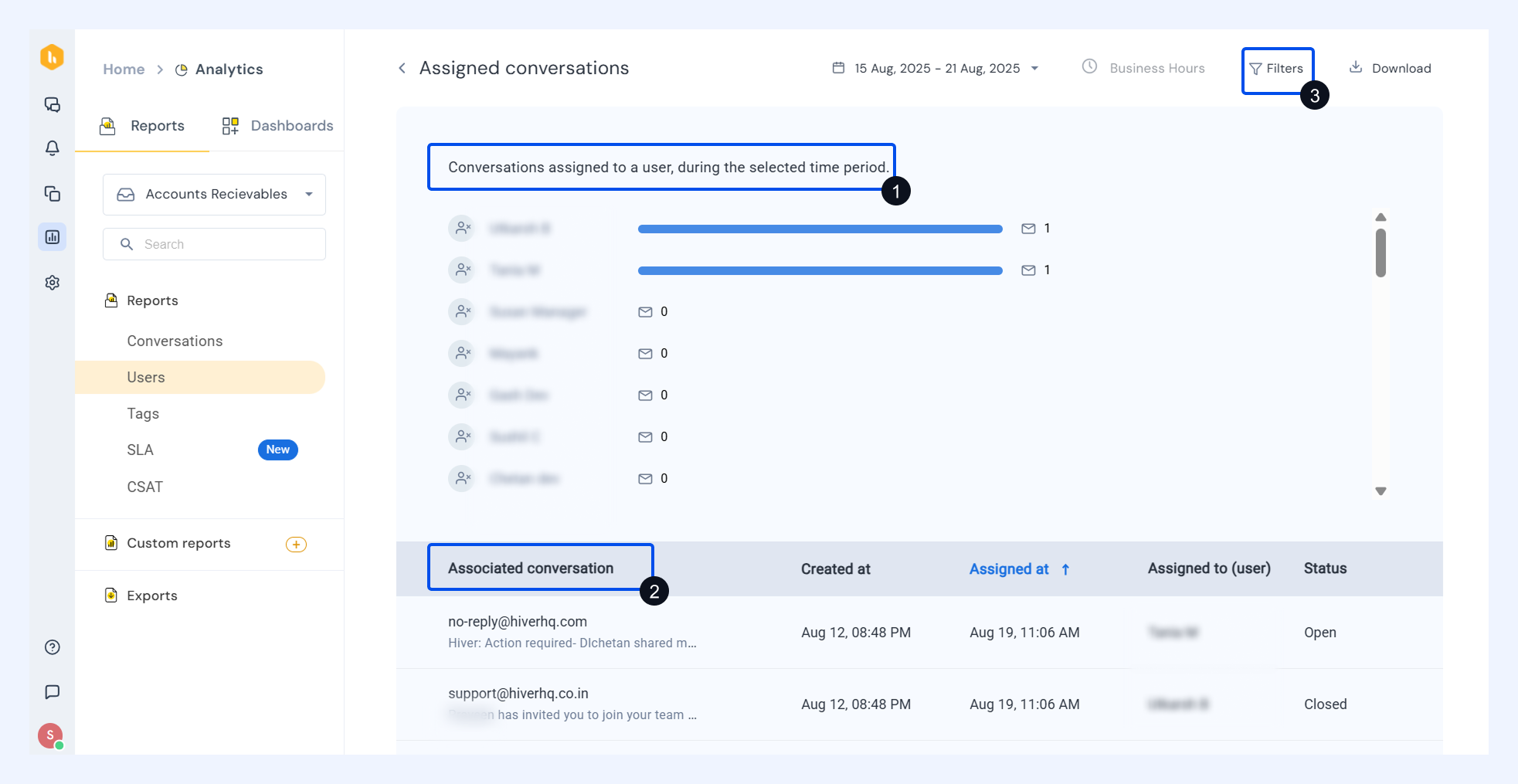
Click Analyze to dive deeper. You can:
- See conversation details: Open a complete list of conversations, including details such as associated conversations, created at date, assignee and status (Open, Pending, Closed).
Note: If a conversation was assigned to more than one user, each assignment appears as a separate row.
- Apply filters: Narrow results by Assignee, Status, Tags, and Conversation type.
2. Emails sent
Definition: The total number of emails each user sent from the Shared Inbox during the selected reporting period.
The pre-built view shows:
i) The total count of sent emails
ii) The number of conversations with at least one sent email
iii) The percentage change compared to the previous reporting period of equal length
Analyze the report
Click Analyze to explore beyond the overview. You can:
- See conversation details: Access a list of conversations with details, including details such as associated conversations, conversation created at date, email sent date and time, email type, email sent by (user), and response time.
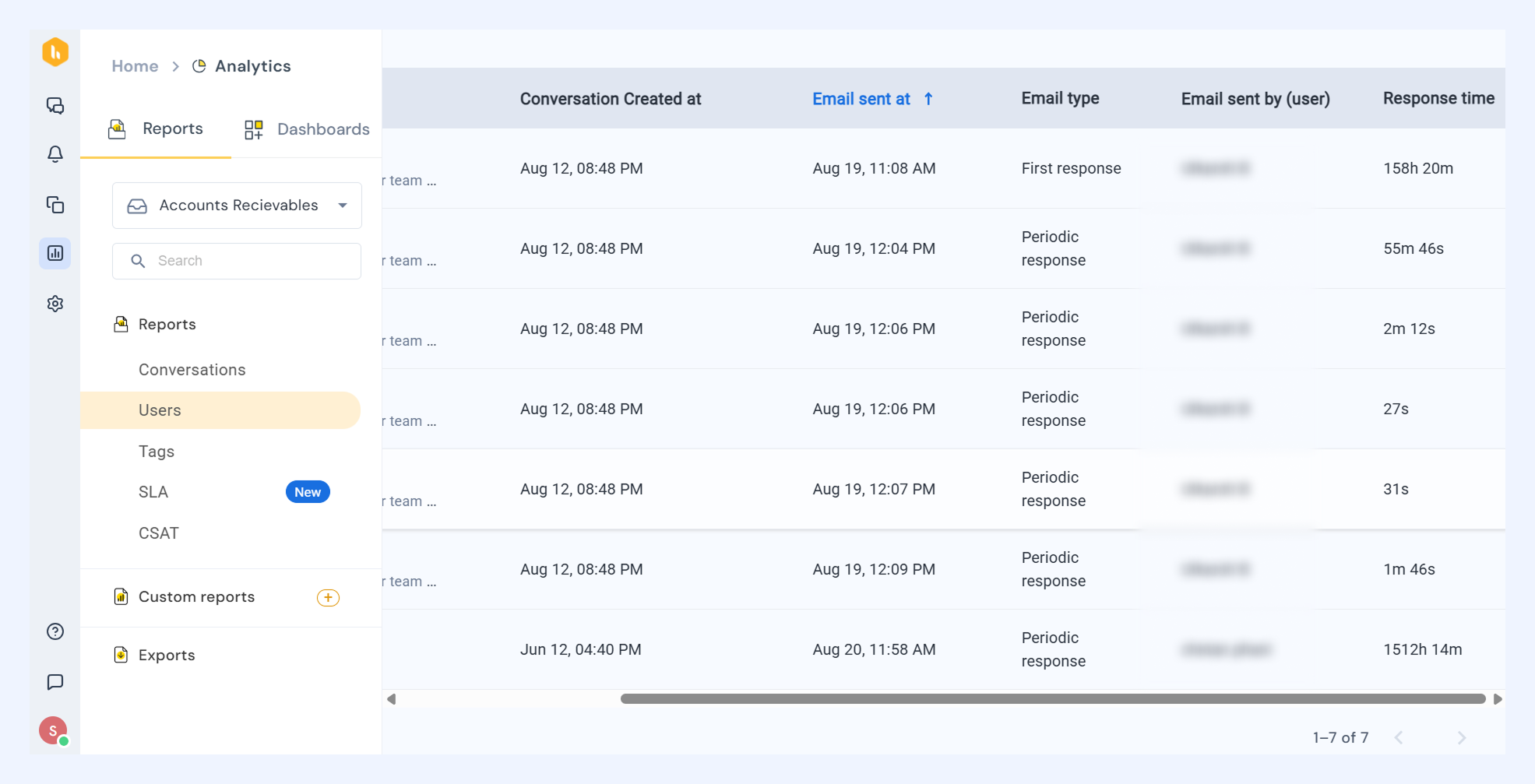
Note: Email types include:
- New outbound: First email of the conversation, sent from the Shared Inbox.
- First response: First reply to the initial incoming email.
- Next response: Reply to a later incoming email in the same conversation.
- Periodic response: A follow-up email sent from the Shared Inbox.
- Group data: Organize conversations by user, email type, tags, status, and conversation type.
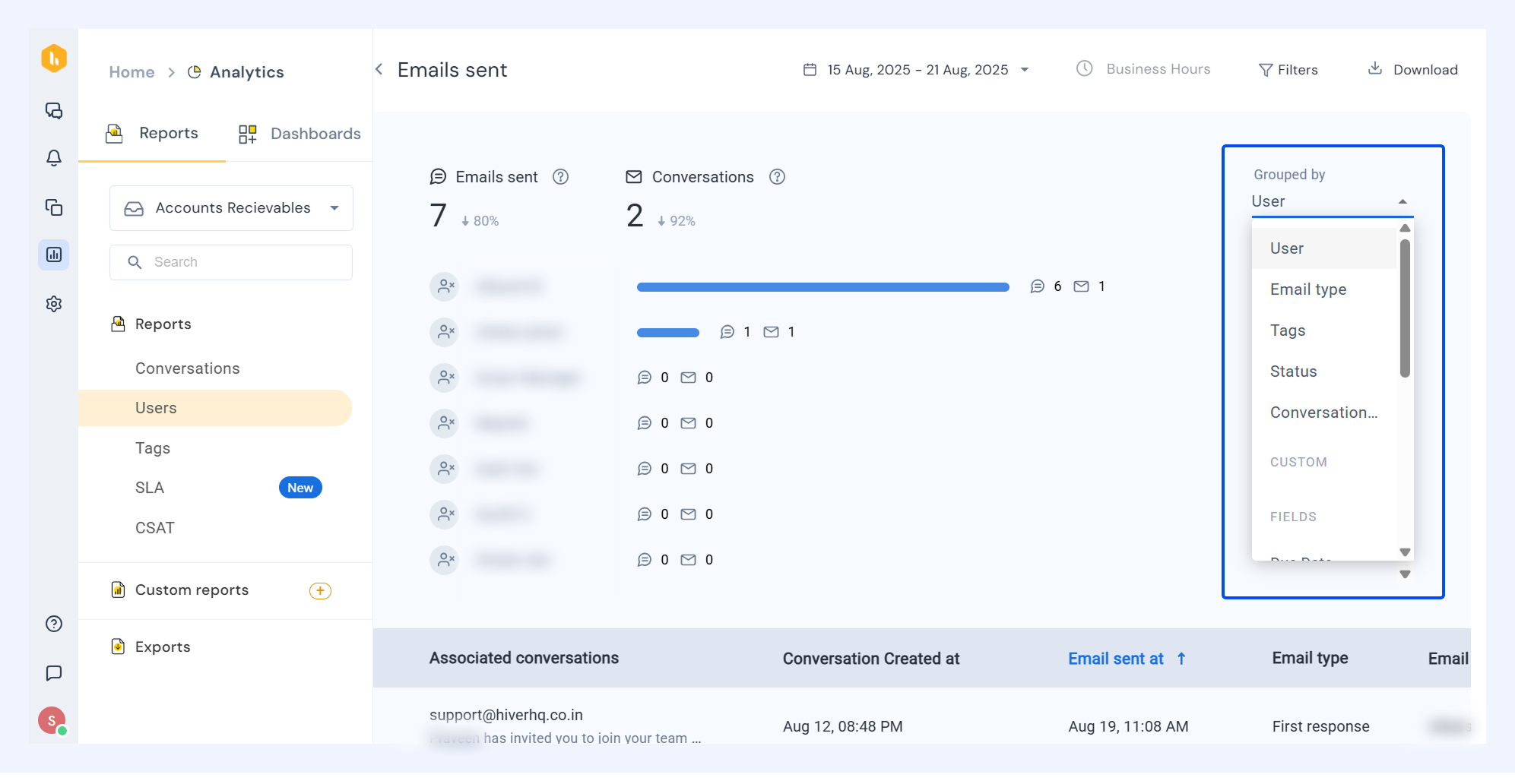
- Apply filters: Narrow results by assignee, tags, conversation type, MRR, and due date.
Performance metrics
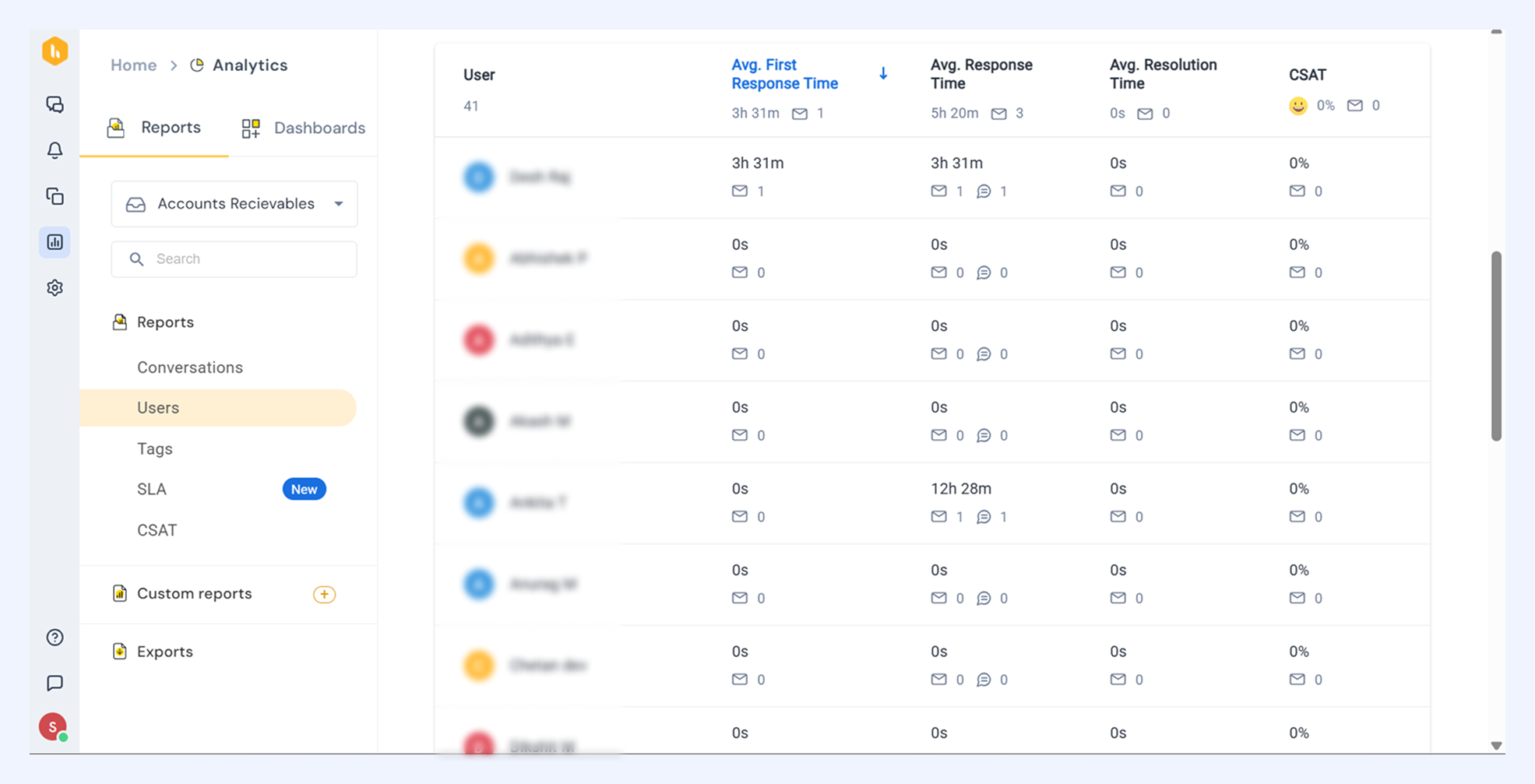
Definition: The Users report shows key performance metrics for each team member.
The pre-built view highlights:
i) Average first response time: How long it takes a user to send their first reply in a conversation.
ii) Average response time: How long a user takes, on average, to reply to customer messages.
iii) Average resolution time: How long it takes a user to fully resolve conversations.
iv) CSAT: The percentage of satisfaction ratings received for conversations handled by the user.
Analyze the report
Click a user’s name in the Performance table to open a detailed view. You’ll see a bird’s-eye view of all the key metrics:
- Workload includes metrics for Conversations assigned and Emails sent.
- Performance includes Average first response time, Average response time, and Average resolution time.
- CSAT includes percentage satisfaction ratings
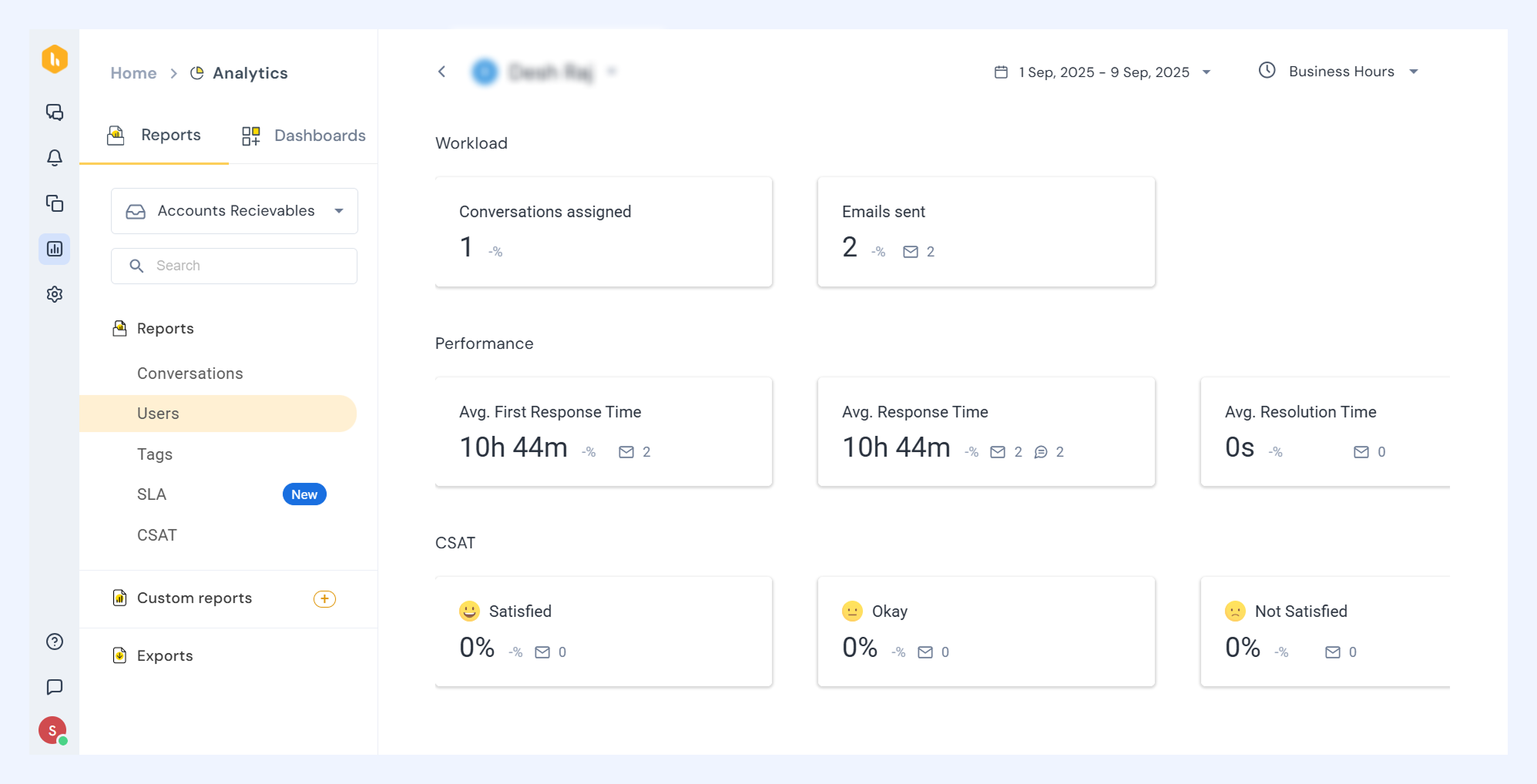
Click any metric value (for example, Average first response time or CSAT) to view the conversations that contributed to it. This helps you analyze not just the numbers but also the graphical metrics behind them.
Next steps
Reporting and Analytics in Hiver
Conversations reports in Hiver Analytics
CSAT reports in Hiver Analytics
Tags reports in Hiver Analytics
SLA reports in Hiver Analytics