Setting up basic settings
Basic Settings let you personalize how you send email and work in Hiver. You can create signatures for different inboxes, set up an undo send timer to fix last-minute mistakes, and turn on keyboard shortcuts for common actions.
To open Basic Settings, go to your profile icon and select My Settings.

Set up and manage email signatures
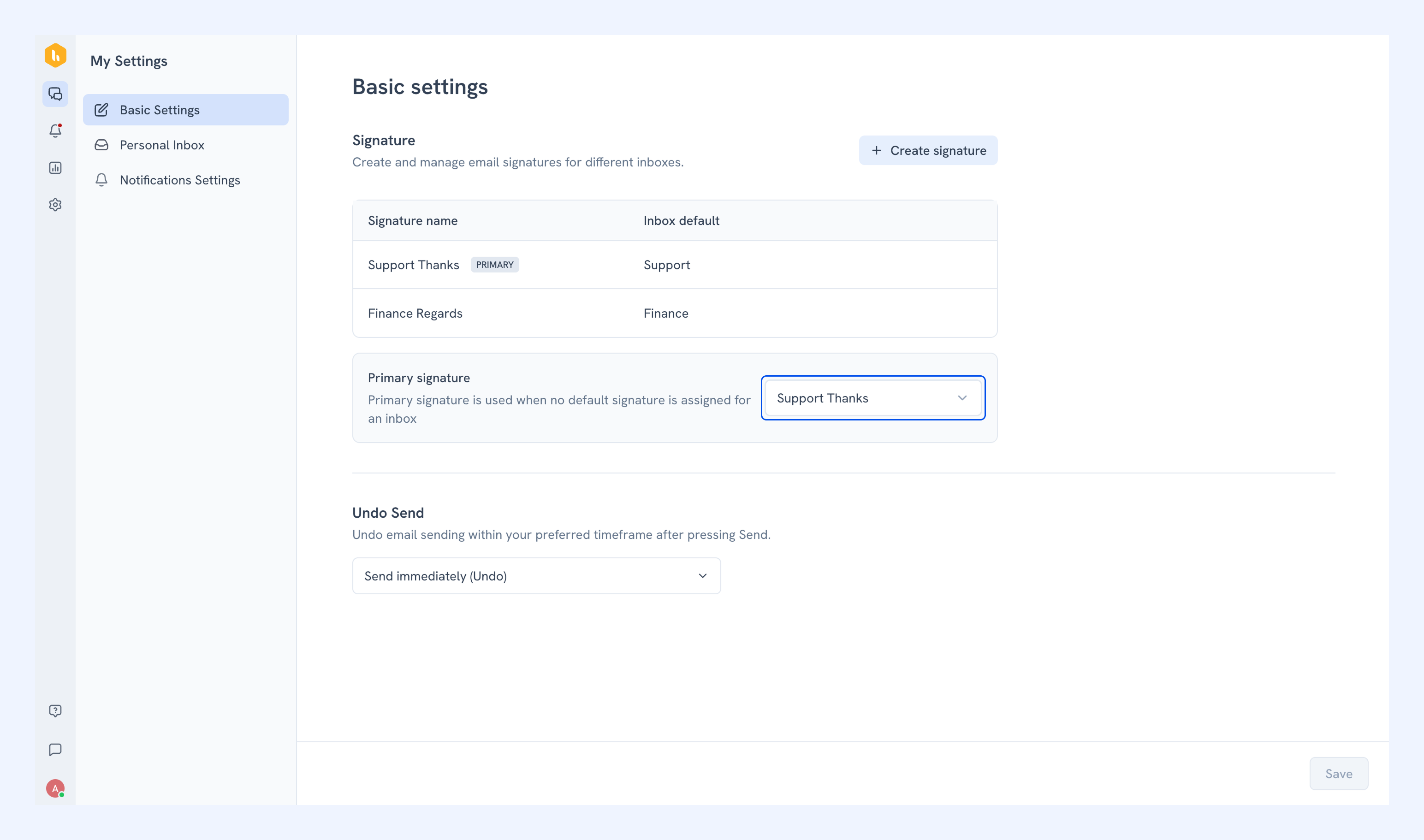
You can create multiple email signatures in Hiver Omni and assign different ones to different inboxes. This lets you use the right signature for each conversation without editing it manually every time.
Create a signature
1. In Basic Settings, click Create signature.
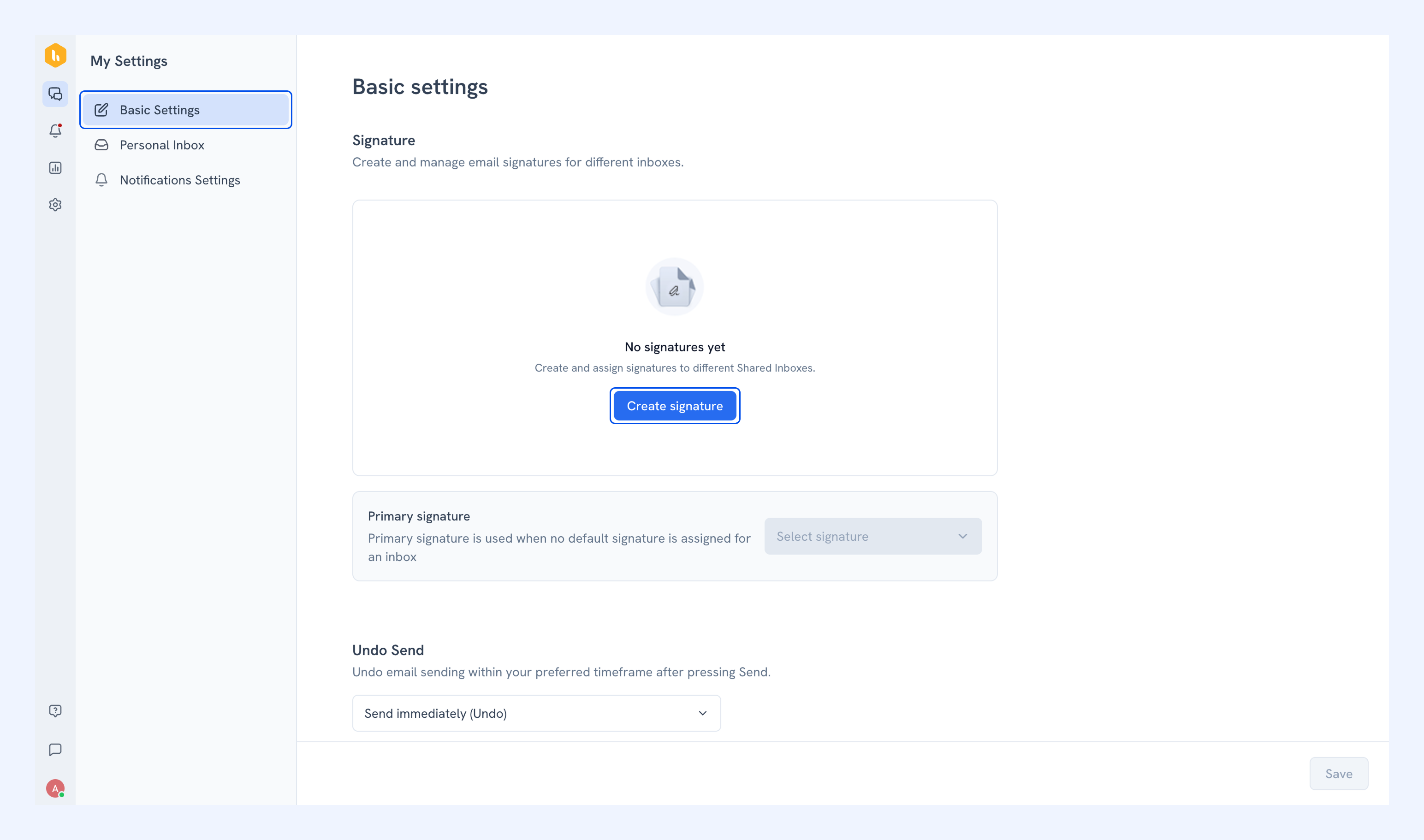
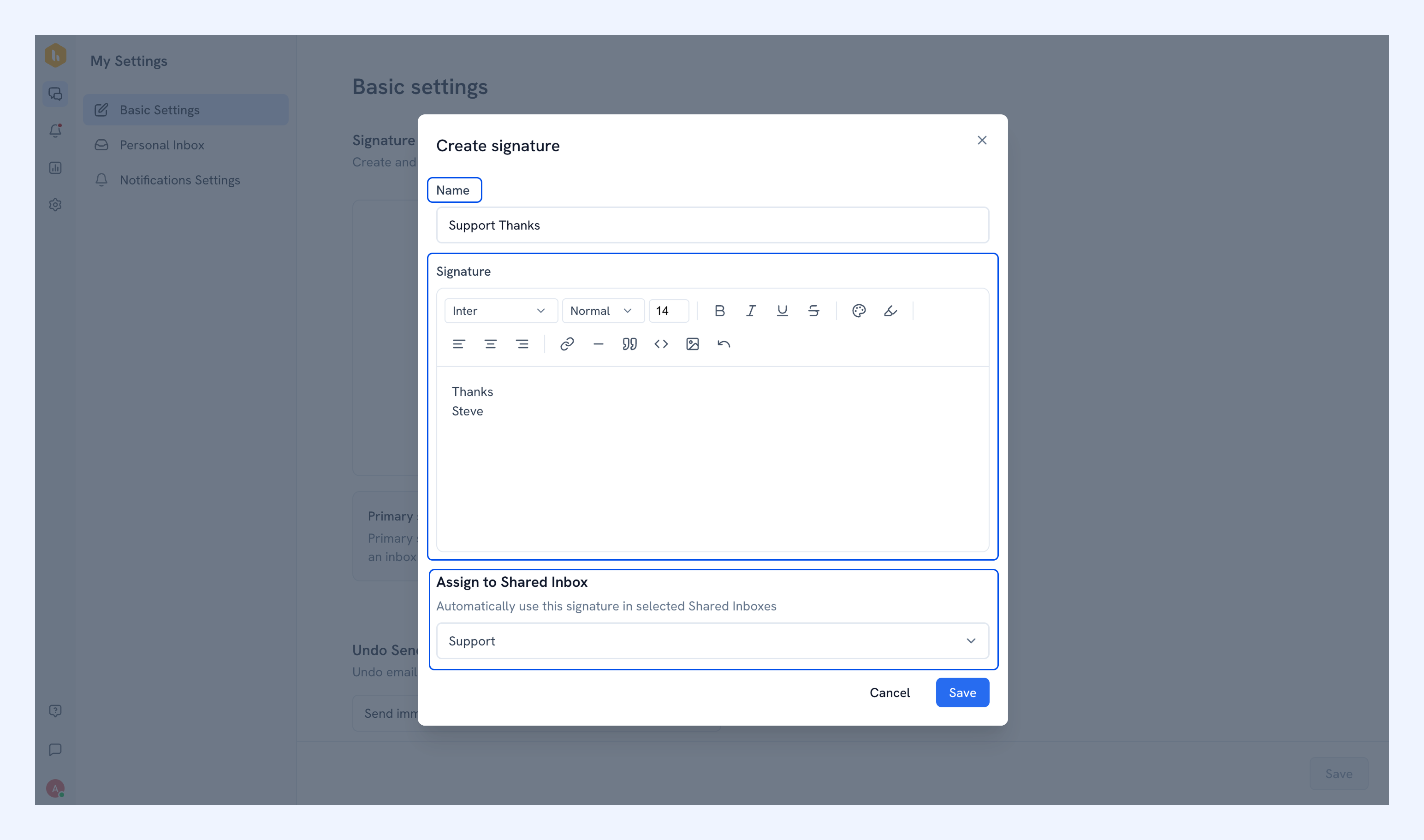
2. Enter a name for the signature (for example: Support, Sales, Personal).
3. Write your signature in the editor. Use the toolbar to format text, add links, or insert images.
4. To set this signature as the default for a specific inbox, select the inbox from the dropdown.
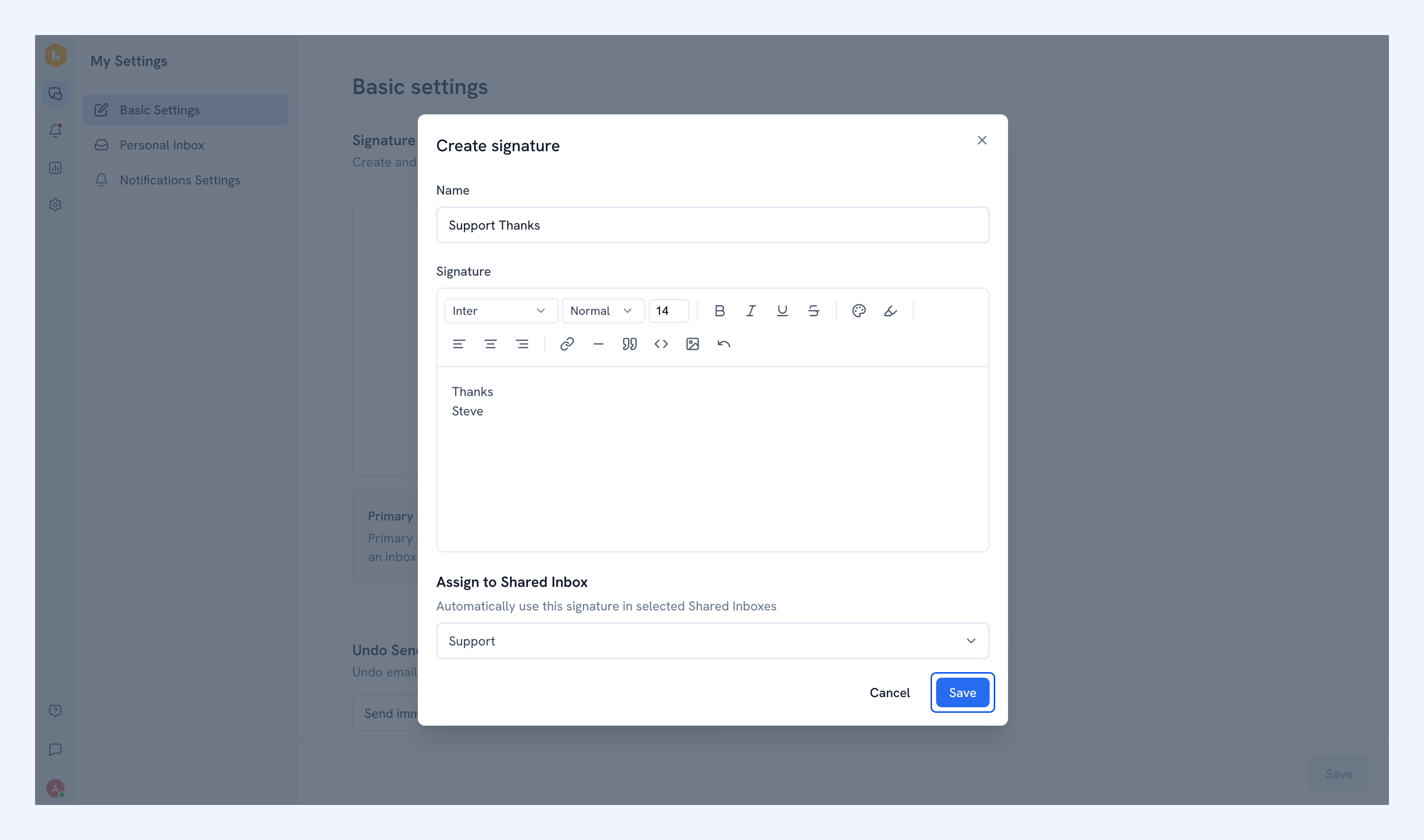
5. Click Save.
Set a primary signature
Your primary signature is used automatically when a Shared Inbox doesn’t have a default signature assigned.
Select a signature from the Primary signature dropdown.
Edit or delete a signature
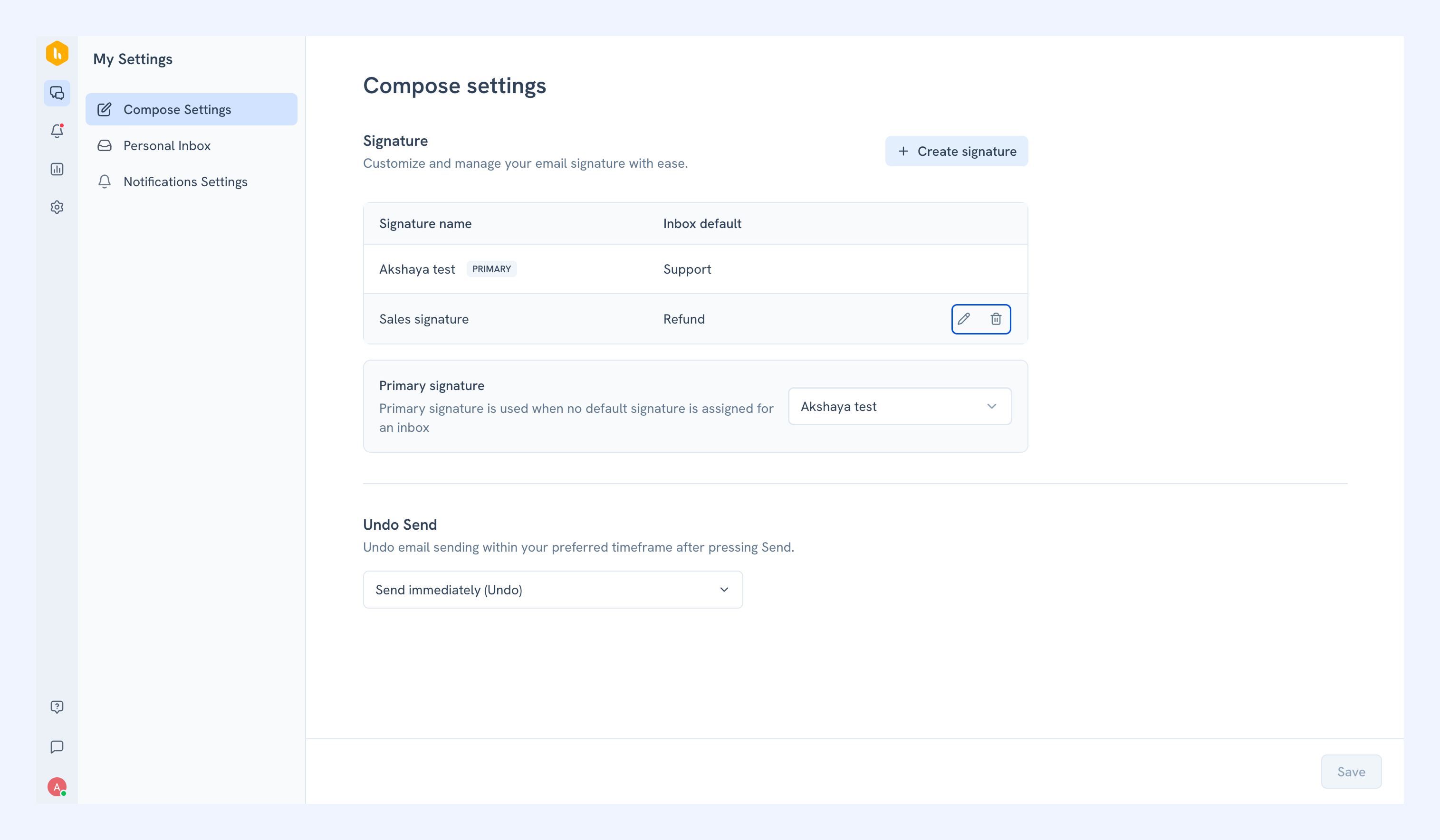
- To edit: Hover over the signature, click the edit icon, make changes and click Save signature.
- To delete: Hover over the signature, click the delete icon, then click Delete to confirm.
Switch signatures while composing
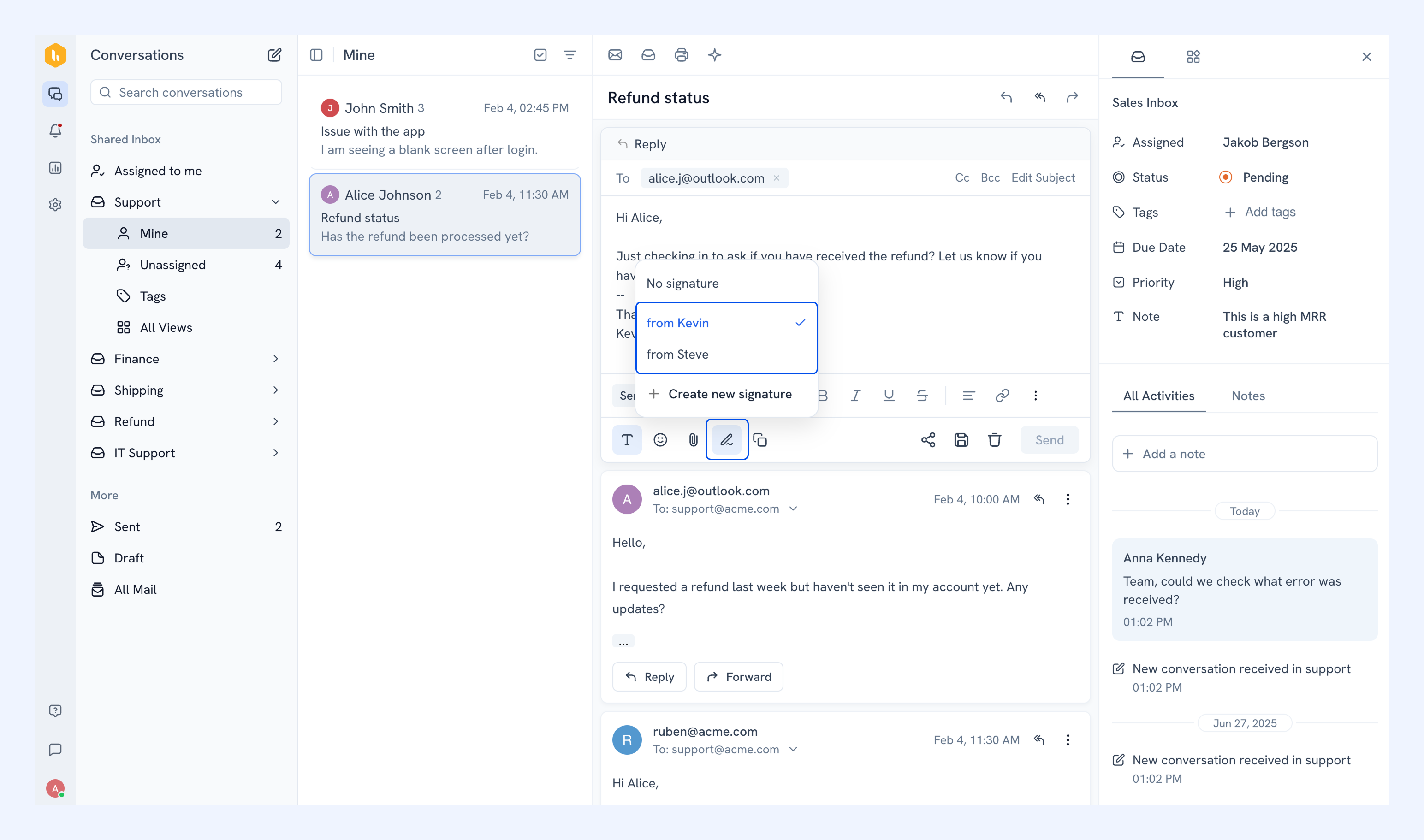
You can choose a different signature before replying to a conversation, even if a default signature is already applied.
Click the Edit signature icon and select the one you want to use.
Configuring Undo Send
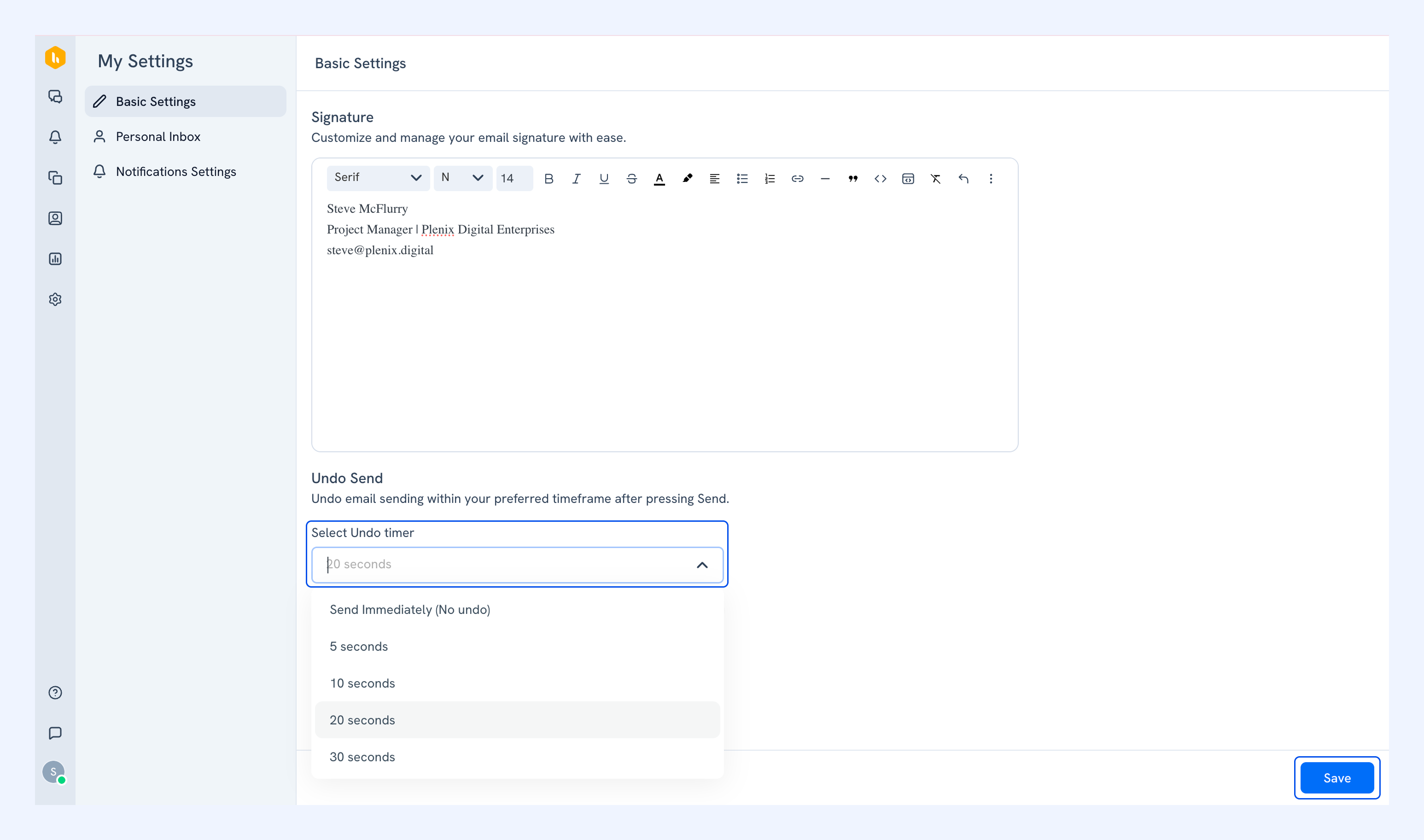
Undo Send lets you cancel an email a few seconds after clicking Send, helping you fix mistakes or update last-minute details.
To set it up:
1. Choose how long you want to be able to undo a sent email from the dropdown (5, 10, 20, or 30 seconds).
2. Click Save.
These settings apply to all emails you send from Hiver.
Keyboard Shortcuts
Hiver offers keyboard shortcuts for frequently used actions to help you work more efficiently. Here are the available options:
| Action | Windows | Mac |
| Change conversation status to Open | Alt + O | Option + O |
| Change conversation status to Pending | Alt + P | Option + P |
| Change conversation status to Closed | Alt + C | Option + C |
| Assign the conversation | Alt + A | Option + A |
| Add a note | Alt + N | Option + N |
| Reply to the conversation | Alt + Shift + R | Option + Shift + R |
| Reply to all recipients | Alt + Shift + A | Option + Shift + A |
| Forward the conversation | Alt + Shift + F | Option + Shift + F |
To use Keyboard Shortcuts:
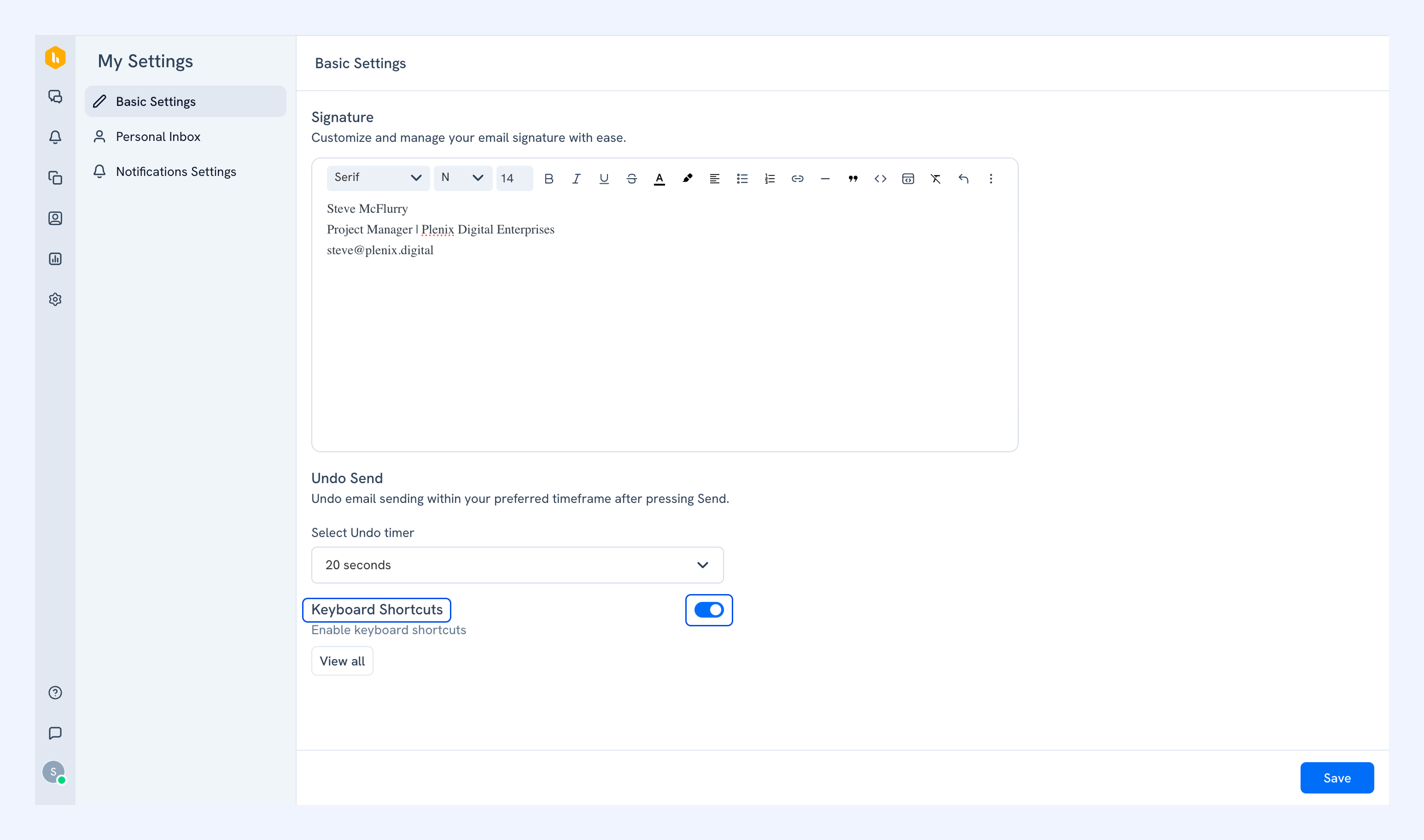
1. Click View all to see the full list of available shortcuts. Enable the toggle to start using shortcuts.
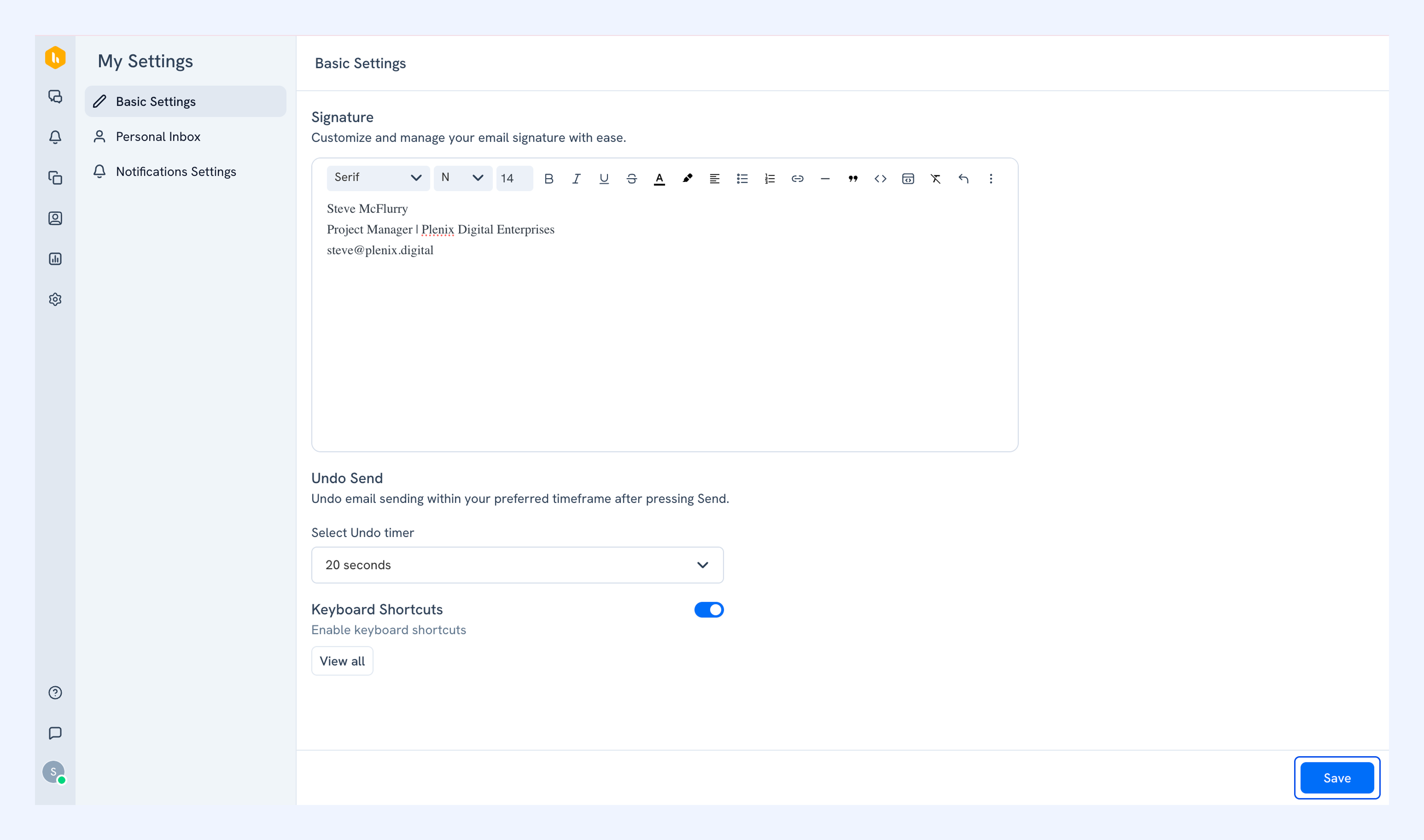
2. Click Save.
Note
- These shortcuts apply to the conversation view in your Shared Inbox.
- Keyboard shortcuts will not apply to conversations that are a part of multiple Shared Inboxes.
Appearance
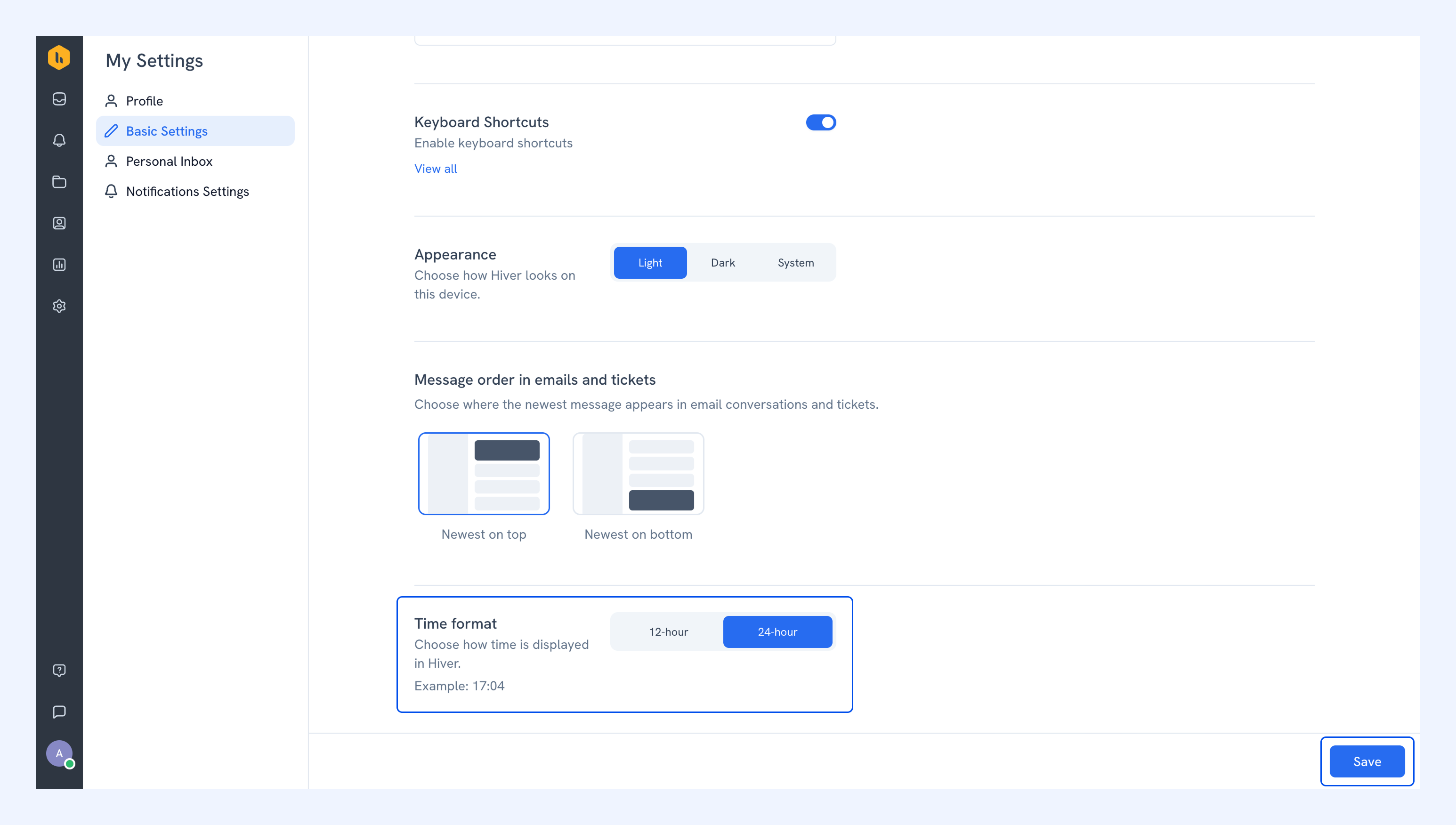
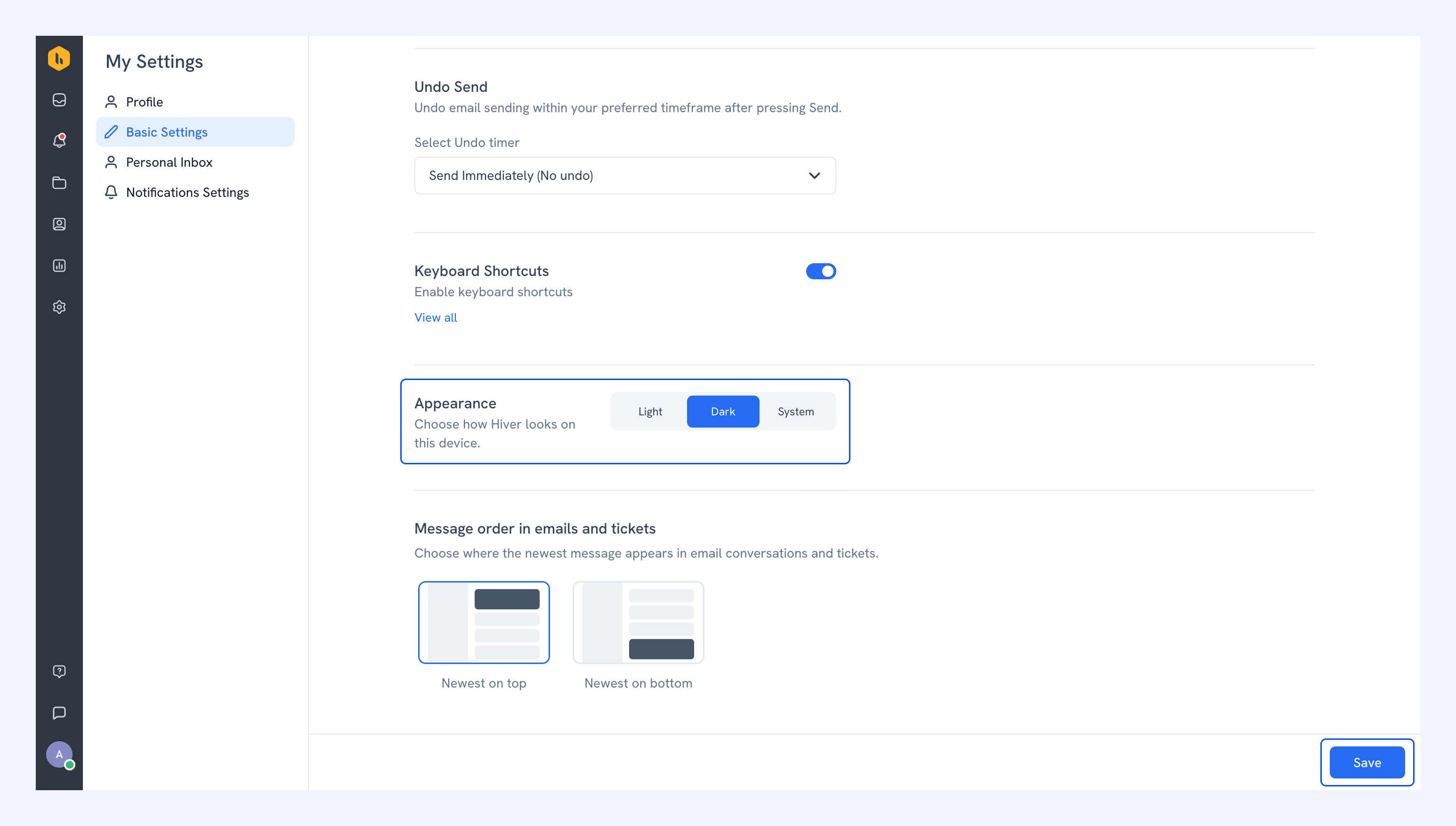
You can set Hiver to a light or dark theme, or match your device's setting.
Choose an option, then click Save.
Note: Hiver saves your choice to your account, so it stays the same across your sessions and devices.
Message order in emails and tickets
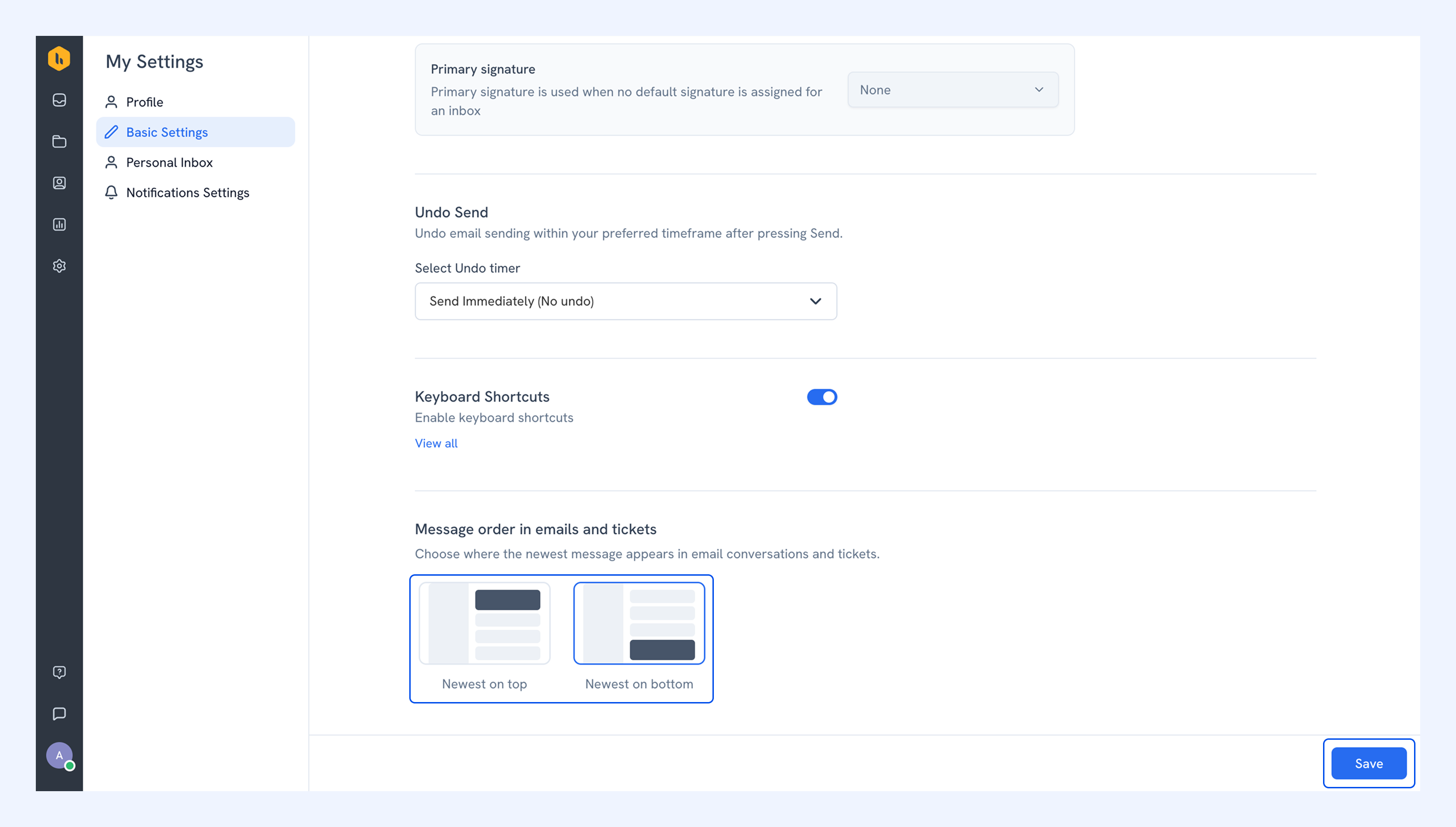
You can control how messages are arranged in an email thread or a ticket. By default, the newest message appears on top, with older ones below.
To change it, choose an option then click Save.
Note: This setting applies only to email conversations and tickets.
Time format
You can set how Hiver shows time across conversations, activity timelines, notes and more. You can choose between a 12-hour or 24-hour format. By default, uses the 12-hour format.
To change it, choose an option, then click Save.
Note:
- This feature is currently in an early access program. To enable it for your account, reach out to us at support@hiverhq.com.
- Your choice applies wherever Hiver shows a timestamp.