Setting up your Help Center
A Help Center is a self-service resource where customers find answers without reaching out to support. With Hiver, you can build a library of help articles that reduces repetitive tickets, improves response time, and enables teams or customers to access information when needed.
You can create as many Help Centers as you need, each for a specific product, team, or audience. You can also create an internal Help Center with FAQs, company policies, etc, for your team to use.
Setting up your Help Center
Choose your Help Center type
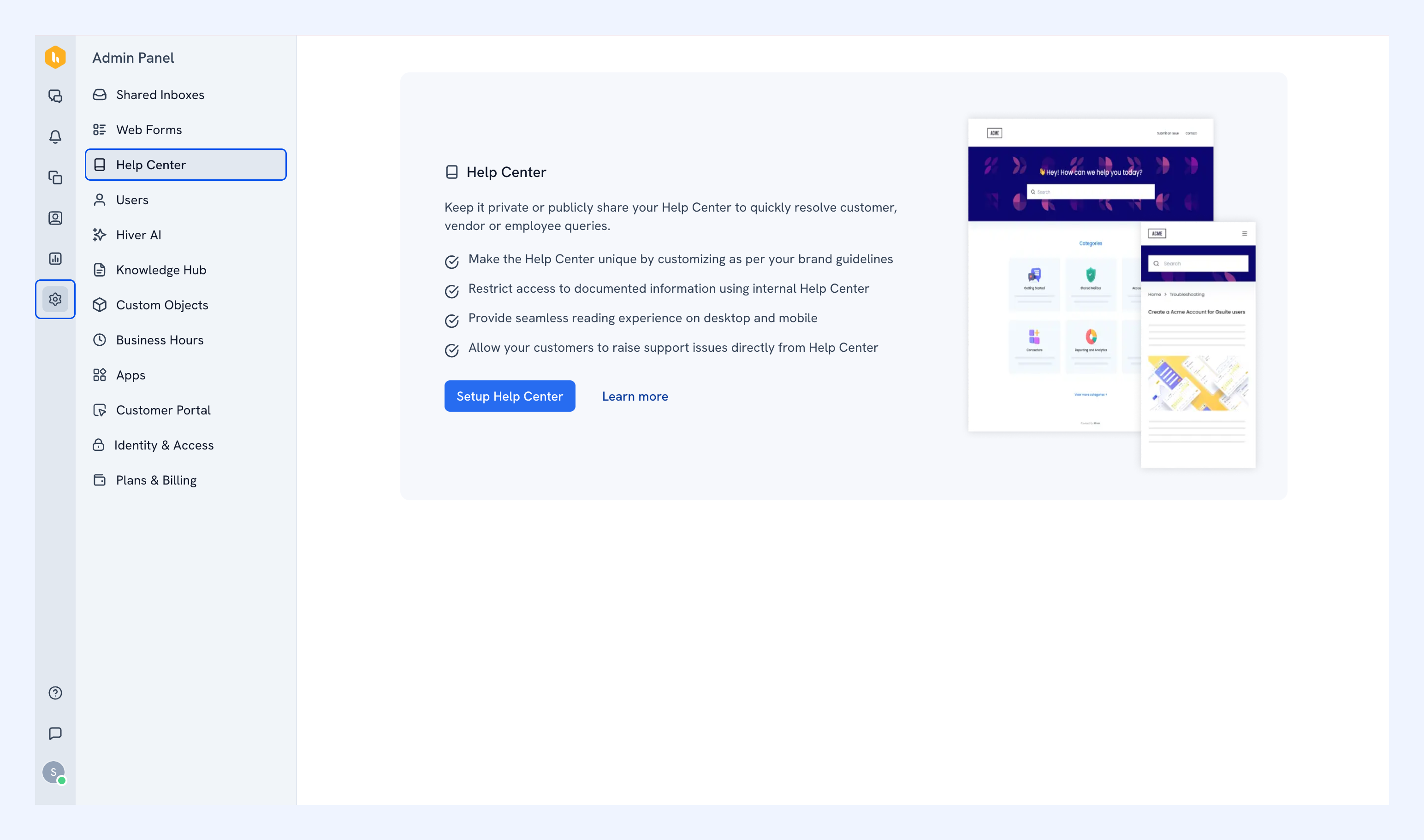
1. Open the Admin Panel and select Help Center from the sidebar.
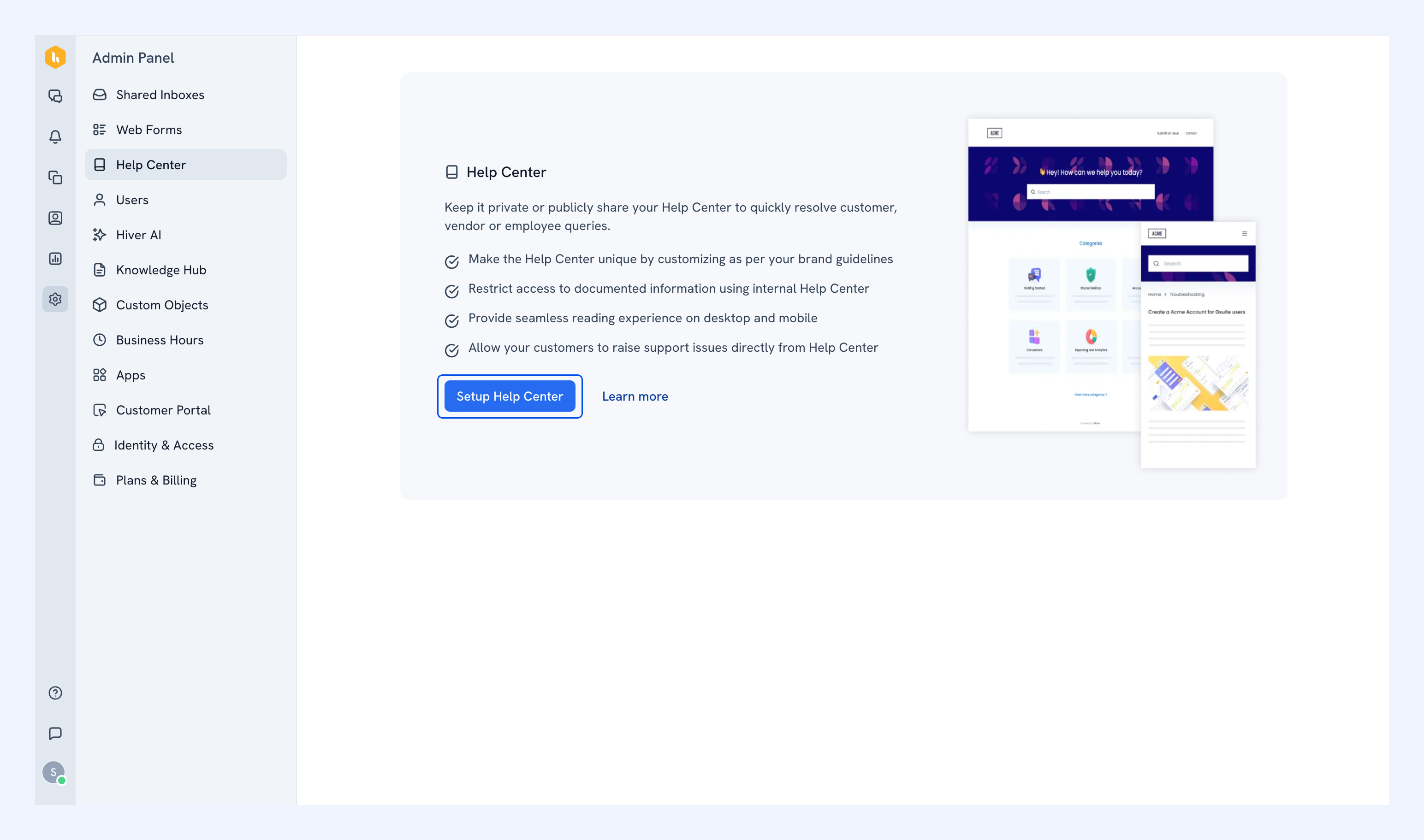
2. Click Setup Help Center.
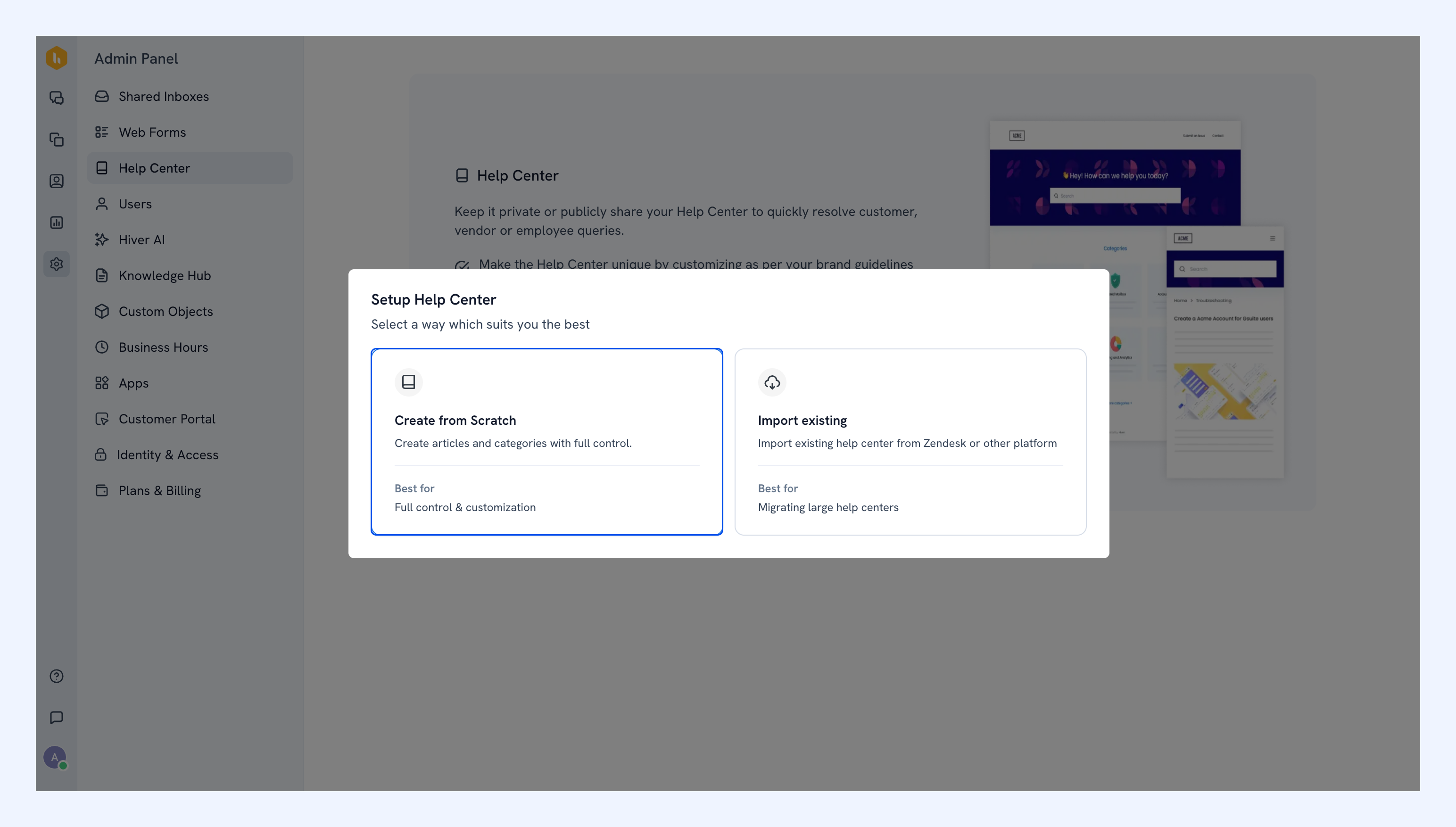
3. Choose Create from Scratch.
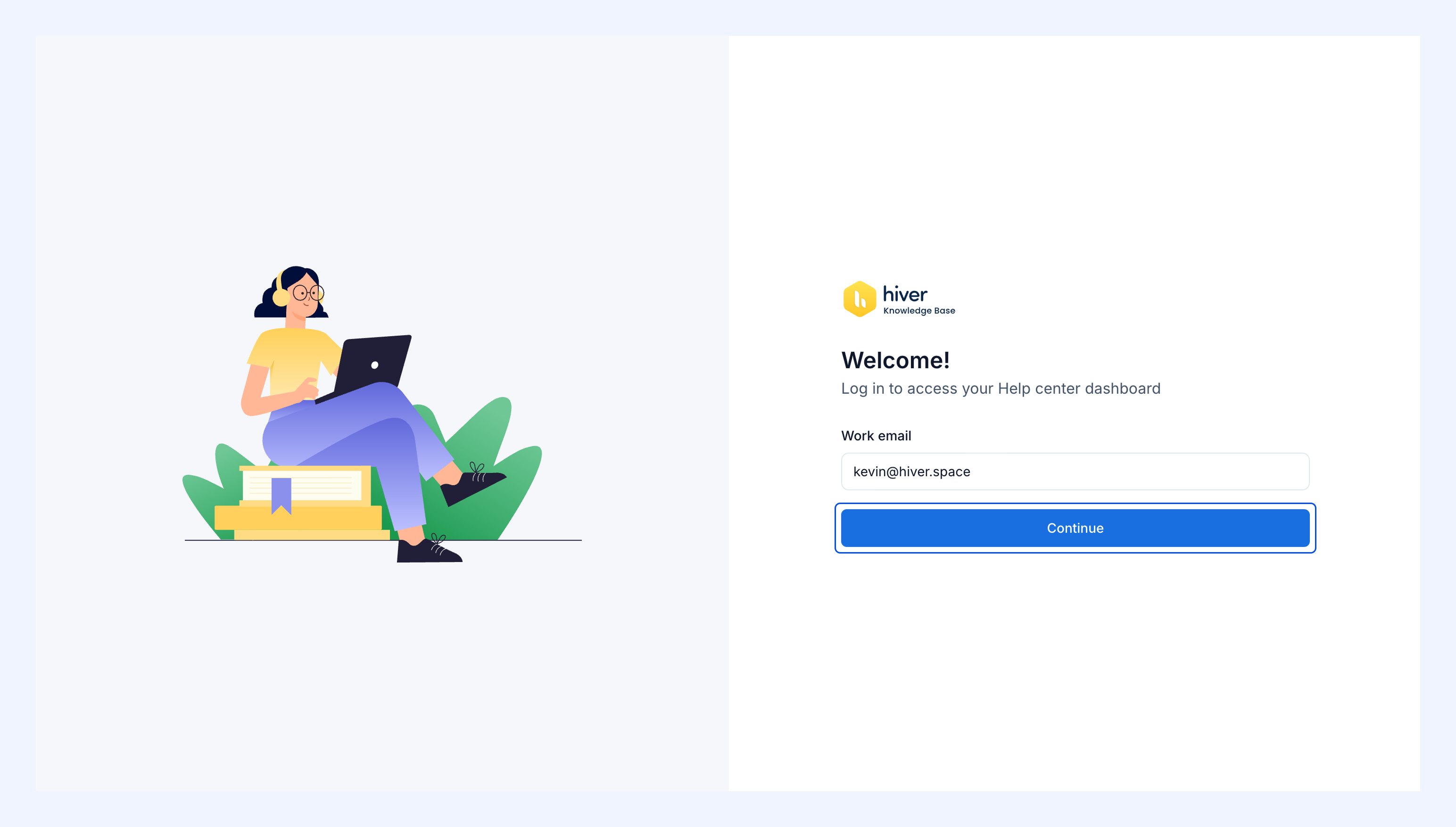
4. You’ll be redirected to the login page. Sign in with your Hiver credentials.
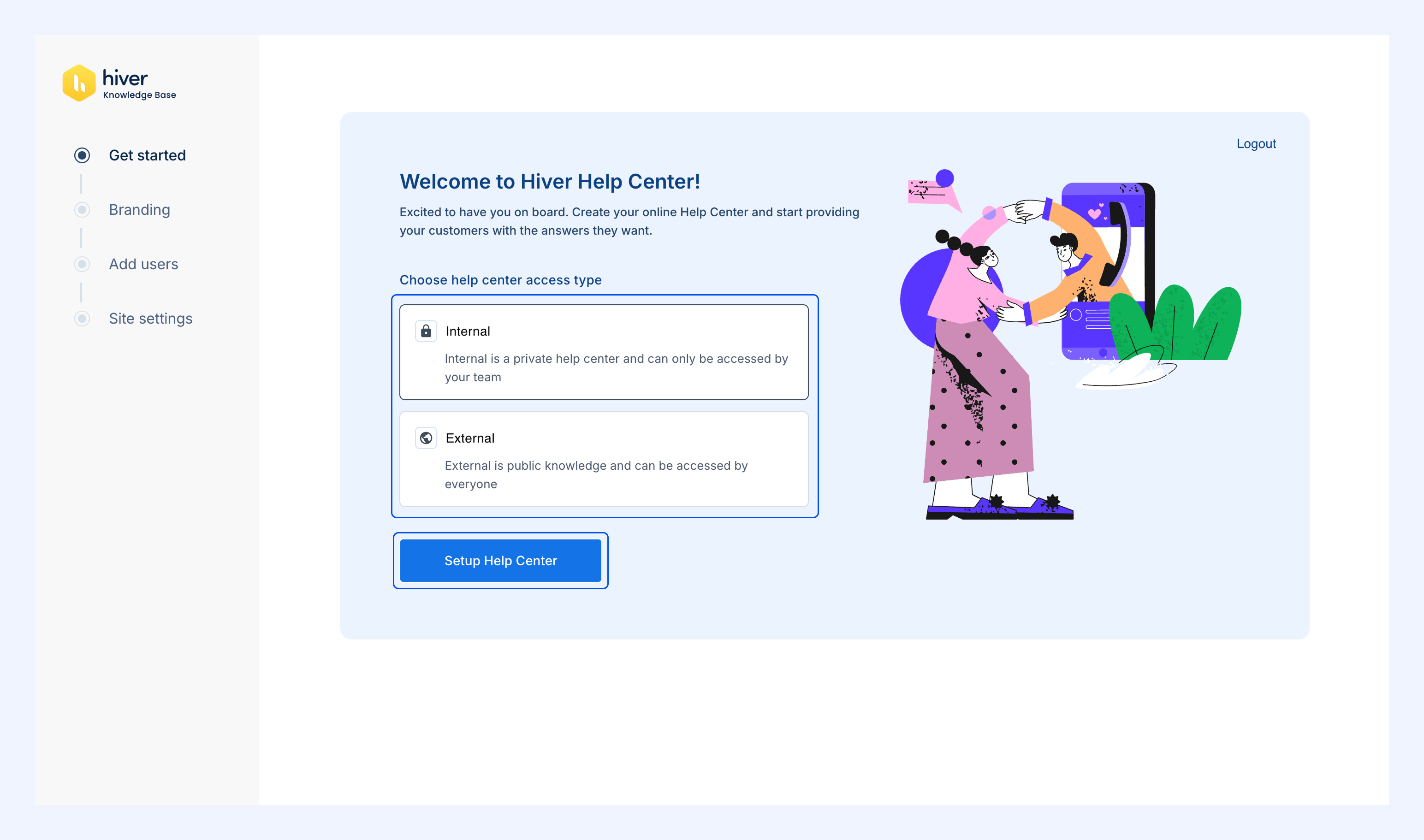
5. After logging in, choose the Help Center access type:
- Internal – Private and accessible only to your team.
- External – Public and visible to your customers.
6. Select Setup Help Center.
Note: This selection cannot be changed once the Help Center is created.
Customize your branding
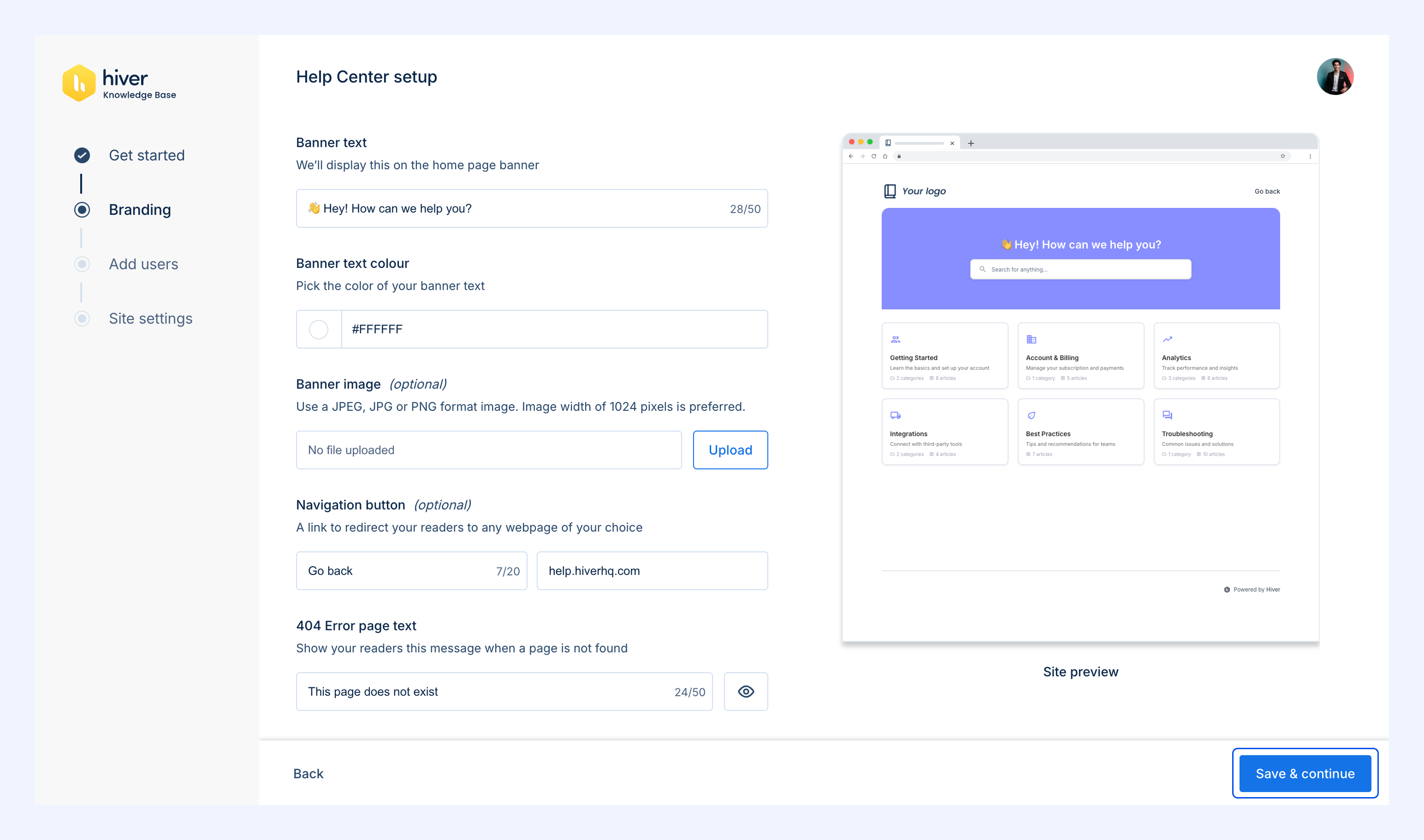
Adjust the look and feel of your Help Center to match your organization’s branding. A live preview appears as you make changes.
1. Upload your Logo and Favicon.
2. Set your Primary color using the color picker or HEX code.
3. Add Banner text for the homepage.
4. Choose the Banner text color.
5. Use the preview pane to confirm the appearance before saving.
6. Click Save & Continue.
Add users
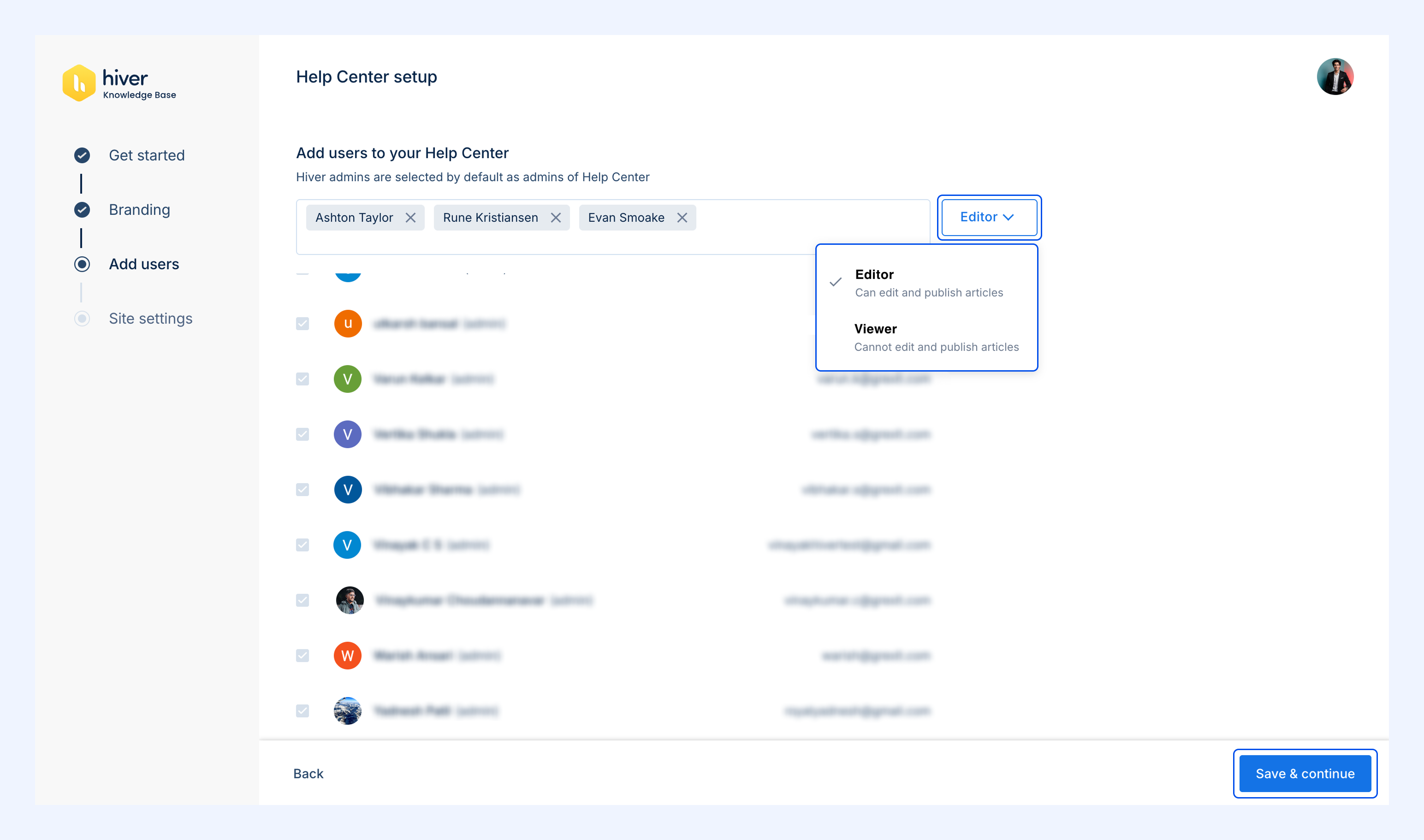
Next, add team members who will manage or access your Help Center.
1. Select users by selecting the checkbox next to their names.
2. Assign a role from the dropdown:
- Editor: Can create, edit, and publish articles. Editors can’t update brand or site settings.
- Viewer: Can only read published articles (internal Help Center only).
Note: Hiver admins automatically have admin access to all Help Centers and can manage site settings and branding.
3. Select Save & continue.
Configure site settings
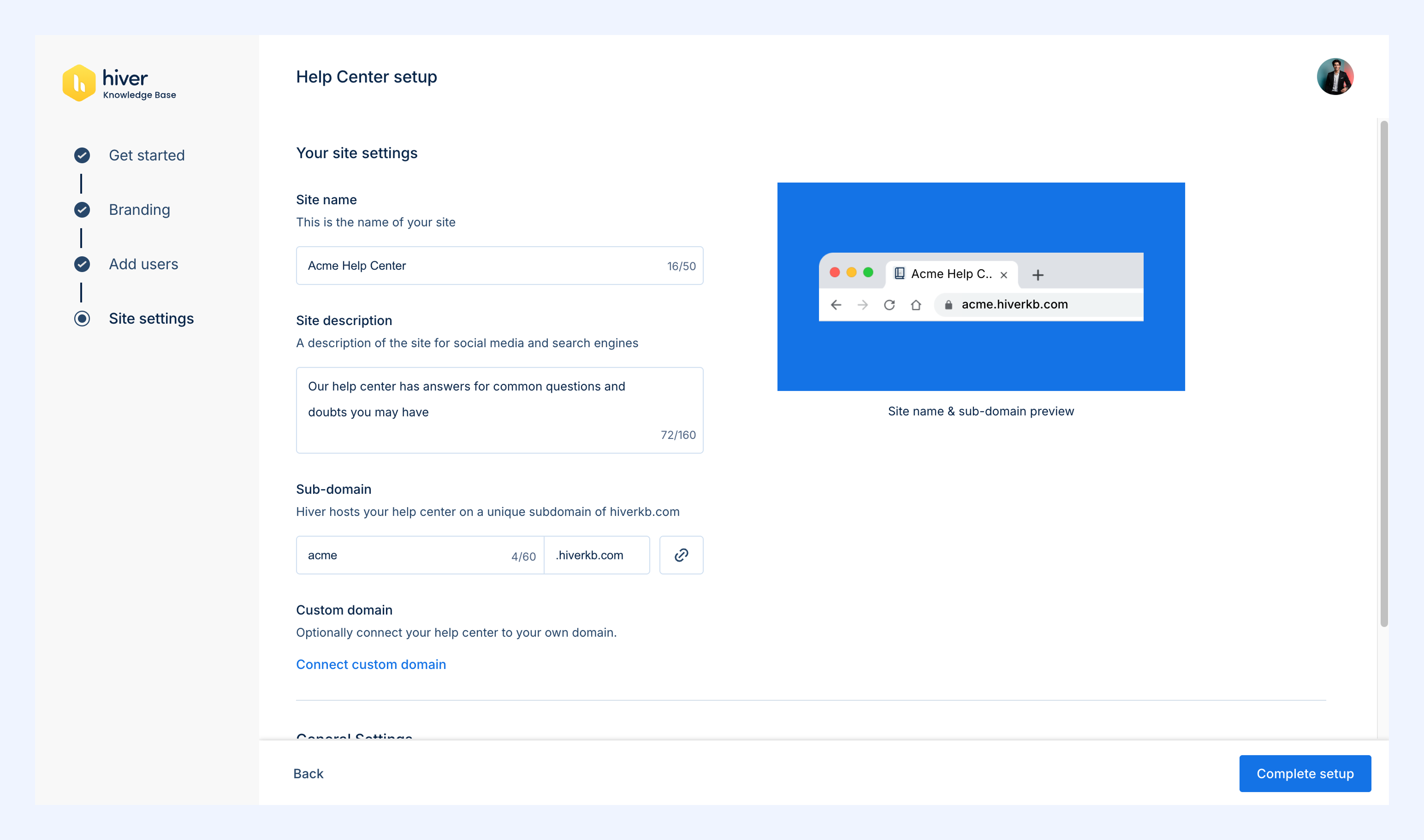
Set up your Help Center URL and connection options.
1. Enter your Site name.
2. Add a Site description.
3. Choose your subdomain.
4. You can also select Connect custom domain to use your own domain.
General settings
You can enable additional options such as:
- A contact form that your customers can use to contact you
- Custom code snippets to enhance your Help Center with various third-party apps like custom chat widgets or adding website analytics.
Contact form
1. Turn on the Contact form toggle to allow users to submit queries from the Help Center.
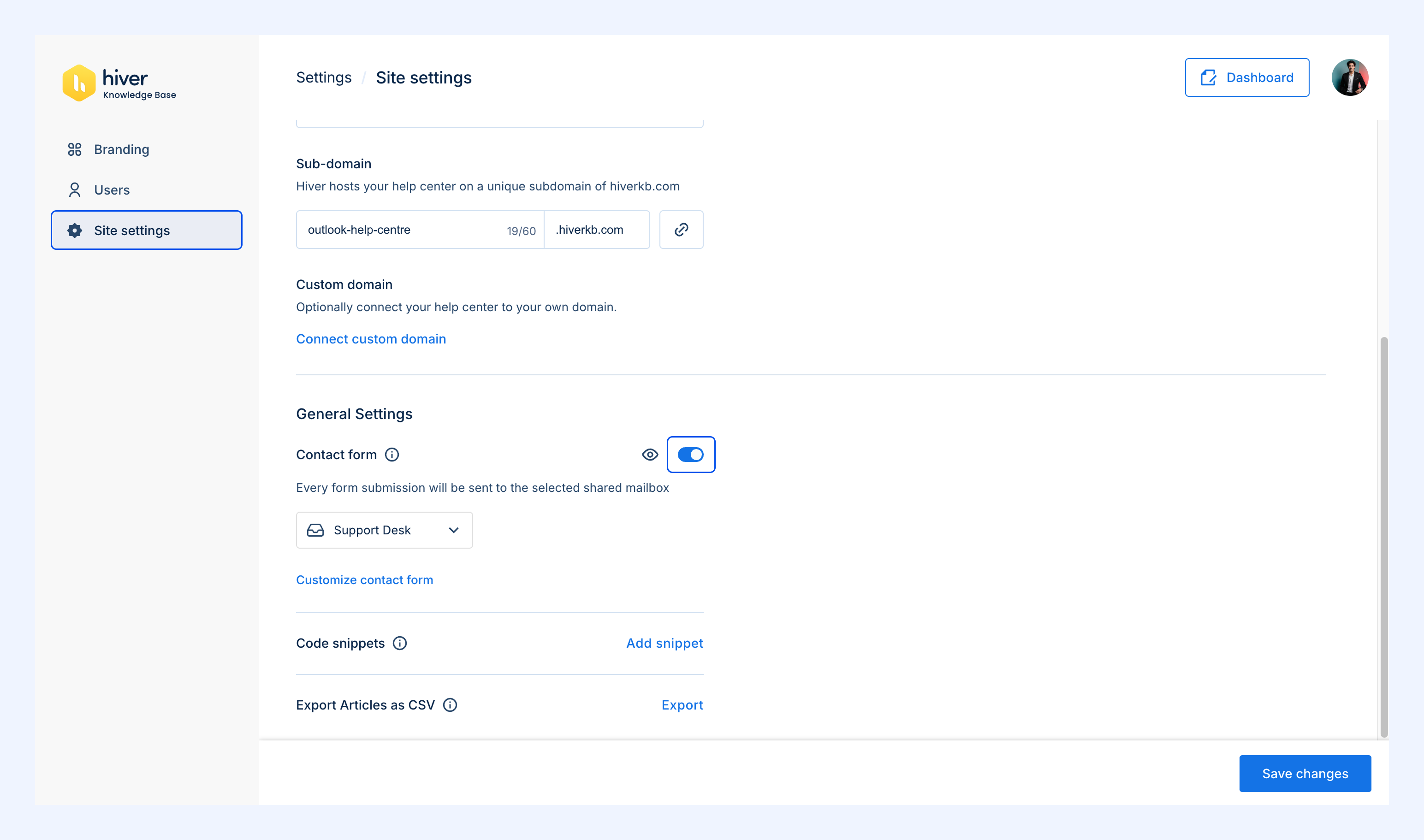
2. Choose the Shared Inbox where form submissions will be sent.
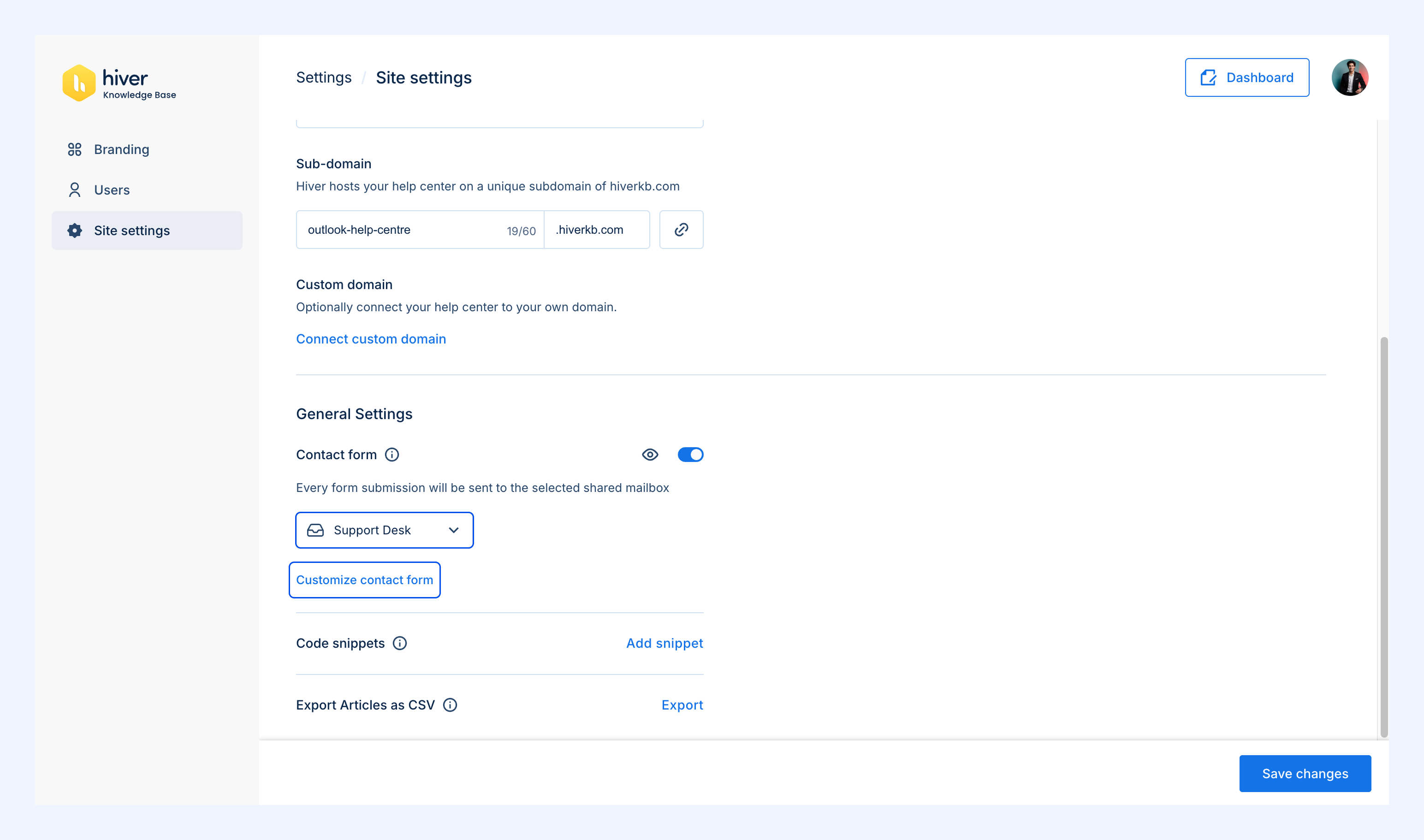
3. Select Customize contact form to edit the page name, heading, and confirmation message.
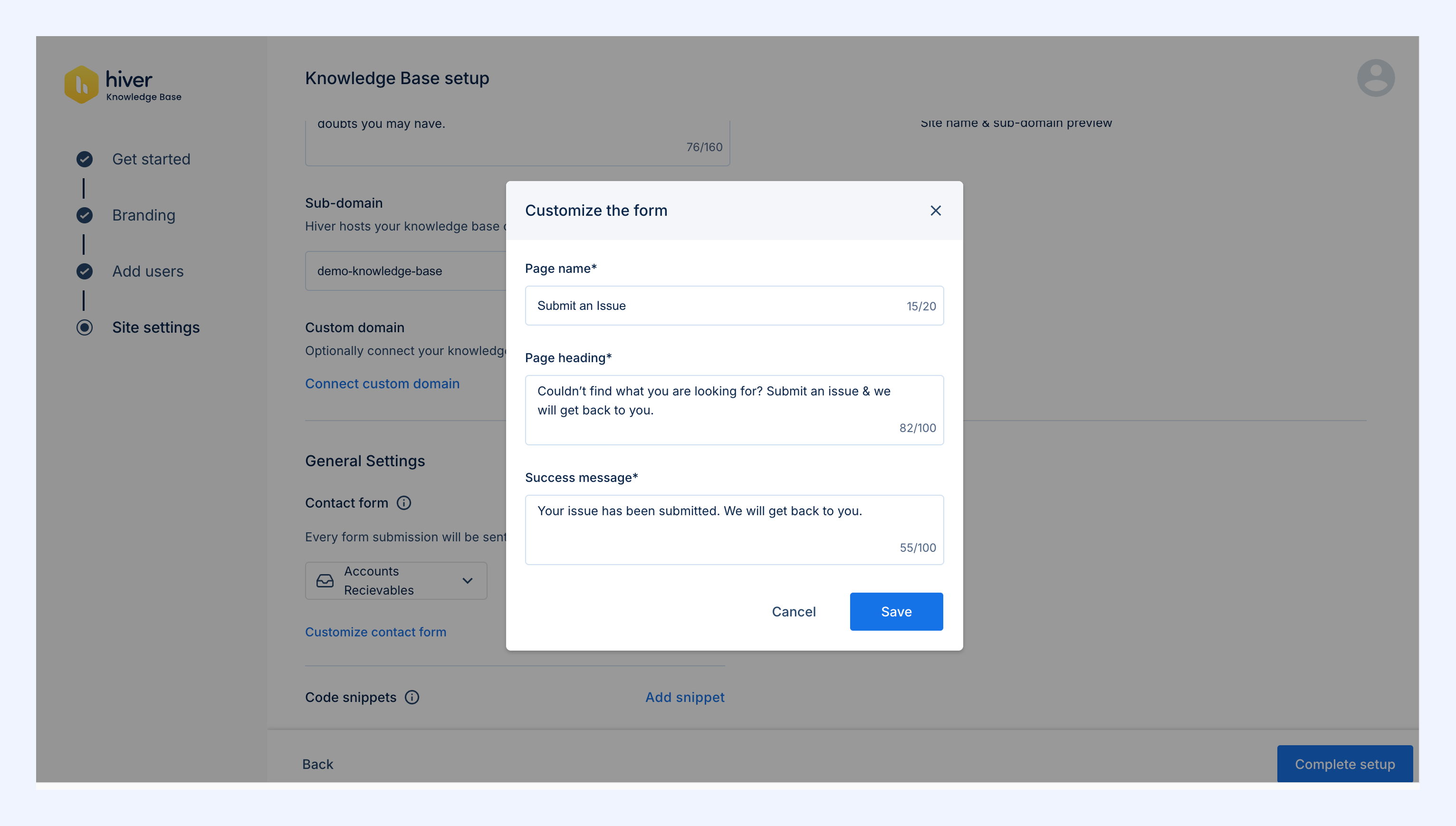
4. Add the following details:
- Page name
- Page heading
- Success message that users will see after submitting their request
5. Click Save.
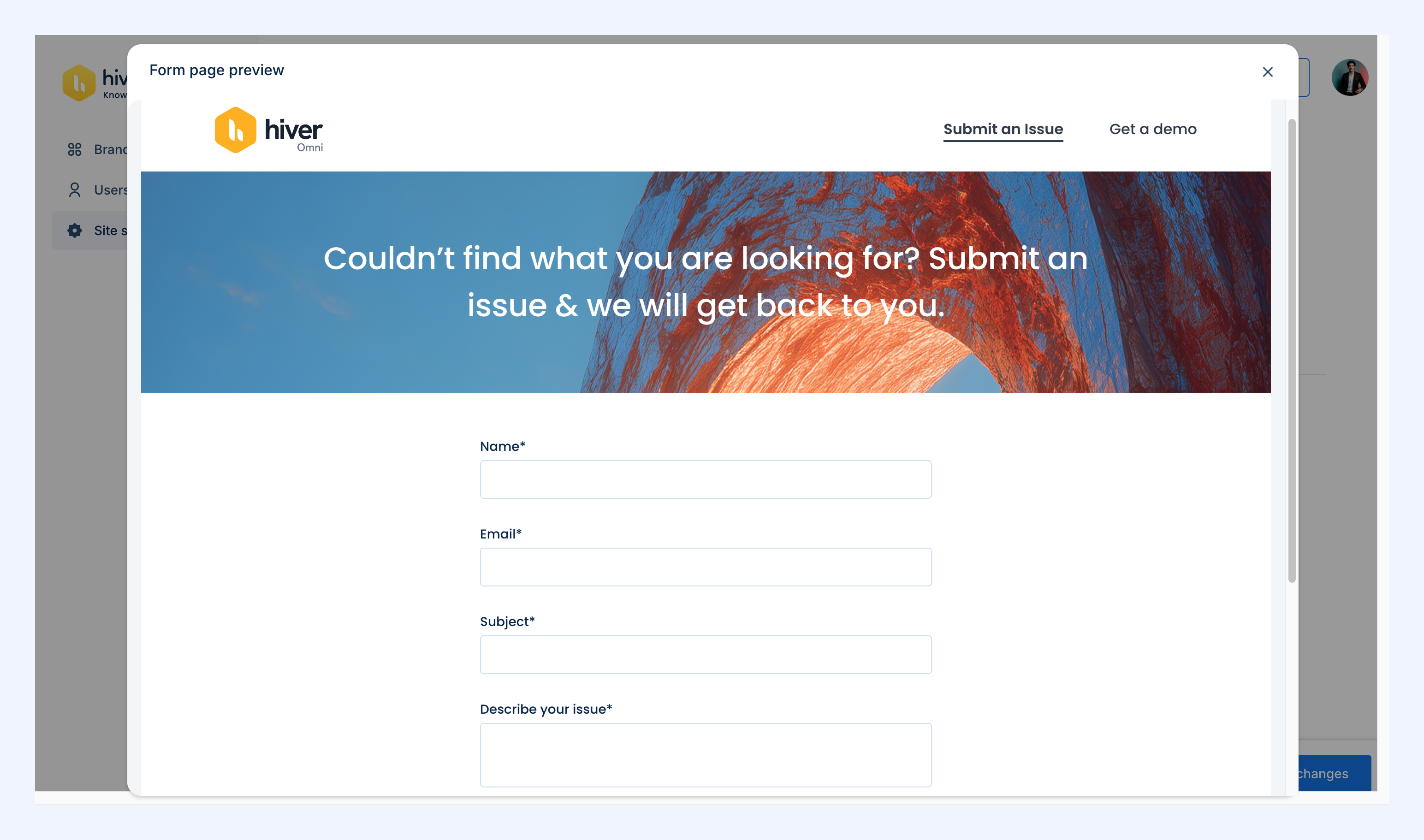
6. Use the preview icon to see how the form appears to customers.
Code snippets
1. Select Add snippet beside Code snippets.
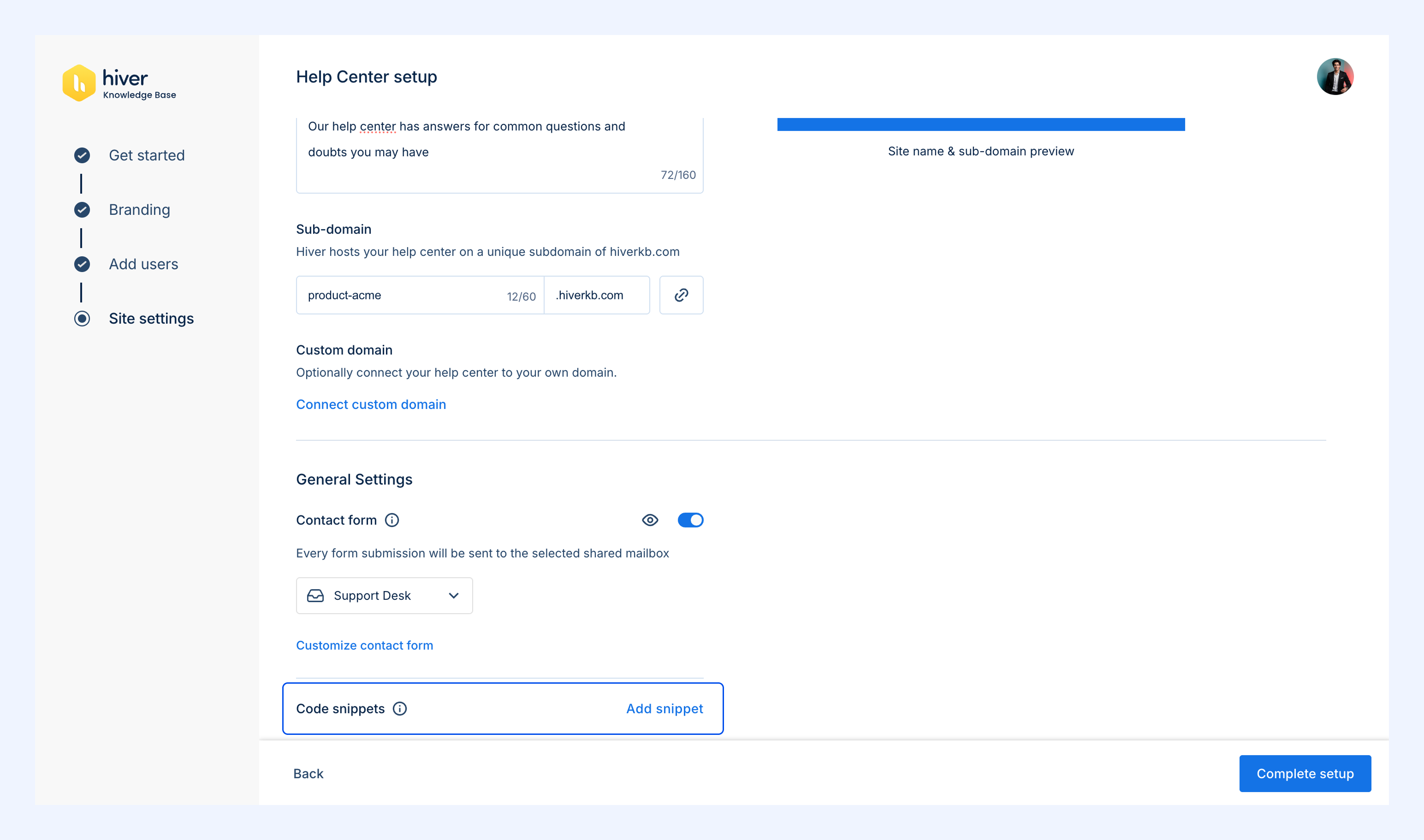
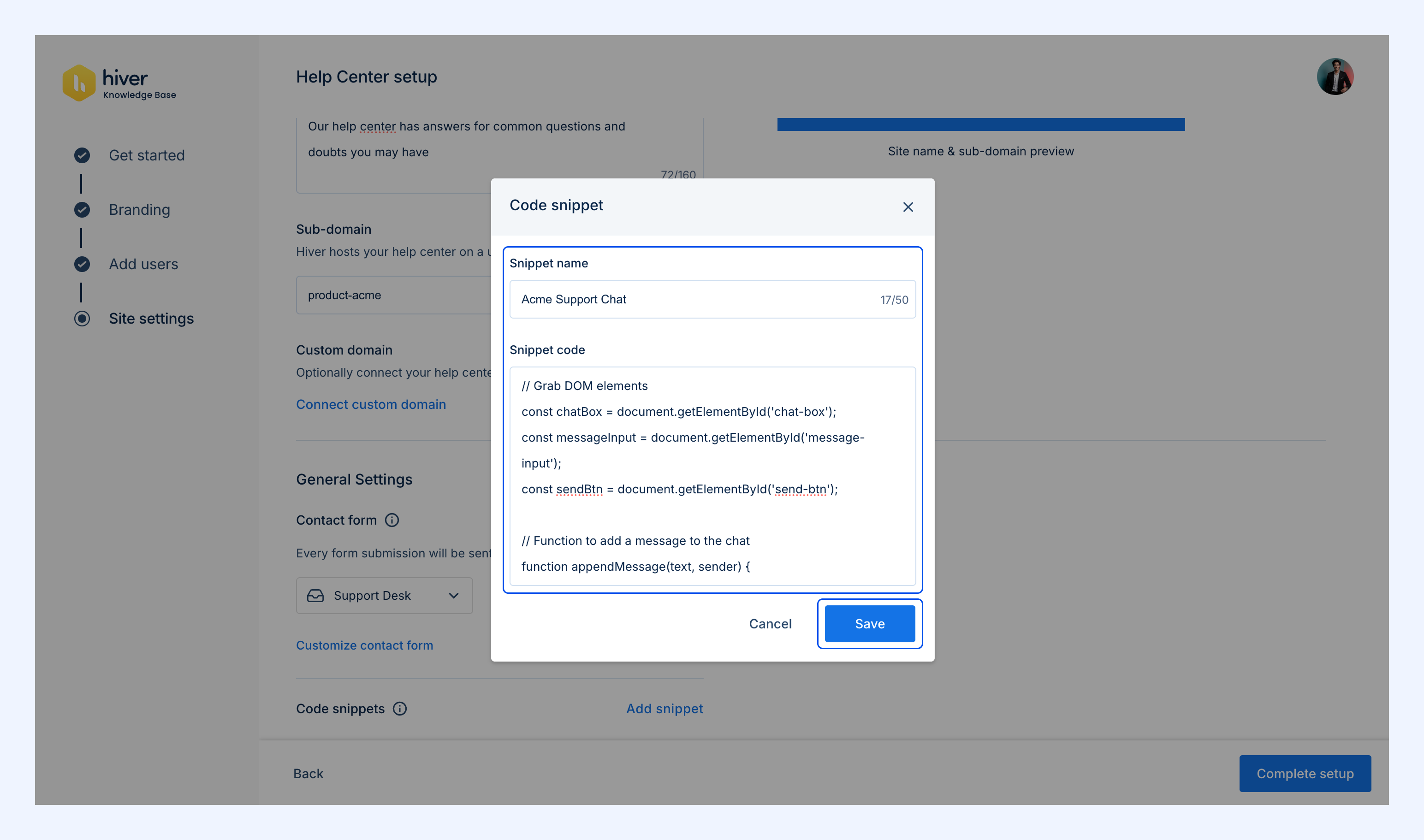
2. Enter a snippet name and paste your code.
3. Save the snippet.
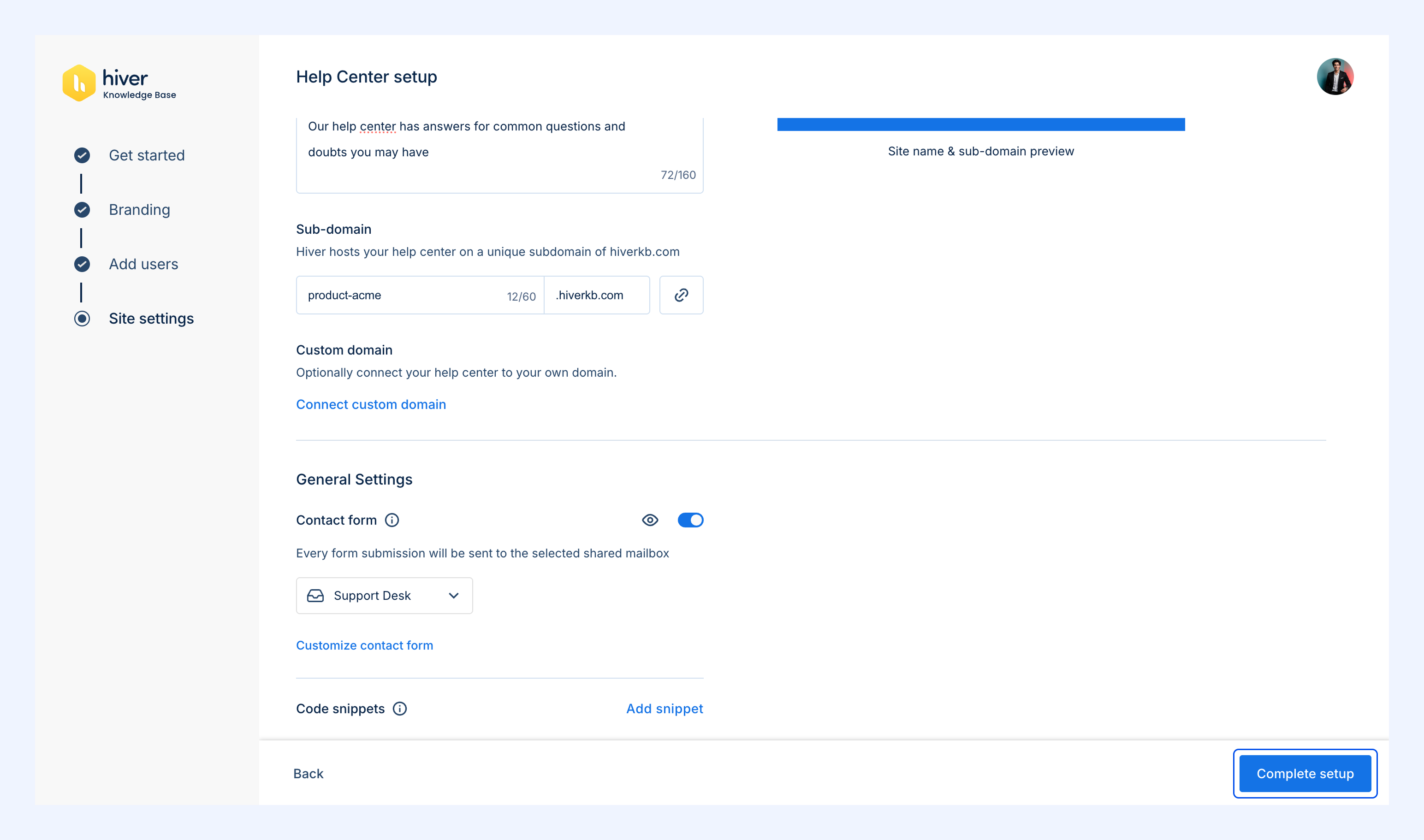
Click Complete setup when all configurations are done.
Access your Help Center
After setup, you’ll see options to visit your live site or open the dashboard.
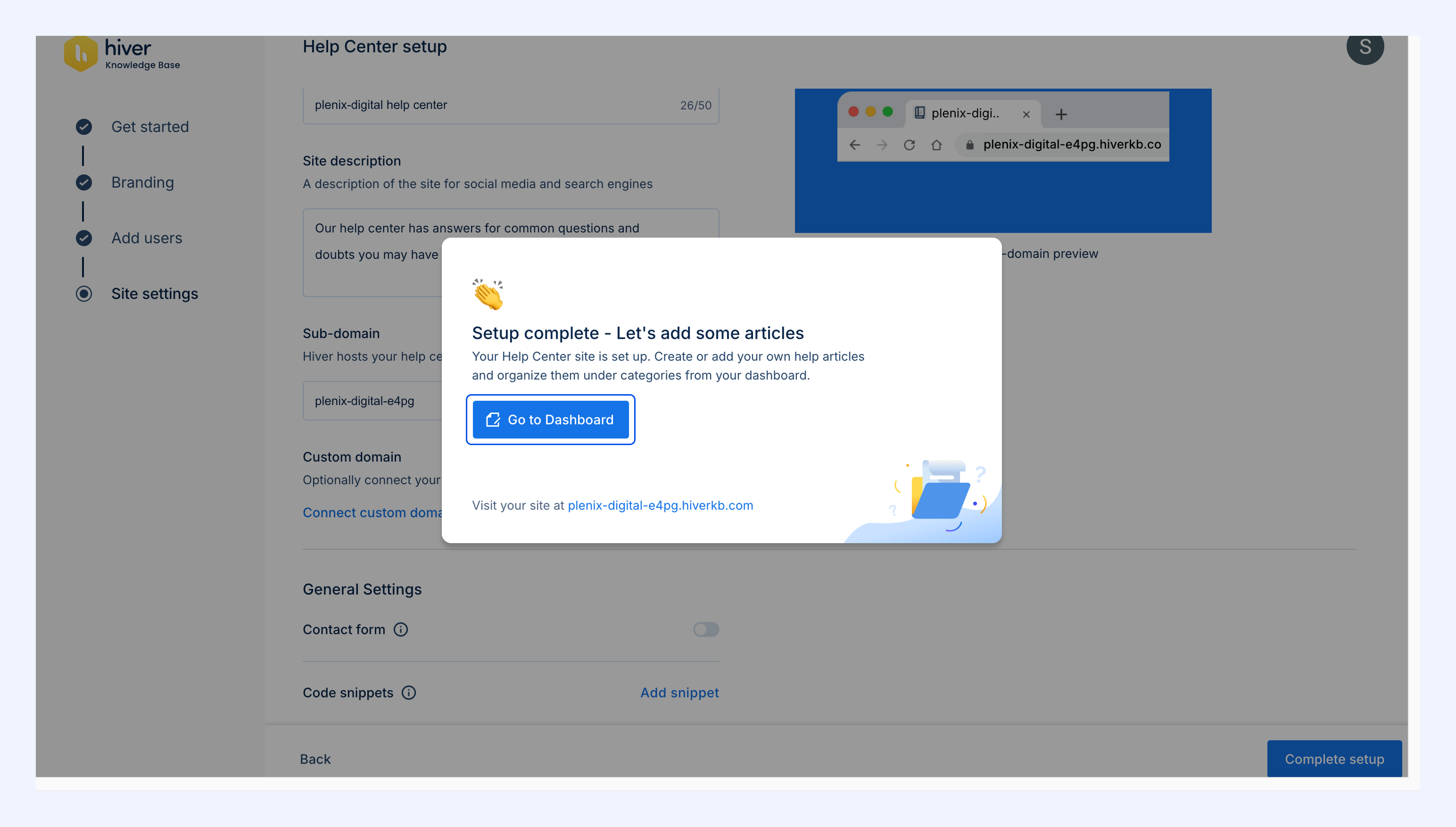
1. Select Go to Dashboard to start adding categories and articles.
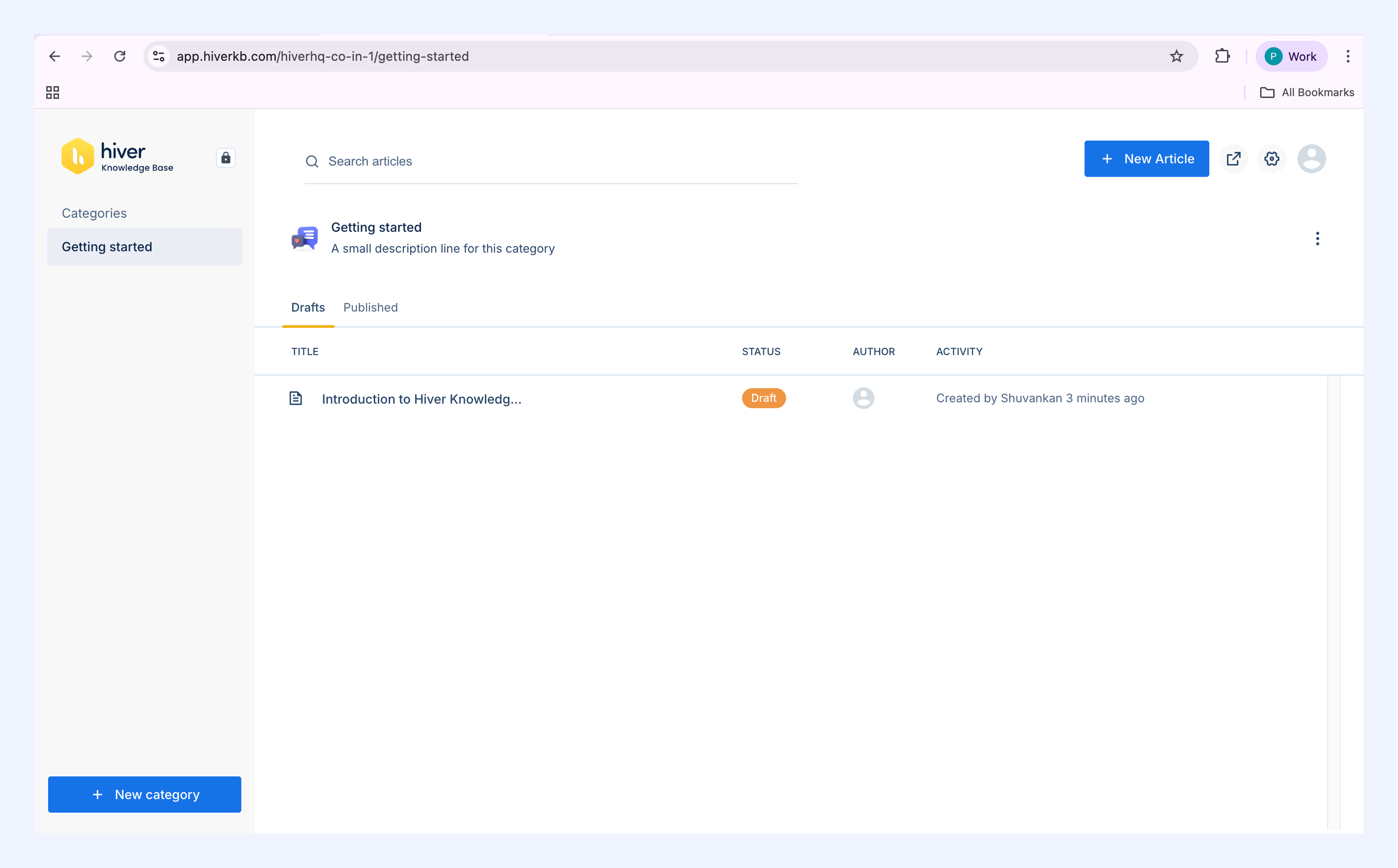
2. Your Help Center is accessible at the configured URL.
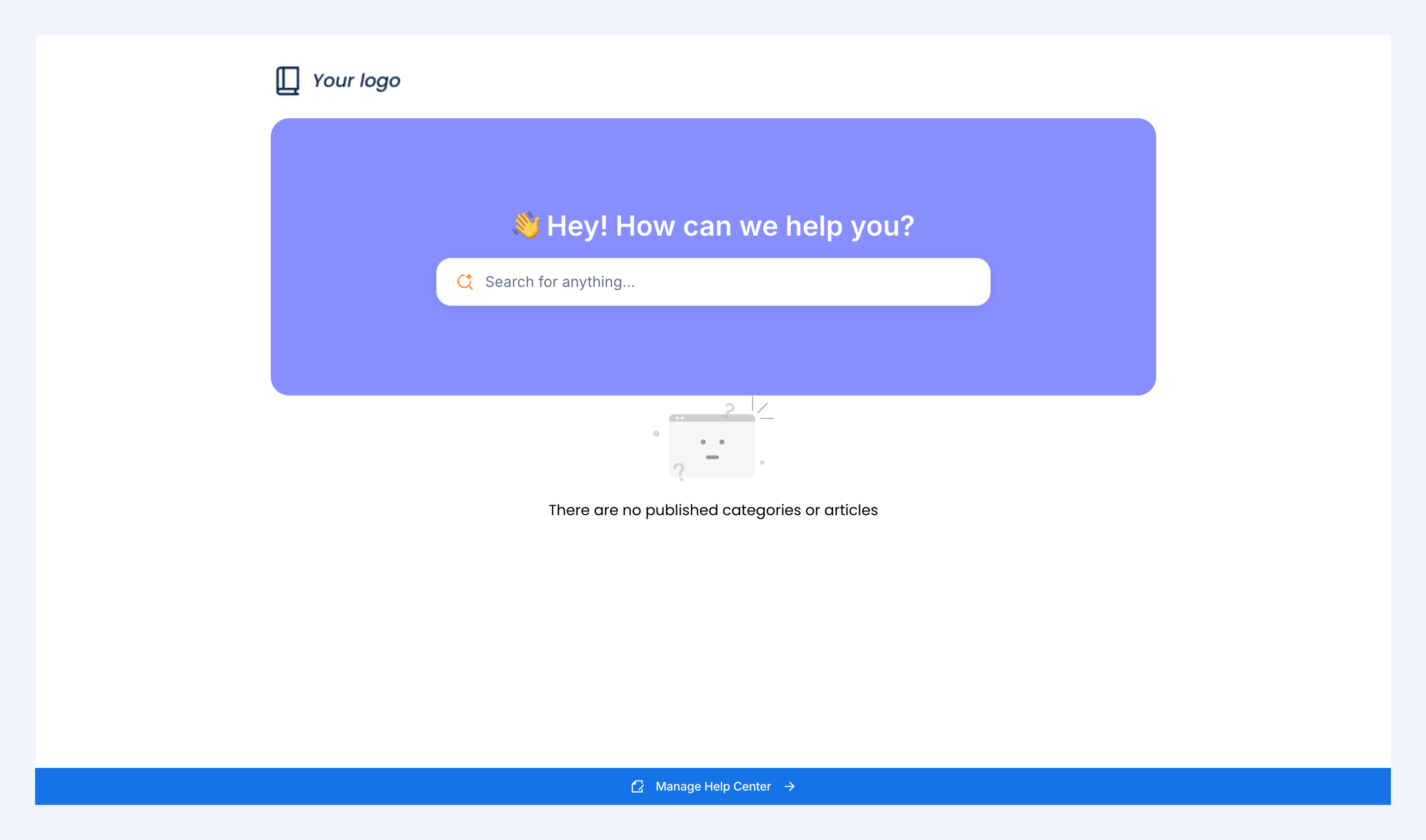
To go back to the Dashboard, click on Manage Help Center.
Managing user roles
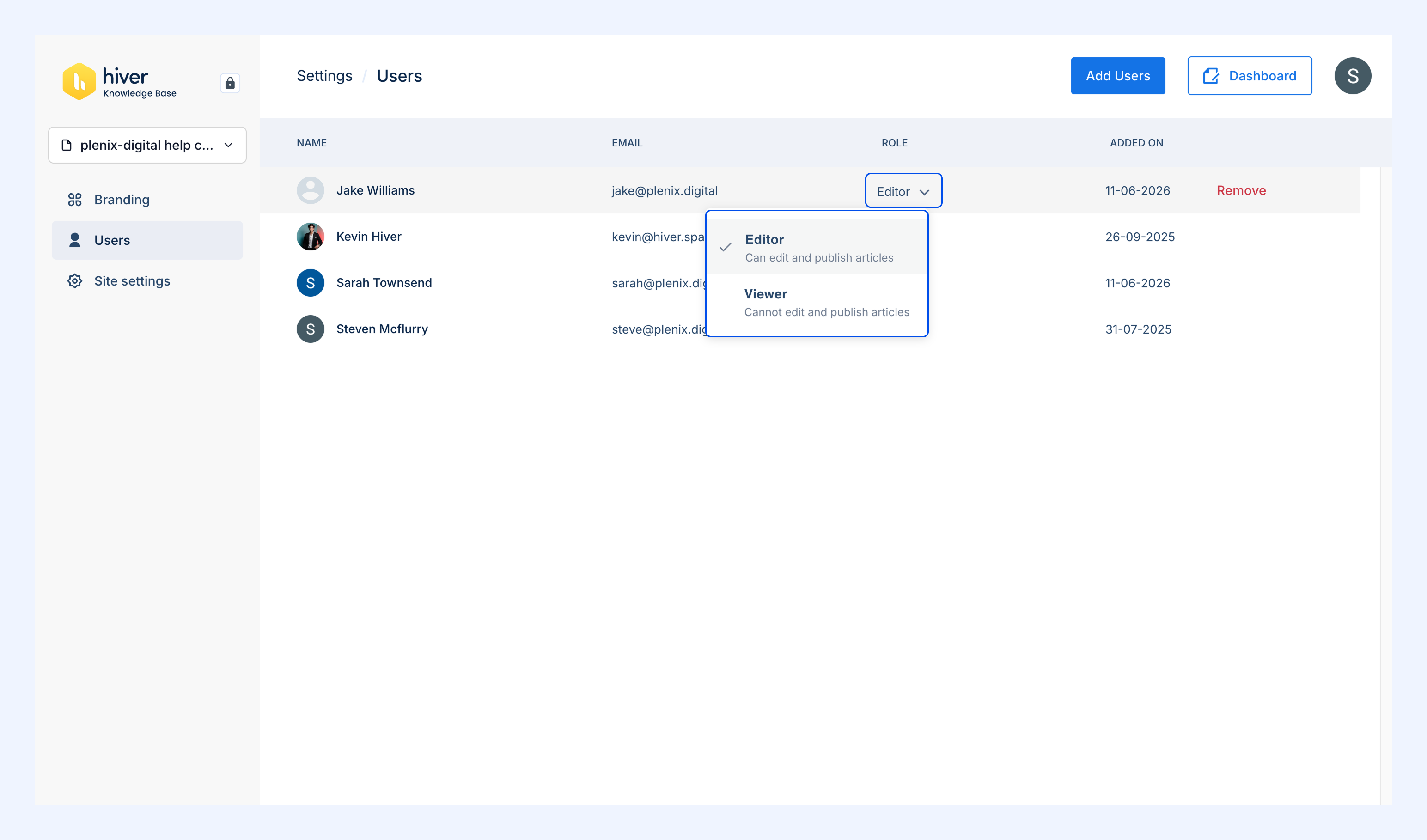
You can modify user roles anytime from the dashboard.
1. In the Help Center dashboard, go to Settings.
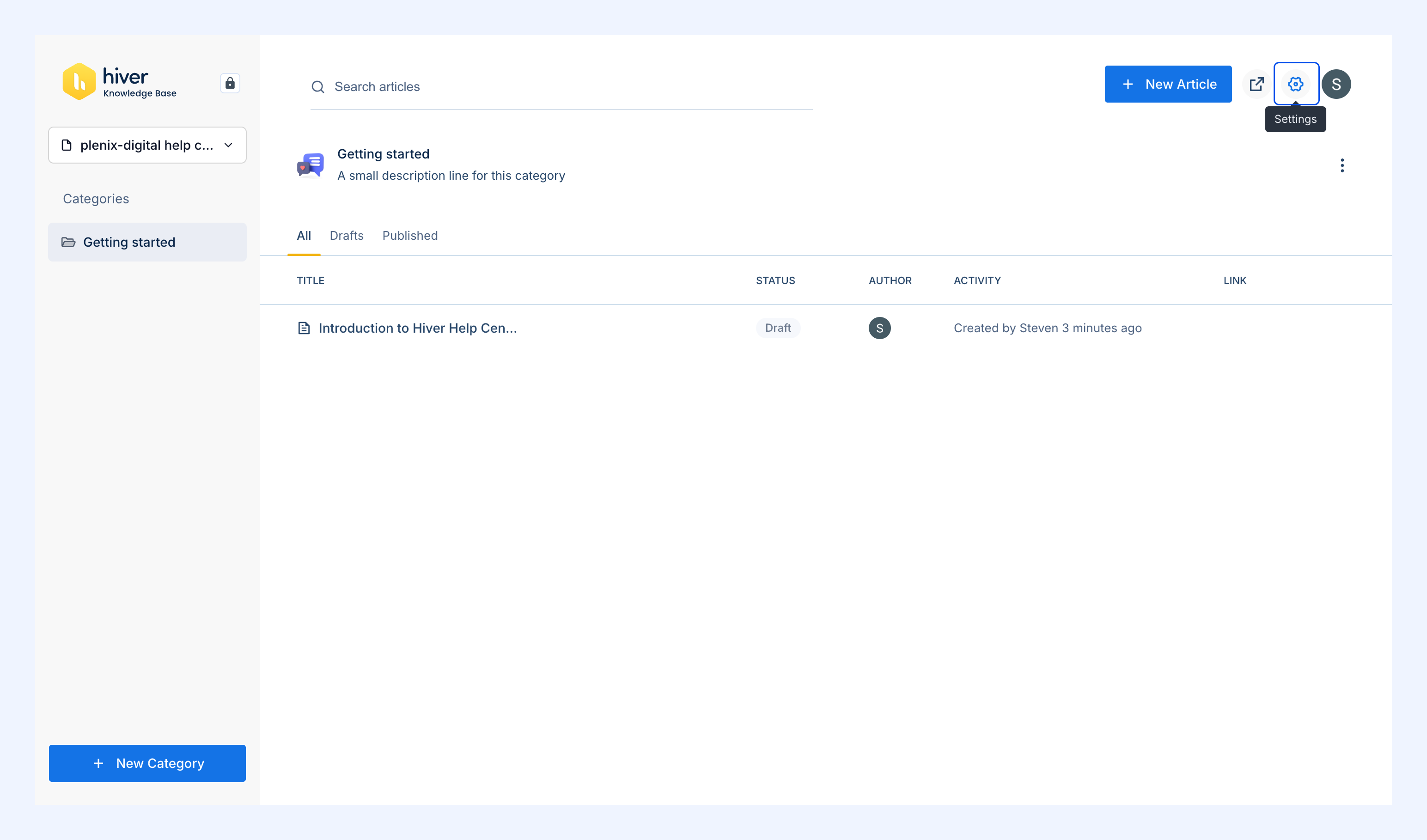
2. Select Users to view all users and their roles.
3. Change a user's role using the dropdown next to their name.
How to delete a Help Center
If you no longer need a Help Center, you can remove it permanently.
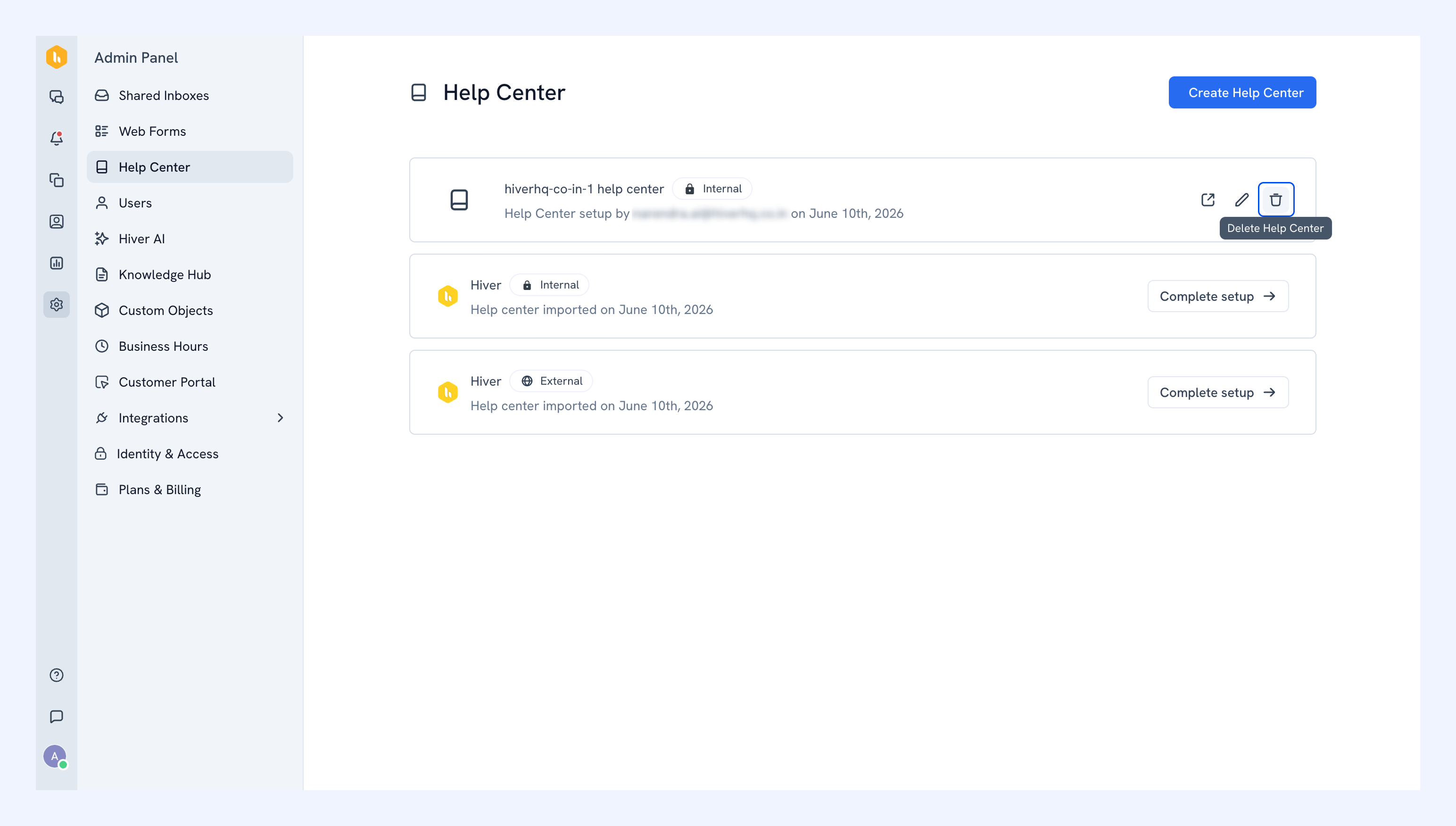
1. Go Admin Panel → Help Center.
2. Click the Delete Help Center icon.
3. Confirm the action by typing the Help Center name and selecting Delete this Help Center for all users.
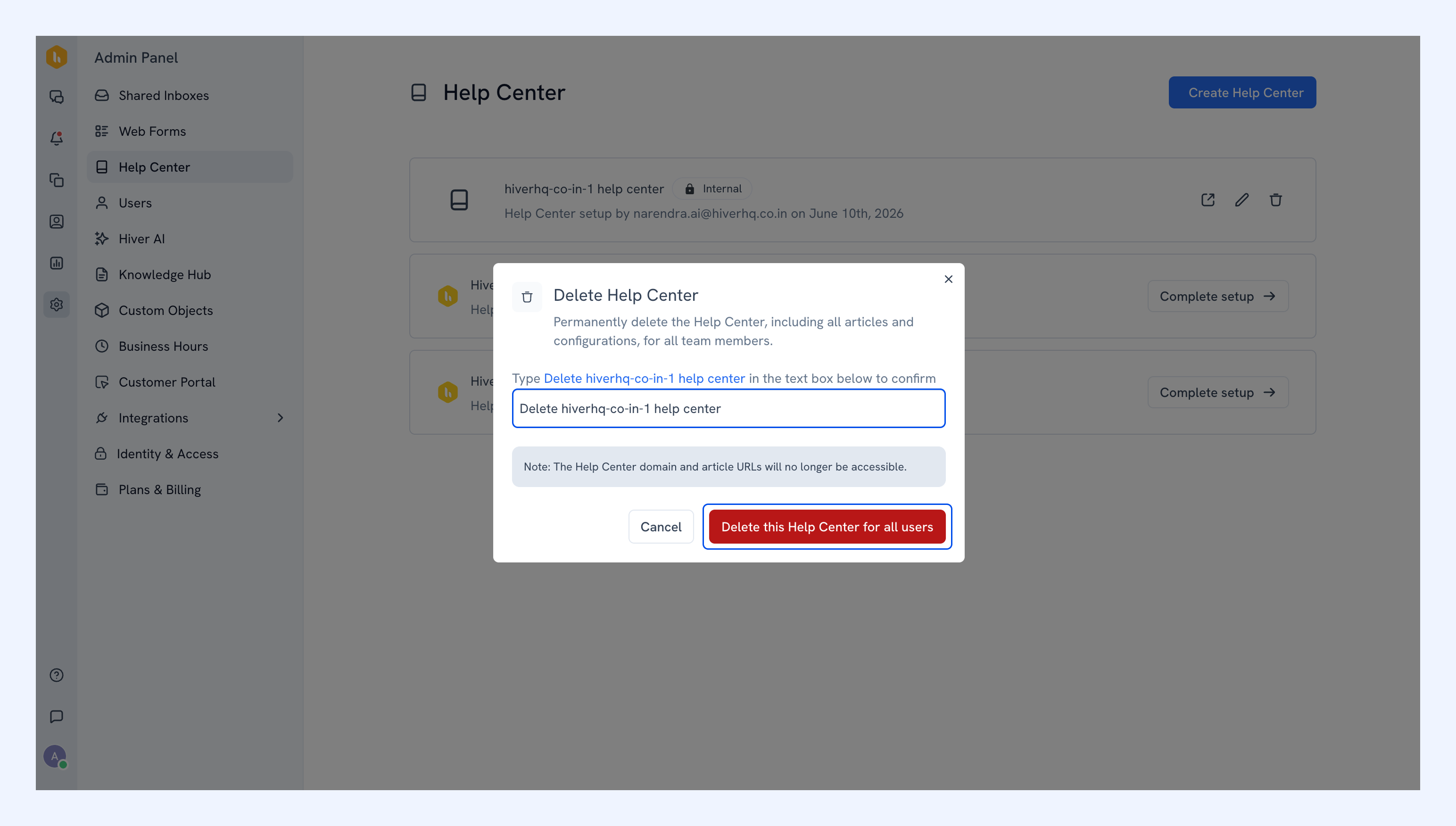
After deletion, the Help Center will be permanently removed from the Admin Panel and will no longer be accessible.
Next step
Publishing articles in your help center