Setting up help articles in live chat
Hiver’s live chat lets you integrate your Knowledge Base (KB) so customers can instantly access relevant help articles directly within the chat widget.
This article explains how to enable, manage, and disable help articles in Live Chat.
Before you begin, make sure you have an external knowledge base set up. Internal KBs are not supported. You’ll need to set up an external KB first. Learn more about setting up a Knowledge Base.
Note: Chat Inbox is a legacy feature and is only available to customers who signed up before May 18, 2026.
Enable help articles in a live chat
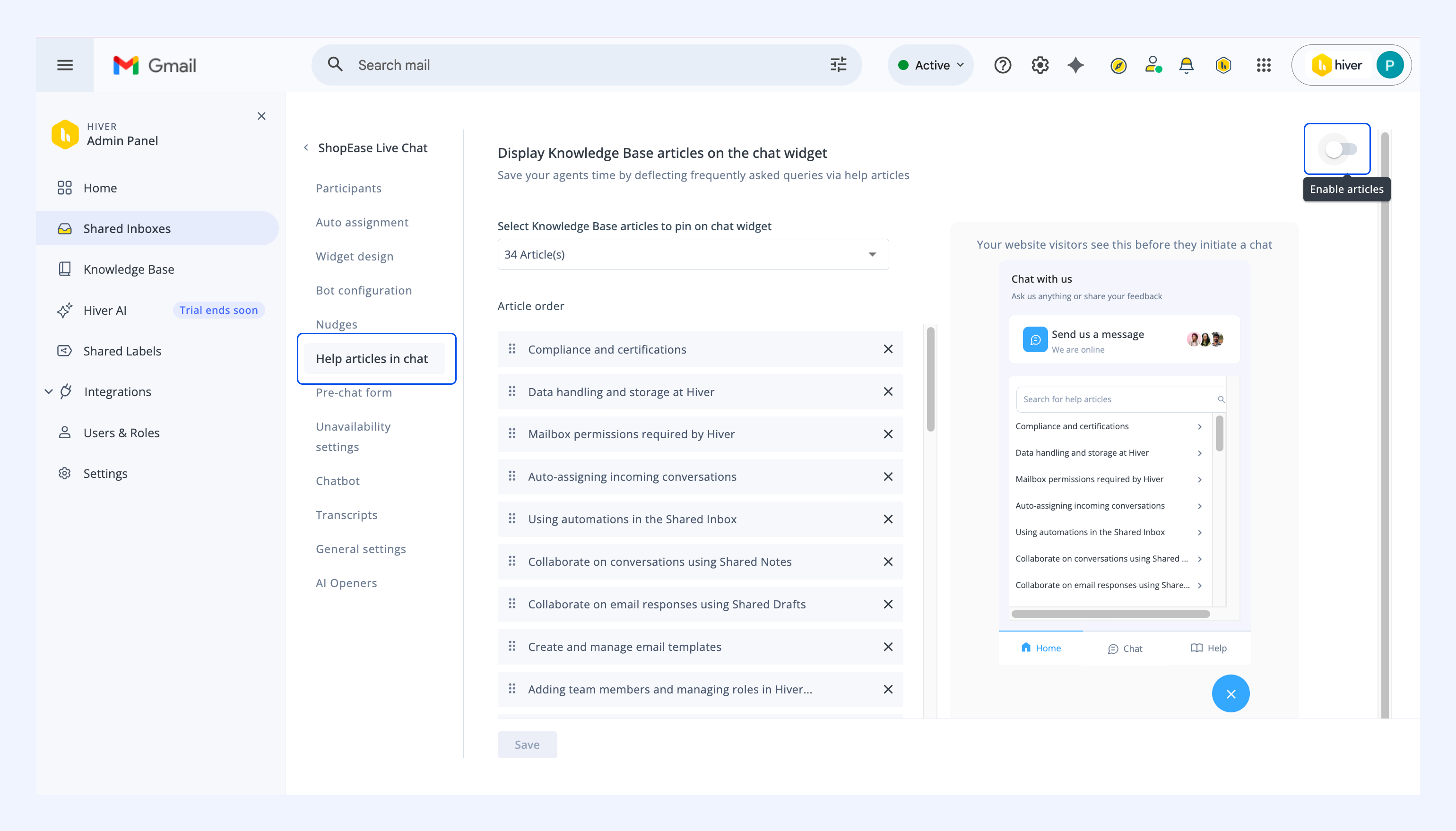
1. Go to Admin Panel → Shared Inboxes, and select a Chat Inbox.
2. In the Chat Inbox settings, click Help articles in Chat.
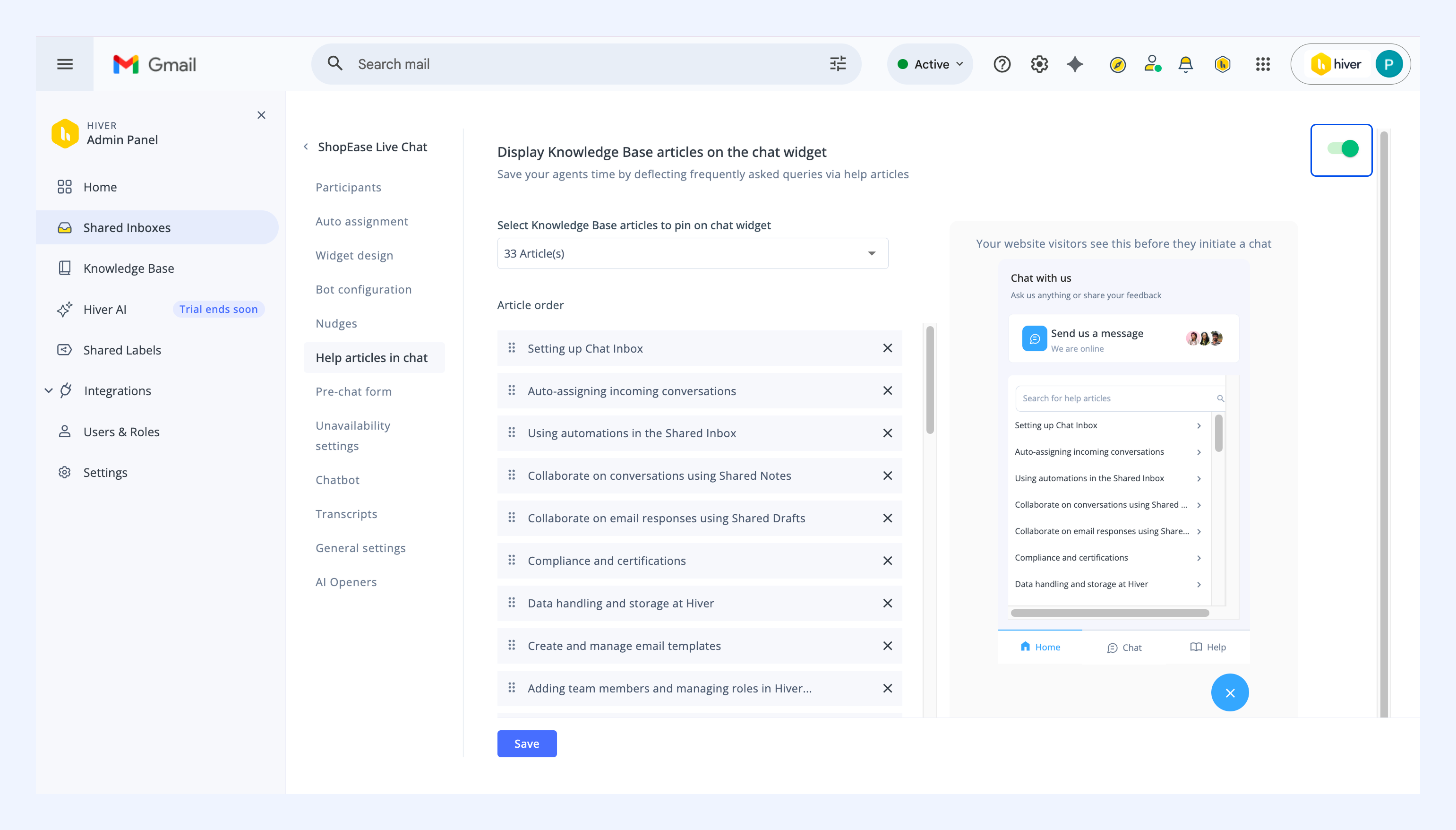
3. Click the toggle to enable the Knowledge Base.
Pinning articles in a live chat
You can pin articles that answer commonly asked questions or any other article that you want your customers to see to help them find solutions quickly. The preview panel allows you to see how the pinned articles will appear to end-users
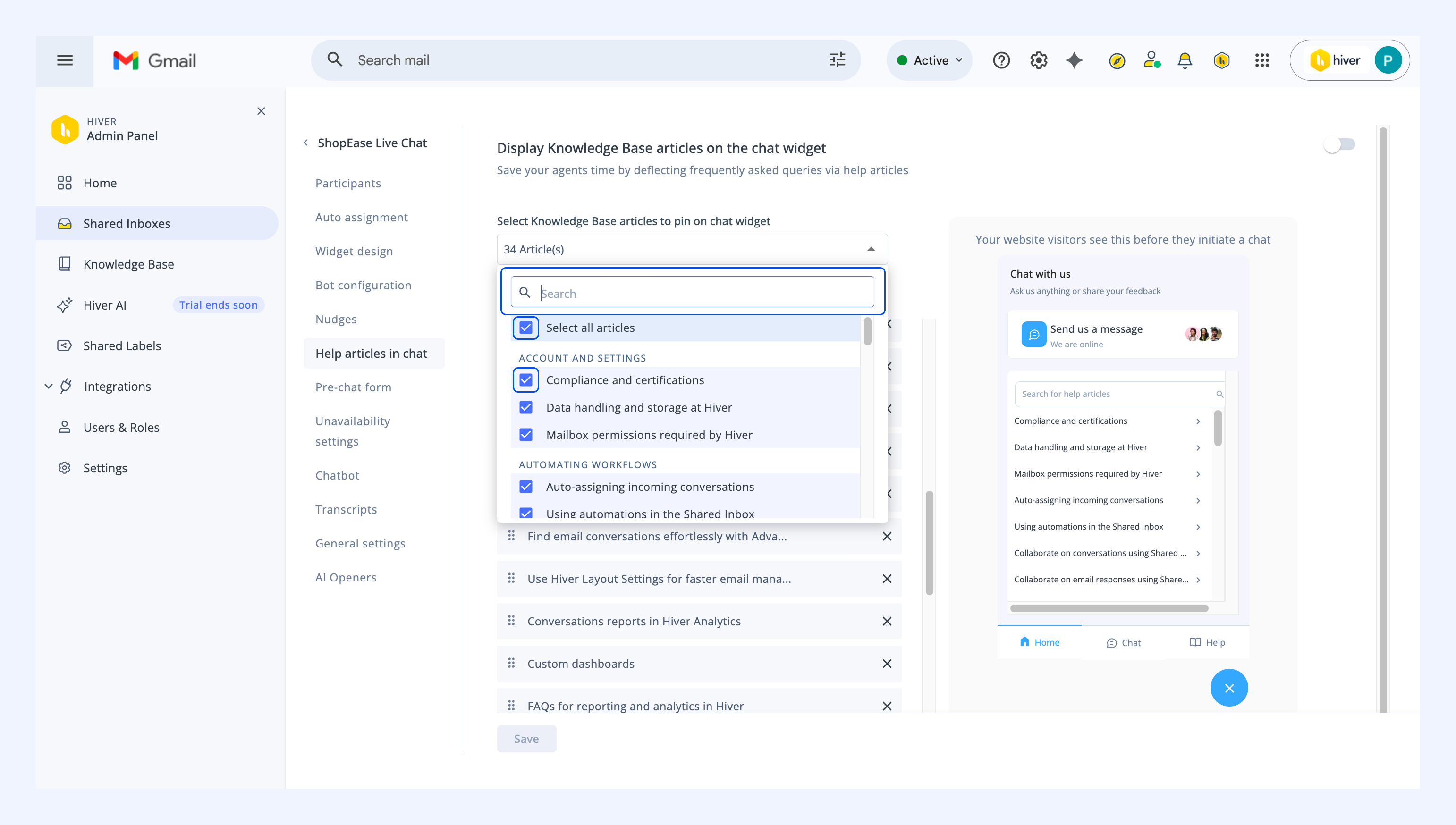
Search and select articles
- Use the search bar to find an article.
- Click the checkbox to select the article.
- You can select articles individually or select your entire article list in one go by selecting the Select all articles checkbox.
Reorder articles
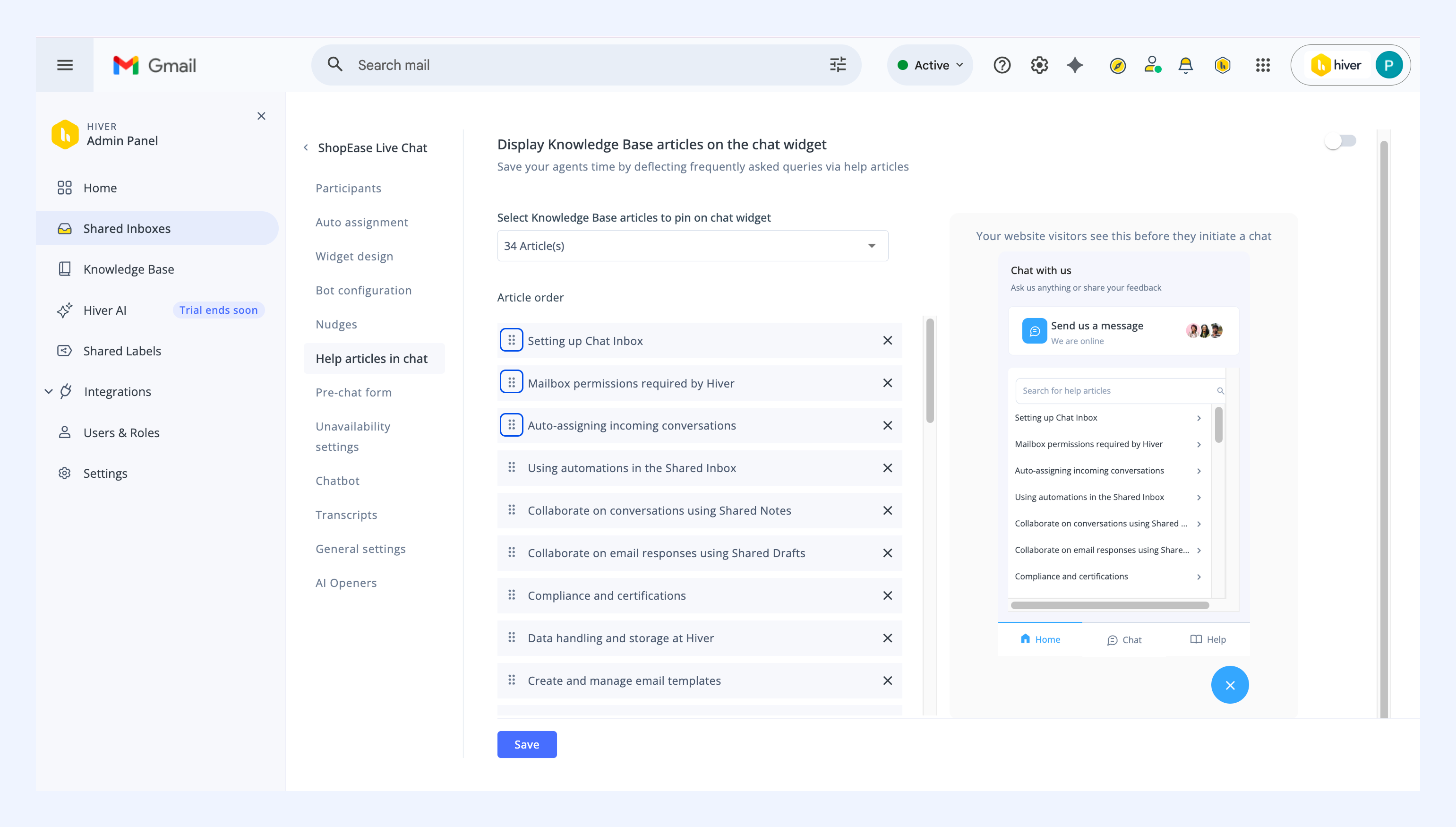
- The order in which you select the articles determines how they appear to customers.
- Drag and drop articles to reorder them. The changes reflect in the live preview.
Remove articles
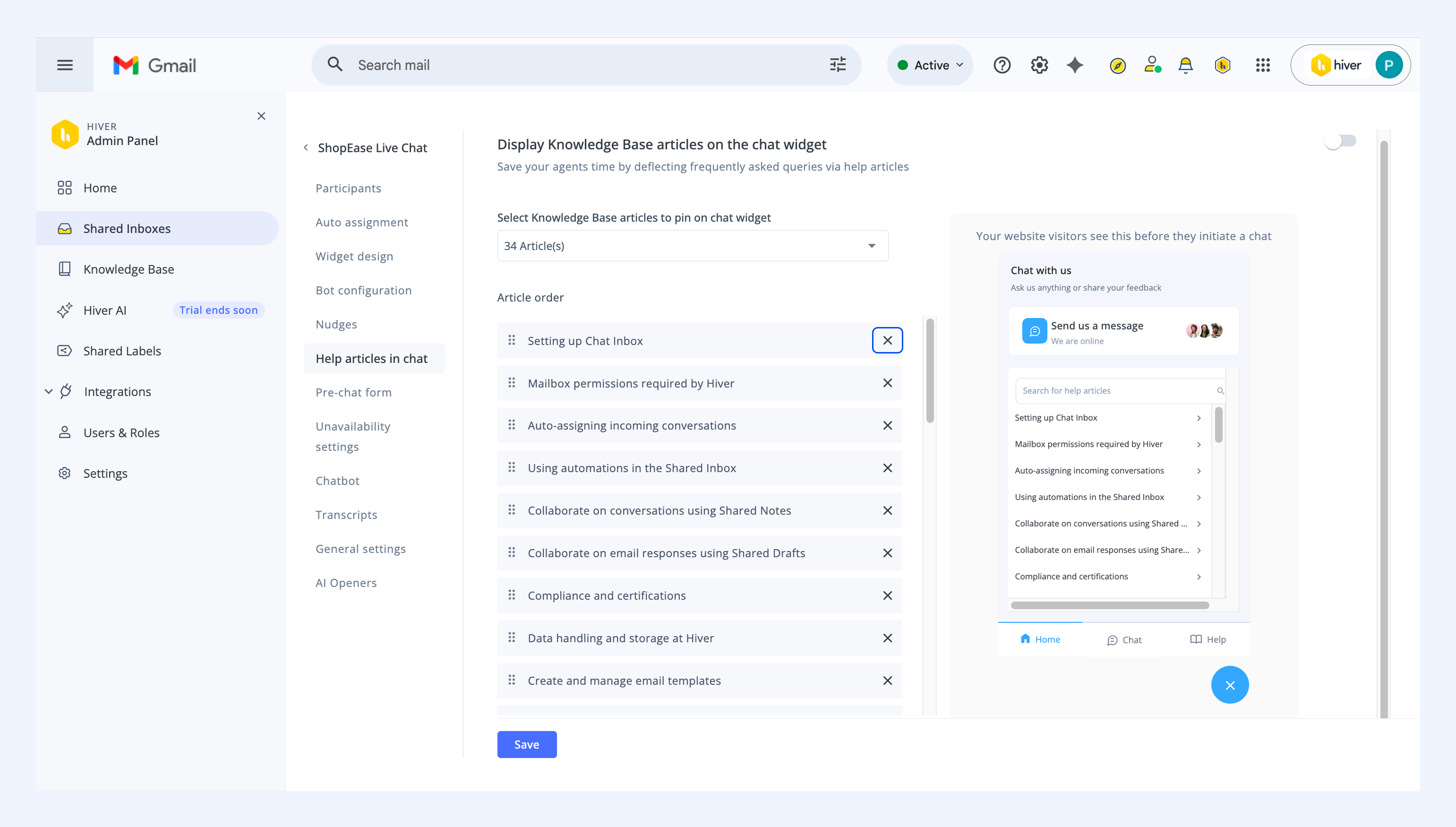
- To remove an article, click the X beside its name.
- If an article is unpublished from the KB, it disappears from the list.
What your customers see
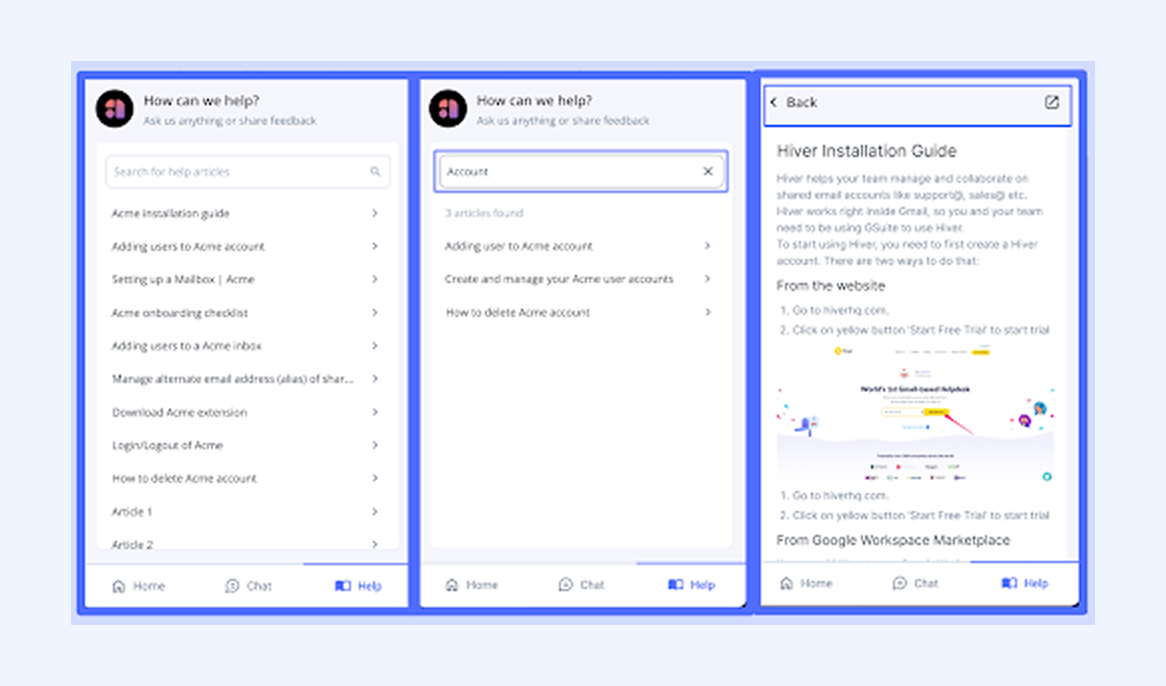
When you enable help articles in live chat, your customers will see a three-tabbed view: Home, Chat, Help.
1. On the Home tab:
- The list of pinned articles will be displayed along with a search bar that allows searching across the entire KB.
- Clicking on an article opens it within the same widget. Your customers will also see an option to open the guide in another tab, or go back to previous searches.
2. On the Chat tab, your customers will be able to:
- Start a conversation: The conversation only begins when the user sends a typed-in message. Switching tabs will end the conversation.
- View other Chat features: Customers can access features you’ve enabled like welcome message, contact form, or pre-chat form.
3. On the Help tab, similar to the Home tab, customers can search for and open articles from the pinned list.
Disable help articles in a live chat
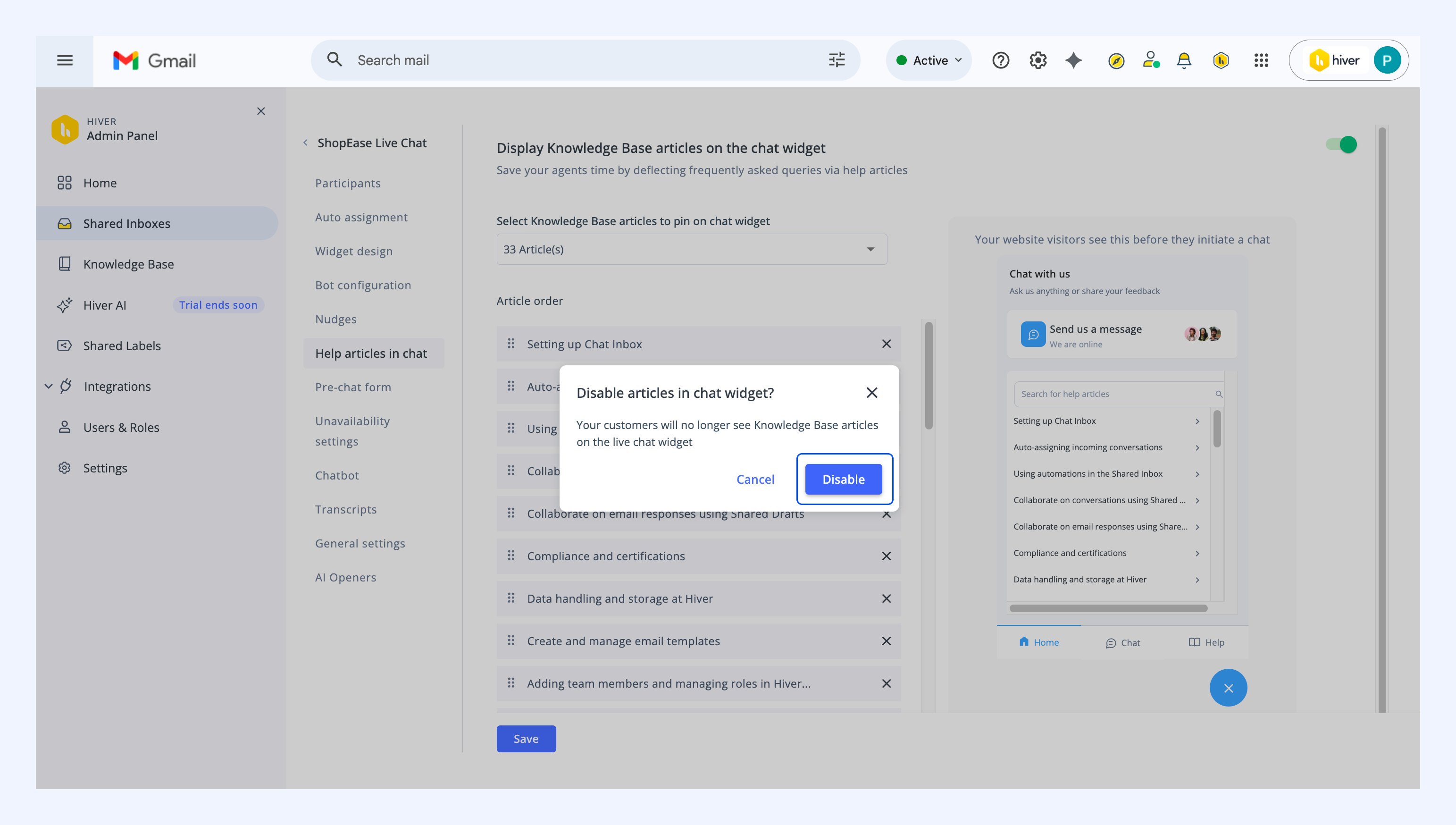
1. Turn off the toggle to disable the help articles.
2. In the pop-up, click Disable.
Related articles