Using Hiver on Mobile
The Hiver mobile app gives you everything you need to manage customer conversations on the go. Whether you’re managing customer conversations or checking your personal Gmail inbox, the app keeps your workflows fast, organized, and accessible from anywhere.
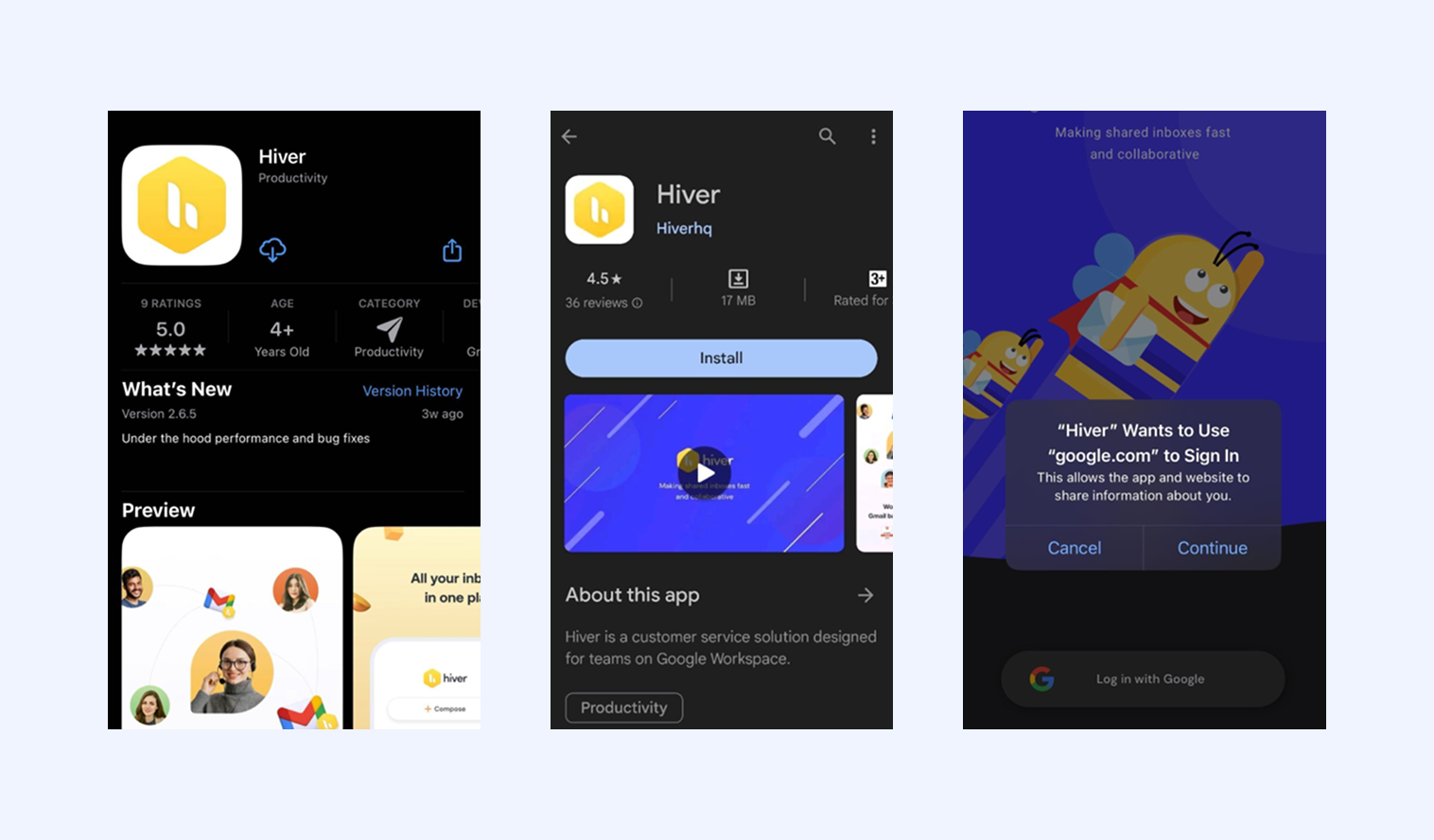
The Hiver app is available on Android (Google Play Store) and iOS (App Store) devices. Once you download the app, sign in using single sign-on to access all your Shared Inboxes and your personal Gmail account on the app.
Getting started
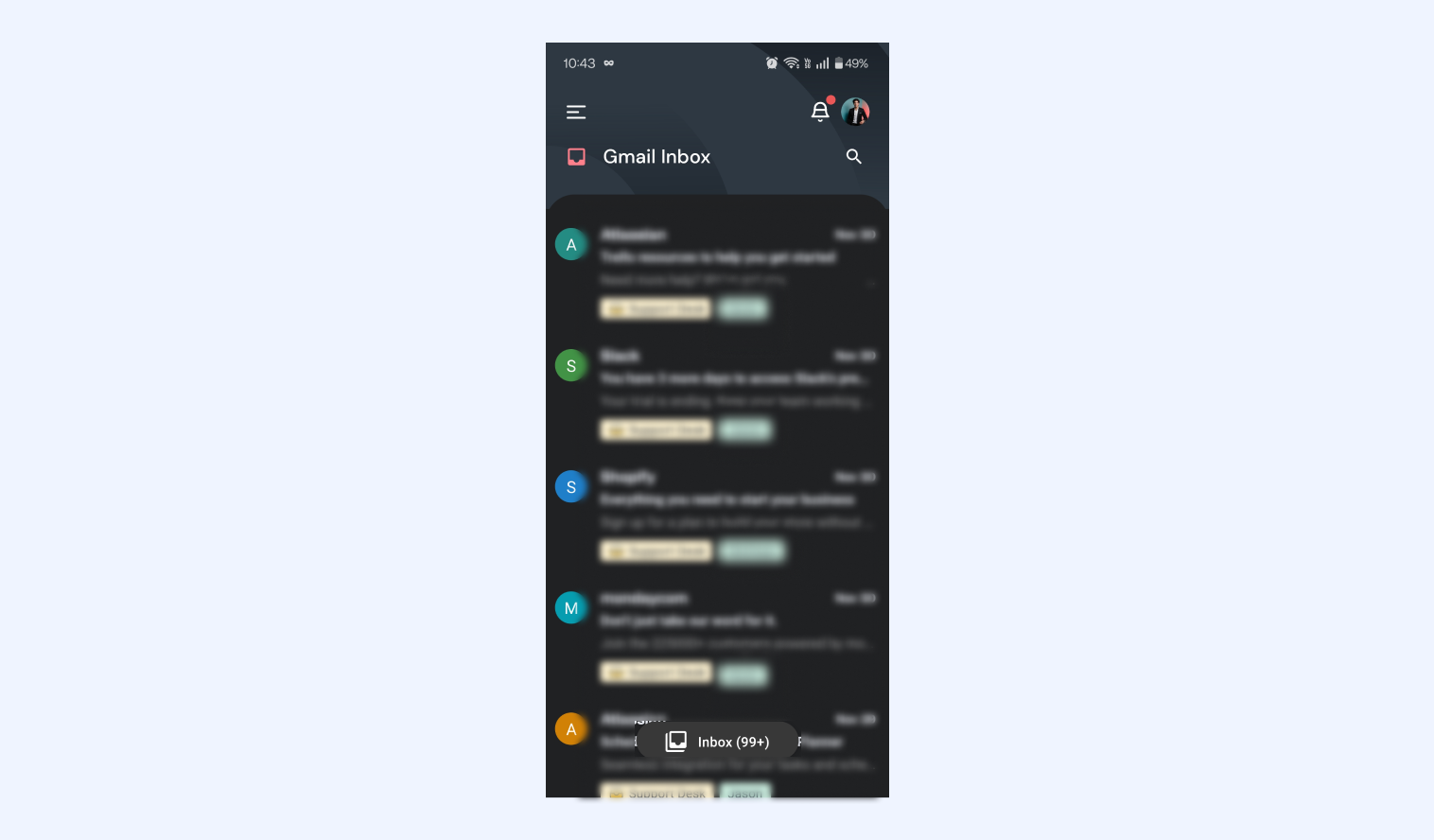
When you open the Hiver mobile app, you’ll land on the Home screen, which shows you conversations in your Shared Inbox.
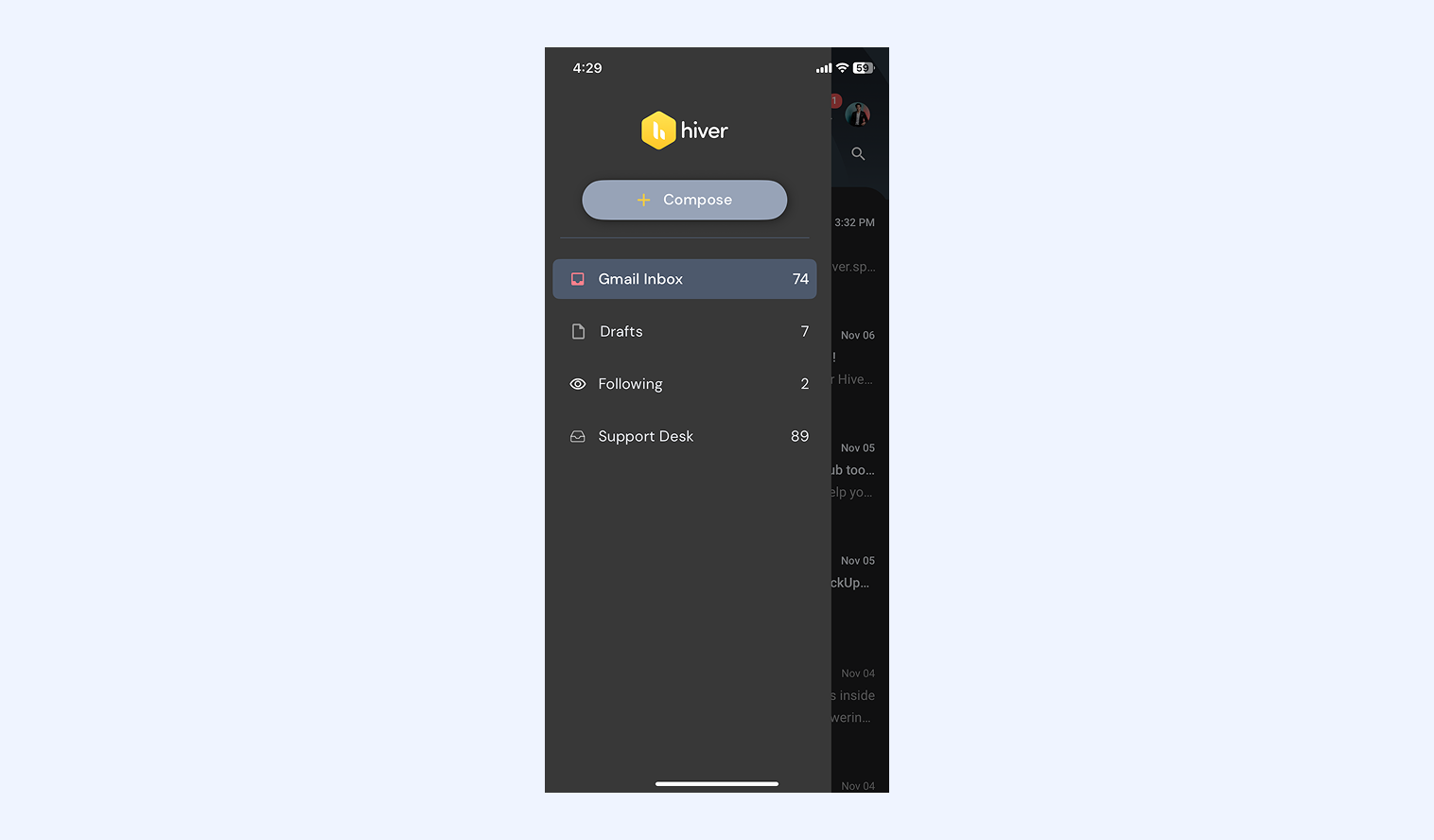
Tap the menu icon in the top left corner to access:
- Your Shared Inbox: Access all Shared Inbox conversations and respond to customers in real time.
- Compose: Draft a new email or reply to customer conversations directly from your phone.
- Personal inbox: View and manage your personal Gmail messages without leaving Hiver.
- Drafts: Open, edit, and send any saved drafts.
- Following: Track conversations you’re following to stay updated on new responses or changes.
Managing conversations
Each conversation has a bottom action bar that gives you quick access to:
- Assign: Assign conversations to teammates.
- Status: Update the conversation’s status.
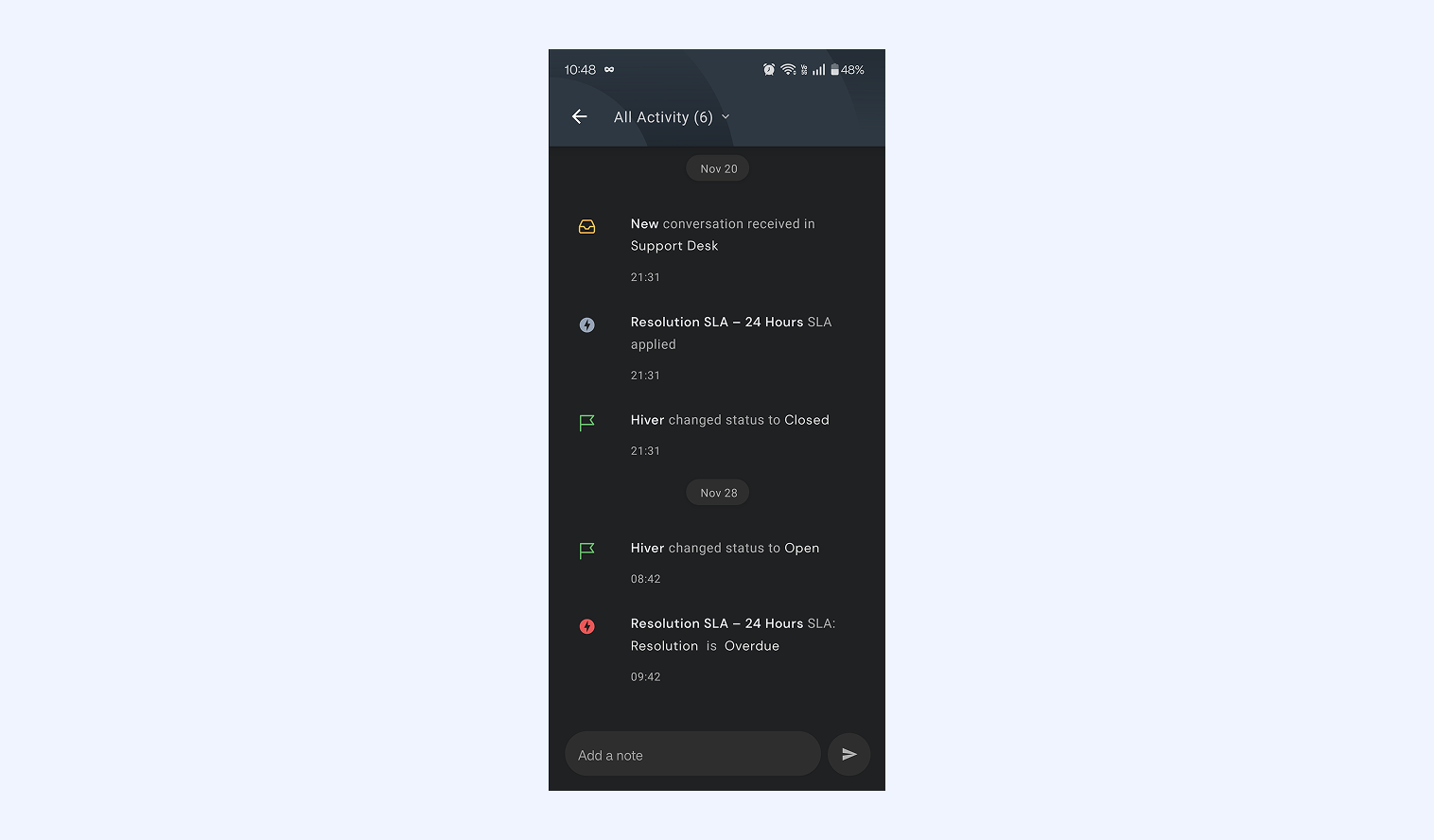
- Activity: View all changes, replies, and notes.
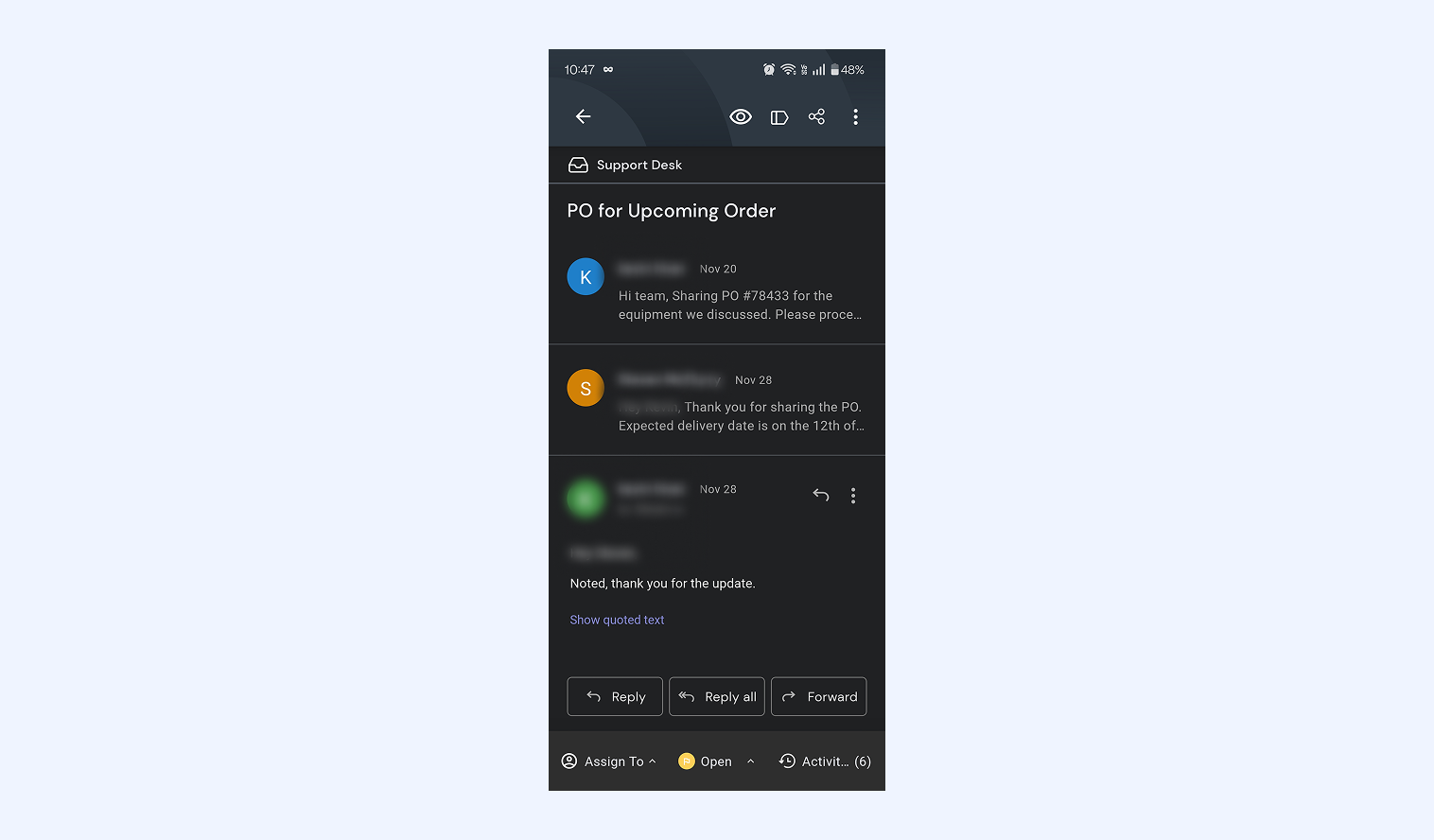
1. Assign conversations to teammates
- Open the conversation you want to manage and tap the Assign icon.
- Select the teammate you want to assign the conversation to.
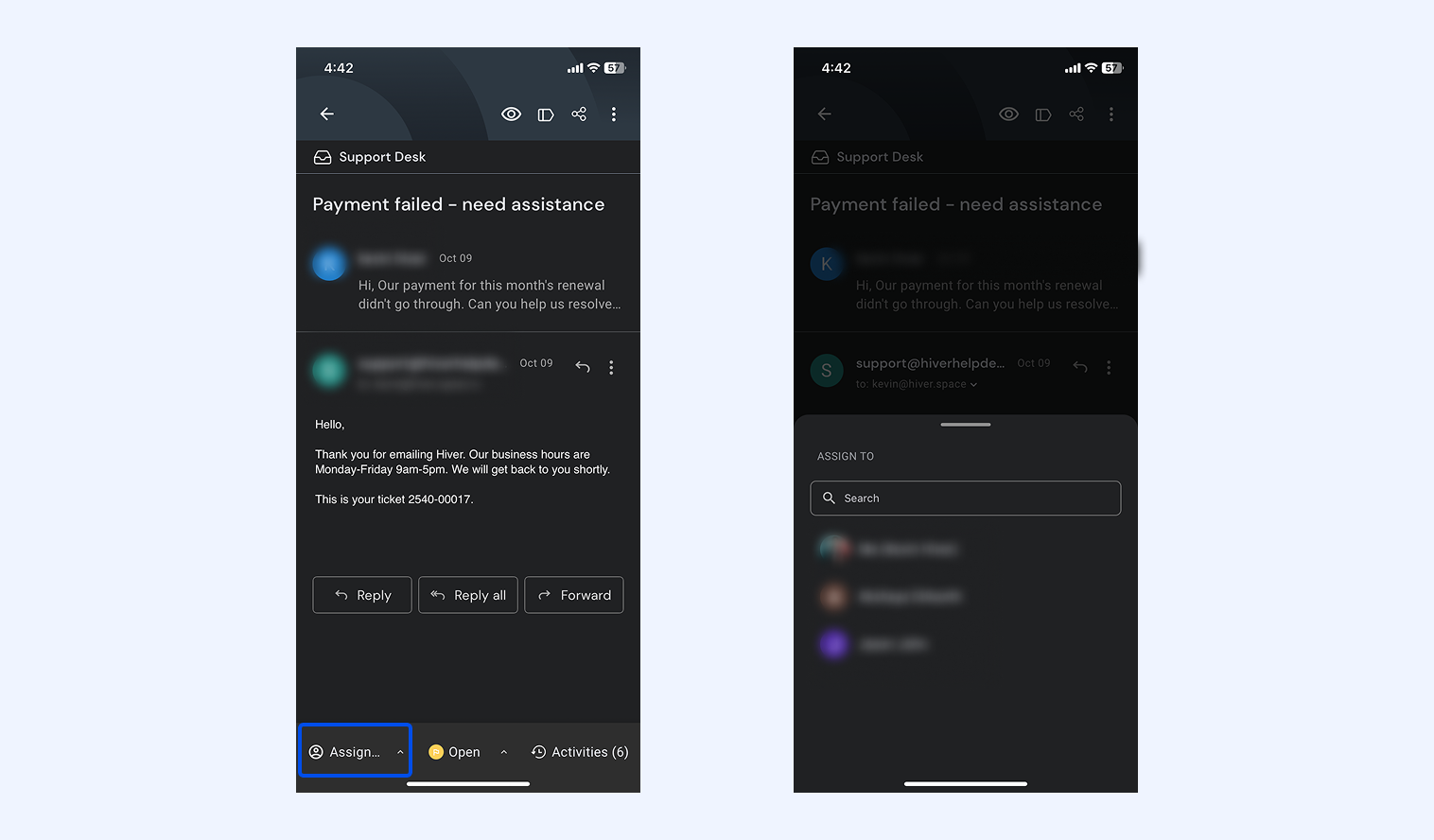
2. Update the status of conversations
- Open a conversation and tap the Status indicator on the bottom bar.
- Choose the status you want to apply to the conversation.
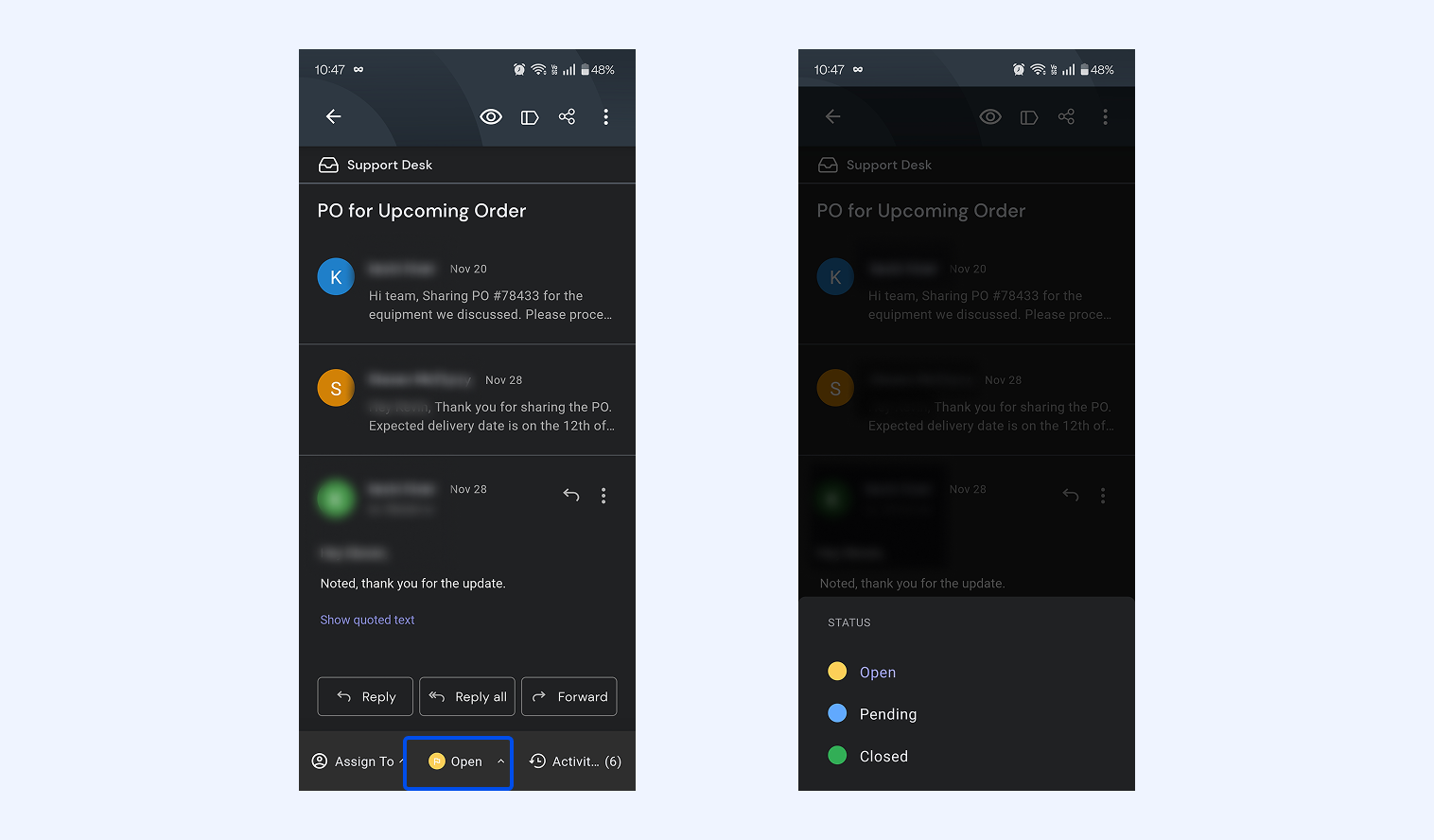
3. View activity panel
- Tap the Activity icon on the bottom bar.
- You’ll see a list of all updates including changes to the status, Shared Notes, and more.
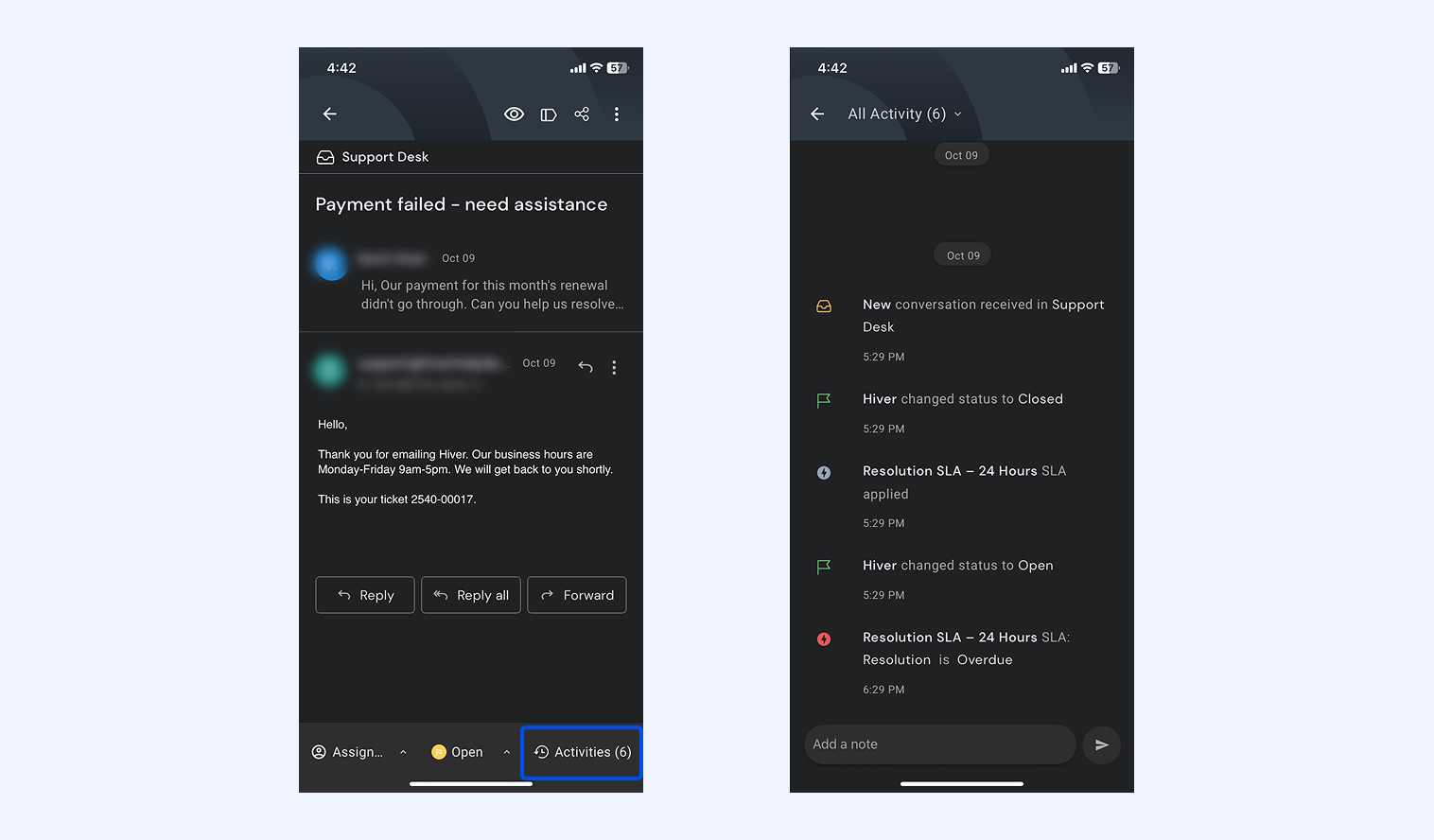
Replying to conversations
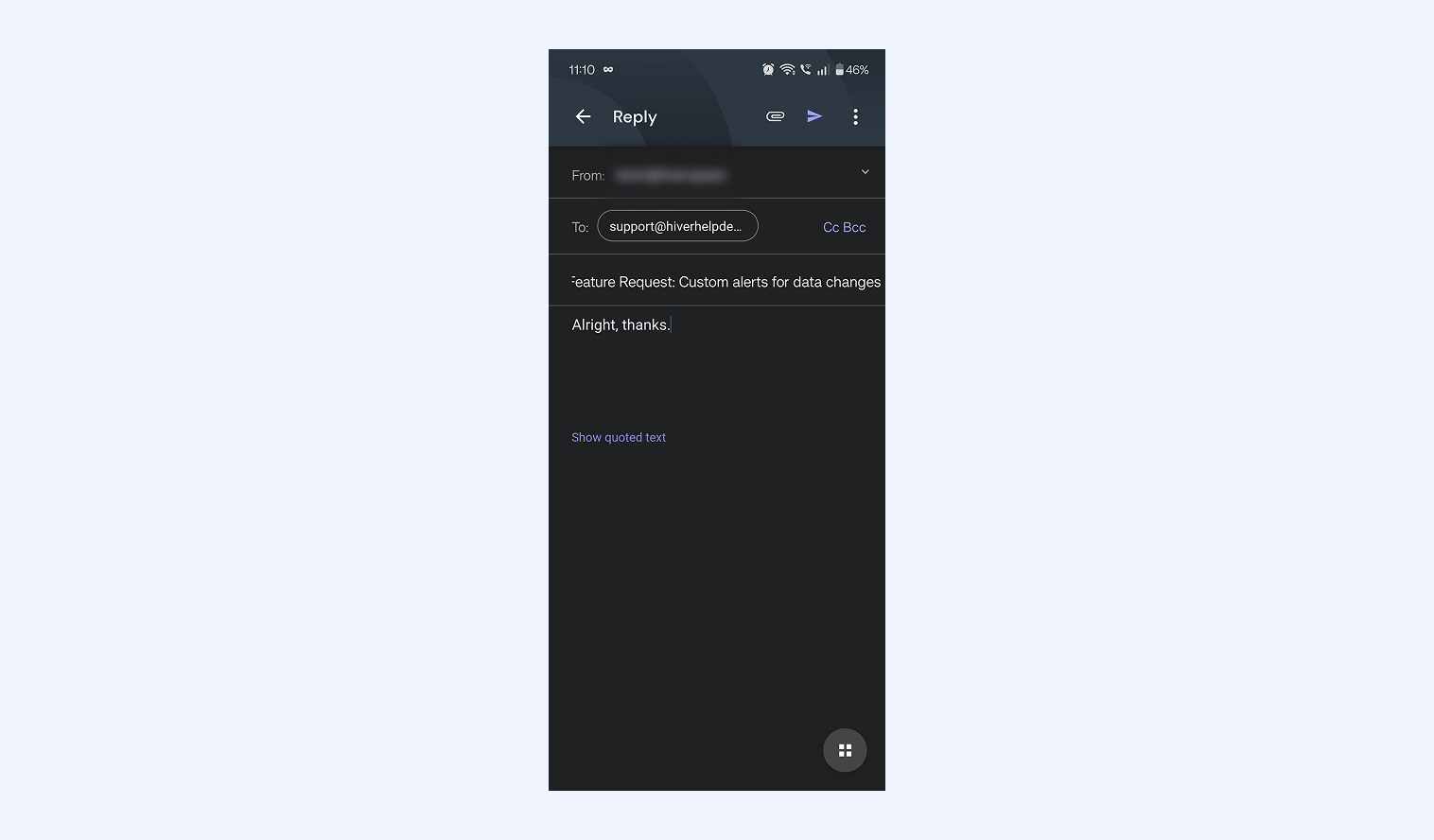
When you open a conversation, the reply editor appears at the bottom of the screen. From here, you can:
- Type and send your reply.
- Add attachments.
Tip: Hiver shows when teammates are typing, helping you avoid duplicate responses.
Collaborating on conversations
To collaborate on conversations using the Hiver mobile app, you can:
- Add Notes and review all activity in the Activity panel.
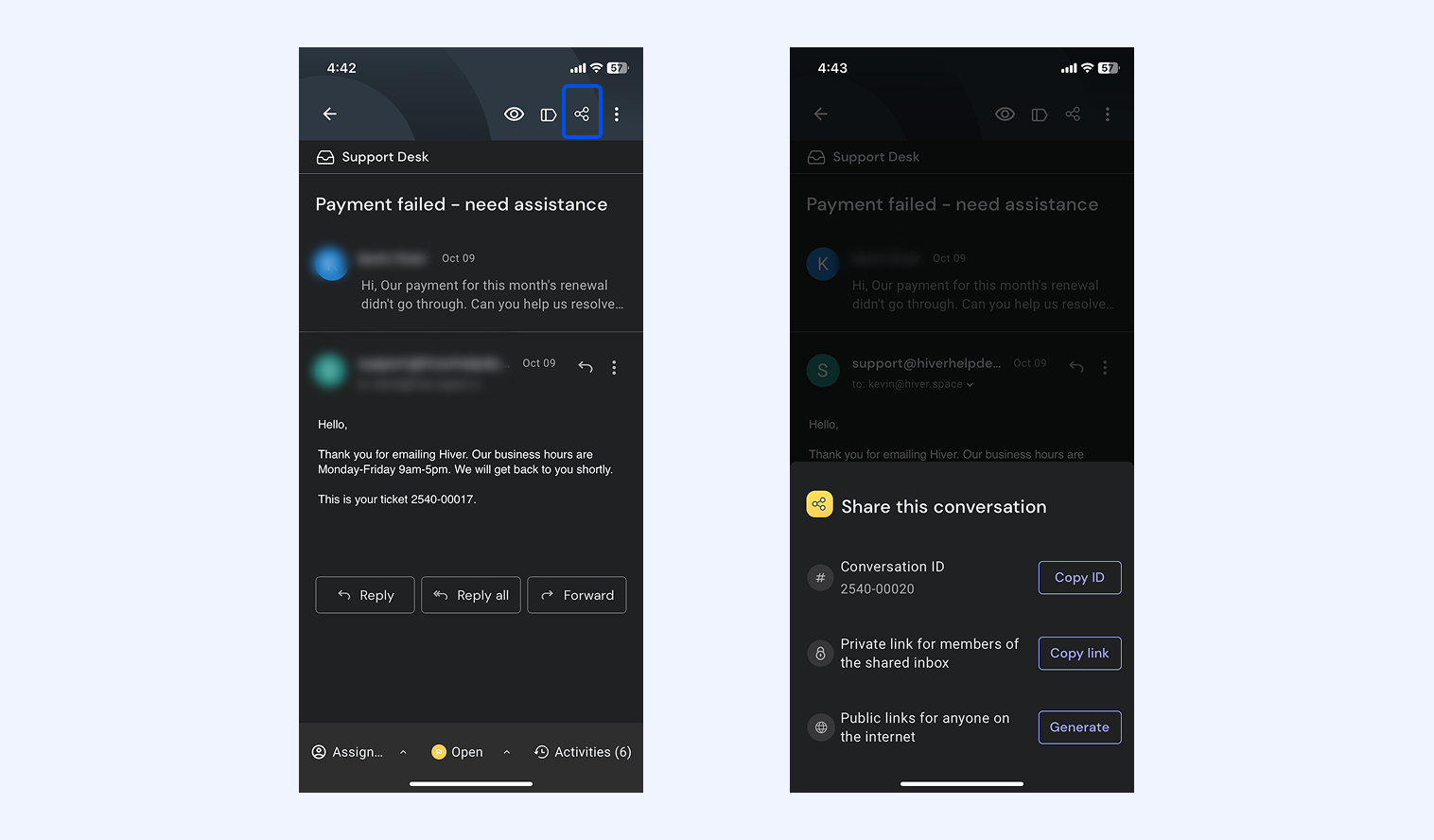
- Share conversations using a public or private link.
Following conversations
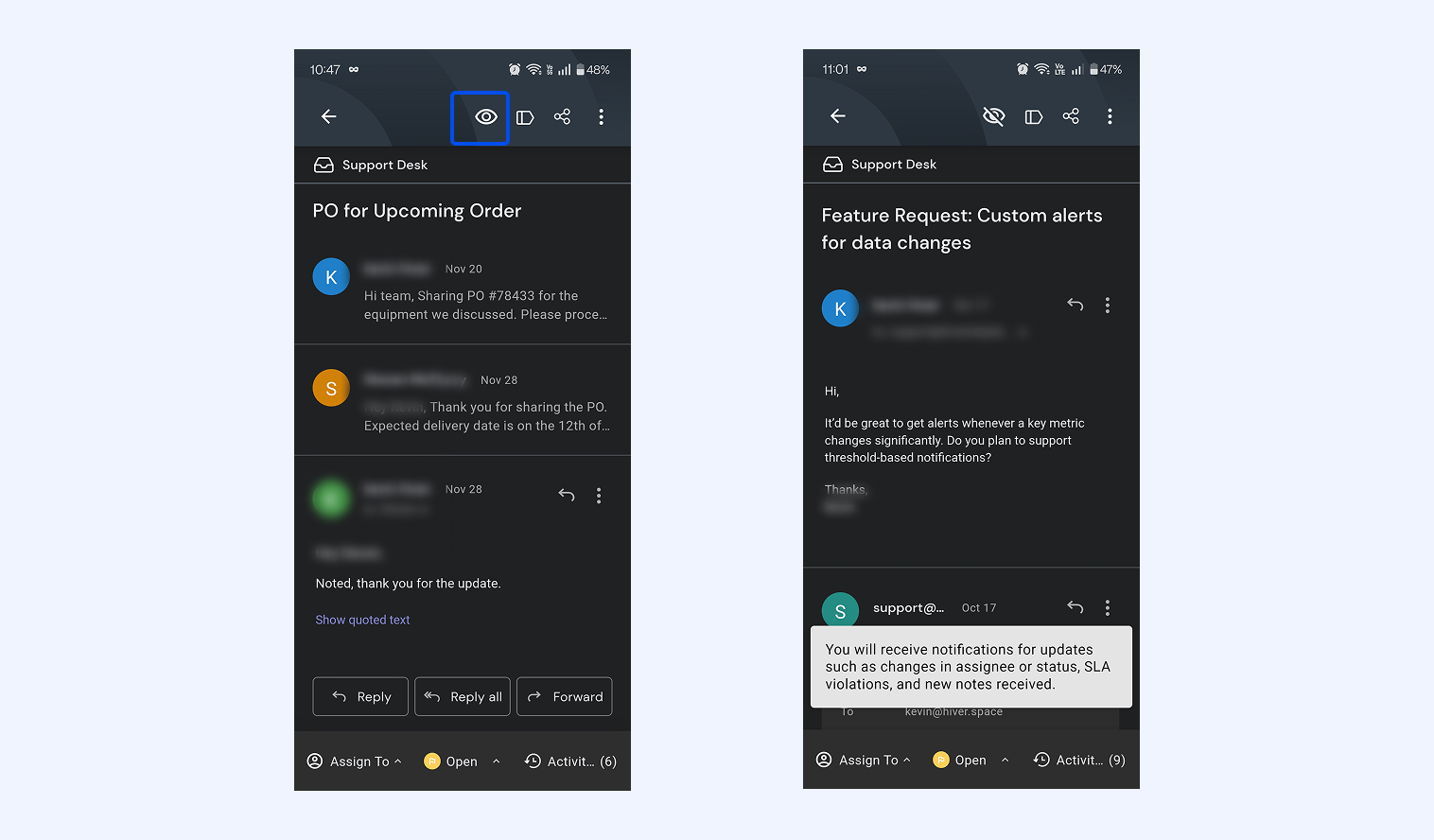
You can follow specific conversations to get notifications about updates, such as changes in assignee, status, or SLA violations.
To follow a conversation:
- Open the conversation.
- Tap the eye icon.
- You’ll receive notifications whenever there’s new activity.
Using advanced features
You’ll find key productivity tools right within the app.
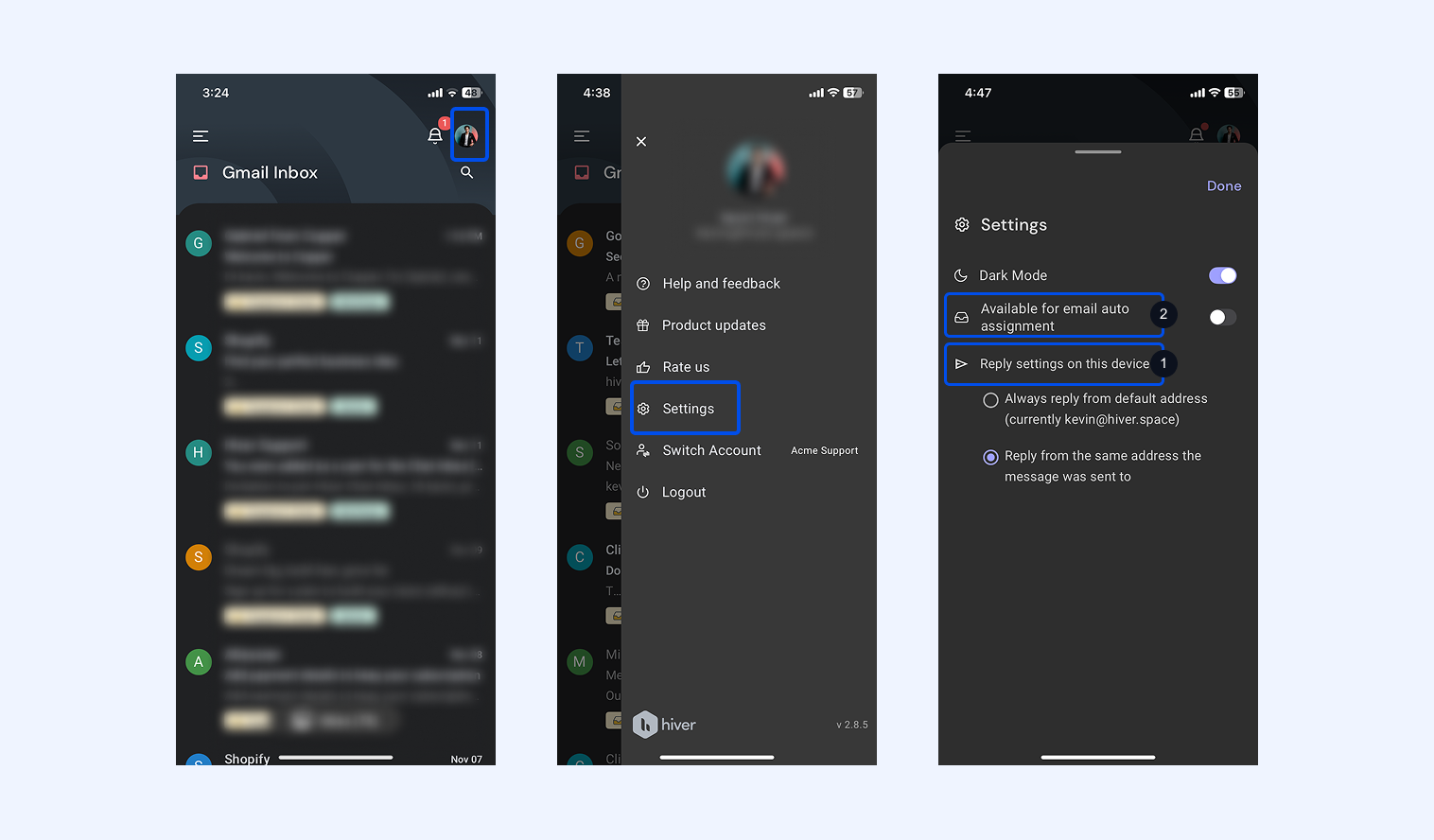
1. Reply settings
You can adjust how replies are sent and manage your availability directly in the app.
- Tap your profile icon in the top-right corner of the Home screen.
- Go to Settings → Reply settings.
- Choose how replies are sent from your device:
- Reply from the default address
- Reply from the same address that the message was sent to
2. Availability toggle
- From the same Settings screen, you can access the option to mark yourself as Available for email auto-assignments.
- Turn on the toggle to automatically receive new conversations, or off if you’re unavailable.
Note: Turning this off pauses auto-assignments without affecting your access to existing emails.
Tip: Keep your Hiver app updated to get the latest improvements and features.
3. Notifications
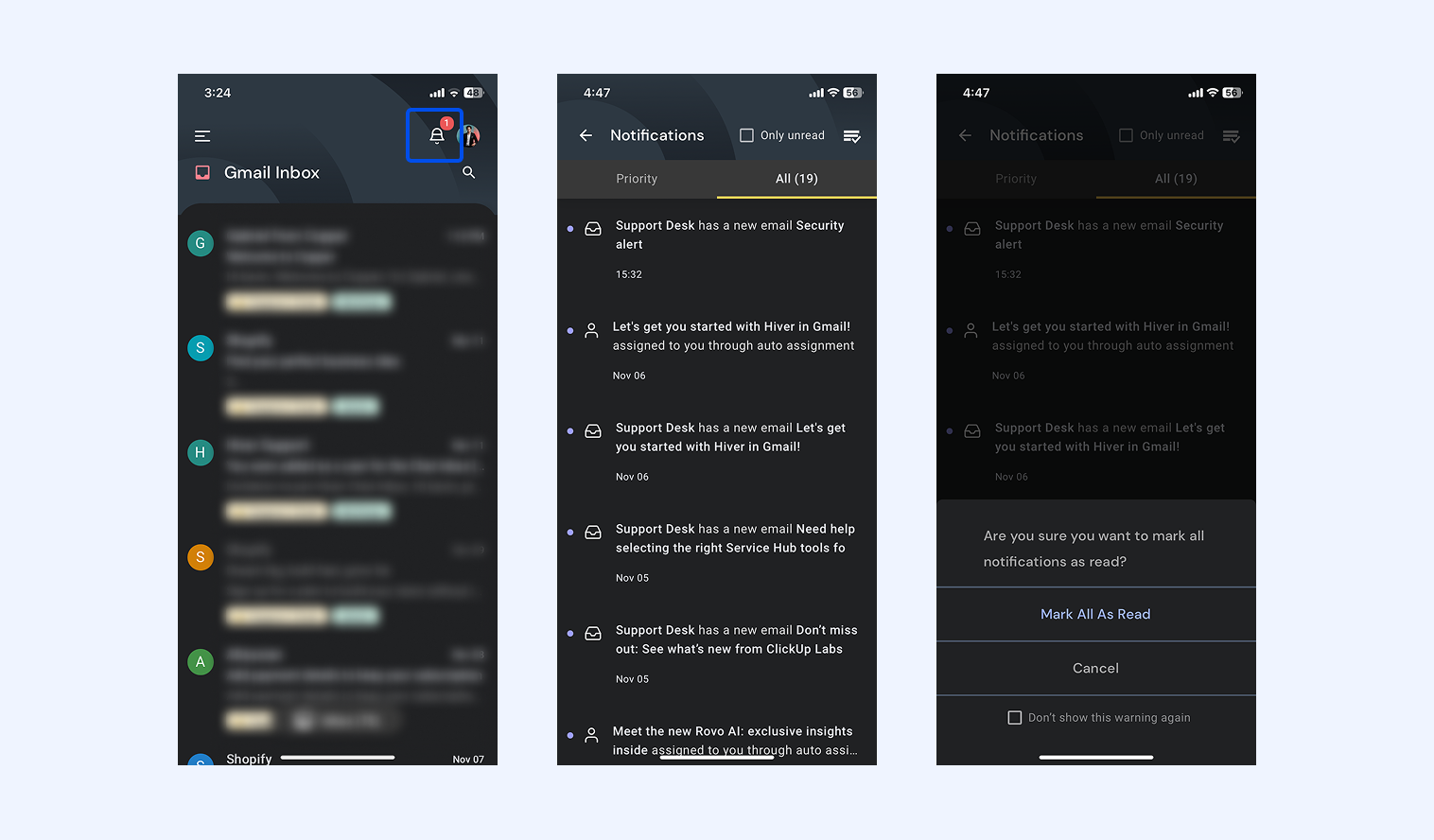
Check all your notifications from the bell icon.