Managing chat conversations in Hiver Chat
Hiver Chat on mobile helps you stay responsive when you’re away from your desk. You can access your chat inbox, assign conversations to the right teammate, reply with templates, and close chats when resolved, all from your phone.
Note: Chat Inbox is a legacy feature and is only available to customers who signed up before May 18, 2026.
Benefits:
- Manage chats on the go through clear inbox tabs.
- Assign or self-assign chats in seconds.
- Reply instantly using chat templates.
- Share files to add helpful context.
- View visitor details for quick context.
- Toggle availability to show when you’re online.
- Stay alert with unread message badges (iOS only).
- Close resolved chats to keep your queue tidy.
Installing Hiver Chat app
To access chats through the Hiver Chat mobile app:
1. Install the Hiver Chat app through the iOS App Store or the Google Play Store.
2. Log in to your Hiver account.
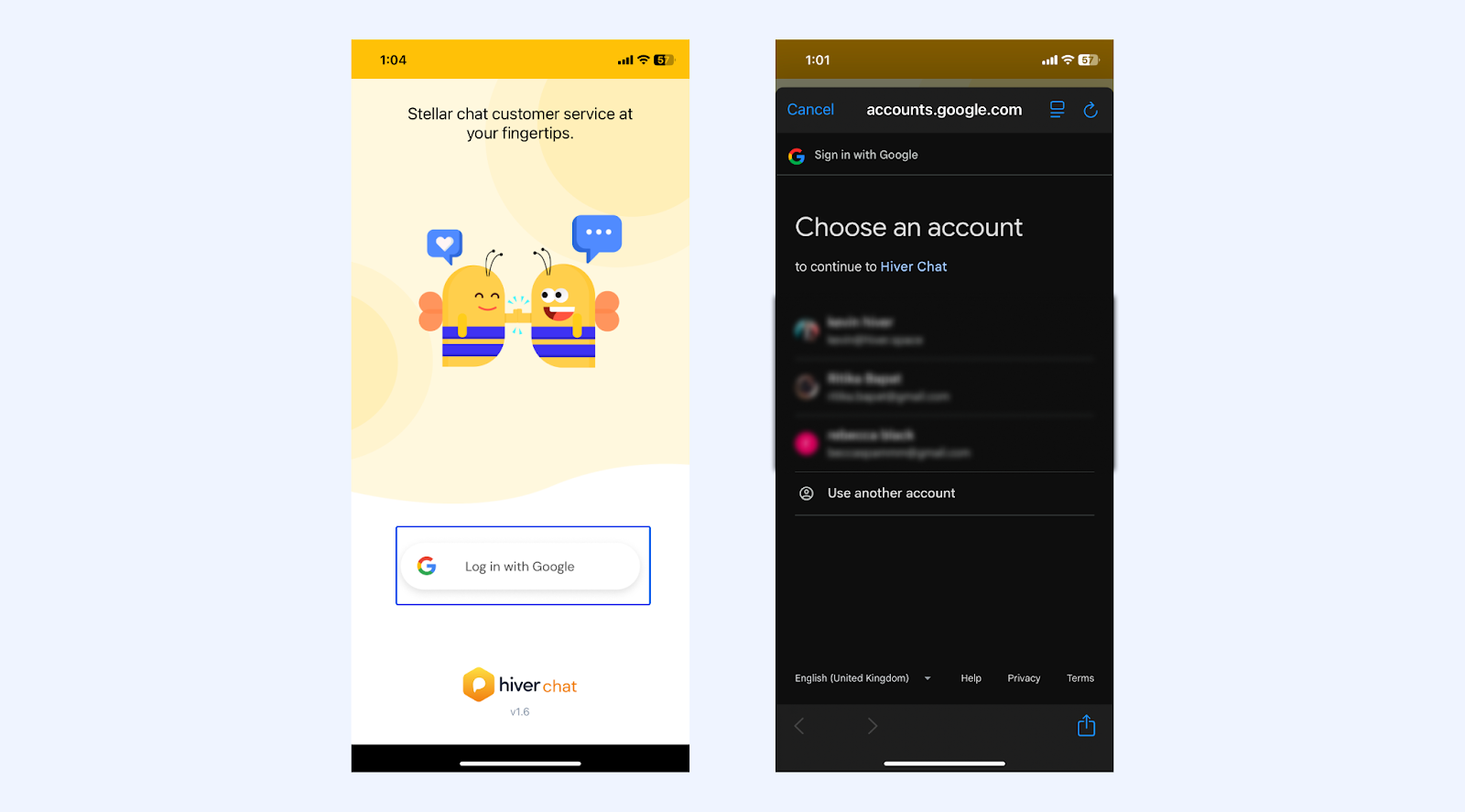
3. Choose your Hiver account and select Continue when prompted to let Hiver Chat use google.com to sign in. You’ll be redirected to the Google verification process.
Viewing open and closed chats
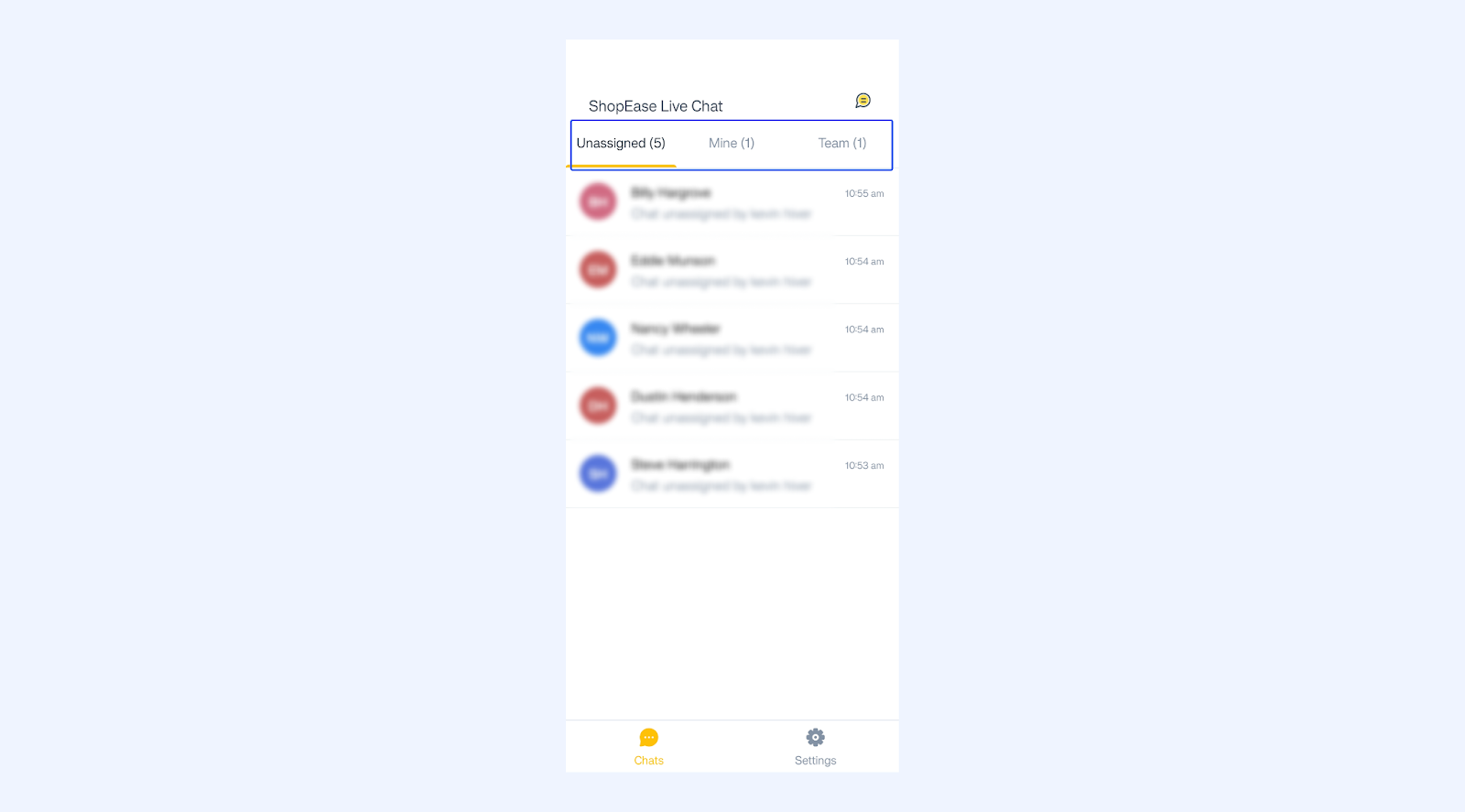
On the Hiver Chat home screen, you will be able to see the Chat Inbox and the following views :
- Unassigned
- Mine
- Team
- Closed
To navigate to any tab, simply tap the tab name. You will then be able to see their corresponding chats.
Switching between Chat Inboxes
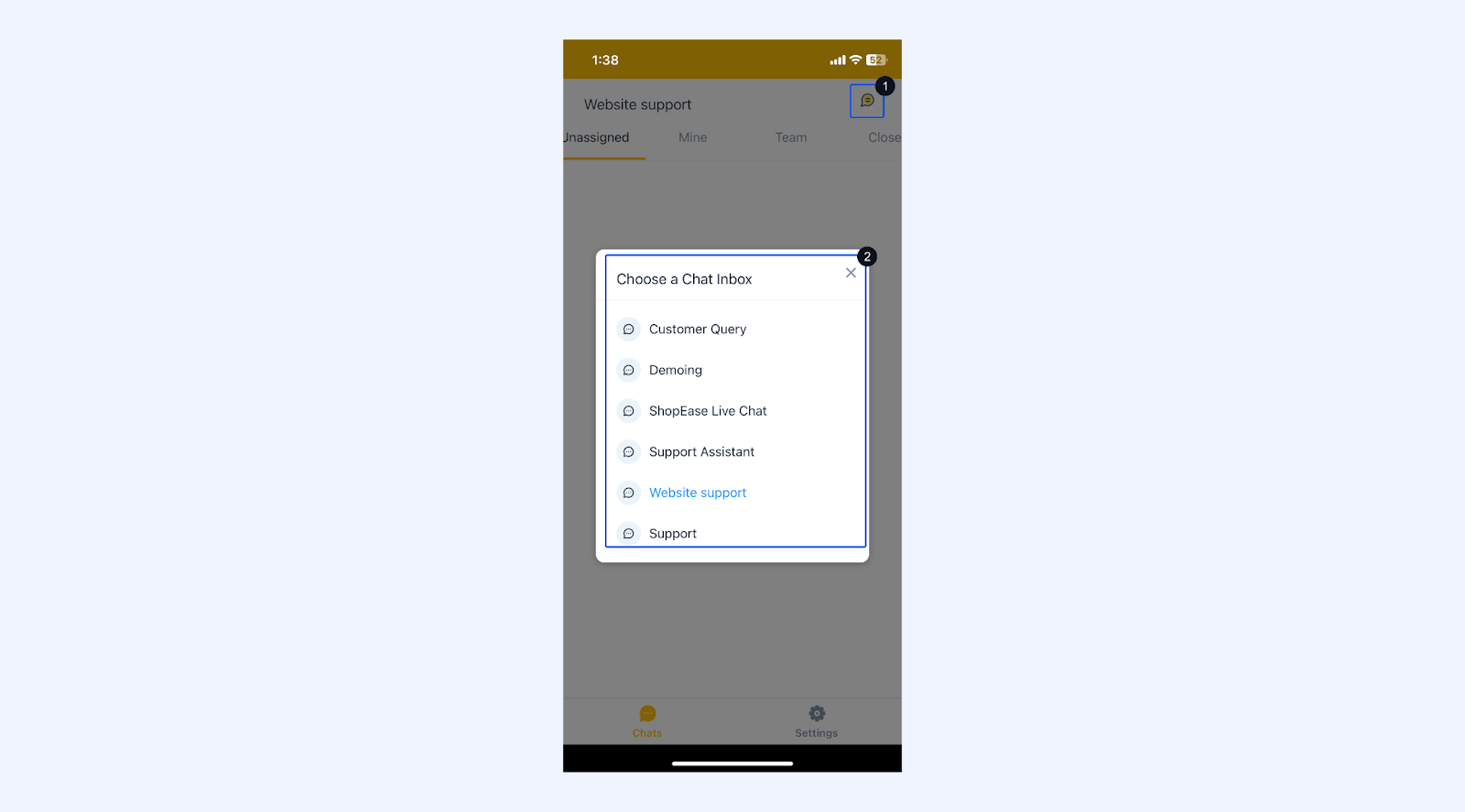
To switch between Chat Inboxes, tap the chat icon on the top-right corner of the home screen and select an inbox.
Assigning chats
To assign chats to an agent:
1. In the chat home screen, go to the Unassigned tab.
2. Open the chat that you’d like to assign.
3. Tap the 3-dot menu and select Assignee.
4. You will now see a list (sorted alphabetically) of online agents first, denoted by a green dot on their profile, and then offline agents.
5. Select an agent to assign the open chat.
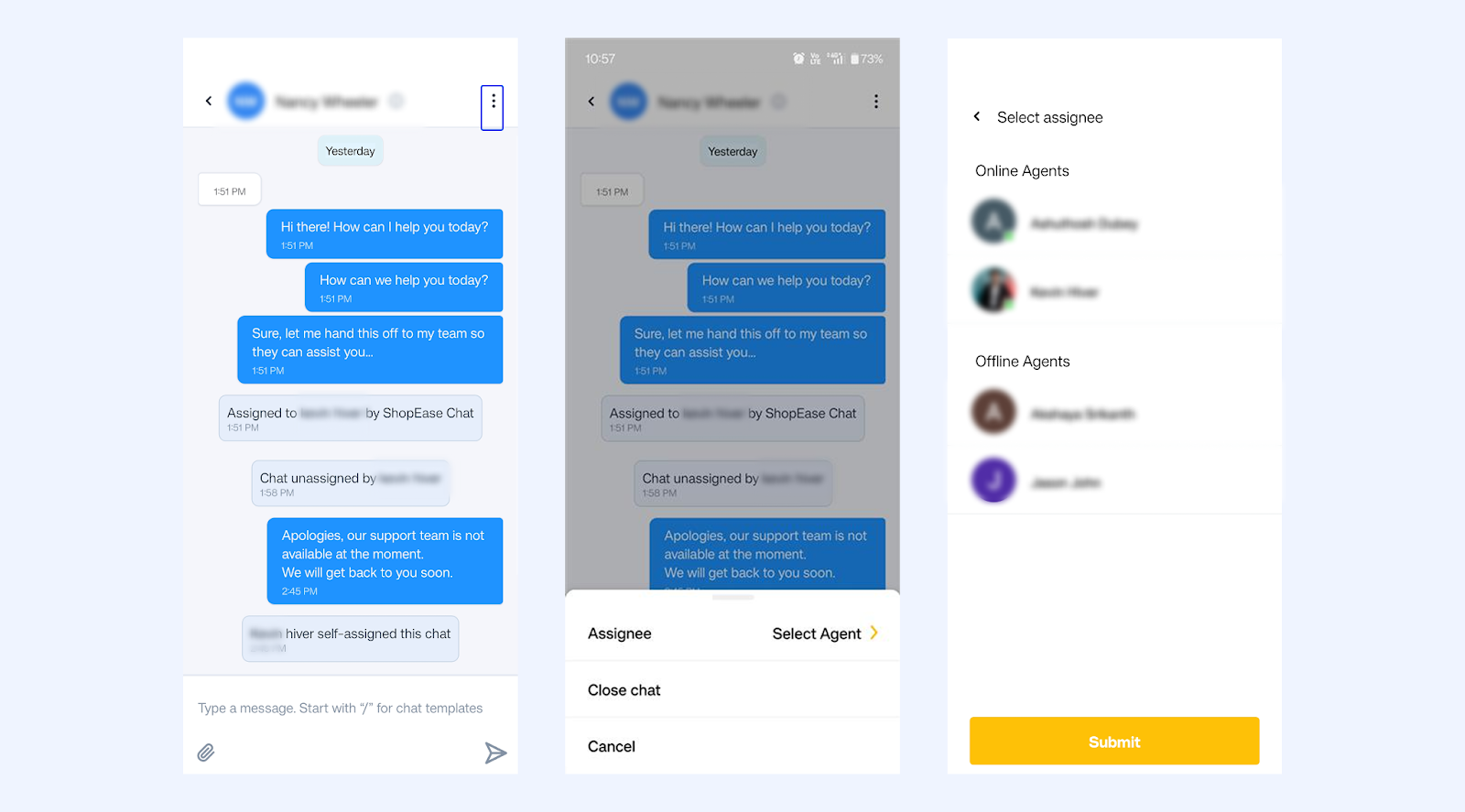
Note: Agents can also self-assign unassigned chats by following the steps mentioned above.
Unread chat messages badge
A numerical alert (badge count) on the Hiver Chat app icon. It shows a count of all the unread messages of chats that are assigned to you.
Note: This alert is currently only available on iOS.
Replying to visitors
To reply to a chat, simply tap on an area anywhere near the visitor’s name in the Mine tab or the Unassigned tab.
A chat window will open, and you can start replying.
Mobile chat templates
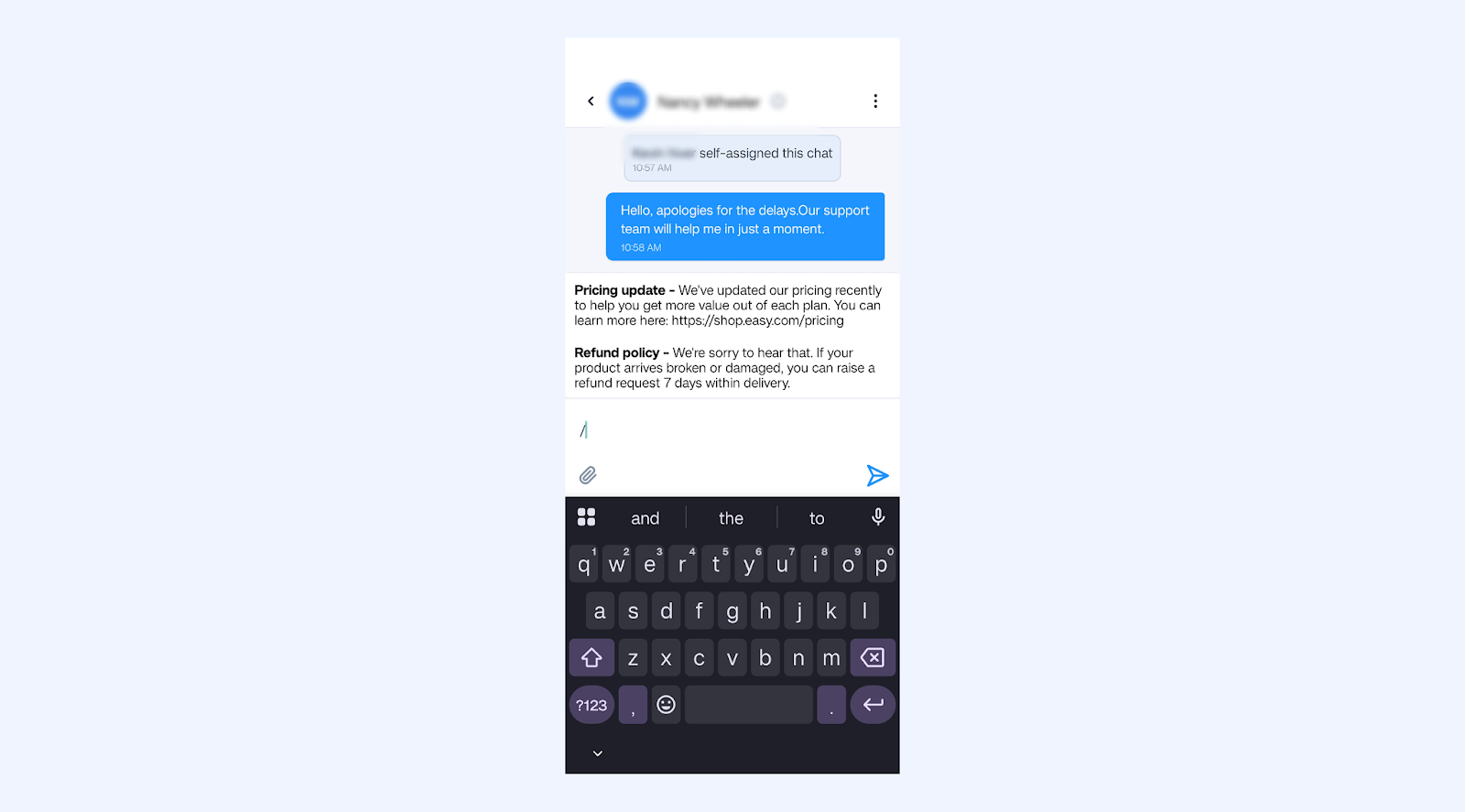
You can use chat templates while replying to recurring questions. Press the slash ( / ) key to open a list of available templates.
Sending files in Hiver Chat
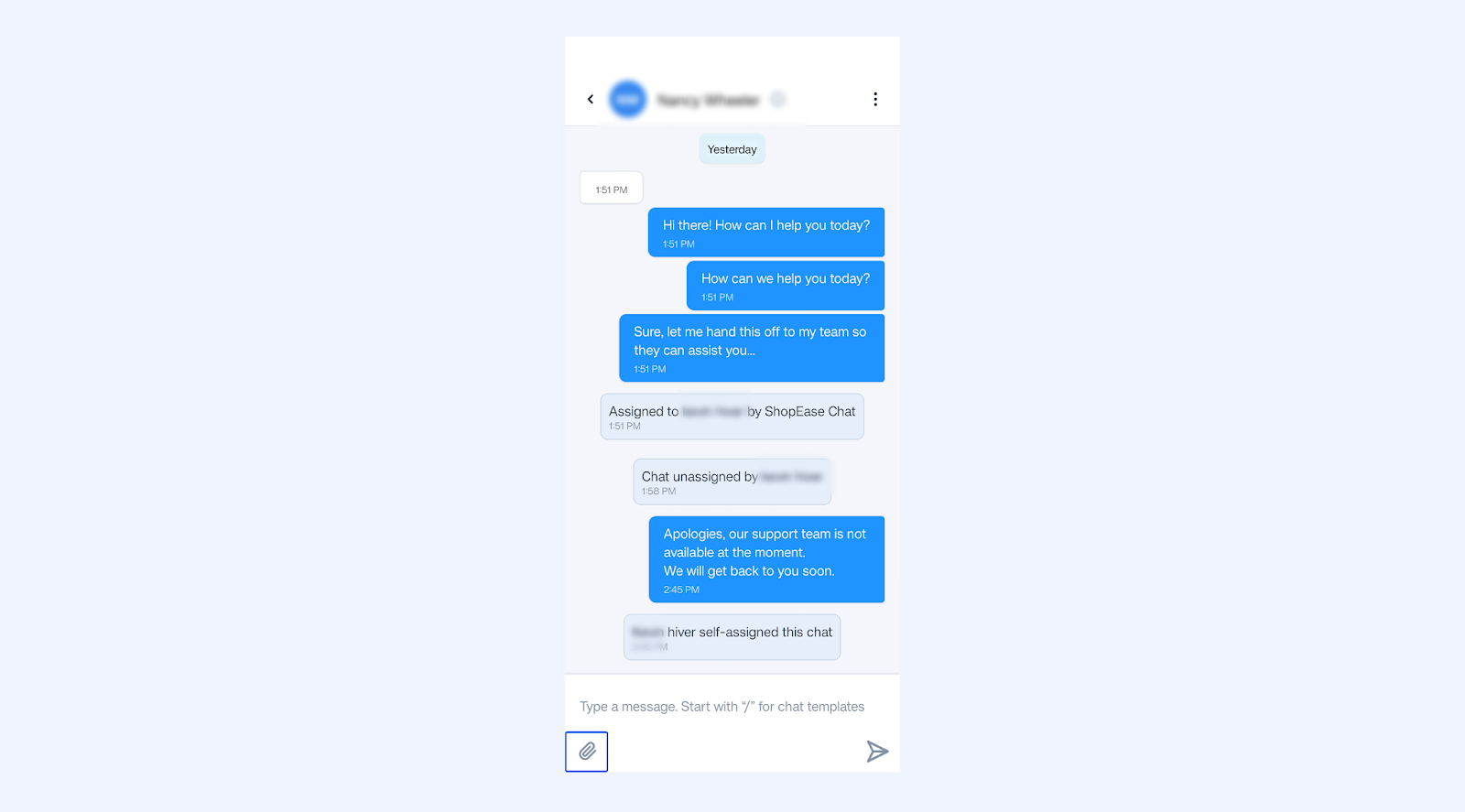
You can provide more information and context to a visitor by sending files in your responses.
Tap the attach icon on the bottom left corner of Reply to access the files on your mobile.
Accessing chat details
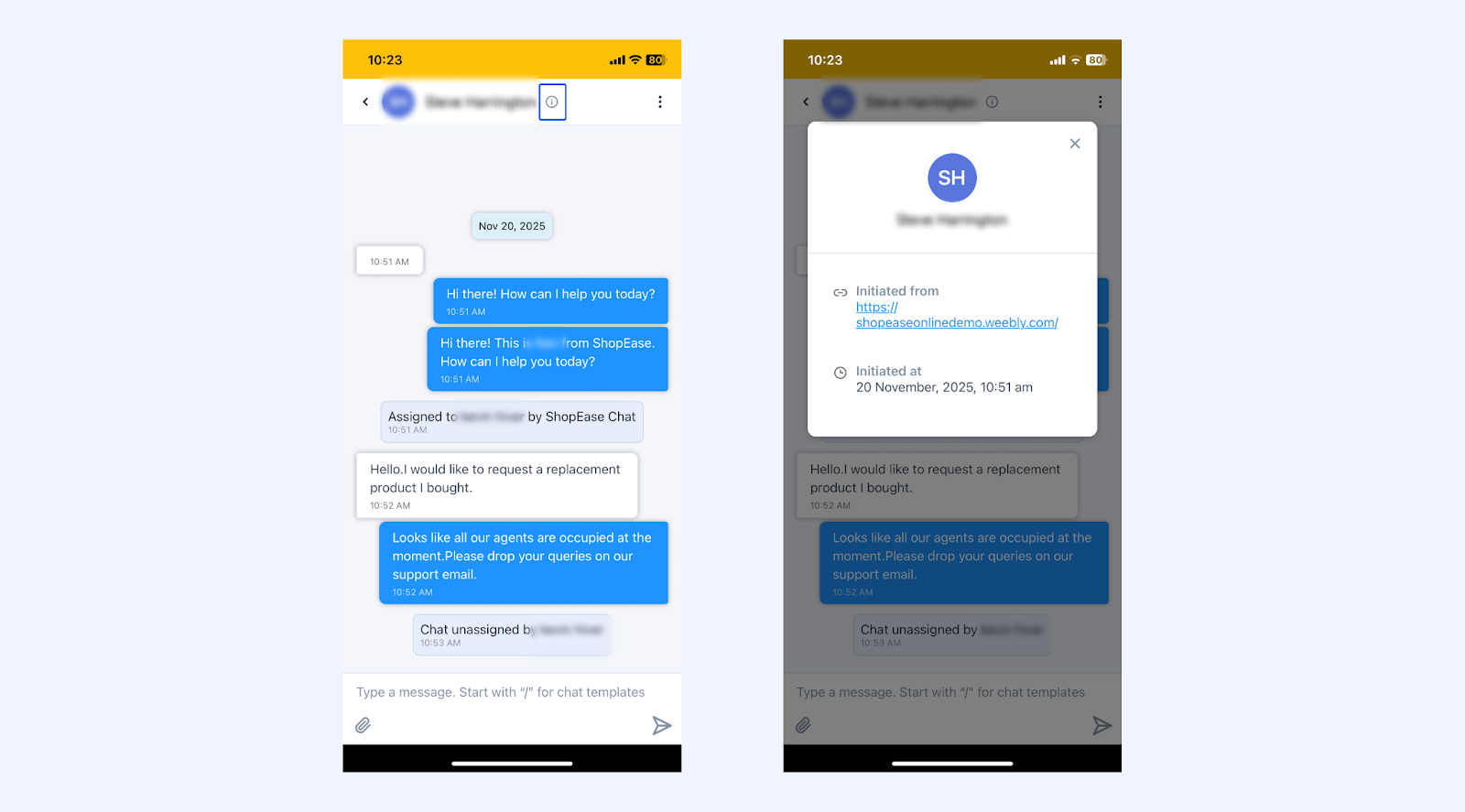
To see more information about the visitor while you are conversing with them, tap the info icon ( i ) next to their name near the top.
A pop-up box will appear, and you’ll be able to see:
- The URL link of your website page from which the chat was initiated, and
- Timestamp for when it was started.
Closing chats
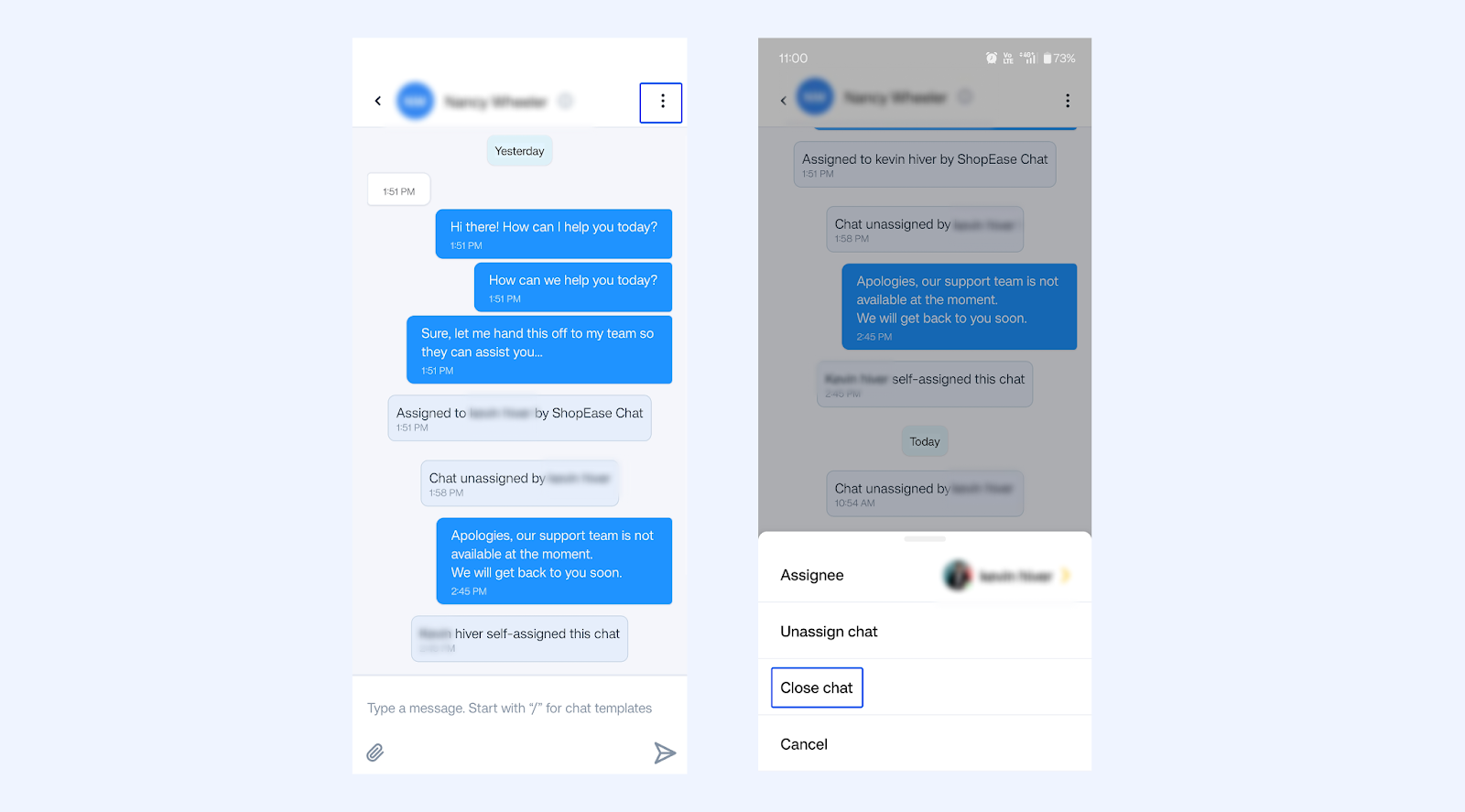
To close a chat, tap the 3-dot menu inside a chat and select Close chat.
Note: Closed chats cannot be reopened since chat is a real-time channel.
Manage availability
Tap Settings to access the settings menu. You will see a toggle option for Available to chat. Toggle it on to mark yourself as online and available for chat.
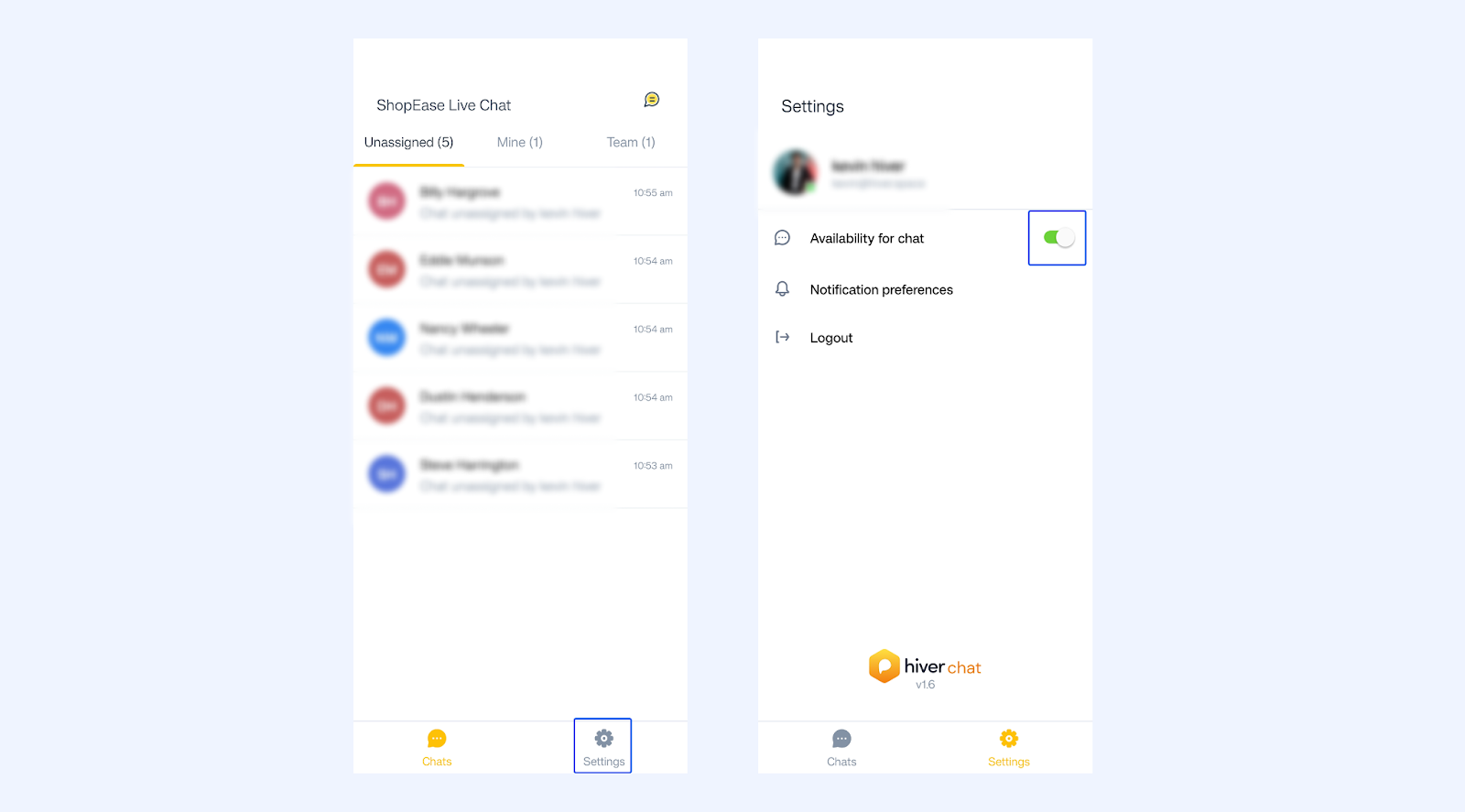
Once you toggle your availability on, a green dot will appear on your profile, which lets team members know that you’re available.
Next step
Enable push notifications for Hiver chat