Viewing contact details in conversations
Hiver contacts give your team a complete view of every customer you interact with.
When a conversation is added to a Shared Inbox, Hiver automatically identifies the contact from the sender or receiver and uses their email domain to infer the company they belong to.
The Contact tab on the right panel shows key details: who the contact is, the company they belong to, and their recent interactions with your team. This helps:
- Gives your team complete context before replying to customers.
- View recent conversations to avoid duplicate responses or missed issues.
- Identify open or unresolved threads from the same contact or company.
- Save time by letting you open past interactions directly from the Contact tab.
- Keep every teammate aligned with a shared view of customer history.
Let’s look at how you can view and explore contact information in Hiver.
How to access contact information
- Open any conversation in a Shared Inbox.
- In the right panel, click Contact to view the contact inferred by Hiver and the company they are associated with.
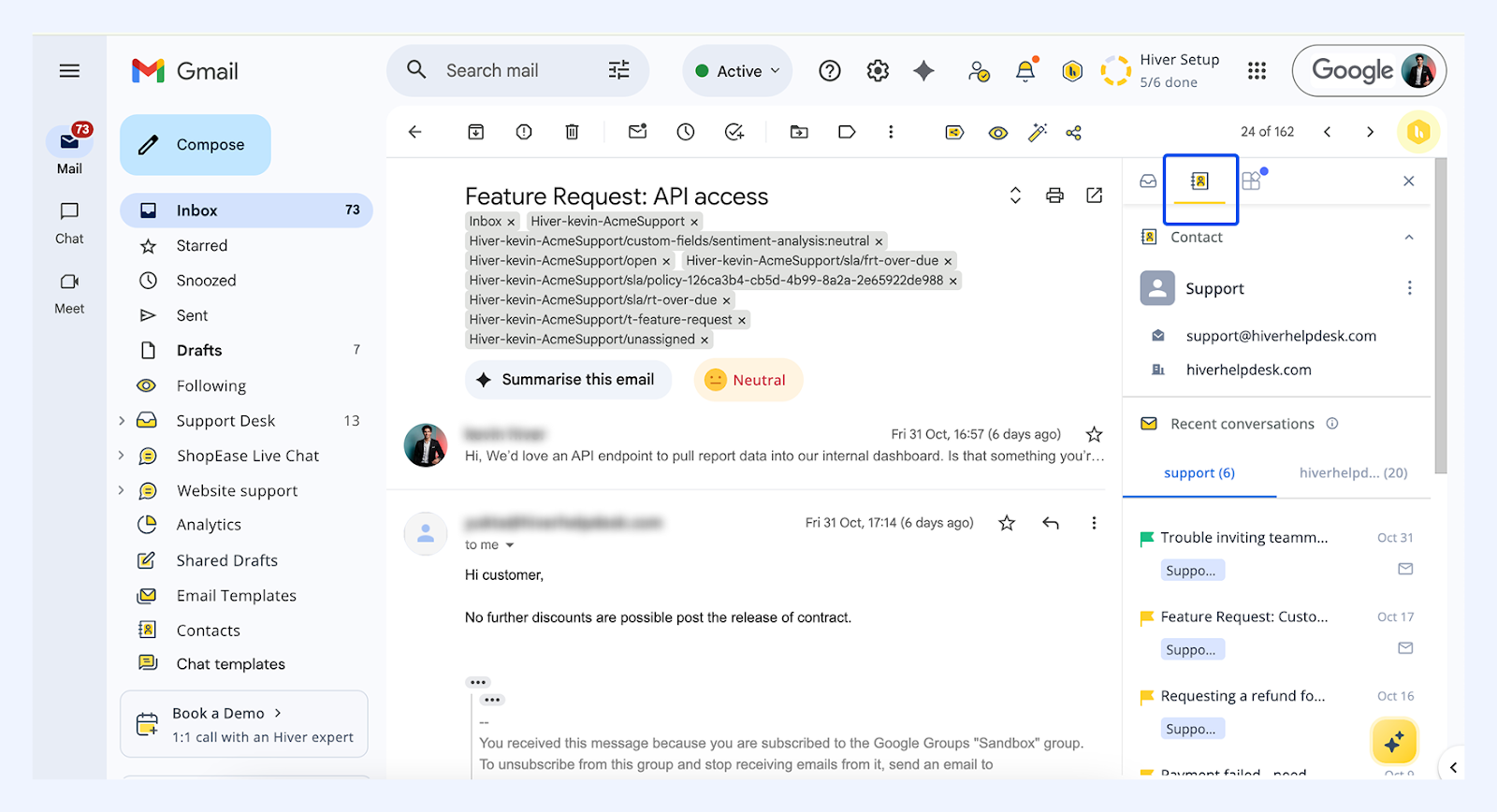
Note: Contact information is not available for conversations created before January 1, 2020.
Viewing recent conversations
The Recent Conversations section lets you view and open past interactions linked to the contact you’ve selected or their company.
With a contact
Within the Contact tab, you’ll see two tabs: one with the contact’s name and another for their company.
- Choose the one with the contact’s name to view their recent conversations.
- The Recent Conversations list shows up to 10 most recent conversations with this contact across all Shared Inboxes.
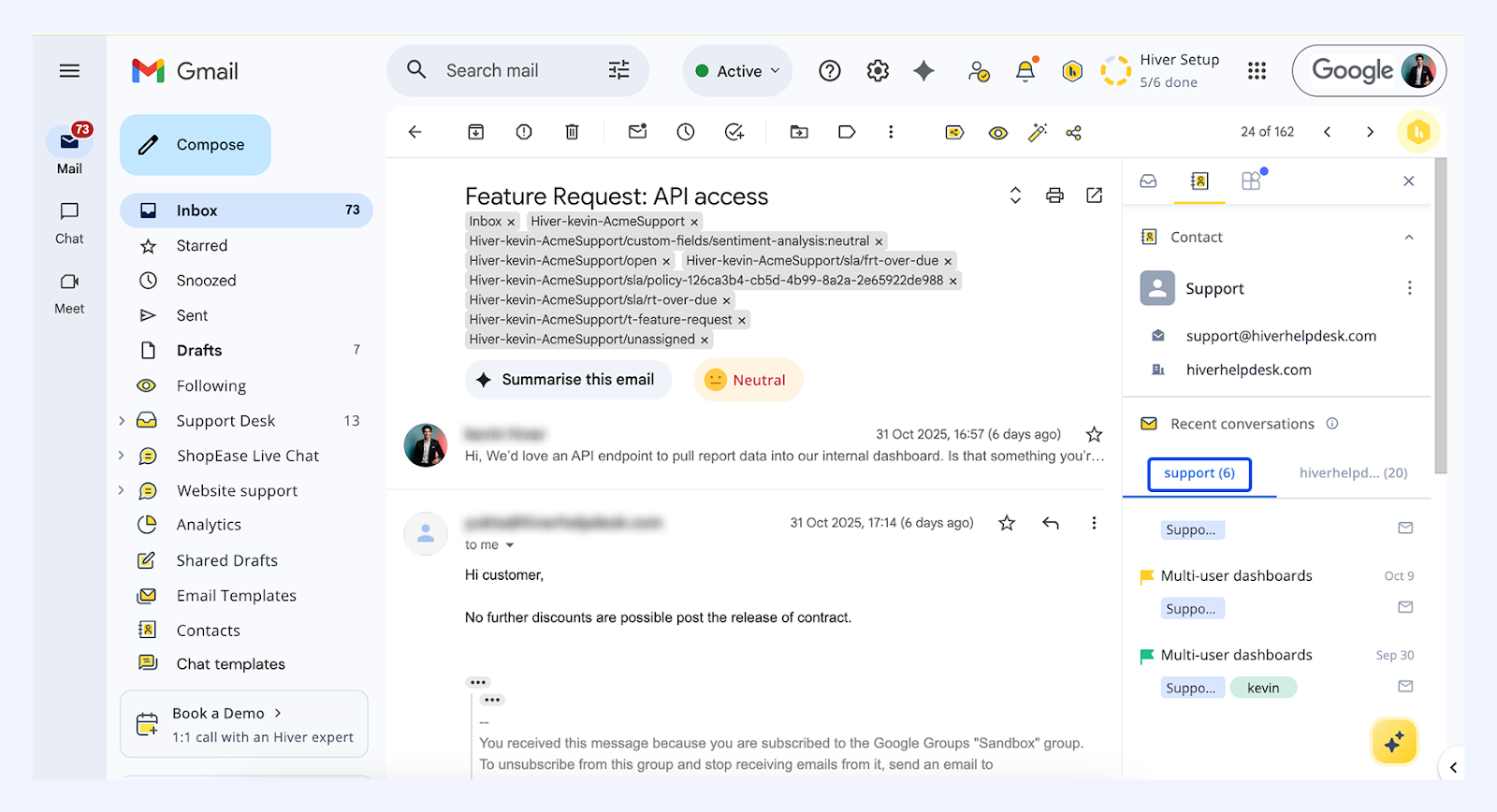
- For each conversation, you’ll find the:
- Subject
- Shared Inbox (hover to see other inboxes if the conversation belongs to multiple Shared Inboxes)
- Conversation status (colored flag)
- Assignee
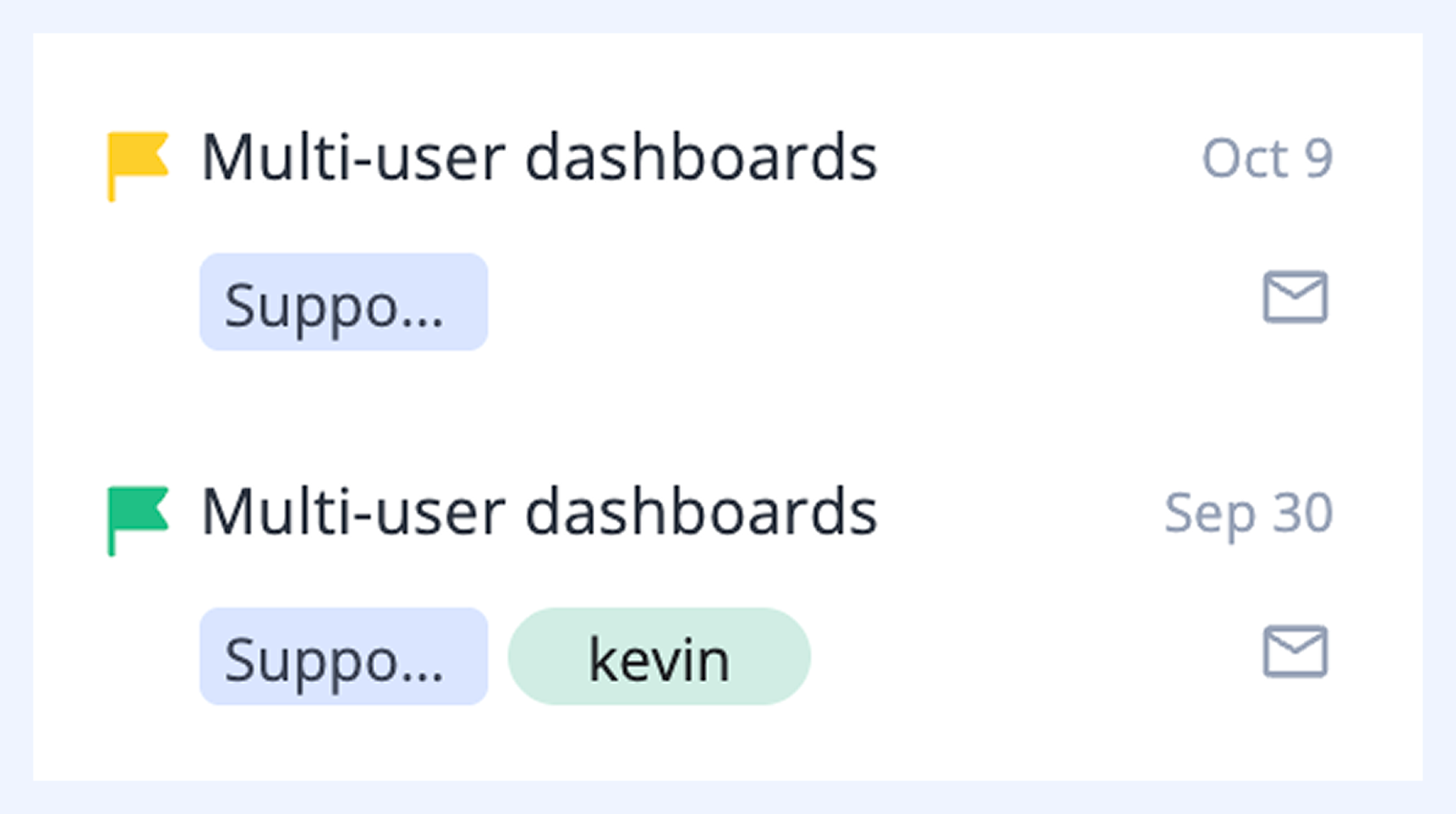
- To view the details of a conversation, select it. The conversation opens in a new tab.
- If a conversation belongs to a Shared Inbox you’re not part of, it appears in the list but will not be accessible. The inbox name and assignee are still visible, so you can contact that teammate offline if needed.
With a company
- Open the Company tab under Recent conversations.
- The list displays the last ten conversations from other contacts within the same company.
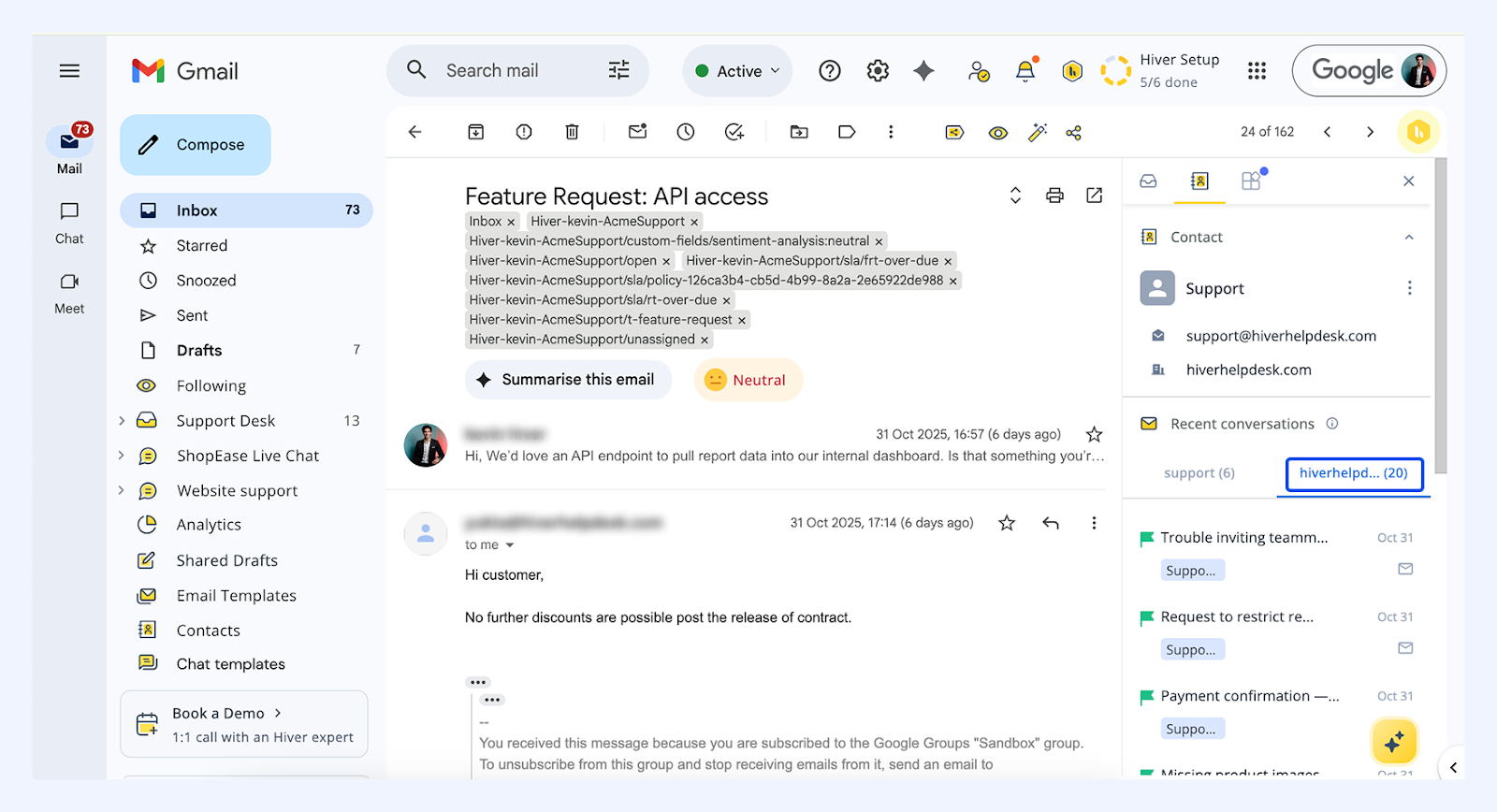
- Each conversation includes the same details as the contact list (subject, inbox, status, and assignee).
- Tap any row to open that conversation in a new tab.
Note:
- If you change the contact or company on a conversation, the Recent Conversations list refreshes automatically to reflect the new contact/company.
- Conversations imported from outside Gmail or with missing headers may show as Unidentified. You can assign the correct contact manually to update the lists.
Edit contact information in a conversation
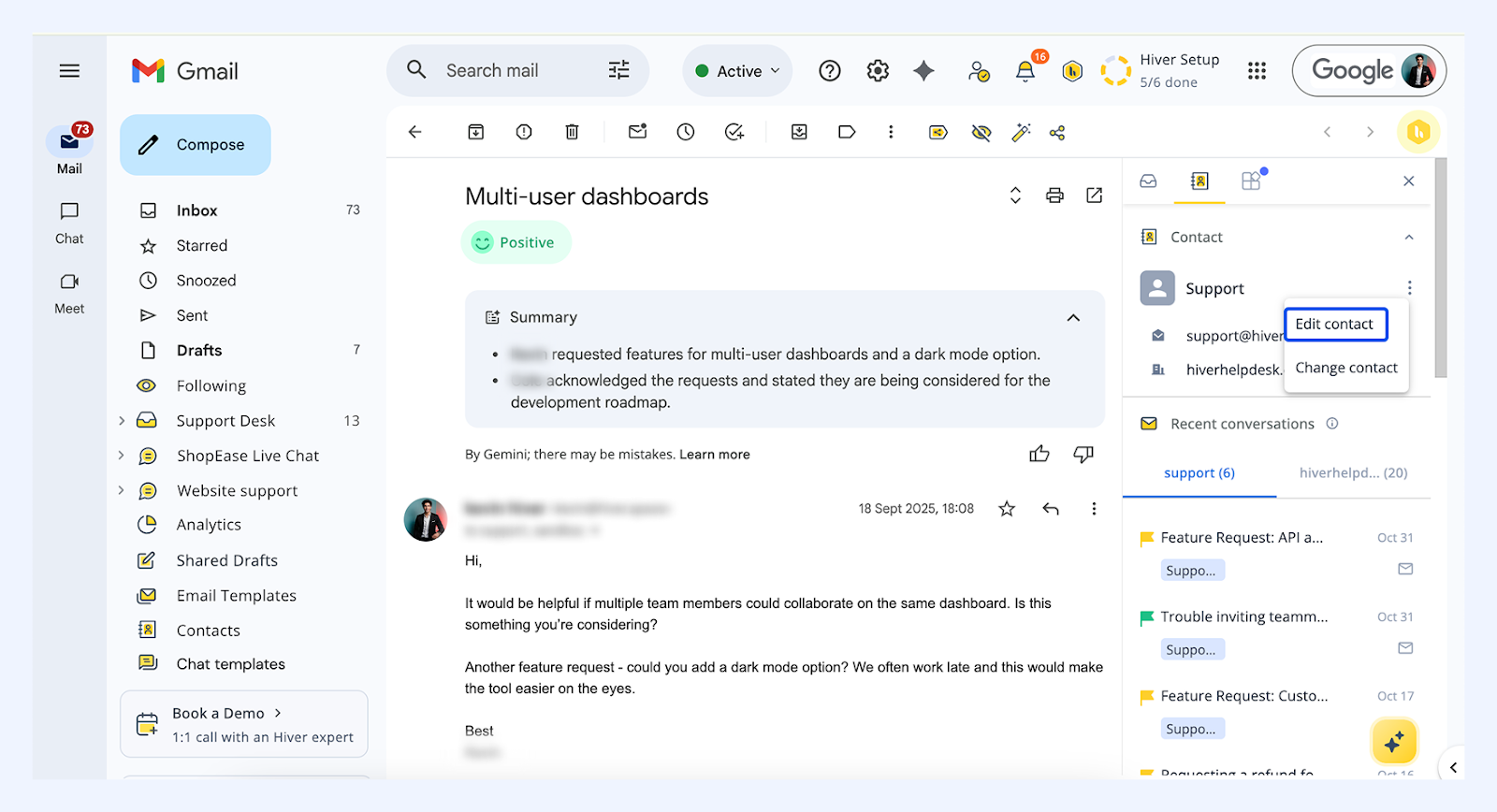
- Click the three dots next to the contact name and select Edit contact.
- Edit the name or add an internal note and click Save. Notes are visible to all Shared Inbox members.
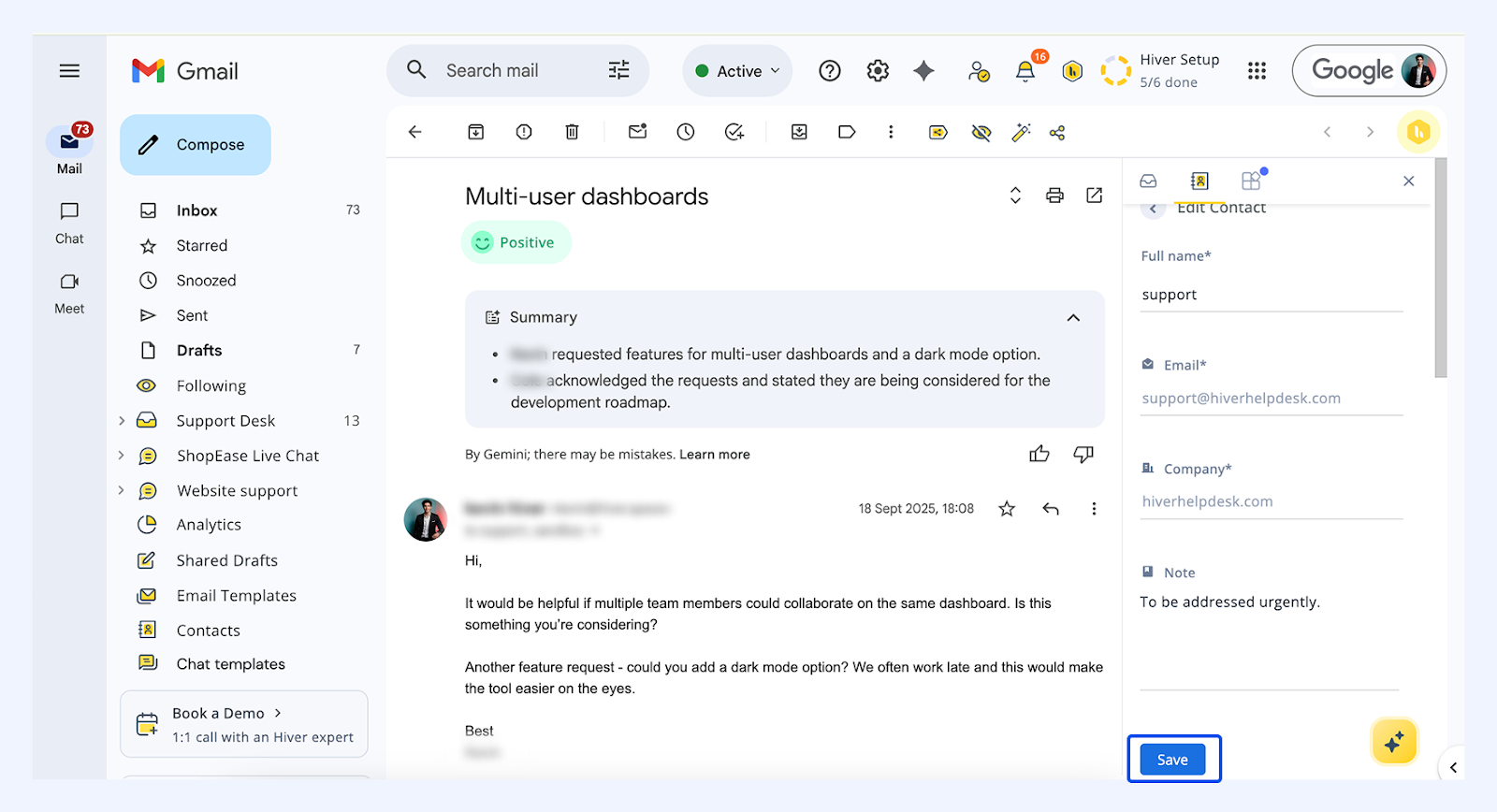
- Email address and company cannot be edited (email is the unique ID and company is derived from the domain). If the mapped contact is wrong, use Change contact instead.
Change contact on a conversation
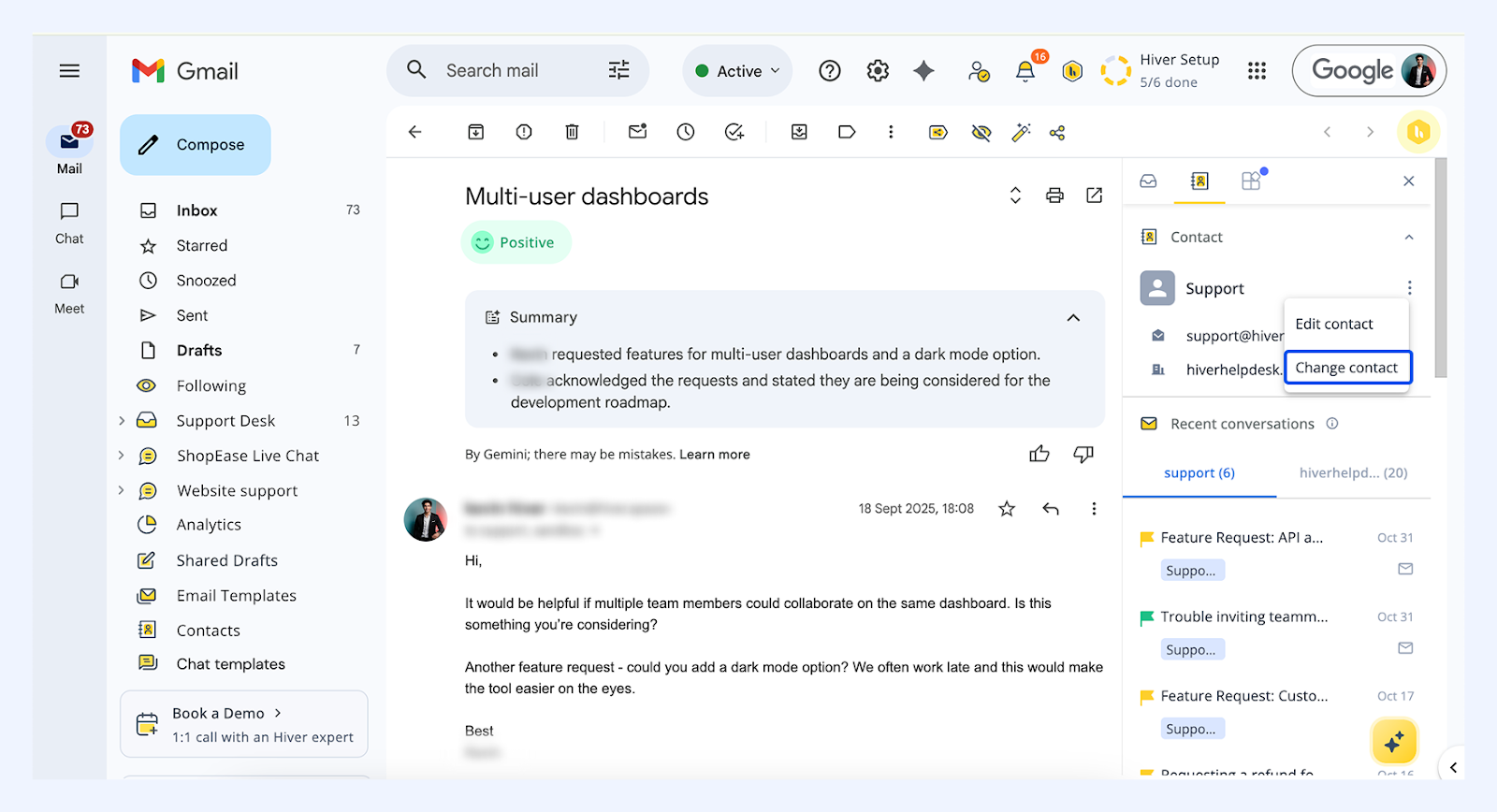
- Click the three dots next to the contact name and select Change contact.
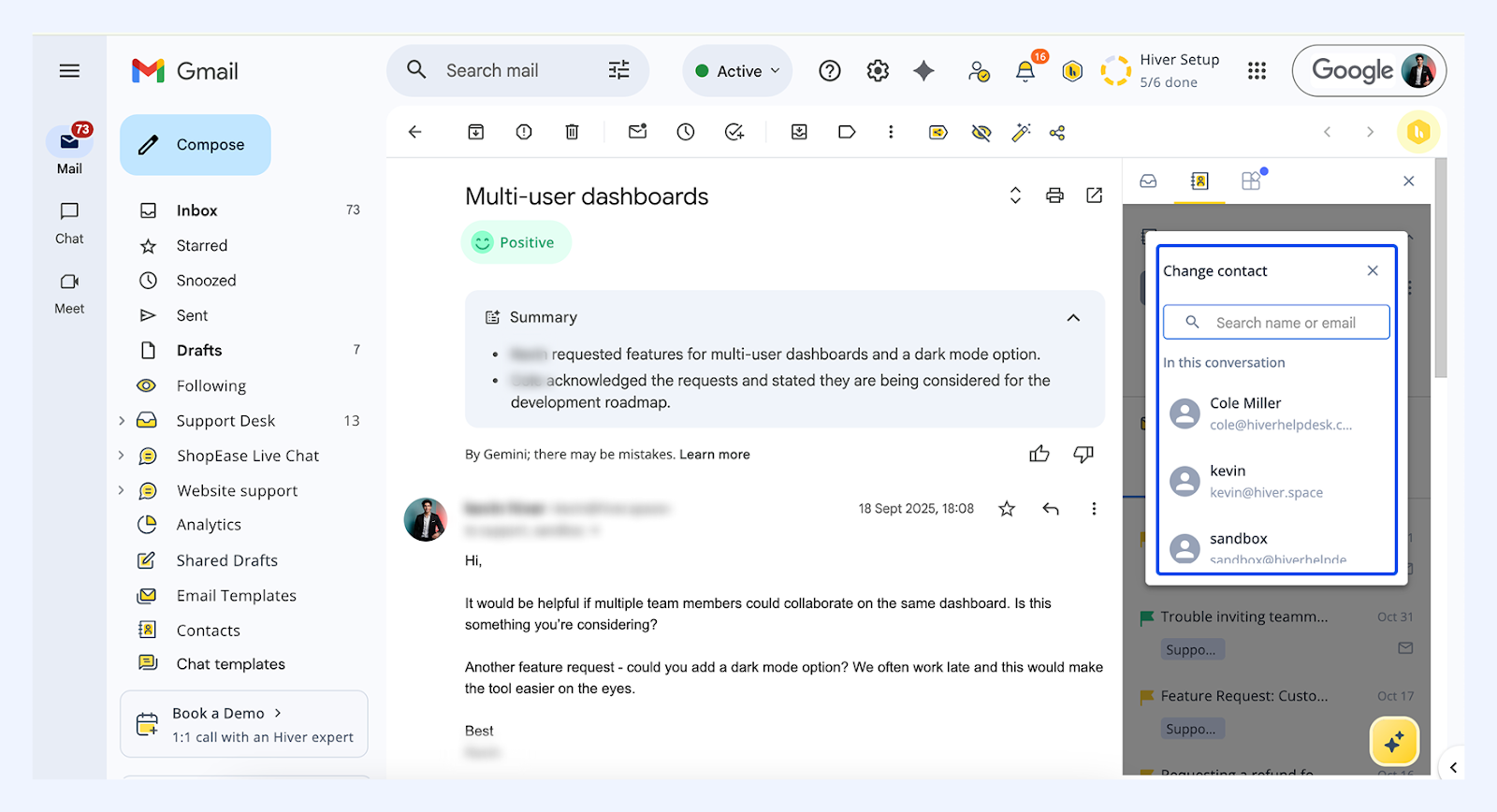
- Select the correct contact from those marked on the conversation, or search by name/email to find/add the intended contact and click Save.
Set permissions for changing contacts
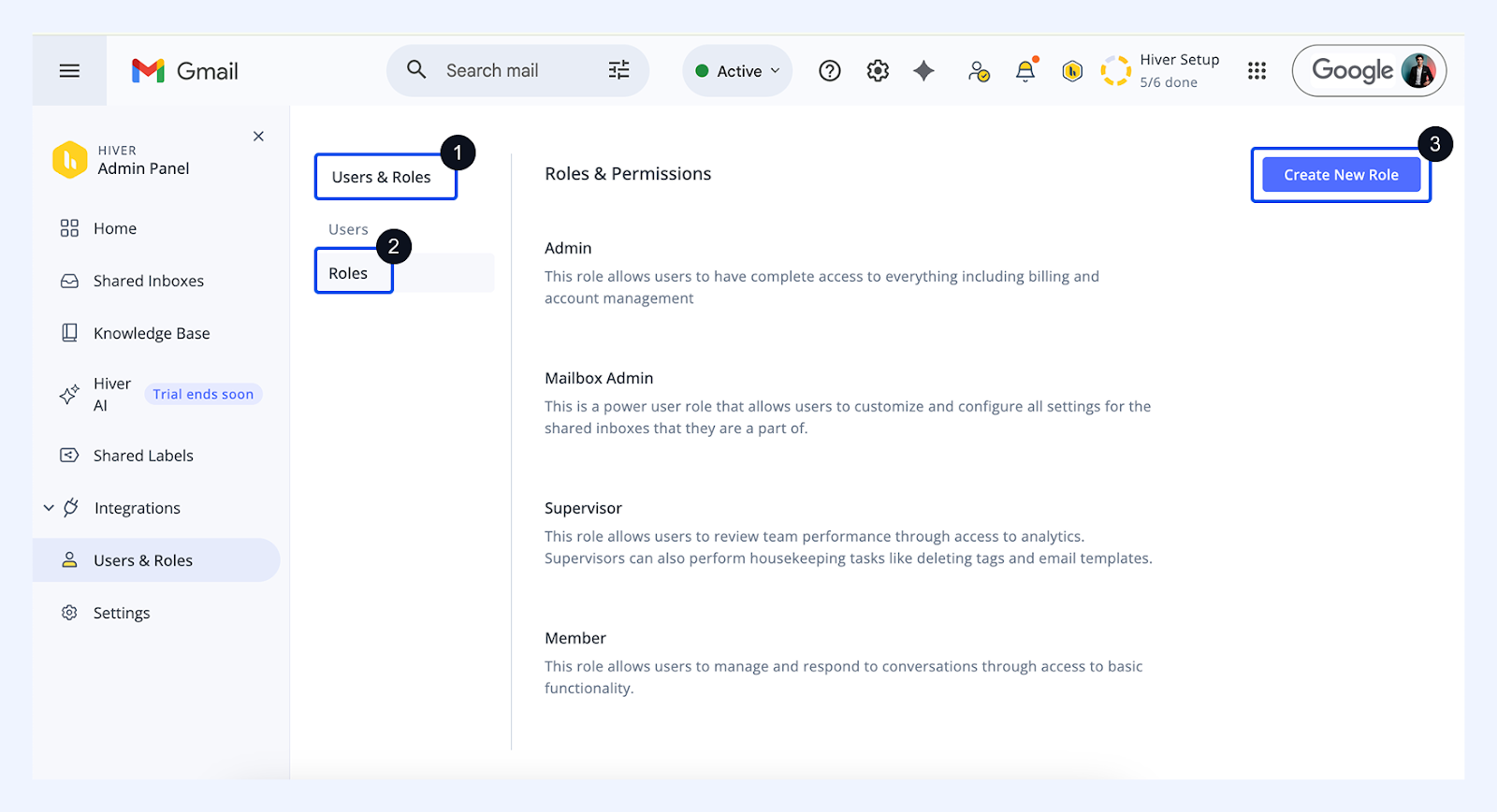
- Go to Admin Panel → Users & Roles → Roles → Create New Role.
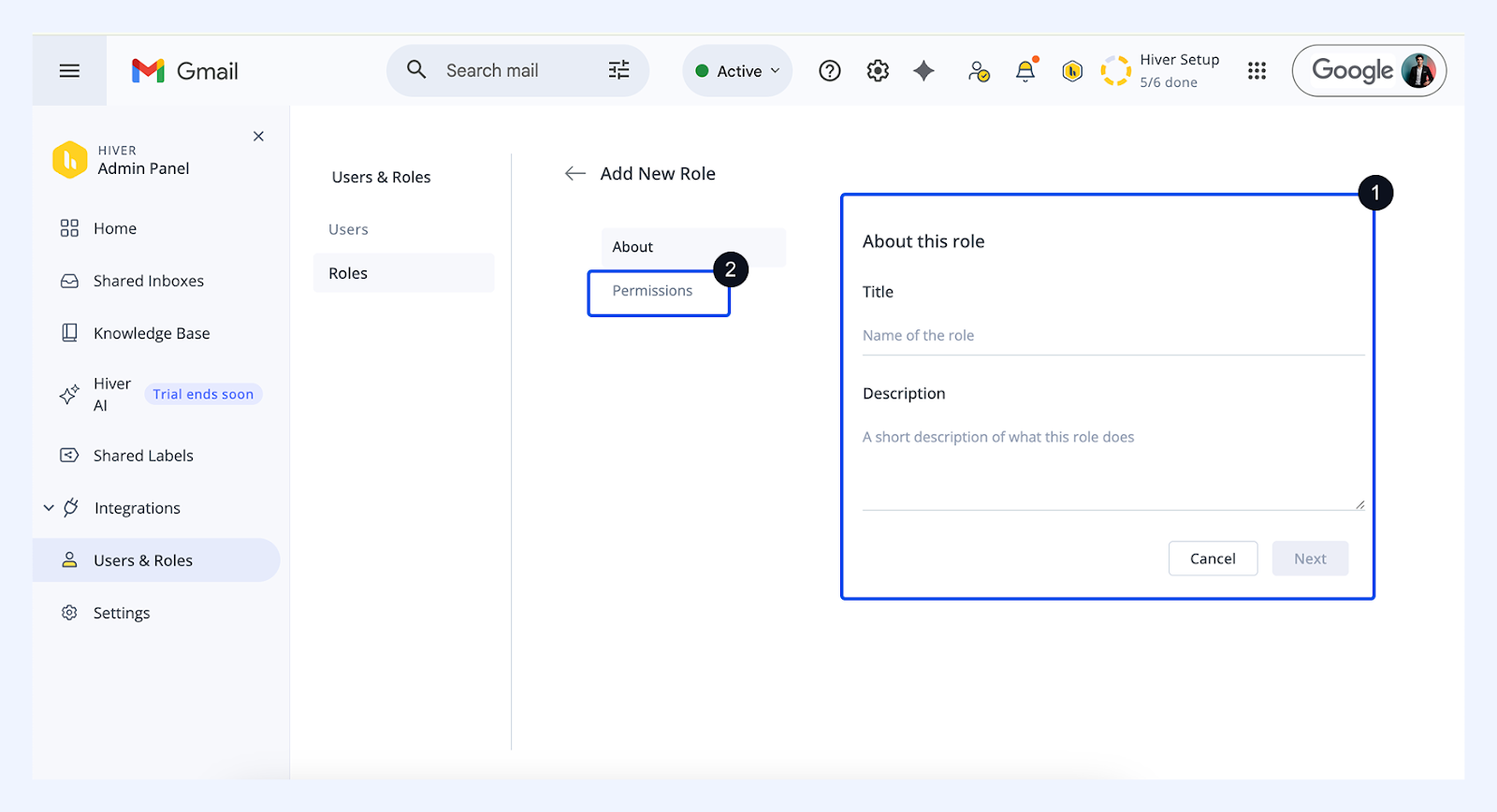
- Add title and description.
- Go to Permissions.
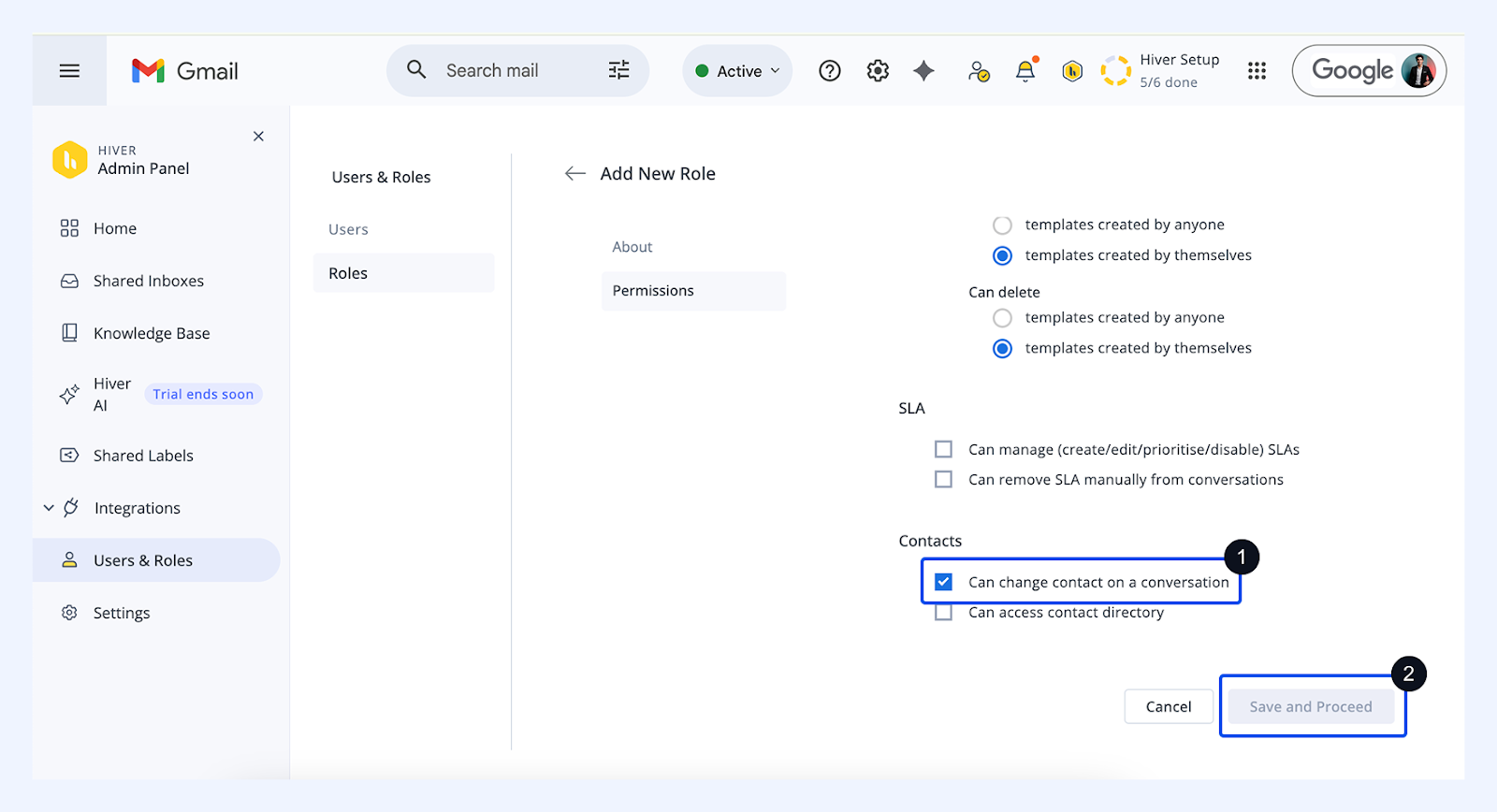
- Under Contacts, select the ‘Can change contact on a conversation’ checkbox and click Save and Proceed.
For any issues or additional support, please contact support@hiverhq.com.
FAQS
1. How does Hiver infer contact details in a conversation?
Hiver automatically detects the sender/receiver in an email and links the conversation to the right contact and company (based on the email domain). Here’s how the contact is identified:
- Inbound conversations: from the From address of the first email.
- Outbound emails: from the first To address in the first email.
- Manually added conversations: from the From address of the last email before it was added to the Shared Inbox.
2. What happens if a contact has multiple email addresses?
Each email address is tracked as a unique contact identity. If needed, you can assign the correct one to keep conversations grouped accurately.
3. Will updating contact information affect past conversations?
Any updates instantly reflect across all linked threads. This keeps older and newer interactions consistent and correctly mapped.
4. Can contact notes be made private?
No, notes added to a contact remain visible to all members of the Shared Inbox for full transparency.
Next steps
Managing Contact Settings on Hiver