Managing your Chat Inbox
This guide walks you through how to access, view, and delete a Chat Inbox in Hiver.
Note: Chat Inbox is a legacy feature and is only available to customers who signed up before May 18, 2026.
Accessing a Chat Inbox
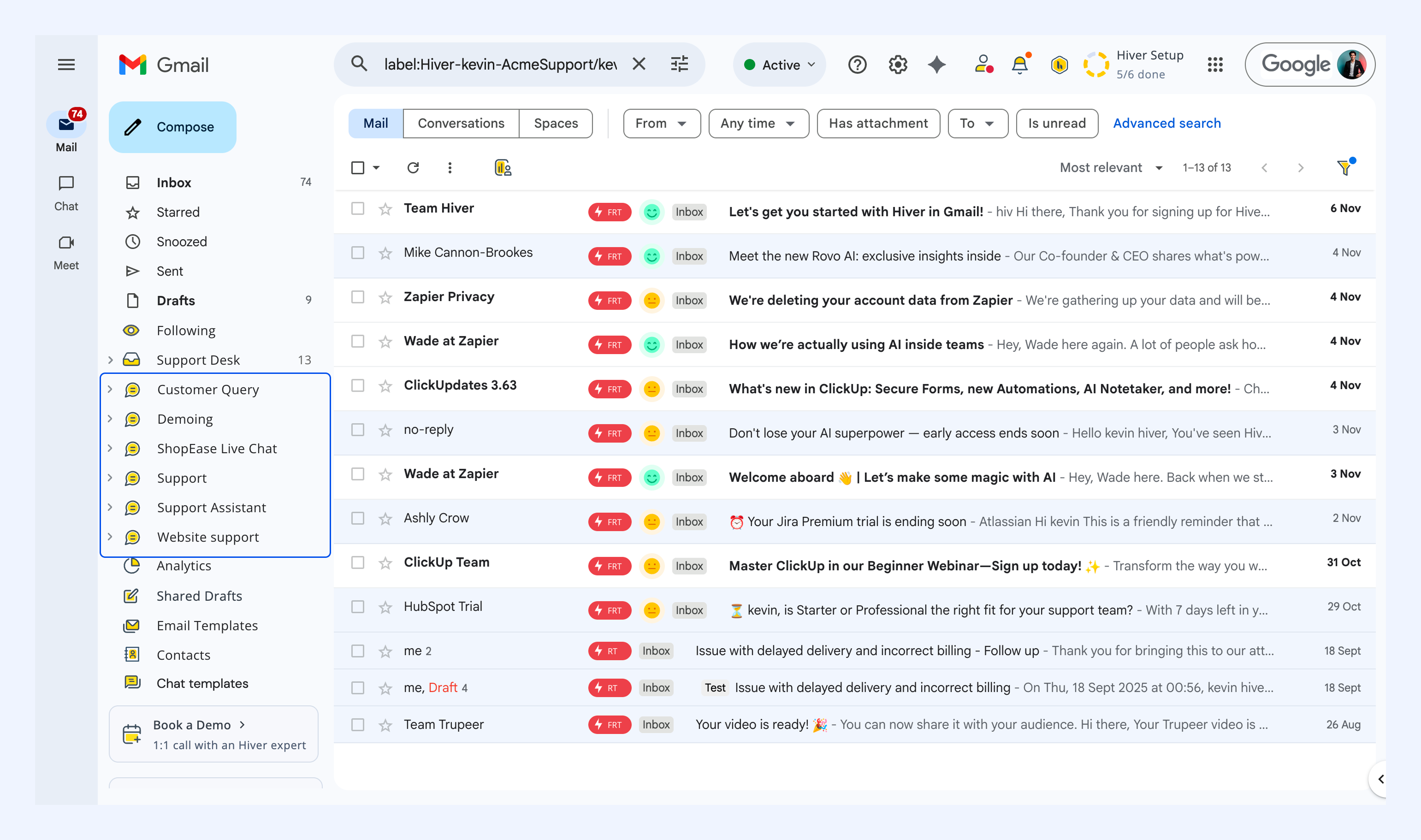
- Once you’re added as a participant, the Chat Inbox appears in the left panel of your Gmail inbox.
- Each Chat Inbox is marked with a chat bubble icon.
Understanding default Views in a Chat Inbox
Each Chat Inbox includes a few Views to help you manage ongoing conversations.
- Unassigned: Displays all open chats not assigned to anyone.
- Assigned to Bot: Shows chats currently being handled by the chatbot. Learn more about chatbots.
- Mine: Shows all chats currently assigned to you.
- Team: Lists all open chats assigned to anyone in the Chat Inbox.
- Tags: Shows chats organized by labels you have created.
- Closed: Contains all closed chats from the inbox. You can use the Only mine filter to view only your closed chats.
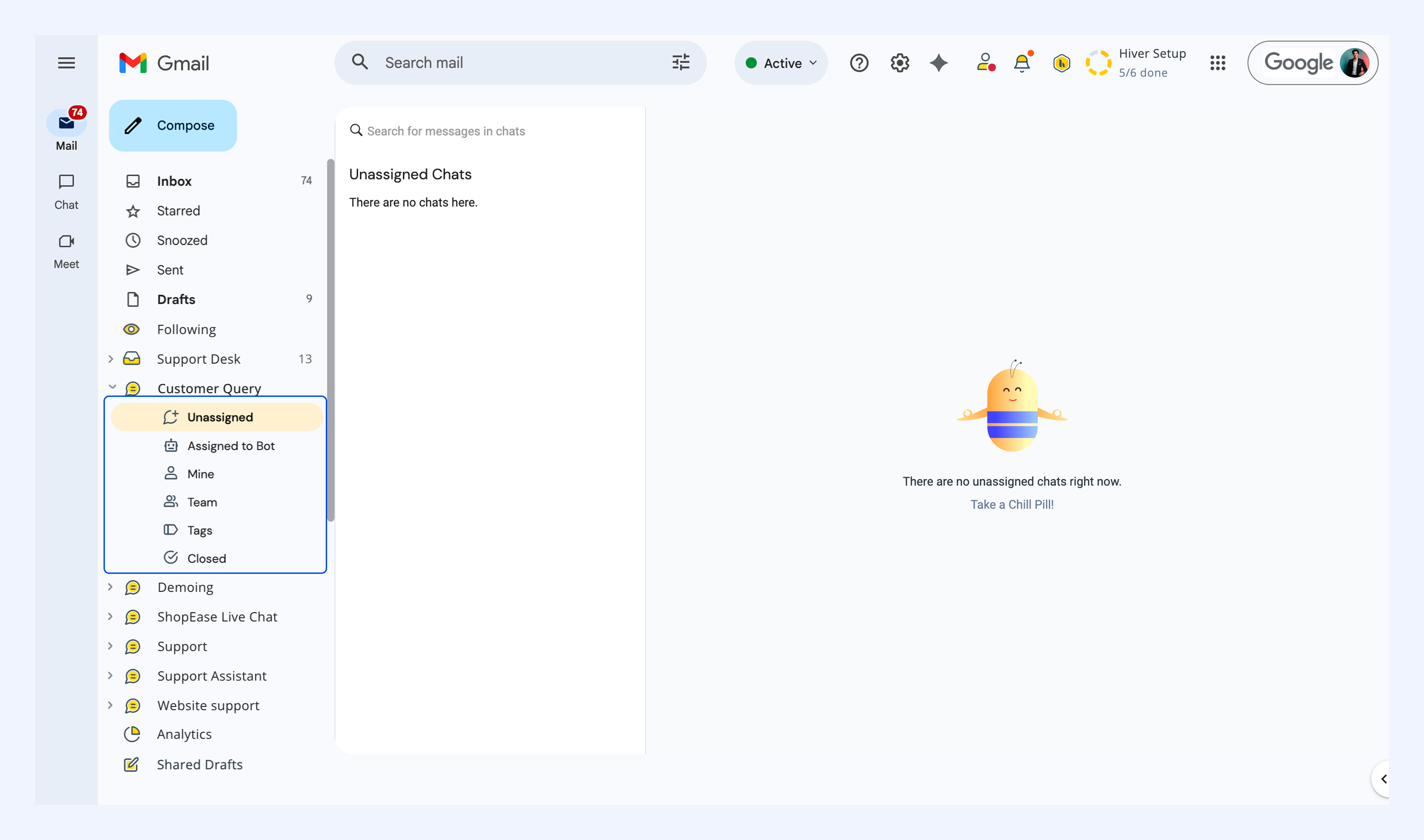
Note: Chat Inboxes do not have a ‘Pending’ status since chats are real-time and are either open or closed.
Deleting a Chat Inbox
Only Admins can delete a Chat Inbox. This action cannot be undone.
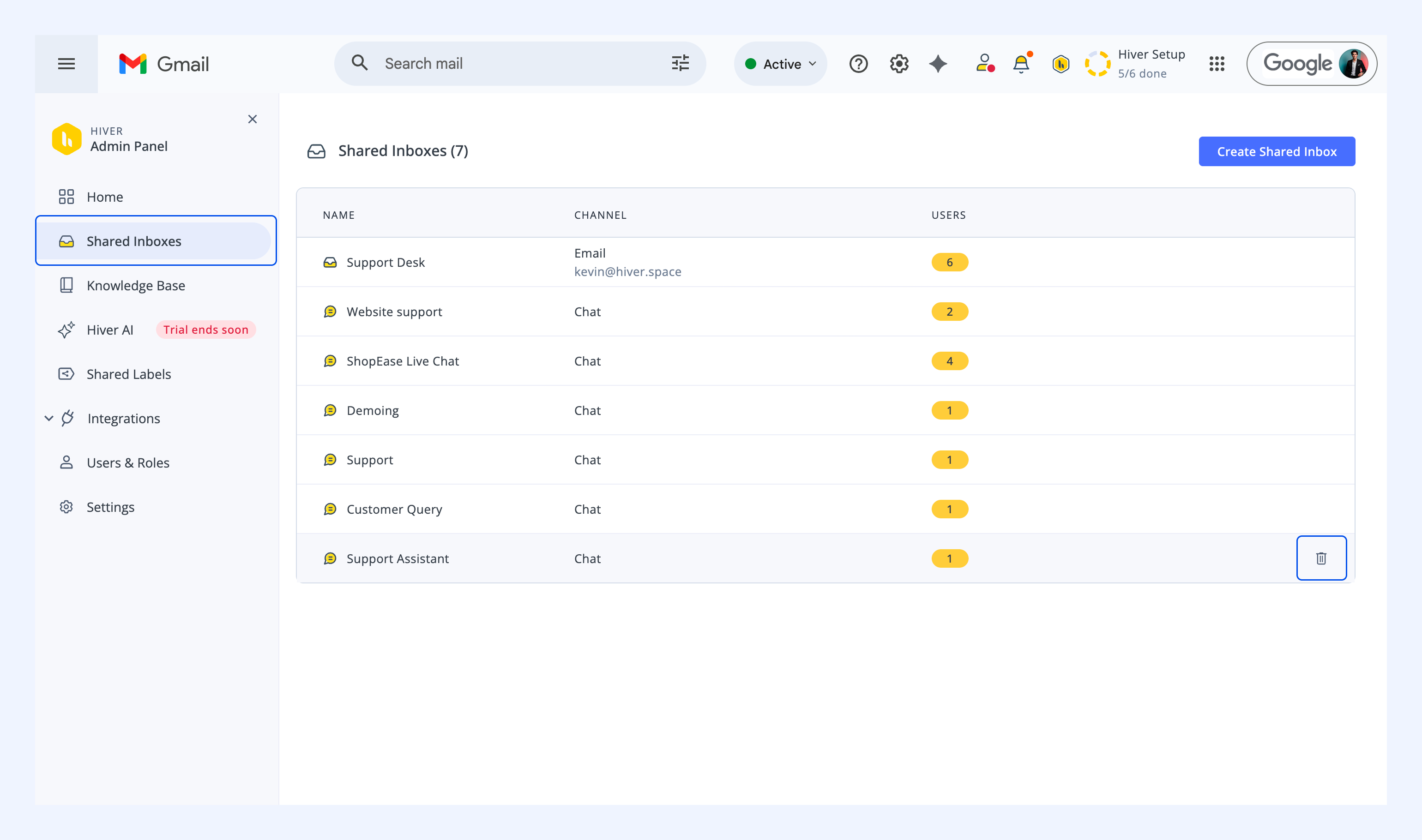
1. Go to the Admin Panel.
2. Select Shared Inboxes and hover over the Chat Inbox you want to remove.
3. Click the Delete icon.
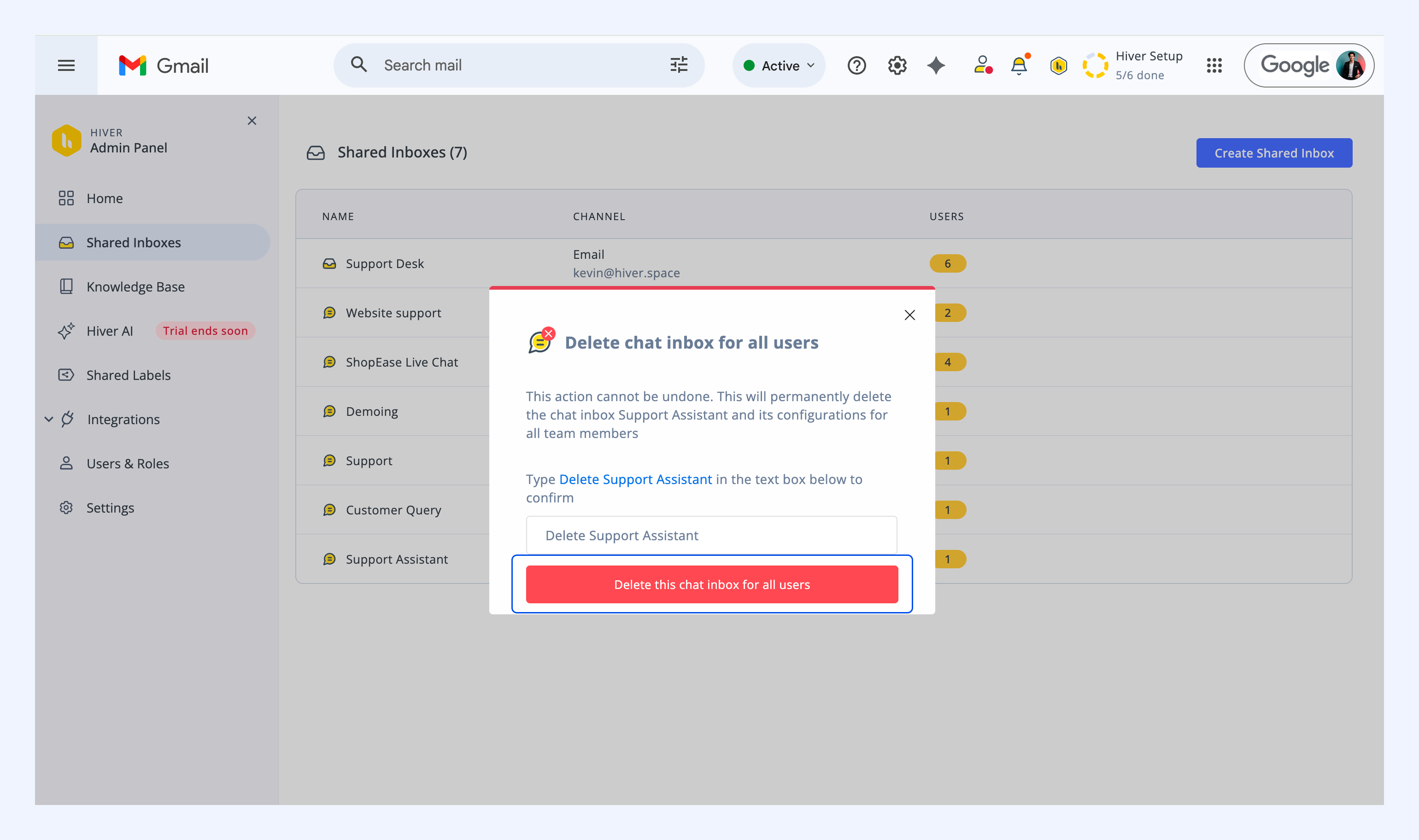
4. Confirm the deletion by typing Delete followed by your Inbox Name when prompted. Click Delete this chat inbox for all users.
Related articles