FAQs on SLA
If you’re setting up SLAs in Hiver and need quick answers, this FAQ has you covered. It explains who can manage SLAs, how business hours affect timers, how to configure policies, and how Hiver decides which SLA applies to a conversation.
Managing permissions related to the SLA module
1. Who can control SLA permissions in Hiver?
Only Admins can control who has permission to manage SLAs in Shared Inboxes. They can also decide who can delete SLAs manually from conversations. These settings are managed through custom roles in the Admin Panel.
2. What SLA permissions can I assign to team members?
You can assign two specific permissions related to SLAs.
- The ability to create, edit, prioritize, or disable SLAs.
- The permission to remove SLA manually from conversations.
3. How do I create a custom role with SLA permissions?
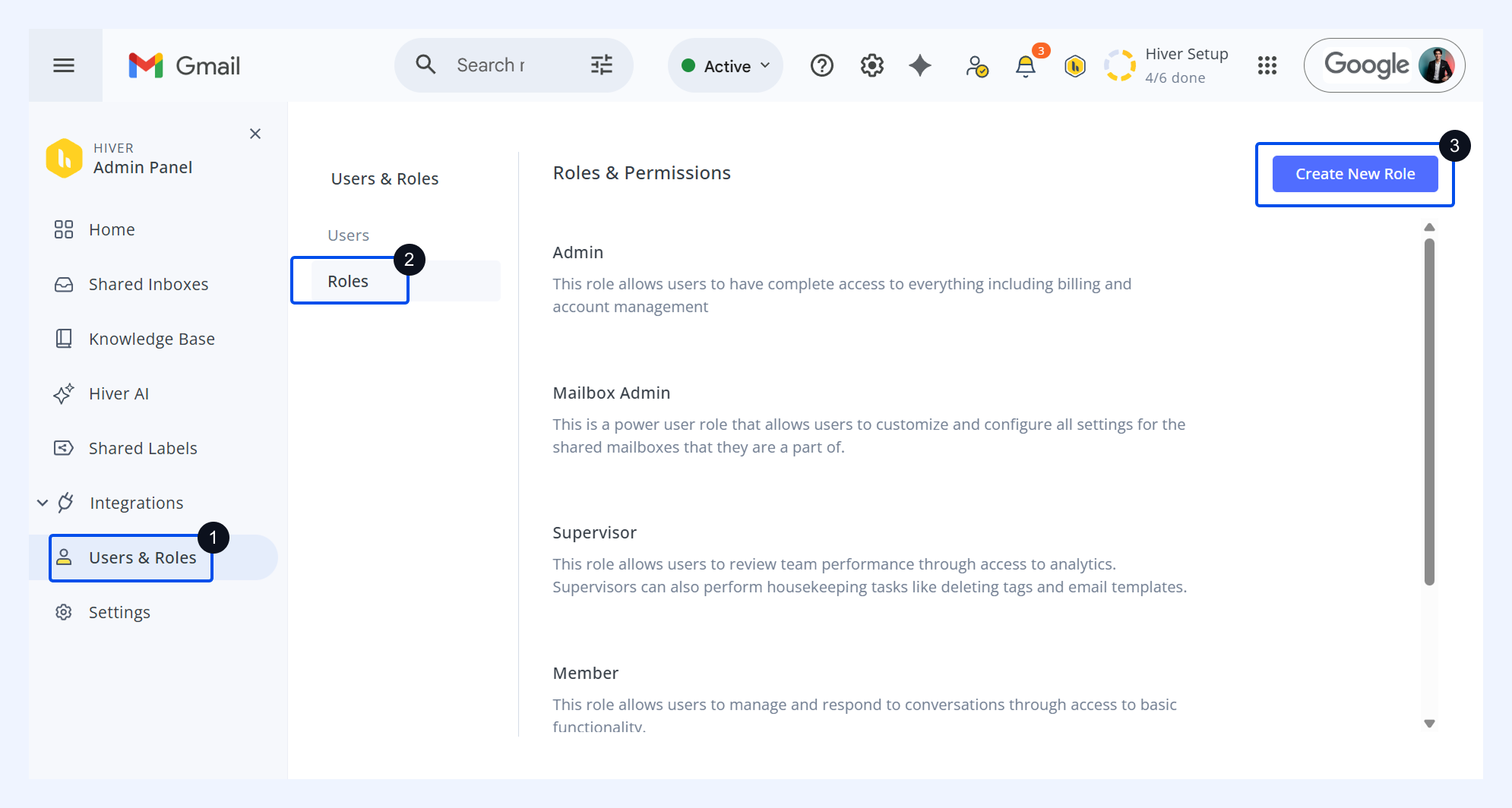
Go to Admin Panel → User & Roles → Roles → Create New Role. Give your custom role a name and a description and select the required SLA permissions.
4. Do all roles have access to manage SLAs?
No, SLA permissions vary by role. Shared Inbox Admins and Admins get SLA permissions automatically. Members don’t have SLA access, but you can create a custom role if you want to grant them permissions.
Business hours' impact on the SLA policies
1. How can I change business hours for my Shared Inbox?
You have three options to modify business hours for your inbox:
- Edit the existing business hour template that's currently mapped to your inbox.
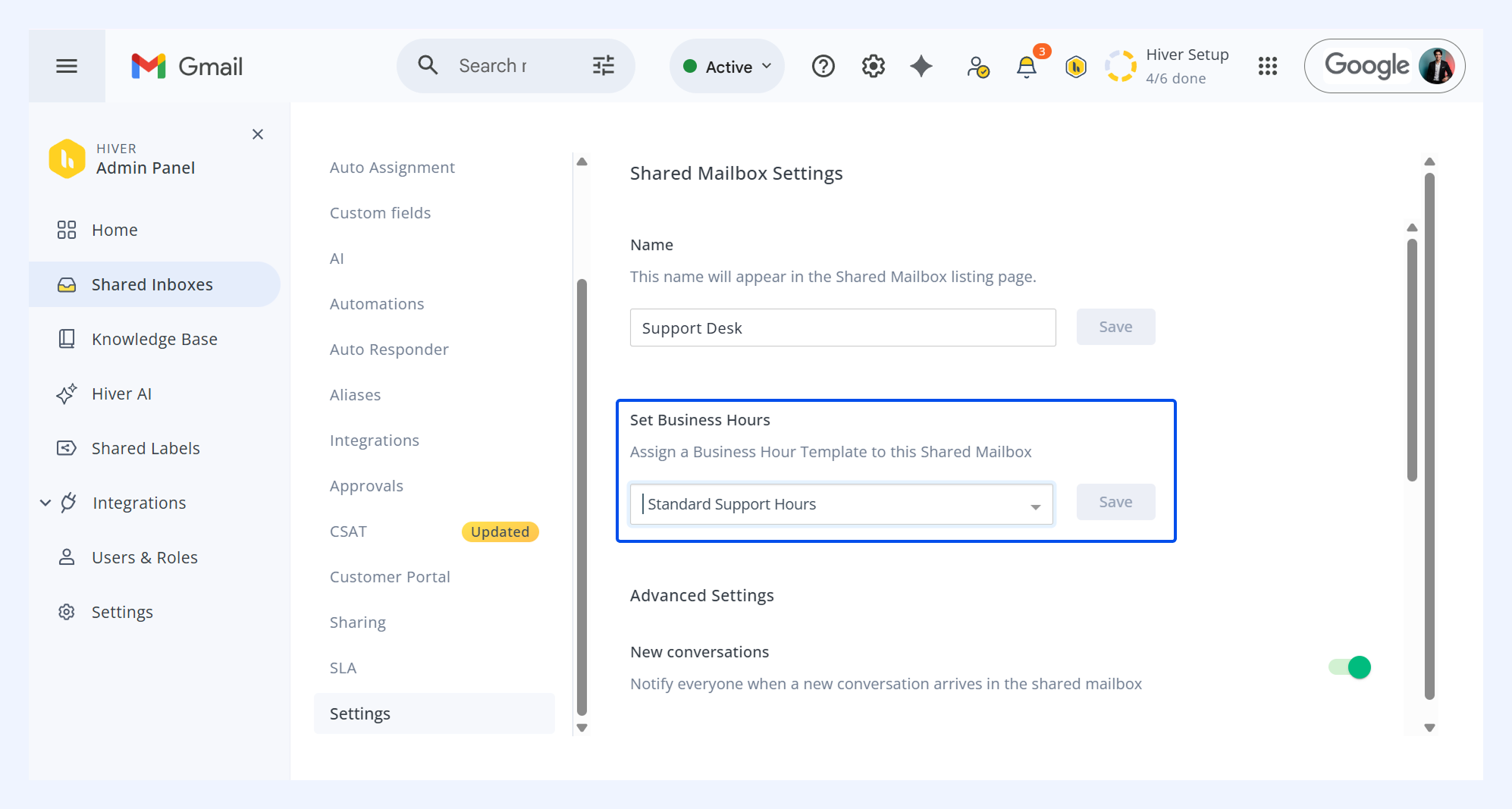
- Map a completely new business hour template to it.
- Remove business hours entirely from your inbox settings if needed.
2. What happens to existing conversations when I change business hours?
Most existing conversations remain unaffected, as only those tied to SLA policies running during business hours are impacted. Any new conversations created after the change will automatically follow the updated business hour setup you've configured.
3. Will SLA timers adjust after I update business hours?
Yes, SLA timers on conversations update automatically based on your latest business hours setup. If you remove business hours completely, your SLA policies will switch to running on calendar hours instead. This keeps your SLA tracking in sync with when your team actually works.
4. Do business hour changes affect Hiver Analytics?
Yes, Hiver Analytics starts using the latest business hours right away for all metric calculations. This applies when calculating first response times and resolution times for your team's performance. Your reports will always reflect your team's current working schedule accurately.
SLA policy configuration
1. Can I apply different SLAs to different types of conversations?
Yes, you can create separate SLA policies based on conversation types and tags. For instance, you can set faster response times for premium customers by tagging their emails. Each policy can target inbound, outbound, or manually added conversations with specific tag combinations.
2. Do I need to set both response and resolution time targets?
No, you only need to set at least one of the two metrics. Each metric runs independently on conversations. A conversation can be shown as ‘FRT Overdue’ or ‘RT Overdue’ based on which specific target it missed.
3. Can I set reminders before an SLA breaches?
Yes, you can add a ‘Due soon’ status that warns your team before deadlines pass. For example, if your response target is one hour, set a reminder at 45 minutes. The ‘Due soon’ value must always be less than your ‘Overdue’ target.
SLA policy application and priorities
1. What happens when a conversation matches multiple SLA policies?
Only one SLA policy applies to each conversation at any time. When a conversation matches multiple policies, the highest-ranked policy takes priority. You can reorder policies by dragging them to adjust which one gets applied first.
2. When does the system check which SLA policy to apply?
You have two options for SLA evaluation timing. By default, the system checks only when a conversation enters the inbox.
Alternatively, you can enable re-evaluation whenever tags are added or removed to conversations. This setting applies immediately across your inbox.
3. Can I remove an SLA from a specific conversation?
Yes, you can manually remove SLAs from individual conversations to handle exceptions like spam or auto-replies. Only Shared Inbox Admins and Admins have this permission by default, but you can create custom roles to grant access. This prevents anomalies from affecting your resolution metrics.