Organizing conversations with tags, filters, and views
Hiver Omni gives you different ways to organize conversations and quickly find the work you need. You can use tags to categorize conversations, views to access common groups of conversations, and filters to narrow down a list based on specific criteria.
This article explains how each works and when to use them.
Categorize conversations with tags
Tags help your team group conversations based on attributes that matter to your workflow, such as the type of request, product area, priority, or issue.
You can manage tags in a few ways:
- Create a tag: Go to Conversations → Shared Inbox → Tags → Add tag, then add a name and color.
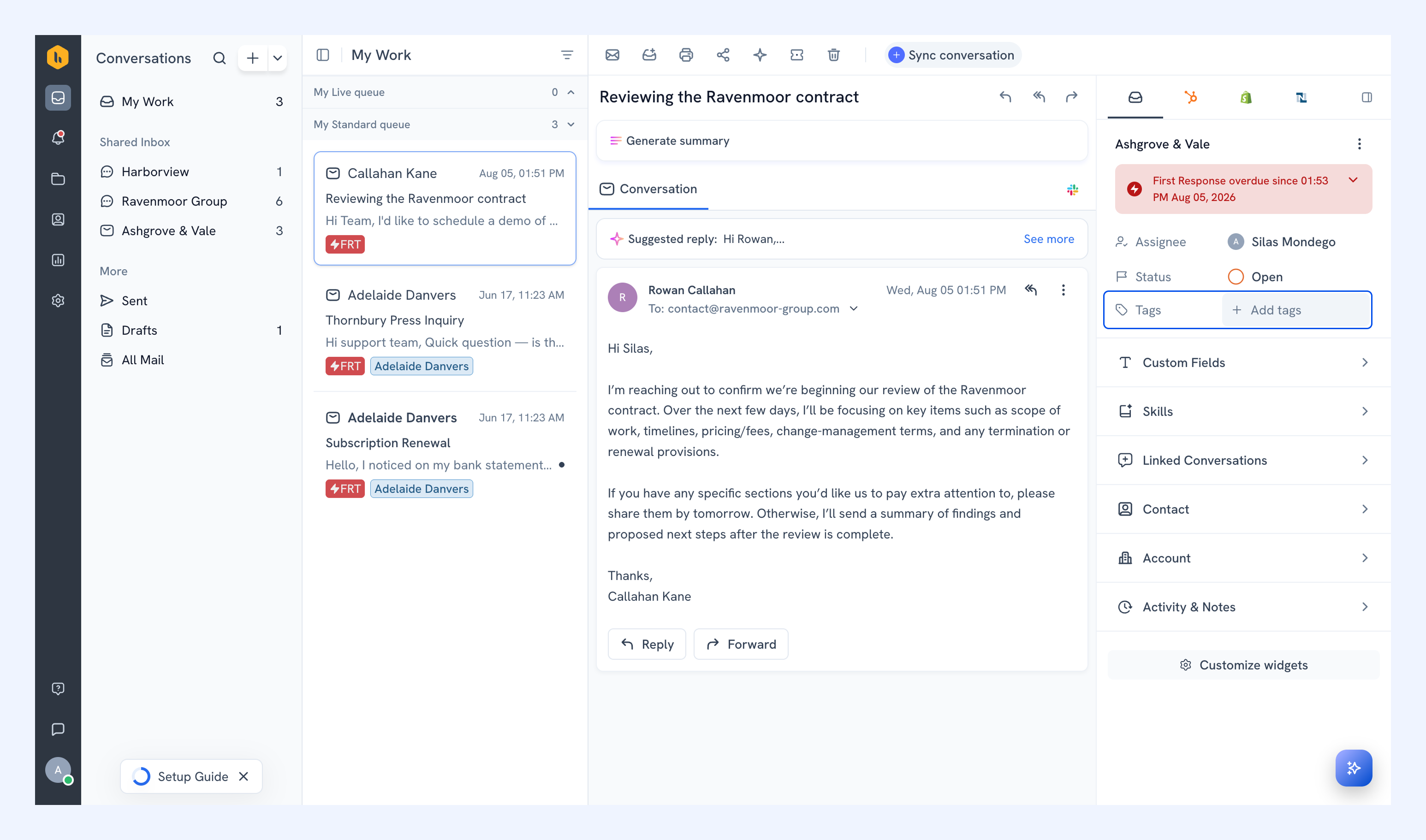
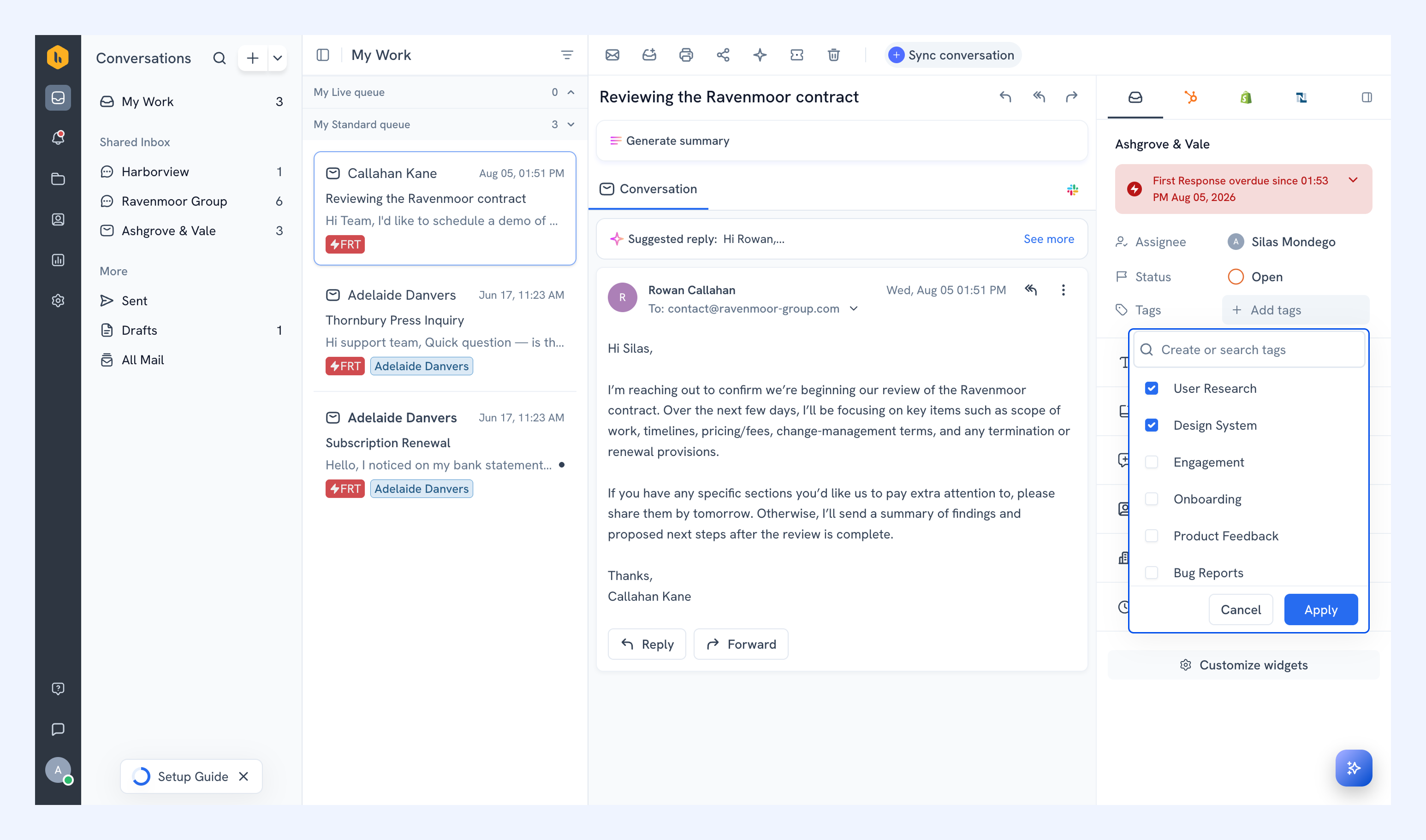
- Apply or remove a tag: Open a conversation and use the Tags option in the right panel.
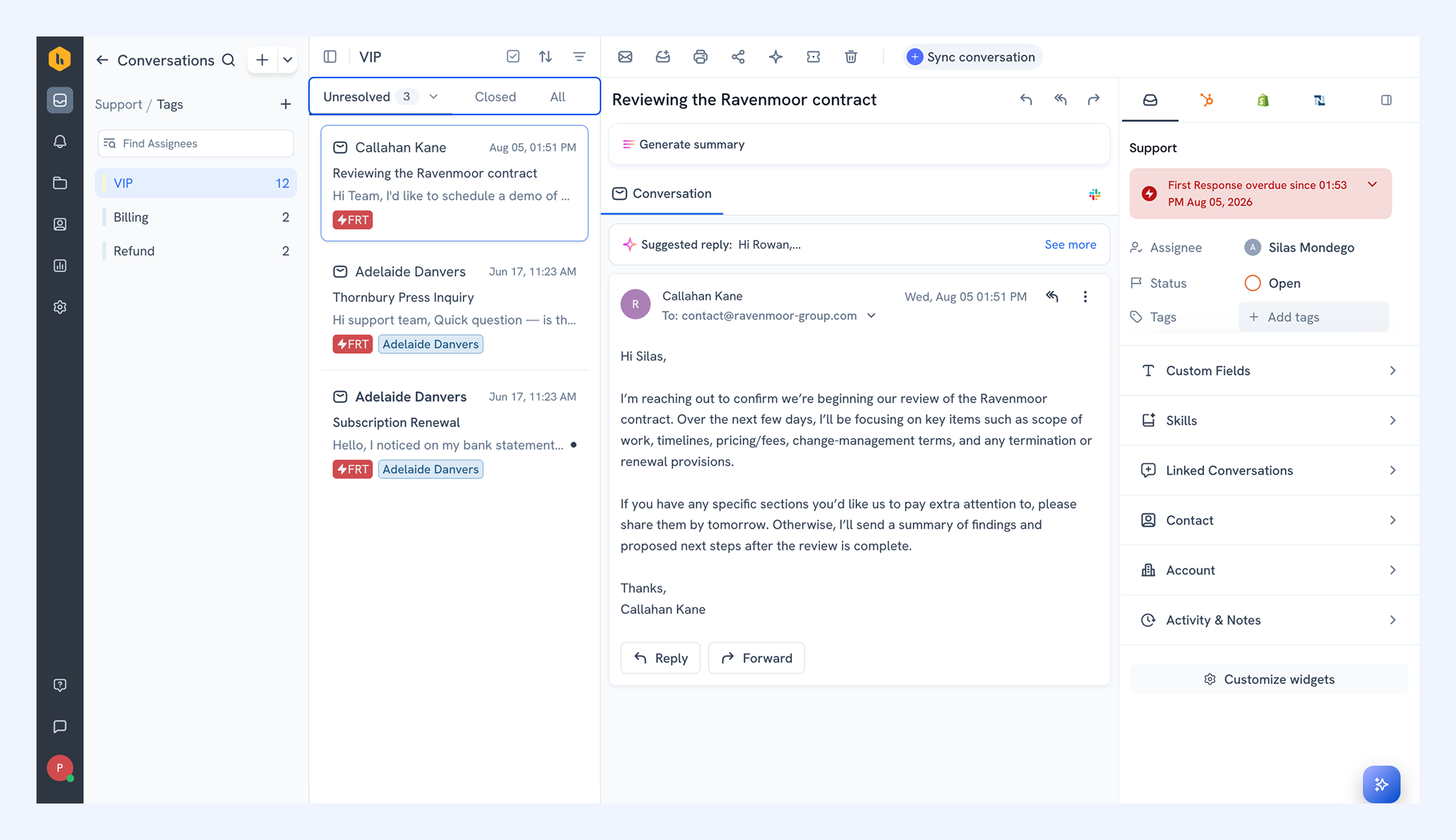
- View tagged conversations: Open Tags from the Shared Inbox to see conversations with a particular tag. Switch between the Unresolved, Closed, and All tabs to filter by unresolved conversations (open and pending), closed ones, or all of them.
Tags can also be used in filters and Custom Views, giving your team another way to find conversations around a particular category or workflow.
Note: If an SLA policy is associated with a tag, applying that tag can also apply the corresponding SLA to the conversation.
Find conversations using default views
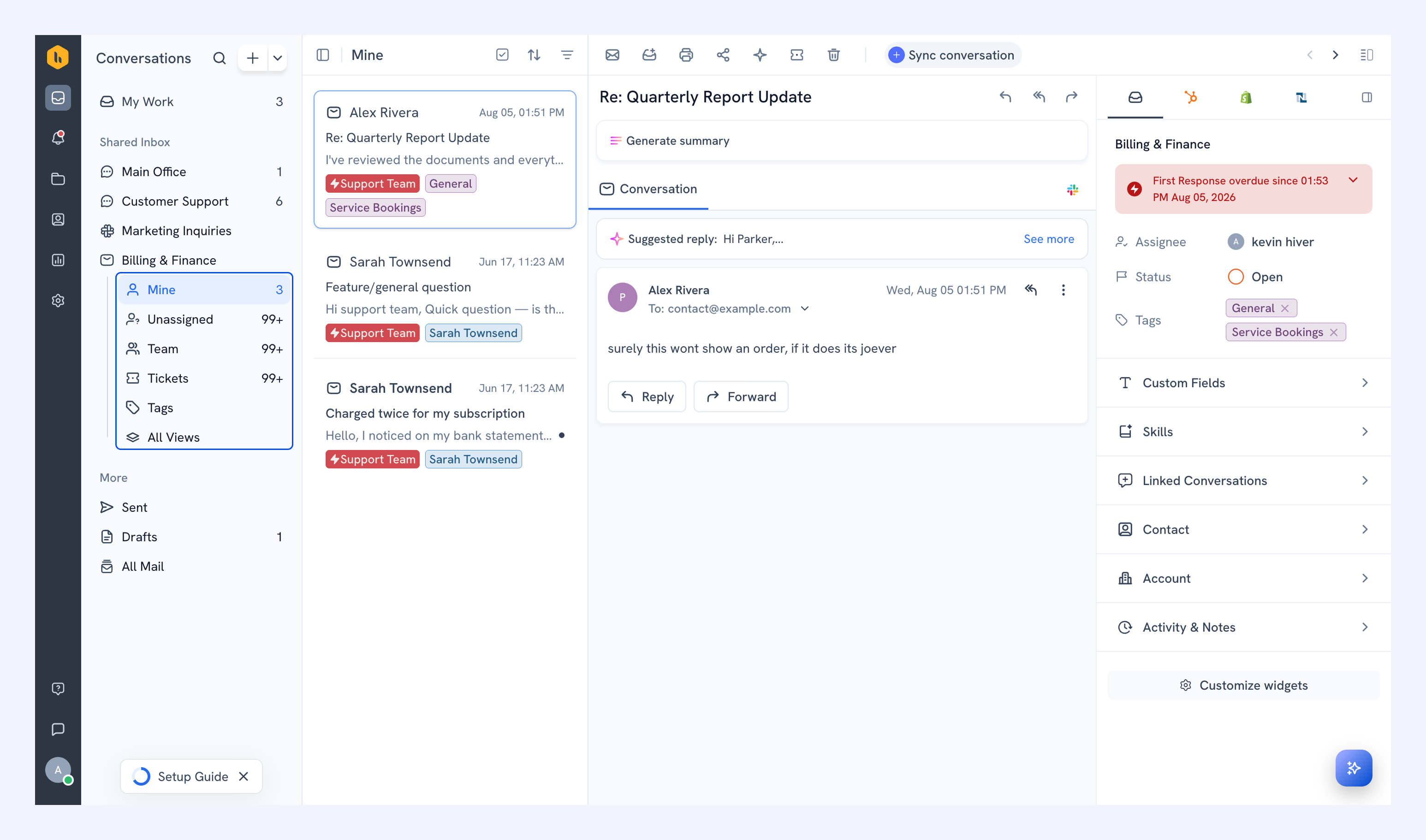
Every Shared Inbox includes default views that give you quick access to common groups of conversations. The views available to you depend on the channel the Shared Inbox handles.
View | What it shows | Available in |
| Unassigned | Open conversations that don't have an owner yet. | All Shared Inboxes |
| Mine | Open conversations assigned to you. | All Shared Inboxes |
| Team | Open conversations assigned to your teammates. | Email Inbox |
| All assigned | Conversations that have been assigned to a member. | Chat, Slack, and Voice Inboxes |
| Assigned to bot | Chat conversations currently handled by a bot instead of a member. | Chat Inbox |
| Tickets | Customer requests logged as Tickets in the Shared Inbox. | Email Inbox |
| Pending | Conversations currently marked Pending. | Slack Inbox |
| Closed | Conversations that have been resolved. | Chat, Slack, and Voice Inboxes |
The number of conversations in each view appears next to its name.
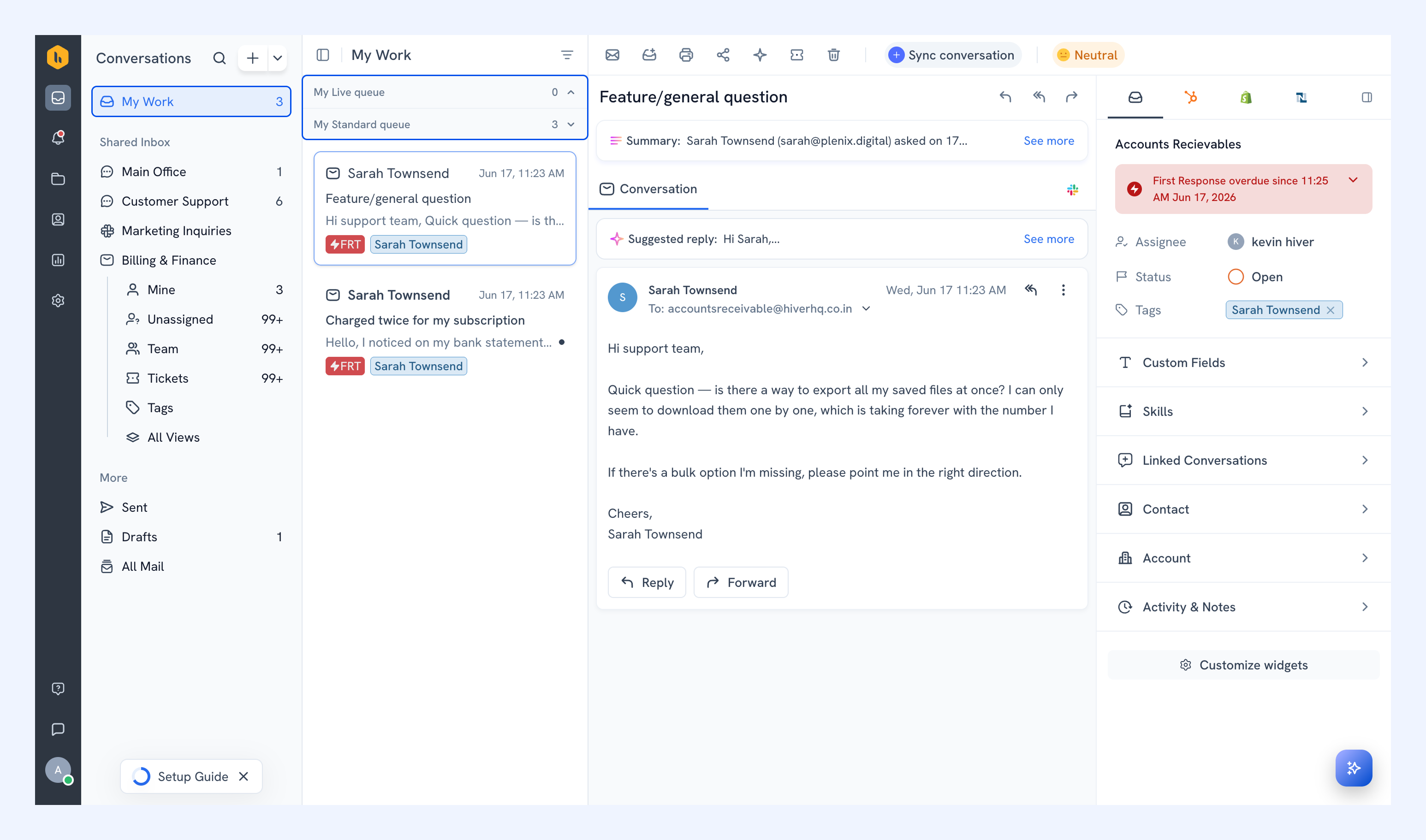
See your assigned work across channels
My Work brings together conversations assigned to you across your Shared Inboxes and channels, so you can see your workload in one place without switching between inboxes.
Use it when you want to focus on everything that needs your attention, regardless of the channel the conversation came through.
Learn how to use My Work.
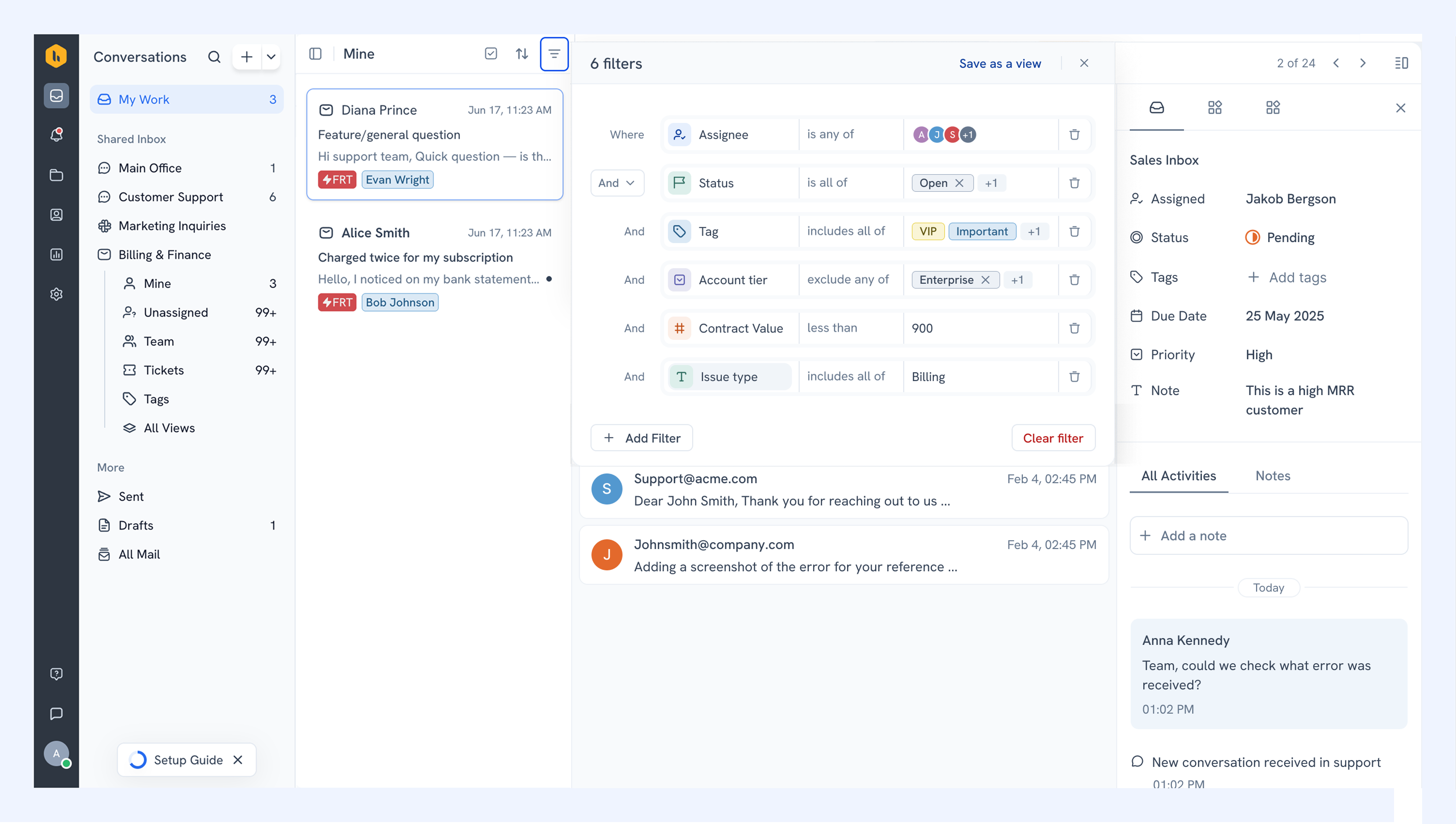
Filter conversations
Use filters when you want to temporarily narrow down the conversations you’re looking at.
You can filter conversations by criteria such as:
- Assignee
- Status
- Shared Inbox and Tickets
- Custom Fields
You can combine multiple filters to get more specific. For example, you might look for Open conversations assigned to a particular teammate and tagged Billing.
If you use the same combination regularly, save it as a Custom View.
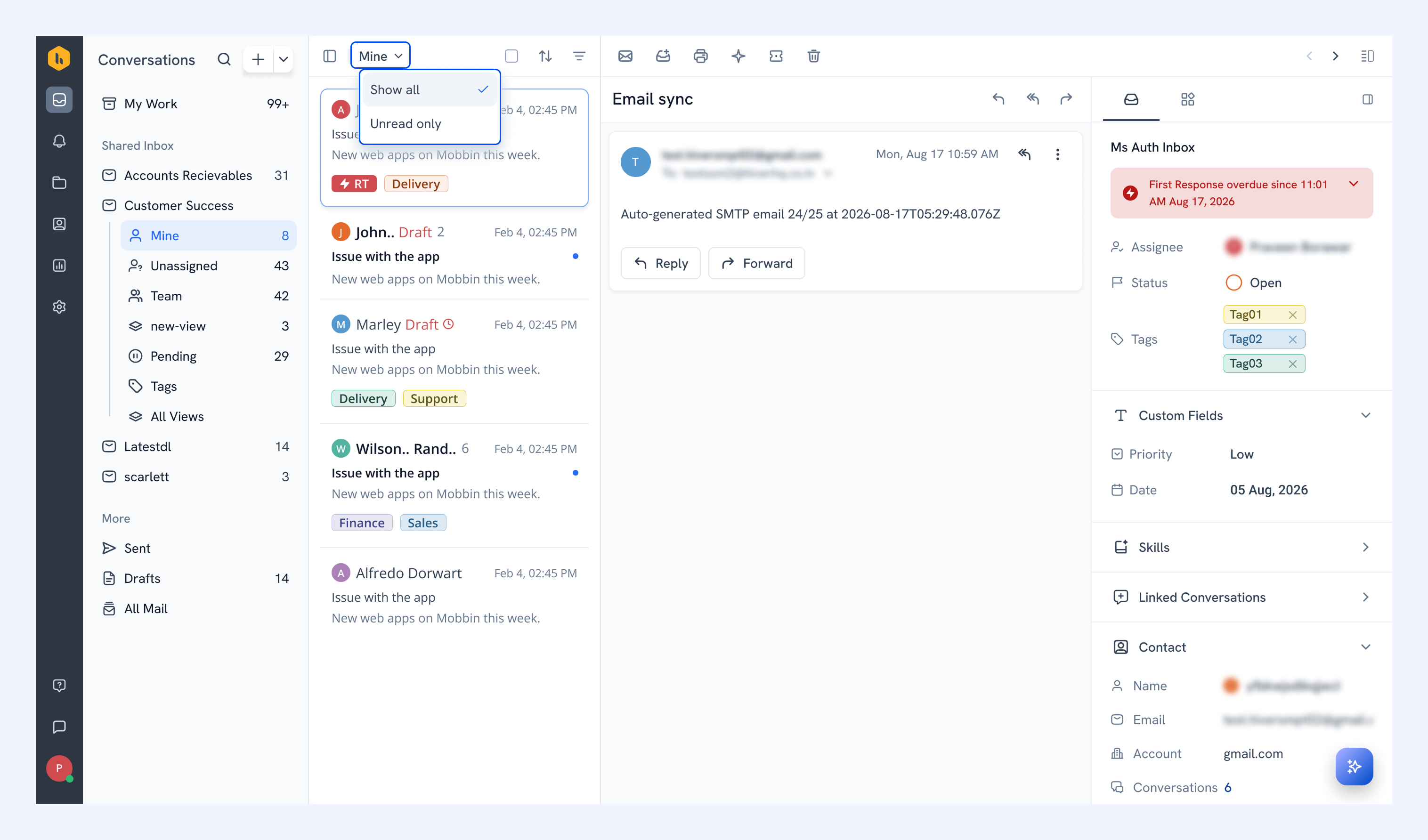
Show only unread conversations
Use Unread only when you want to see just the conversations you haven't read yet.
Save frequently used filters as Custom Views
Custom Views let you create focused views for the conversations you or your team need to track regularly.
For example, you could create a view for all Open conversations tagged Billing, or conversations assigned to your support leads.
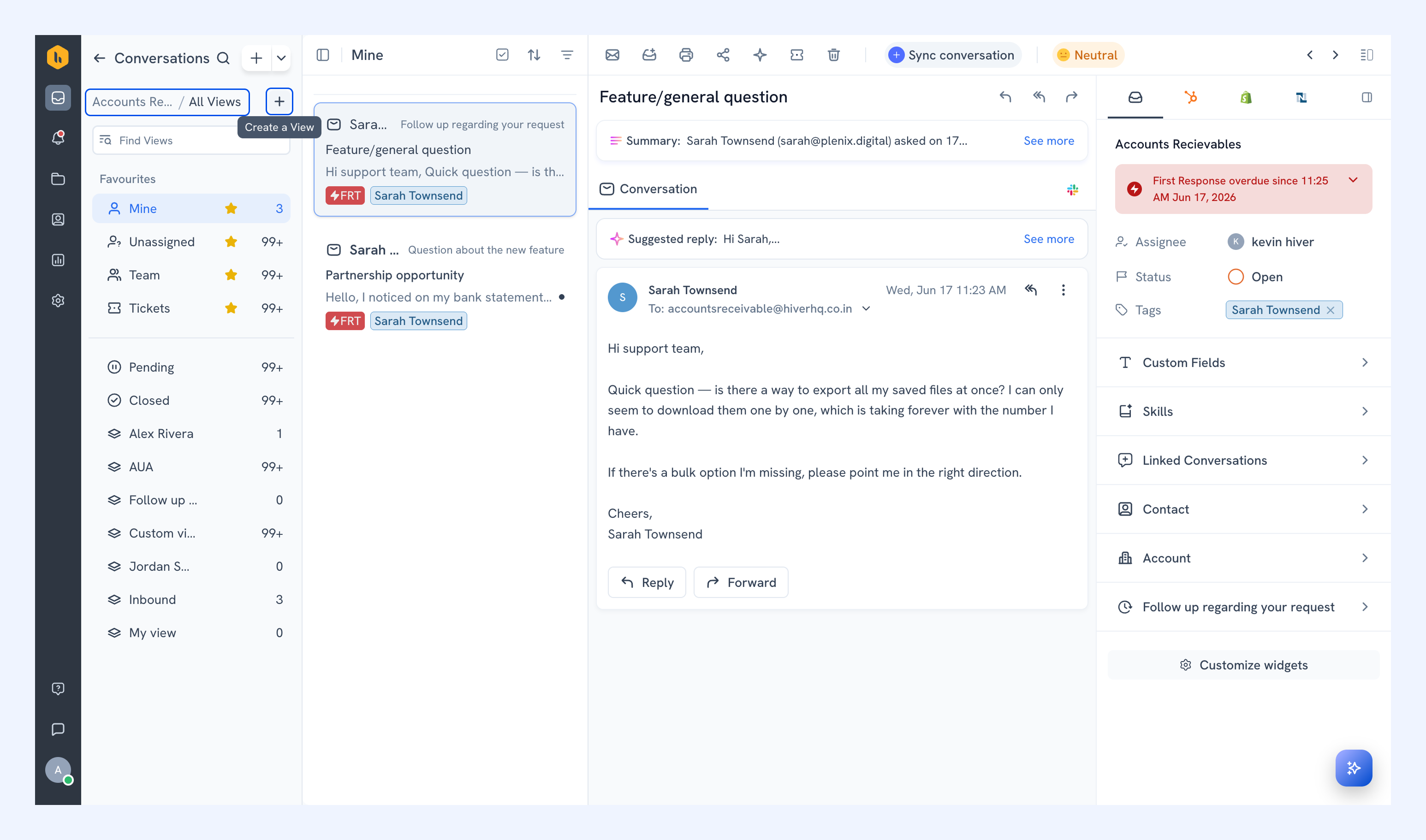
To create one, open All Views, select Create a View (+), apply the filters you need, and save the view.
Match any or all selected tags
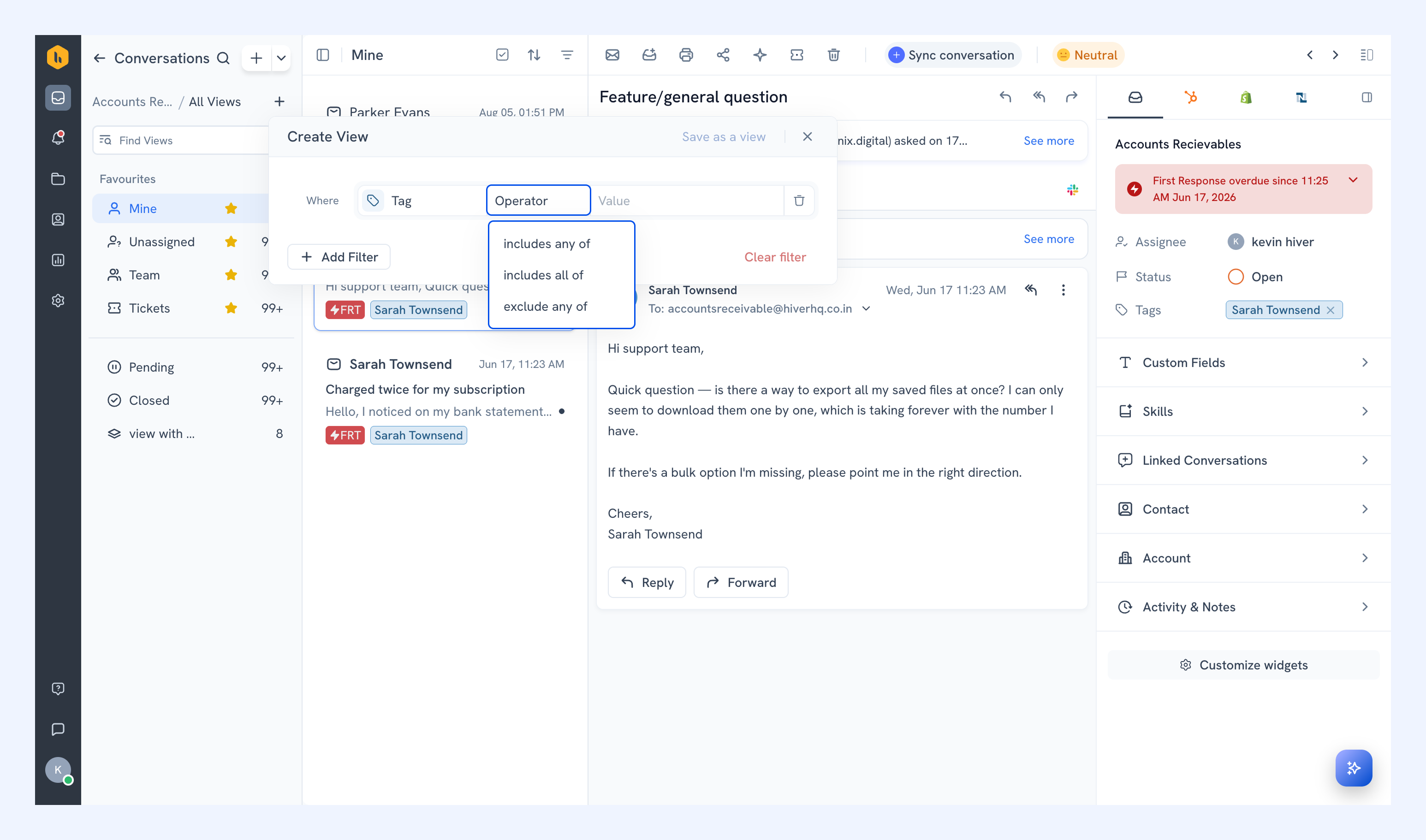
When a Custom View includes multiple tags, you can choose how conversations should match them:
- Includes any of: Shows conversations with any of the selected tags.
- Includes all of: Shows only conversations that have every selected tag.
- Excludes any of: Shows only conversations that don’t have any of the selected tags.
For example, selecting All for the tags Billing and Urgent shows only conversations that have both tags.
Update a Custom View
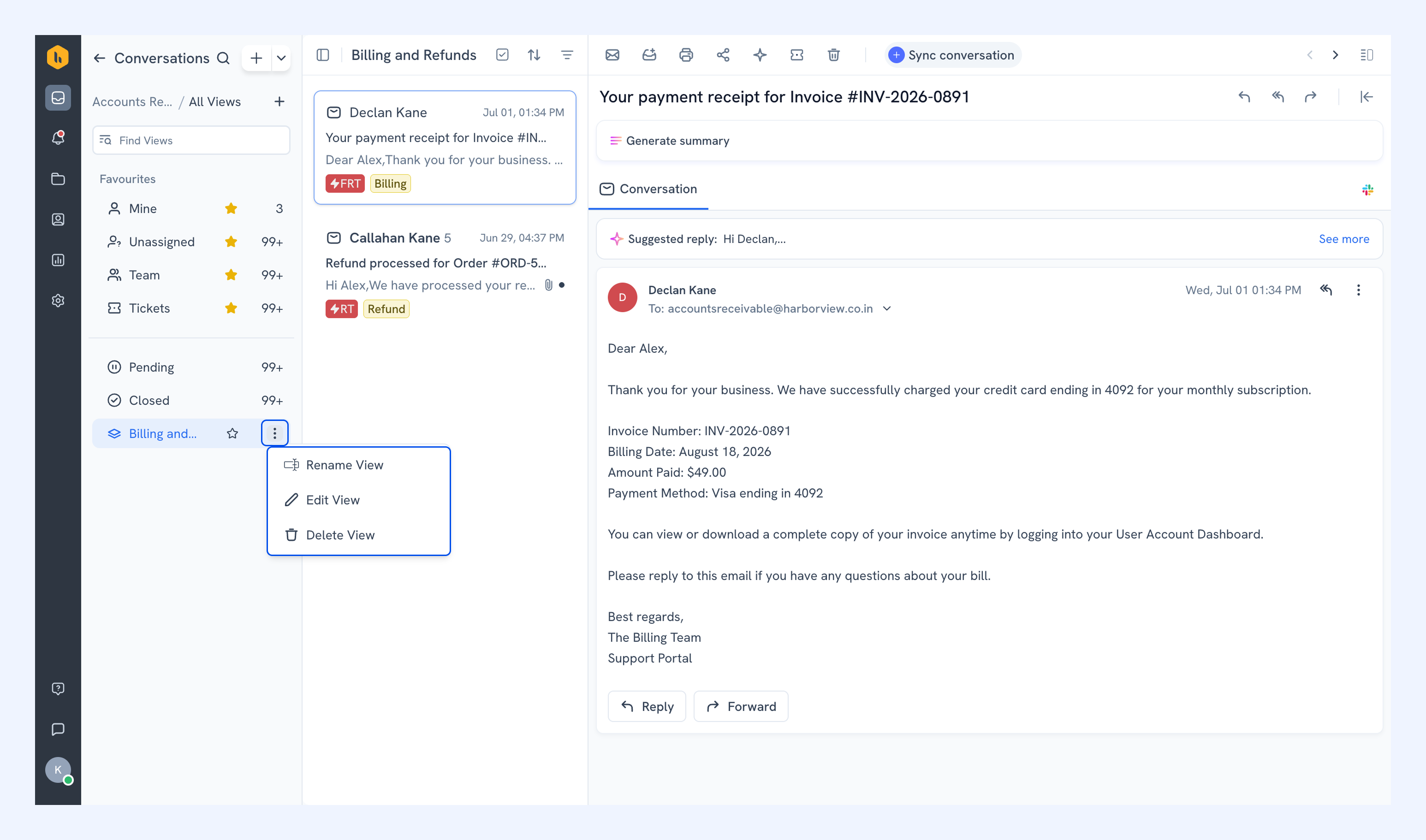
From the menu next to a Custom View, you can:
- Rename the view.
- Edit its filters.
- Delete the view.
Changes are reflected the next time you open the view.
Keep frequently used views within reach
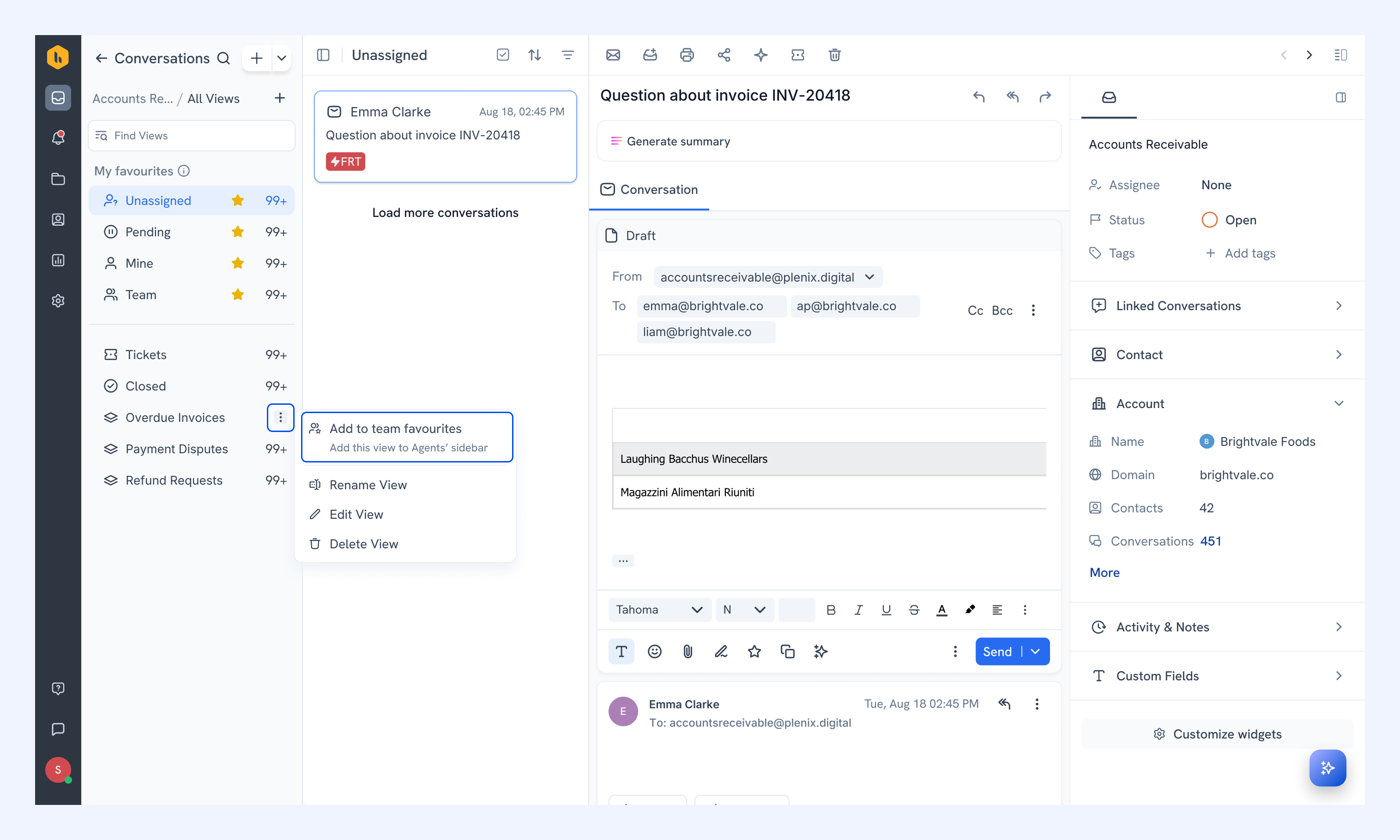
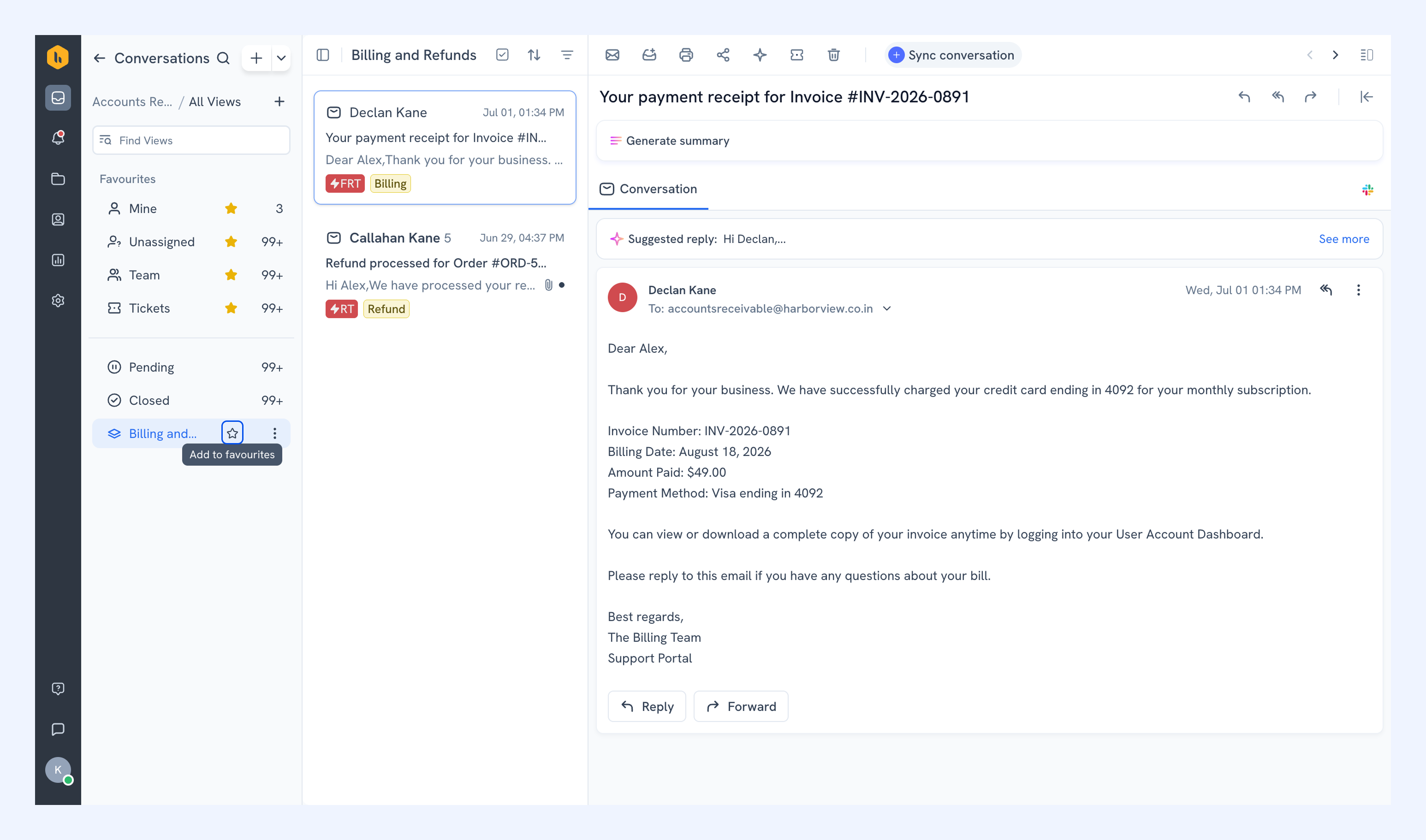
Favorite the views you use most so they appear directly in your Shared Inbox navigation instead of requiring you to open All Views.
When you first join a Shared Inbox, Mine, Unassigned, Team, and Tags are marked favorite by default.
You can:
- Favorite or unfavorite a view using the Favorite icon.
- Favorite up to five views in each Shared Inbox.
- Reorder favorites by dragging them within All Views.
Your favorites and their order are personal to you, so changing them doesn’t affect what other teammates see. All Views remains available regardless of how many views you favorite.
Keep important views accessible to your team
Team favorites help everyone in an Email Inbox quickly access the views your team uses regularly.
Admins and Inbox Admins can add up to five views to team favorites. In All Views, open the menu next to a view and select Add to team favourites.
These views appear under My favourites for every member, below the views they’ve favorited themselves, and are marked with a gray star. Members can’t remove team favorites, but can still choose up to five personal favorites.
Note: This feature is currently in an early access program. To enable it for your account, reach out to us at support@hiverhq.com.