Recovering conversations from spam
The Spam view in Hiver shows emails that Gmail or Outlook marked as spam for your Shared Inboxes. If a customer email ends up there by mistake, you can recover it to a Shared Inbox.
Viewing spam emails
Go to Conversations → More → Spam to see spam from all the Shared Inboxes you have access to.
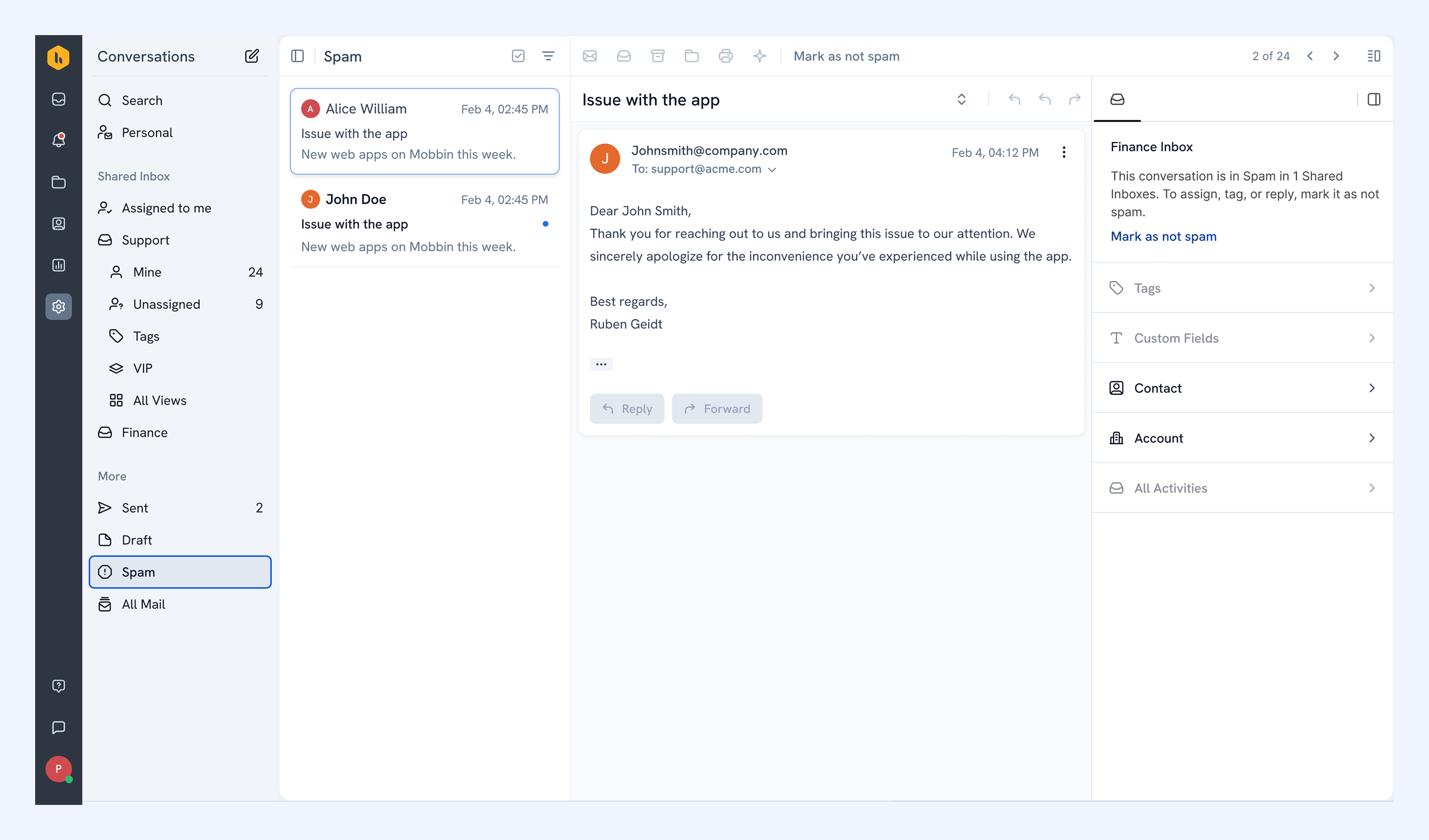
While a conversation is in Spam:
- You can't reply, forward, assign, or tag it. Recover the conversation to work on it.
- Automations and SLA timers don't run.
Recovering an email from spam
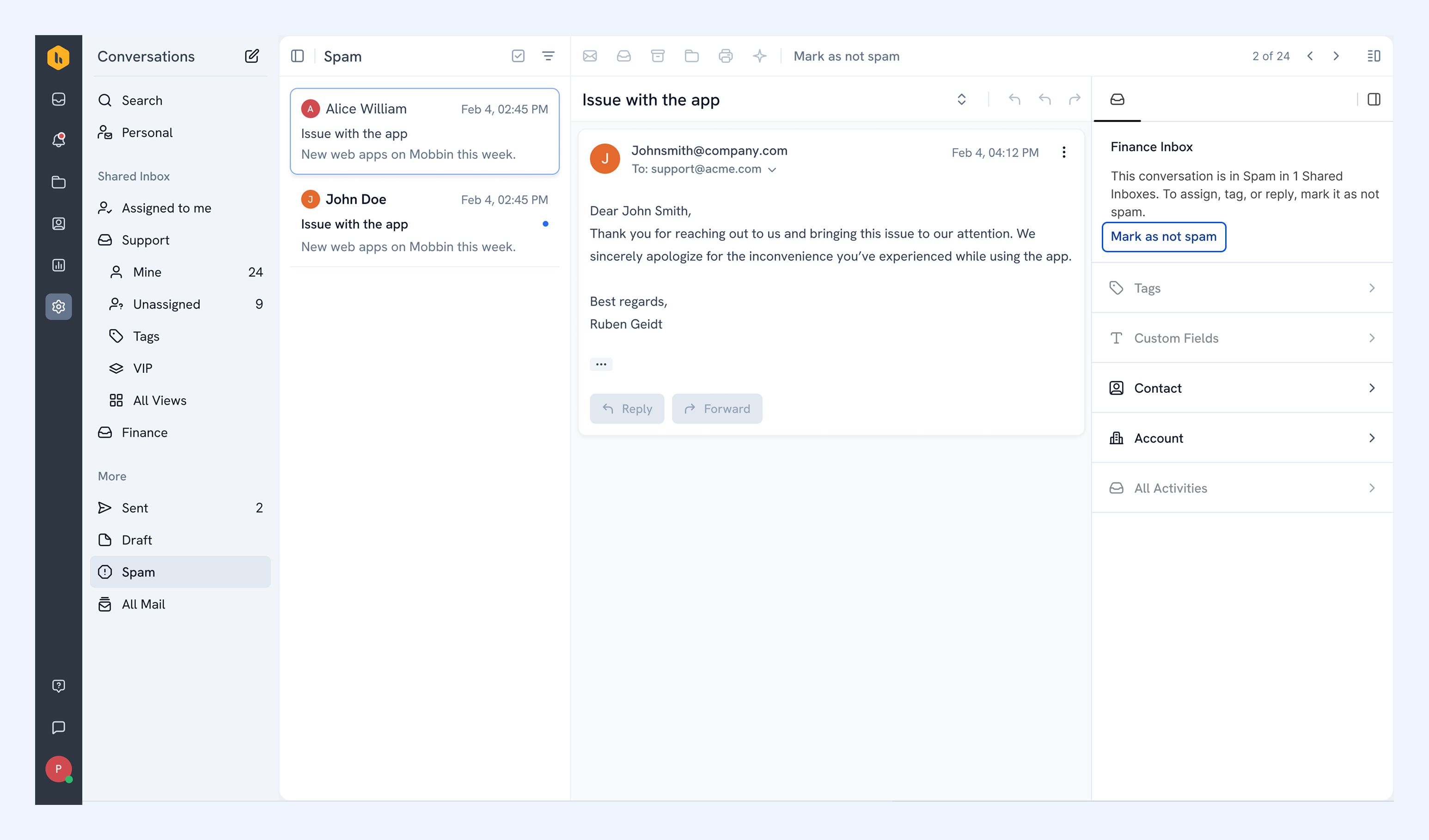
1. Open the conversation and click Mark as not spam in the right panel.
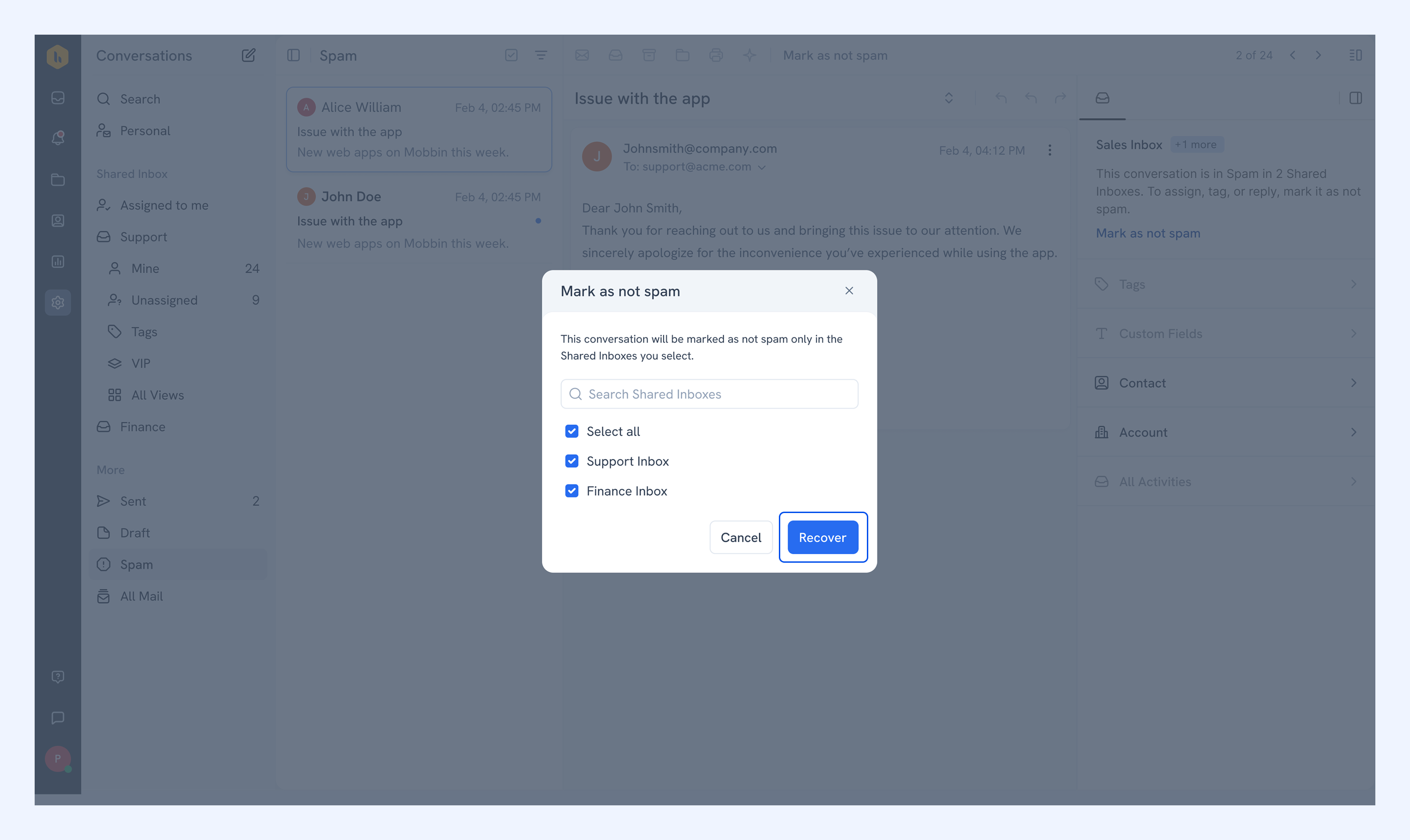
2. If the email is in more than one Shared Inbox, select the ones to recover it to.
3. Click Recover.
Once recovered, the email moves to the Shared Inbox as an unassigned conversation.
Note:
- Once you recover a conversation, you can’t undo the action.
- Marking an email as not spam in Gmail or Outlook doesn't recover it in Hiver.
- If your Shared Inbox uses email forwarding from another provider, check that provider's spam folder and forward any legitimate emails to your Shared Inbox.