Managing conversations in Hiver Omni
Hiver Omni gives your team one place to manage customer conversations across channels.
This article explains how you can manage a conversation from the time it arrives until the request is resolved, including finding conversations that need attention, assigning ownership, and tracking their status.
Find conversations that need attention
Conversations are organized within their Shared Inbox so your team can see what needs to be picked up and what is already being handled.
Depending on how the Shared Inbox is configured, a new conversation may appear in Unassigned or be assigned automatically.
You can use views such as:
- Unassigned: Conversations that don’t have an owner yet.
- Mine: Conversations assigned to you.
- Team: Conversations assigned across your team.
- Pending: Conversations that are waiting for a next step.
- Closed: Conversations that have been resolved.
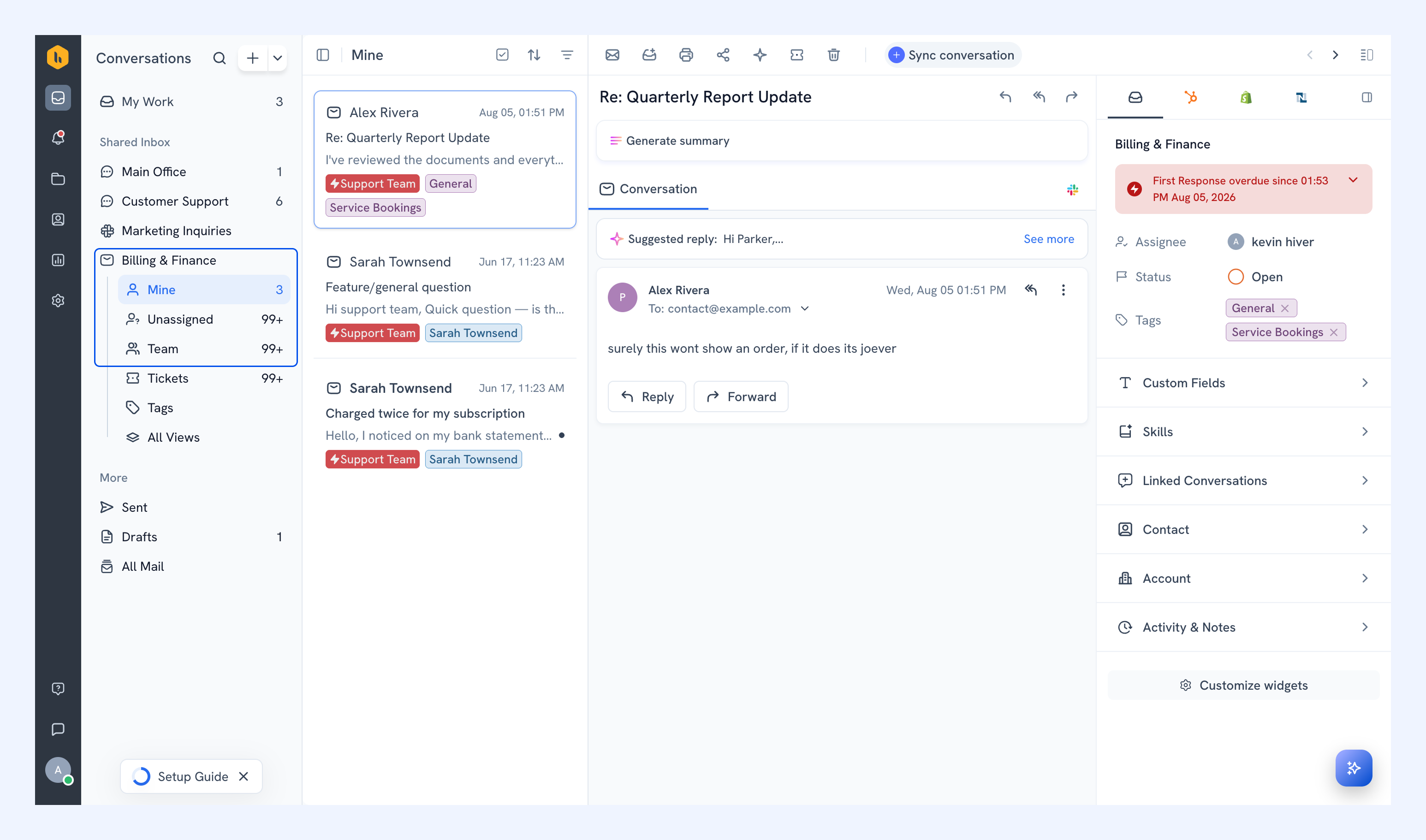
The views available to you depend on the channel the Shared Inbox handles.
View | What it shows | Available in |
| Unassigned | Open conversations that don't have an owner yet. | All Shared Inboxes |
| Mine | Open conversations assigned to you. | All Shared Inboxes |
| Team | Open conversations assigned to your teammates. | Email Inbox |
| All assigned | Conversations that have been assigned to a member. | Chat, Slack, and Voice Inboxes |
| Assigned to bot | Chat conversations currently handled by a bot instead of a member. | Chat Inbox |
| Tickets | Customer requests logged as Tickets in the Shared Inbox. | Email Inbox |
| Pending | Conversations currently marked Pending. | Slack Inbox |
| Closed | Conversations that have been resolved. | Chat, Slack, and Voice Inboxes |
You can also use tags, filters, and Custom Views to organize conversations around the way your team works.
Learn how to organize conversations with tags, filters, and views.
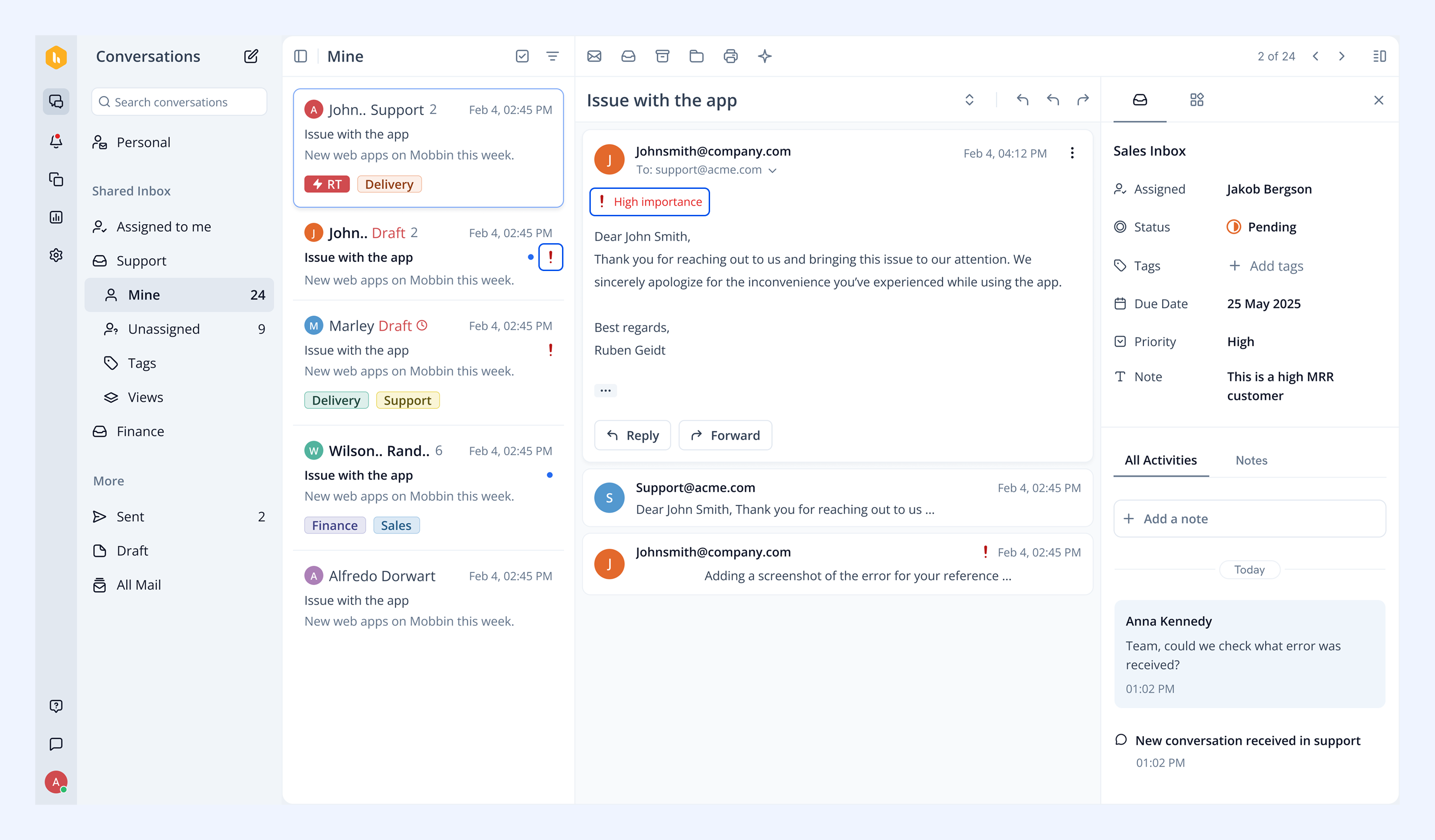
In Outlook Shared Inboxes, an email a sender marks as High Importance shows a red exclamation on the conversation, so your team can spot urgent requests at a glance.
Assign conversations
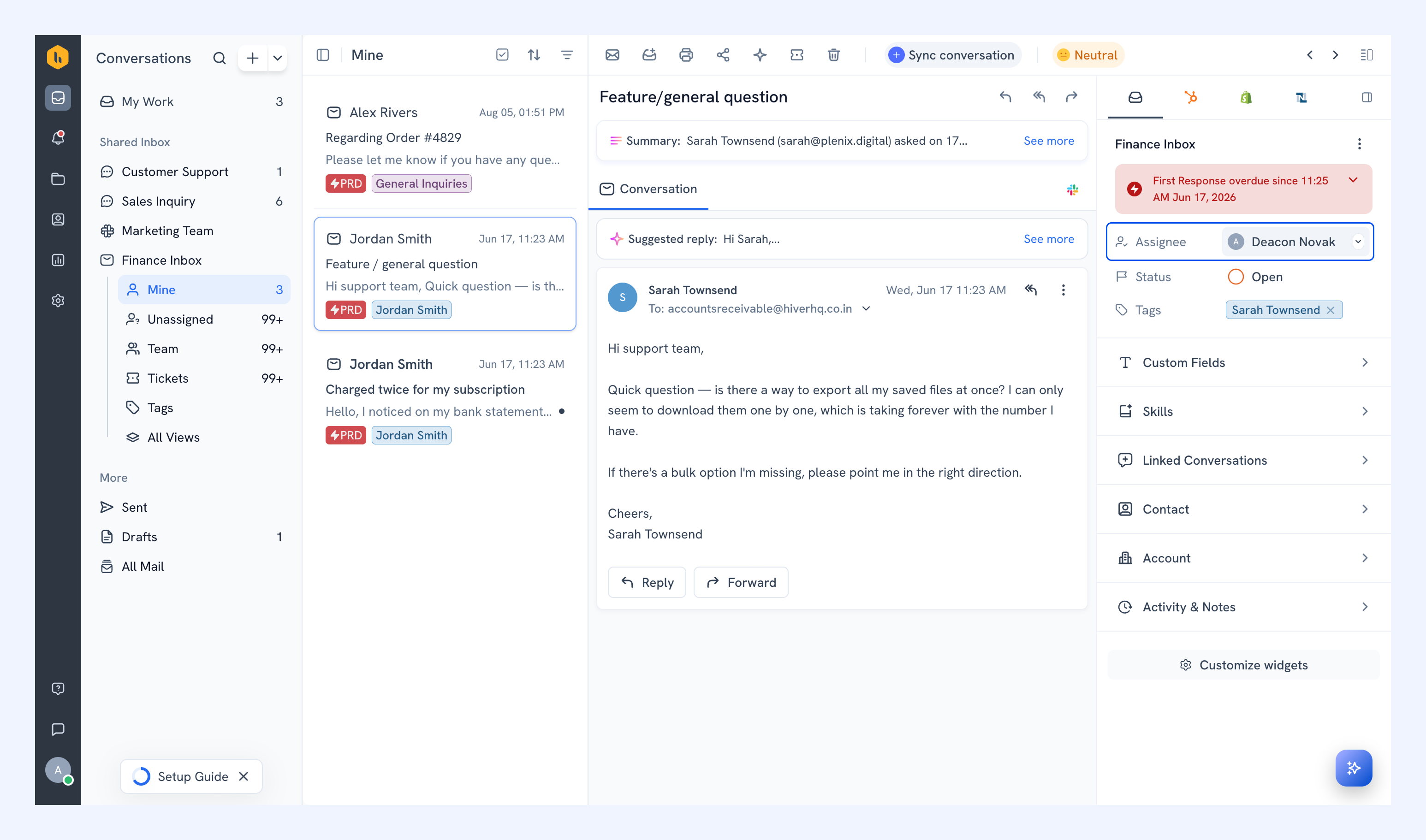
Assign a conversation to make it clear who is responsible for handling it.
Open a conversation and use the Assignee option in the right panel to assign it to yourself or another teammate. You can reassign a conversation as ownership changes.
When a conversation is assigned, the assignee is notified and can find it with the rest of their assigned work.
Assignments can also happen automatically. Admins can configure Auto Assignment or Automations to distribute incoming conversations based on the team’s workflow.
Track conversations with statuses
Statuses help your team keep track of which conversations still need work, which are waiting, and which have been resolved.
A conversation can have one of three statuses:
- Open: The conversation still needs attention or work from your team.
- Pending: The request is not resolved yet, but your team is waiting for the customer or another next step.
- Closed: The request has been resolved and no further action is currently needed.
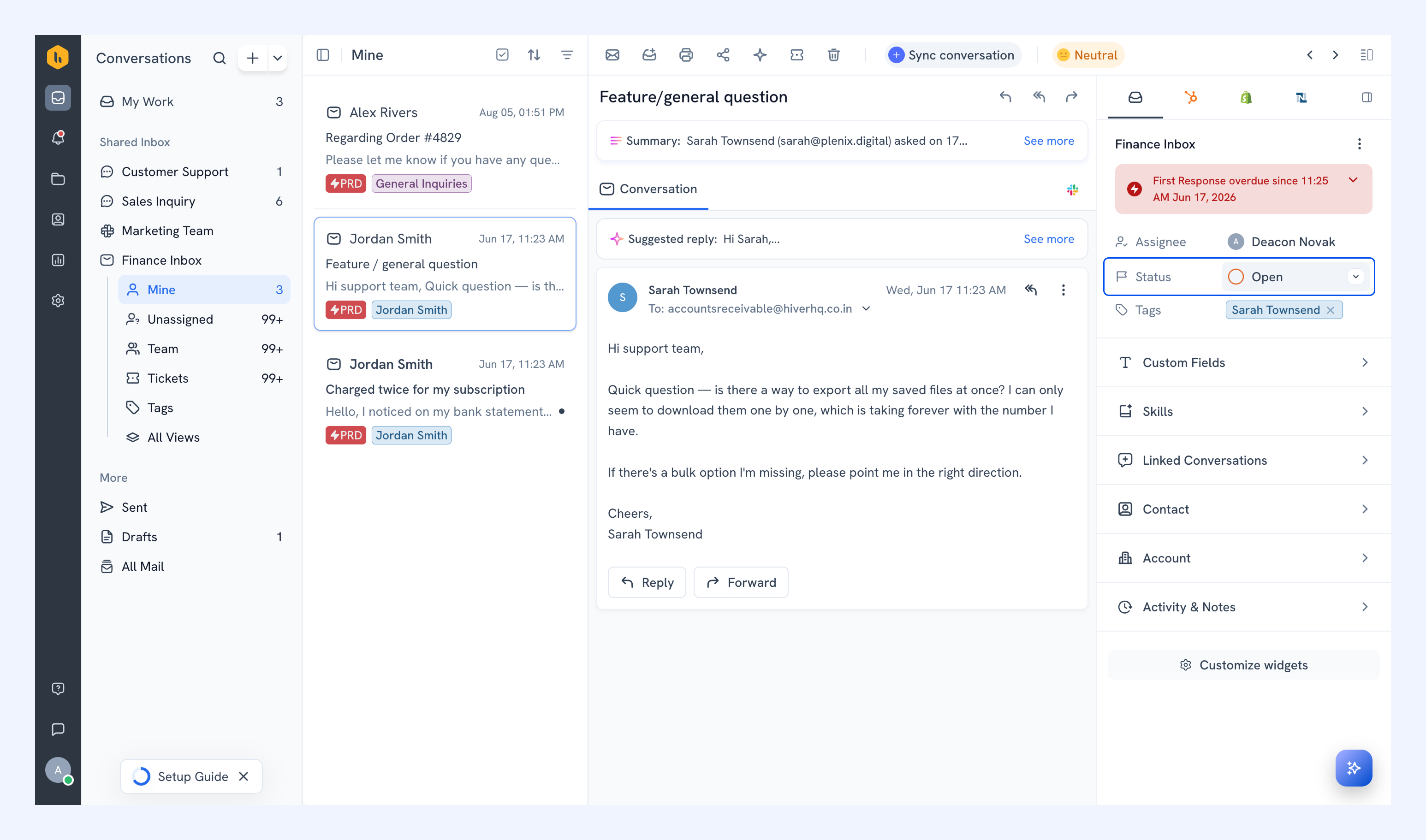
You can change the status from the conversation panel as the conversation progresses. Status changes are recorded in the conversation activity.
For example, you might keep a conversation Open while investigating a customer’s request, move it to Pending while waiting for additional information, and mark it Closed once the request has been resolved.
Continue working on a conversation
What you can do while handling a conversation depends partly on the channel, but Hiver gives your team a common set of tools for keeping work organized and moving it toward resolution.
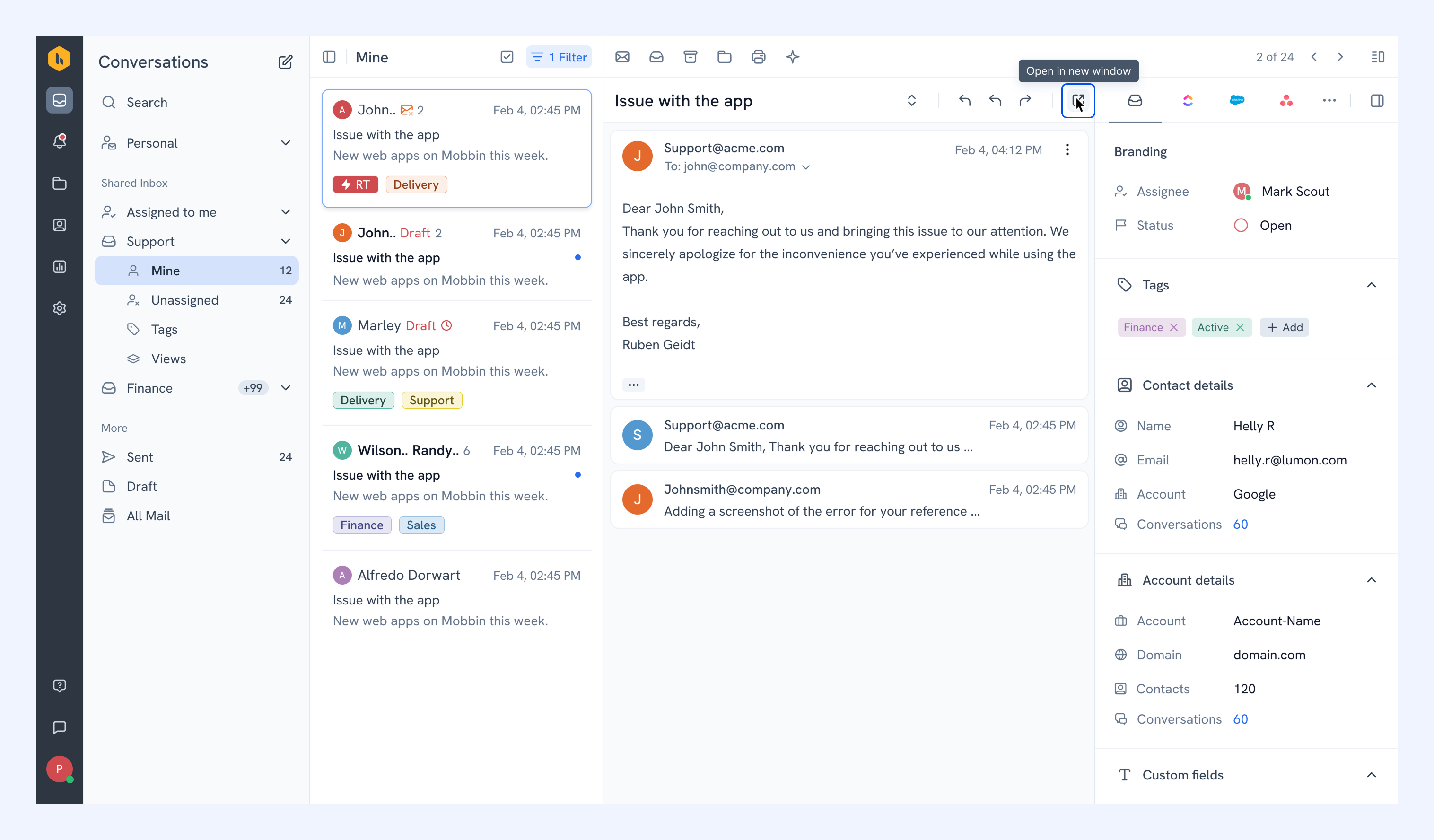
- Open conversations in a new window: Use the Open in new window icon to work on a conversation in a separate window.
- Respond to customers: Reply to customers using the options available for the conversation’s channel.
- Organize conversations: Use tags, filters, and views to categorize work and quickly find the conversations you need.
- View customer details: See available contact and account information while working on a conversation.
- Link related conversations: Connect conversations about the same issue so relevant context stays together.
- Understand SLA timers and alerts: Keep track of applicable response or resolution deadlines and see when conversations are approaching or have reached a breach.