Linking related conversations
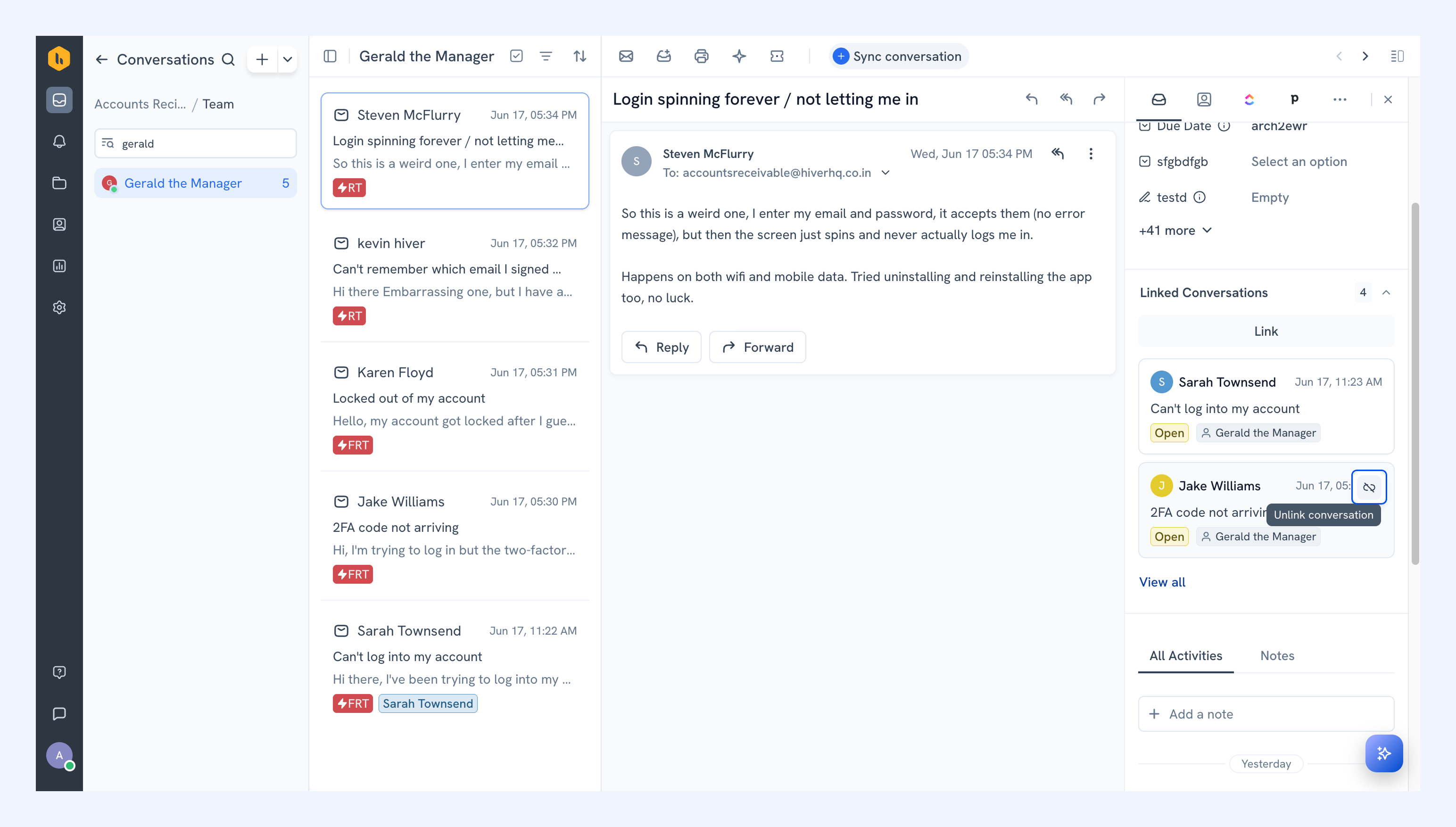
Linked Conversations let you connect related conversations so your team can track and resolve them together. This is useful when multiple customers report the same issue, or when a customer starts a new conversation about an existing issue.
How to link conversations
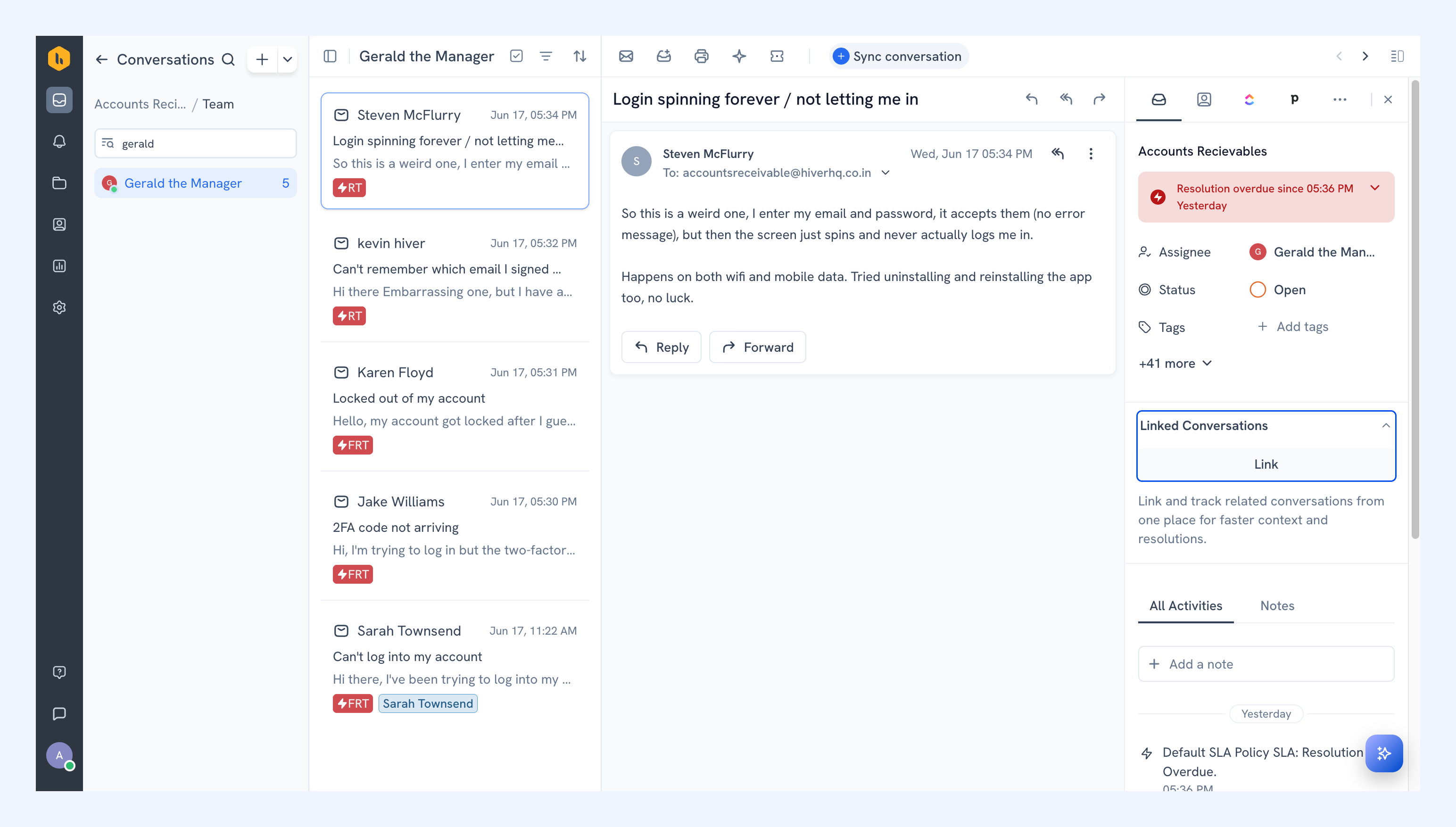
1. Open a conversation. In the right panel, find Linked Conversations and click Link.
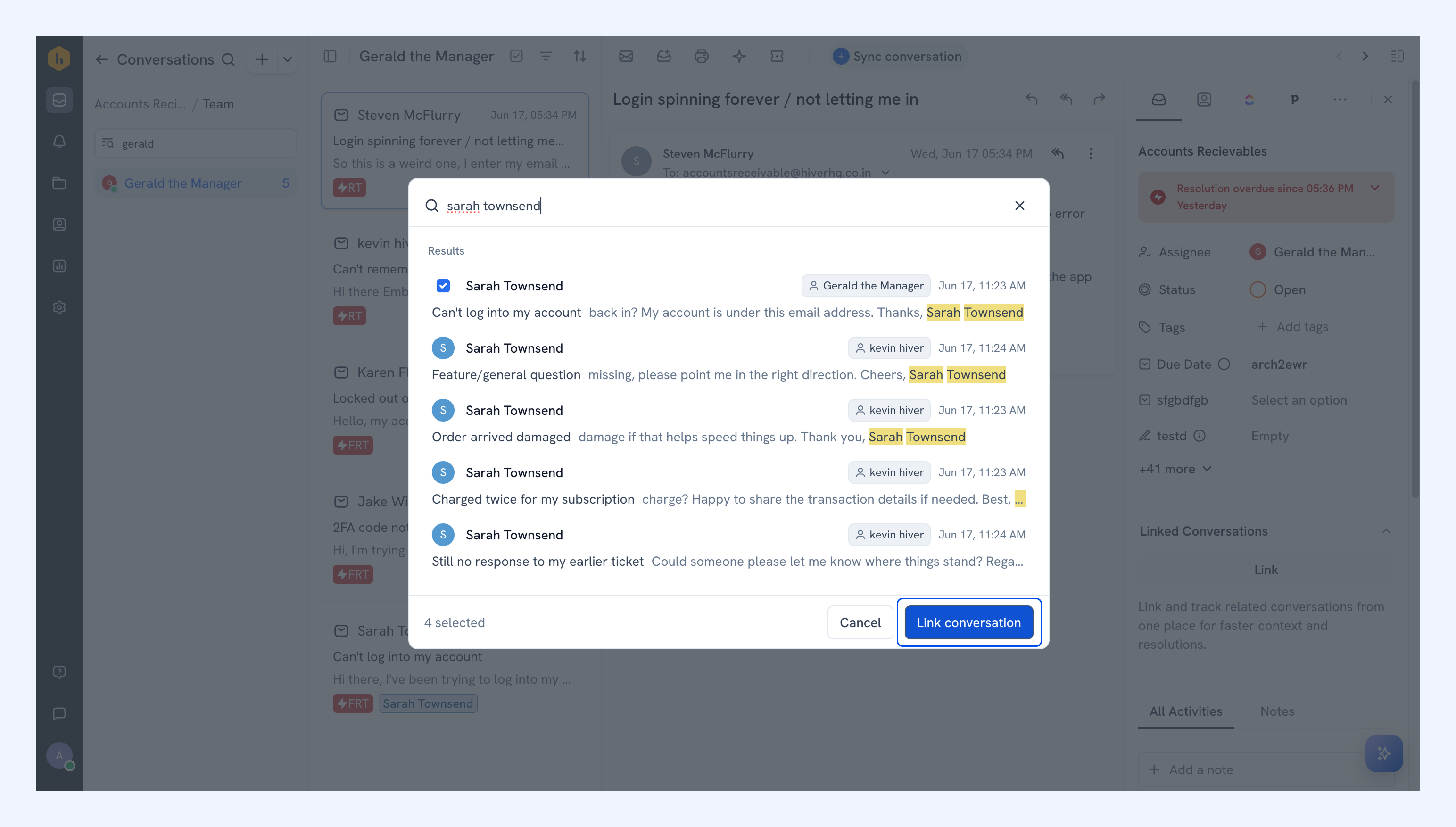
2. Search for the conversations you want to link by sender name, subject, or message body.
3. Select the conversations you want, then click Link conversation.
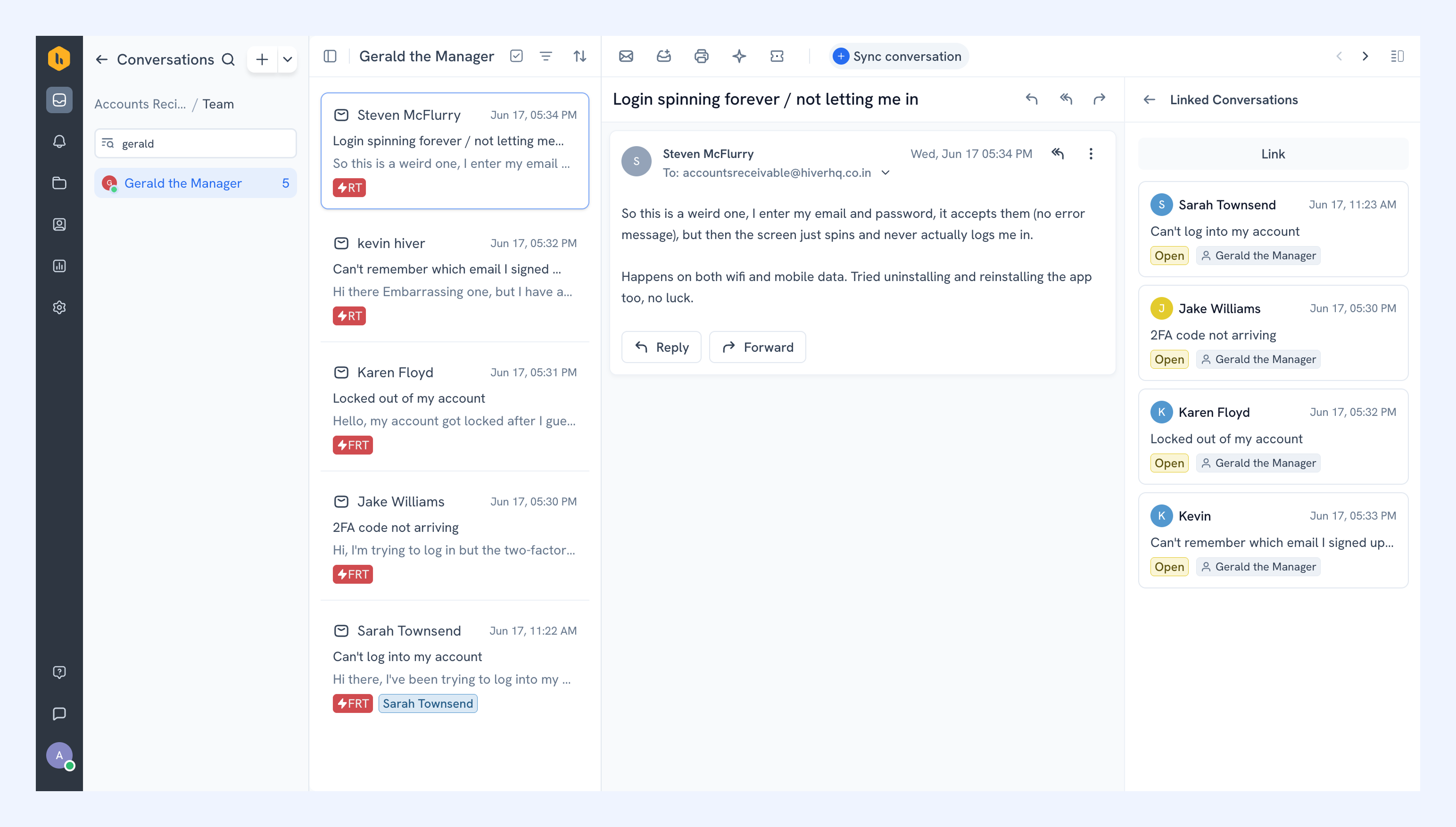
4. Once linked, the conversations appear together under Linked Conversations.
For each linked conversation, you can see its status and assignee at one glance. This helps your team understand ownership and progress without opening each conversation individually.
Managing Linked Conversations
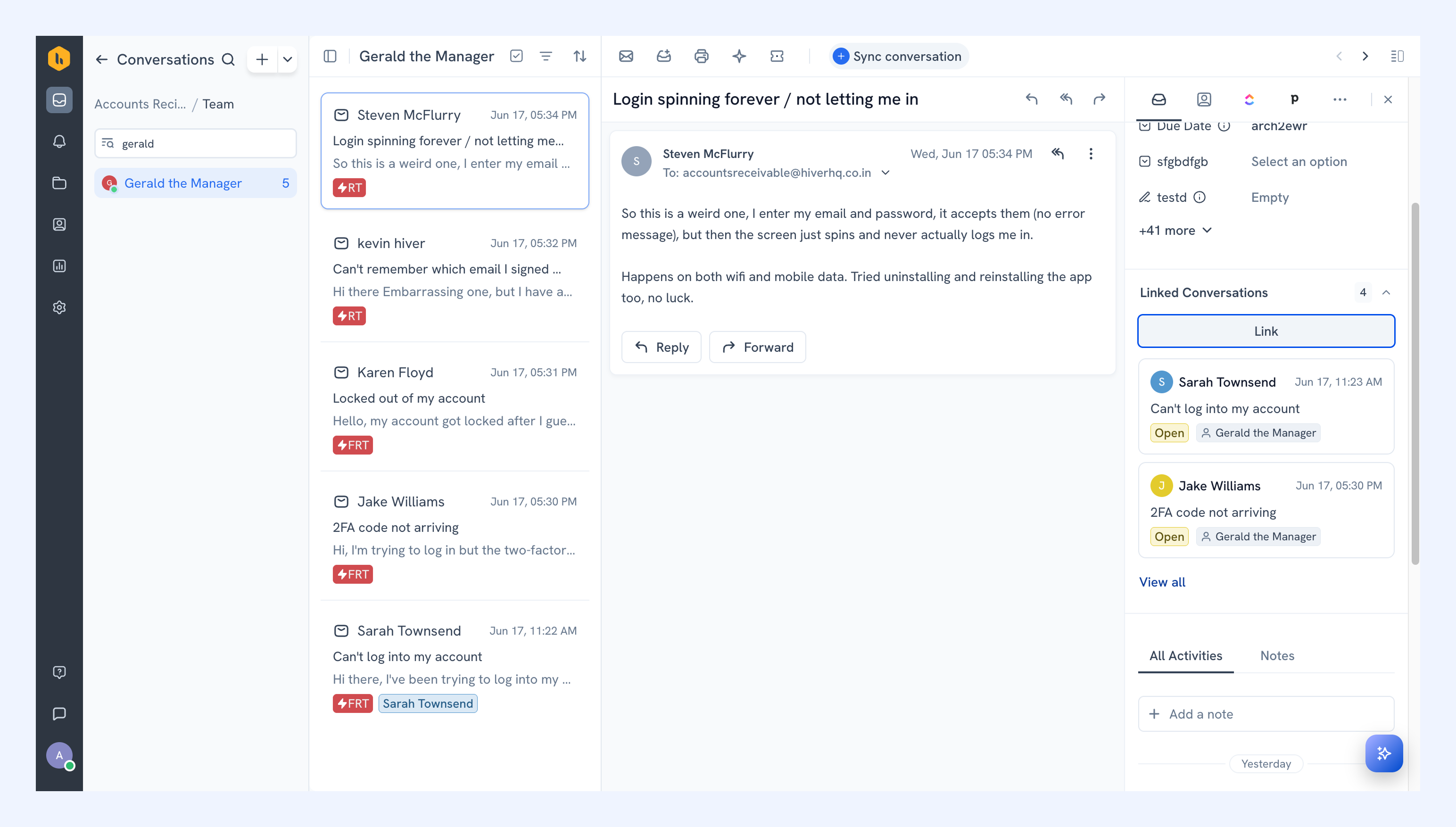
- To link more conversations, click Link, and repeat the steps above.
- To see the full list of linked conversations, click View all.
- To unlink a conversation, hover over it, and click the unlink icon and confirm.
Note: Unlinking removes the conversation from the group. It doesn't delete the conversation.
Related articles