Managing Email Inbox settings
Each Shared Inbox in Hiver Omni comes with advanced configuration options that help you:
- Keep everyone informed when new conversations arrive.
- Automatically assign emails to prevent duplicate replies.
- Reduce clutter by removing reassigned threads.
- Ensure all outgoing emails use the correct Shared Inbox address.
- Maintain transparency with audit-friendly conversation logs.
Permissions to manage settings
Admins, Inbox Admins, or users with one of these permissions can modify Shared Inbox settings:
- Access settings for all Shared Inboxes/labels
- Access settings only for the Shared Inboxes they belong to
Permissions are linked to roles (default or custom) that can be assigned to users.
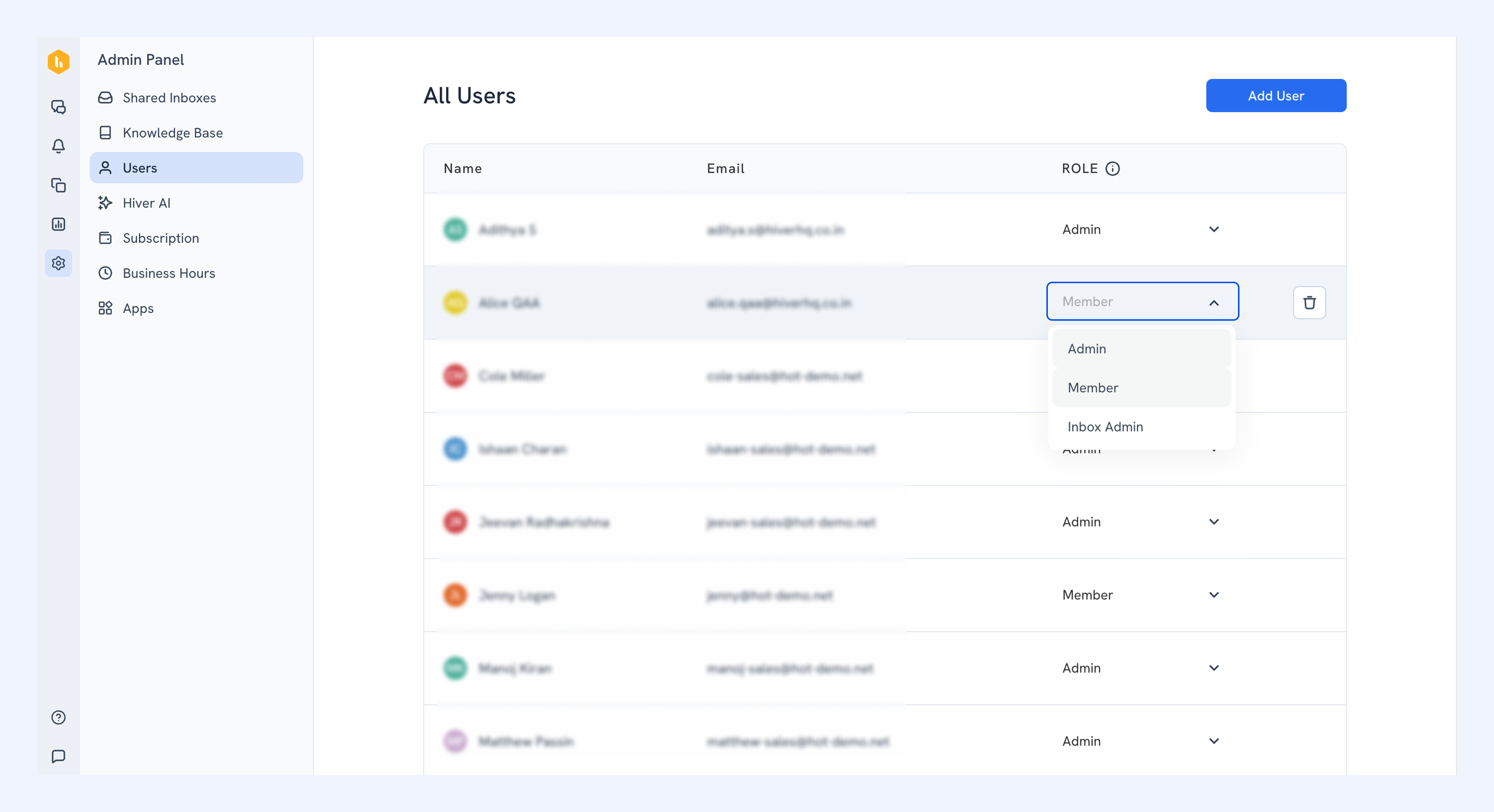
Tip: If roles haven’t been configured yet, check out our guide on assigning roles and permissions in Hiver Omni.
Access Shared Inbox settings
To open Shared Inbox settings in Hiver Omni:
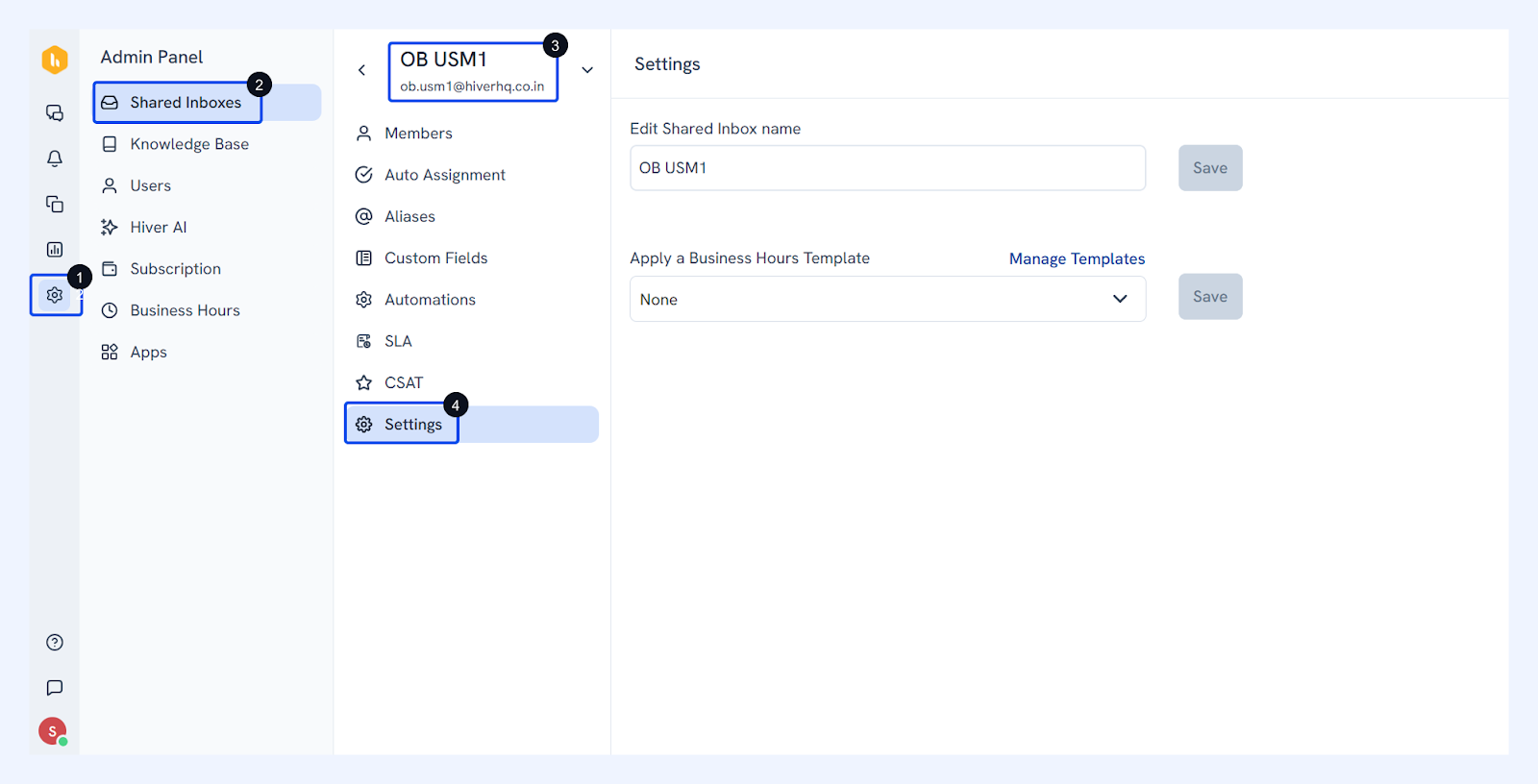
Go to Omni Admin Panel → Shared Inboxes → select your inbox → Settings.
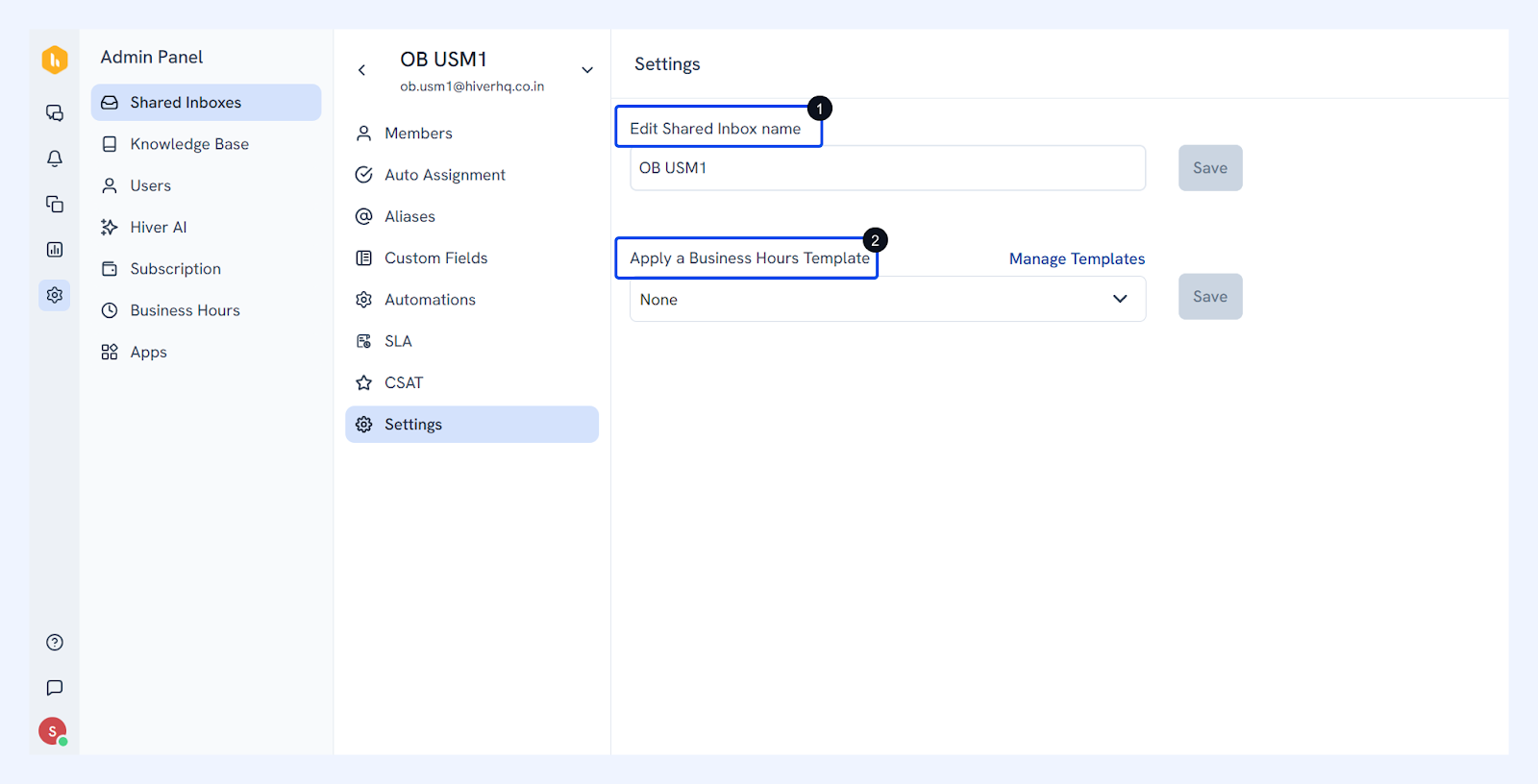
Overview of Shared Inbox settings
1. Name
You can update the display name of the Shared Inbox. The new name appears wherever the inbox is listed for your team.
2. Business hours
Assign or manage a Business Hour Template for your Shared Inbox.
Business hours are the hours within which your business or support team operations. In Hiver, setting up business hours helps ensure you get accurate insights in analytics.
Set this up if your team works within defined time windows. For instance, 9 a.m. to 5 p.m. on weekdays.
Change the Source User for a Shared Inbox
When you connect an Outlook Shared Mailbox or Distribution List to Hiver Omni, you sign in with a personal Microsoft account to authorize access. This account is called the Source User. Hiver Omni uses it to sync incoming emails and send outgoing ones from the Shared Inbox.
If the Source User leaves your organization or loses access to their Microsoft account, your inbox will stop syncing and sending emails.
Admins can change the Source User from Hiver to restore access.
To change the Source User:
1. Go to Admin Panel → Email Inboxes.
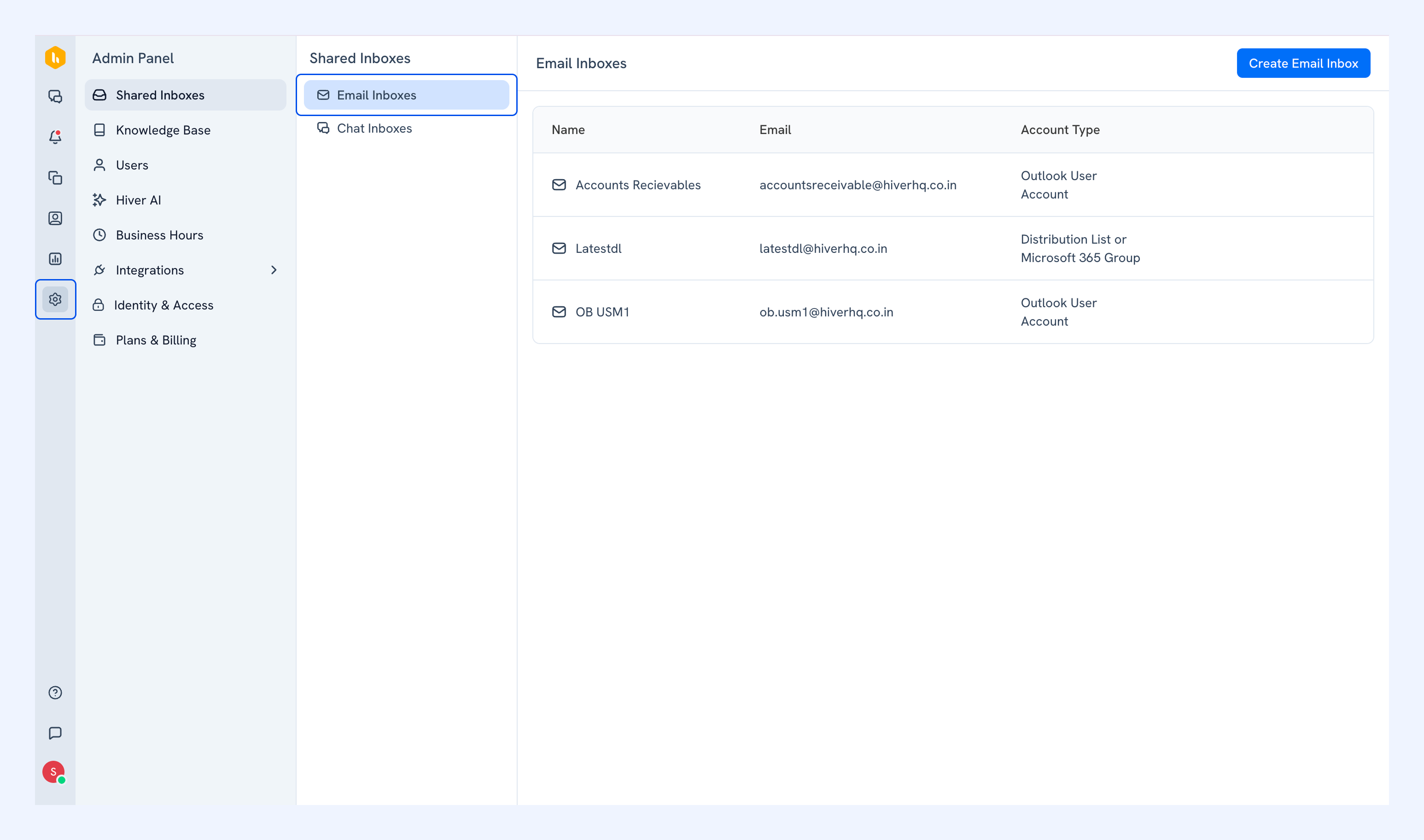
2. Hover over the inbox you want to update.
3. Click the Switch Source User icon that appears. You'll see the current Source User listed here.
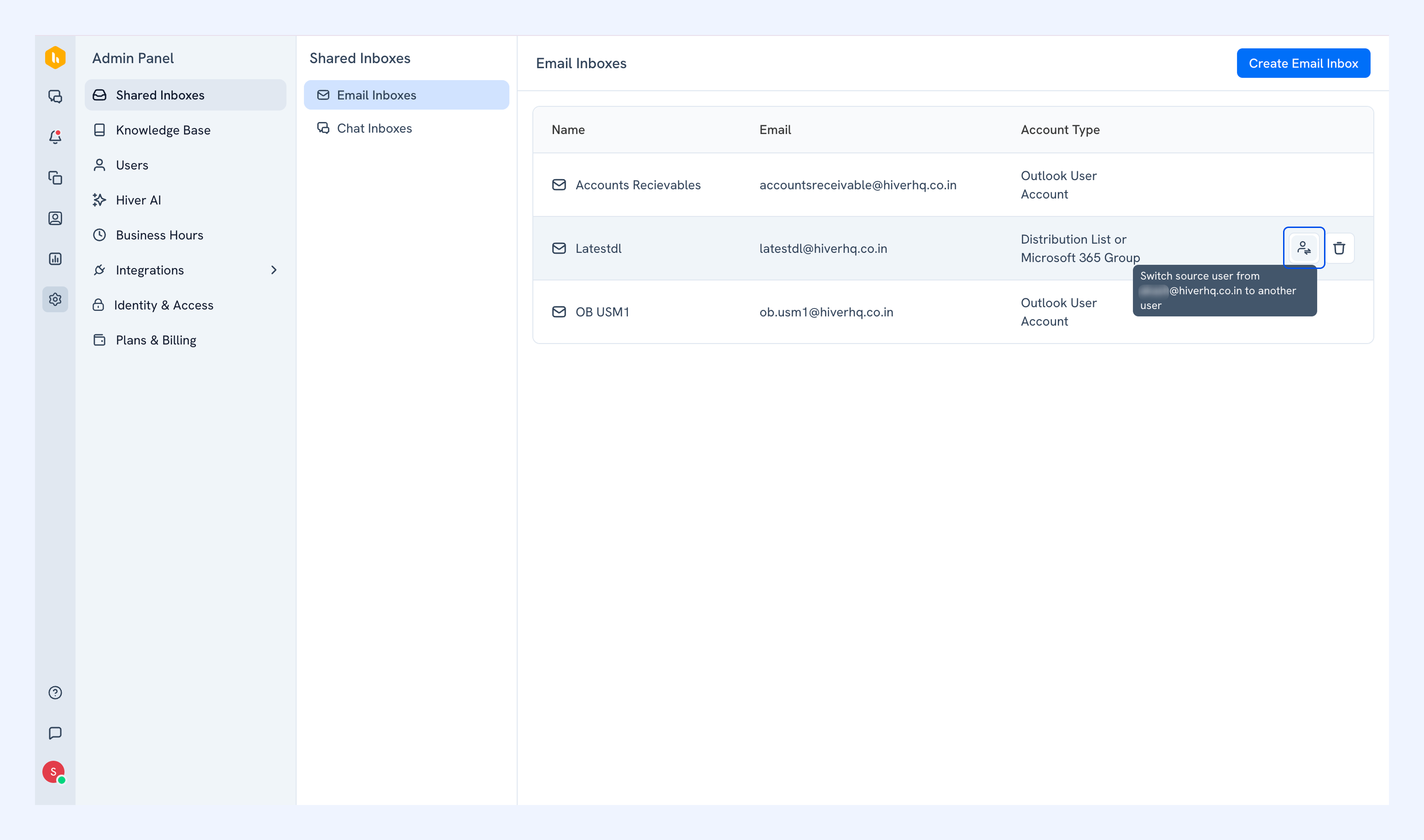
4. You'll be redirected to Microsoft to sign in with the new Source User's account.
The new Source User must be a member of the Shared Mailbox or Distribution List and have send and receive permissions in Microsoft 365.
Note: This is only available for Outlook Shared Mailbox and Distribution List inboxes and can only be done by Admins.
Next steps
Manage emails in a Shared Inbox
Manage email notifications in a Shared Inbox