Manage email notifications in Hiver Shared Inbox
Notifications in Hiver alert you to events that need your attention, so you never miss an important update. With timely alerts, you can stay on top of tasks and keep your support workflows moving smoothly.
See how to turn on Hiver’s sound notifications in this quick guide.
Access email notifications in Hiver Shared Inbox
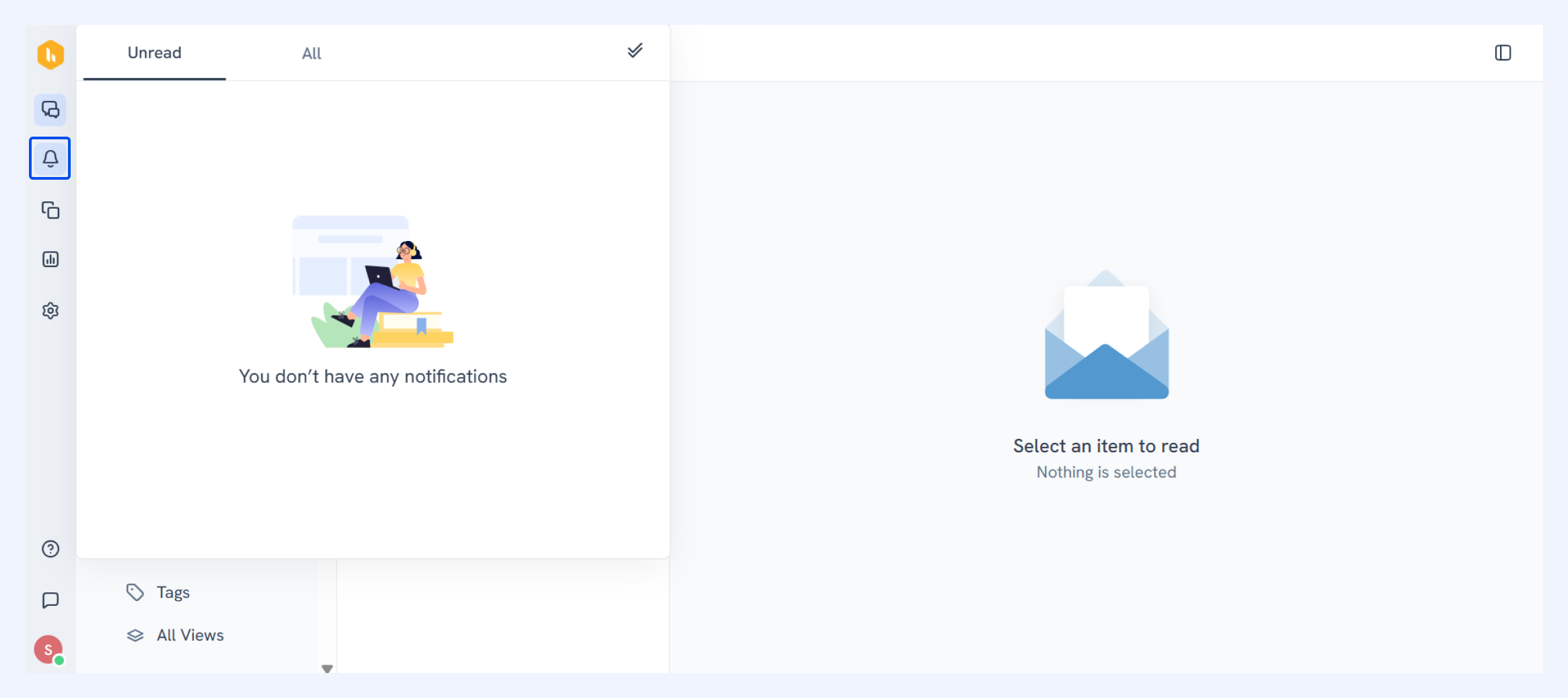
You can find your notifications by hovering over the bell icon (🔔) in the top-left corner of your Hiver home screen.
This menu surfaces every alert you’ve received so you can take action without missing a beat.
Notification triggers
| Event | Notification recipient |
| A note is added or replied to using @all | All users of the shared mailbox |
| A note is added or replied to using @mentions | Only the user(s) mentioned |
| An email is assigned (manually, via auto-assignment, or automation) | The assigned user |
| CSAT feedback is submitted | The CSAT feedback recipient |
| Changes made to Hiver settings | Admins and mailbox admins |
| An SLA’s first-response time is violated | Users specified in that SLA’s “Notify users” section |
| An SLA’s resolution time is violated | Users specified in that SLA’s “Notify users” section |
Notification panel sections
Hiver’s notification panel is organized into two tabs to help you manage your alerts:
- Unread: Shows only the notifications you haven’t read yet, so you can zero in on what still needs your attention.
- All: Displays every notification you’ve received, both read and unread, for a complete history of alerts.
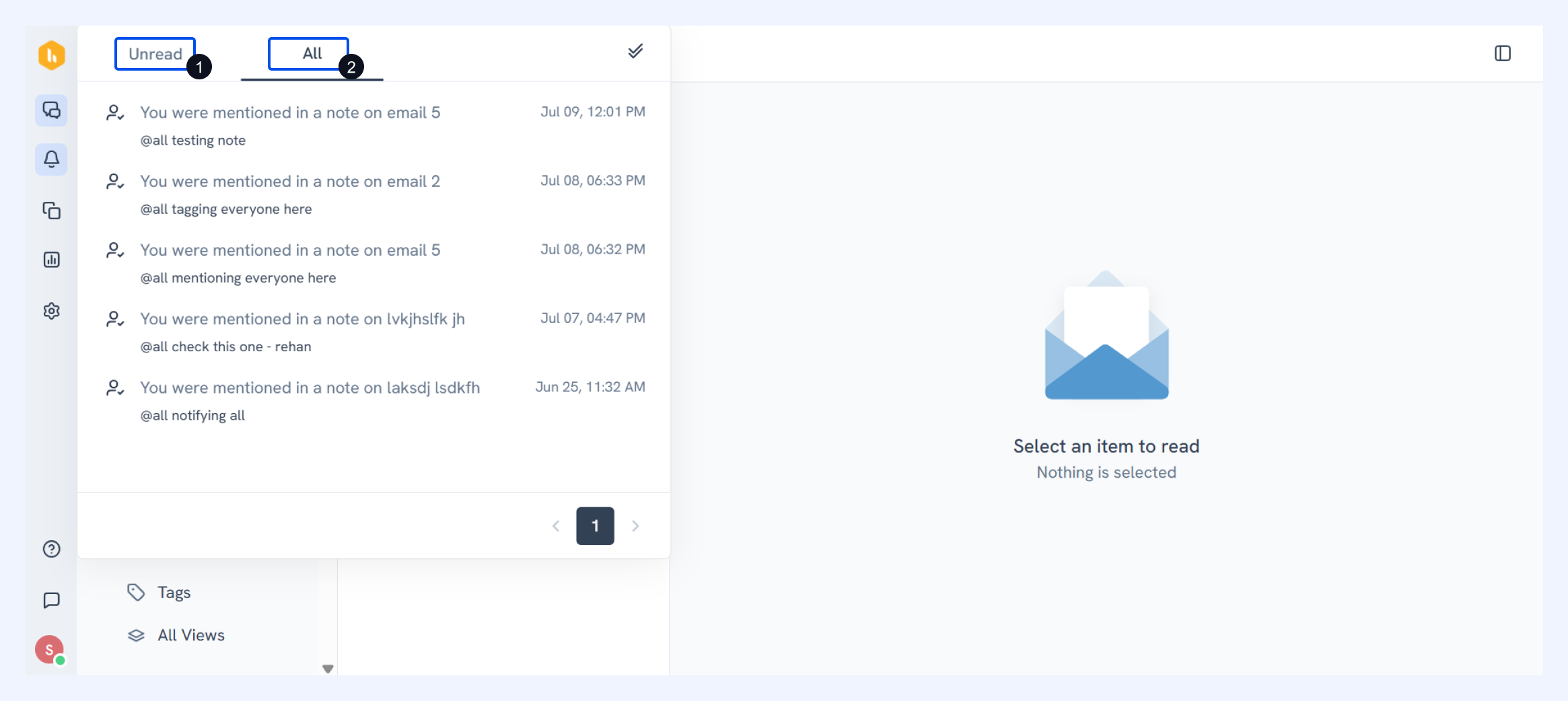
Tip: The “Mark all as read” (double tick button) works per tab. If you switch to Unread, it only marks those unread items as read; if you click it on All, it marks every notification in the panel as read.
Enable sound notifications for Shared Inbox
Enabling sound alerts ensures your entire team is immediately aware when an email lands in the Shared Inbox. Whether an SLA is breached (self-imposed reply deadlines) or your colleague tagged you in notes, don’t miss any of it. Learn more about SLA breaches and SLA policies in Hiver.
Turn on sound alerts in Hiver Shared Inbox
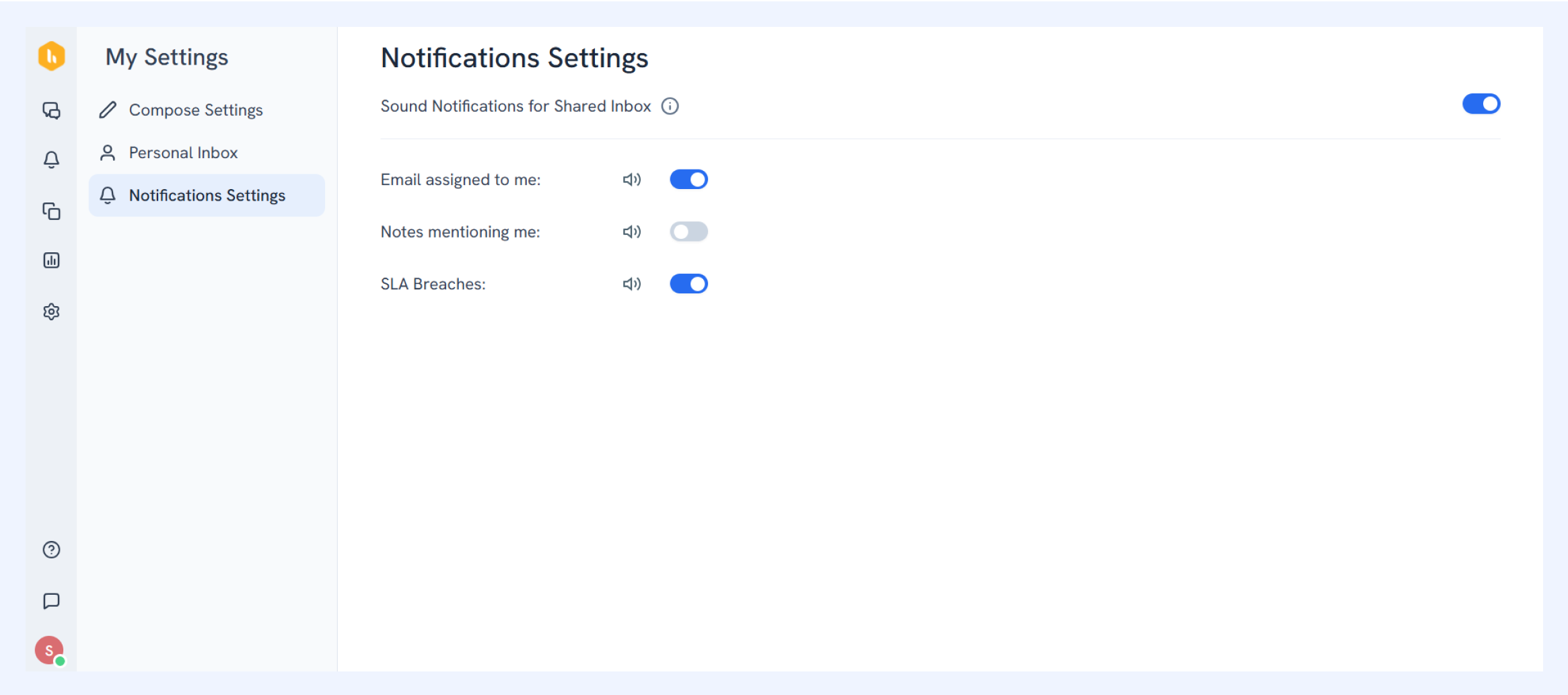
- Click your profile icon in the bottom-left corner of the home screen, then select My Settings.
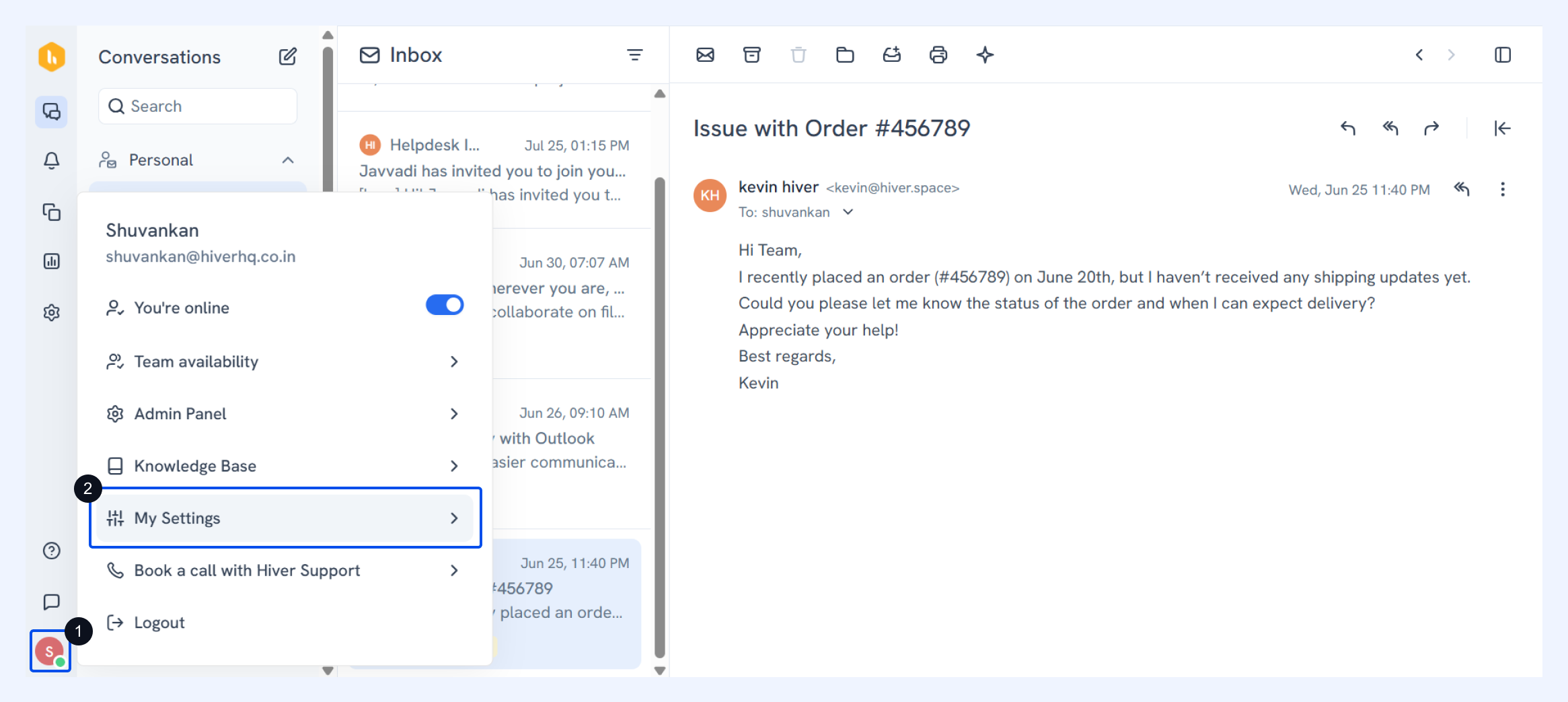
- In the left-hand menu, choose Notification Settings.
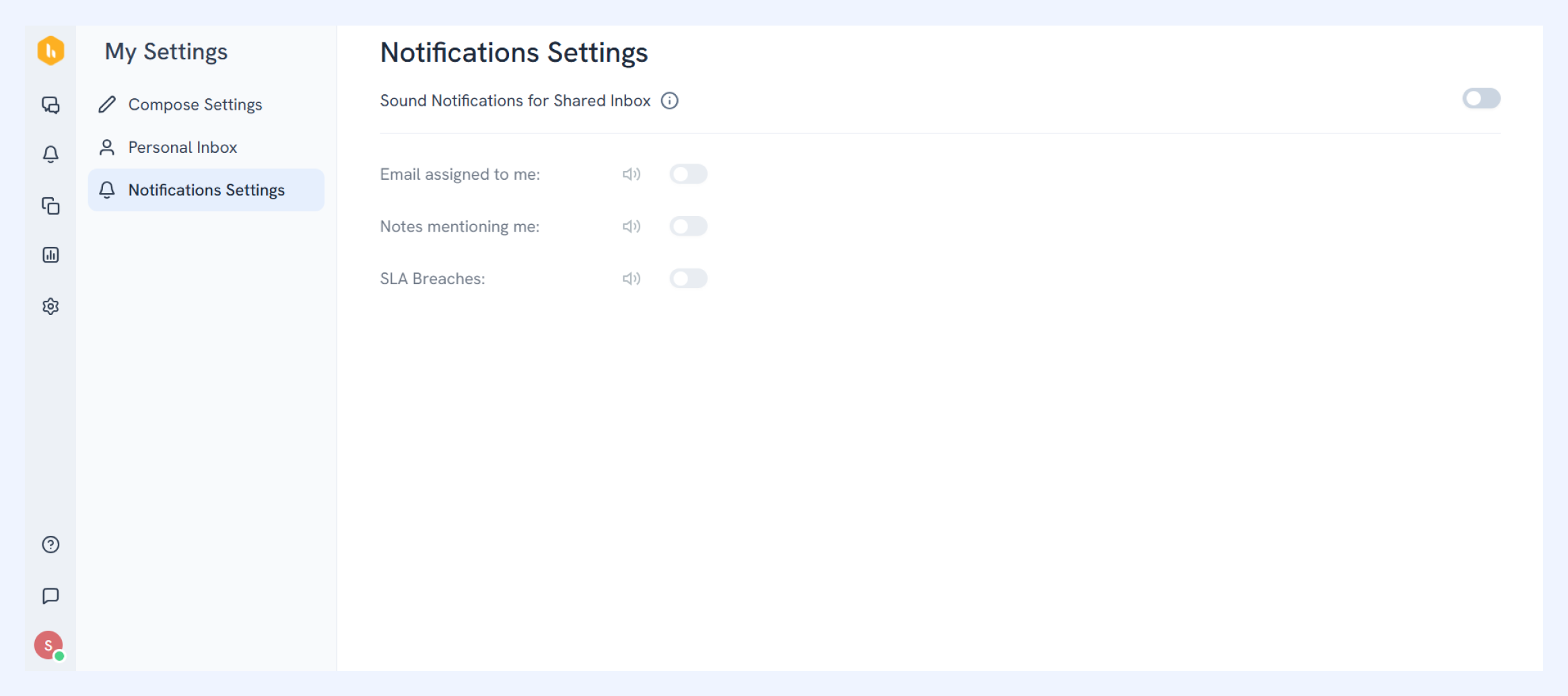
- Toggle Sound Notification on, then pick which events you’d like an alert for:
- Email assigned to me
- Notes mentioning me
- SLA breaches
Note: Sound notifications respect your device’s volume and mute settings. Each user controls their sound preferences, so you can customize alerts to fit your workflow.