Creating SLA Policies in Hiver
SLA (Service Level Agreement) policies define the timeframes for responding to and resolving customer conversations. In Hiver, you can set SLA policies to ensure these deadlines are tracked and met within your Shared Inboxes.
They direct urgent requests to the front and sound an alarm before any high-priority conversations go cold.
With SLAs in place, the entire team quickly identifies which conversations require immediate attention, which ones are approaching their deadline, and which can wait a bit longer.
How to use SLA policies in Shared Inbox
You build SLAs directly within each Shared Inbox, so every team can adjust deadlines and priorities to its workflow.
Create SLAs
Go to Admin Panel → Shared Inboxes → Select an Inbox → SLAs → Create SLA Policy.
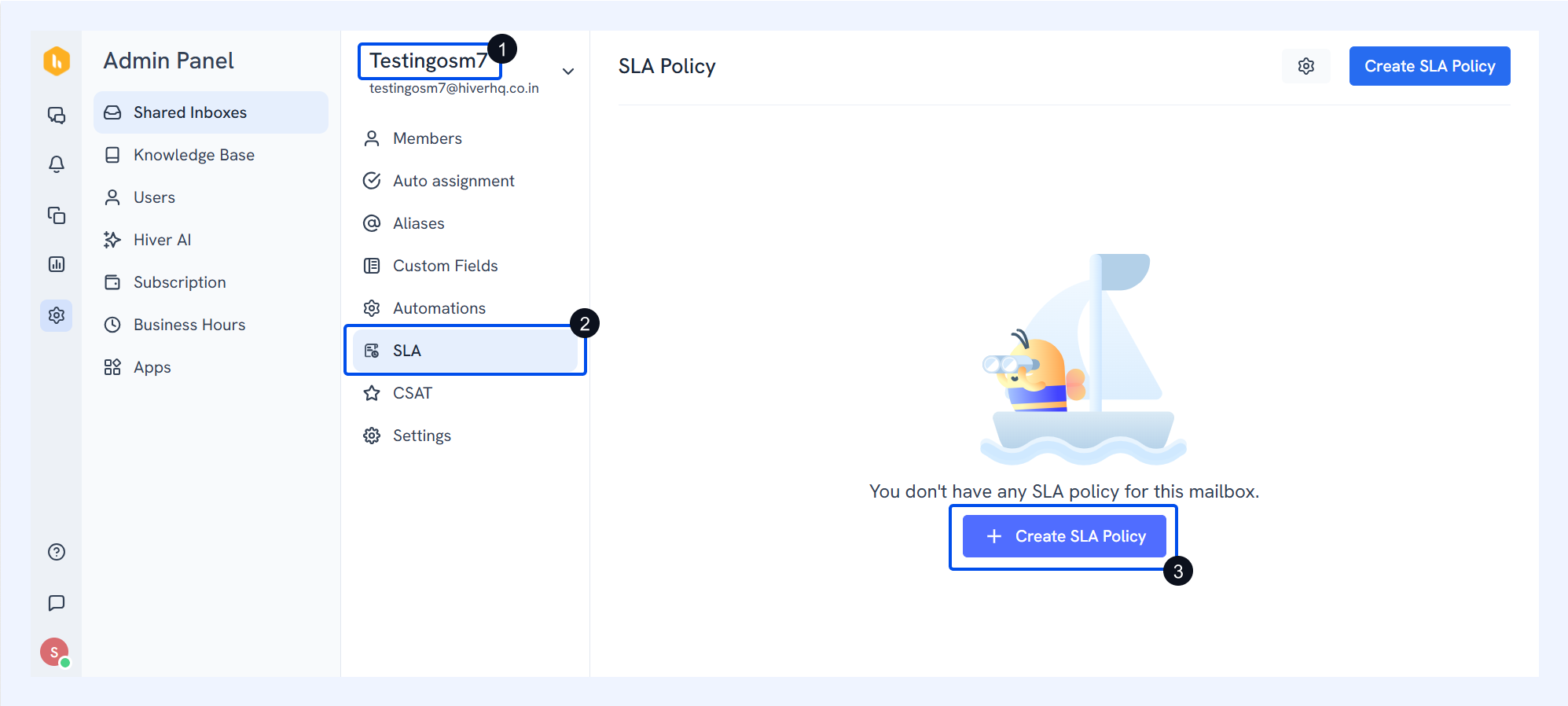
Define SLA details
When you create an SLA policy, you’ll need to set up:
1. SLA policy name and description
SLA policy name and description
The first step is giving your policy a clear title and, optionally, a summary so everyone knows its purpose at a glance:
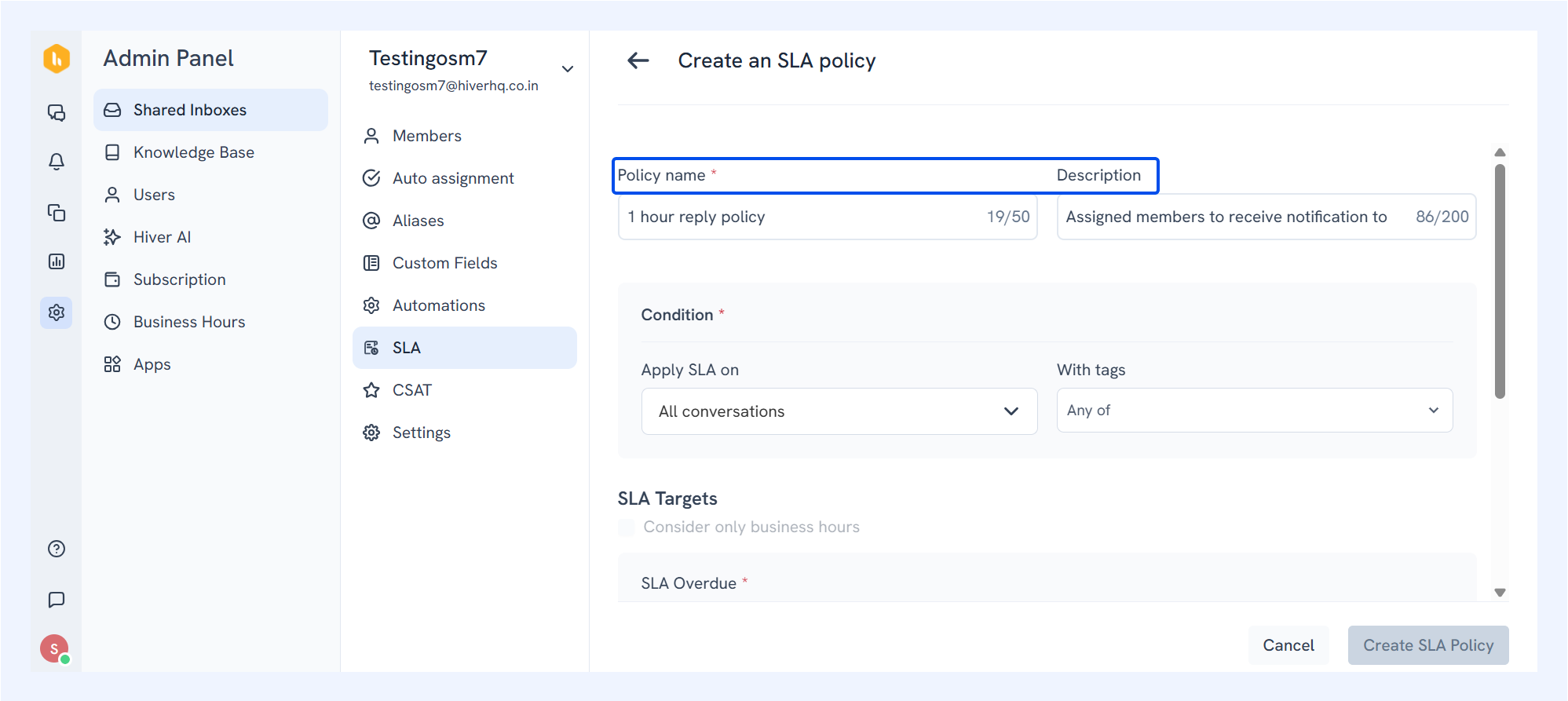
- Policy Name: Enter a unique name (up to 50 characters). This field can’t be empty. Pick something distinctive so it won’t get mixed up with other SLAs.
- Description: Write a brief overview (up to 200 characters) to capture the purpose of the policy.
SLA Conditions
SLA conditions let you define when the SLA policy should kick in. You can choose to apply your SLA policy based on conversation types, tags, or both:
1. Conversation Type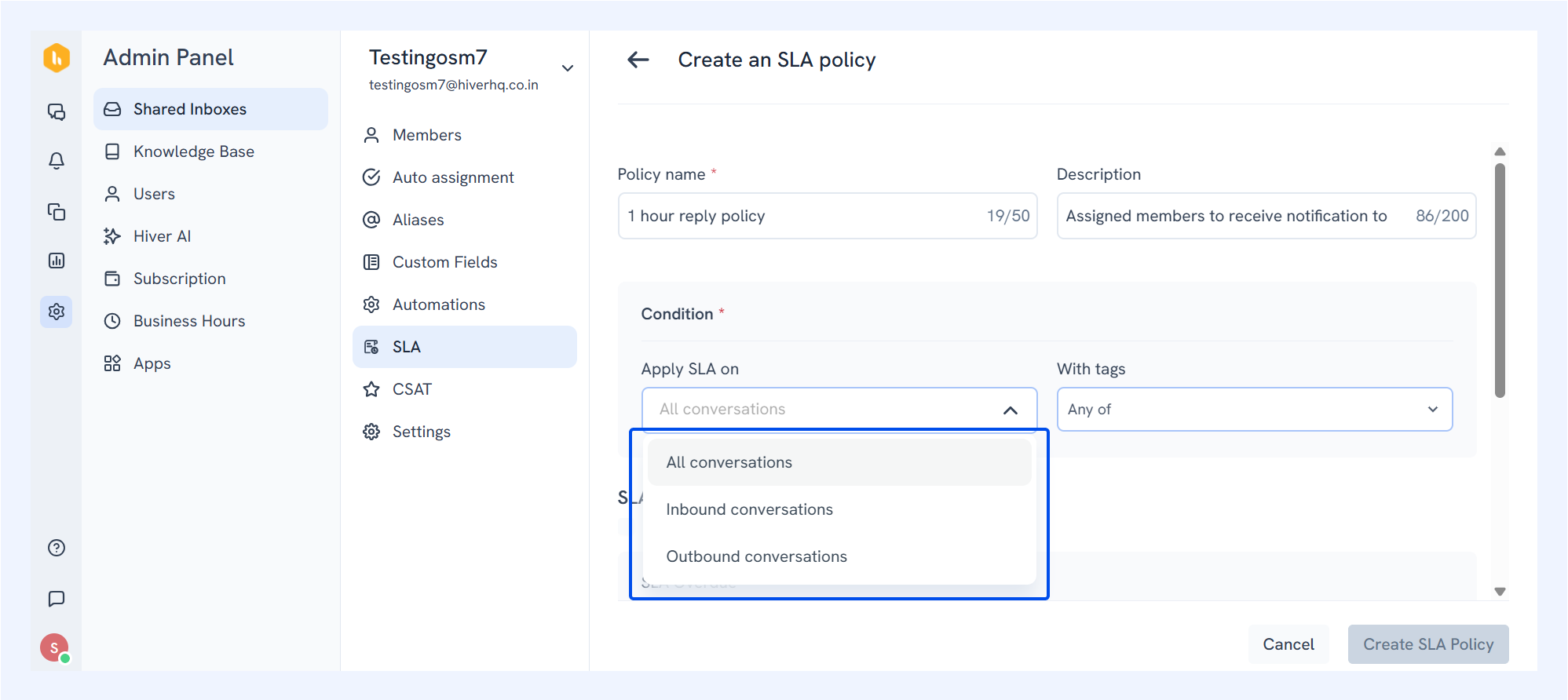
- All conversations: Applies to every ticket that lands in your Shared Inbox, whether inbound, outbound, or manually added.
- Inbound only: Applies only to conversations sent to your Shared Inbox (customer-initiated).
- Outbound only: Applies to conversations sent from your Shared Inbox or its aliases.
- Manually added: Applies to conversations your team adds manually to the shared mailbox using the 'Add to Shared Mailbox' option.
2. Tags on the conversation
You can apply the SLA policy when specific tags are present. If you select multiple tags, choose whether the SLA applies when any tag matches or when all tags match.
For example, let’s say your team offers premium support for your customers from Acme.com. Here’s how you could go about ensuring that all issues from Acme.com are resolved within 6 hours.
- Use Hiver Automation to tag every email from acme.com as Premium.
- Create an SLA policy scoped to “All conversations with tag = Premium”, and set a 6-hour resolution window.
Now, any question from Acme’s team jumps to the front of the priority list.
3. Combining conversation type and tags
For more control, you can combine conversation types with tags so you only enforce SLAs where they matter most.
For example:
You want SLAs on incoming conversations (conversation type) for Premium customers (tag). This is what you’d select:
- Conversation Type: Inbound
- Tag: Premium customer
SLA Targets
SLA targets define deadlines within which your team should respond to or resolve conversations based on your company’s policies. Based on your company’s policies, you can define:
1. SLA Overdue
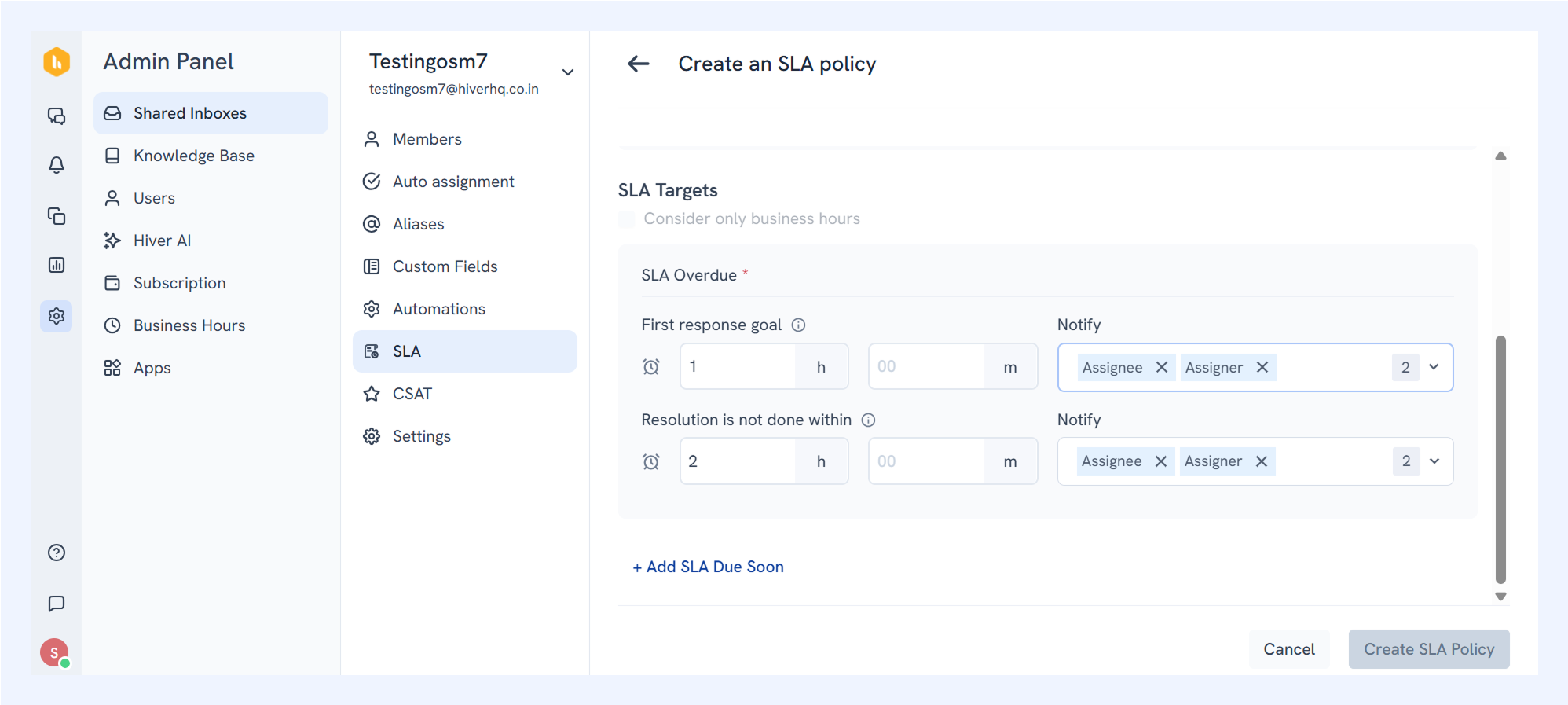
Deadlines that define when an SLA is considered to be overdue. When deadlines are missed, the SLA Targets are updated to Overdue. In these cases, you can also notify team members to escalate SLA breaches.
To set up SLA Targets:
- First response goal: Enter the time limit for the first reply.
- Resolution goal: Enter the time limit for resolving the conversation.
- Notify: Choose who should be notified when a target is breached (e.g., assignee, assigner, or specific teammates). By default, the assigner and assignee are selected.
You must define at least one target (First response or Resolution) for the SLA to be valid.
2. SLA Due Soon
Think of Due Soon as a proactive alarm, warning your team about an approaching deadline. This lets you pick a warning interval ahead of your SLA targets. When the clock reaches that mark, everyone sees a Due Soon alert.
To set up Due Soon alerts:
- Add a warning interval for the First response or Resolution goal.
- Choose who should be notified when the Due Soon threshold is reached.
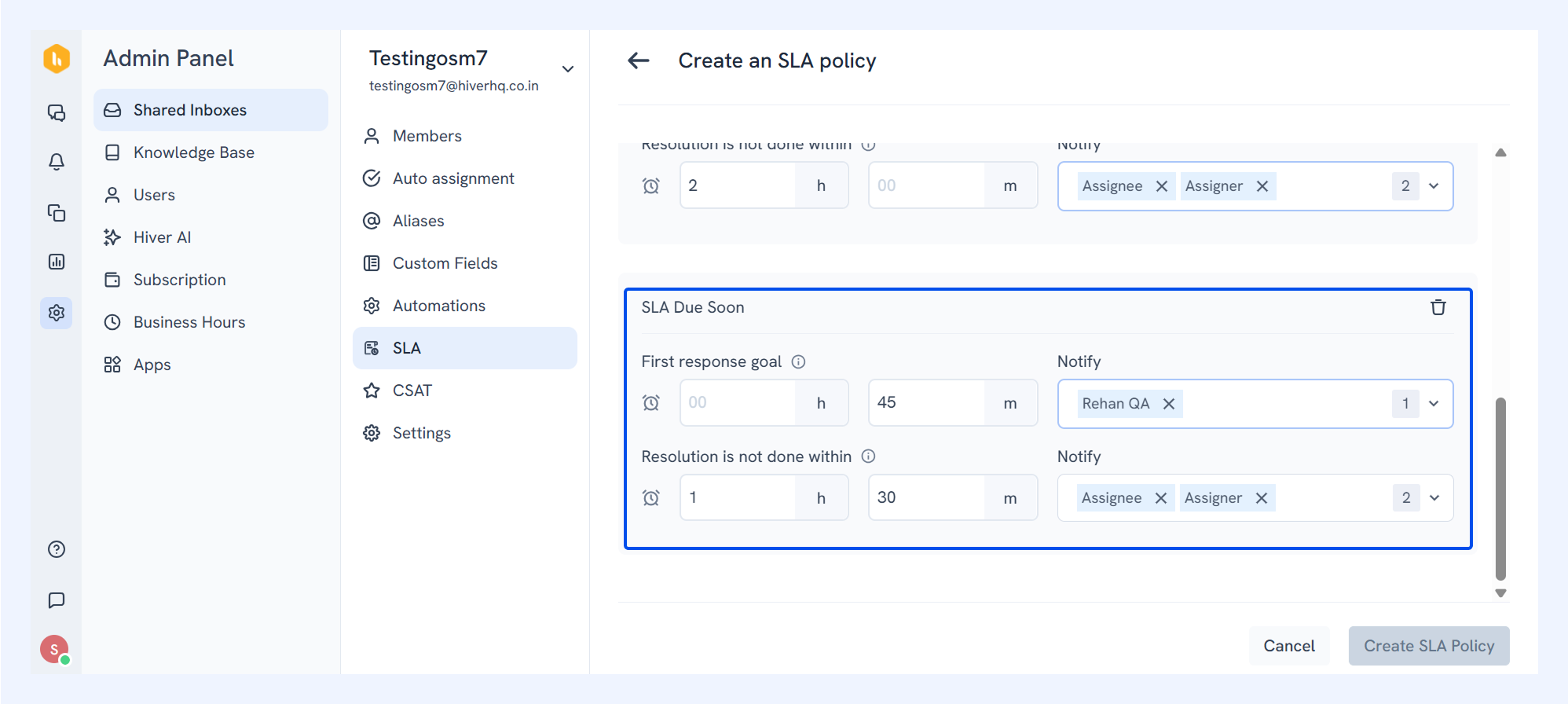
For example:
→ FRT target: 1 hour
→ FRT Due Soon warning: 45 minutes
The mentioned teammates get a notification 15 minutes before the first reply window closes.
Key notes while creating SLA Overdues
- You must have an Overdue threshold defined before adding a Due Soon reminder.
- Due Soon is optional; you choose if and when you want heads-up alerts.
- The Due Soon time must be strictly less than the Overdue time for each metric.
Order and evaluation logic while using SLAs
Here are a few things to keep in mind while setting up your SLAs:
1. One SLA per conversation
At a given point in time, any conversation can have only one SLA policy mapped to it since there can be only one service level agreement for the customer.
2. Policy order sets priority
When multiple SLAs match, the system picks the highest-ranked policy.
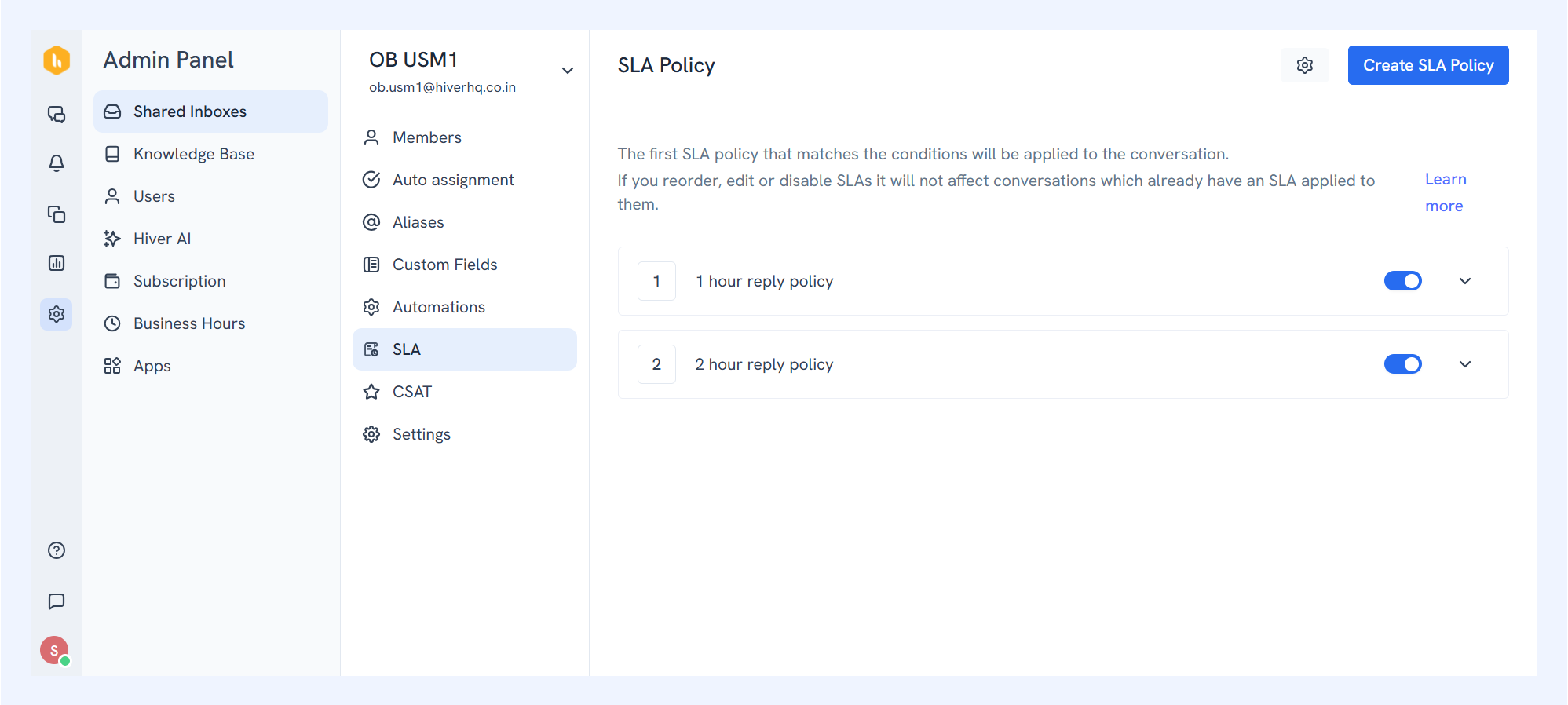
Arrange your SLAs from most to least critical so the right policy always comes out on top. For instance, let’s say you have two SLA policies:
- Premium Customers → Tag = Premium (FRT: 2 hrs)
- Default SLA → All conversations (FRT: 5 hrs)
In case a conversation is tagged Premium, it matches both conditions but the Premium Customers policy is applied since it ranks higher.
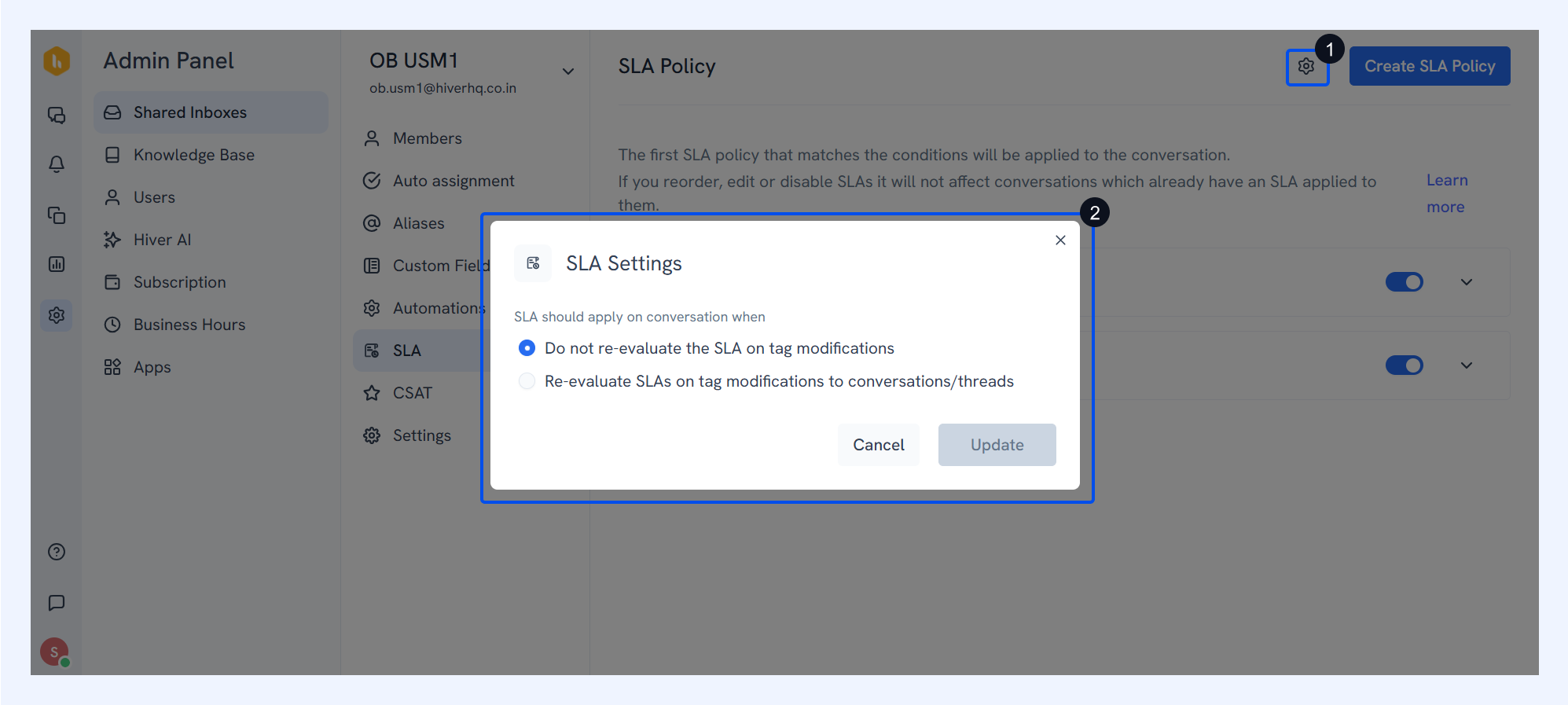
3. Re-evaluate tag changes for SLAs in your inbox
- Lock on arrival: SLA is picked when the conversation lands; any changes to tags don’t affect it (stable and predictable).
- Re-evaluate on updates: SLA is re-evaluated whenever tags change (useful if you frequently reclassify and reprioritize).
Next steps
Using automations in Shared Inbox
FAQs about SLA policies in Hiver
1. What’s the difference between FRT and RT?
FRT measures the time to the first human reply after a conversation starts. Resolution time measures the time to full resolution (when you mark it Closed). Use both to track speed to acknowledge and speed to finish.
2. Can multiple SLAs apply to one conversation?
No. Only one policy applies. If several policies match, Hiver prioritizes the one ordered the highest. Place stricter, business-critical policies at the top to ensure priority.
3. How should I scope a policy - conversation type or tags?
Use Conversation type (All/Inbound/Outbound) for broad routing. Use Tags for precision (e.g., VIP, Billing). With multiple tags, choose Any (match one) or All (match every tag) to control scope.
4. Do SLAs count replies inside the same thread?
Yes. FRT stops at the first human reply in the conversation. Resolution time runs until you mark the conversation closed. Re-opens start a new resolution window according to your policy setup.
5. How do I test a new SLA safely?
Create a policy scoped to a test tag (e.g., “SLA-pilot”), apply it to a small set of conversations, watch alerts and breaches for a few days, then widen the scope and tighten the targets.