Monitoring and managing SLAs
SLA policies help you track response and resolution times for customer emails. Hiver lets you adjust these policies whenever your team’s priorities change.
Note:
- You need to have Admin access in Hiver to make changes to SLA policies.
- Updates to SLA policies apply to new emails while ongoing conversations stick to their original timelines.
Monitoring SLA policies
You can view the complete details of any SLA policy at any time to understand how it works and what it tracks.
To monitor an SLA policy:
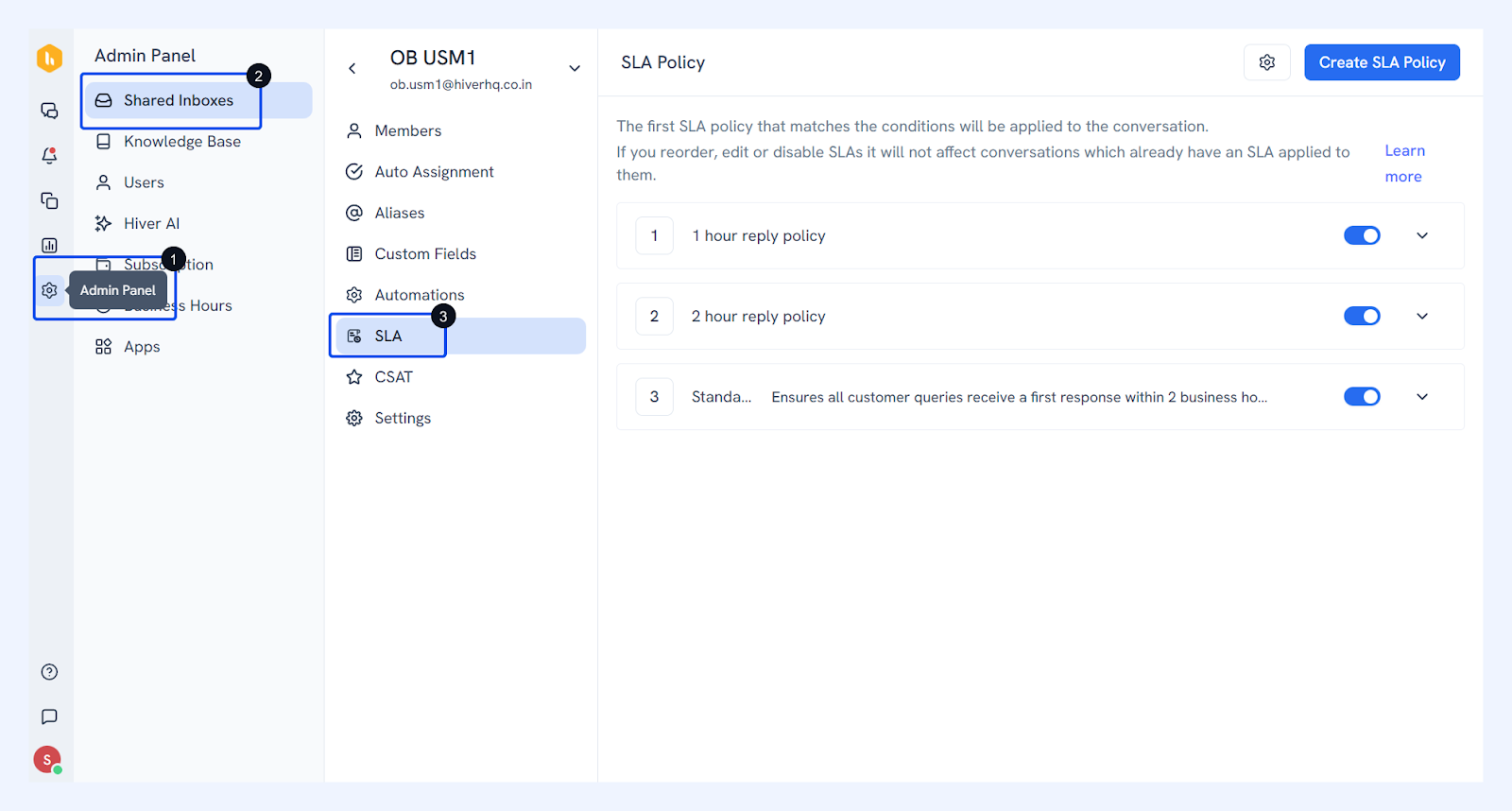
- Go to Admin Panel → Shared Inbox → SLA.
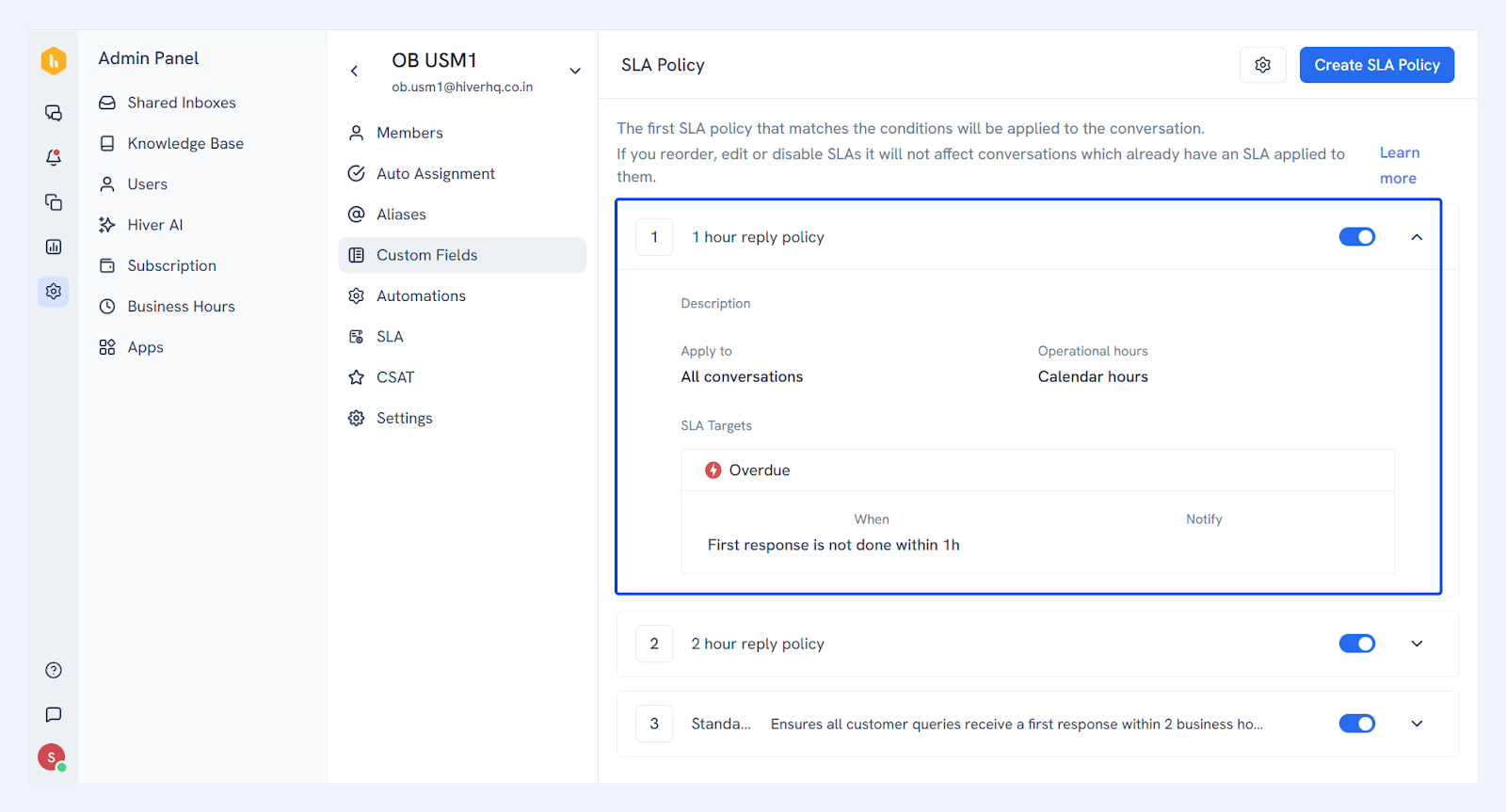
- Click the chevron icon on the right of a policy to view its details, including description, conditions, targets, and notifications.
Managing SLA policies
As your business grows, your team's priorities and workflows may evolve. Updating your SLA policies ensures they stay aligned with these changes and help your team maintain consistent response standards.
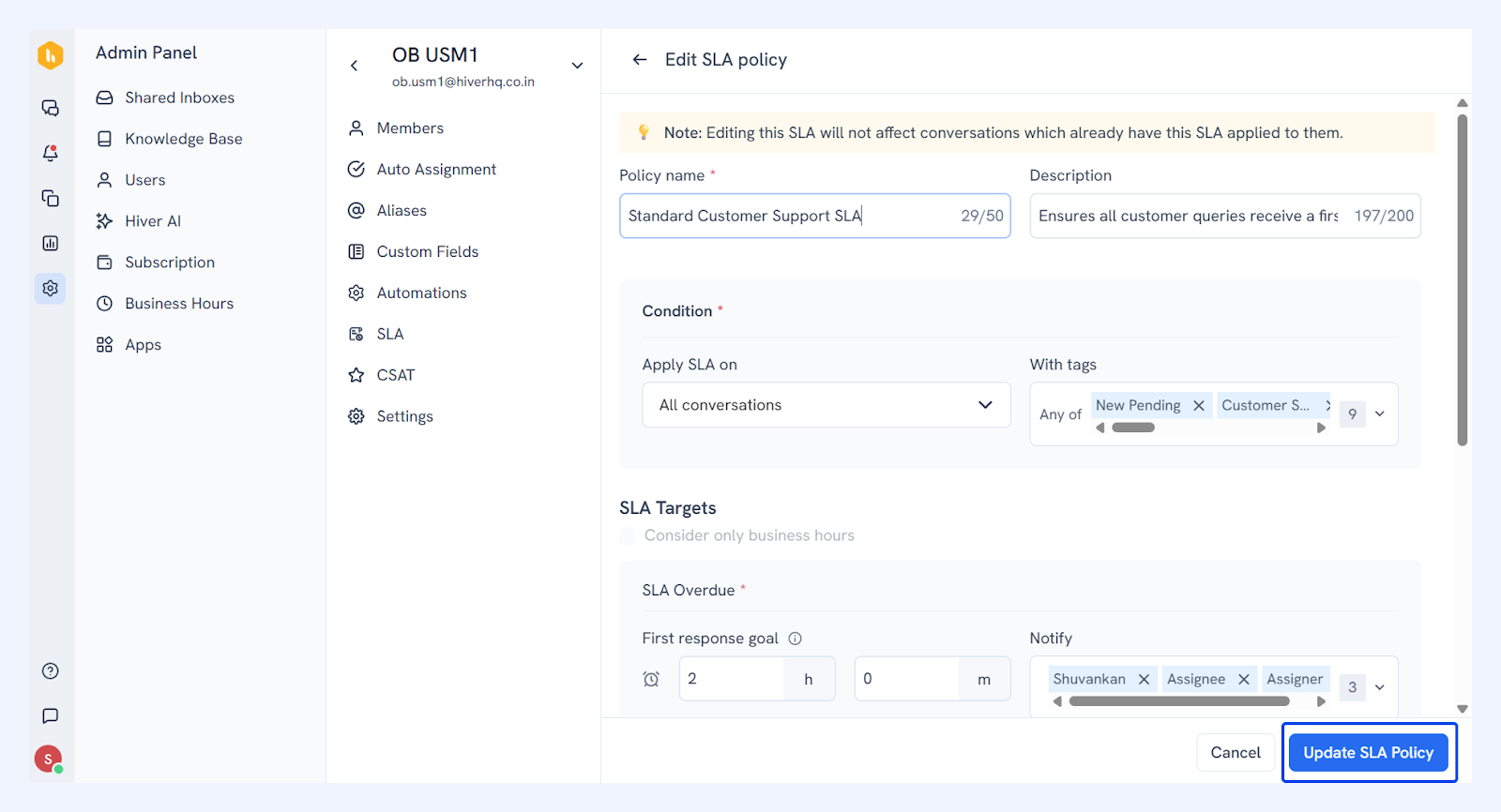
Editing an SLA policy
- Hover over the policy and click the edit icon.
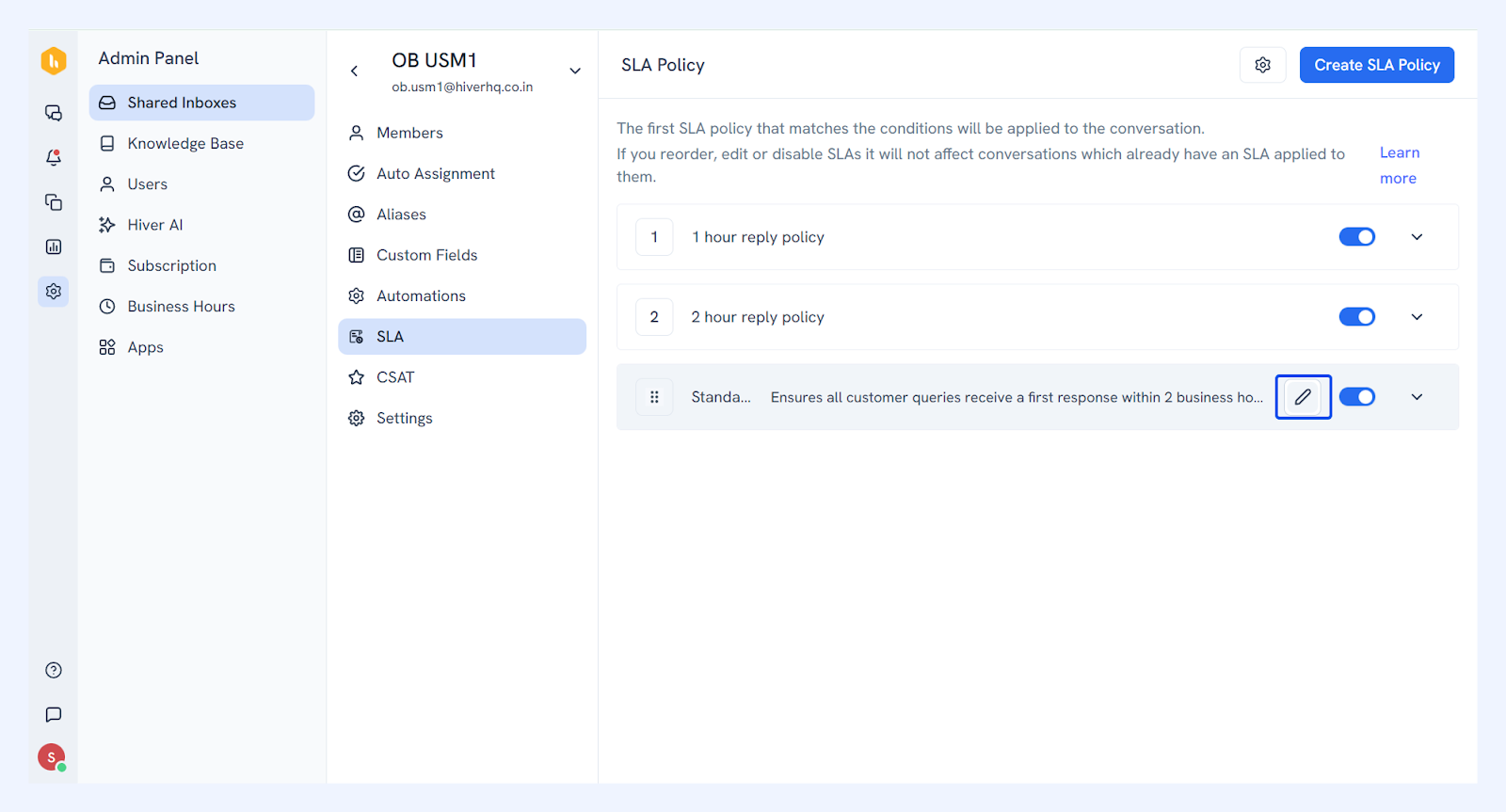
2. Make your changes and click Update SLA policy.
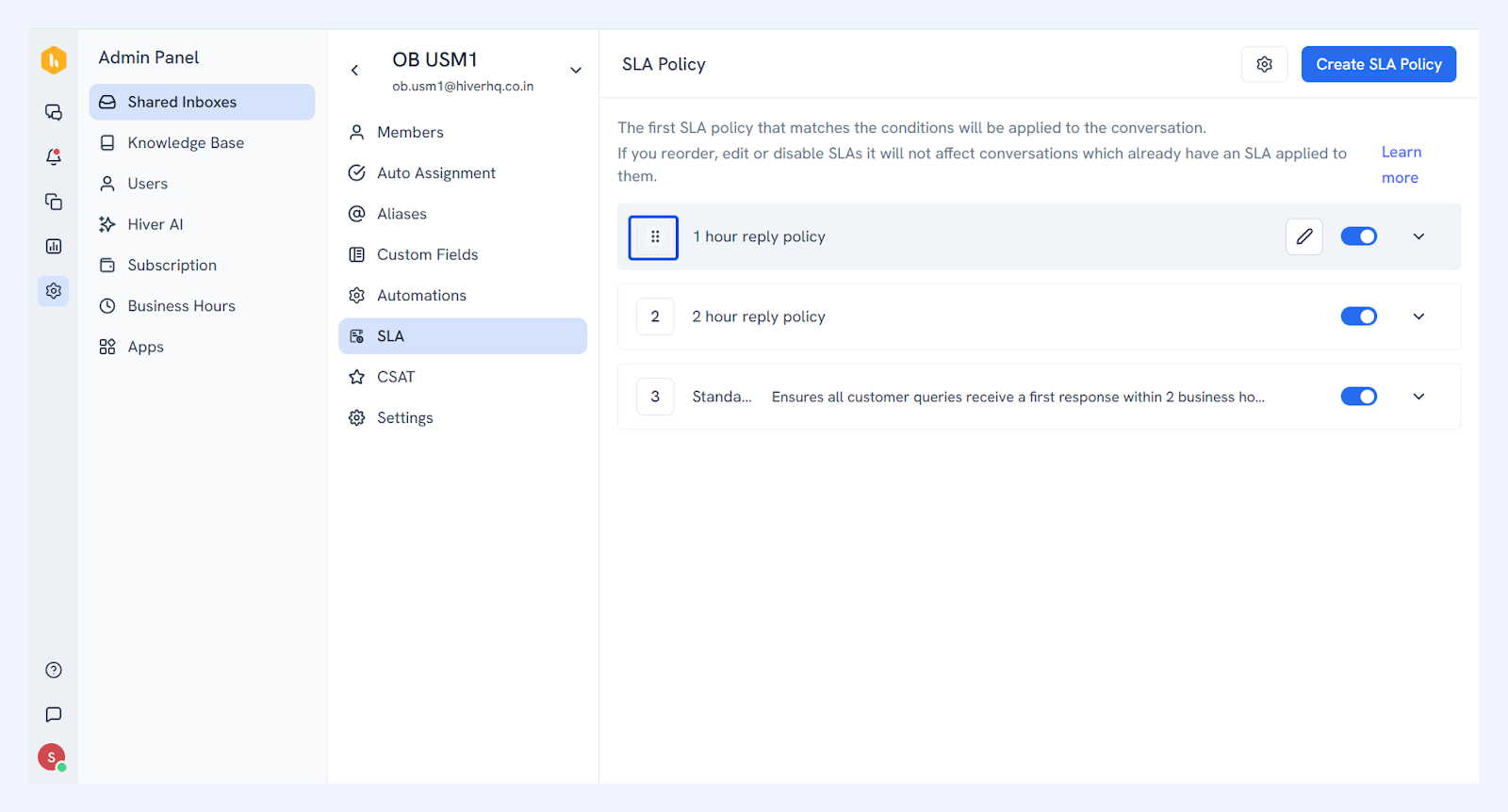
Reordering SLA policies
Hover over a policy and use the six-dot icon to drag the policy to its new position.
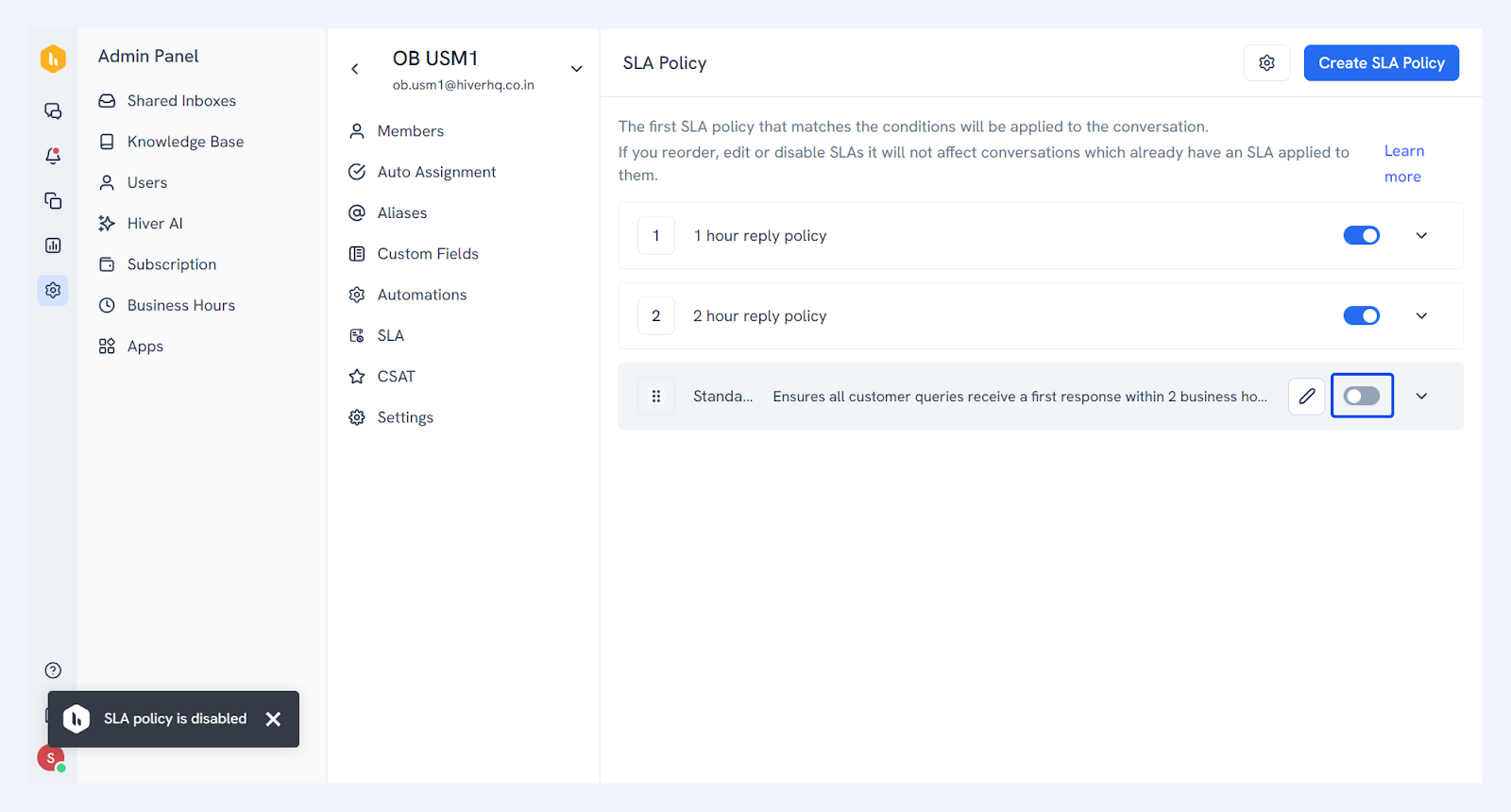
Disabling an SLA policy
Click the toggle switch next to the policy to disable it.
Removing an SLA policy from a conversation
For a conversation that doesn’t need an SLA policy, you can remove SLA from it.
1. Open the conversation and find the SLA policy in the right panel and click the delete icon.
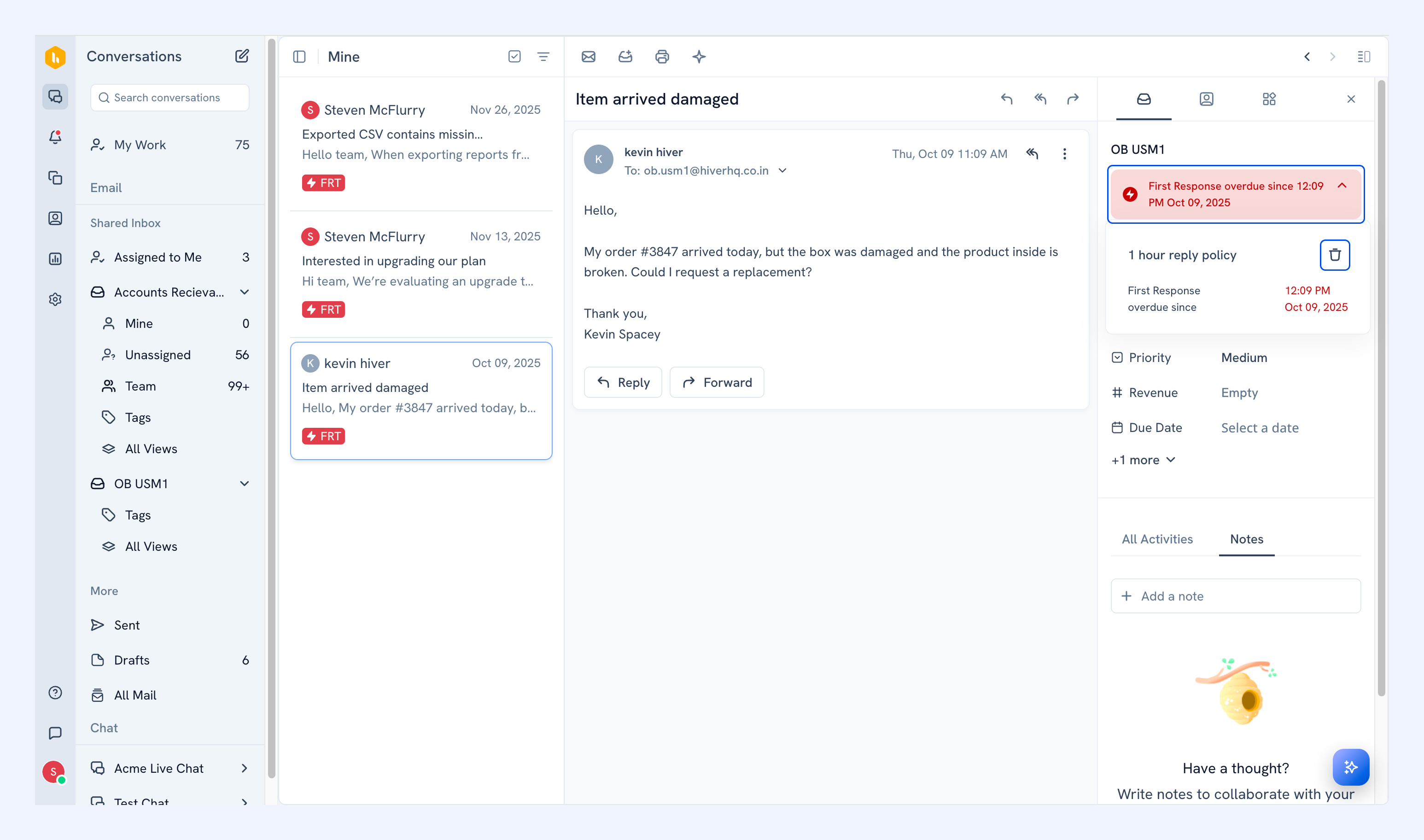
2. Click Remove SLA to confirm.
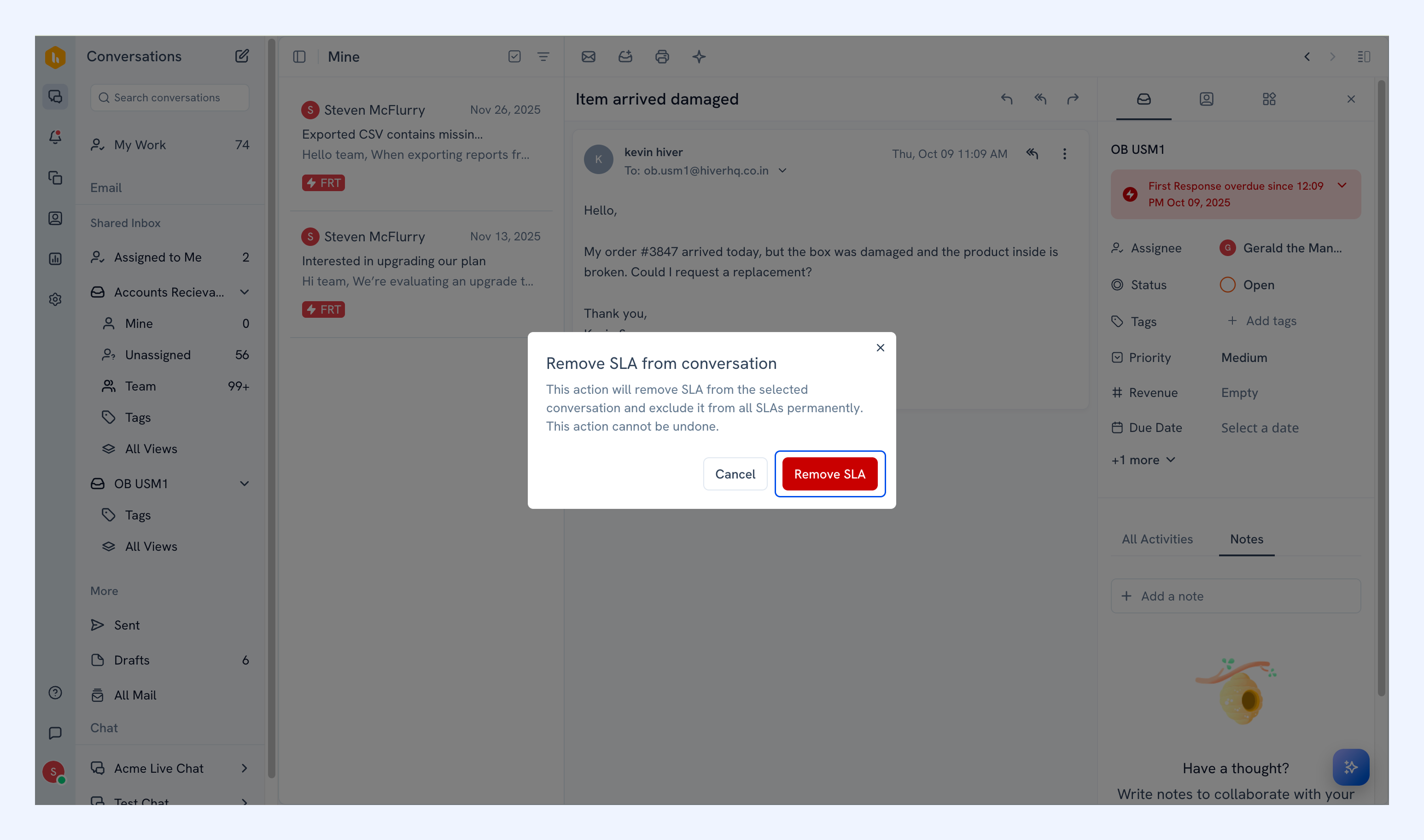
Note: Once removed, you cannot apply any other SLA policy to the conversation again.
Adjusting SLA settings
You can configure how Hiver applies and tracks SLA policies across a Shared Inbox.
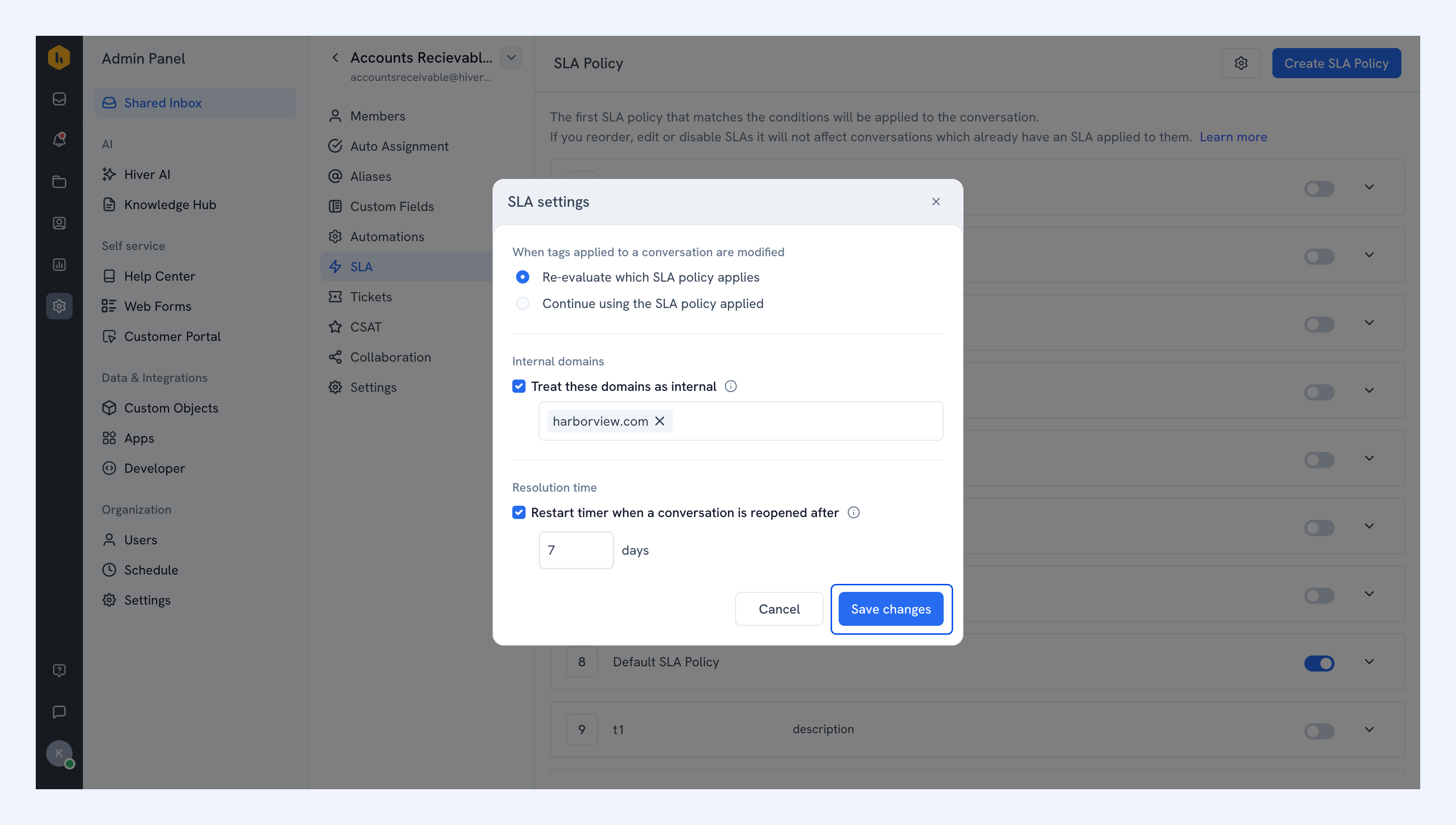
1. Click the settings icon next to Create SLA Policy.
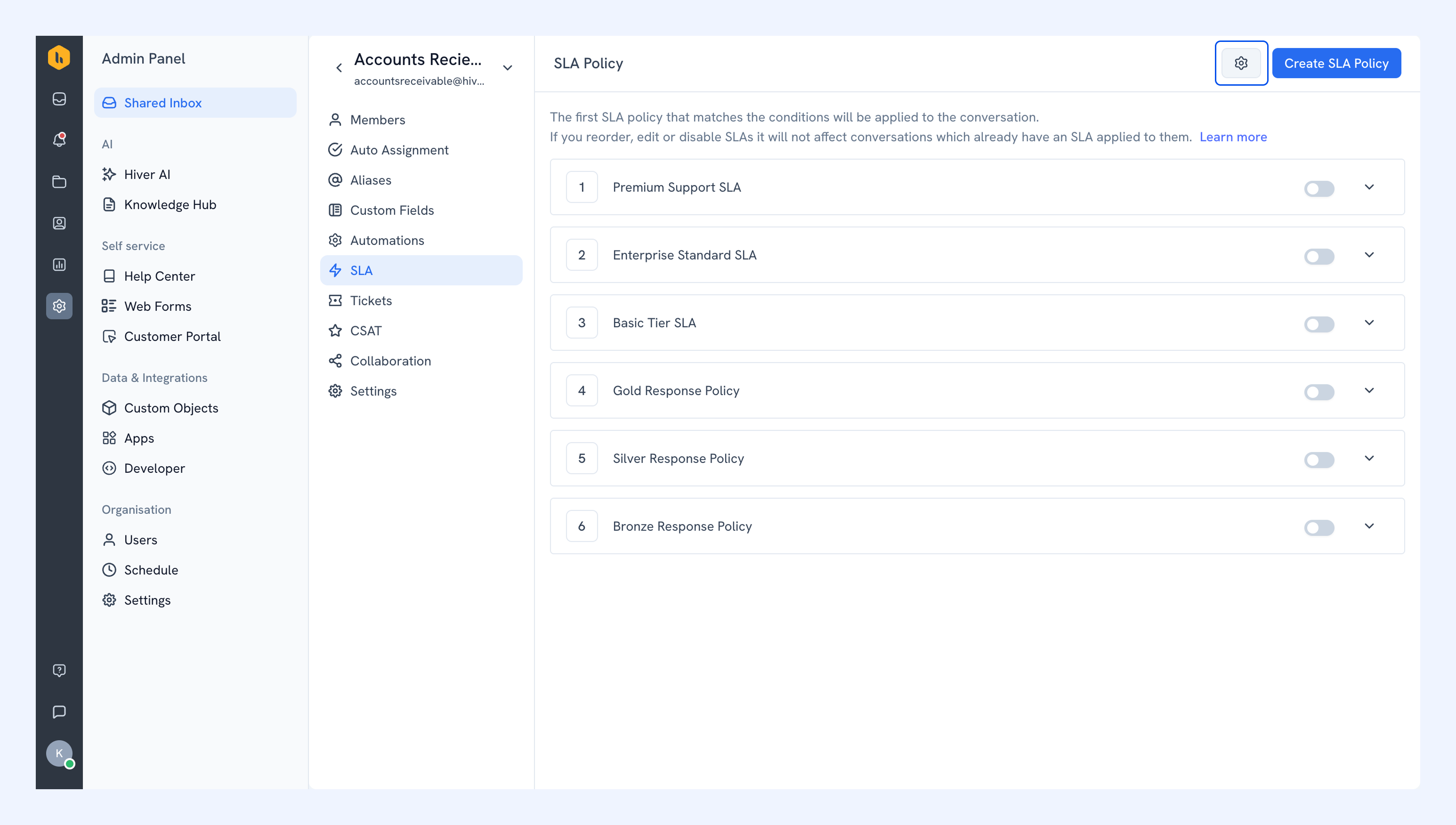
2. Configure the following settings as needed:
- When tags applied to a conversation are modified: Choose what Hiver should do when the tags on a conversation change.
- Re-evaluate which SLA policy applies: Hiver checks whether a different SLA policy should apply.
- Continue using the SLA policy applied: Hiver keeps the policy already applied to the conversation.
- Treat these domains as internal: Add your internal domains. Emails from these domains don't start the first response or resolution timers.
Note: Hiver treats emails from these domains as outbound, so Automations set to run on new inbound emails won't run on them. Review your automation rules before turning this on.
- Restart timer when a conversation is reopened after: Set how many days a conversation must remain closed before an external reply starts a new resolution cycle.
3. Click Save changes.