How SLA timers and breach alerts work (Agent guide)
With SLA policies set up for your Shared Inbox, your team can handle customer or internal emails on time. These policies define how quickly your team must respond to or resolve incoming emails. You'll see deadline details on every conversation to reply promptly and improve satisfaction rates.
Availability and prerequisites
- Access to Due soon status and notifications is in through the Elite plan.
- Admins need to activate the Due soon status during policy creation for it to display.
- Removing policies requires Admin, Shared Inbox Admin status, or custom role permissions that allow policy removal.
Tracking SLA details in Hiver Omni for Outlook
In Hiver Omni, you can find SLA information in different areas for comprehensive visibility into deadlines and status.
List view tracking
Conversations with active SLA policies show up as a status tag in your list view. This tag indicates whether response times are on schedule, nearing deadlines, or past due.
You can hover over it to see the exact due time. If a conversation is a part of different Shared Inboxes with different policies, you'll see the upcoming action for each inbox.
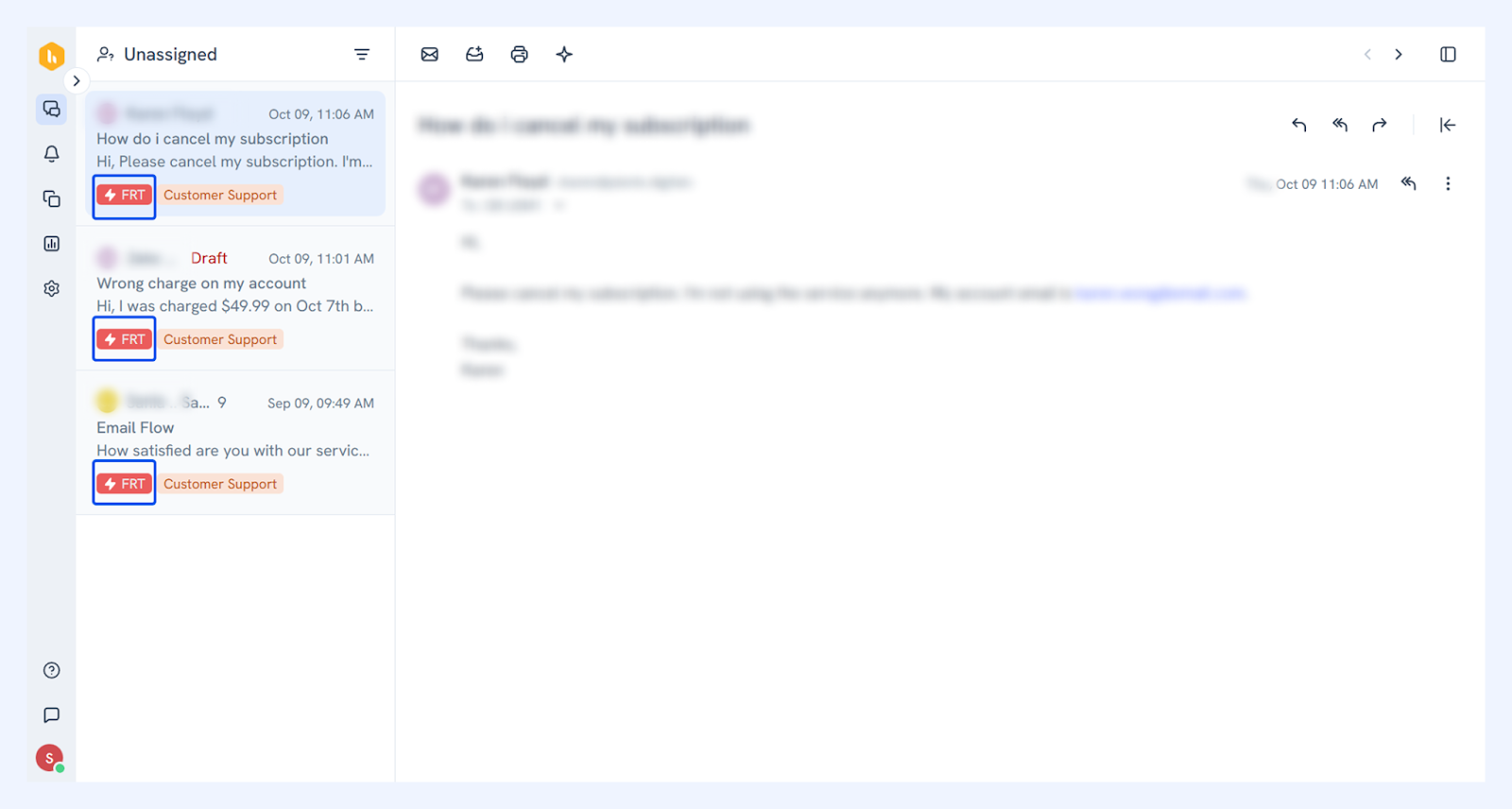
Each tag comes with a label of FRT (First Response Time) or RT (Resolution Time) with different colors showing:
- Grey: Upcoming
- Orange: Due soon
- Red: Overdue
Note: Status chips won't display for conversations when:
- There’s no match with any SLA policy
- SLA policy is removed manually
- Are closed with no pending actions
Email conversation view tracking
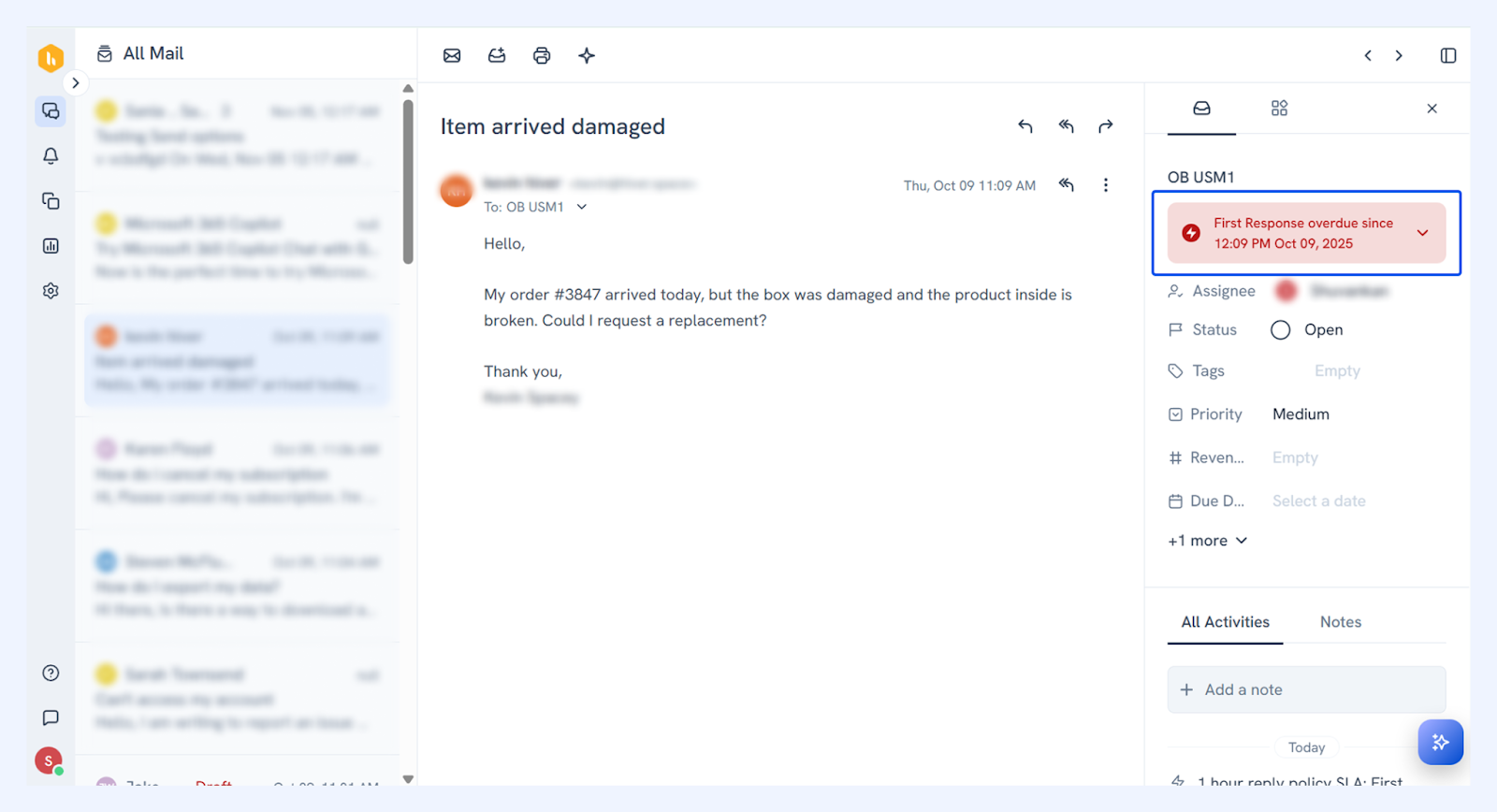
In your emails, you can find SLA details in the right panel:
- The SLA widget expands to show: Assignee, Status, and Tags.
- This records every SLA event to help you track changes or examine issues. The feed captures:
- Policy assignments to conversations
- Tag modifications affecting policies (removals and additions both)
- Manual policy removals by users
- First Response or Resolution deadline breaches
Managing SLA deadlines proactively
By setting up notifications, you can effectively handle your SLA policies and stay on top of deadlines. It alerts you when your conversations require immediate attention or are approaching their due date. Here are four notification types available per policy:
- FRT Overdue: First Response Time deadline is breached
- RT Overdue: Resolution Time deadline is breached
- FRT Due soon: First Response Time is approaching the deadline
- RT Due soon: Resolution Time is approaching the deadline
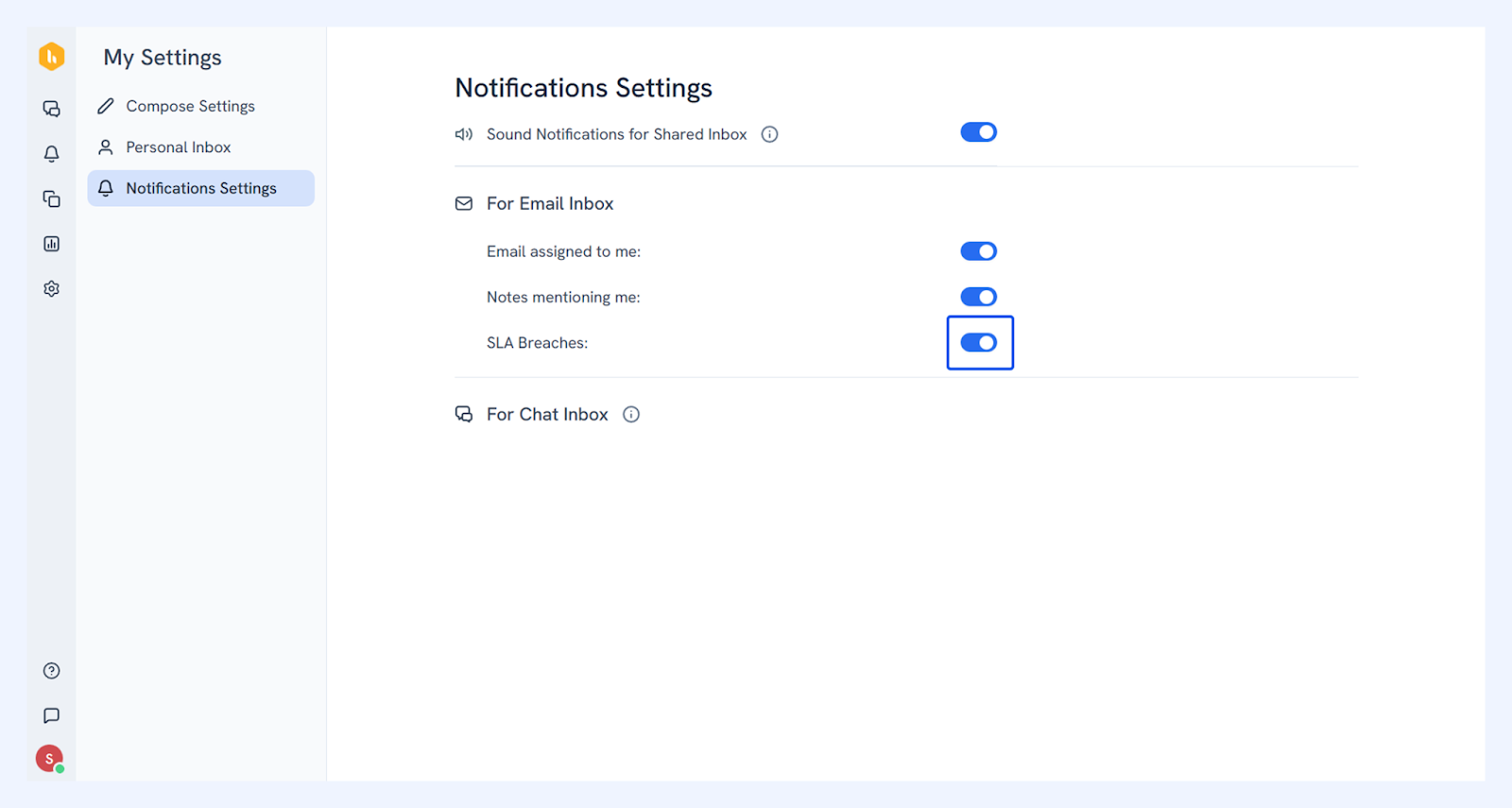
To enable SLA alerts in your Priority notifications tab:
- Go to your profile icon and select My Settings.
- Select Notification Settings and turn on the toggle for SLA breaches.
Next steps