Getting started with Skills
A Skill is a process you describe to Hiver AI, and once it's on, Hiver runs it for you on every matching conversation in a Shared Inbox.
Where an Automation follows a fixed rule, a Skill reasons through the conversation: it reads the full thread, decides what the situation calls for, and carries out actions like tagging, assigning, adding a note, updating the status, or drafting a reply. Some of those actions can run on their own, and others can wait for a member to approve them.
This article walks through creating a Skill, adding approval where you want it, testing it, and switching it on for a Shared Inbox.
With Skills, you can:
- Capture a process your team repeats, and let Hiver AI carry it out on matching conversations.
- Pull answers from your Knowledge Hub before a reply goes out.
- Read PDF and image attachments on a conversation to pull out details the Skill needs.
- Hold any action, such as a reply, for a member to approve first.
- Read from or write to a connected app like HubSpot while handling a conversation.
Before you begin
Make sure you have admin access in Hiver.
Creating a Skill
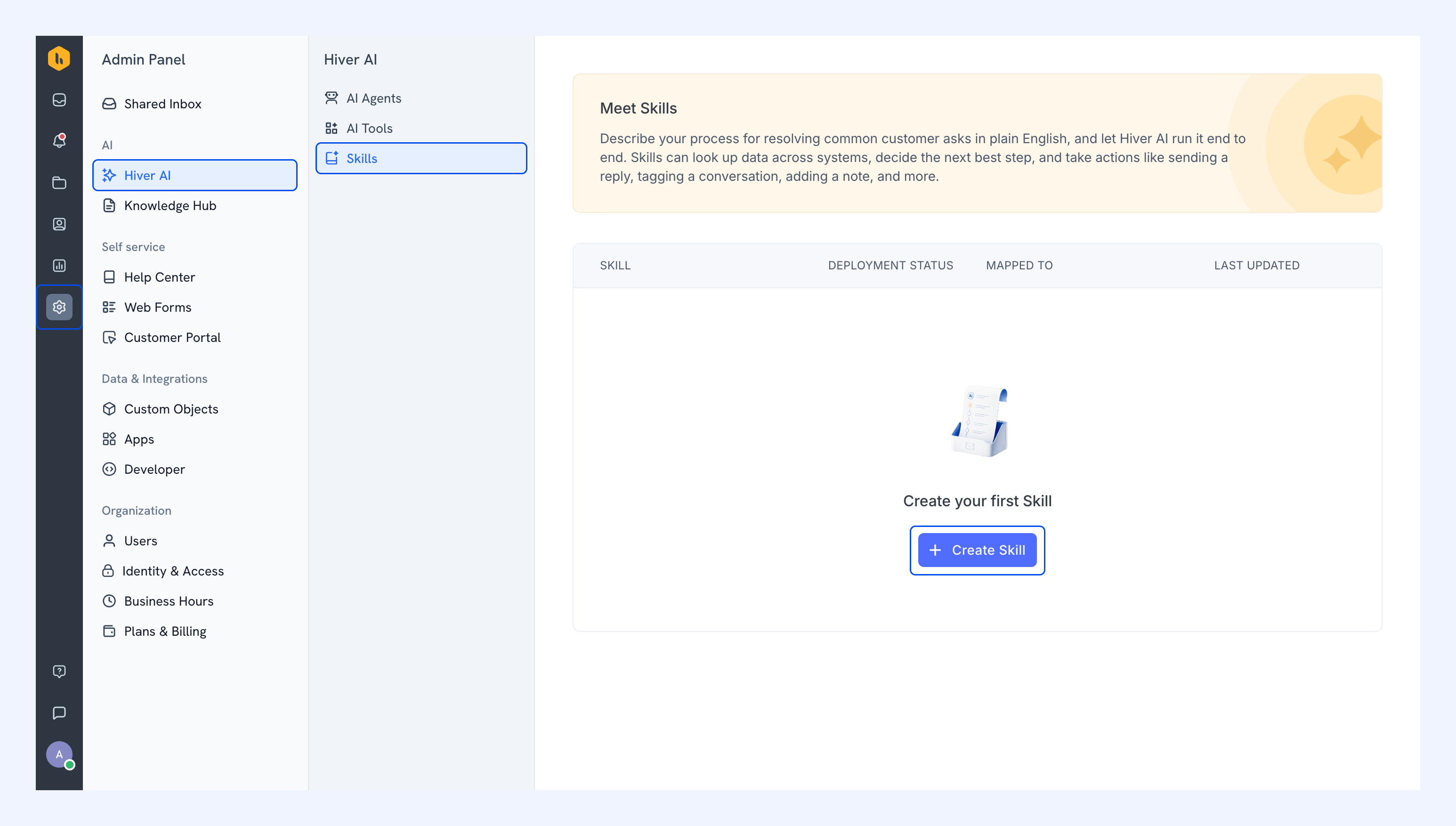
1. Go to Admin Panel → Hiver AI → Skills, and click Create Skill.
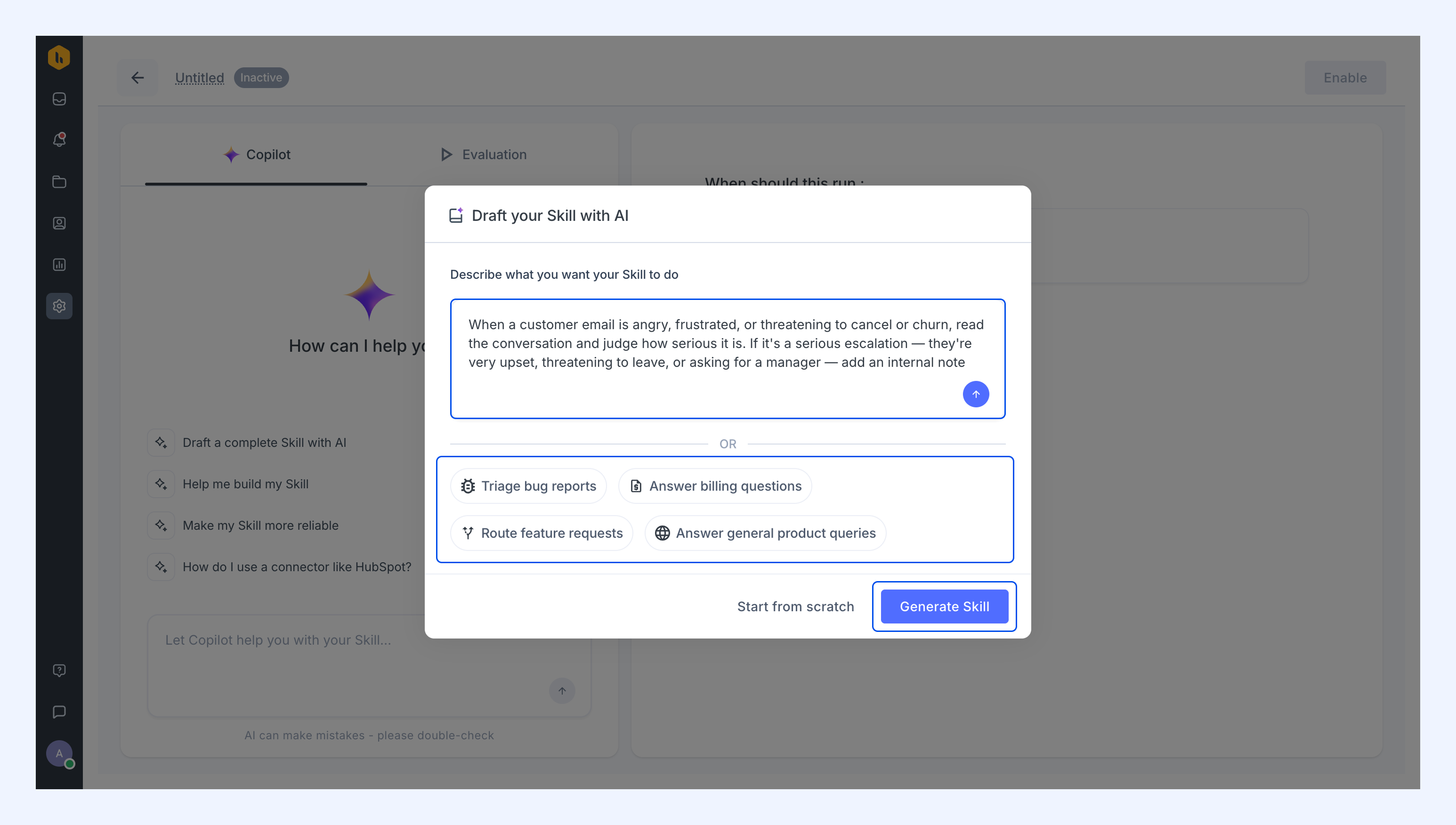
2. Describe what you want the Skill to do, then click Generate Skill. You can also begin from one of the suggested examples.
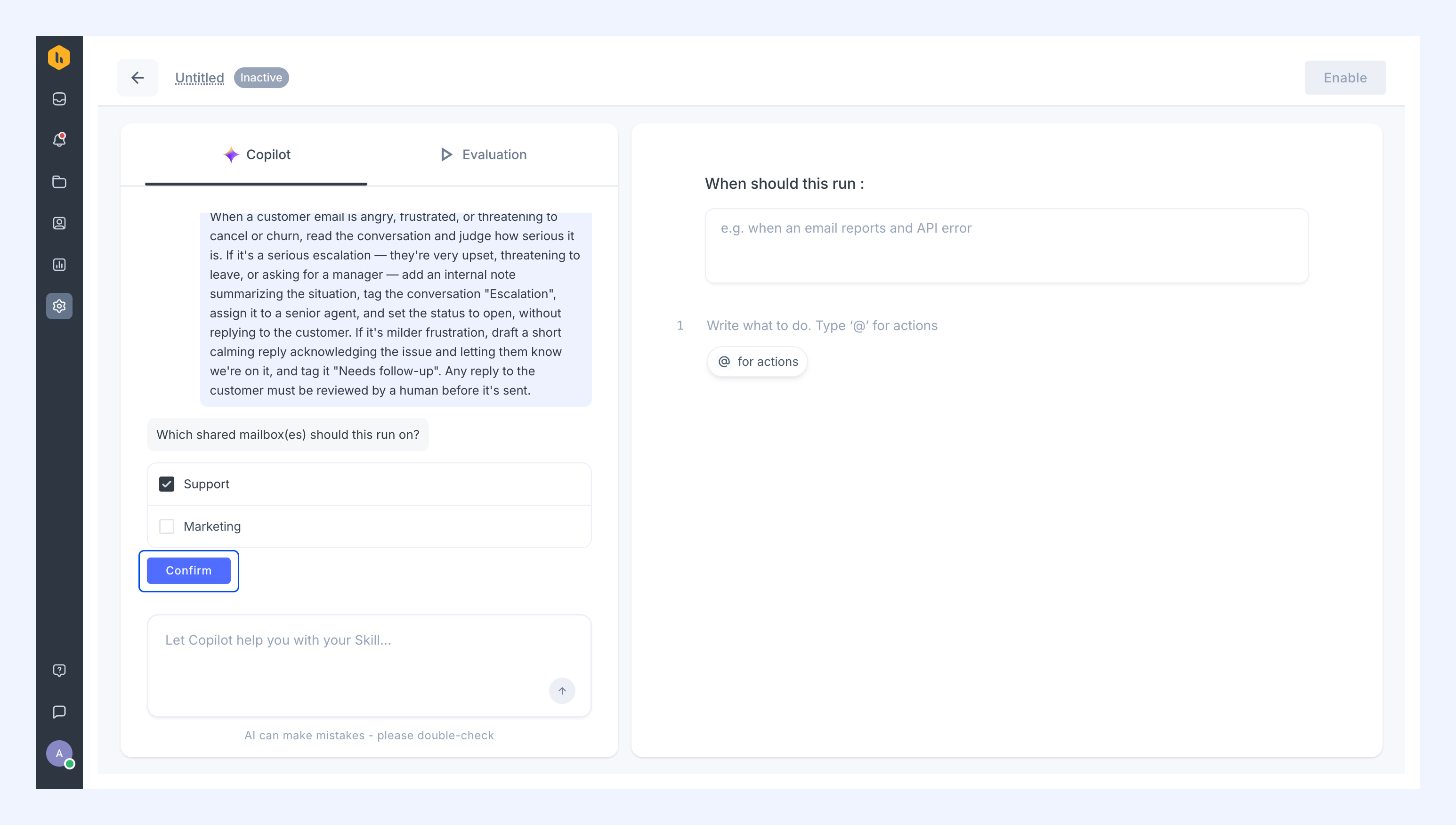
3. Answer the questions Hiver asks to fill in the details, and click Confirm for each. For example, it may ask which Shared Inbox the Skill runs on, or who to assign a conversation to.
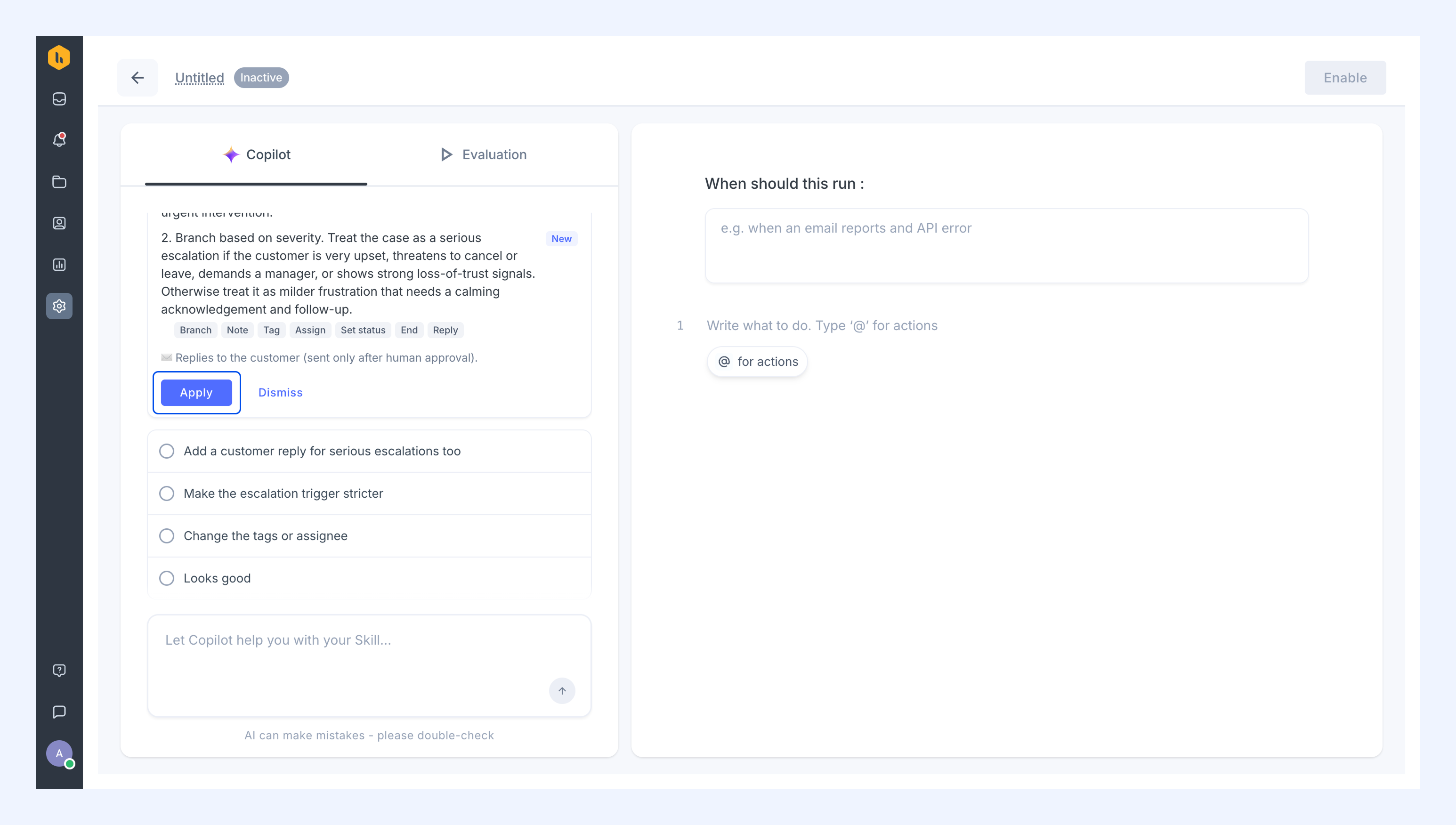
4. Review the draft and click Apply.
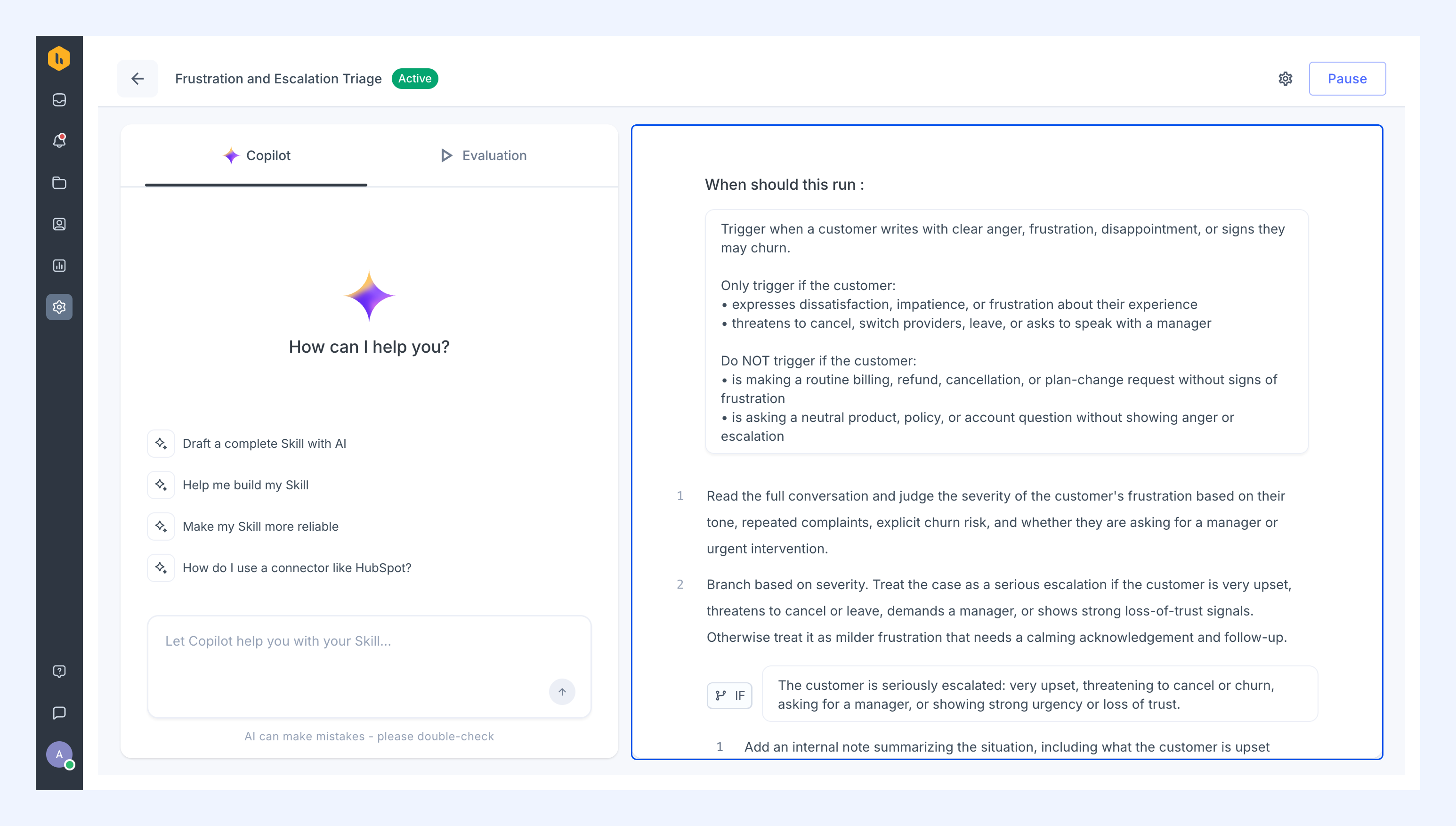
5. A Skill has two parts:
- Trigger: What starts the Skill.
- Steps: What the Skill does in response.
Available actions
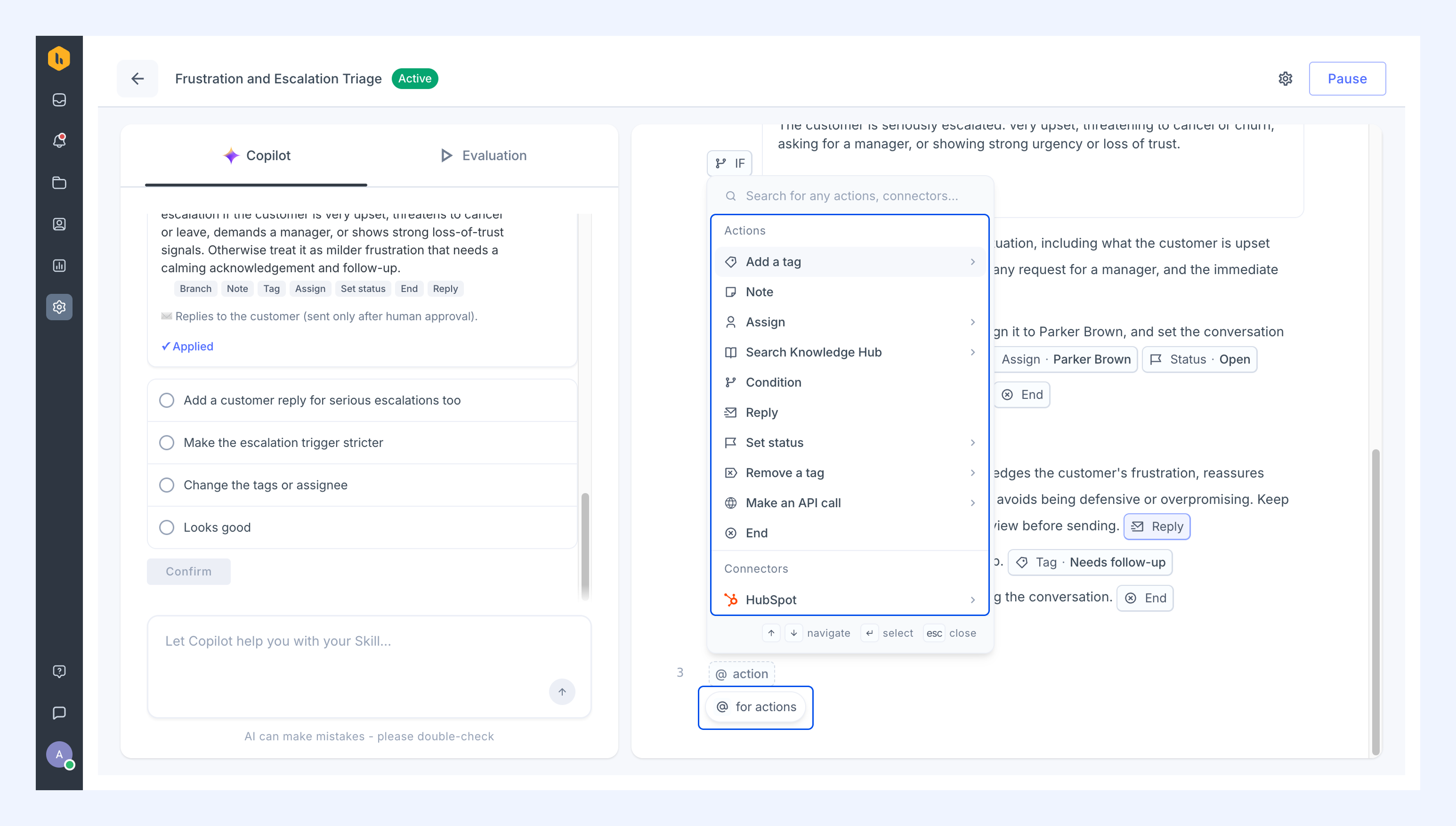
To add an action for the Skill, click for actions, then choose one from the list.
Action | What it does |
| Add a tag | Applies a tag. |
| Remove a tag | Removes a tag. |
| Note | Adds an internal note. |
| Assign | Assigns the conversation to a member. |
| Search Knowledge Hub | Looks up your configured knowledge sources to inform the next step. |
| Condition | Chooses which path the Skill takes. |
| Reply | Composes and sends a reply. |
| Set status | Changes the conversation status. |
| Make an API call | Calls an external system over the web. |
| HubSpot | Syncs customer, company, and ticket data with Hiver. |
| End | Stops the Skill for the conversation. |
Testing a Skill
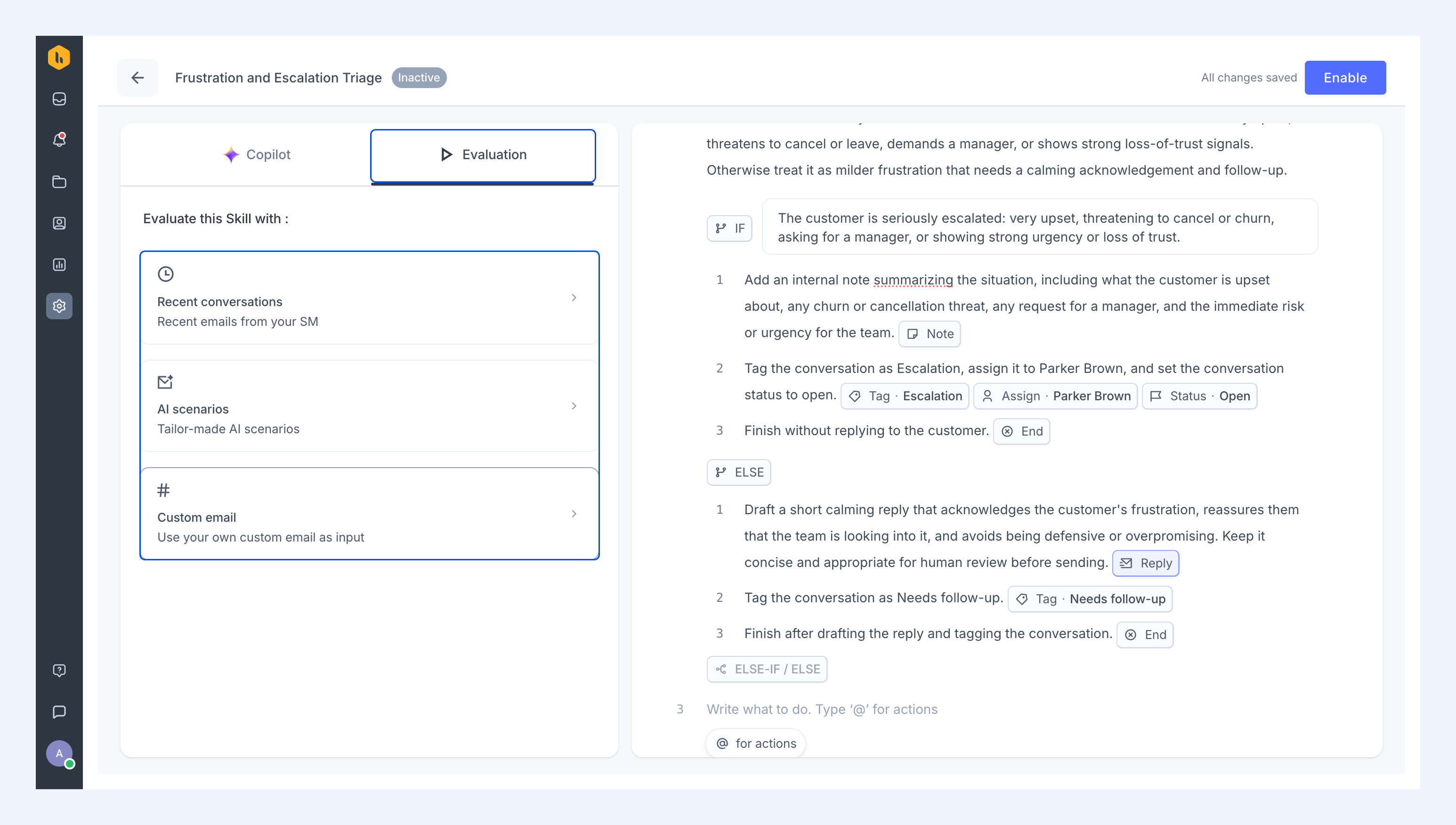
To evaluate a Skill on a conversation, go to Evaluation and choose an option:
- A recent conversation from your Shared Inbox
- A conversation Hiver generates for you
- An email you type in yourself
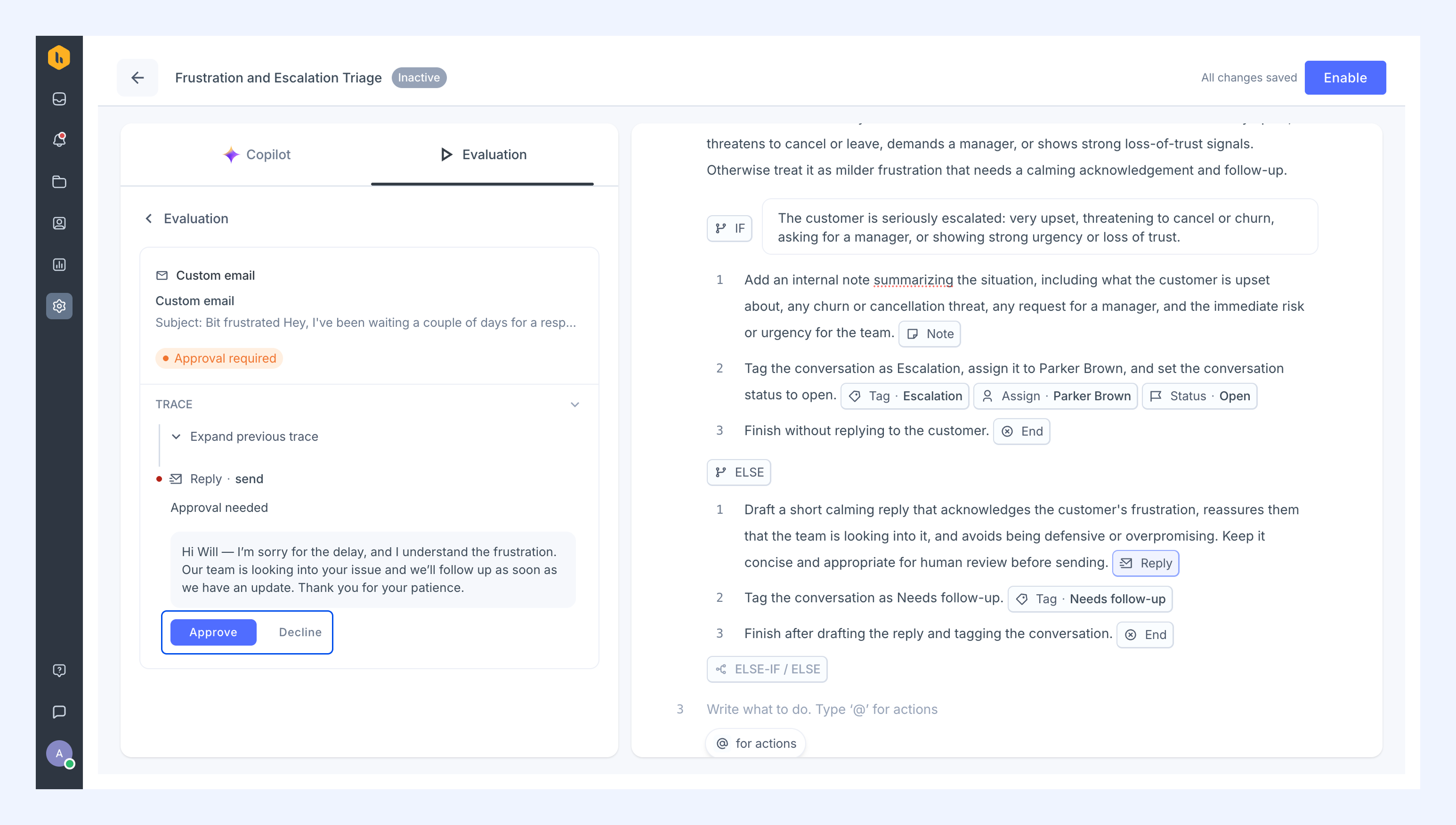
Hiver shows what the Skill decided. If an action needs approval, the run pauses so you can approve or edit it.
Enabling a Skill
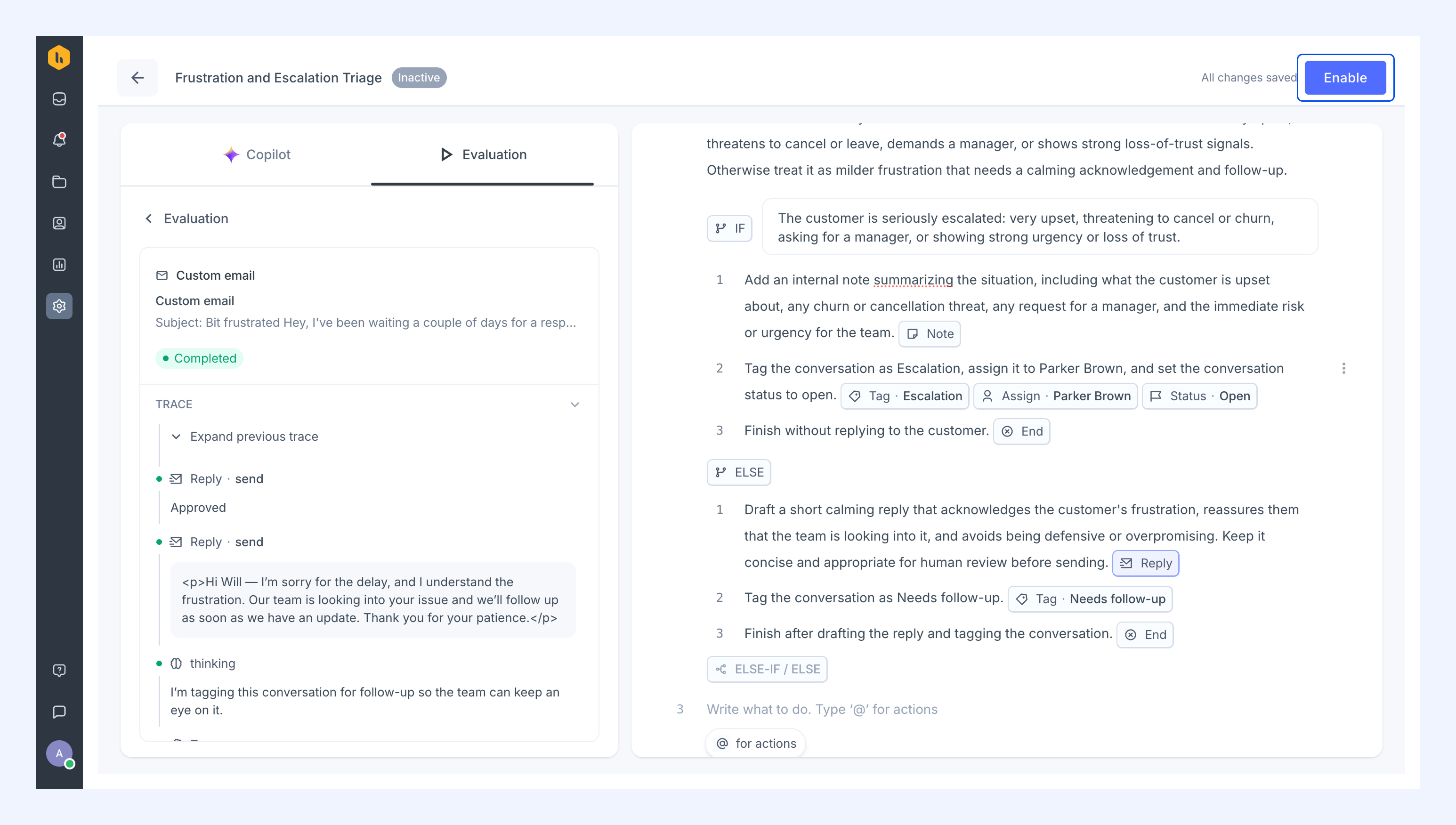
1. Click Enable.
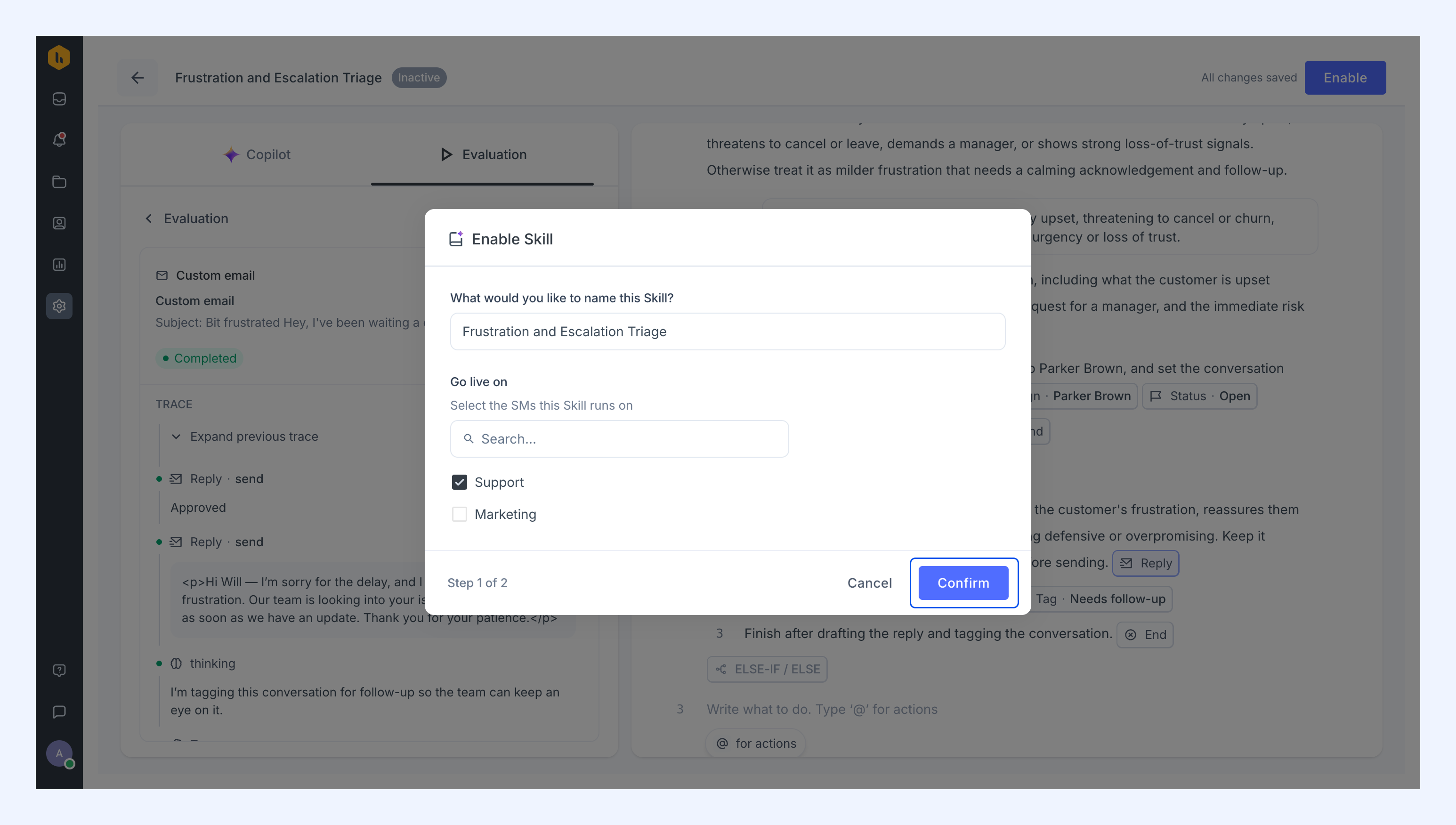
2. Give the Skill a name, choose the Shared Inboxes it should run on, and click Confirm.
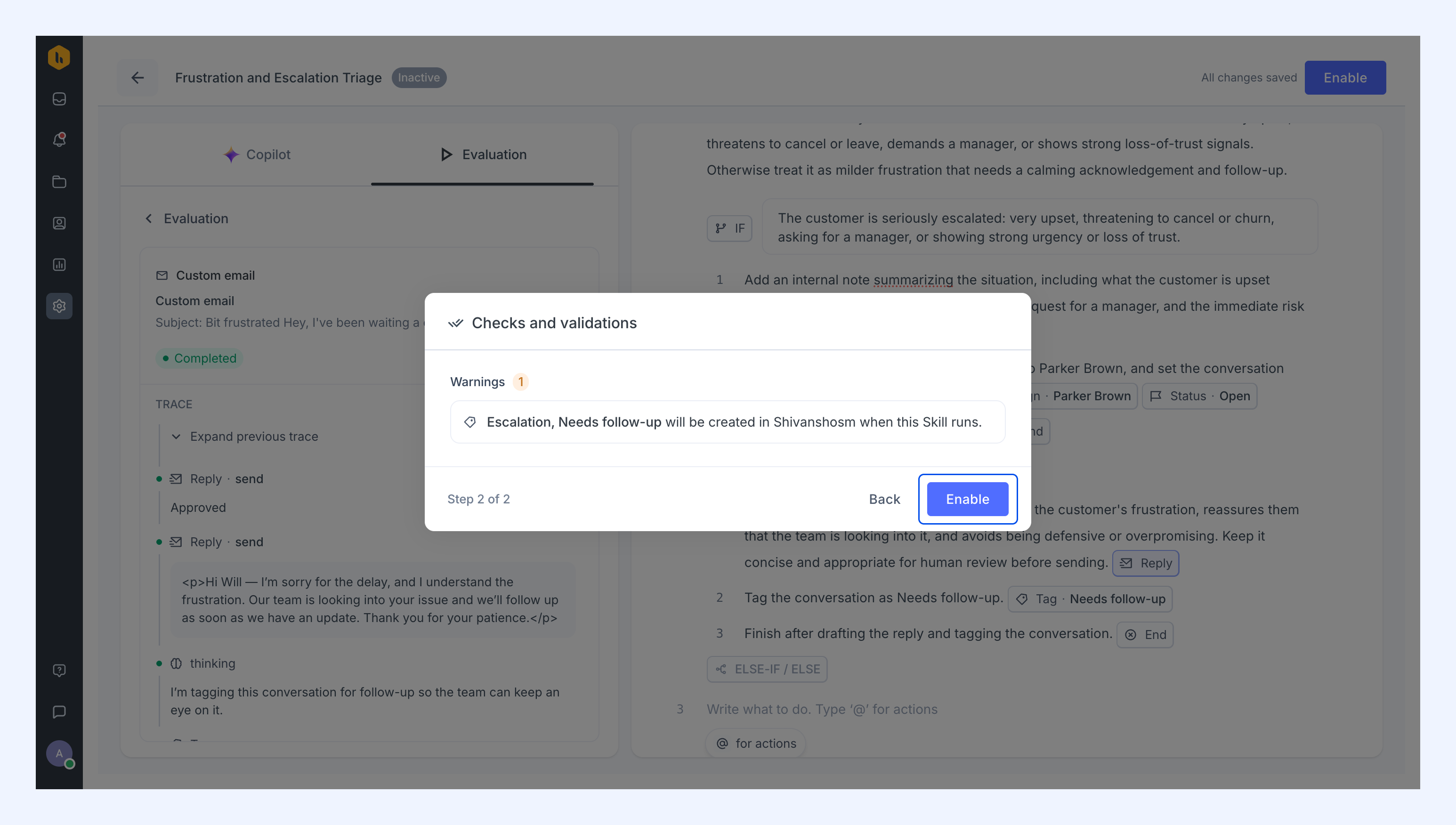
3. Look over the checks and validations, then click Enable.
Your Skill is now live and starts handling new conversations in the Shared Inboxes you selected.
Reviewing Skill runs
Every time a Skill acts on a conversation, Hiver records it as a run. You can review a Skill’s runs to check whether it’s handling the right conversations and taking the actions you expect. You can also find runs that failed and the replies waiting for approval.
The Skills list shows how often each Skill has run and when it last ran.
To review a Skill’s runs:
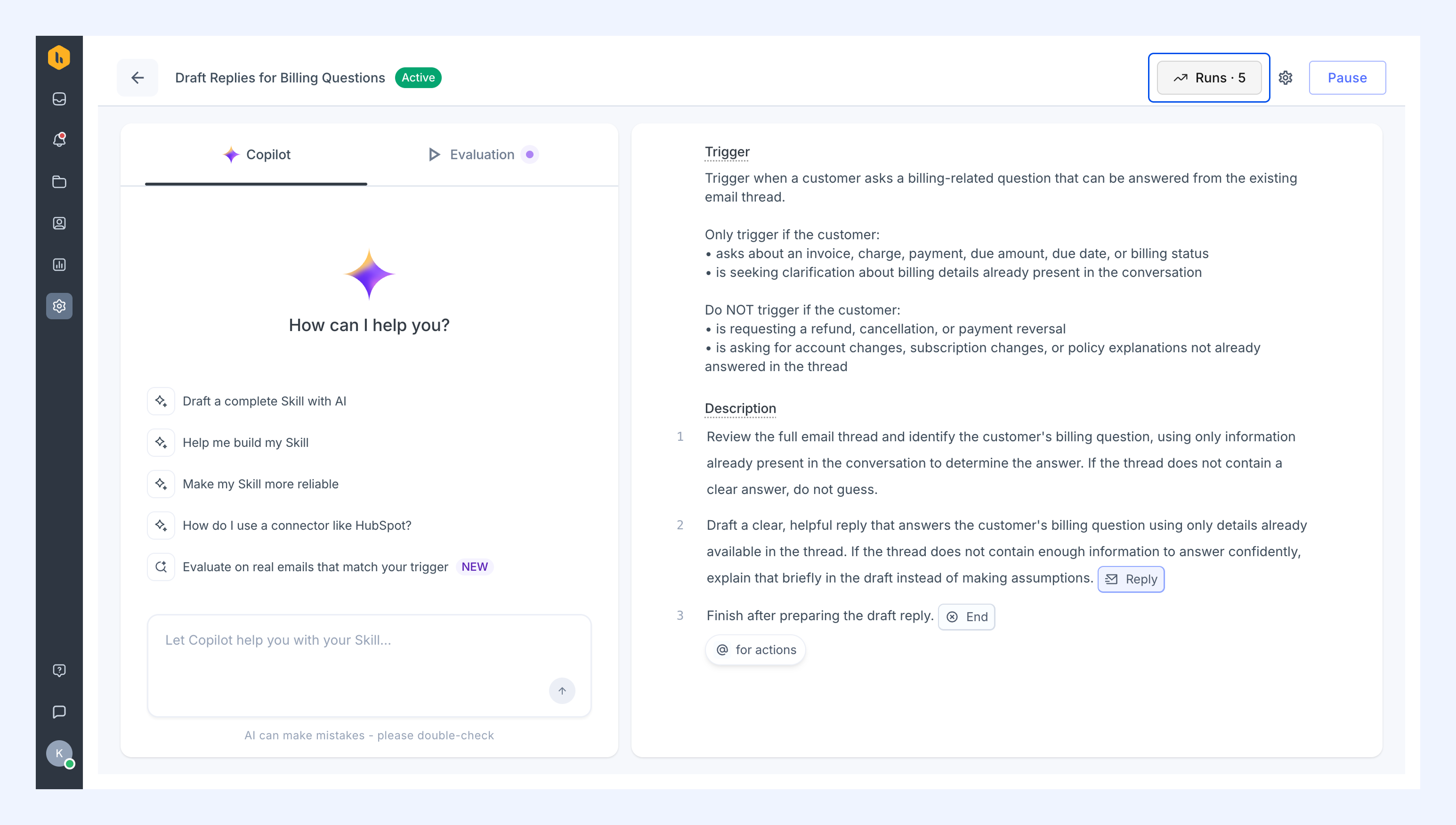
1. Open the Skill and click Runs. Choose the last 7, 30, or 90 days to see its daily activity and how those runs ended.
2. Filter runs by:
- Completed: The Skill ran every step and applied its actions.
- Awaiting: The Skill took an action that needs approval.
- Failed: The Skill didn’t complete because one of its steps ran into an error.
- Declined: A member declined an action that needed approval.
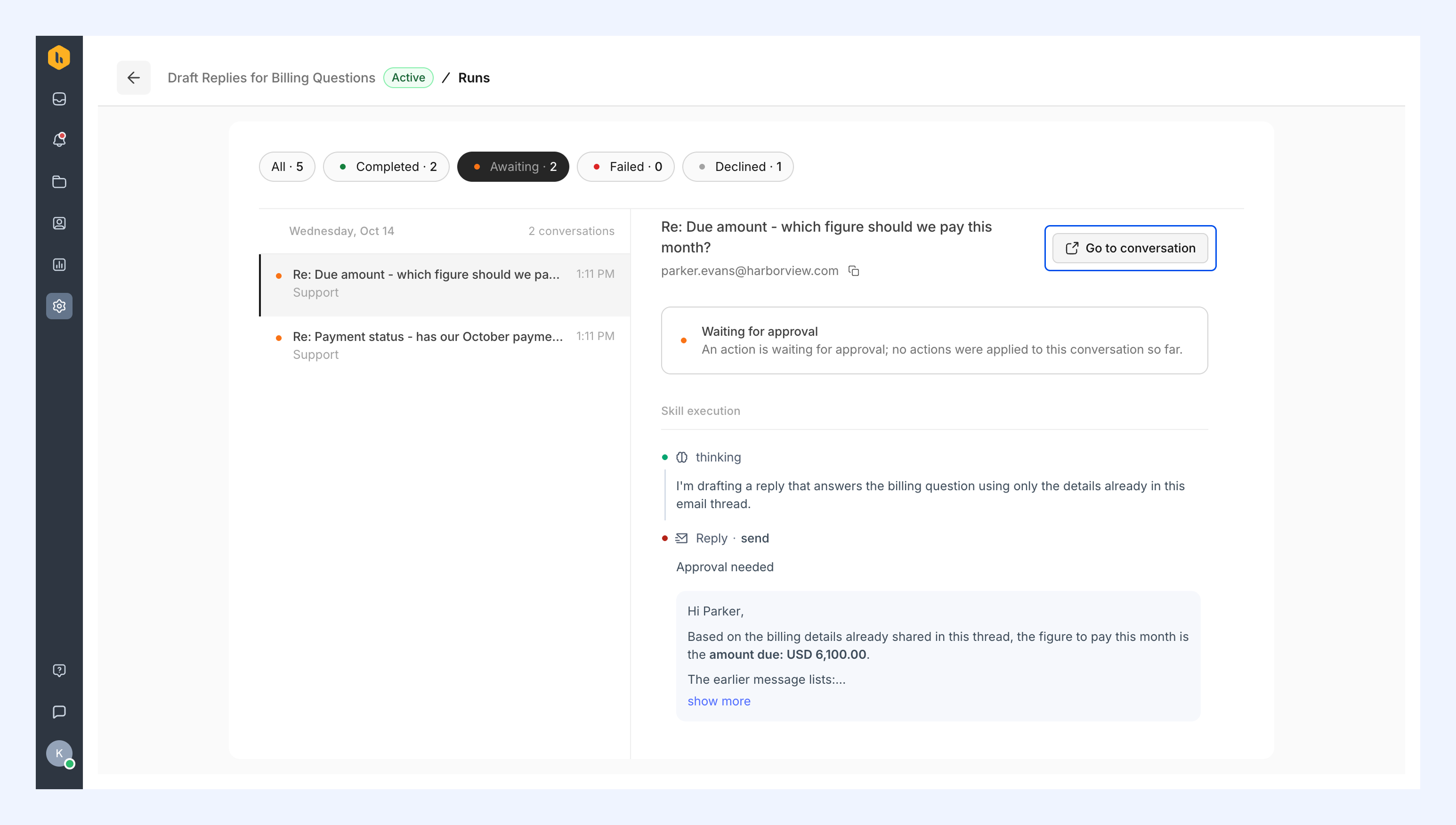
3. Select a run to see the conversation it ran on and each step the Skill took.
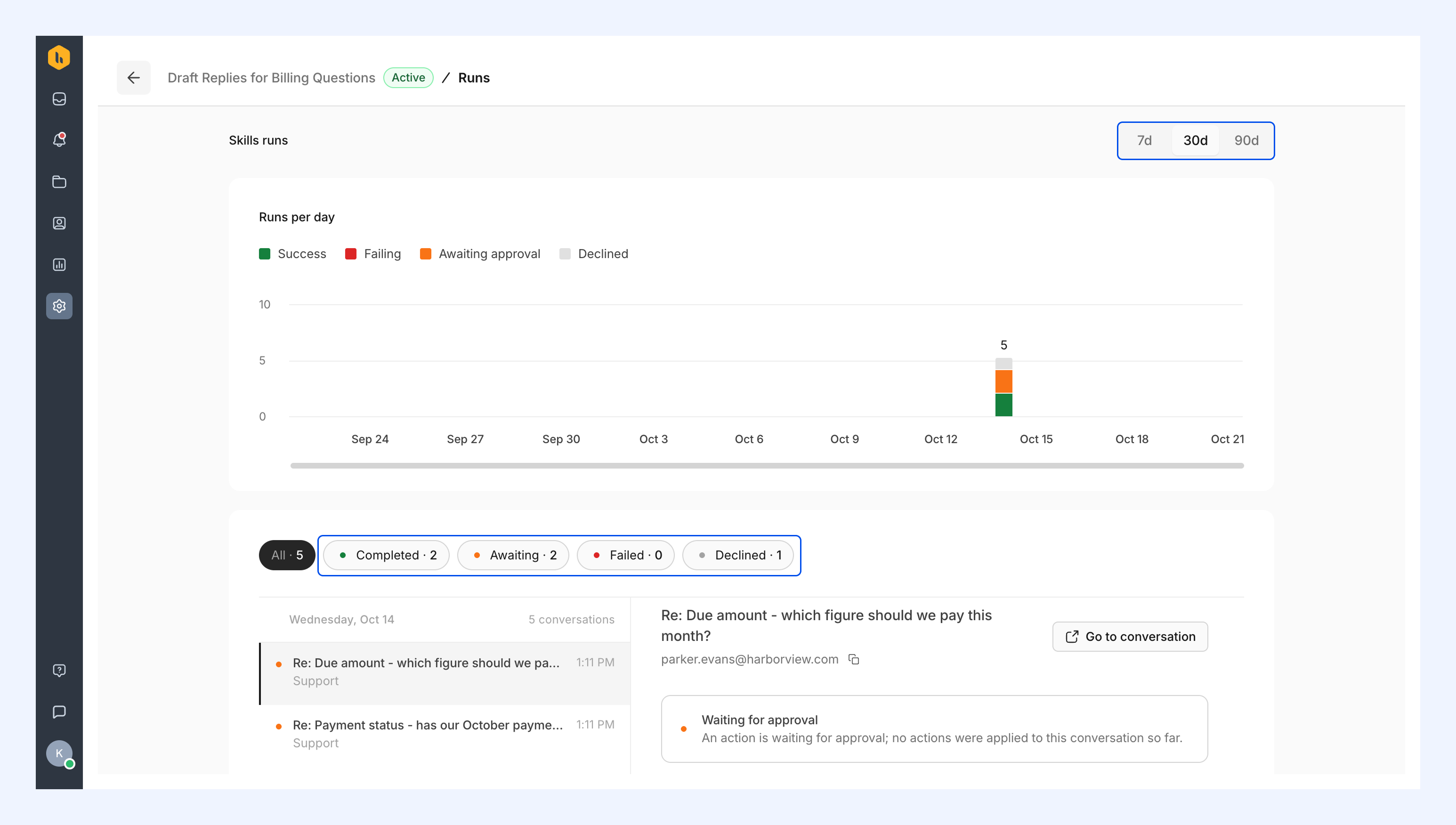
4. To review a reply waiting for approval, filter by Awaiting, select a run, and click Go to conversation.
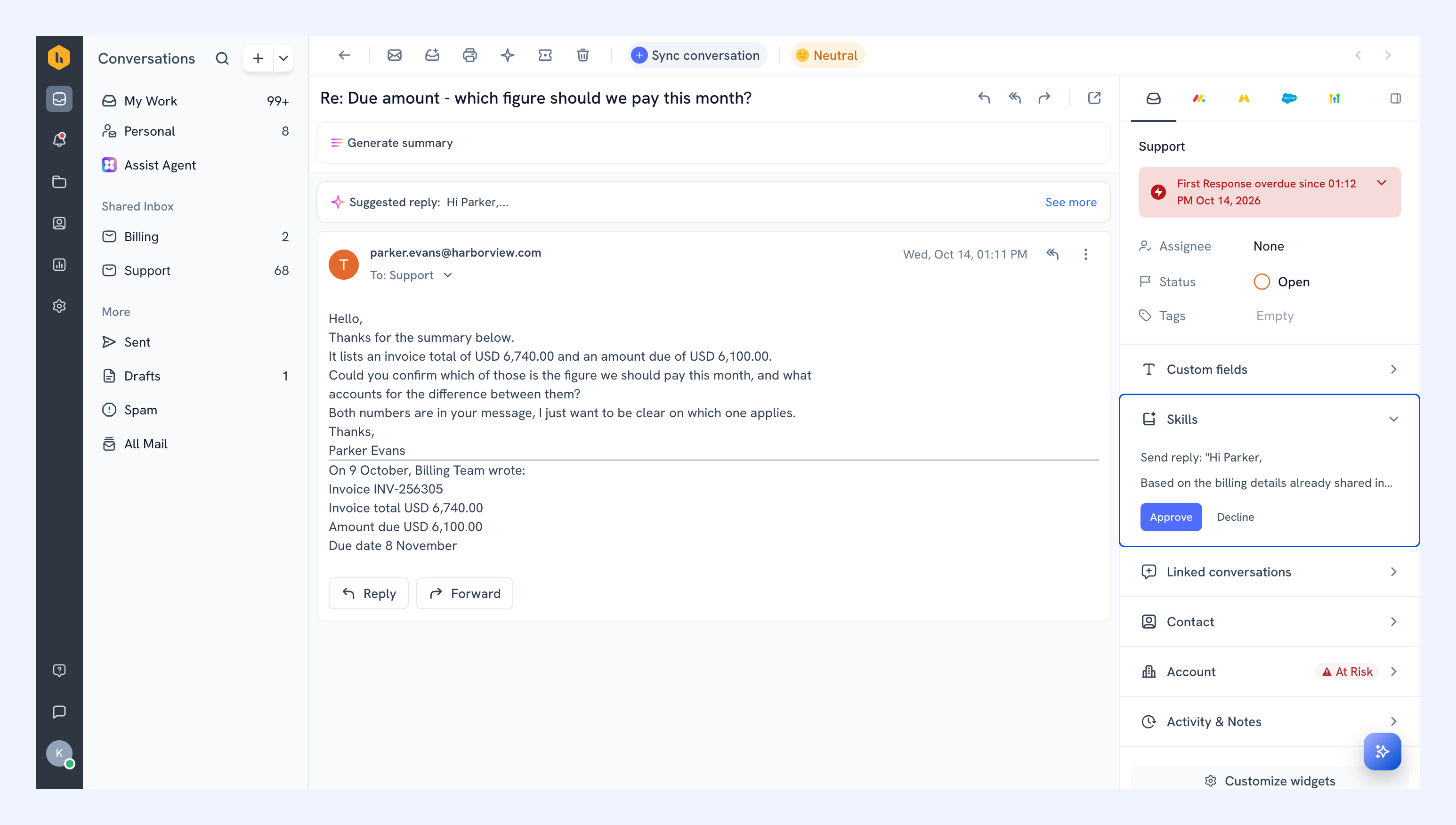
You can expand the Skills section in the right panel to find and review the pending reply. Approval happens within the conversation.
Managing a Skill
After a Skill is live, you can manage it at any time:
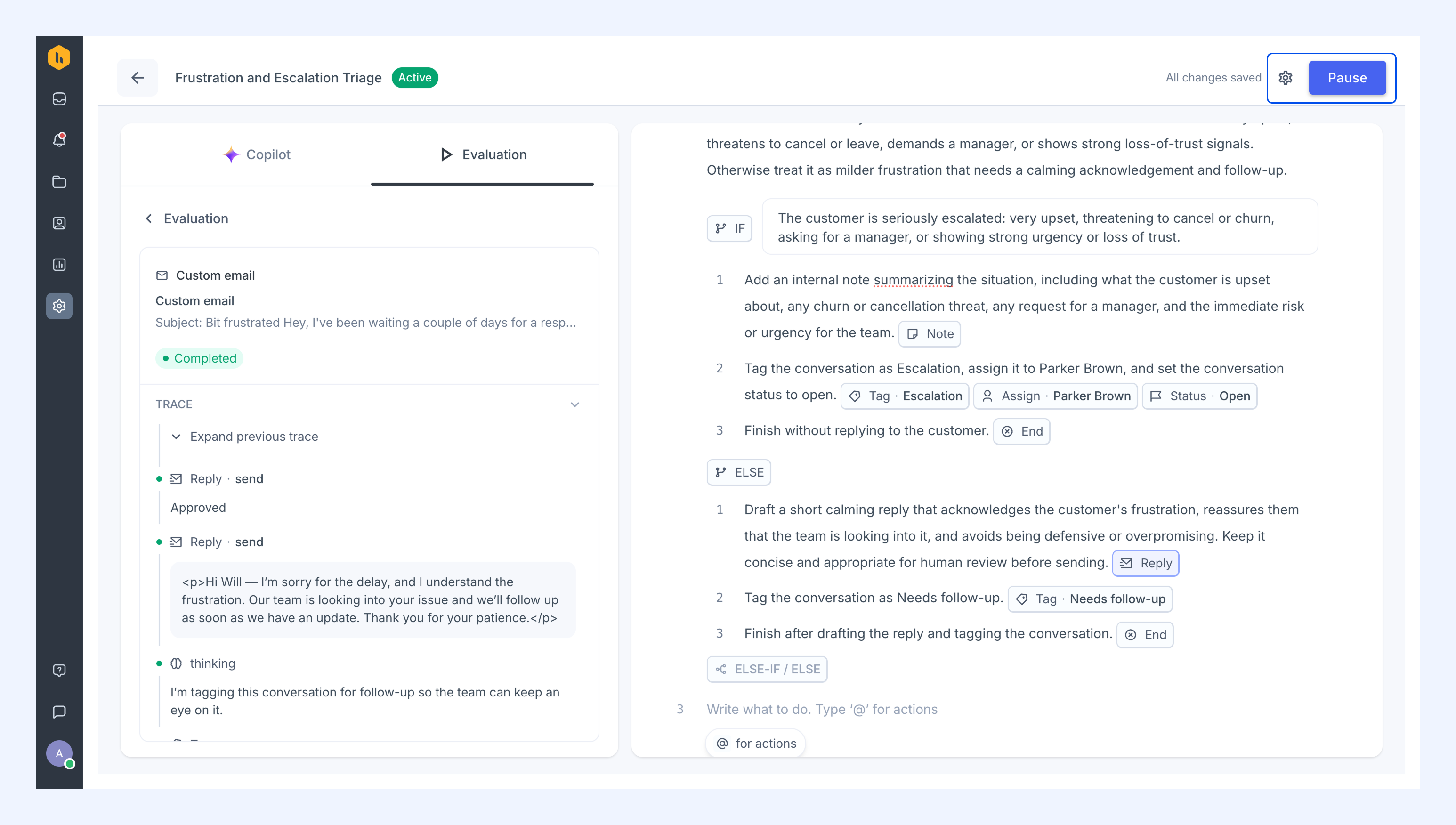
- Pause: Click Pause to stop the Skill from running, then enable it again whenever you're ready.
- Edit: Use the settings icon to rename the Skill or change the Shared Inboxes it runs on.
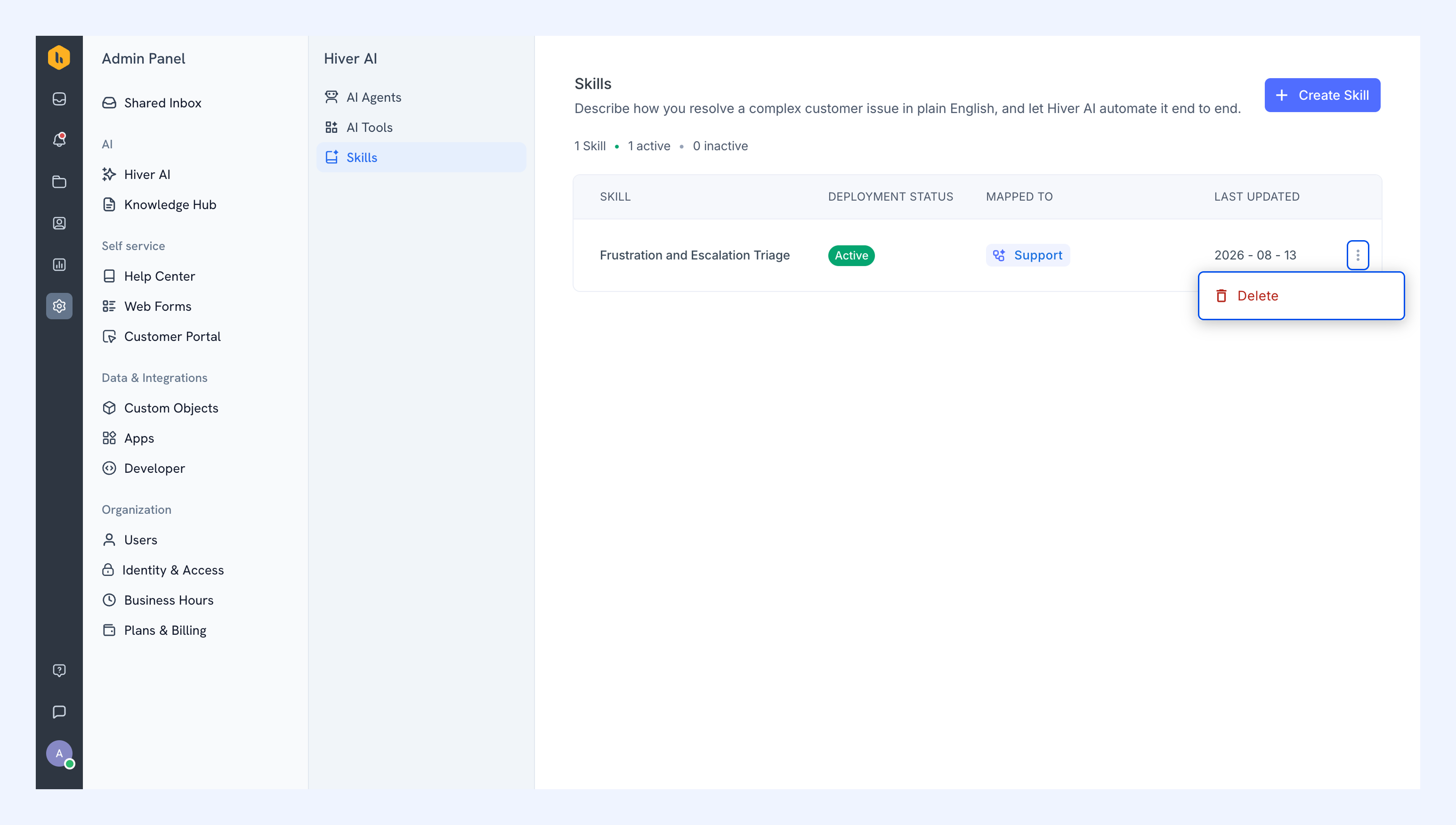
- Delete: Hover over the Skill, open the three-dot menu and select Delete, and confirm.
FAQs
Skill or Automation, which should I use?
An Automation fits when a fixed condition always produces the same action. A Skill fits when the request calls for judgment, such as working out what a customer means, choosing a path, or composing a reply.
Which apps can a Skill connect to?
Skills connect to HubSpot natively. For any other app, use the Make an API call action.
Can a Skill run on chat or Slack channels?
No. Skills work only on email conversations in a Shared Inbox.
Can I start a Skill manually on a conversation?
No. A Skill starts automatically whenever a new conversation matches its trigger.
What happens to later replies in the same conversation?
Once a conversation matches a Skill, every later reply on that thread stays with the same Skill.
Can a Skill read the attachments on an email?
Yes. A Skill reads what's inside attached PDFs and images, scanned documents included.
Next steps