Connecting Microsoft Teams to Hiver Slack Inbox
Hiver's app for Microsoft Teams, HiverHQ, connects your customer's Teams channel to a Slack channel in your Slack Inbox. Messages posted in the connected Teams channel arrive in your Slack Inbox as conversations, and your replies are posted to the customer's Teams channel.
This guide explains how to connect a customer's Teams channel and reply to their messages.
Note: This feature is currently in an early access program. To enable it for your account, reach out to us at support@hiverhq.com.
Prerequisites
Before you begin, make sure you have:
- A Slack Inbox connected to the Slack channel where you want to receive your customer's messages.
- A customer contact who can add apps in Microsoft Teams.
Requesting a connection code
Each Teams channel connects to your Slack Inbox with a one-time code. Our support team creates the code for the Slack channel you choose.
1. Reach out to us at support@hiverhq.com and share:
- The Slack channel you want to connect.
- Your customer's company name, shown next to their name in Slack.
- The name your customer sees on your replies in Teams.
2. Once you receive the code, send it to your customer along with a link to this guide.
Note:
- A code works once and expires after 30 days.
- Each Slack channel can be connected to one Teams channel.
Connecting a Teams channel
Your customer connects the channel in Microsoft Teams, using the code you sent them. The steps depend on whether it's a standard channel, which everyone in the team can see, or a private or shared channel.
Connecting a standard channel
1. In Microsoft Teams, go to Apps, search for HiverHQ, and click Add to a team.
2. Select the team and the channel you want to connect.
3. In the channel, enter the code and click Connect.
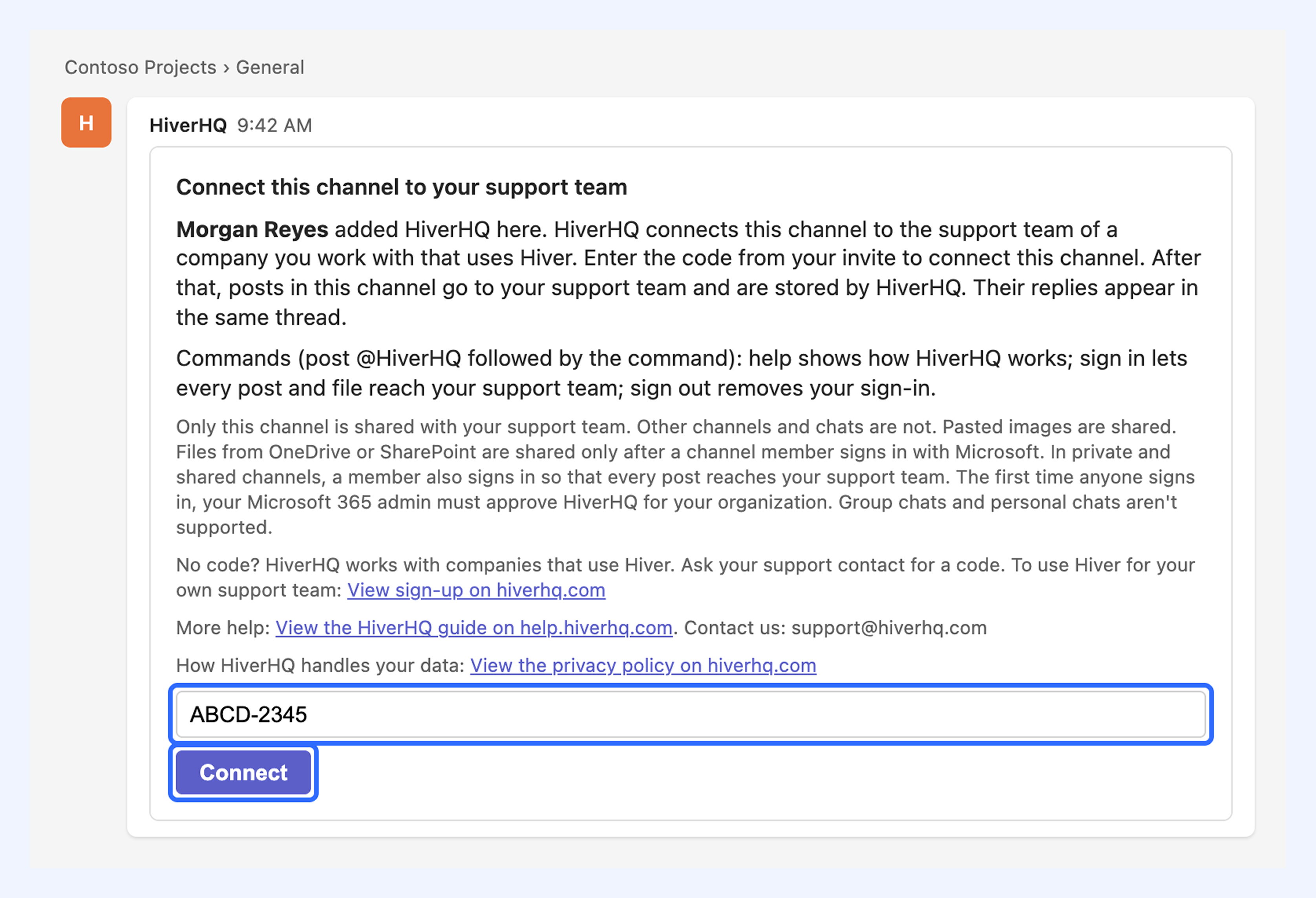
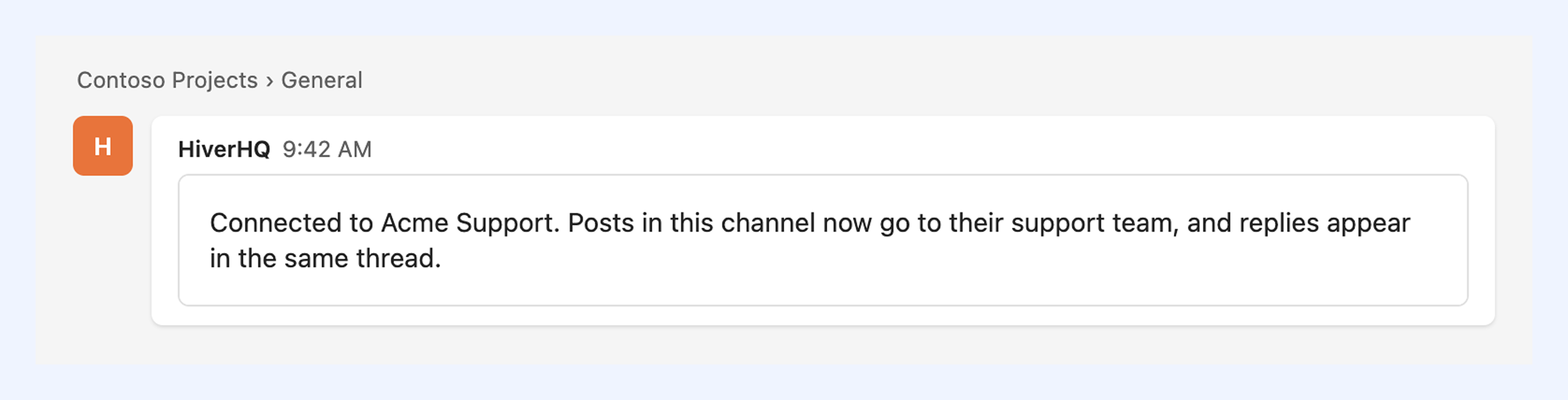
Once connected, the HiverHQ app confirms the connection in the channel, and new posts in the channel start reaching your Slack Inbox.
Note: If a code has expired or was already used, request a new one from our support team.
Connecting a private or shared channel
To connect a private or shared channel, the HiverHQ app needs to be added to that channel, and a channel member needs to sign in with their Microsoft account.
1. In Microsoft Teams, go to Apps, search for HiverHQ, and click Add to a team. Select the team that has the channel.
2. In the channel, post this message: @HiverHQ connect
3. Confirm that you want to add the app to the channel.
4. Enter the code and click Connect.
5. Click Sign in with Microsoft and sign in with your Microsoft account.
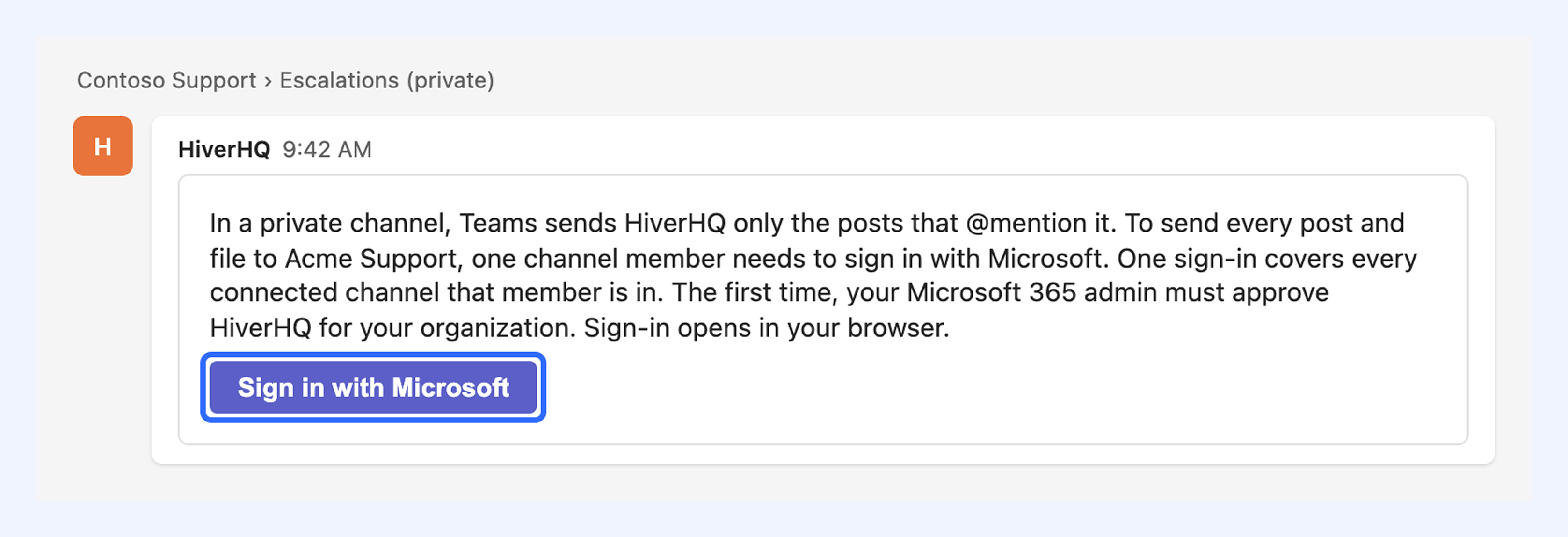
Once a channel member signs in, every post in the channel reaches your Slack Inbox.
Note: For a shared channel, someone in the organization that created the channel needs to do these steps.
Signing in with Microsoft
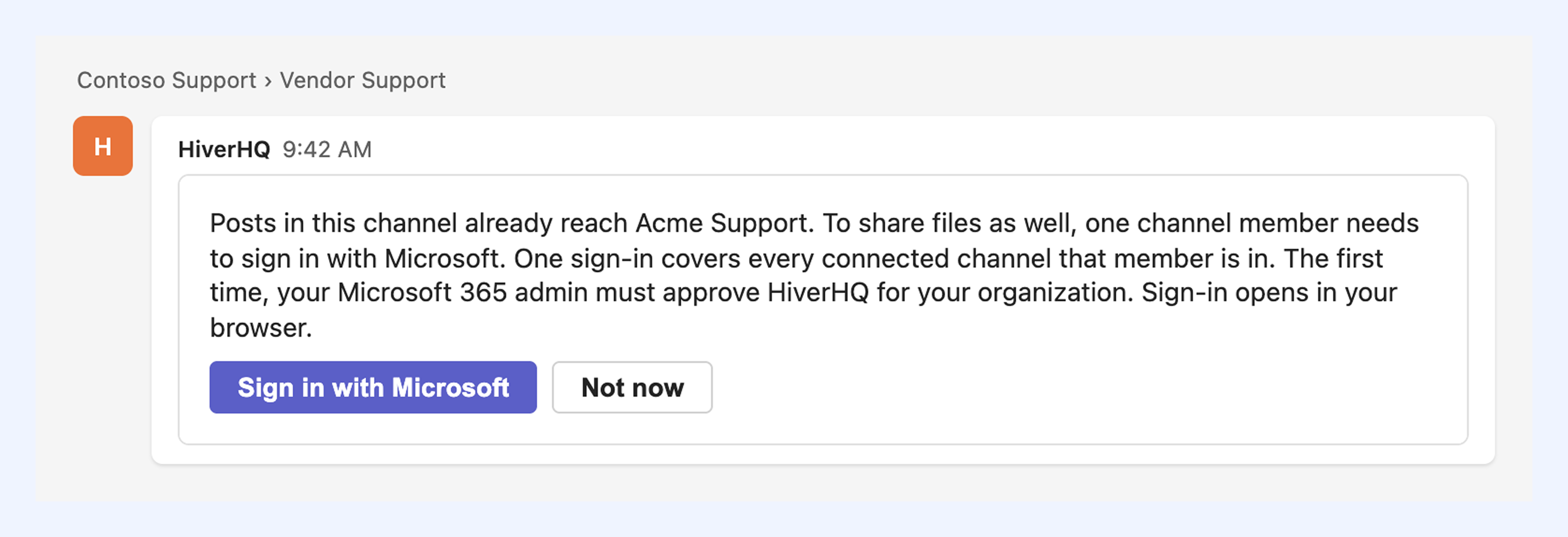
When a channel member signs in with Microsoft, every post in a private or shared channel reaches your Slack Inbox, and files can be shared between the Teams channel and your Slack Inbox. In a standard channel, signing in is optional and only needed to share files.
A member only needs to sign in once for all the connected channels they're in. The first time someone in your customer's organization signs in, their Microsoft 365 admin needs to approve the HiverHQ app. If the person signing in isn't an admin, the sign-in page shows a link they can send to their admin.
Replying to customers on Microsoft Teams
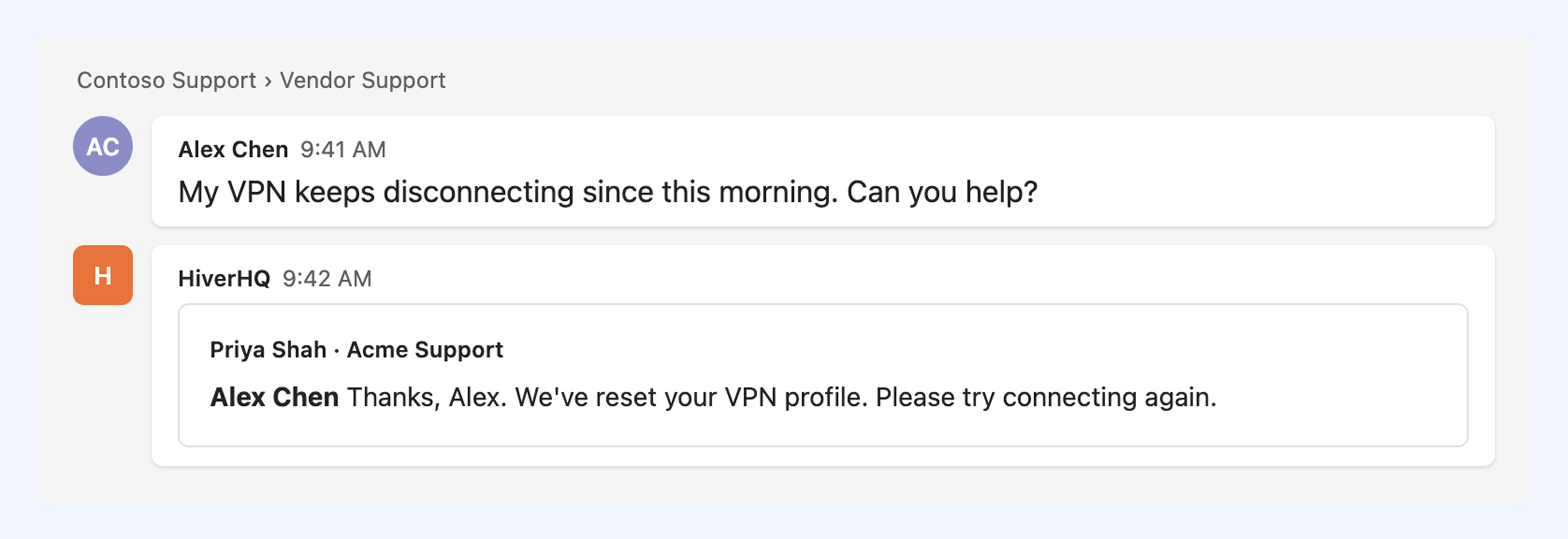
Messages from a connected Teams channel arrive in your Slack Inbox like any other Slack conversation, so your team can assign, tag, and reply to them. You can reply from Hiver or from the Slack channel, and your reply appears in the customer's Teams channel.
Each new post in the Teams channel starts a new conversation, and replies to that post stay in the same conversation. A new message you post in the Slack channel also starts a new post in the customer's Teams channel.
Note:
- Edits, deletions, and emoji reactions appear in both Hiver and Teams.
- Hiver AI features are not available for conversations from Microsoft Teams.
Tip: To keep a Slack reply internal, start it with //. It isn't sent to Teams.
Sending attachments in Microsoft Teams conversations
Once a channel member signs in with Microsoft, your customer can share files in the connected channel, and you can attach files to your replies. Each file can be up to 25 MB, with up to 10 files per post.
Note: Without a sign-in, only images pasted into a message can be shared. Other files appear by name only.
Using the HiverHQ app's commands
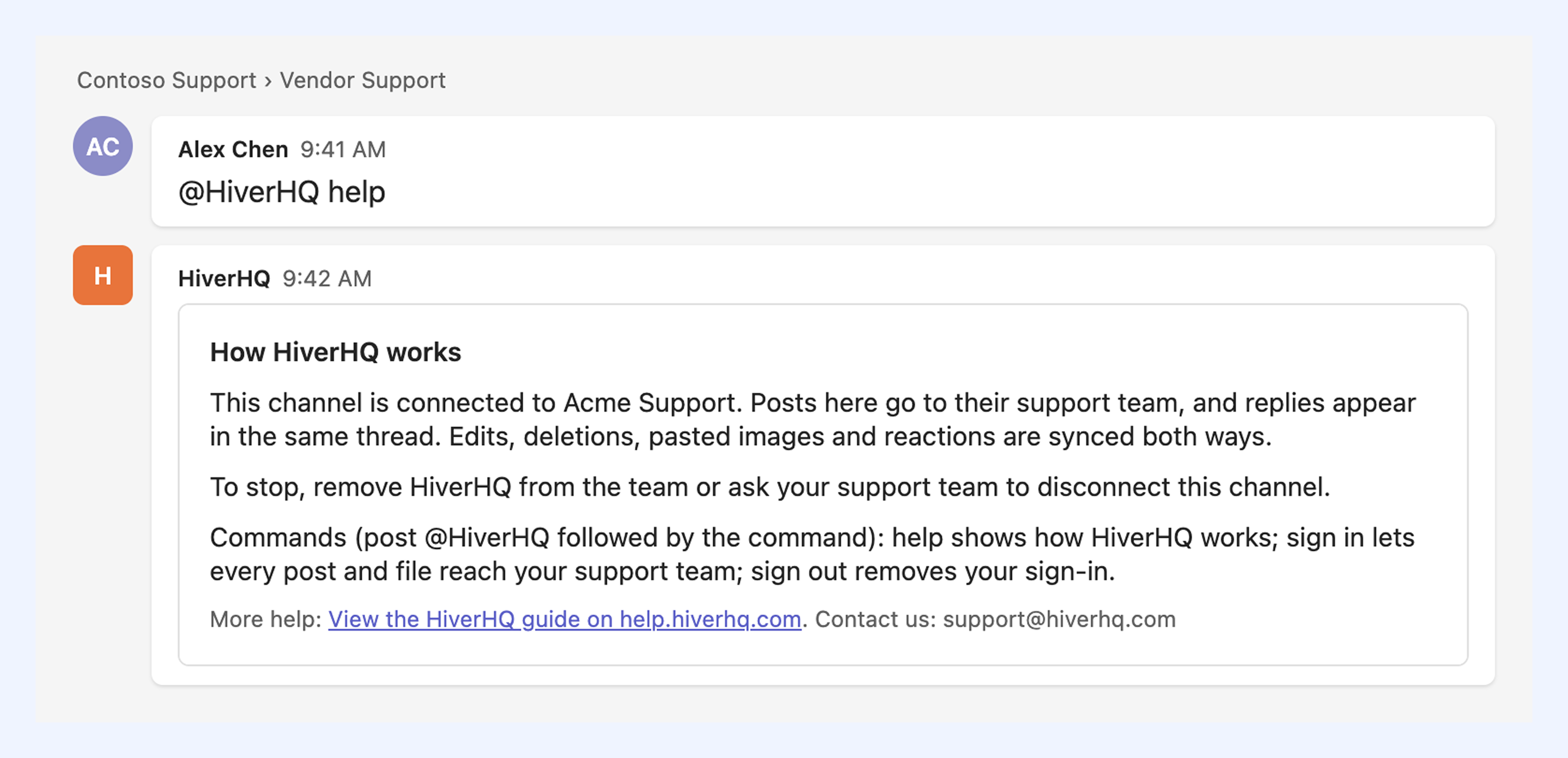
Your customer can use these commands in the connected channel to get help or manage their Microsoft sign-in:
- @HiverHQ help: Shows how the app works in the channel.
- @HiverHQ sign in: Shows the Microsoft sign-in card.
- @HiverHQ sign out: Removes the member's Microsoft sign-in. If another member has signed in, the app uses their sign-in.
- @HiverHQ hi: Sends a test message to your Slack Inbox and confirms it was delivered.
Disconnecting a channel
Disconnecting stops messages from syncing between the customer's Teams channel and your Slack Inbox. To disconnect a channel:
- Your customer can remove the HiverHQ app from the team in Microsoft Teams.
- You can reach out to us at support@hiverhq.com.
New messages stop syncing right away. Past conversations from the Teams channel stay in Hiver.
FAQs
Does my customer need a Hiver account?
No. Your customer only needs Microsoft Teams and permission to add apps to it.
Can I connect more than one customer to a Slack Inbox?
Yes. Request a separate connection code for each customer, each with its own Slack channel.
Why do only some posts arrive from a private channel?
No channel member has signed in with Microsoft yet. Until someone signs in, only posts that mention @HiverHQ reach your Slack Inbox. Ask a member of the channel to post @HiverHQ sign in.
Can the app read my customer's other channels or chats?
No. The app only syncs messages from the connected channel.
How is my customer's data handled?
Learn more about the HiverHQ app's privacy policy.