Managing SMS conversations
Once you've set up your SMS Inbox, texts from your customers come into Hiver as conversations, right alongside your other work.
This article covers how SMS conversations are organized, how to assign, tag, reply to, and close them, and how to start new ones.
Viewing conversations
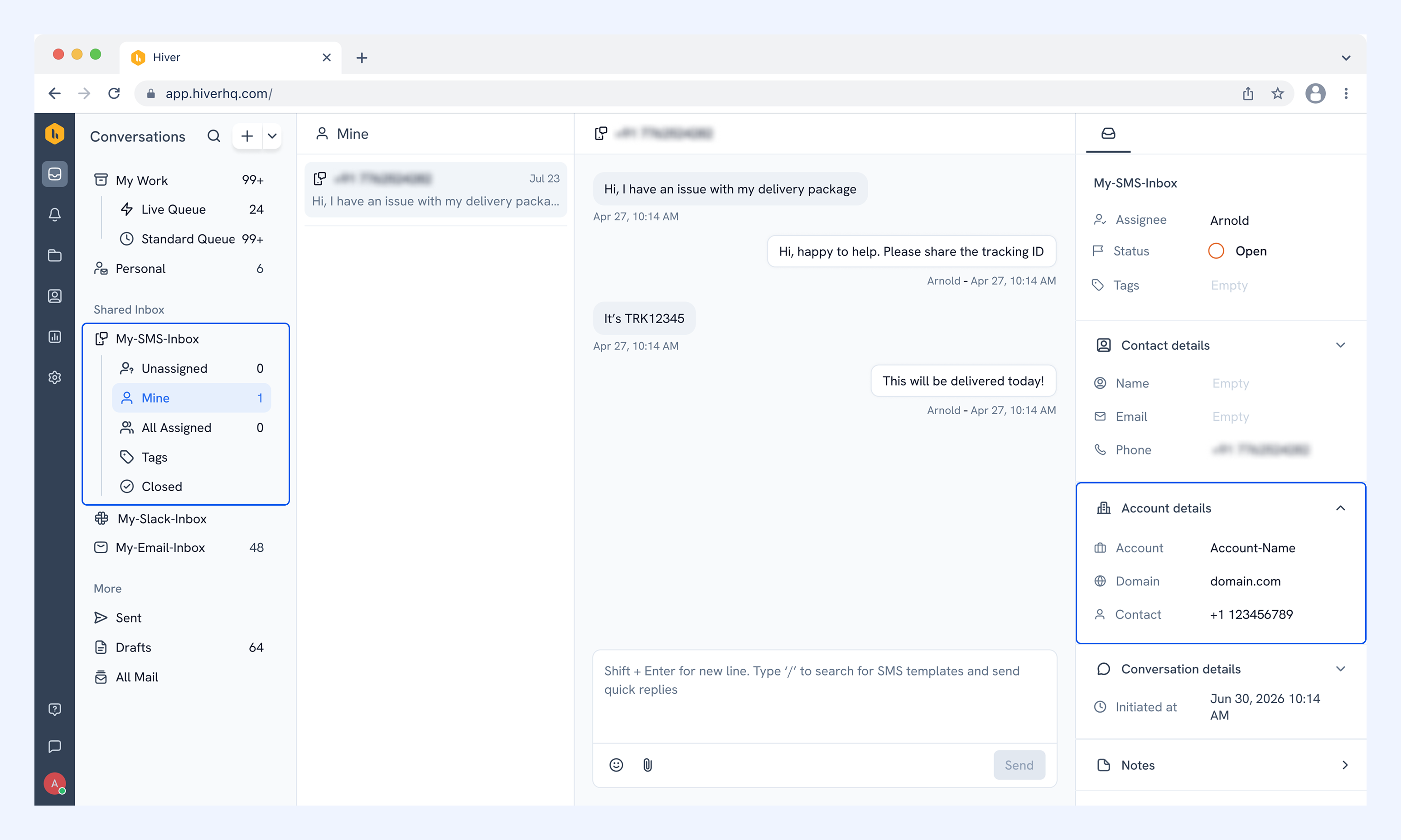
Open your SMS Inbox and select a conversation to read the thread and reply. Conversations are grouped into these default views: Unassigned, Mine, All Assigned, Tags, Pending, and Closed.
The right panel shows contact and account details.
Assigning and tagging conversations
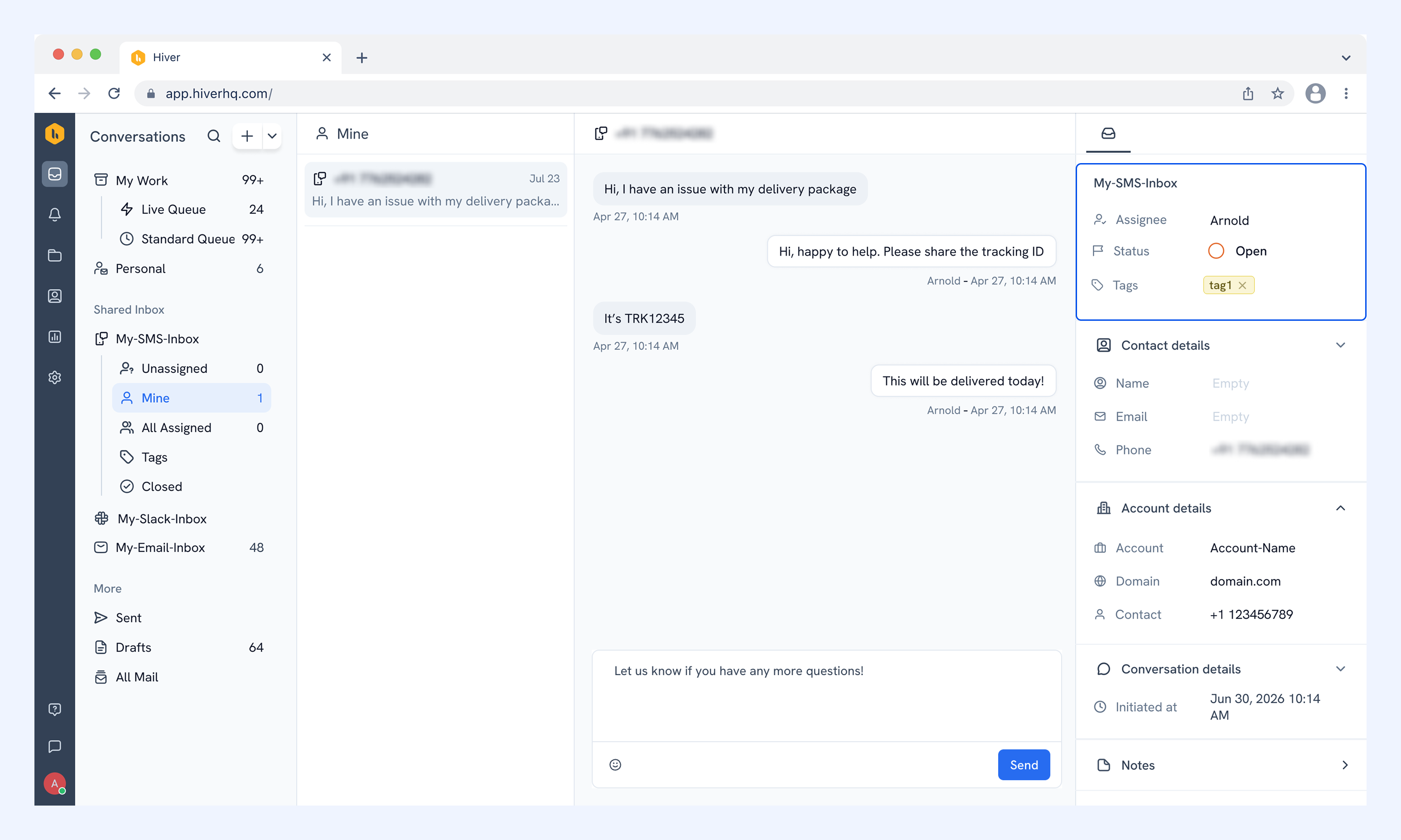
Use the right panel to update a conversation:
- Assignee: Assign the conversation to yourself or a teammate.
- Tags: Add tags to organize and filter conversations.
Tip: Add notes to a conversation to share context with your teammates. Customers can't see notes.
Replying to SMS conversations
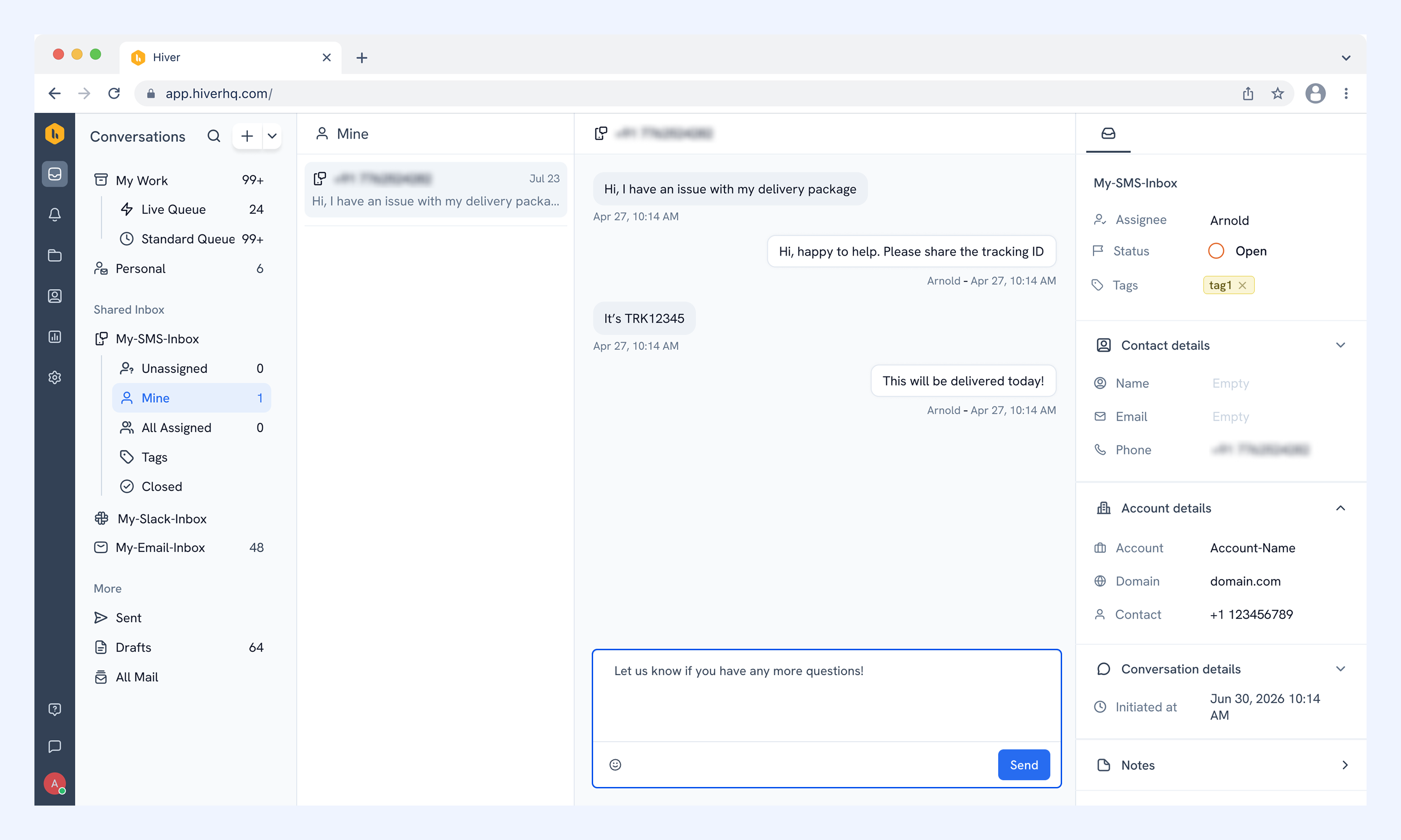
To reply to a text, type your message in the reply box and click Send.
Note: If a message doesn't go through, Hiver marks it Failed to send. Click Retry to send it again.
Tracking conversation status
When a conversation is resolved, set its Status to Closed in the right panel. You can find it later in the Closed view.
If you’re waiting on the customer, set the status to Pending instead.
Note: If a customer sends another text after their conversation is closed, Hiver creates a new conversation instead of reopening the closed one.
Starting a new SMS conversation
You can text a customer directly from Hiver, without waiting for them to text you first.
1. Click + and select Send SMS.

2. Choose the SMS Inbox to send from, and enter the number of the contact you want to text. You can text one number at a time.
3. Type your message, attach any files you need, and click Send.
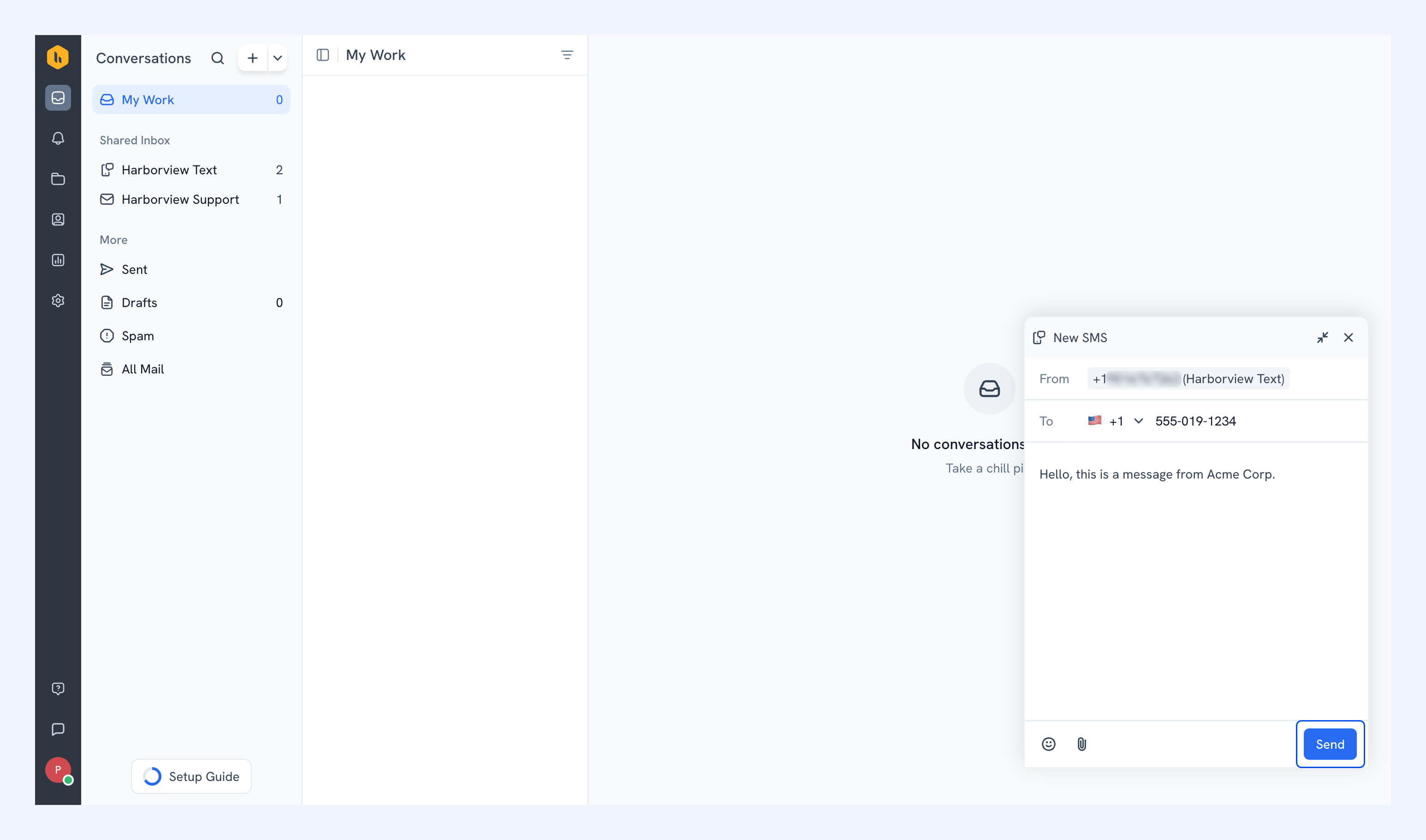
Once you send the message, the new conversation is set to Pending until the customer replies.