QuickBooks integration with Hiver Omni
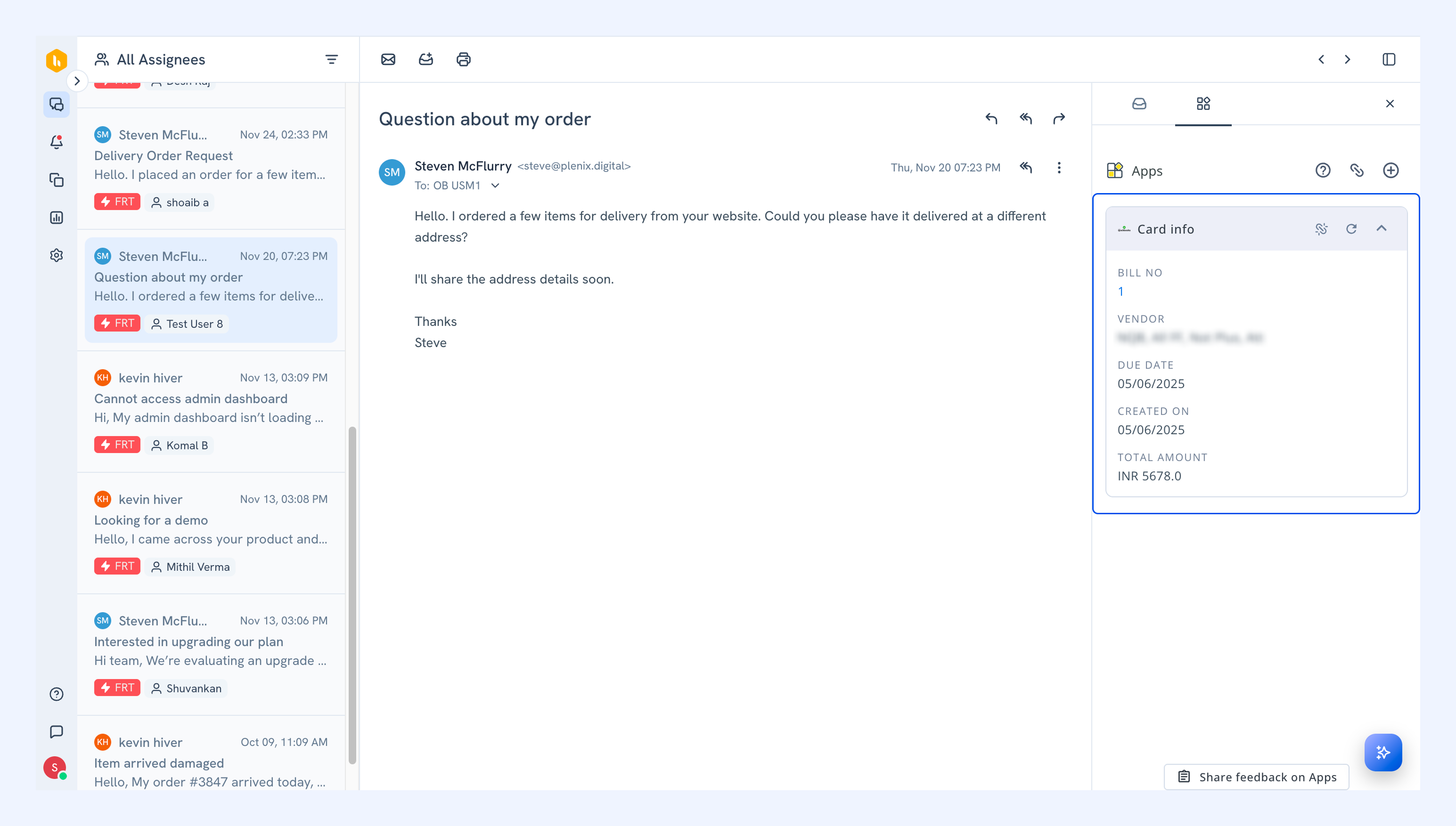
Connecting QuickBooks with Hiver Omni lets your team manage billing and financial data alongside customer conversations. You can view, create, and link QuickBooks bills directly from your Shared Inbox, making it easier to track financial tasks without switching between tools.
What you can do with the QuickBooks integration
The QuickBooks-Hiver integration lets you:
- Access relevant bill details from QuickBooks right within conversations.
- Create new QuickBooks bills from conversations.
- Link existing QuickBooks bills to related conversations for full context.
- Access bills instantly through direct links to your QuickBooks account.
Prerequisites
Before setting up the integration, ensure you have:
- Admin access in Hiver.
- A QuickBooks account with administrator access.
Setting up the QuickBooks integration
To get started, you'll need to connect your QuickBooks account to Hiver and configure which teams can access the integration.
Step 1: Connect QuickBooks to Hiver
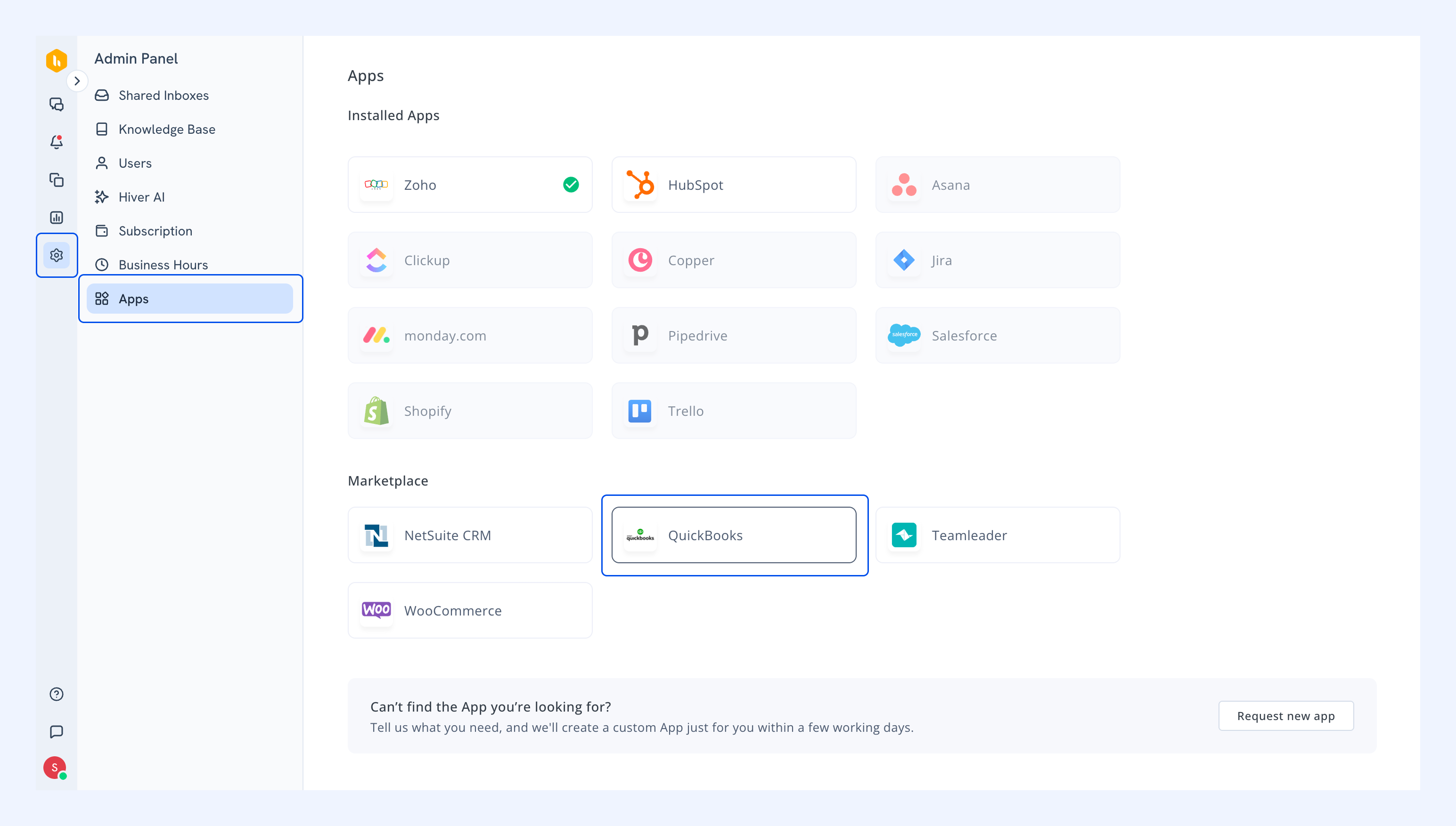
1. In Hiver, go to Admin panel → Apps.
2. Find and click QuickBooks.
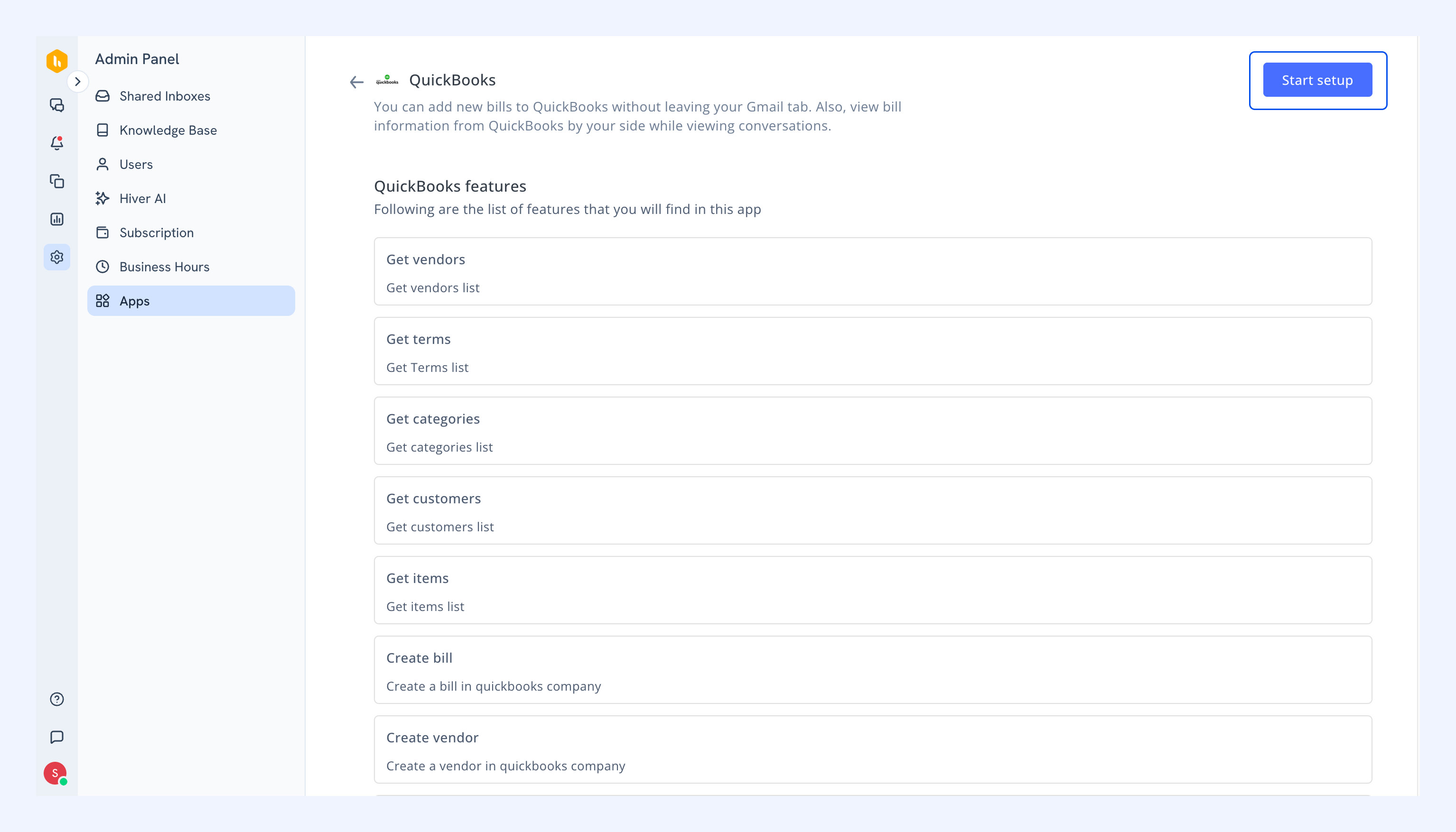
3. Review the integration features and click Start setup.
Step 2: Authenticate your QuickBooks account
1. On the setup page, select Click to authenticate.
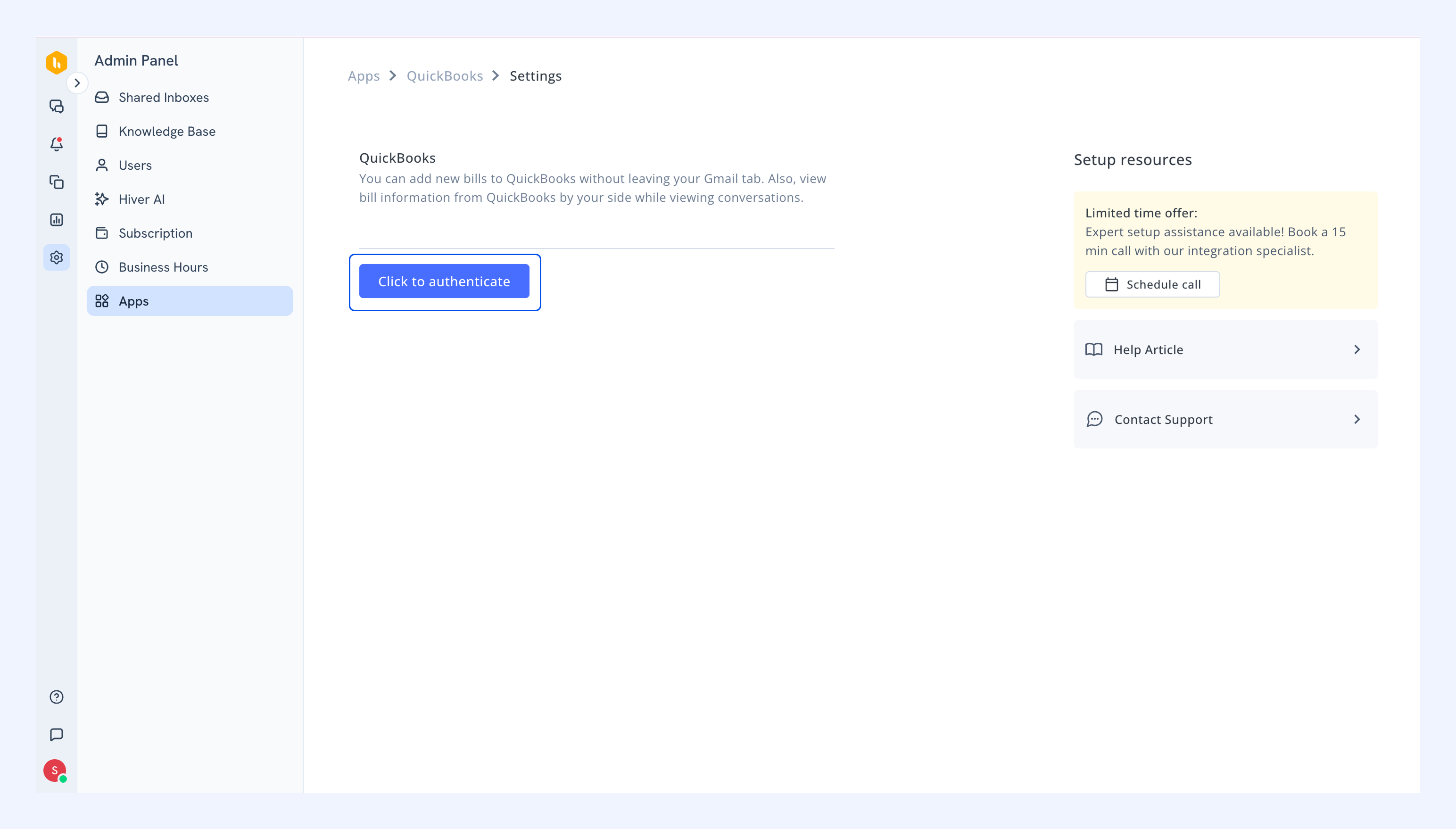
2. Log in to your QuickBooks account in the new tab that opens.
3. After signing in, you'll be returned to the Apps screen in Hiver.
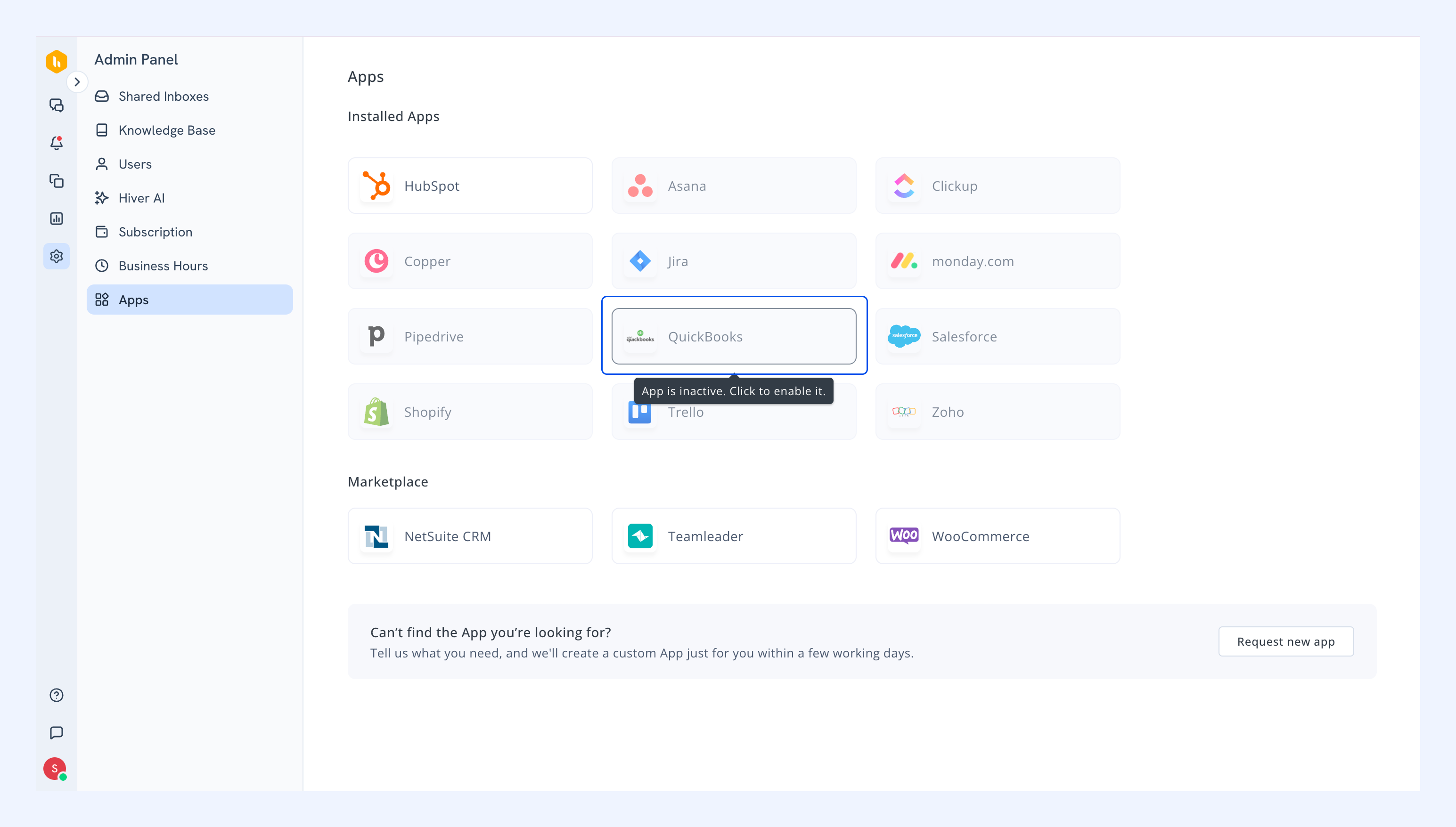
The QuickBooks app will appear as inactive initially. You need to configure who can see and access the integration.
Step 3: Configure visibility settings
1. Hover over the QuickBooks app and click it.
2. In the Visibility tab, click the eye icon.
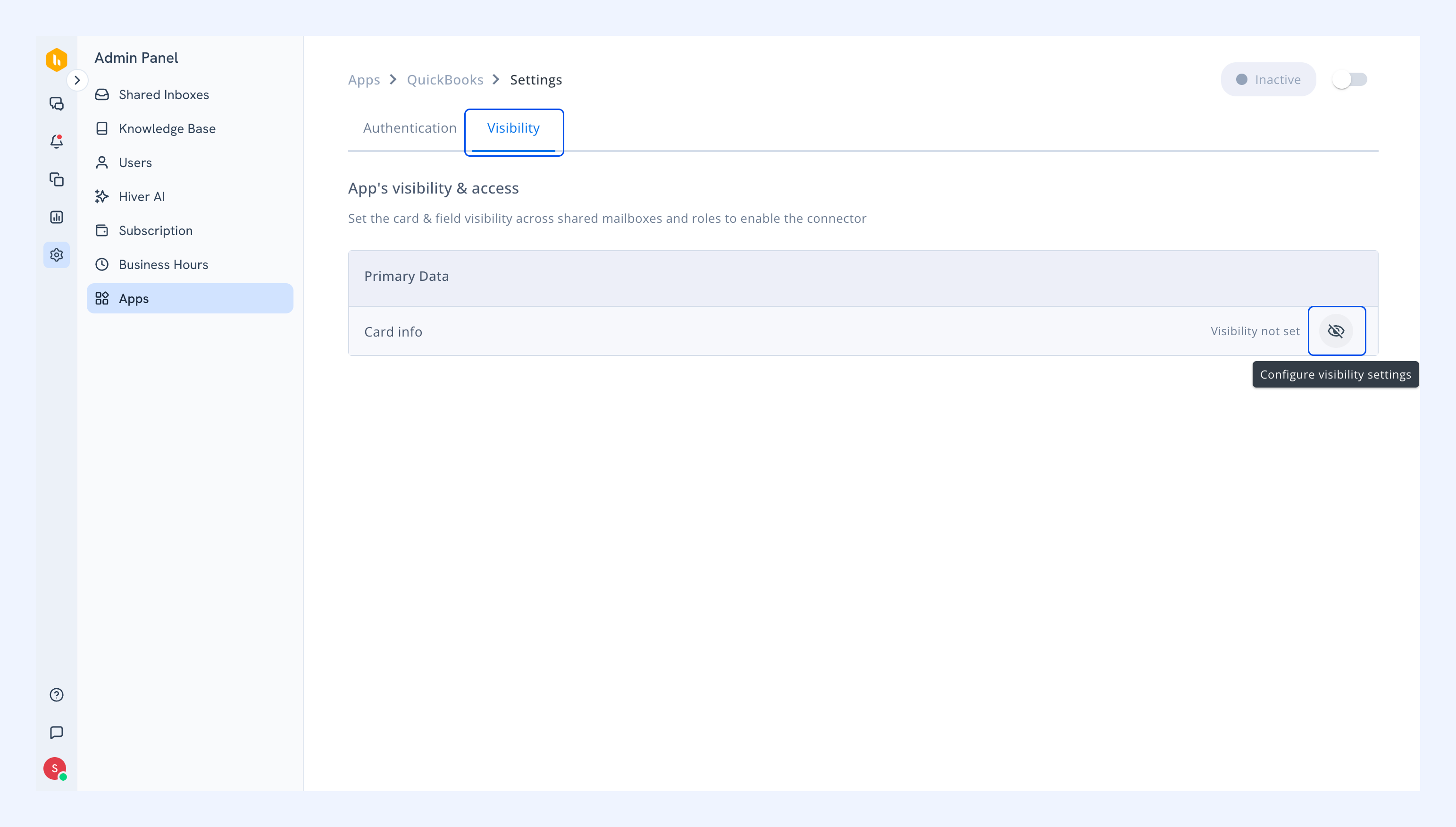
3. In Card visibility, select the Shared Inboxes where QuickBooks data should be displayed.
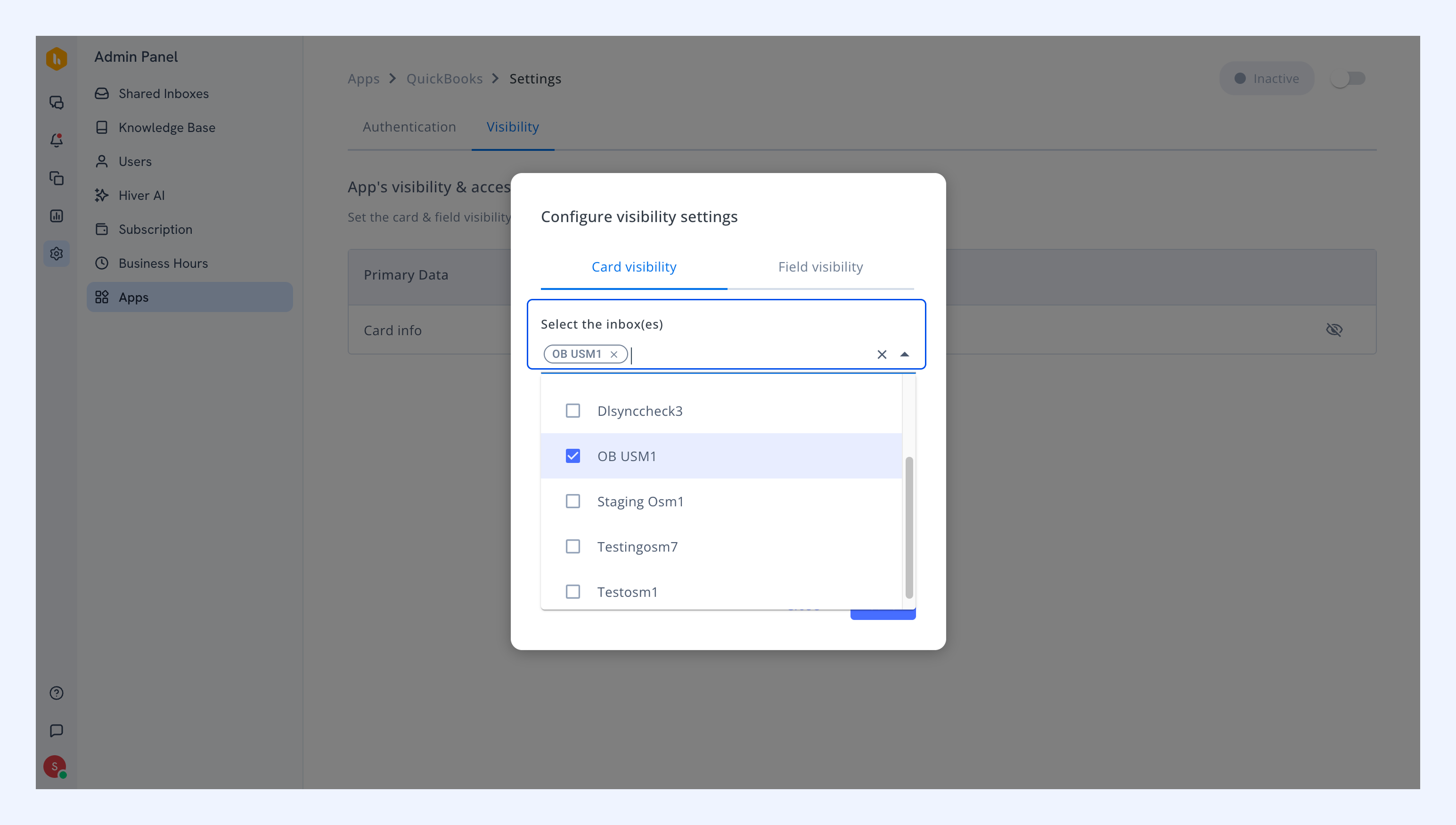
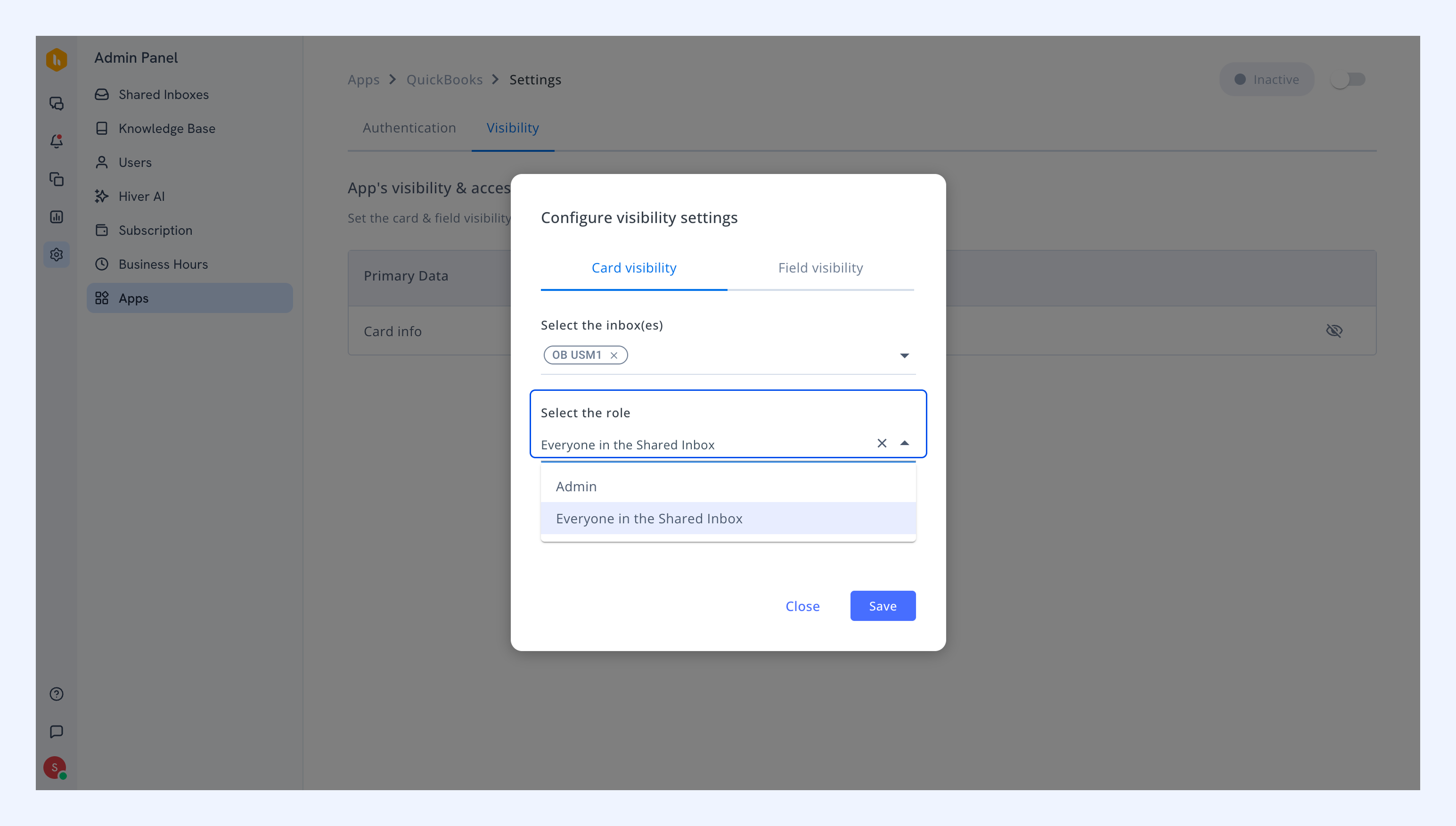
4. Select the user roles who can access QuickBooks data. You can choose between Admins or Everybody for each Shared Inbox.
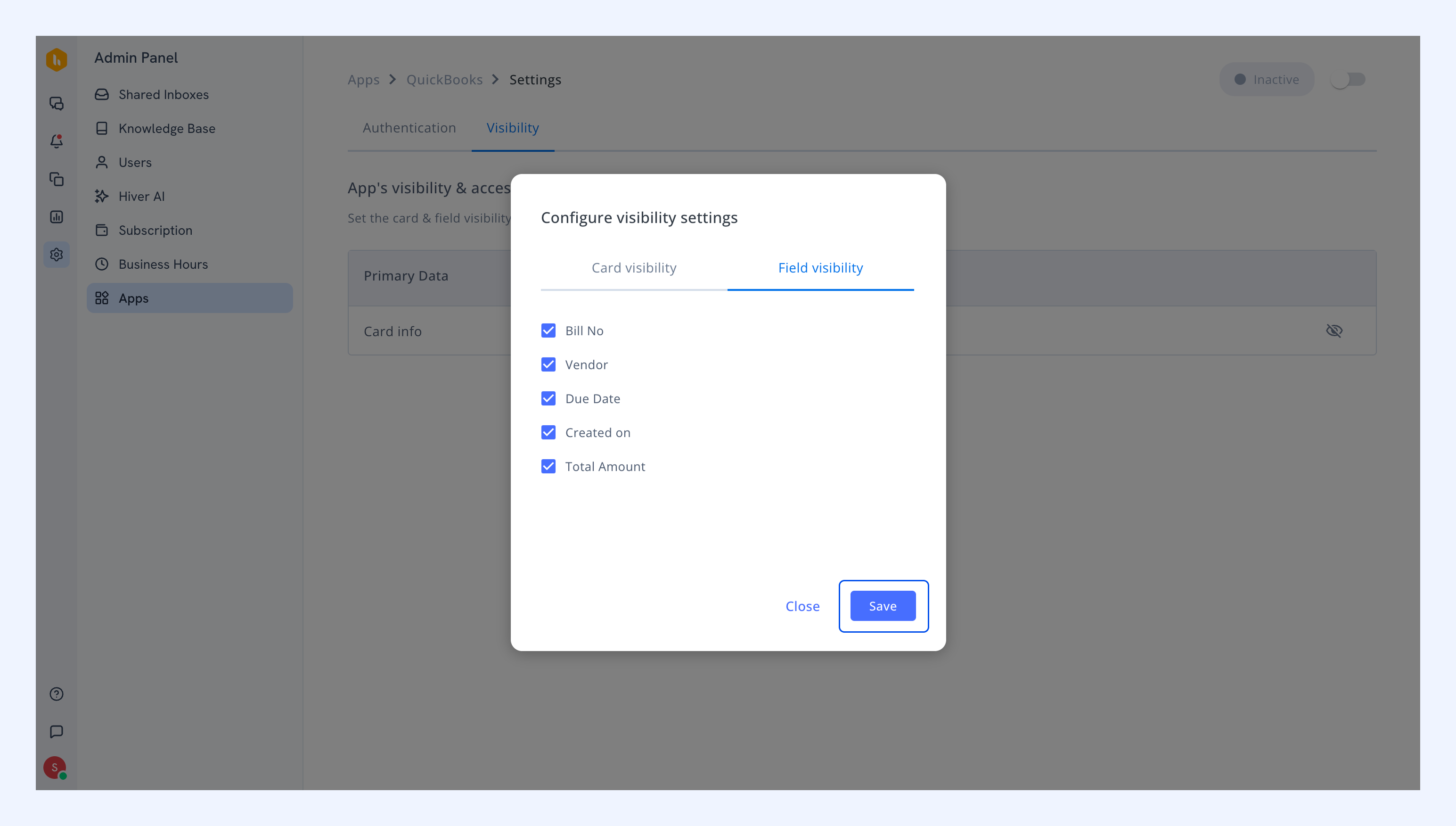
5. In Field visibility, select which data fields from QuickBooks you want to see.
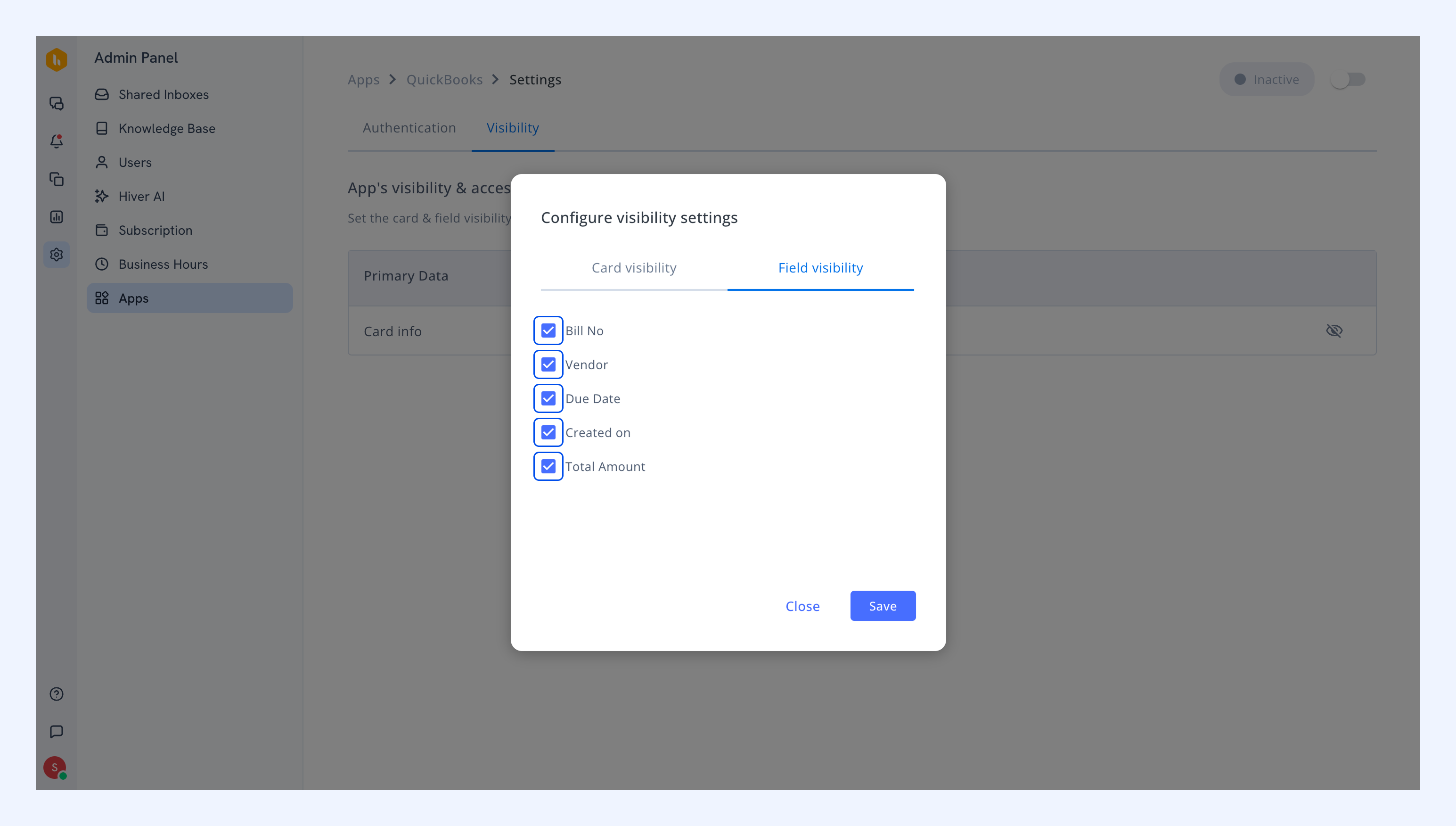
6. Click Save.
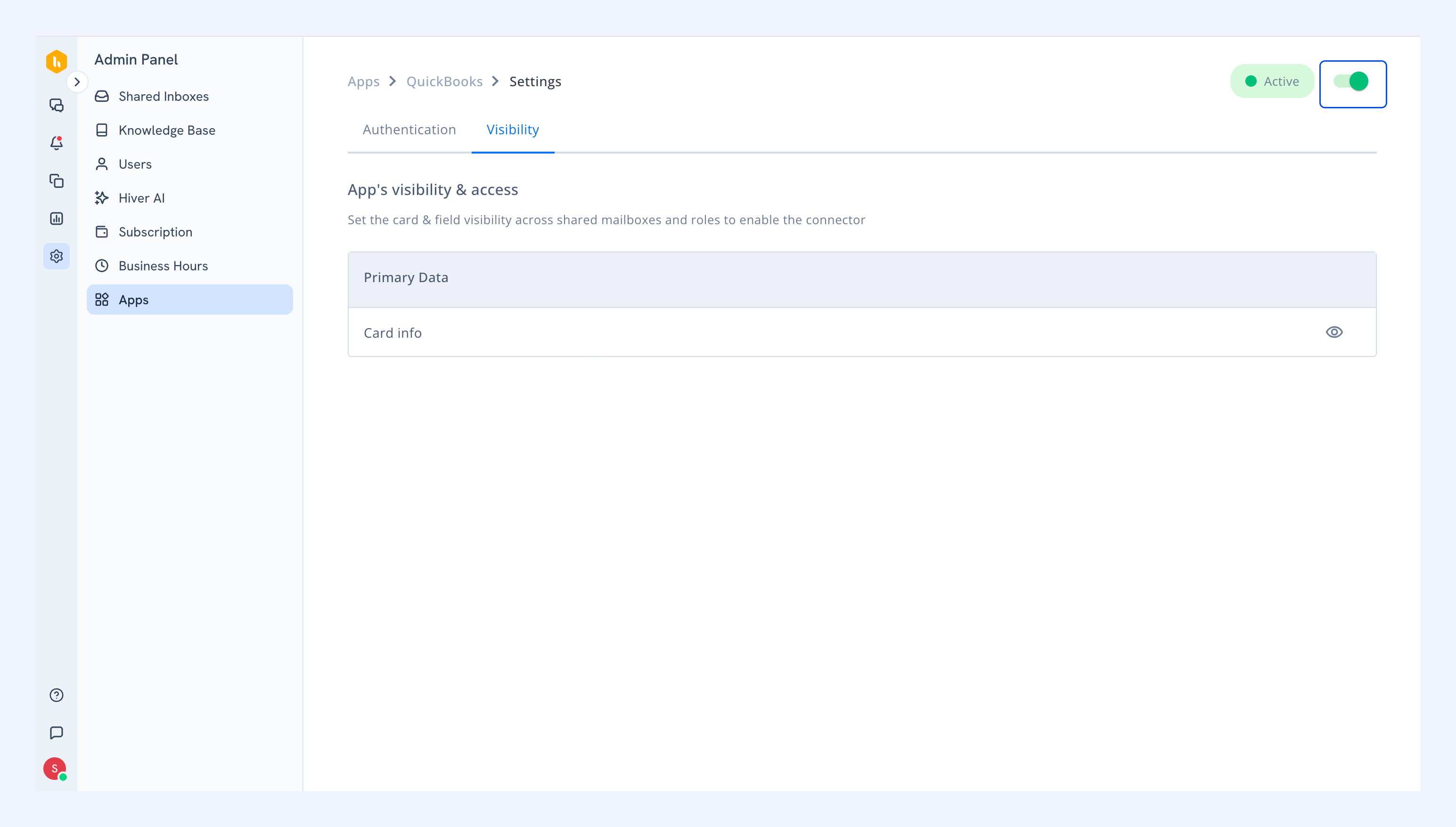
7. Enable the app using the toggle.
Using the QuickBooks integration in Hiver Omni
Once setup is complete, you can create new QuickBooks bills or link existing ones directly from your conversations.
Create new QuickBooks bills
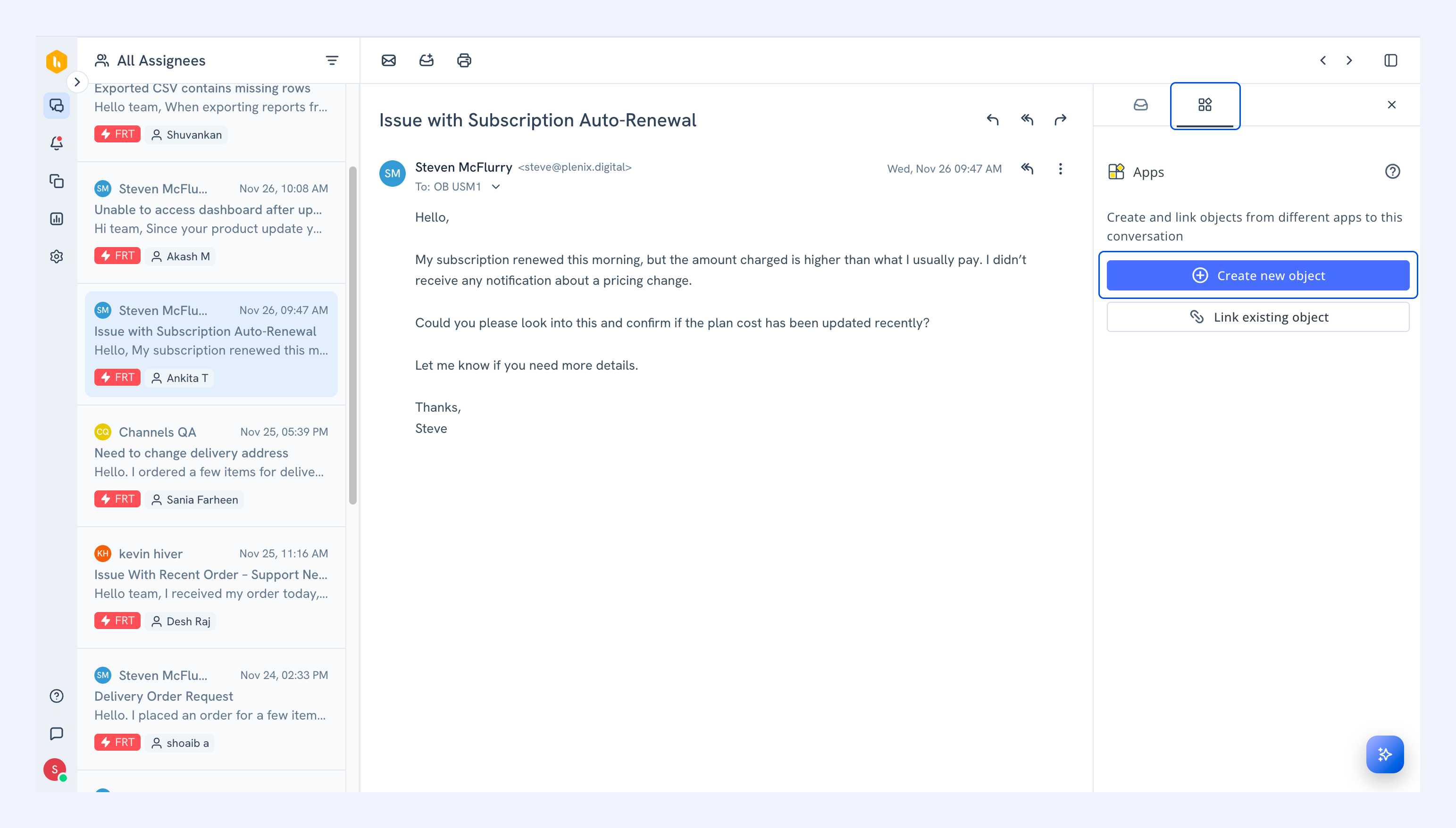
1. Open a conversation and go to the Apps tab.
2. Click Create new object.
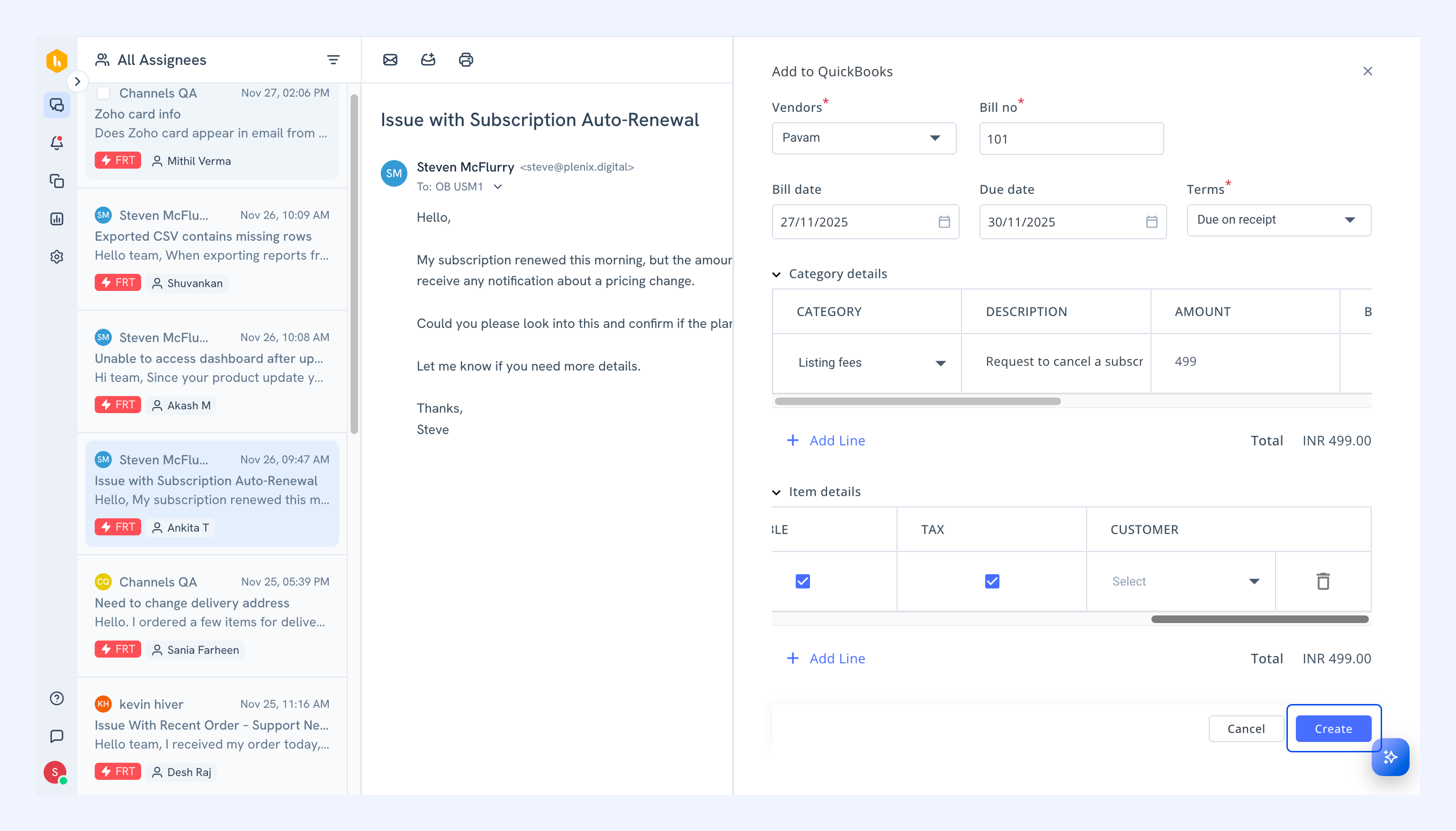
3. Enter the bill details and click Create.
The new bill will appear in the Apps tab.
Link existing QuickBooks bills
1. Open a conversation and go to the Apps tab.
2. Click Link existing object.
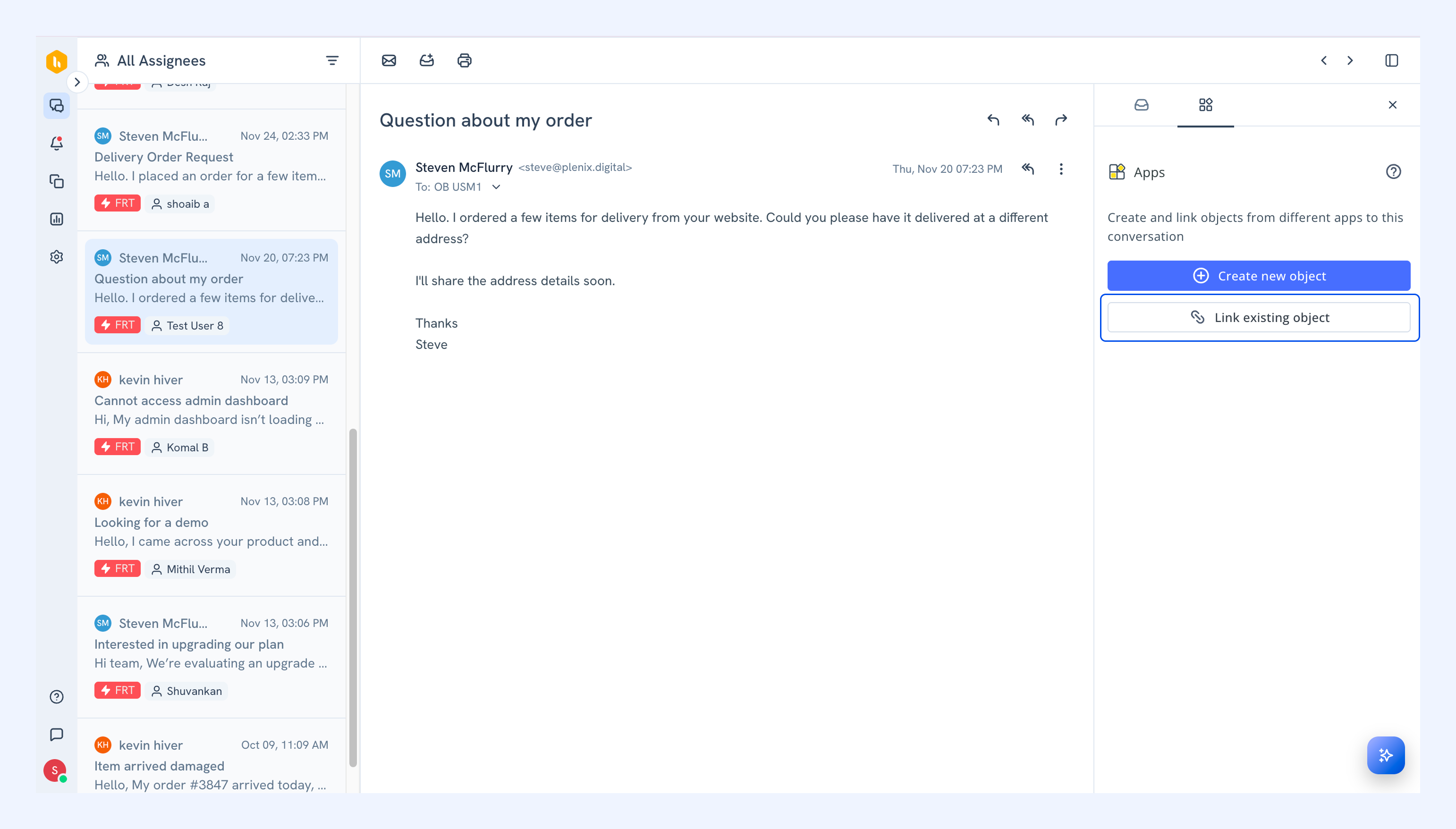
3. From the dropdown, select Link QuickBooks bill.
4. Paste the bill link in the Object ID/Link field.
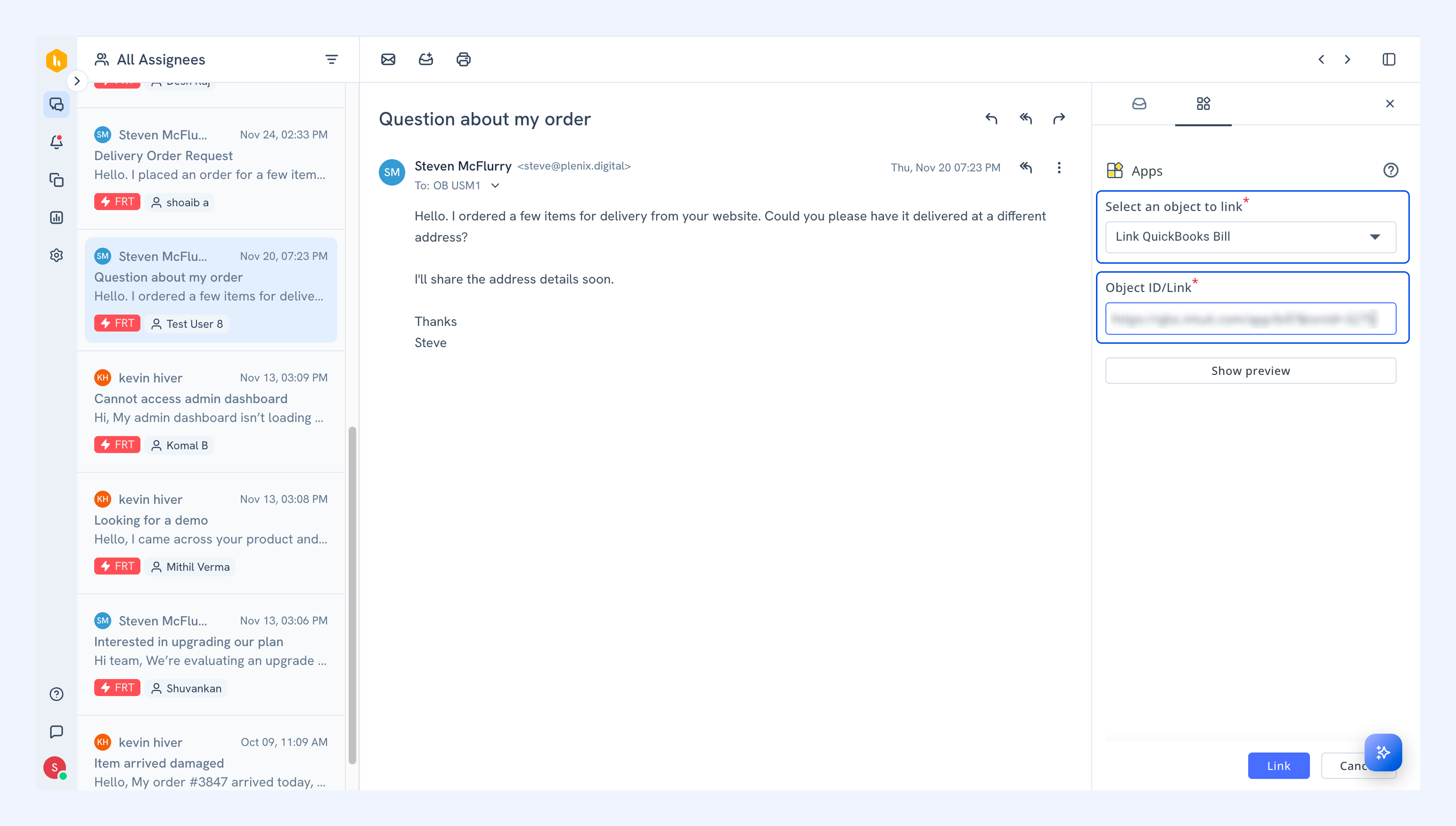
Note: Click Show preview to view the bill information.
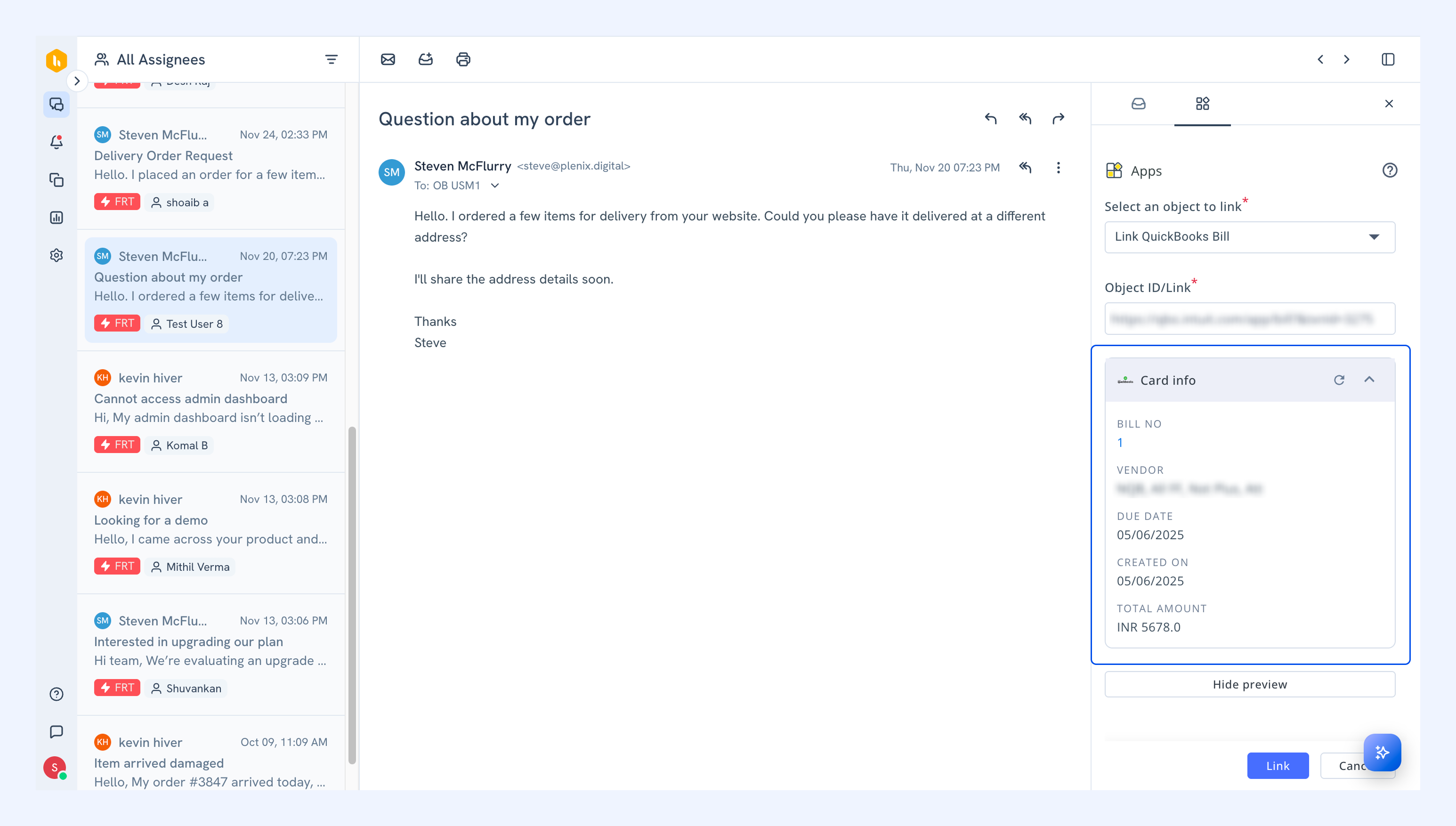
5. Click Link.
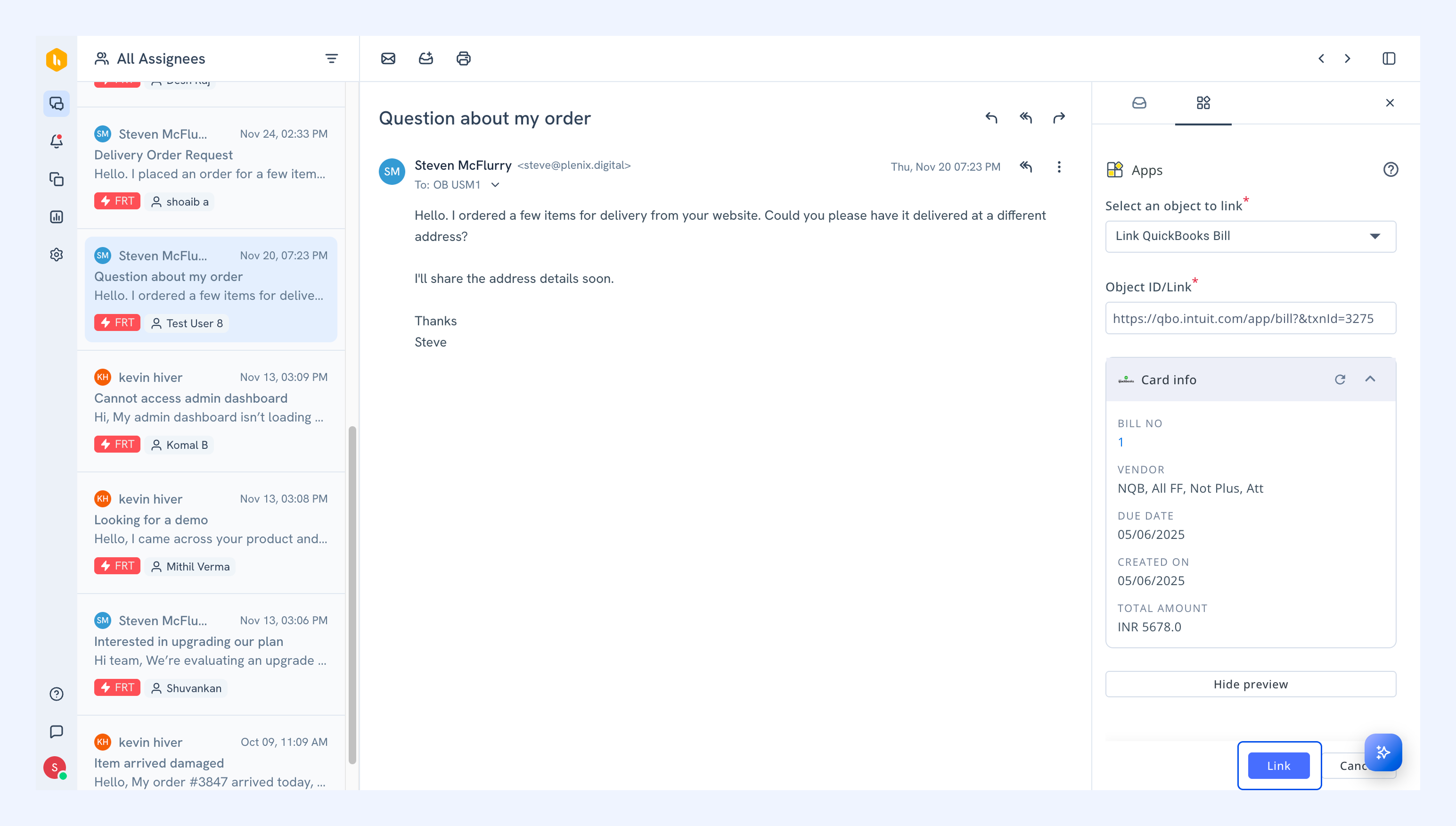
The linked bill will appear in the Apps tab beside the conversation.
Related articles
Zoho integration in Hiver Omni